The HTML to Text Converter turns HTML code into clean, readable text, and turns plain text back into tidy HTML. Paste on either side and the other side follows as you type. It also tidies what you paste from Word, opens Word and PDF files, and can convert a whole spreadsheet column, a folder of files or a long list at once. It’s free and needs no sign-up.
HTML is the code behind every web page. It’s the part with angle brackets, like <p> for a paragraph and <b> for bold. A browser reads those tags and hides them. You, on the other hand, usually just want the words. This tool takes the tags away for you (people call that stripping or removing HTML tags) and keeps the words in a sensible order, with headings, lists and links still easy to follow.
To show you every part, we’ll follow one helper through a busy week. Her name is Joan, and she volunteers at a community garden in Columbus, Ohio. Joan is an example we made up for this guide, not a real customer. Her jobs, though, are the everyday kind: a newsletter that arrives as code, a letter written in Word, a price table, and a spreadsheet full of tags. If you look after a small shop’s website, copy lessons for a class, send plain-text emails, or are the person your family calls about “that weird code”, her week will feel familiar.
Monday: HTML to Text in Three Steps
Joan’s first job is the garden newsletter. The old website only gives her the HTML code, and she needs plain words she can paste into the church bulletin. Here’s the screen she starts on.
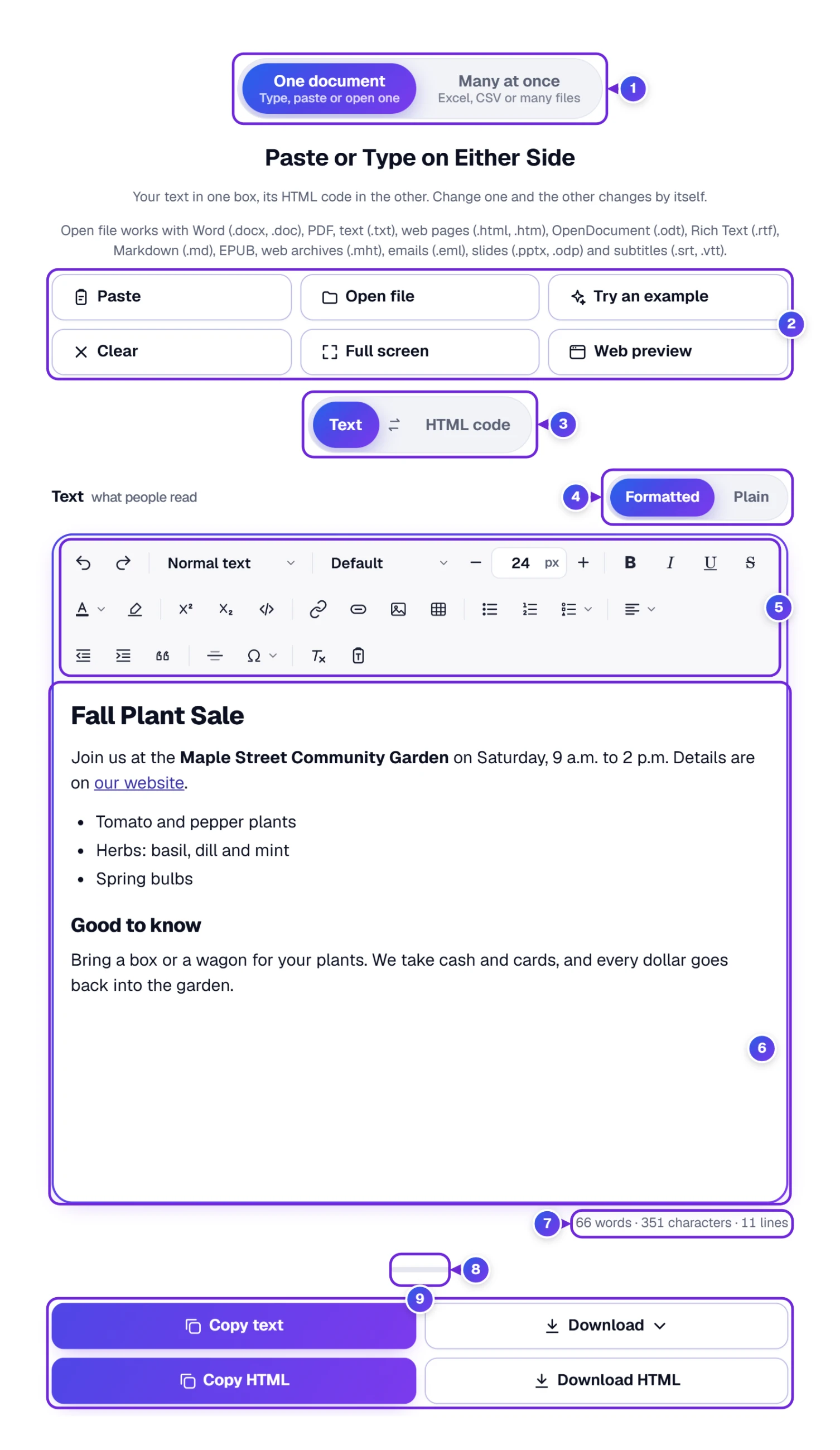
- Leave the first tab, One document 1, picked.
- Put the code in the HTML code box. On a wide computer screen the two boxes sit side by side. On a smaller screen you see one box at a time, so tap HTML code 3 first, click in the box and paste (Ctrl + V on Windows, Cmd + V on a Mac).
- Look at the Text side 6. The words are already there, with headings, bold and lists in place. Press Copy text 9 and paste them wherever you need them.
That’s all there is to it. It works the other way around too: type on the Text side and the HTML code writes itself, ready for a website. So the same page is a text to HTML converter as well.
The row of helper buttons 2 does the small jobs:
- Paste drops in whatever you copied last. Your browser may ask first whether the page may read your clipboard; say yes.
- Open file reads a file from your computer or phone. There’s more about files further down.
- Try an example fills both boxes with a sample newsletter that uses every feature, so you can poke around without breaking anything of your own.
- Undo appears once there’s something to take back, and steps back up to 30 times. Clear empties both boxes.
- Full screen (or the W key) gives the two boxes the whole screen. Esc brings you back.
- Web preview opens your code as a real web page in a window of its own, scripts and all. Joan finds a good use for it on Wednesday.
Under each box 7 you’ll see how many words, characters and lines it holds. Every letter, space and plain emoji such as 😀 counts as one character. An emoji built from two parts counts as two: 👍🏽 (a thumbs-up plus a skin-tone mark) and the flag 🇺🇸 each showed 2 when we tried them. Need more than those three numbers, such as sentences or reading time? Paste the finished text into our Word & Character Counter.
We checked this ourselves. We pasted a short sale notice: a heading, one sentence with bold words and a link, and a two-item list. The Text side gave back “Plant sale”, a blank line, “Open Saturday 9 to 2. Details on our site (https://www.example.com/sale).”, another blank line, and then “• Tomatoes” and “• Basil” on lines of their own. The link’s address stayed with its words, so nothing got lost.
On a wide screen, a thin line sits between the two boxes. Drag it left or right to give one side more room. Want the code on the left instead? The round ⇄ button between the two titles swaps the sides, and a second press puts them back. Need more room to read? The short bar under the boxes 8 makes both of them taller or shorter: drag it down or up, or click it and use the arrow keys. The tool keeps that height for your next visit, and a double-click on the bar brings back the normal height.
Inside the HTML Code Box: Find, Indent and Compress
Joan’s code came out of the old website as one long, tangled line. The code box has three buttons for that kind of mess, and a short line beside Indent and Compress says what each one does.
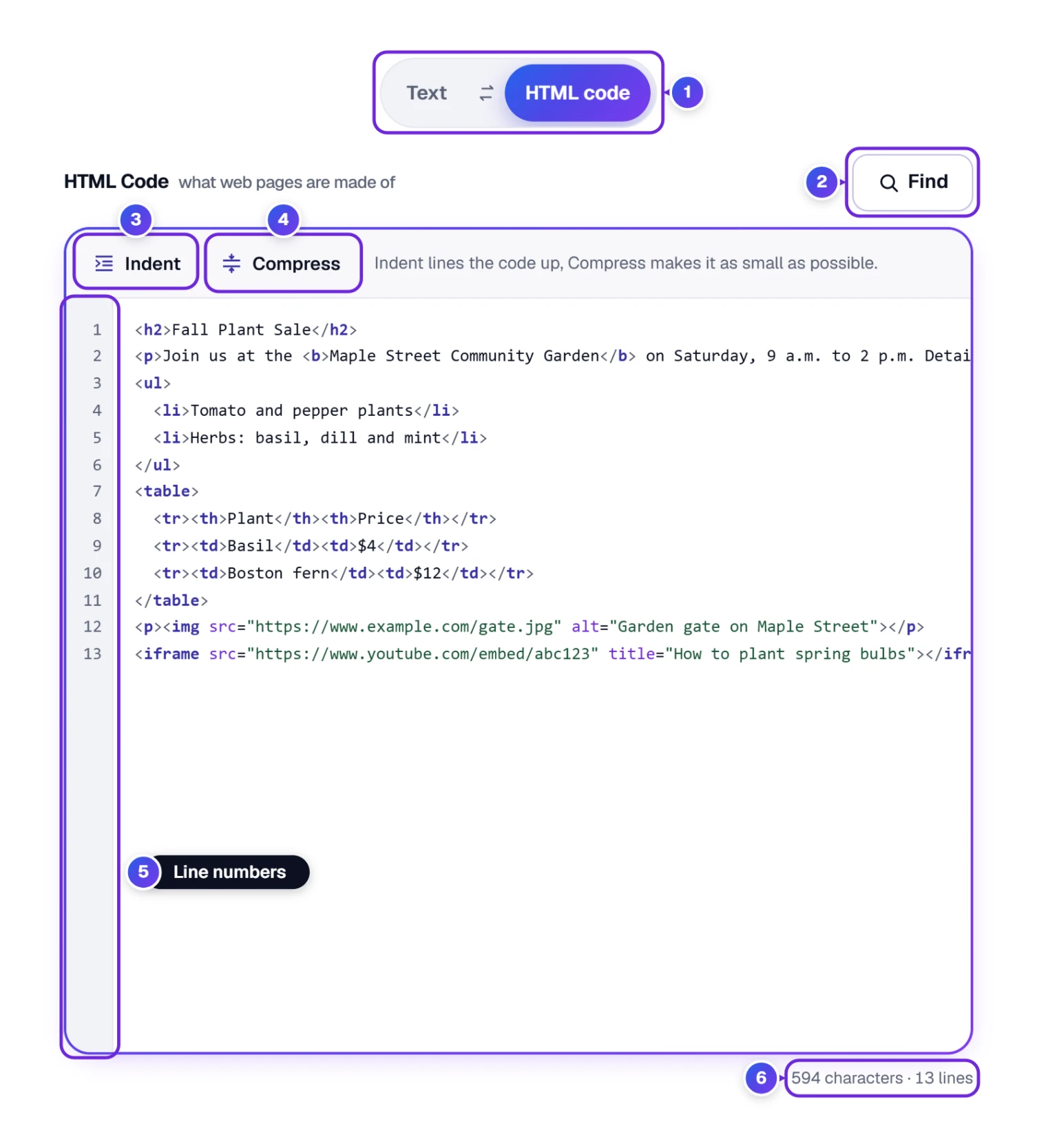
- 2 Find (or Ctrl + F) searches the code. Type a word, step through the matches with the arrows, tick Match capital letters when case matters, and use Replace for one match or All for every one.
- 3 Indent puts each tag on its own line, stepped in neatly, so the code is easy to read. Web developers call this formatting, beautifying or pretty printing HTML.
- 4 Compress does the opposite. It squeezes out spaces, line breaks and notes so the file is as small as it can be (a minifier, in developer talk). It still keeps one space wherever a space changes how the words look.
- The code is colored, so tags, their settings and your words are easy to tell apart, and 5 numbers every line, while the counts 6 show how many characters and lines the code holds. Put the cursor on a tag and its partner tag lights up too.
Indent turned <ul><li>Water</li><li>Feed</li></ul> into four lines, with each item stepped in by two spaces. Compress put it back on one line and took it from 43 characters to 36.
See the Exact Words Copy Text Will Give You
The Text side can show your words two ways. Formatted looks like a word processor, with big headings and bold. Plain 1 shows the bare text, exactly what Copy text and the .txt download hand you. The E key flips between them.
![The Plain view with the converted text: heading, link address, bullets, table rows, and [Image] and [Video] notes](https://www.toolha.com/wp-content/uploads/2026/10/html-to-text-plain-v1017-hd.webp)
Wondering what happens to the parts that aren’t words? Here’s what the converter does with each one:
- Headings and paragraphs get a blank line between them, so the text still breathes.
- A link keeps its words and puts the web address after them in brackets: our website (https://www.example.com/fall-sale).
- Bullet lists get a • in front. Numbered lists keep their numbers, letters (a. b. c.) or Roman numerals (i. ii. iii.).
- Each table row stays on its own line, with a Tab between cells, so it pastes straight into Excel or Google Sheets.
- A picture with a description becomes [Image: Garden gate on Maple Street]. One with no description at all becomes [Image]. Tiny tracking pictures and pictures marked as decoration are left out.
- A video becomes [Video: its title] with its address. A YouTube player turns into the normal watch link that anyone can open.
- Hidden parts stay hidden: scripts, styles and anything the page was told not to show.
- Small raised and lowered numbers come out right, so H2O becomes H₂O and ft2 becomes ft².
Tried on the live page: we fed it a notice with one normal line and one line set to stay hidden, holding the words “SECRET CODE”. The text came back as just “Sale today”. The hidden words never made it into the result.
Copy the Result, or Download .txt, Word or .html
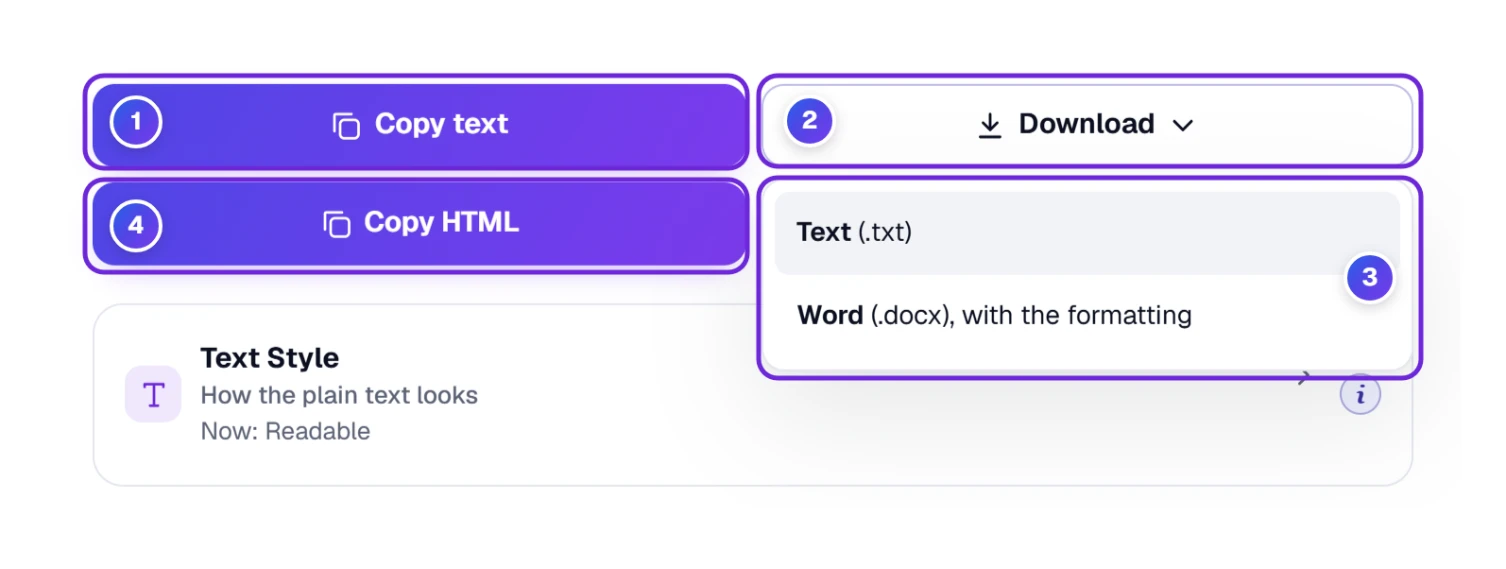
- 1 Copy text (key C) puts the plain text on your clipboard.
- 2 Download opens a short list 3: Text (.txt), or Word (.docx), with the formatting. The Word file keeps headings, bold, lists, links, tables, colors and sizes, laid out on US Letter paper with 1-inch margins.
- 4 Copy HTML (key H) copies the code. Download HTML, right beside it, saves the code as an .html file.
- While both boxes are empty, these buttons look gray. Point at one and it tells you there’s nothing to copy yet.
- While a file is being made, a small panel near the foot of the screen tracks the progress, and it says Done! Saved once the file is on your device.
Need a web page as a Word file? Paste its code, then choose Download and Word (.docx). That’s HTML to Word in two clicks.
Plain-Text Email, One Line, or Only the Words: Text Style
Joan’s next job is an email to the garden members, and some email programs only like plain text. The Text style box under the tool decides how the plain text looks. It starts folded, with a short line that tells you what’s set now; click its title to open it.

- 1 Readable (Best) gives paragraphs, • lists and addresses after links. Plain-text email wraps lines at 72 letters, writes headings in capitals and lists the links at the end. One line puts everything on a single line, for a form field or a spreadsheet cell. Text only keeps just the words.
- 2 Links: the address after the words, a numbered list at the end, or leave addresses out.
- 3 Pictures: show their description, or leave them out.
- 4 Tables: a Tab between cells, “ | ” between cells, Smart (short two-column tables become “name: value” lines), or a Markdown table.
- 5 Line width: no limit, 72 letters or 78 letters. List marks can be a dot, a dash, a star or nothing; Headings as written or in CAPITALS; Blank lines one between paragraphs or none.
A small “Changed” label shows on the box when you move away from the Best choice, so you can see at a glance which box you touched.
A line-width check. We ran a two-sentence thank-you note through Plain-text email. The first line ended after “will”, at exactly 72 characters, and the rest moved to line two. No word was split in half.
Tuesday: Joan Writes the Next Issue on the Formatted Side
Now Joan writes instead of converting. The Formatted side works like a small word processor (you may know it as a visual or WYSIWYG HTML editor), and the code side writes itself as she types. To see which code makes which words, she double-clicks a word or selects a line on either side, and the same spot is marked on the other side, which scrolls right to it. That works even while Find has a search open in the code. The toolbar shows everything at once:
- Undo and redo.
- Normal text turns a line into Heading 1 to Heading 6, a Quote or a Code block.
- A font menu (Arial, Georgia, Verdana and more) and a size box in pixels with − and +. Normal text is 16 px and a Heading 1 is 32 px, the sizes browsers use.
- B, I, U and S for bold, italic, underline and strike-through. Bold works inside a heading too, and it writes a real <strong> tag into the code.
- Text color and highlight, a yellow Mark, raised and lowered small text (superscript and subscript) and code inside a line.
- Buttons for a link, a button, a picture and a table (more on those below).
- Bullet and numbered lists, plus a list style menu: bullets, circles, squares, numbers, letters or Roman numerals.
- Line up left, center, right or both edges, right-to-left text for languages such as Arabic or Hebrew, and move a paragraph in or out.
- Quote, a dividing line, special characters such as © ° € ½, Clear formatting and Paste as plain text.
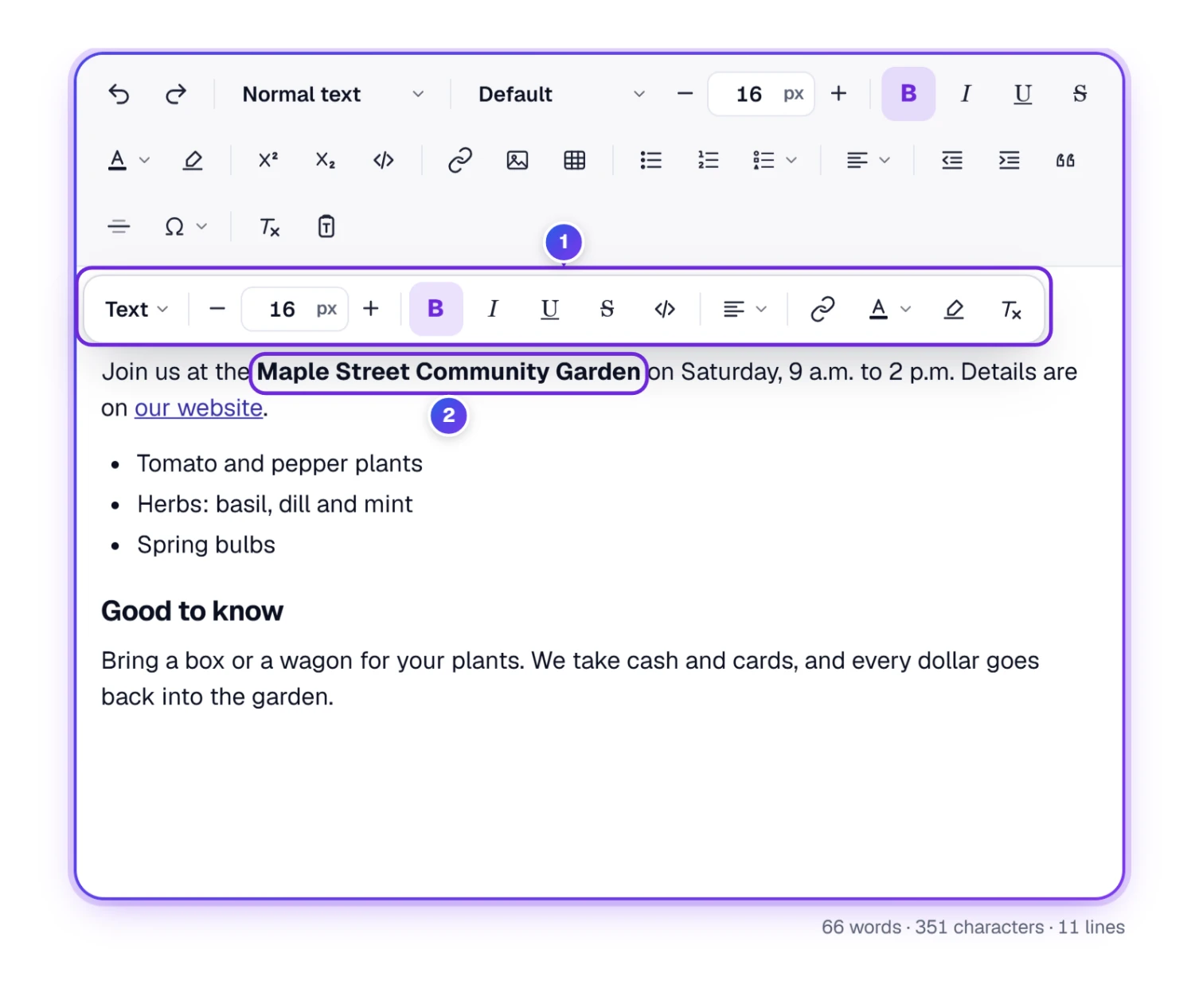
You don’t have to reach for the toolbar every time. Choose some words 2 and a small bar pops up right above them 1.
A few marks typed at the start of a line also work: # and a space makes a heading, - or 1. starts a list, > starts a quote, three backticks (```) start a code block and three dashes (---) draw a line. Type / on an empty line for a short menu of things to add.
Copying into a website editor. When Joan selects part of her newsletter on the Formatted side and presses Ctrl + C, she gets the same clean HTML the code side shows. Pasted into WordPress, Shopify or any other content editor (CMS), it brings only her own formatting, such as headings, bold, links and buttons, and no gray background, font or color from our editor. In our test, copying the whole sample gave exactly the HTML on the code side.
Adding a Link, or a Photo of the Garden Gate
Joan wants “our website” to open the sale page. She chooses those two words and presses the link button (or Ctrl + K).
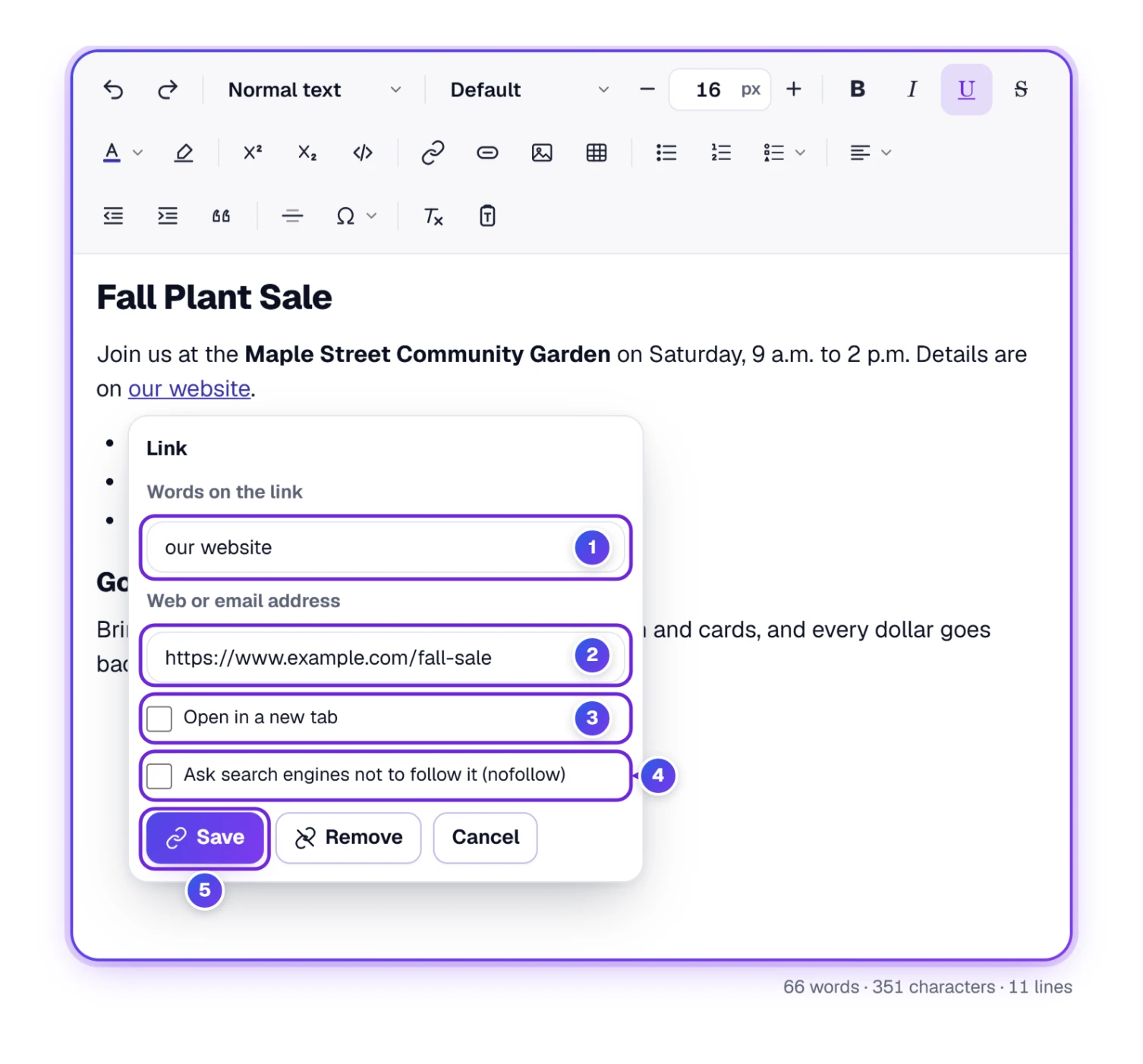
- Choose the words that should be the link.
- Press the link button in the toolbar or the floating bar.
- Check the Words on the link 1. They start as the words you chose, and you can change them right here. Then type or paste the web or email address 2.
- Tick Open in a new tab 3 if readers should keep your page open. Tick 4 to ask search engines not to follow the link (a nofollow link), for example on a paid mention.
- Press Save 5. Later, click the link to see a small card with Change the link and Remove the link. Changing a link only changes its address and words, so a link that has its own look keeps it.
Then a picture. The picture button opens this box:
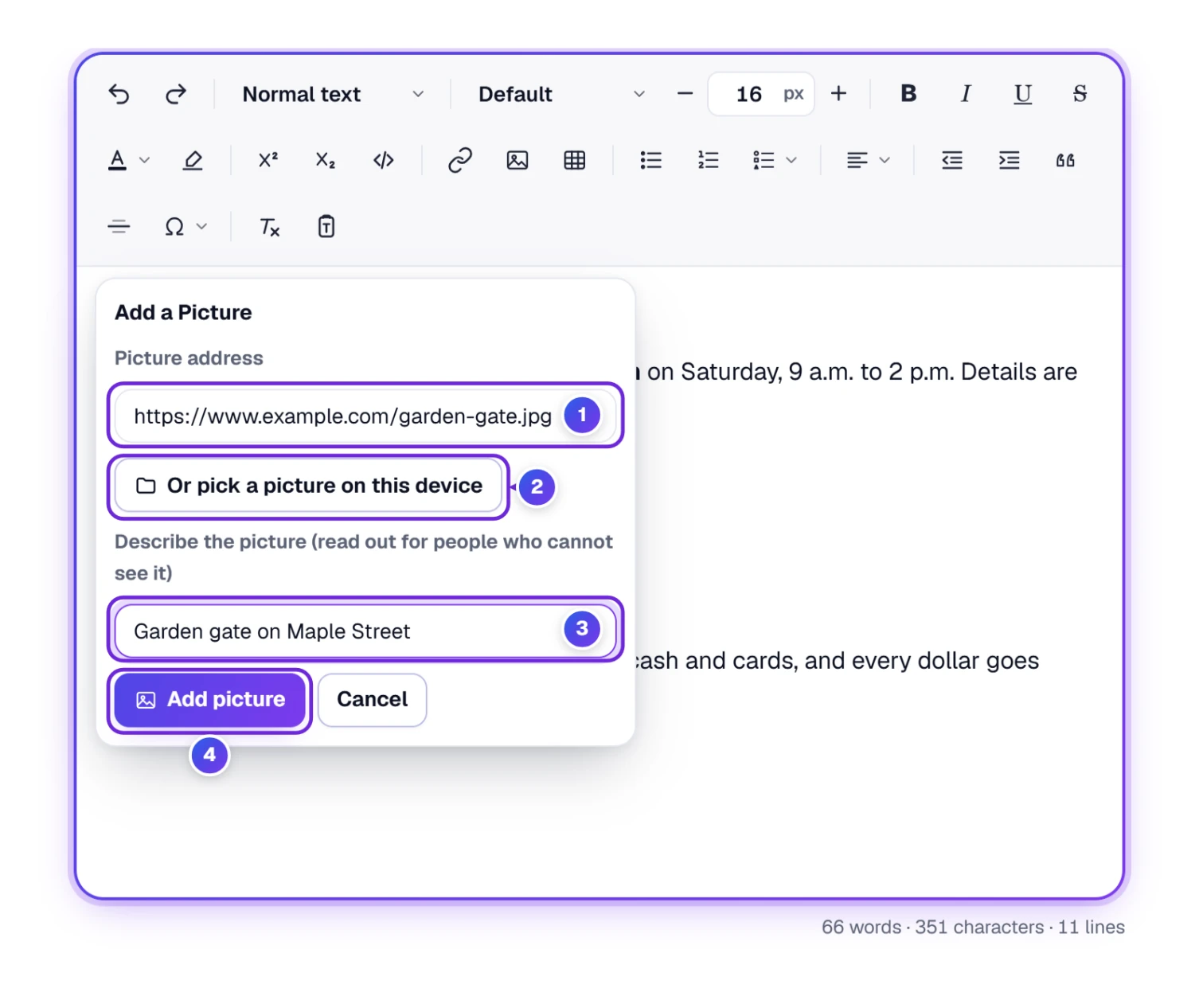
- Paste the picture’s web address 1, or press Or pick a picture on this device 2 to choose a photo from your computer or phone.
- Describe the picture in a few words 3. Screen readers read this out for people who can’t see it, and it’s what shows up as [Image: …] in the plain text.
- Press Add picture 4.
- Click the picture afterwards to pick a size (S, M, L, Full or Own), place it left, center or right, change its description or remove it.
A photo picked from your device is stored inside the code itself, so it isn’t sent to our server. Pictures from the web aren’t loaded in the editor; they show as a gray box with their description.
A Button Readers Can Tap: Save My Spot
Links are easy to miss in a busy newsletter, so Joan wants a real button for sign-ups. She puts the cursor on an empty line and presses Add a button in the toolbar (or types / and picks Button). To change a button that’s already there, she double-clicks it.
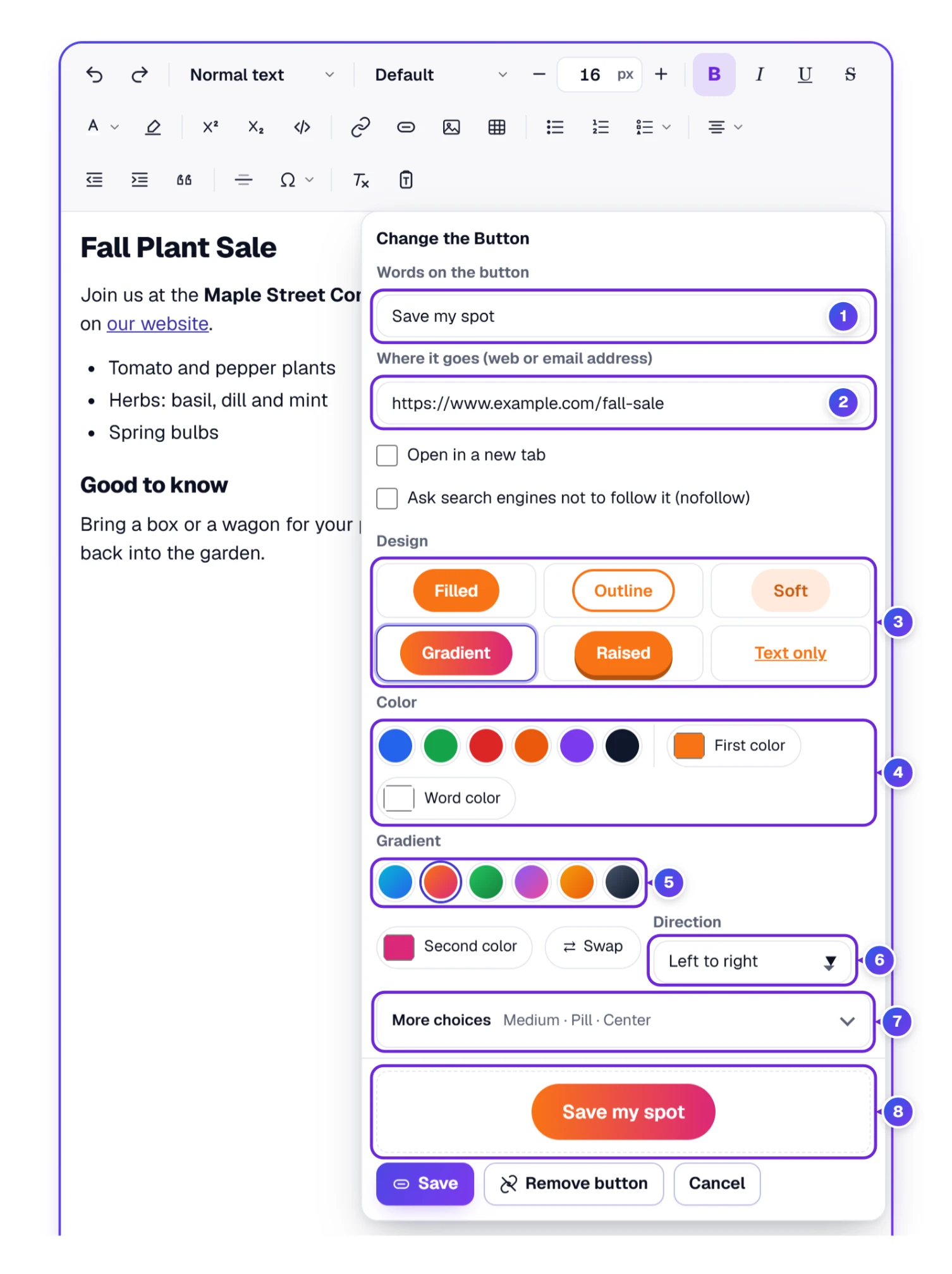
- Write the Words on the button 1, such as Save my spot, and the web or email address it opens 2. Open in a new tab and the nofollow choice sit right under the address.
- Pick a Design 3: Filled, Outline, Soft, Gradient, Raised (with a small shadow under it) or Text only.
- Choose a color 4: six ready colors, Own color for any shade, and Word color for the letters.
- With Gradient, a Gradient row opens. Pick one of six ready gradients 5 (Ocean, Sunset, Forest, Berry, Gold and Night), or set First color and Second color yourself, press Swap to turn them around, and choose the Direction 6: left to right, top to bottom, corner to corner either way, or from the center out.
- Open More choices 7 for the size (Small, Medium or Large), the corners (Square, Rounded or Pill) and the place (Left, Center, Right or Full width). Its title line tells you what’s set, so you can leave it closed.
- Check the preview 8, then press Add button, or Save when you changed one. Remove button turns it back into plain words.
The preview and the Save buttons stay at the bottom of the box while you scroll through the choices, and the box opens above the button when there’s no room under it, so the whole box is always in sight. Typing at the very end of a button’s words keeps the new letters inside the button.
What the code looks like. Joan’s Sunset pill button came out as one link with its look written inside it: a background-color of #f97316 plus linear-gradient(90deg, #f97316, #db2777), white words, 999px corners and no class names. Because the style sits right in the tag, the same button works on a web page, in WordPress and in an HTML email. On the Plain side it reads “Save my spot (https://www.example.com/fall-sale)”.
Sending the button in an email? Some email apps, Outlook among them, don’t draw gradients and show only the first color, so pick a first color that looks good on its own. A <button> tag from other code shows as a small gray block; double-click it to give it new words, or add an address to turn it into a link button with the look you pick here.
Wednesday: A Price Table With Merged Cells and a Hover Shade
The plant sale needs a price list. The table button asks how many columns and rows you want and whether the first row is a header, then drops the table in. Click inside it and a table bar appears over it 1.
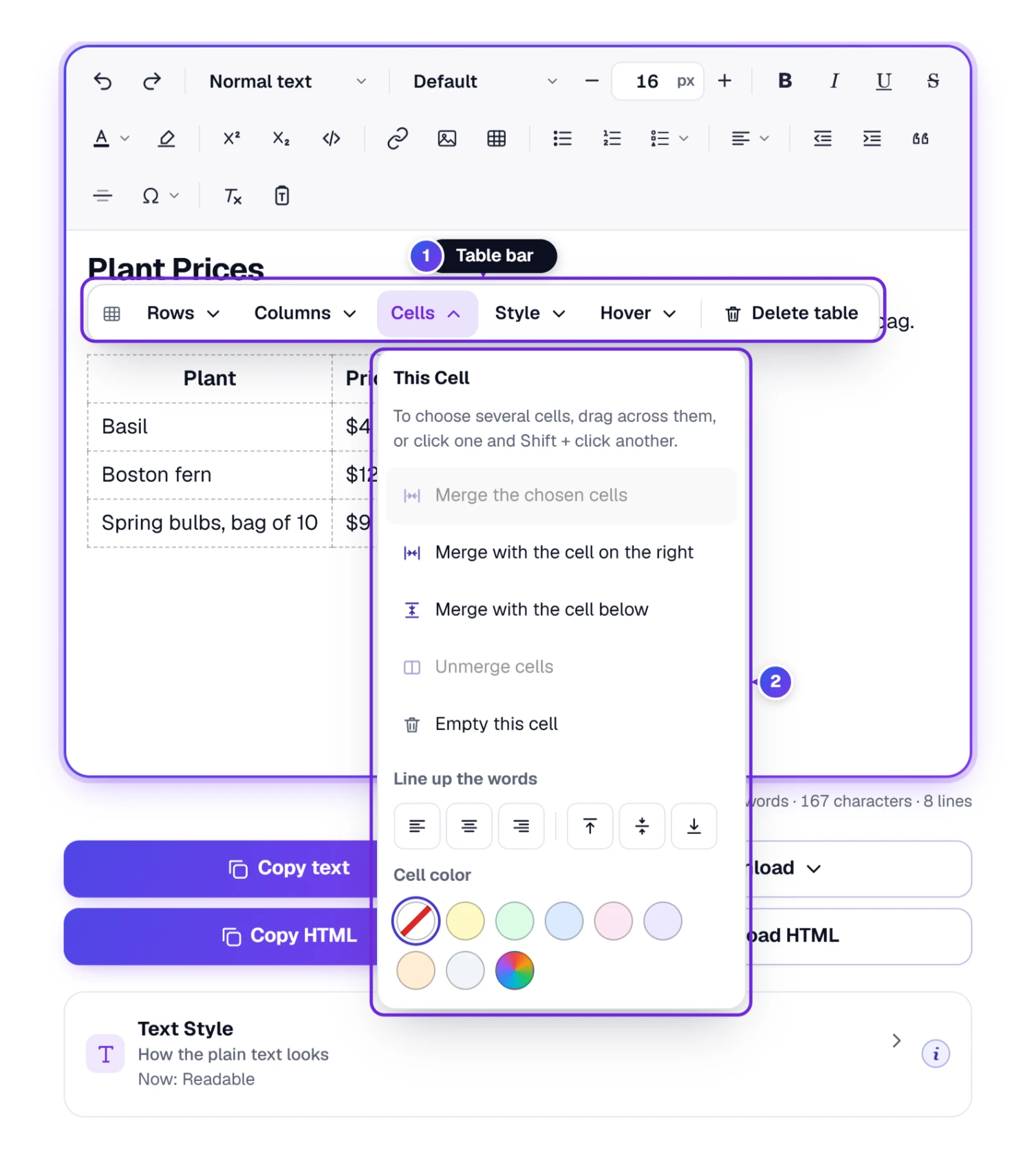
- Rows: add a row above or below, move a row up or down, copy a row below, or delete it.
- Columns: add a column on the left or right, move it, or delete it.
- Cells 2: merge the chosen cells, merge with the cell on the right, merge with the cell below, unmerge, empty a cell, line the words up (left, center, right, top, middle, bottom), and pick a light cell color or any color you like. Merging is also called combining or joining cells; unmerging is what some programs call splitting a cell.
- To choose several cells, drag across them, or click one and Shift + click another.
- After a merge, an Unmerge button shows up in the bar whenever your cursor sits in that cell.
- Style: a header row and its color, the first column as a header, lines around cells, stripes on every second row, and full width.
- Delete table removes the whole table. Tab moves to the next cell, and Shift + Tab goes back.
If a change would cut a merged cell in two, the tool says so in plain words and changes nothing.
Thin dashed lines show where the cells are while a table has no lines or colors of its own. They’re only there to help you edit: Copy HTML, the downloads and your website never get them, and they step aside as soon as a table brings its own look.
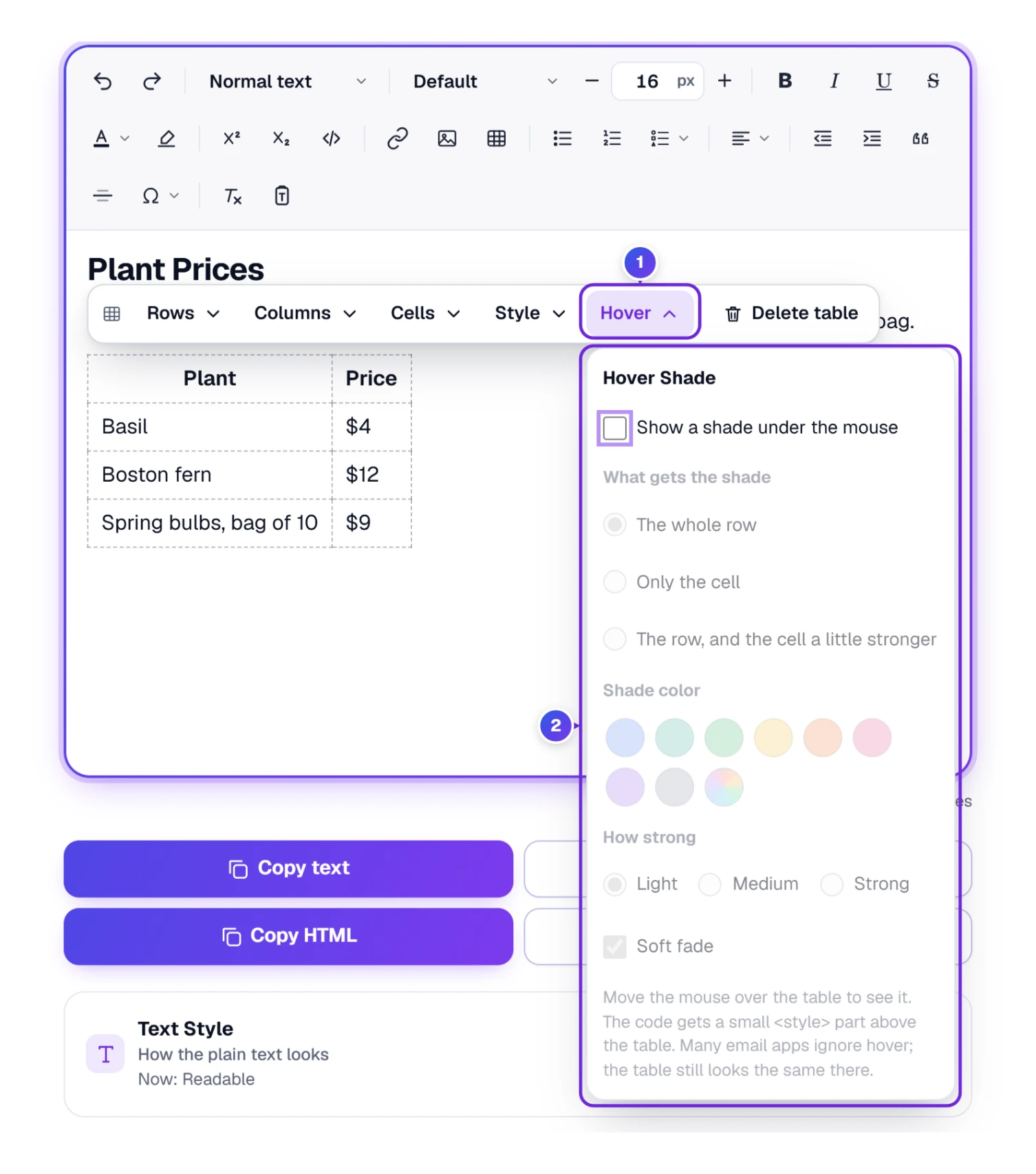
Hover 1 adds a soft shade under the mouse, which helps readers keep their place in a long price list. Some people call it a hover highlight or a row hover effect. In the list 2, tick Show a shade under the mouse, then choose the whole row, only the cell, or the row with the cell a little stronger; one of eight colors or any color; Light, Medium or Strong; and Soft fade if you like a gentle change. One honest limit: many email programs ignore hover, so it shines on websites rather than in newsletters sent by email.
Wednesday Afternoon: The Website’s Price Table, Colors and All
Later that day the garden’s website gets a fresh look, and the volunteer who built it sends Joan the finished price table as code. It isn’t plain HTML. At the top sits a <style> block, the part that tells a browser how the table should look: a green header, light stripes on every second row, a yellow shade under the mouse. At the bottom is a short script that sorts the rows when a reader clicks a column name. Joan pastes the whole thing into the HTML code box.
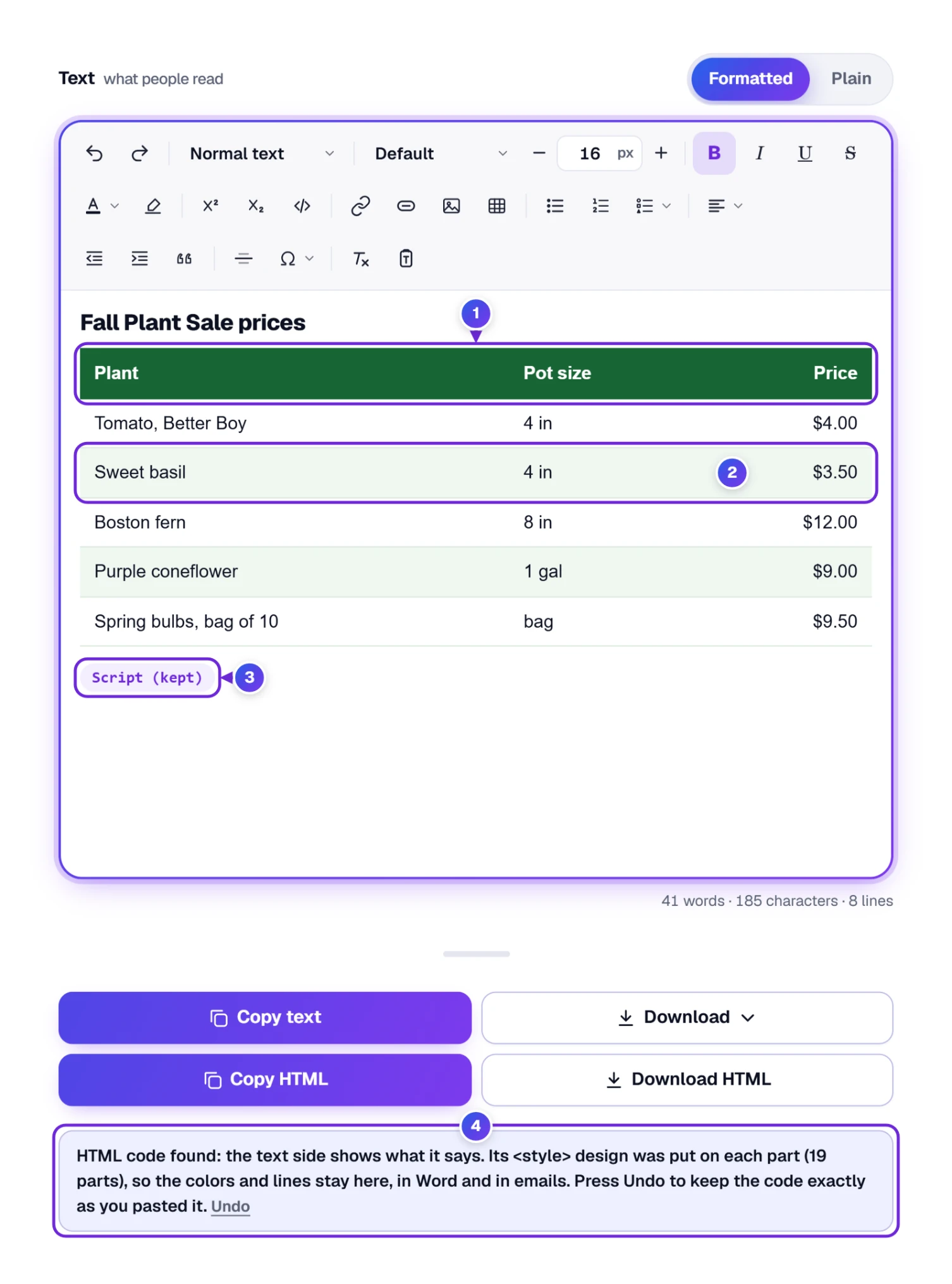
Many email programs and editors, this one included, drop or ignore a <style> block, so a table like this often turns up plain. Here the tool moves the design onto each part of the table instead, the way email designers do it by hand (they call it inlining CSS). The note under the tool 4 said the design went onto 19 parts. Now the header 1 is green and the stripes 2 are back, and both stay when Joan copies the table into Word or an email. Changed your mind? Press Undo once and the code goes back to exactly what you pasted.
A few parts of a design can’t sit on one cell, so they stay in the <style> block, where a web page still reads them: the shade under the mouse, the little arrows drawn next to the column names, rules for small screens or dark mode, and anything a script does, such as the sorting. The script stays in the code too. The Formatted side shows it as Script (kept) 3, and it never runs there.
To see all of it working, Joan presses Web preview in the helper row.
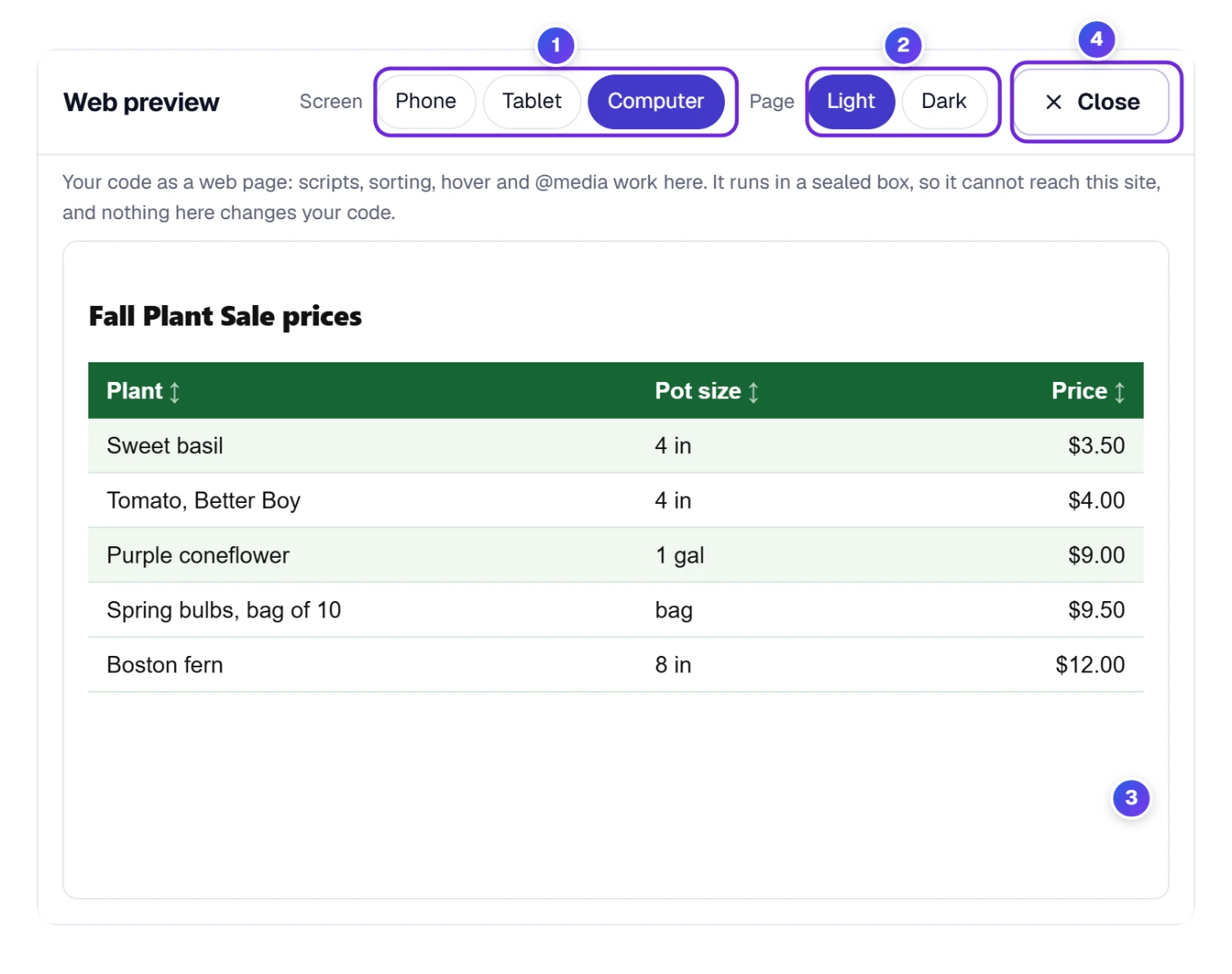
- 1 Screen shows the page the way a Phone (375 px wide), a Tablet (768 px) or a Computer would.
- 2 Page switches between a Light and a Dark page. A design with its own dark-mode rules follows the switch, so both looks can be checked before the table goes live.
- 3 The page is the code, running: scripts work, the hover shade appears and the small-screen rules kick in. Joan clicked Price, and the rows lined up from the $3.50 basil to the $12.00 fern.
- 4 Close, the Esc key or a click outside the window brings you back.
The preview runs in a sealed box. The code can’t reach this site, your other tabs or your files, and nothing in the window changes the code. One thing Joan noticed after sorting: the stripes moved along with their rows. That’s because the stripes now sit on the rows themselves, which is exactly what keeps them in Word and in email.
Need the same table as a picture, say for the garden’s Facebook page or a printed flyer? Copy it from the Formatted side and paste it into the Table to Image Converter, which saves it as a PNG or JPG.
Thursday: A Thank-You Letter Pasted From Word
Joan writes a thank-you letter in Word and pastes it into the Formatted side. Word sends along a surprising amount of hidden code: class names, font settings, empty paragraphs, even notes about how Word was set up. Nobody wants <p class=”MsoNormal”> in a thank-you note. The tool notices where the paste came from and tidies it on the way in. A line under the tool says so, with Undo in case you wanted it untouched: “Formatted text from Word found: we kept headings, bold, lists, links and tables and cleaned out the rest.”
What came through. In Word the letter had five paragraphs, one of them empty, and every line sat inside a span with its own font and size. On the code side it arrived as four short paragraphs: <p>Dear volunteers,</p>, the thank-you line with <b>Fall Plant Sale</b> still bold, <p>See you in the spring,</p> and <p>Joan</p>. The empty paragraph, the class names, the font settings and the double space after her first sentence were gone.
The code side works the other way on purpose. Whatever you paste there stays exactly as you pasted it, tags and all, because that box is for code you want to keep as written. So when a letter comes from Word or Google Docs, paste it on the Formatted side and copy the tidy HTML from the code side. On a wide computer screen, the Before and after box under the tool shows line by line what the last Indent or Compress changed.
Below Text style sits HTML options, which sets how the code is written: indent with 2 spaces (Best), 4 spaces or a Tab 1; special characters as they are or as codes such as © 2; Headings, Bold (Best) or Not bold 3; Full web page 4, which adds everything a complete page needs around your code; and Links open in a new tab 5 for links to other websites.
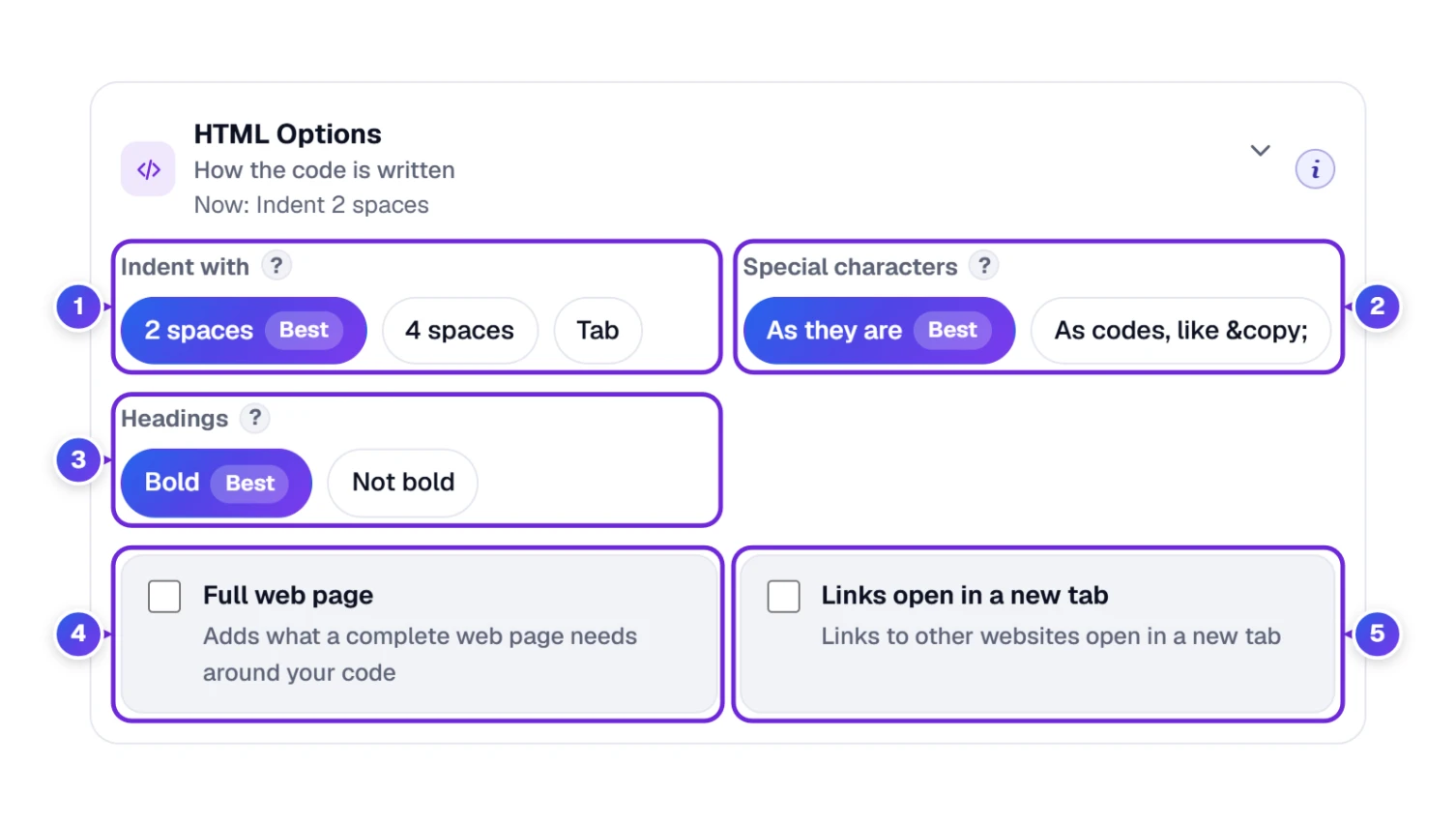
With Headings: Bold, the words of every heading sit inside one <strong> tag, so “Plant prices” is written <h2><strong>Plant prices</strong></h2> and stays bold even on a website whose style sheet draws headings thin. Choose Not bold and the tool takes that tag off every heading at once (Undo puts it back), and new headings stay plain. Code you type yourself in the code box is never changed while you type.
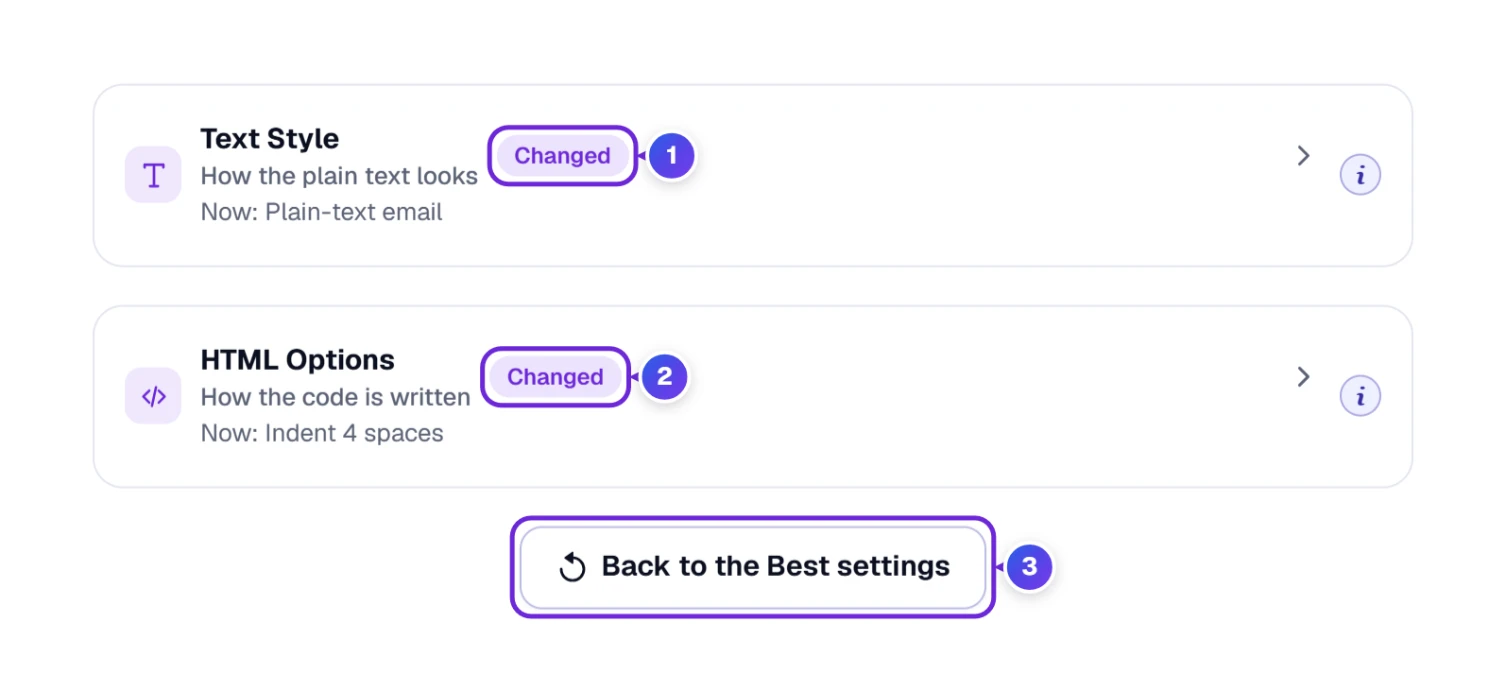
By Thursday evening, both settings boxes wore that little “Changed” label: Text style 1 still held the plain-text email style from earlier in the week, and HTML options 2 held 4-space indents. Joan wanted next week to start from the usual setup, so she pressed Back to the Best settings 3, the button right under the boxes. Both labels went away, every choice went back to Best and the two boxes went back to their normal height, while her letter and its code stayed exactly as they were. Emptying the boxes is a separate job, and it belongs to Clear in the helper row.
Opening Word, PDF and Other Documents
Joan’s neighbor sends the garden rules as a PDF. Open file in the helper row (look back at spot 2 in the first picture) reads it, and so does dropping a file onto the tool. The line above the buttons names what it reads: Word (.docx and the older .doc), PDF, text (.txt), web pages (.html, .htm), OpenDocument (.odt), Rich Text (.rtf), Markdown (.md), EPUB books, web archives (.mht), emails (.eml), slides (.pptx, .odp) and subtitles (.srt, .vtt).
- A PDF is rebuilt from the size and place of its words, so paragraphs, headings and lists come back, with bold and italic where the PDF had them. Bigger headings stay above smaller ones (Heading 1, then Heading 2), and words that sit in two neat columns, such as plant names and prices, come back as a table. Pictures stay in the PDF.
- A scanned PDF is really a photo of a page, with no text inside to read. It can’t be used here, so the tool asks for a text-based PDF instead, one whose words you can highlight with the mouse.
- An old .doc file gives you its words, headings, lists, tables, links, bold and italic. For colors and pictures too, save it as .docx first.
- A Markdown (.md) file keeps its footnotes. Each
[^1]mark becomes a small raised number that links to its note at the end, and the note links back.
Friday: 300 Plant Descriptions in One Spreadsheet
The garden’s online shop exports its plants to Excel, and the Description column is full of tags. Fixing 300 cells by hand isn’t anyone’s idea of a fun Friday. The second tab, Many at once, does the same job on every cell for you.
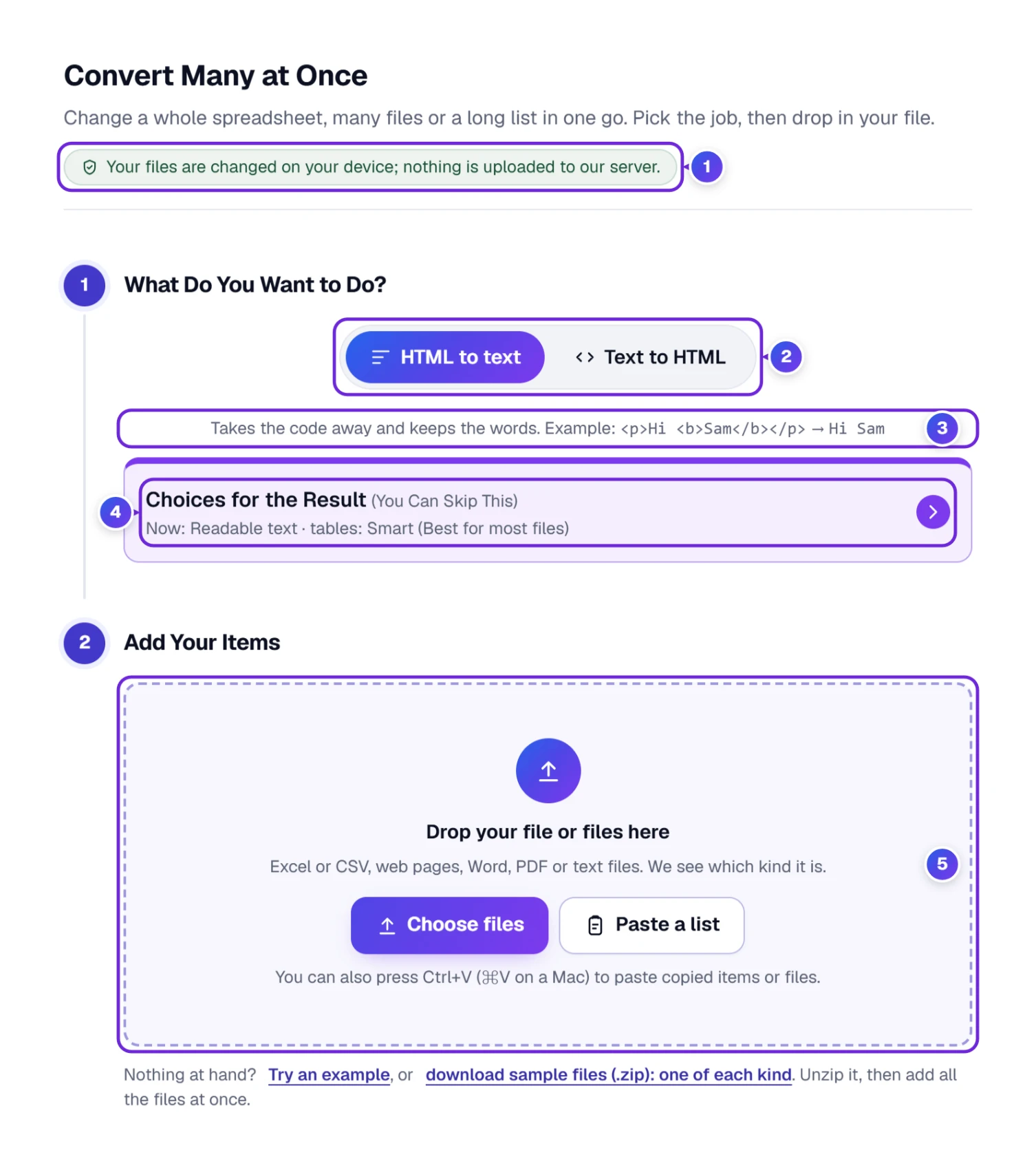
- Open the Many at once tab. Step 1 asks What do you want to do? 2 Leave HTML to text picked, or choose Text to HTML. The line under the switch 3 shows the job on a tiny example, so you can see at once that you picked the right one.
- Choices for the Result 4 stays folded, and you can skip it. Its short line tells you what’s set now; the Best settings suit most files.
- Step 2 is one box 5 for everything: drop an Excel or CSV file, web pages, Word, PDF or text files on it, or press Choose files. The tool sees what kind of file it got and shows the right next step. Have the items as lines of text instead? Press Paste a list.
No file of your own to test with? The line under the box offers Try an example and a .zip of sample files, one of each kind. For the pictures below we made a test copy of Joan’s shop file: 300 plants, with 12 empty descriptions and 23 that were already plain words.
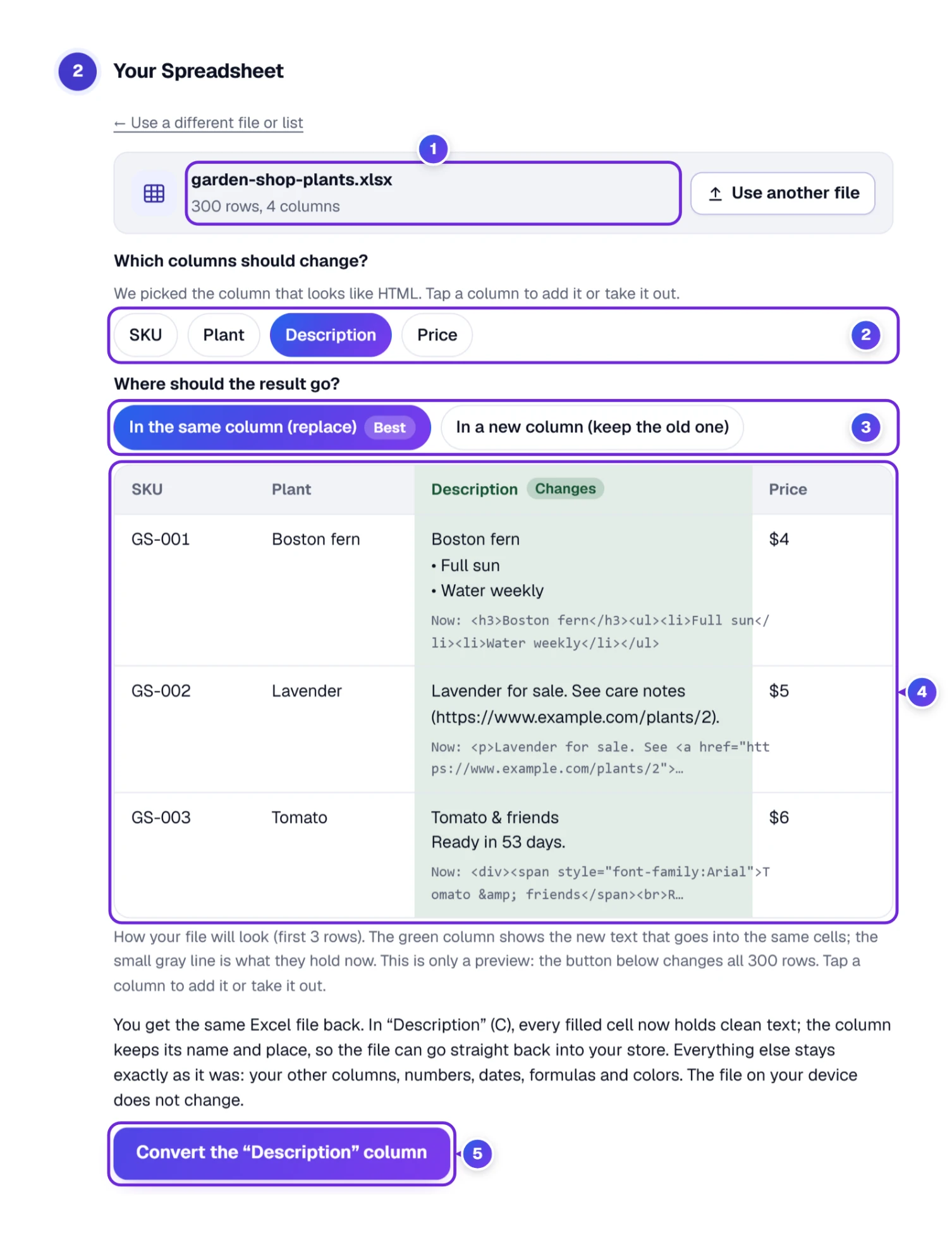
- 1 shows the file and how many rows and columns it has. Use another file swaps it, and Use a different file or list above it takes you back to the box.
- 2 The tool finds the column that holds HTML and picks it, here Description. Tap a column to add it or take it out. A file with more than one sheet first asks which sheet to use.
- 3 Choose In the same column (replace) or In a new column (keep the old one).
- 4 The preview shows the first three rows as they will look. The green column holds the new text, and the small gray line under it is what the cell holds now.
- 5 The button names the job, here Convert the “Description” column. Nothing changes before you press it.
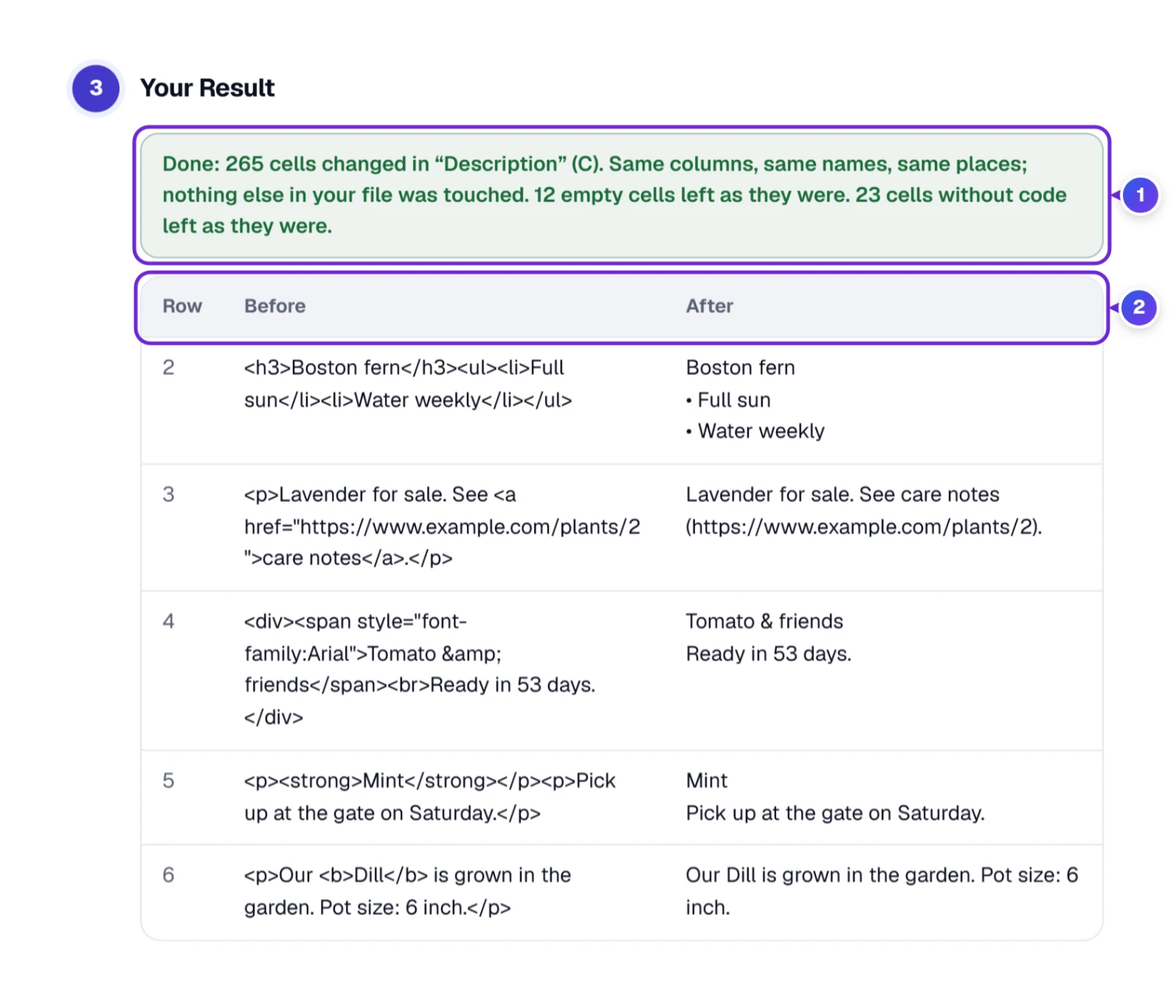
Step 3 1 says how many cells changed and which ones were left alone, and the table 2 shows each cell before and after. On Joan’s test file the summary read “Done: 265 cells changed in ‘Description’ (C)”. The 12 empty cells and the 23 cells without code stayed exactly as they were.
The new file is named after yours, here garden-shop-plants-converted.xlsx, and the file on your computer isn’t changed. Everything else in the file stays put: other sheets, formulas, dates, colors and column widths. A CSV keeps its own separator. One extra safety step: in a CSV, a converted cell that would start with =, +, - or @ gets a ' in front, so Excel can’t mistake the text for a formula. The tool handles up to 5,000 rows or 200 files at a time, each up to 20 MB.
Friday Afternoon: Care Notes Turned Into HTML
Just before Joan logs off, the shop manager sends one more file. Volunteers typed the care notes for every plant as plain words, with dashes for lists and bare web addresses, and the new shop page needs HTML. A few notes, though, had already been pasted in as HTML by an earlier helper.
- In Step 1 Joan picks Text to HTML. The example line now reads Hi Sam → <p>Hi Sam</p>.
- She drops garden-shop-care-notes.xlsx on the box. The tool picks the column that looks like text, Care notes (plain text), and the preview shows the HTML each cell will get.
- She presses Convert the “Care notes (plain text)” column.
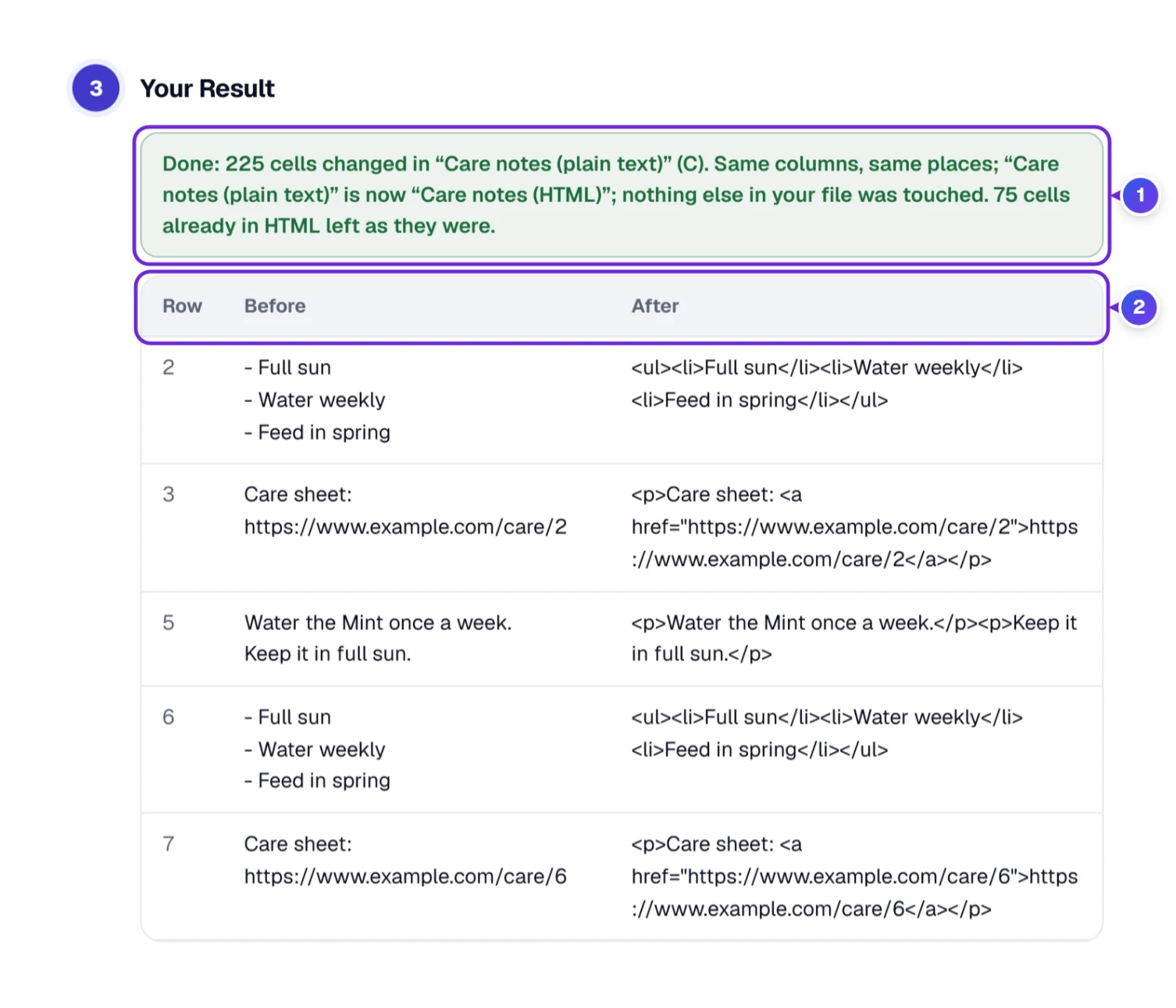
Blank lines became paragraphs, lines that started with - became a bullet list, and every web address became a link. The 75 notes that already held HTML were not touched, so nothing got wrapped twice and no cell ends up with <p><p> in it. The column title changed too, from “Care notes (plain text)” to “Care notes (HTML)”, and the summary says so, so nobody mixes up the old file and the new one.
Notes typed in a hurry often carry double spaces and stray tabs. If yours do, run the file through Remove Extra Spaces first (it takes Excel and CSV files too), then turn the notes into HTML here.
A Folder of Web Pages, or a List You Paste In
The same box takes loose files. Joan has three old newsletter pages she wants as plain text for the garden’s archive and, by mistake, a picture of the garden map in the same folder.
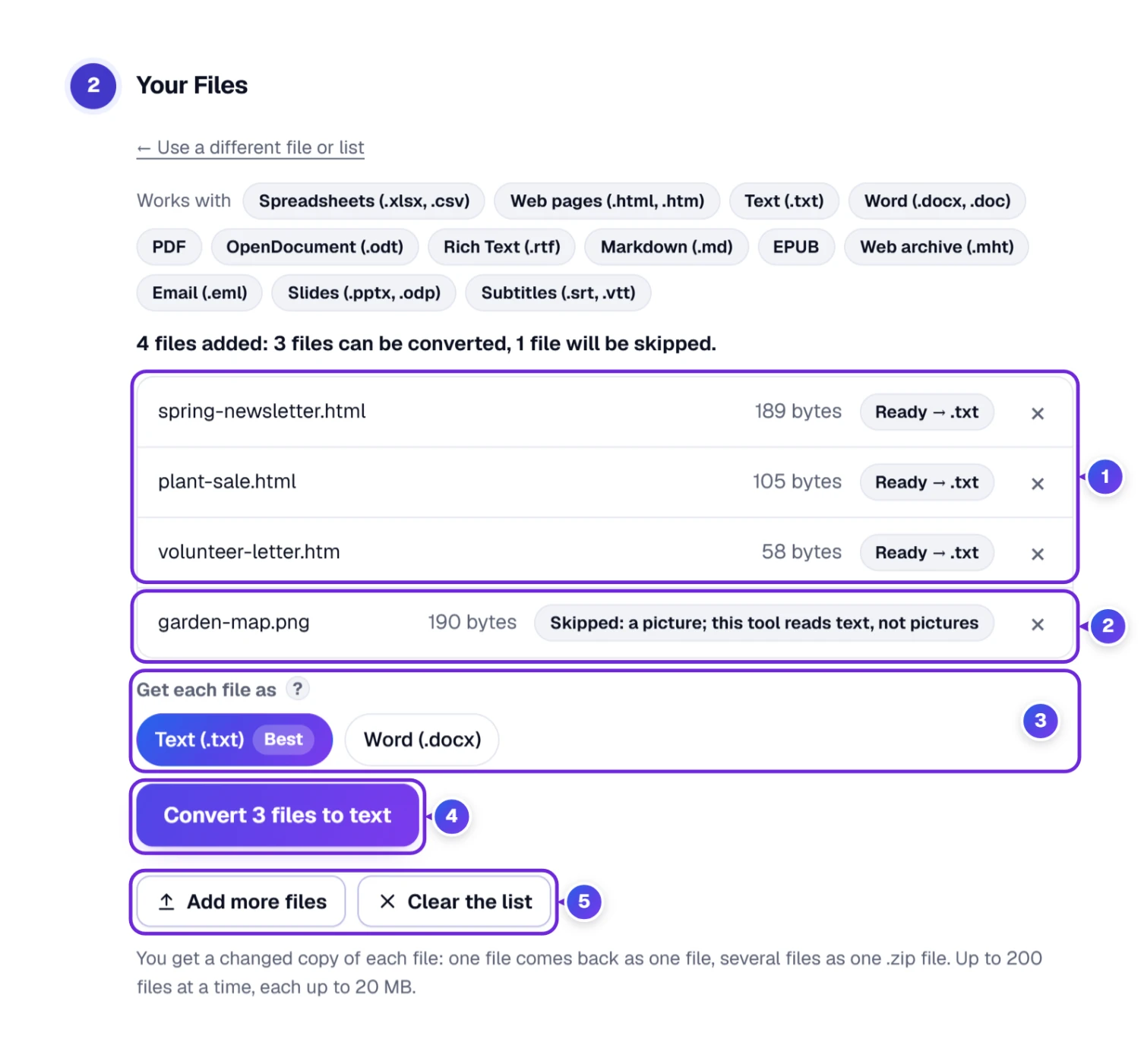
- With HTML to text picked, drop the files on the box or press Choose files. They wait in a list 1, each marked Ready with the kind of file it becomes, or Skipped with a short reason 2. The × takes one off the list.
- Get each file as 3: Text (.txt) (Best), or Word (.docx) with the formatting kept.
- Press the big button 4, here Convert 3 files to text. Nothing happens before you press it.
- Download the result. One file comes back as one file; two or more come back together in one .zip file.
Our three test pages came back as converted-text-files.zip. Inside, plant-sale.txt held “Plant Sale”, a blank line, the opening times, and then “• Tomatoes” and “• Basil” on lines of their own. The .htm page came back as a .txt like the other two.
Got the HTML as lines instead of files? Press Paste a list in the box.
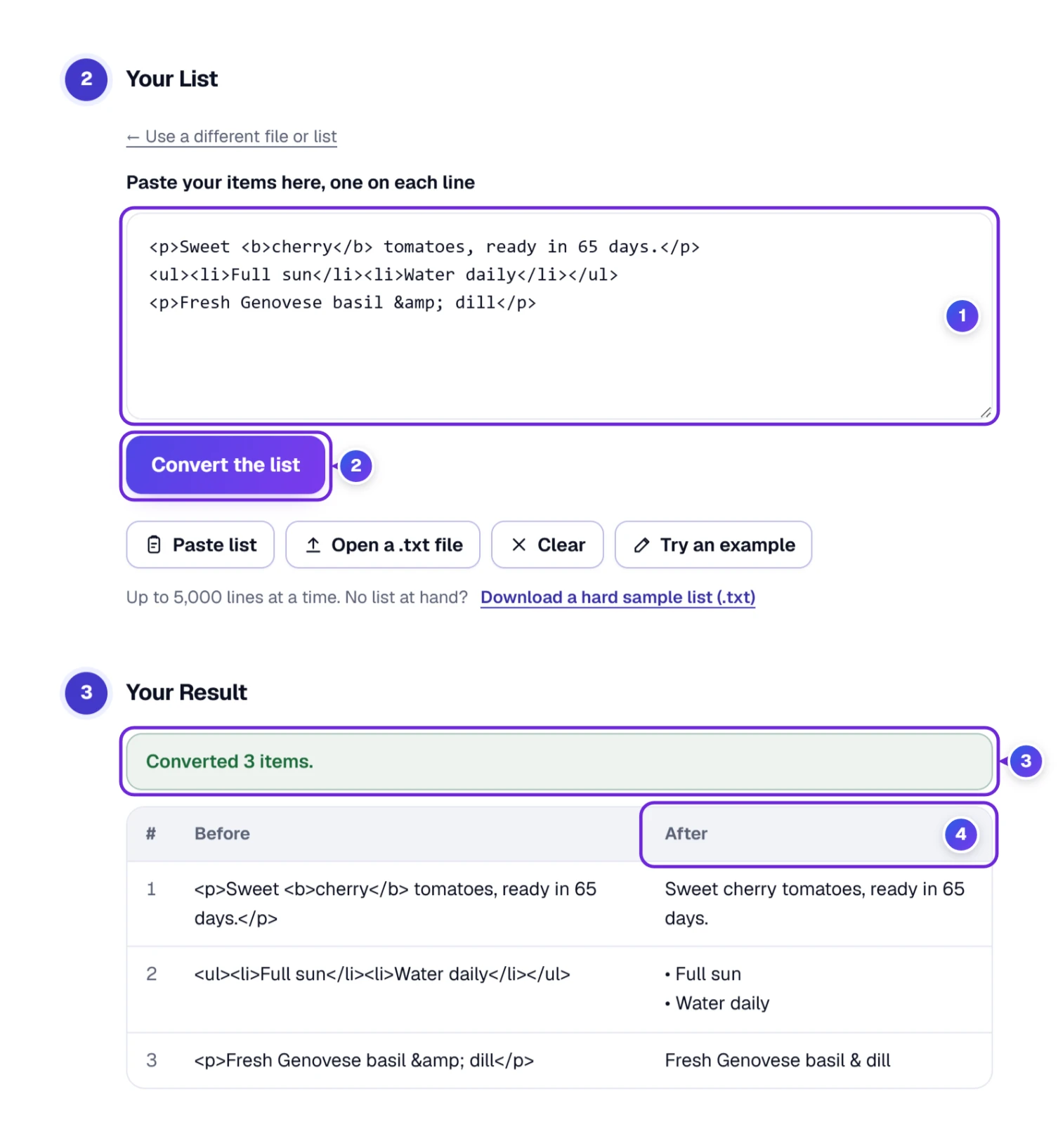
Put one item on each line 1, or use Paste list, Open a .txt file or Try an example. Press Convert the list 2. The result 3 4 lists every line before and after; Copy the converted results or Download the converted list as CSV takes it from there. In our run, the line <ul><li>Full sun</li><li>Water daily</li></ul> came back as two bullet lines, and & turned into a plain &. The CSV download gets the same safety step as a spreadsheet: a cell that would start with =, +, - or @ gets a ' in front, in the Before column too.
Back to an Earlier Document, and the Rules in Plain Words
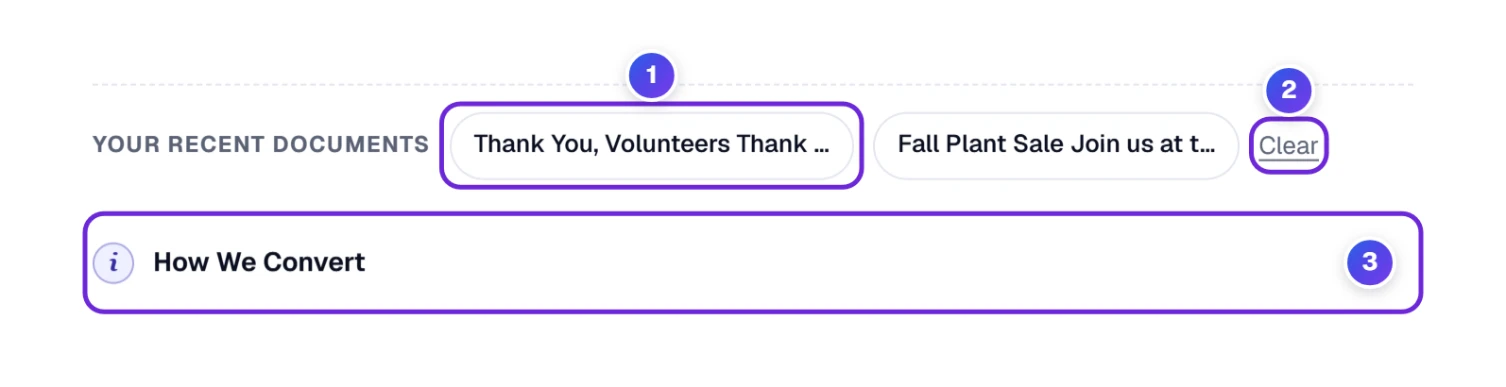
- 1 Your recent documents shows the last five documents you worked on, stored only on this device. Tapping one brings it back into both boxes.
- 2 Clear empties that list, worth doing on a library or office computer.
- 3 How we convert opens the full rules in plain words: how HTML is read, what each text style does, how Indent and Compress work, and which documents can be opened.
The Keyboard Can Do Most of It
When the cursor isn’t inside a box, single keys run the tool. Press ? to see the full list.
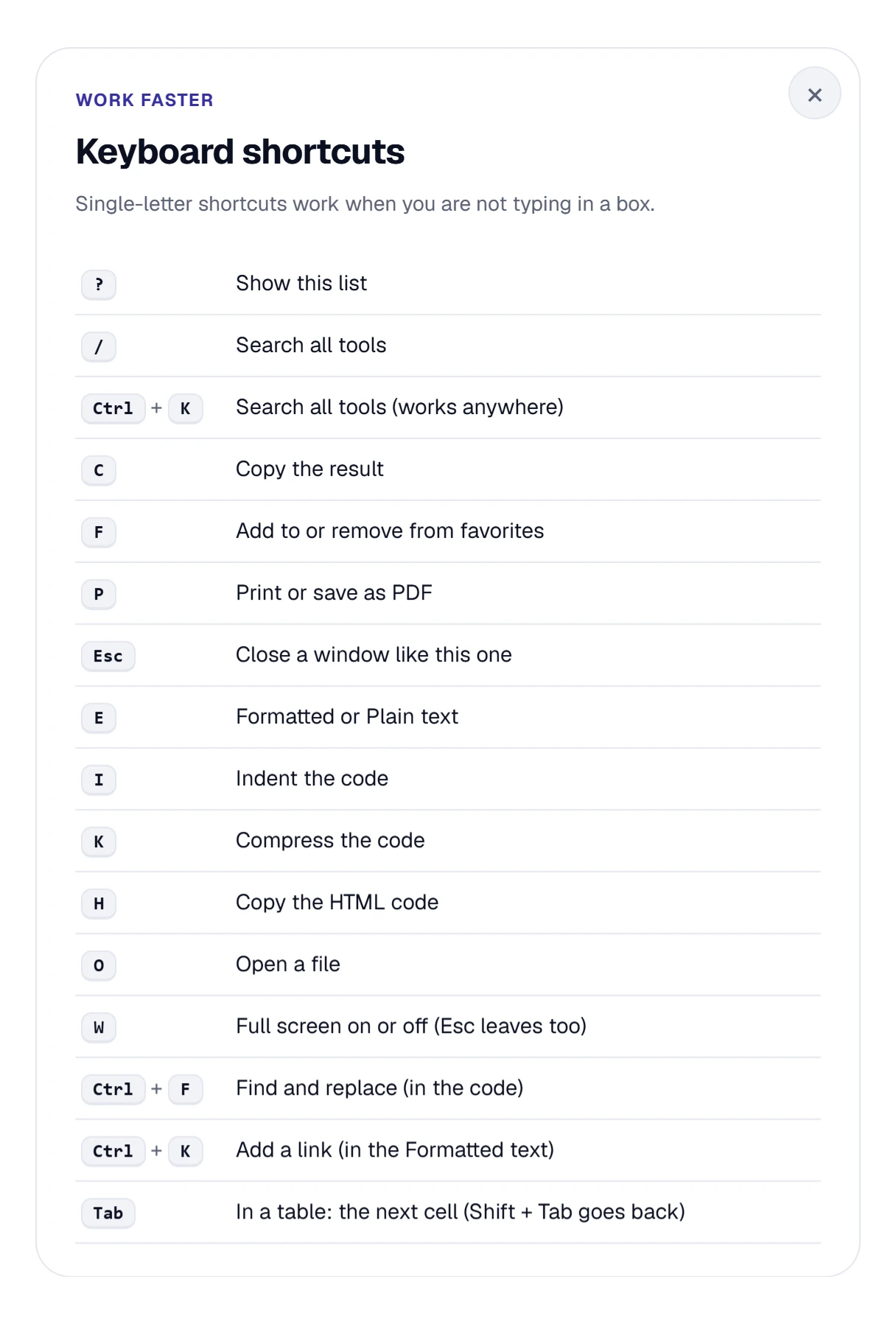
- E switches the Text side between Formatted and Plain.
- I indents the code and K compresses it.
- C copies the text and H copies the HTML.
- O opens a file, and W turns full screen on or off.
- Inside the boxes: Ctrl + F finds and replaces in the code, Ctrl + K adds a link in the Formatted text, and Tab moves through a table.
- F adds the converter to favorites (press it again to take it off), and P prints it or saves a PDF. / opens the search for all our tools.
Saturday: Getting the Converter to the Other Volunteers
By the weekend, two other volunteers ask Joan where she does all this. The buttons under the converter answer that for her.
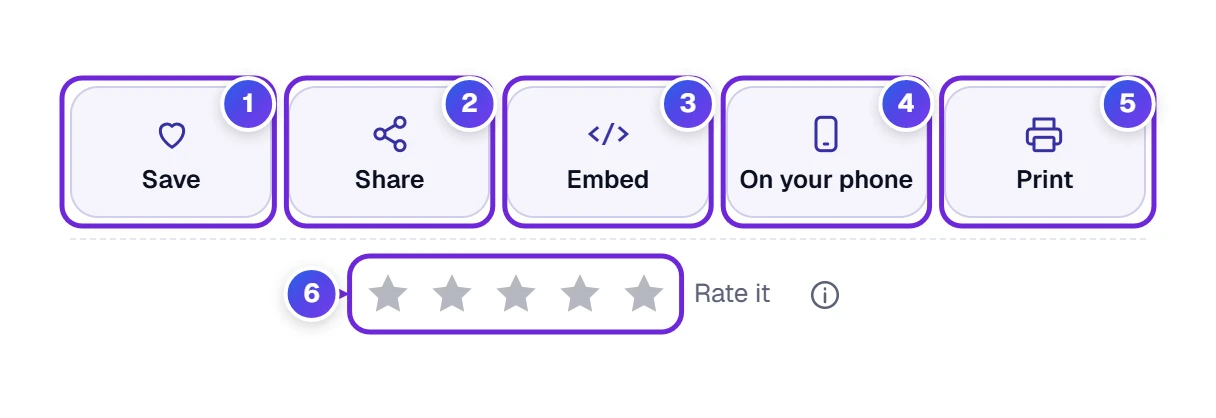
- 1 Save adds the converter to My Tools on our homepage. Only this browser keeps that list.
- 2 Share opens a small sharing window (pictured below) with Copy link, Copy result and buttons for apps such as WhatsApp, Facebook, X and Email. A short document can travel inside the link (up to 2,000 characters of code); longer ones stay with you.
- 3 Embed gives you a snippet of code to put this converter on your own website or blog.
- 4 On your phone pops up a QR code on a computer. Hold your phone up to the screen, tap the link the camera finds, and the converter opens on the phone.
- 5 Print prints just the tool and its result; choose “Save as PDF” in the print window to keep a file instead.
- 6 Tap a star to give the converter your own rating.

Phones and Tablets: One Side at a Time
A phone has no room for two boxes side by side, so you see one at a time. The Text and HTML code switch above it flips between them, and the toolbar wraps onto a few short rows. The height bar under the box works with a finger too. Everything else, Many at once included, works the same way.
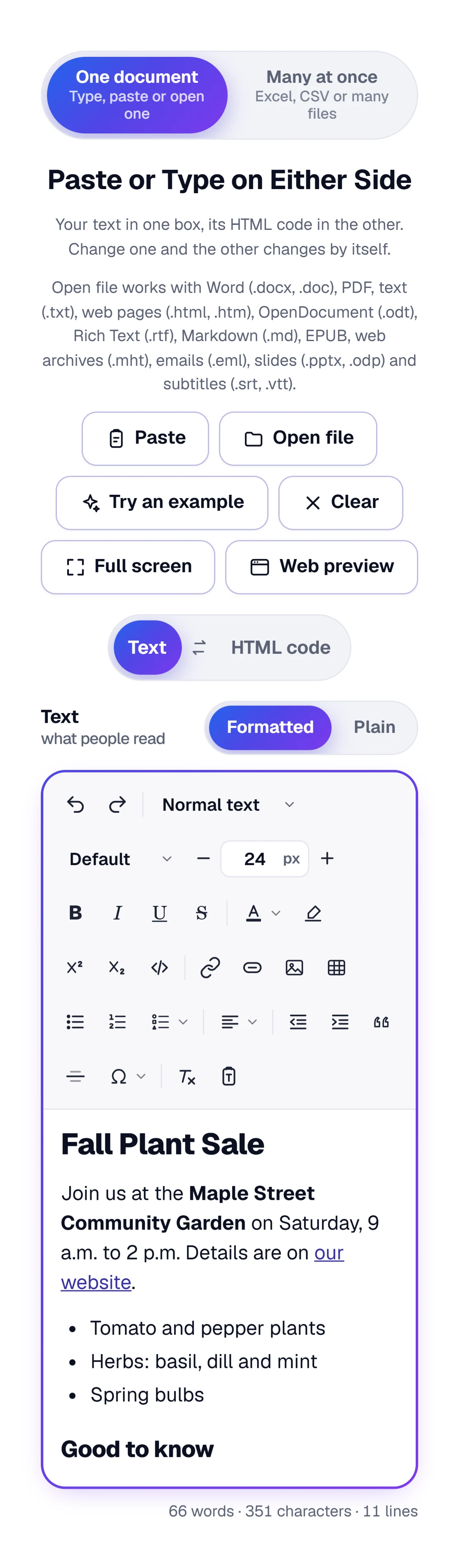
Copying code on a phone? Long-press inside the code, tap Select all and then Copy; back in the tool, tap Paste.
The Standards This HTML to Text Converter Follows
Here’s what the converter does, in short, with the standard behind each rule. The How we convert box under the tool has the long version.
- Reading the code. Your HTML is read by the browser’s own HTML reader, the one the WHATWG HTML Standard describes. Broken or unclosed tags are understood the same way a browser understands them, and nothing in the code runs: no scripts, no forms, no videos. The one place your code does run is Web preview, and only when you open it, inside a sealed box that can’t reach this site.
- Turning it into text. The converter follows the rules browsers use when you copy a page (the standard calls it innerText): a paragraph or heading gets a blank line before and after it, other blocks such as list items and table rows start a new line, <br> is a line break, and runs of spaces become one space, except inside <pre>. A non-breaking space ( ) becomes a normal space, and invisible characters such as zero-width spaces and soft hyphens are taken out.
- Email lines. The internet’s email standard, RFC 5322, says a line should be no longer than 78 characters and must never pass 998. Plain-text email uses 72, which leaves room for the “>” marks a reply adds. Long words and web addresses are never broken in two.
- Word files. Download as Word writes an Office Open XML file, the ECMA-376 standard behind .docx, with real Word headings, lists and tables.
- Edge cases. A “<” inside normal words, such as “5 < 6”, stays as typed. A number code that stands for no real character, such as �, stays as it was written instead of turning into a strange symbol in the text.
So why might another converter give you different text? Some cut the code apart with text search instead of reading it like a browser, so one stray “<” or an unclosed tag throws them off. Others drop list marks, numbers, picture descriptions or link addresses. A few keep the words of scripts and styles, and some turn every line break in the code into a new line, so one paragraph comes out in short broken pieces. Take <li><p>Acid soil</p></li>, the way Google Docs writes a list item: a simple tag stripper gives “Acid soil” with no mark, while this tool gives “• Acid soil”, the way a browser shows it. Even browsers differ in small details, so we follow the standard and spell out what we do.
Where Your Words Go While You Work
Nowhere far. Everything happens inside your own browser: the conversion, the tidying of a Word paste, the Word and Excel files, even reading a PDF. Nothing you paste or open is sent to our server.
- What you’re working on is kept as a draft on this device (up to about 2 MB), so a tab closed by mistake doesn’t cost you your work.
- Your settings, the folded or open boxes and Your recent documents are kept on this device too. Clear under the tool wipes the recent list.
- A share link can carry a short document inside the link itself. Anyone with that link can read it, so share it only with people you trust.
- Web preview draws your code inside your browser as well, in a sealed box that has no way to reach this site or send anything to us.
Odd Text, and the Setting Behind It
| What you see | Why it happens | What to do |
|---|---|---|
| Everything sits on one line | One line or a line width is chosen in Text style. | Open Text style and pick Readable, or press Back to the Best settings under the settings boxes. |
| Link addresses fill the text | Links are set to show the address after the words. | In Text style, set Links to Leave out, or pick Text only. |
| [Image] shows up in the text | A picture in the code has no description. | Add a description to the picture, or set Pictures to Leave out. |
| “This is a scanned PDF, so it can’t be used here.” | The PDF is a photo of pages with no text inside. | Use a text-based PDF, one where you can select the words. |
| A table pasted into Excel lands in one column | The table setting isn’t Tab between cells. | Set Tables to Tab between cells, then copy again. |
| Nothing happens when you press Paste | Your browser kept the clipboard private. | Paste with the keyboard instead: Ctrl + V, or Cmd + V on a Mac. |
| Many at once says no cell holds HTML code | The column holds plain words, not tags. | In Step 1, choose Text to HTML instead. |
| Every heading has a <strong> tag in the code | HTML options → Headings is set to Bold (Best). | Choose Not bold to write headings without it. |
| A gradient button shows one color in an email | Some email apps, such as Outlook, don’t draw gradients. | They show the first color, so pick one that works alone, or use the Filled design. |
| A table pasted from a website looks plainer than on the site | Sorting, hover shades and rules for small screens need a web page; Word files and emails can’t show them. | Press Web preview to see the page. The code keeps those rules. |
HTML and Plain Text, Answered Briefly
How Do I Convert HTML to Plain Text?
Paste the code into the HTML code box of the HTML to Text Converter. The Text side shows the words right away; press Copy text or Download → Text (.txt). Plain shows what you’ll get, letter for letter.
Will Removing the Tags Also Remove My Line Breaks and Lists?
Not with the Readable text style. Paragraphs and headings get a blank line between them, list items get a • or their number, and table rows stay on their own lines. Only the tags go.
Can I Turn Plain Text Into HTML?
Yes. Type or paste on the Text side and the HTML code side writes itself. In Many at once, Text to HTML does the same for a whole list, a set of files or a spreadsheet column: blank lines become paragraphs, lines starting with - become bullet lists, web addresses become links, and cells that already hold HTML are left as they are.
How Do I Clean the HTML That Word or Google Docs Adds?
Paste it into the Formatted side. The tool sees that the paste came from Word or Google Docs, keeps headings, bold, lists, links and tables, and takes out class names, font settings and empty paragraphs. The code side then shows the tidy HTML, ready to copy.
Can I Remove HTML Tags From a Whole Excel Column?
Yes. Open Many at once, leave HTML to text picked and drop your .xlsx or .csv file on the box. The tool picks the column with HTML, shows a preview, and gives you the same file back with clean text in those cells.
Can I Make an HTML Button With My Own Colors?
Yes. Press Add a button on the Formatted side, pick a design, then a ready color or your own, or choose Gradient and set two colors and a direction. The tool writes the button as one link with its style inside the tag, ready to paste into a web page or an email.
Is My Text Uploaded Anywhere?
No. The converter works inside your browser, including Word, Excel and PDF files. Only a share link you choose to send carries a short document with it.
Why Does a Pasted Table Lose Its Colors in Word or Email?
Because its design sits in a separate <style> block, which many email programs and editors drop. Paste the code into the HTML code box: the tool puts the colors and lines onto each cell, so they stay. Sorting, hover shades and screen-size rules still need a web page; Web preview shows them.