The free Link Preview Checker shows how your link will look when you share it on Facebook, WhatsApp, X, LinkedIn, iMessage and twelve other apps. Paste the address and you get a social share preview for each app, a list of what’s wrong, and the exact line of code that fixes it.
You finish a page, copy its link into a group chat, press send, and wince. Instead of a card with a picture, the chat shows a bare gray link. Or last year’s photo. Or a title that stops halfway through a word. The link preview checker is for the minute before that happens.
Why Did My Link Show Up With No Picture?
Apps don’t take a photo of your page. Each one sends a small program, a “robot”, to read a few hidden lines at the top of the page, called share tags. Those tags name the title, description and picture to use. If a tag is missing, broken or points to a picture that’s too big, the app has to guess, and its guess is usually a plain link.
Nearly every broken preview comes down to one of three things, and the tool has a section for each:
- No picture at all. The share picture tag is missing, the picture is too small or too heavy, or the app’s robot was turned away. The fix list and robots sections below cover this.
- The wrong picture or old words. Your page is fine now, but the app is still holding an older copy. Jump to Facebook still shows the old one.
- Words cut off, or a face cropped out of the picture. The title runs long, or the picture is the wrong shape. Read the safe area and what the checker found.
No coding needed. When a fix calls for a line of code, the tool writes it out for you, ready to hand to whoever looks after your website.
Check a Link Before You Share It
For the screenshot below we checked one of our own pages, the KM to Miles converter, so the first result you see is a clean one.
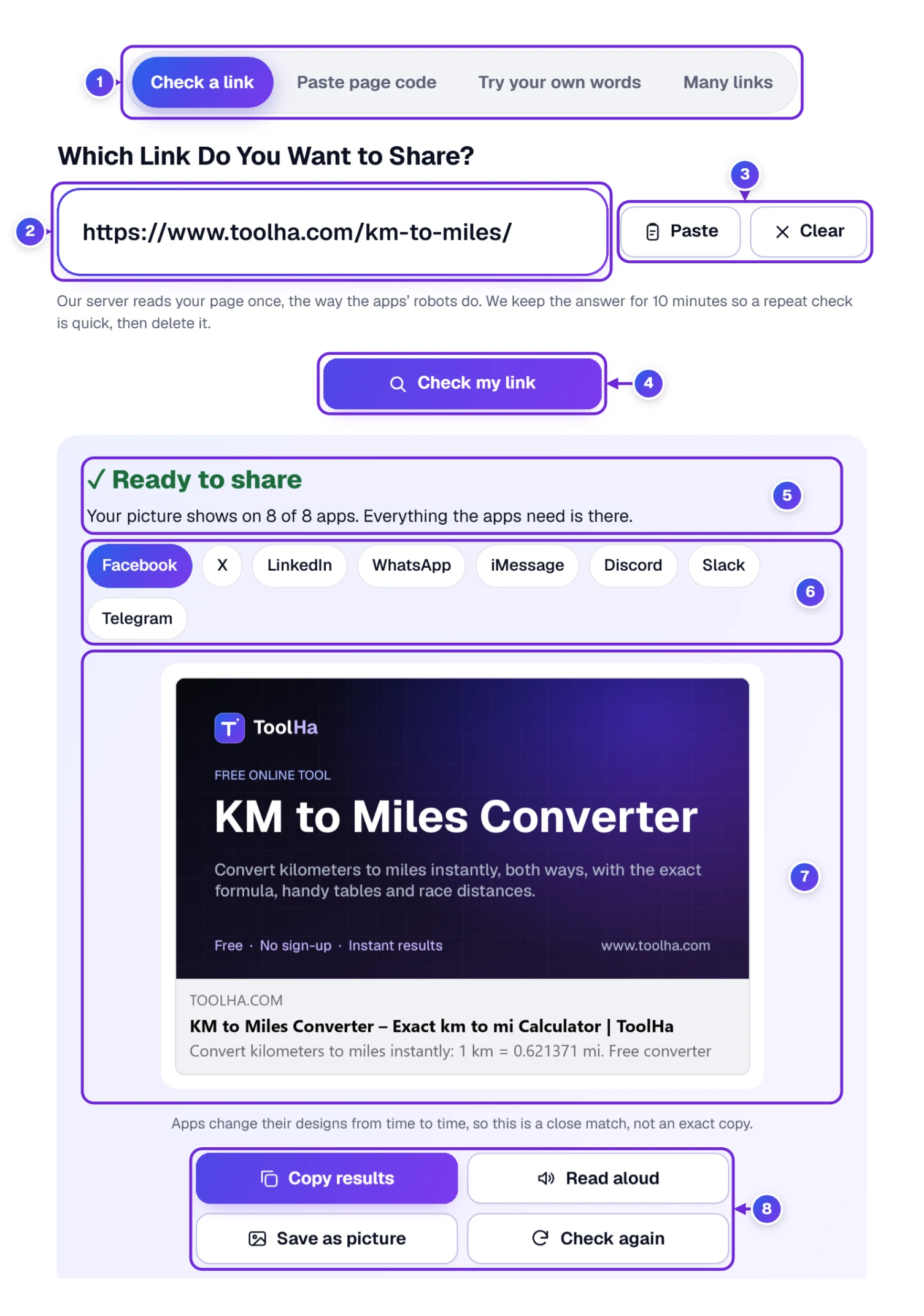
- Leave the first tab, Check a link 1, selected.
- Click the box 2 and type or paste your page’s address. Any form works: yoursite.com/page, with or without www., with or without https://. Paste 3 drops in a link you’ve copied, and Clear wipes the box.
- Click somewhere outside the box and the check starts by itself. Check my link 4 and the Enter key do the same thing.
- Give it a few seconds. Our server reads the page the way the apps’ robots do, and the answer shows up at 5.
Below the verdict sits a row of app names 6: Facebook, X, LinkedIn, WhatsApp, iMessage, Discord, Slack and Telegram. Press one and the big preview 7 redraws your link the way that app would. The answer buttons under it 8 are covered a little further down. With a keyboard, the left and right arrow keys step along the row.
Pasted a link and nothing happened? Look just below the box. A one-line message explains what’s wrong with the address, such as That does not look like a web address.
Odd inputs, and what came back. Typing hello world got “That does not look like a web address. A link looks like yoursite.com/page.” A local address, localhost:3000/shop, was refused with a note that the apps can’t read it either, plus a pointer to Paste page code. A home network address like 192.168.1.20 got the same advice. ftp:// links are turned away too, since only web pages have previews.
Ready to Share, or 3 Things to Fix? What the Verdict Means
The top line sums up the whole check. To show it with problems, we used example.com, an address set aside for examples that has no share tags at all.
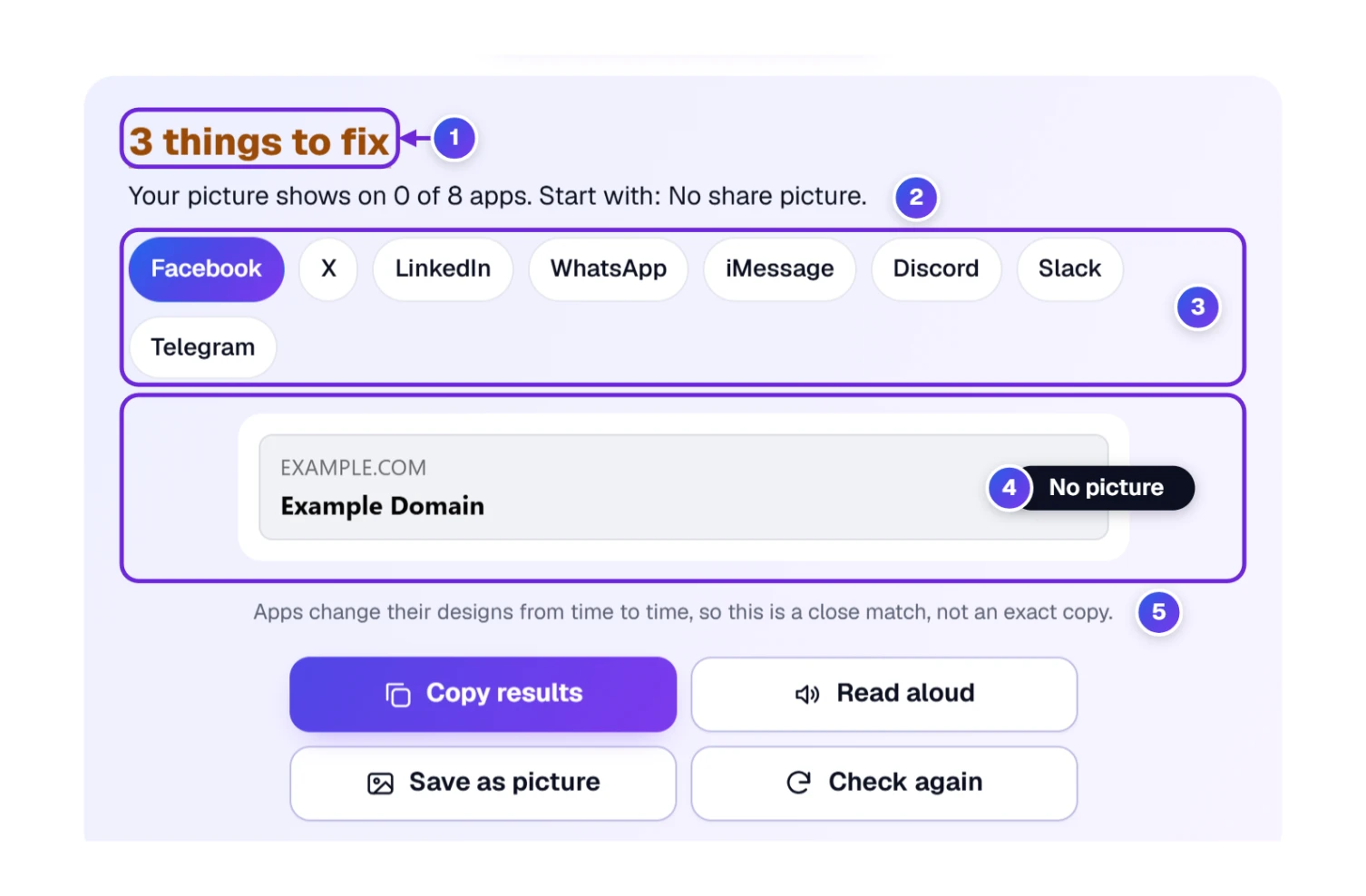
- 1 The verdict reads either Ready to share or a count, such as 3 things to fix. Only real problems count; small tips never change it. Click the count and the page jumps straight to Fix These First.
- 2 The line under it tells you how many of the 8 main apps will show your picture, and which problem to tackle first. For example.com that’s 0 of 8 apps.
- 3 4 Pick an app to see its preview. With no share picture, Facebook draws just a gray box with the address and the page title.
- 5 A small note points out that apps redesign their previews now and then, so what you see is a very close match rather than an exact copy.
Copy, Listen, Save or Check Again
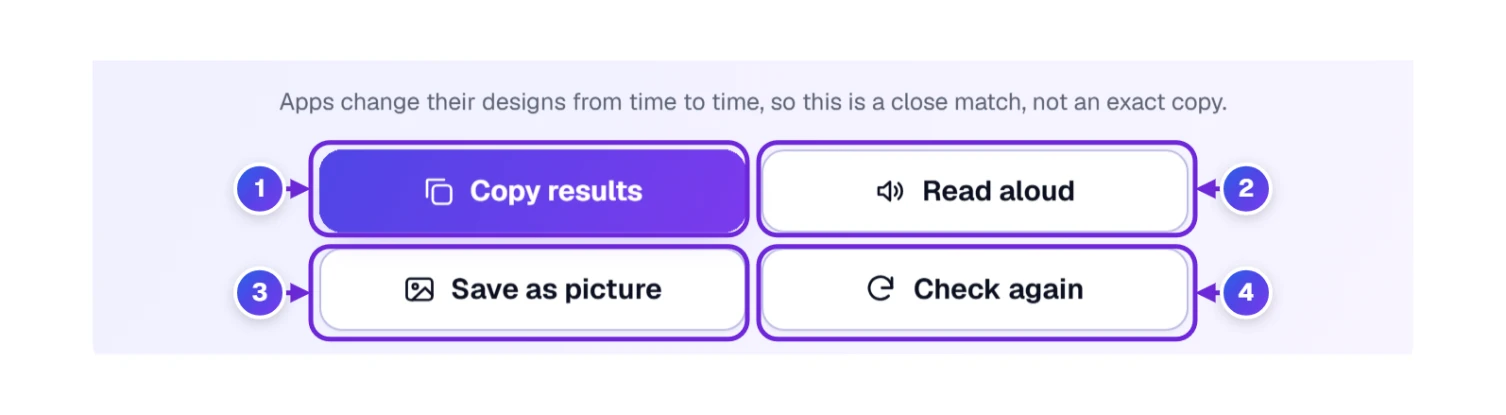
- 1 Copy results puts a plain-text summary on your clipboard: the link, the verdict, title and description, picture size, Big, Small or No picture for each main app, and every fix with its line of code. It pastes neatly into a support ticket.
- 2 Read aloud uses your device’s voice to read the verdict and the three biggest problems. While it talks, the button turns into Stop reading.
- 3 Save as picture turns the result into an image (there’s a section on it further down).
- 4 Check again reads the page fresh. Our server holds each answer for 10 minutes so repeat checks are instant. After you change something on the page, press this button so the checker sees the new version.
Does It Look Different on a Phone or in Dark Mode?
Yes, often more than you’d guess. A phone has less room, so titles get cut sooner, and plenty of people read their chats in dark mode. How the Previews Look shows you both, and Try a Change lets you test new words without touching the page.
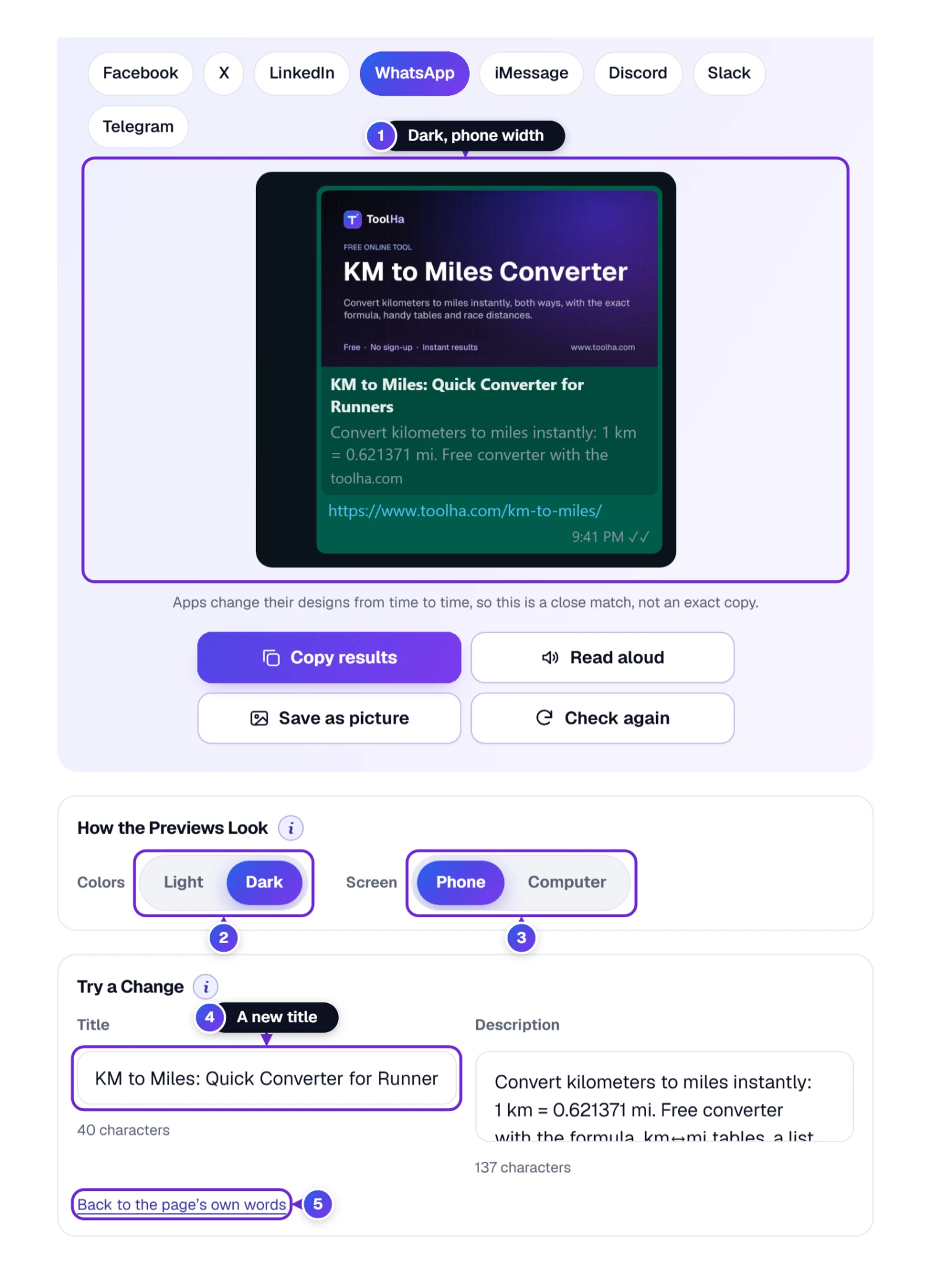
- Under Colors 2, press Dark, and every preview on the page goes dark 1.
- Under Screen 3, pick Phone or Computer to set the preview width. The tool starts in whichever view matches your screen and remembers what you choose.
- In Try a Change, type a new Title 4 or Description. The previews follow along as you type, and a small counter keeps track of the characters.
- Like the new wording? Copy it into your page. If not, Back to the page’s own words 5 puts everything back.
Cut-off words are always measured at two fixed widths, 360 px for a phone and 520 px for a computer, whatever screen you’re on. That way two people checking the same link get the same answer.
Facebook, WhatsApp, iMessage and 14 More Apps Side by Side
Scroll down to On Every App to see the 8 most used apps together, one card each, without clicking along the row. X’s own Card Validator no longer shows a preview, so this is also the quickest way to see your X card before you post.
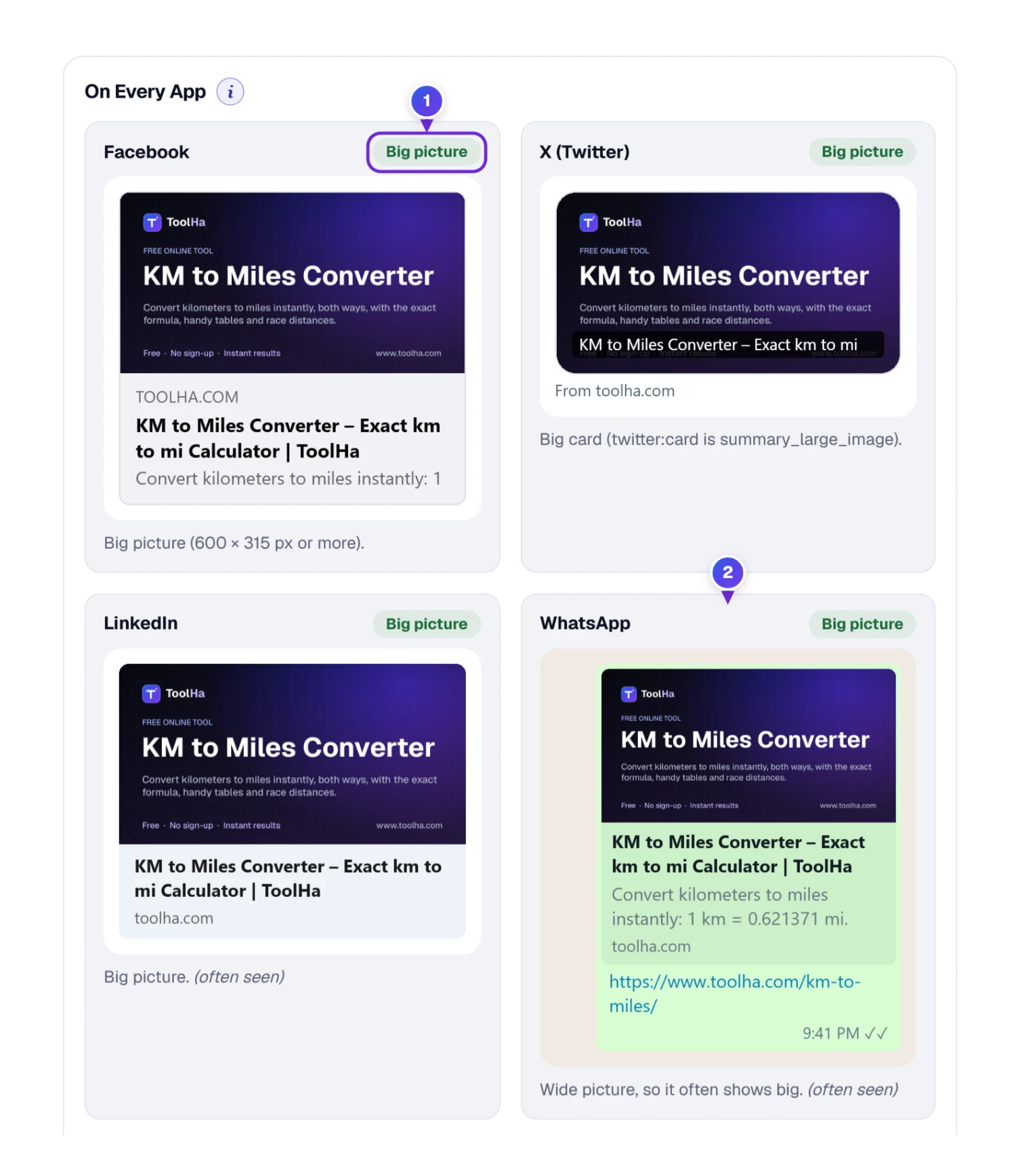
That corner label 1 is the quick answer: Big picture (green), Small picture (orange) or No picture (red), with one plain sentence under the preview saying why. Some apps, WhatsApp and Telegram among them, don’t publish their rules, so the tool goes by what’s commonly seen and marks them (often seen) 2.
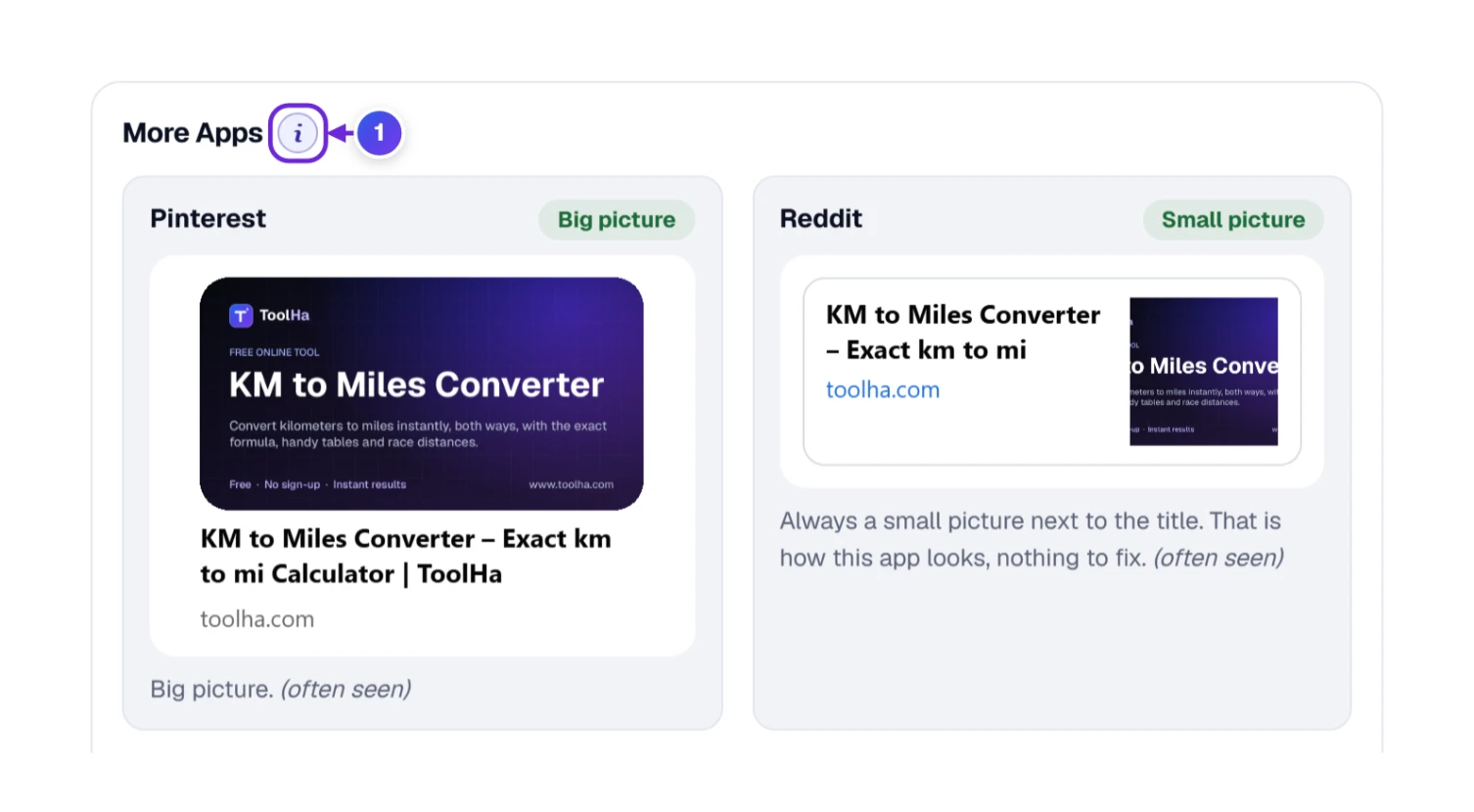
Under that, More Apps 1 adds Pinterest, Reddit, Microsoft Teams, Google Chat, Threads, Bluesky, Mastodon, Messenger and Signal. Reddit and Google Chat always put a small picture beside the title, no matter what your page says, so the tool shows that in green as normal rather than flagging it.
No Picture, Wrong Picture, Cut-Off Title: The Fix List
If the verdict found anything, Fix These First is where to go. The worst problem sits at the top.
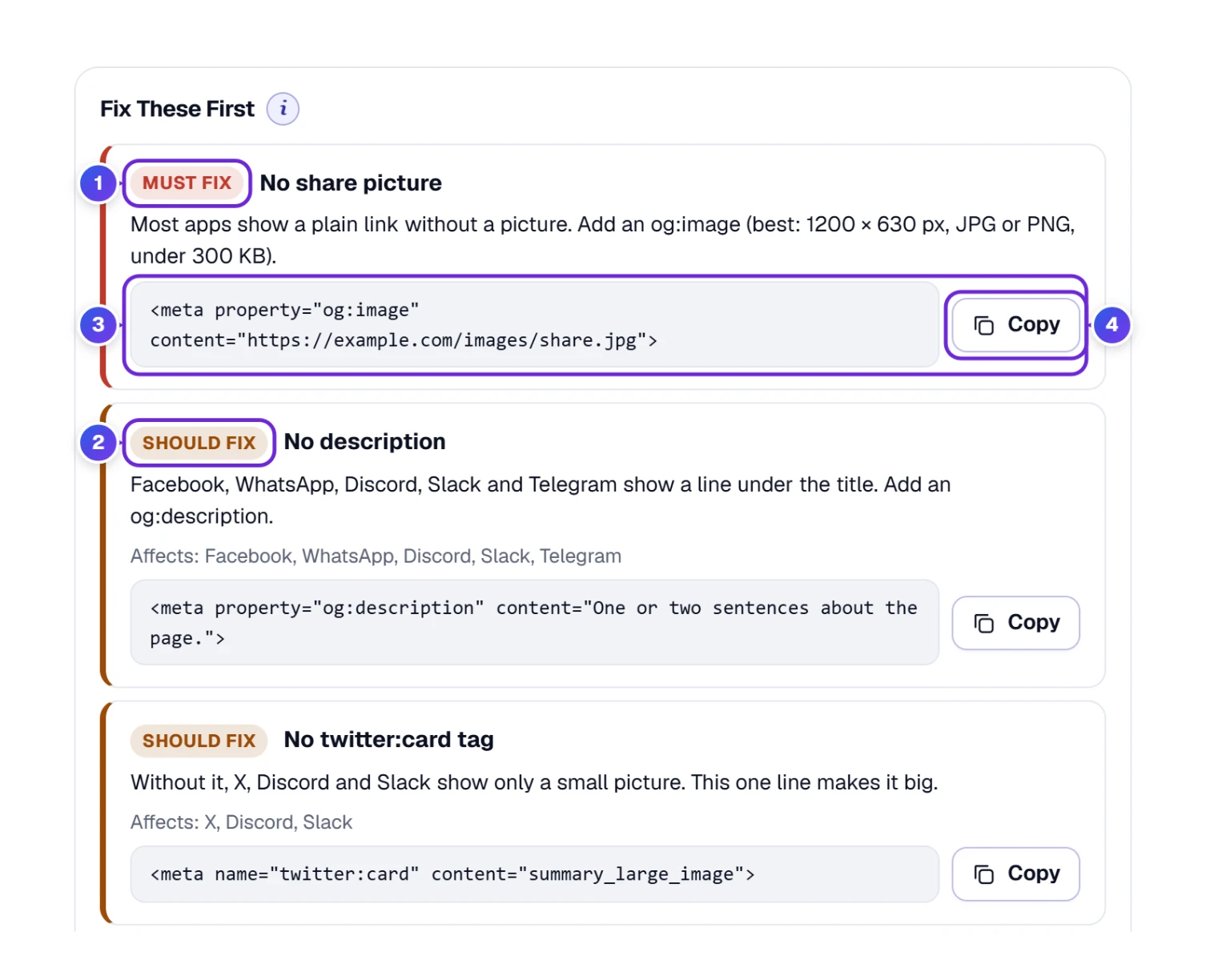
- Must fix 1 means the preview is broken without it, for example No share picture.
- Should fix 2 spoils the preview on some apps, like No description or No twitter:card tag, and names the apps affected.
- Tip items polish a preview that already works. They never change the verdict.
- Read the first item and the one-line reason under it.
- Press Copy 4 beside the gray line 3. That’s the exact code your page needs, with your own address already filled in where possible.
- Paste it into the top part of your page (the <head>), or send it to your web designer. On WordPress, SEO plugins such as Yoast or Rank Math have fields for the title, description and picture; Shopify, Wix and Squarespace have a social sharing picture in their settings too, so you may not need to touch code at all.
- Come back to the checker and press Check again.
A big site with one small miss. The homepage of a very well known code-hosting site came back with 1 thing to fix. Its share picture is exactly 1200 × 630 px, but the file weighs 604 KB, and WhatsApp often skips pictures over about 600 KB. Nothing else was wrong.
Will My Picture Be Cropped? Read the Safe Area
Your share picture isn’t shown the same way everywhere. Big previews trim it to a wide strip from the middle, and some apps show only a small square from the center. The Picture section shows what that does to your picture.
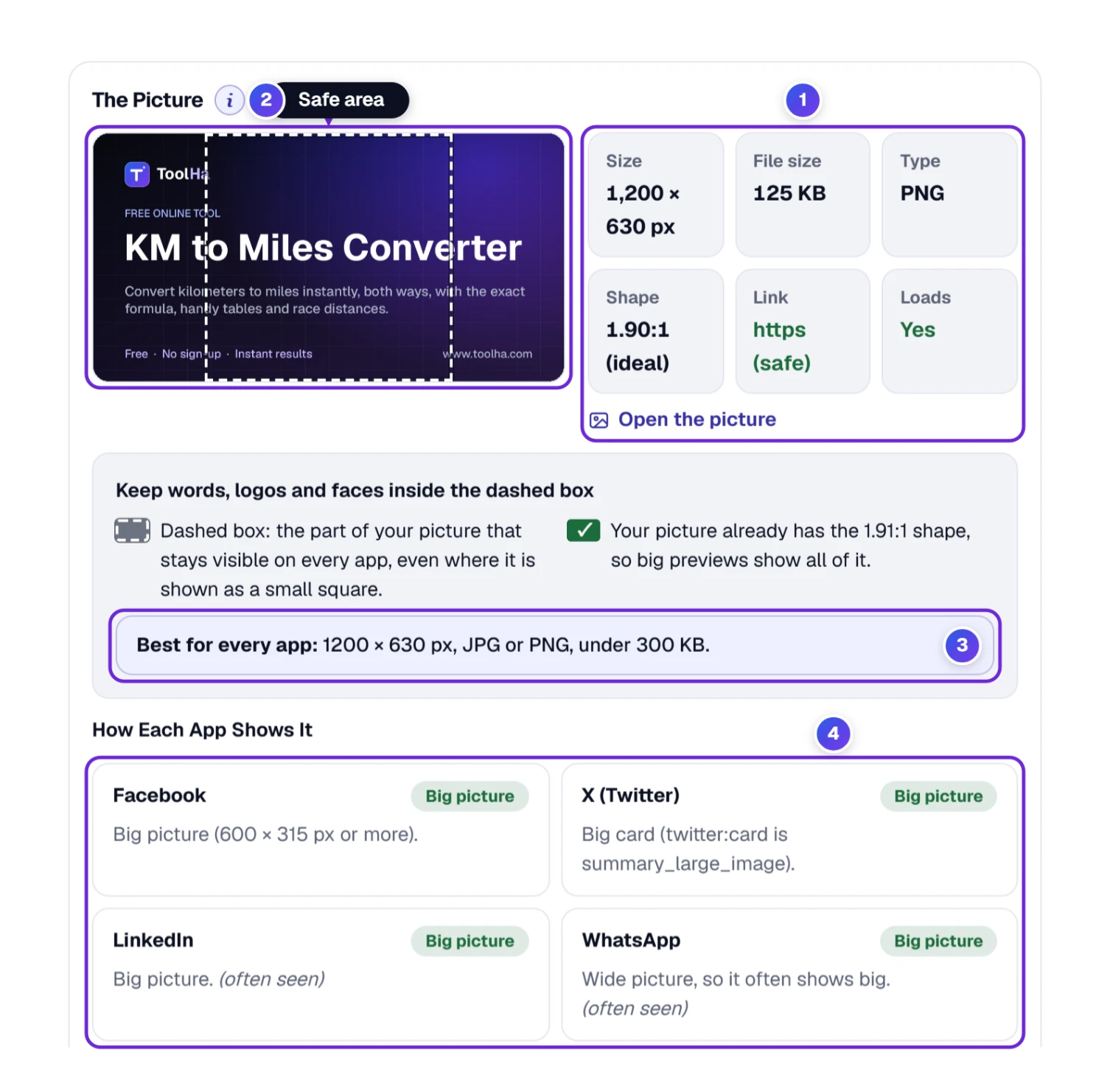
- 1 The tiles list the size in pixels, file size, type (JPG, PNG and so on), shape, whether the link is secure (https) and whether it loads. Open the picture shows it full size.
- 2 The dashed box marks the part every app keeps, so that’s where words, logos and faces belong. On a picture that isn’t wide, darker edges show what big previews trim away.
- 3 If you remember one line, make it this: Best for every app: 1200 × 630 px, JPG or PNG, under 300 KB.
- 4 Under How Each App Shows It, apps with a problem are listed first, followed by the ones that are fine.
Meta (Facebook) recommends at least 1200 × 630 pixels and a shape as close to 1.91:1 as you can get. Below 600 × 315, Facebook shows the picture small, and under 200 × 200 it doesn’t show it at all.
What the Link Preview Checker Found in Your Page
This part is for the curious, and for whoever ends up fixing your page. What We Found lists the share tags the apps read, with a progress bar at the top 1.
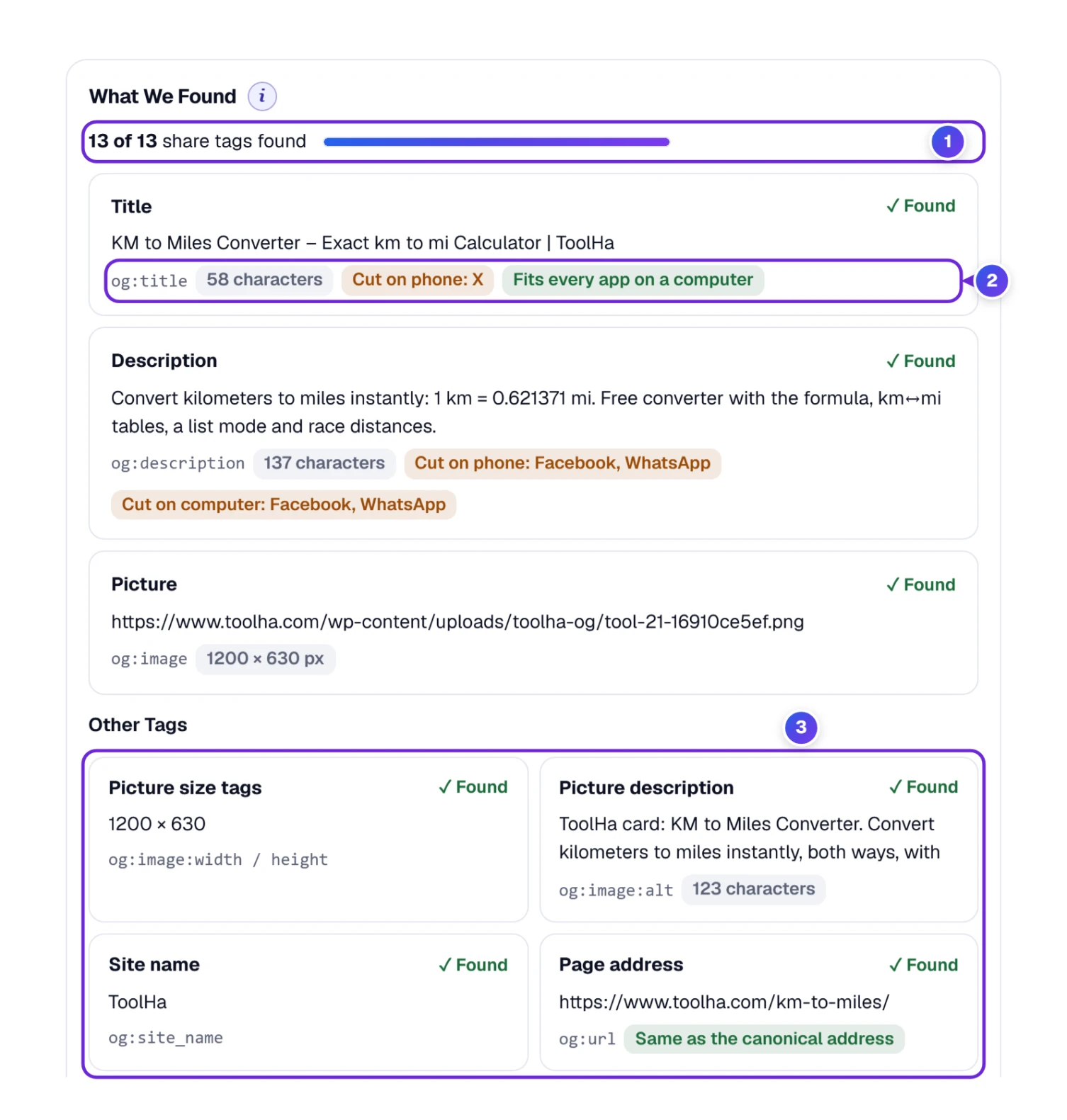
The title, description and picture each get their own card showing the exact words, the tag they came from, and small labels 2: the character count and which apps cut them on a phone or a computer. Smaller tags sit in a grid below 3. A missing one gets a dashed border and an orange Missing label.
| Tag | In plain words | What happens without it |
|---|---|---|
| og:title | The headline of the card | Apps use the page title instead, which may be longer or less friendly. |
| og:description | One or two sentences under the headline | Many apps show no line at all, or pick random text. |
| og:image | The share picture | Most apps show a plain link. |
| og:url | The page’s main address | Likes and shares can be split between two addresses. |
| twitter:card | Asks for a big or a small card | X, Discord and Slack fall back to a small picture. |
| og:image:width and og:image:height | The picture’s size, written down | Facebook may show the very first share without the picture. |
| og:image:alt | A short description of the picture | People using screen readers hear nothing about it. |
Our own page didn’t get a clean sheet. The KM to Miles description is 137 characters, and the checker shows it cut on Facebook and WhatsApp, on both phone and computer. Its 58-character title is cut only on X on a phone. The verdict is still Ready to share, because a slightly shortened description doesn’t break anything. The labels are there to show you where the words stop.
When an App’s Robot Gets Turned Away
Plenty of websites block unknown visitors to keep spam out. Now and then that same wall stops the robots that build link previews, and no app can show your card. What the Apps’ Robots See checks for exactly that.
It also asks for your page exactly the way Facebook’s robot does: only the first 512 KB, packed with gzip or deflate. If your site sends back something Facebook can’t unpack, like a page a cache plugin packed twice, the checker marks it in red, says which app is hit and what to change.
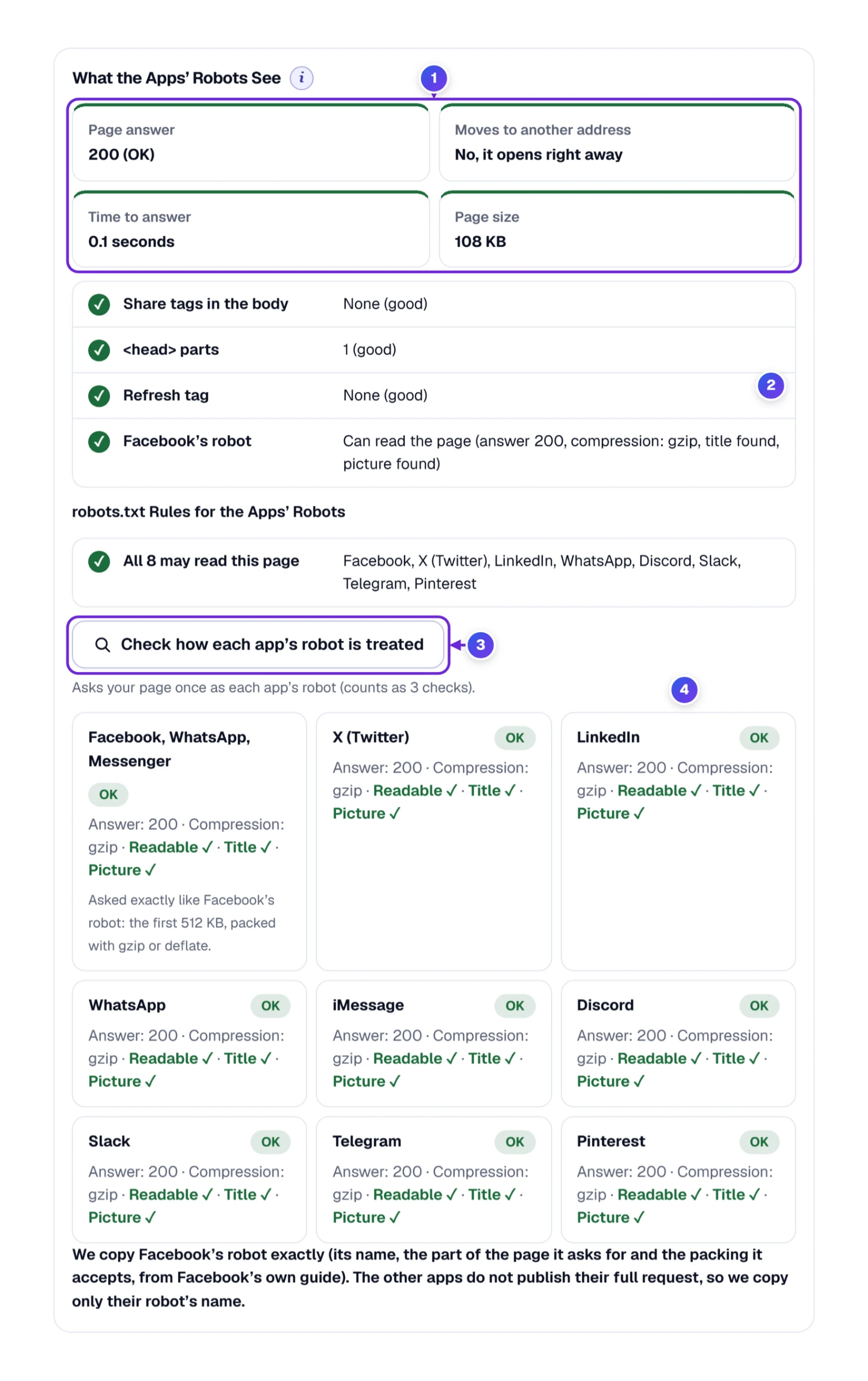
- 1 Four tiles: the page’s answer (200 means OK), whether the link moves to another address, how long the page took, and how big it is. Green is fine, orange is worth a look, red is trouble.
- 2 A checklist marked ✓, ! or i: share tags in the wrong part of the page, a “refresh” tag that sends visitors elsewhere, whether Facebook’s robot can read the page, and what your robots.txt file says to each app.
- 3 Check how each app’s robot is treated knocks on your page once as each app’s robot. It counts as three checks.
- 4 Each app gets a result: OK, or a warning such as Got a bot check page, not your page or Can’t read the page. Under it you see the answer code, the compression the page came with, and whether the robot could read it and found a title and a picture.
A 403 that isn’t what it seems. Some large sites check that a robot calling itself Facebook’s really comes from Facebook, and they answer our copy with 403, which means “no entry”. The checker doesn’t count that against you: it reads the page once more the plain way and adds a calm note instead of a red warning. If you still see a 403, run the robot test before you change anything. It shows which apps get your real page, title and picture included.
A link that moves isn’t always a problem either. Type an address without www., let the site add it, and the tool calls that one step normal, in blue. When we typed toolha.com/km-to-miles with no www. and no slash at the end, the link moved twice, so the tool suggested sharing the final address. The full address opened straight away.
I Changed the Picture, but Facebook Still Shows the Old One
Everyone runs into this sooner or later, and your page isn’t to blame. Apps save a copy of each link’s preview and reuse it, sometimes for days. The box Still Seeing the Old Picture? explains how to get each app to look again.
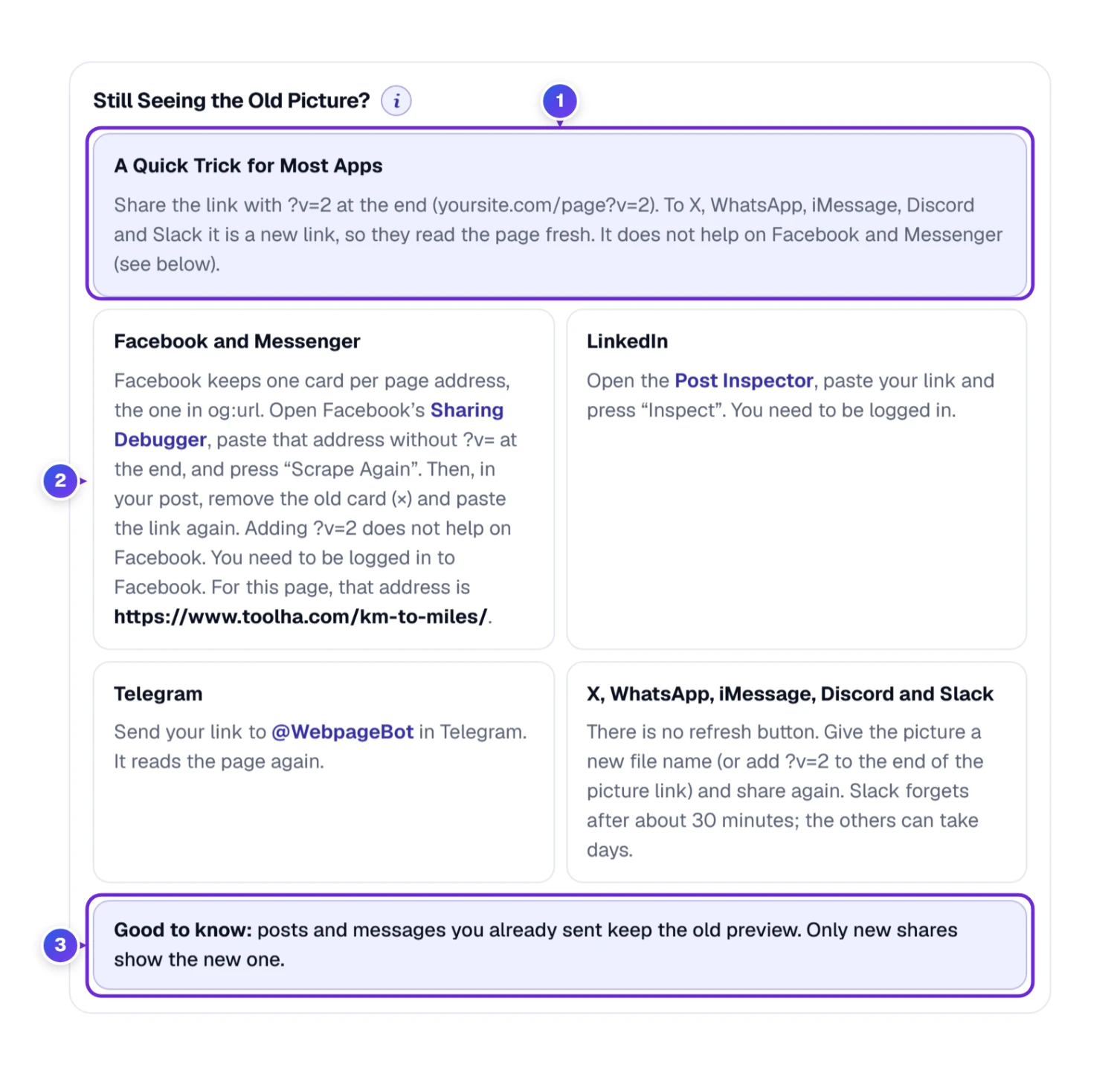
- 1 A Quick Trick for Most Apps: add ?v=2 to the end of your link (yoursite.com/page?v=2). X, WhatsApp, iMessage, Discord and Slack see a new link and read your page from scratch. It doesn’t work on Facebook or Messenger.
- 2 Facebook and Messenger: Facebook keeps one card per page address, the one in your og:url tag, so ?v=2 doesn’t help there. Open Meta’s Sharing Debugger, paste that address with nothing added at the end and press “Scrape Again”. Then remove the old card (×) from your post and paste the link again. LinkedIn: Post Inspector does the same job. Telegram: send the link to @WebpageBot. Facebook and LinkedIn need you to be logged in.
- X, WhatsApp, iMessage, Discord and Slack have no refresh button. Rename the picture file or use the ?v=2 trick. Slack lets go after about 30 minutes; the others can hold on for days.
- 3 Posts and messages already sent keep the old preview. Only new shares pick up the change.
My Page Isn’t Online Yet. Can I Still Check It?
Yes. The second tab, Paste page code, reads a page’s code instead of its address. That covers drafts, pages behind a login, and pages that only exist on your own computer.
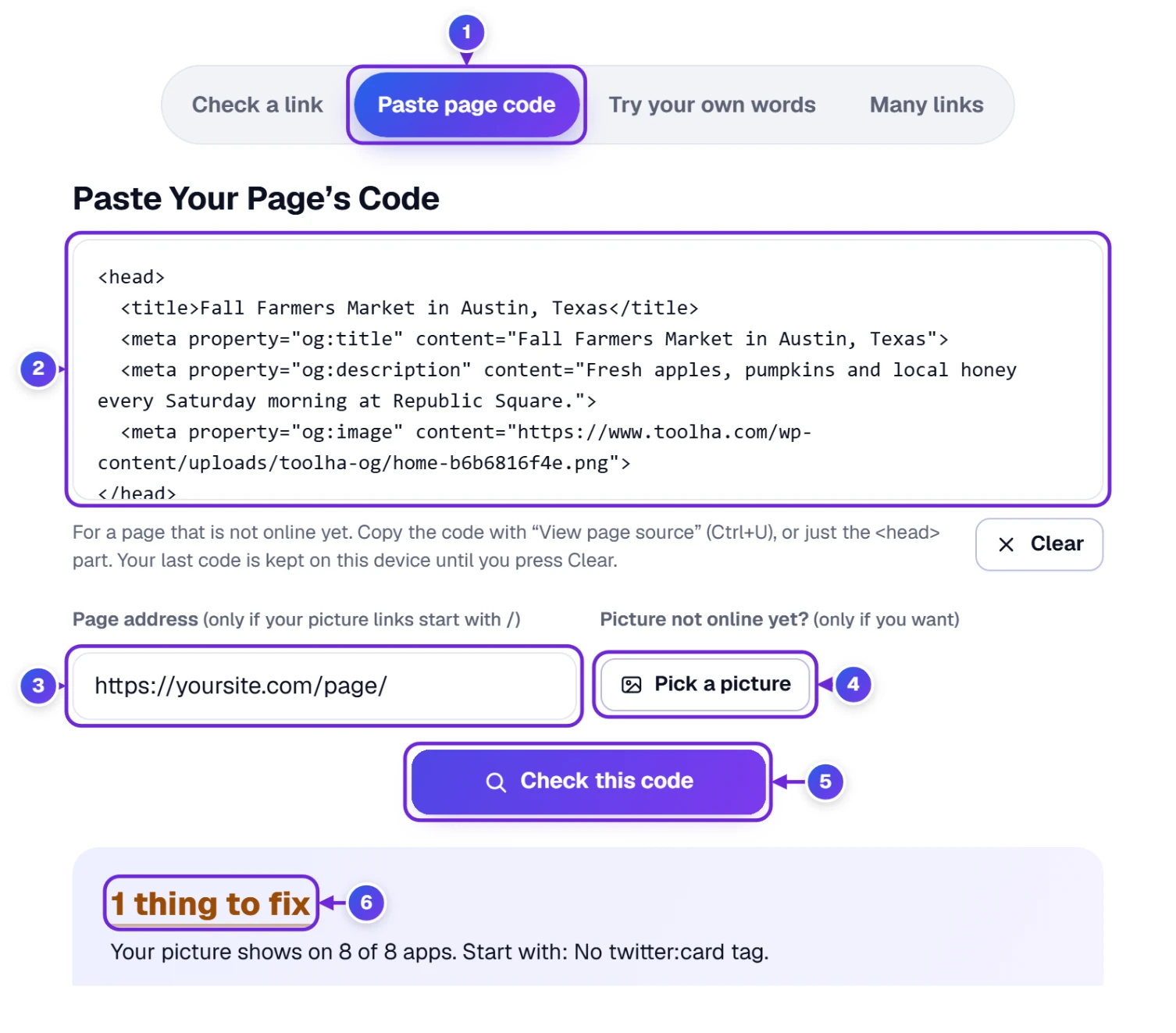
- Open the Paste page code tab 1.
- Copy your page’s code. In most browsers you right-click the page, choose View page source (or press Ctrl + U), select everything and copy it. Only the top part, between <head> and </head>, is needed.
- Paste it into the big box 2, then click outside it or press Check this code 5. The verdict 6 shows up below, just like for a link.
- If picture links in the code start with a slash (like /images/share.jpg), type the page’s future address into Page address 3 so the tool can find them.
- If the picture isn’t online yet either, press Pick a picture 4 and choose it from your computer or phone.
Our made-up farmers market page came back with 1 thing to fix: its code had no twitter:card line, so X, Discord and Slack would have shown only a small picture.
Pasted code is saved on this device, even through a reload, until you press Clear below the box.
Planning a Post? Type Your Own Title and Picture
The third tab, Try your own words, doesn’t need a page at all. Think of it as a sketchpad for writers and shop owners who want to see the card before the page is built.
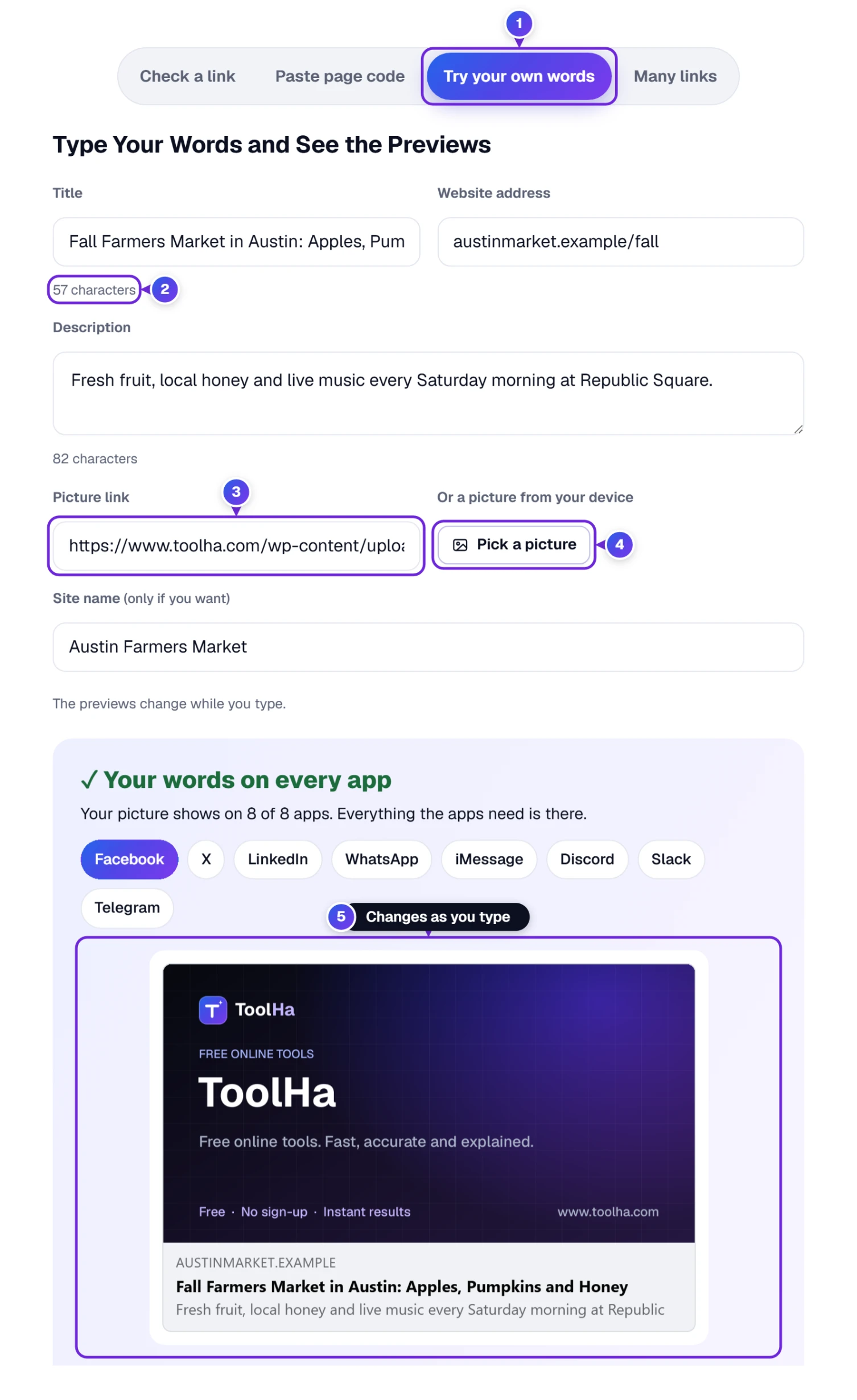
- Choose Try your own words 1.
- Type a Title and a Description. The counter 2 under each box keeps count of the characters.
- Add the Website address and, if you want, a Site name.
- For the picture, paste a Picture link 3 or use Pick a picture 4 to take one from your device.
- The preview 5 and the app cards update as you type.
How long can a title be? We measured it. A 70-character title, “Fall Farmers Market in Austin, Texas: Apples, Pumpkins and Local Honey”, fit on every app. A few more words, 82 characters in all, and it was cut on five apps on a phone: Facebook, X, WhatsApp, iMessage and Telegram. At 103 characters it was cut on all eight on a phone, but only on X on a computer. The tool’s own advice of 40 to 60 characters keeps you safe. Search results follow a different rule. Google cuts a title by its width in pixels, not by its number of characters, so a title that fits a share card can still lose its ending there. Our Meta Title & Description Checker shows where that cut would fall.
Checking a Whole List of Pages
The fourth tab, Many links, checks up to 10 links in one go, a quick bulk check for when a new site launches or an old one gets a cleanup. It works in three numbered steps, and each step only shows what you need at that moment.
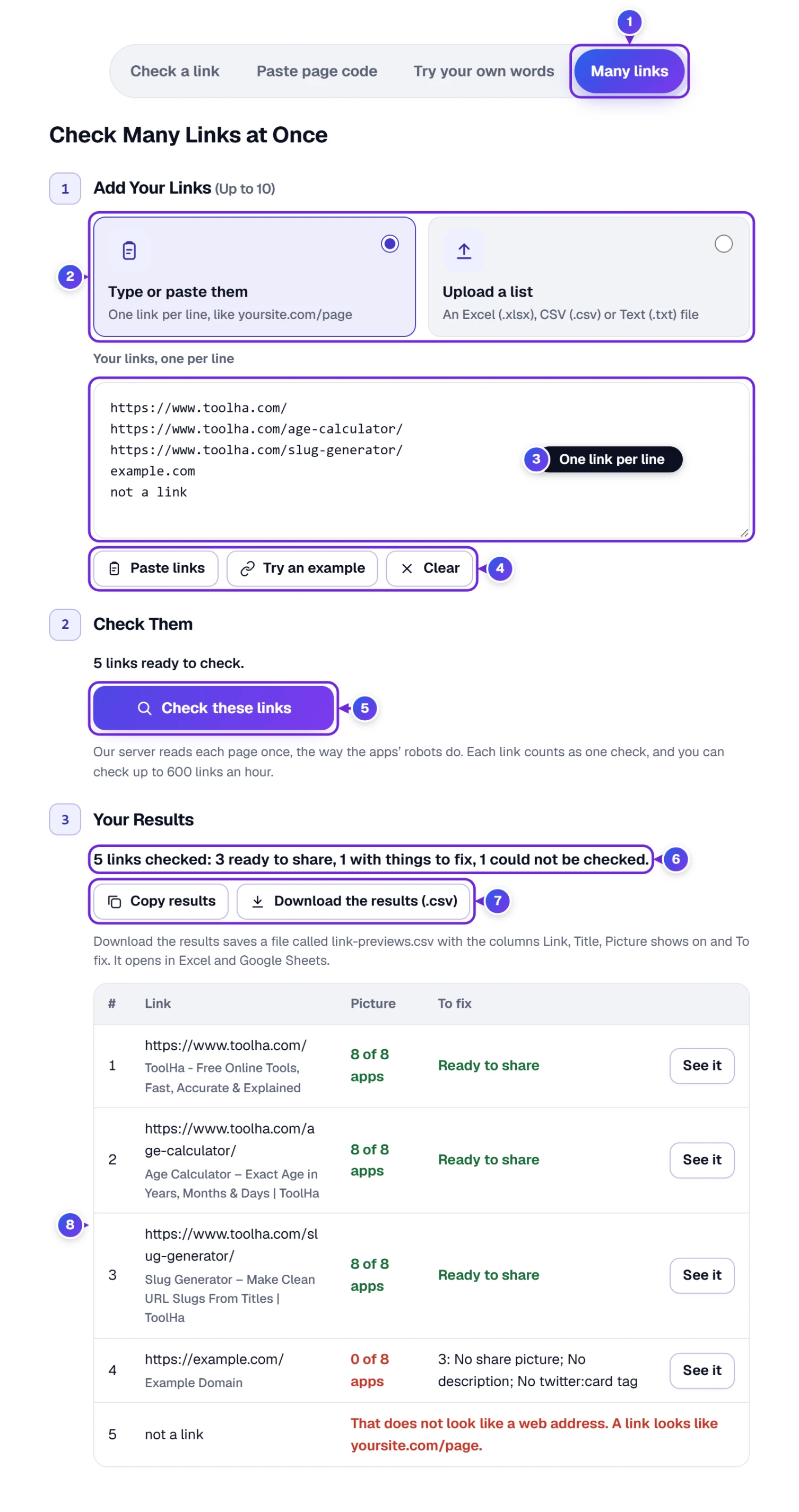
- Open Many links 1.
- In step 1, pick how you’ll add them 2. Type or paste them gives you a box 3 for one link per line. Under it sit Paste links, Try an example (it fills in three of our own pages) and Clear 4. Upload a list swaps the box for a drop zone instead: drop a spreadsheet or text file (.xlsx, .csv or .txt) on it, or press Choose a file, and the links it found show up as a numbered list.
- In step 2, the line above the button tells you how many links are ready. Press Check these links 5 and they’re checked one after another.
- Step 3 appears once the checks finish. A one-line summary 6 counts what’s ready to share and what needs work, and the table 8 shows each link’s page title, on how many of the 8 apps its picture appears, and what to fix. Anything that isn’t a link gets a plain note, like That does not look like a web address. On a phone, each row becomes a small card.
- See it on any row opens the full check for that link. Copy results and Download the results (.csv) 7 save the table for Excel or Google Sheets. The file is called link-previews.csv and has four columns: Link, Title, Picture shows on and To fix.
Not sure how your file should look? Under the drop zone of Upload a list you can download a sample list as Excel (.xlsx), CSV (.csv) or Text (.txt). Each link counts as one check. A person can run up to 600 checks an hour, far more than anyone types by hand.
A Picture of the Result for Your Web Designer
Save as picture, under the answer, packs the result into one tidy image: the link, the verdict, the eight main apps with Big, Small or No picture, and the top three fixes. On a computer it downloads as a PNG named after your site. On a phone it opens the share menu, so it can go straight into a chat.
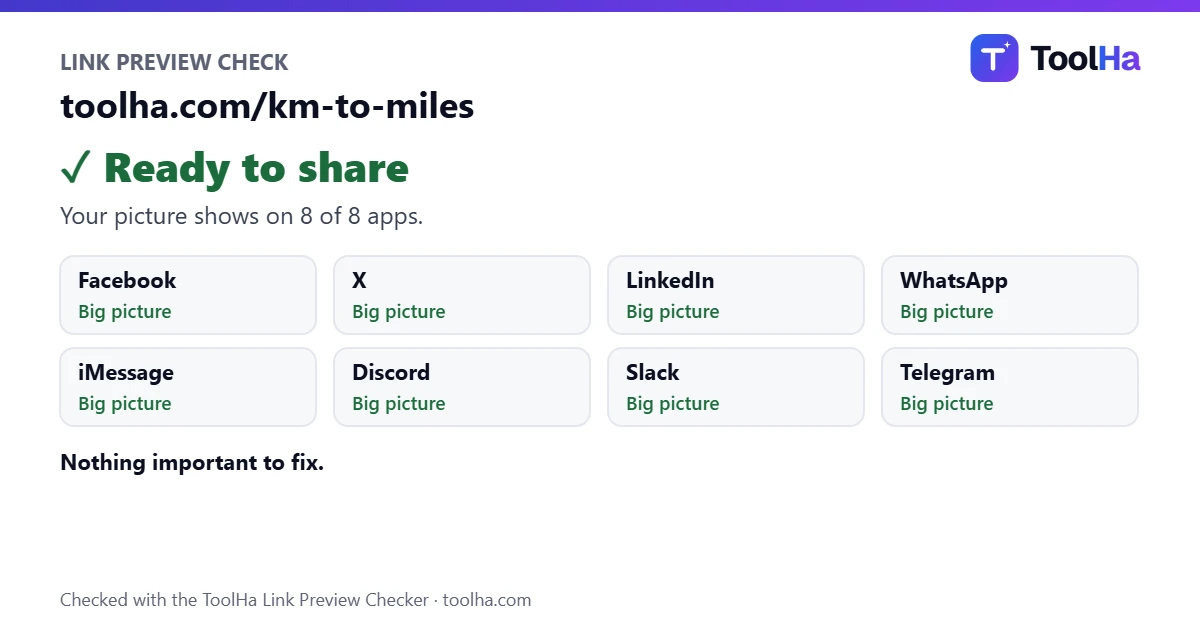
Send it to whoever looks after your site, and they can see the problem without opening a single link.
Below the Checker: Recent Links and How We Check
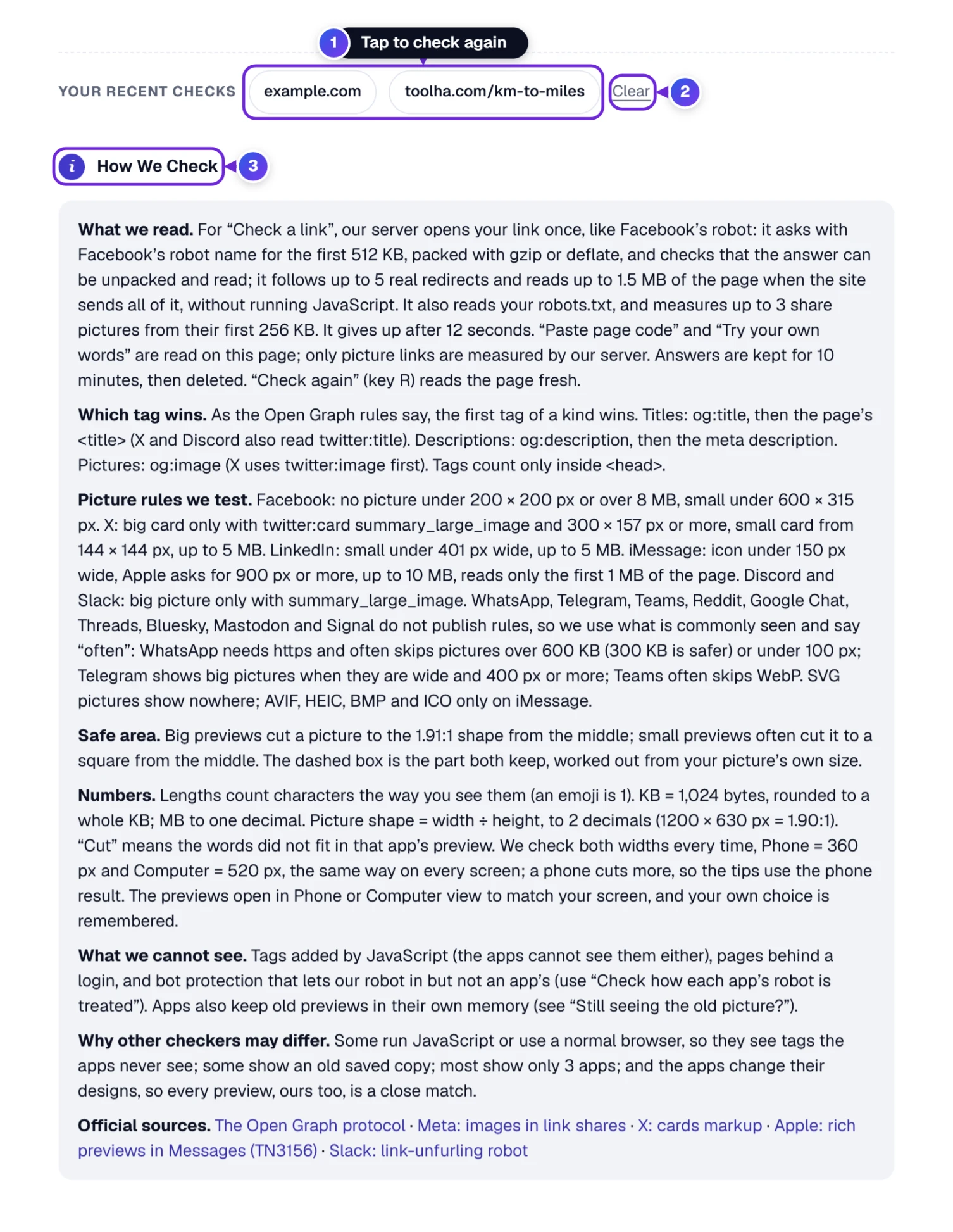
- 1 Your Recent Checks keeps the last five links you checked on this device. Tap one to run it again.
- 2 Clear wipes that list, which is worth doing on a shared computer.
- 3 How We Check opens a plain-English rundown of the rules: which tag wins when there are two, each app’s picture rules, how the safe area is worked out, and what the checker can’t see (tags added by JavaScript, and pages behind a login).
The Rules Behind Every Verdict
The full rules are in How We Check under the tool. Here’s the short version.
- Which words win. When a page has two titles, apps go with the share tag, og:title, and fall back on the normal page title only when that’s missing. X, Discord and Slack also look at twitter:title. Descriptions work the same way with og:description and the meta description. Tags only count inside the page’s <head>, and if one appears twice, the first wins, as the Open Graph rules say.
- Where words get cut. Your words are laid into two boxes of fixed width, a phone (360 px) and a computer (520 px), and characters are counted as they appear on screen, so an emoji counts as one.
- Picture rules. Facebook, Messenger, X, iMessage and Slack publish their rules, and the checker follows them. Meta, for instance, shows no picture under 200 × 200 px, X needs summary_large_image for a big card, and Apple asks for pictures at least 900 px wide. WhatsApp, Telegram and the rest don’t publish rules, so the checker goes by what’s commonly seen and labels it “often”.
- Numbers. 1 KB is 1,024 bytes, rounded to a whole KB. Shape is width divided by height, to two decimals, so 1200 × 630 px shows as 1.90:1. A picture that close to the 1.91:1 rule counts as a perfect fit.
Another checker showing something different doesn’t mean one of them is broken. Some open the page in a full browser that runs JavaScript, so they see tags no app robot ever sees. Some show a copy saved days ago. Most cover only three apps, and the apps themselves redesign their previews every so often. Take a shop page whose title is added by JavaScript: a browser-based checker shows a perfect card, while WhatsApp shows a bare link. Ours reads the page the way the apps’ robots do, so it shows the bare link too, and that’s the warning you need.
Keeping the Checker Close: Favorites, QR Code, Embed and Print
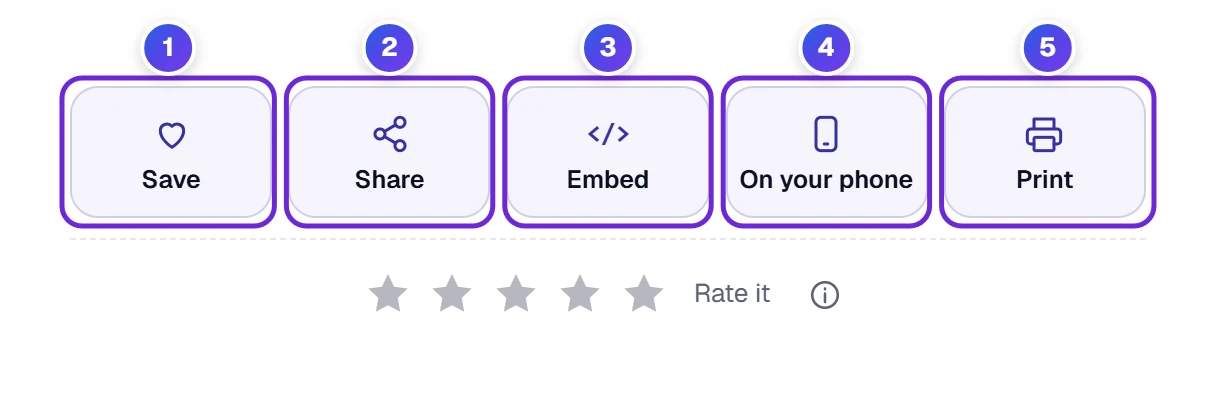
- 1 Pressing Save lists the checker under Your favorite tools in My tools on the ToolHa homepage (in this browser only). On a phone, tap My Tools at the bottom of the screen.
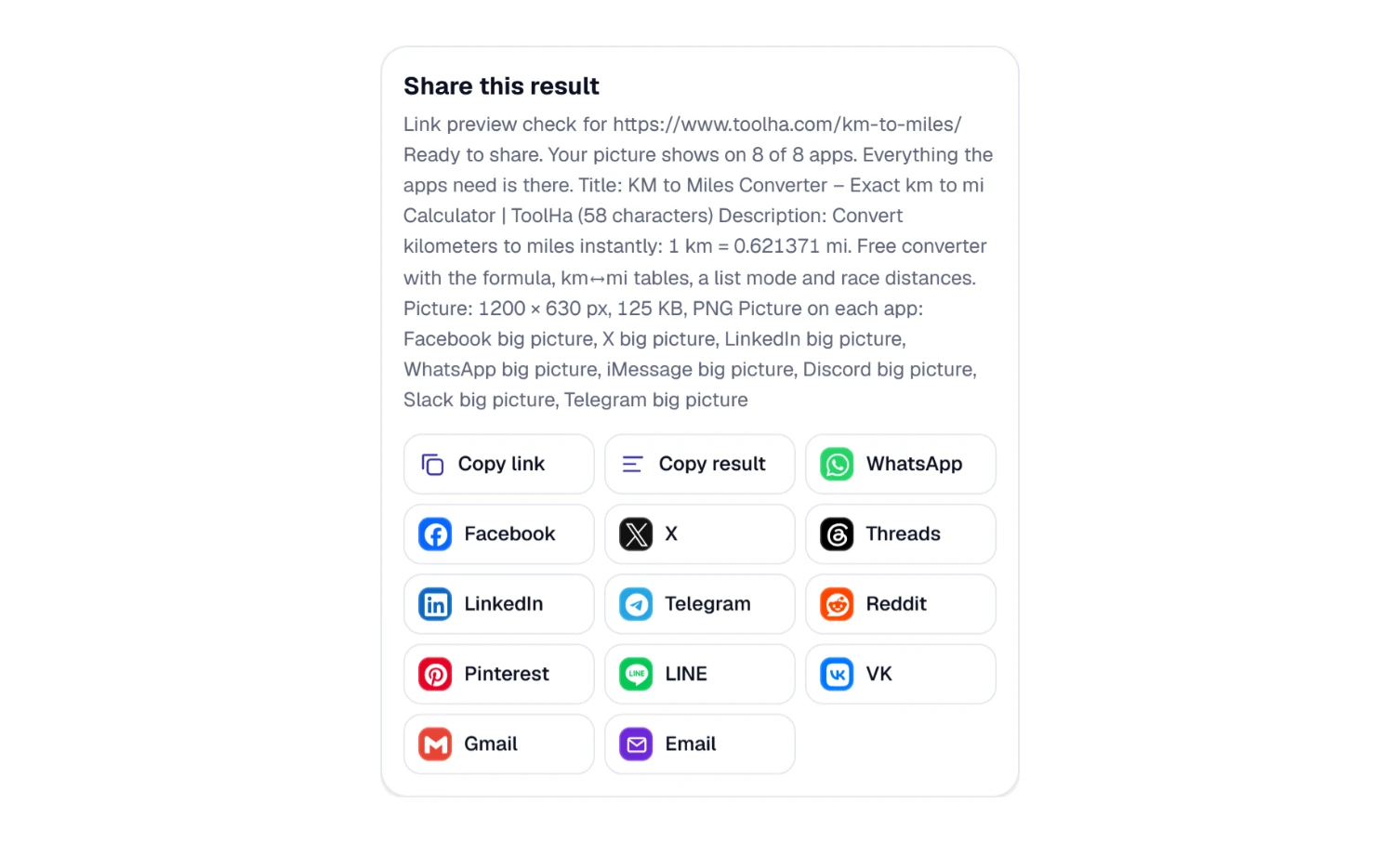
- 2 Share brings up the window pictured below. After a check, the link you share opens that same check for the other person, which saves a lot of explaining when you ask your web designer “do you see this too?”.
- 3 Embed produces a snippet of HTML, so a blog or a client’s site can carry this checker.
- 4 On your phone puts a QR code on the screen. Hold your phone up to it, and the checker opens on the phone with the same result. Wide computer screens show this button.
- 5 Print sends the result to your printer or to a PDF.
- Star ratings for the tool sit right next to these buttons.
R, D, W and Friends: The Shortcut Keys
As long as the cursor isn’t in a text box, single keys run the checker. ? brings up the whole list.
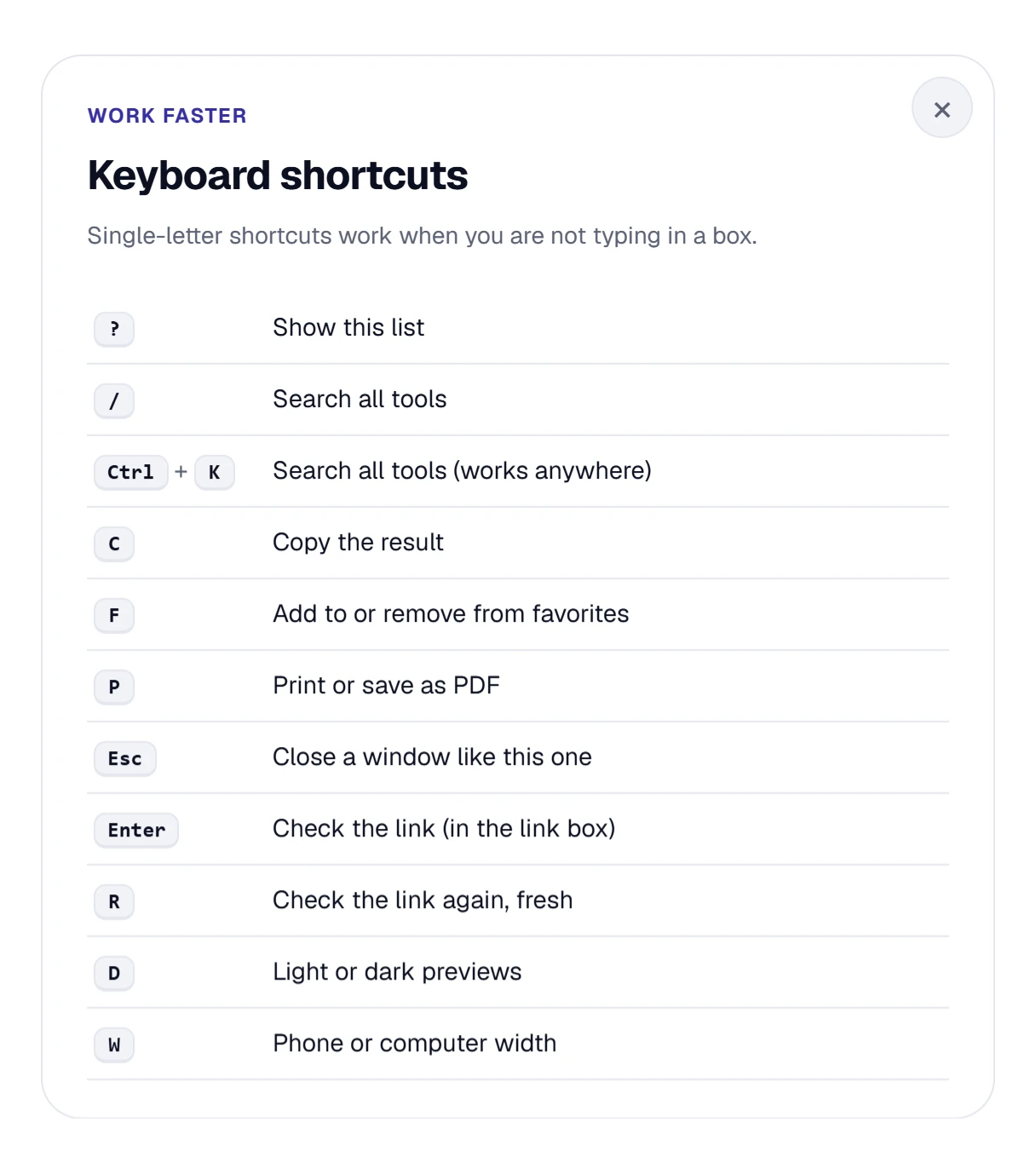
- Enter (in the link box) runs the check.
- R checks the same link again, fresh.
- D flips the previews between light and dark.
- W flips between phone and computer width.
- C copies the result and P prints; F adds the tool to your favorites.
Before You Hit Send on Your Phone
Most links get shared from a phone, so it makes sense to check them there. On a small screen the four tabs stack into two rows, Paste and Clear drop below the link box, and the previews open at phone width (unless you picked Computer earlier). The four answer buttons line up one under another, so each gets the full width of the screen.
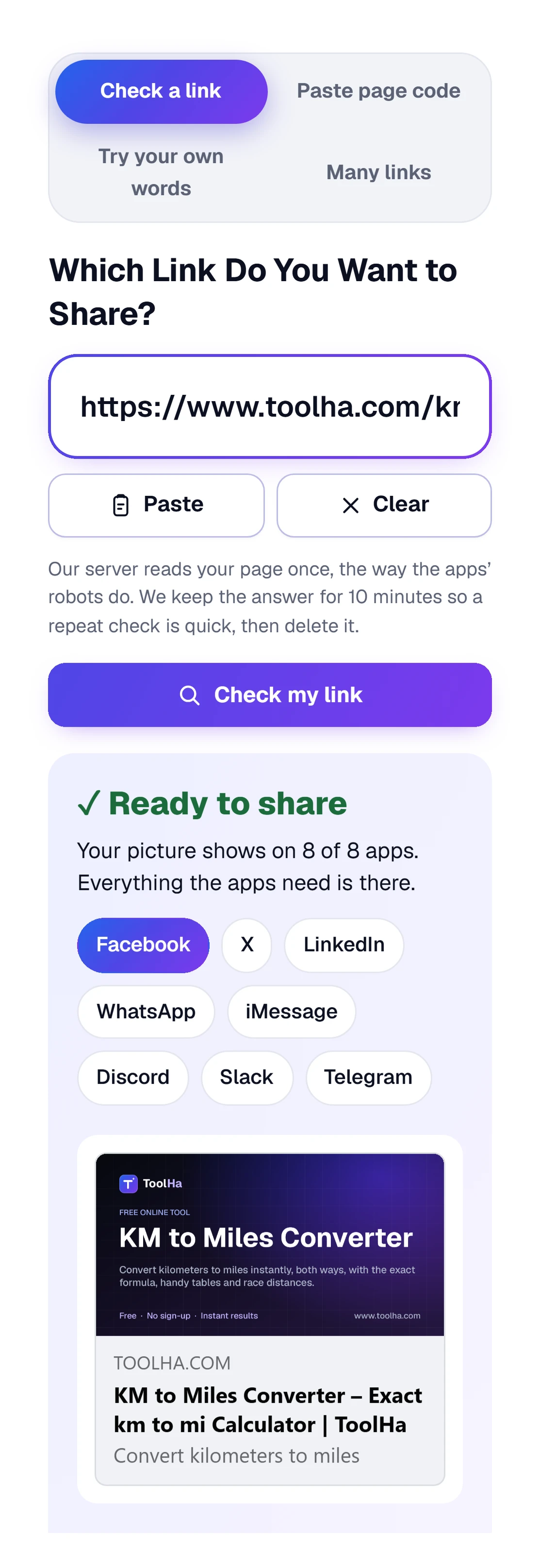
A habit worth picking up: before sending a link from your phone, copy it, open the checker, tap Paste, and look at the WhatsApp or iMessage preview first.
What Our Server Reads, and How Long It Keeps It
To check a link, our server has to open the page, the same way an app’s robot does. Here’s exactly what happens:
- It opens your link once, asking for it the way Facebook’s robot does (the first 512 KB, packed with gzip or deflate), and checks that the answer can be read. It follows up to 5 real redirects and reads up to 1.5 MB of the page when the site sends all of it, without running any JavaScript. After 12 seconds it gives up.
- It measures up to three share pictures, reading only the first 256 KB of each.
- We delete each answer after 10 minutes; until then the same link comes back almost at once.
- The robot test asks your page once as each app’s robot, and only when you press its button.
- With Paste page code and Try your own words, our server measures only the picture links.
Your recent checks, your Light or Dark and Phone or Computer choices, and any pasted page code are saved on your device, so they’re there next time. The Privacy Policy covers this in more detail under “Tools that read a web page for you”.
Still Looks Wrong? Find What You See in This Table
| What you see | The likely reason | What to do |
|---|---|---|
| The checker says Ready to share, but Facebook shows the old picture | Facebook remembers the old preview for the page’s own address (its og:url). | Run that address through the Sharing Debugger, press “Scrape Again”, then paste the link into your post again. ?v=2 doesn’t help on Facebook. |
| WhatsApp shows no picture, other apps do | The picture is over about 600 KB, or the link starts with http://. | Save the picture under 300 KB as a JPG or PNG, and use an https link. |
| X shows a small picture, Facebook a big one | There is no twitter:card tag, or it says “summary”. | Add the line twitter:card = summary_large_image from the fix list. |
| The checker shows a 403 or a bot check page | Bot protection on the website turned the robot away. | Press “Check how each app’s robot is treated”, then let link-preview robots in, for example in your Cloudflare settings. |
| A tag is in the page, but the checker says Missing | The tag is added by JavaScript after the page loads. | Apps can’t see it either. Put the tag in the page’s HTML, or set it in your SEO plugin. |
| “We could not reach our checker” | Your internet connection dropped, or our checker is very busy. | Wait a moment and press Check my link again, or use Paste page code. |
| The answer didn’t change after you fixed the page | You’re seeing the 10-minute saved answer. | Press Check again (or the R key) to read the page fresh. |
Link Previews in a Sentence or Two
Why Is My Link Preview Not Showing a Picture?
Usually one of four things: the page has no og:image tag, the picture is too small (under 200 × 200 px on Facebook), it’s too heavy for WhatsApp (about 600 KB), or the app’s robot was blocked. Paste the link into the Link Preview Checker, and Fix These First names the cause and gives you the line to add.
How Do I Refresh a Link Preview on Facebook?
Open Meta’s Sharing Debugger while logged in to Facebook, paste the page’s own address (the one in its og:url tag, with no ?v=2) and press Scrape Again. Then remove the old card from your post and paste the link again. Adding ?v=2 works on X, WhatsApp, iMessage, Discord and Slack, but not on Facebook.
What Size Should a Link Preview Image Be?
For the picture (some people call it the link thumbnail), 1200 × 630 pixels works on every major app. Meta recommends at least that size and a shape close to 1.91:1. Keep the file under 300 KB as a JPG or PNG, with words and faces near the middle, inside the safe area the checker draws.
Why Does WhatsApp Not Show My Link Preview Image?
WhatsApp often skips pictures over about 600 KB, links that start with http:// instead of https://, and pictures smaller than about 100 px. Make the picture lighter, switch to https and share again. WhatsApp may hang on to the old preview for a while.
What Is Open Graph, in Simple Terms?
Open Graph is a set of short tags at the top of a web page that tell apps which title, description and picture to show when the page is shared. The four basic ones are og:title, og:type, og:image and og:url.
Can I Check a Page That Is Not Published Yet?
Yes. Paste the page’s code into the Paste page code tab, or use Try your own words to type a title, description and picture and see the previews before the page exists.