The Meta Title & Description Checker measures your page title and meta description in characters, words and pixels, then shows how they may look in Google on a computer and on a phone, with the part that gets cut off marked. Google doesn’t publish a length limit, so the tool uses the widths real search results show: about 580 pixels for a title and 920 pixels for a description. Type your words, or give the address of a live page and we read them for you. Check one page or a whole list at once, fix what the tool finds, and keep the result as a PDF, a picture, a file or a copy.
Search for anything on Google and each result has two parts. On top is a big blue link, which is your page’s title. You may hear it called the title tag. Under it sit a few lines of smaller grey words, the description, or meta description.
Google shows only as much as fits. When your words run out of room, they end with “…” and the rest stays hidden, and the hidden part can be the very words that would have made someone click. This checker shows you where that happens before you publish. Some people call this kind of tool a title tag length checker. It does that job, but it measures in pixels, because room on a screen is counted in pixels and not in letters.
We’ll walk down the page the way your eye does, from the top to the bottom. A number inside a picture matches the same number in the words next to it. For examples we use Lone Star Kitchen, an imaginary food blog, and its pecan pie page. It’s not a real site, so there’s no point looking for it.
The Meta Title and Description Checker, Top to Bottom
Here’s the top of the tool with the pecan pie page typed in. Every part of it gets its own section below.
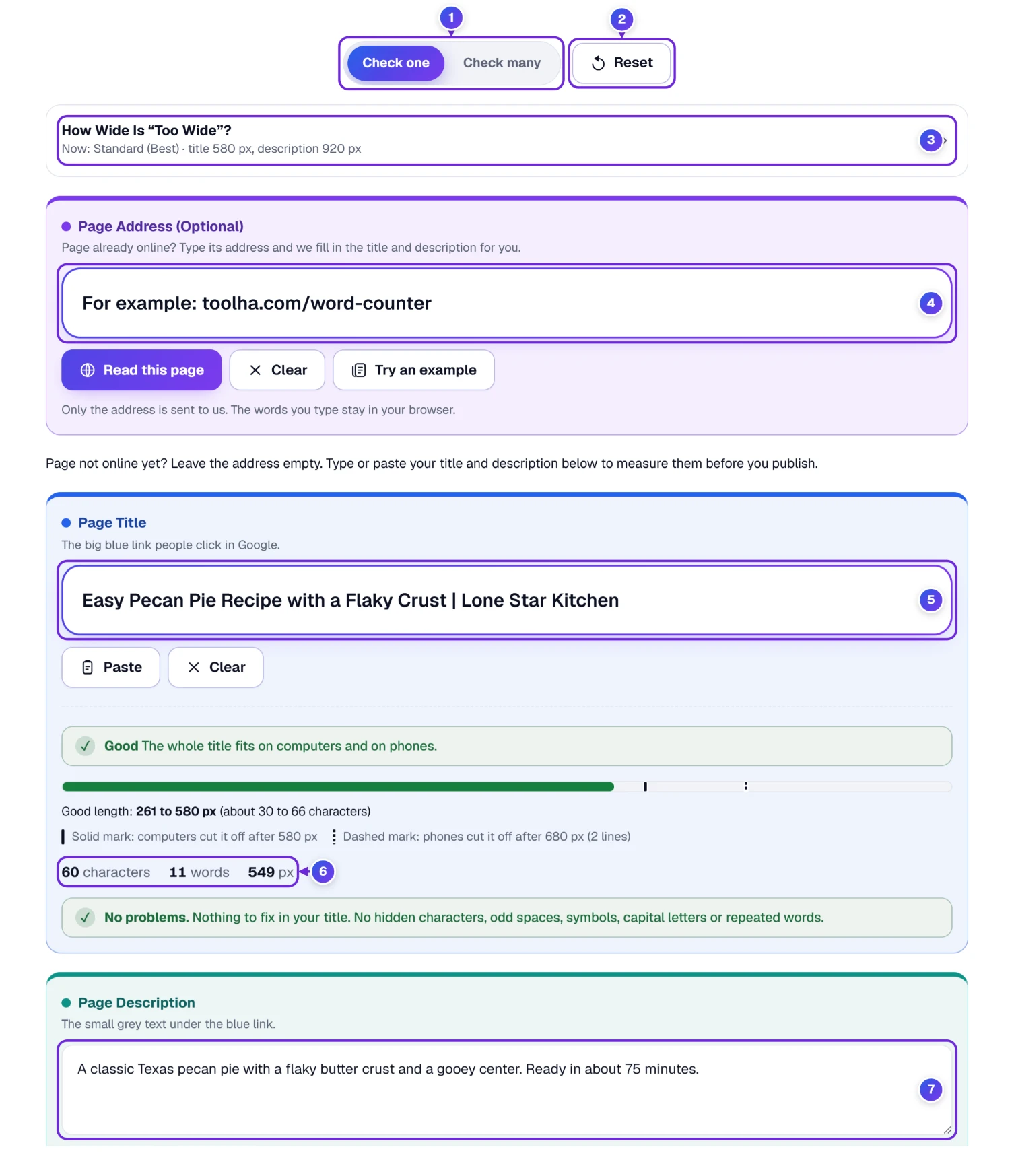
- 1 Check one and Check many. Check one looks at a single page. Check many handles a list, and has its own sections further down.
- 2 Reset clears the page address, the title and the description on the tab you are on, so you can start again. Your ruler and choices stay, and an Undo link brings your words back.
- 3 How wide is “too wide”? is the ruler. It starts on Standard, the choice we recommend, so you can leave it alone.
- 4 Page Address (Optional) is a shortcut. Type the web address of any live page, and the title and the description come back in the boxes below. We read the page a moment after you stop typing, so no button press is needed, though Read this page is there if you like. The next section shows how.
- 5 and 7 are the two boxes: the title on top, the description below it. Type in them, or let the address fill them.
- 6 Under each box you get characters, words and pixels.
Just below the boxes sits a picture of a Google result made from your words, with switches for Computer and Phone and for Light and Dark. Under it, the bar Keep the result holds Save PDF, Save picture and Copy results. Lower on the page sit Your choices, How we measure and your recent checks. All of them get a section here.
Got a Live Page? Type Its Address and We Read the Words
If the page is already online, you don’t have to copy anything. Type its address into the Page Address (Optional) box. A moment after you stop typing, when you leave the box, or at once when you paste, our server opens that public page the way a search robot does, reads the title and the description in the top of the page code, and sends back just those two texts. They fill the boxes below, and from there everything works as if you had typed them. Prefer a button? Read this page does the same, and so does the Enter key.
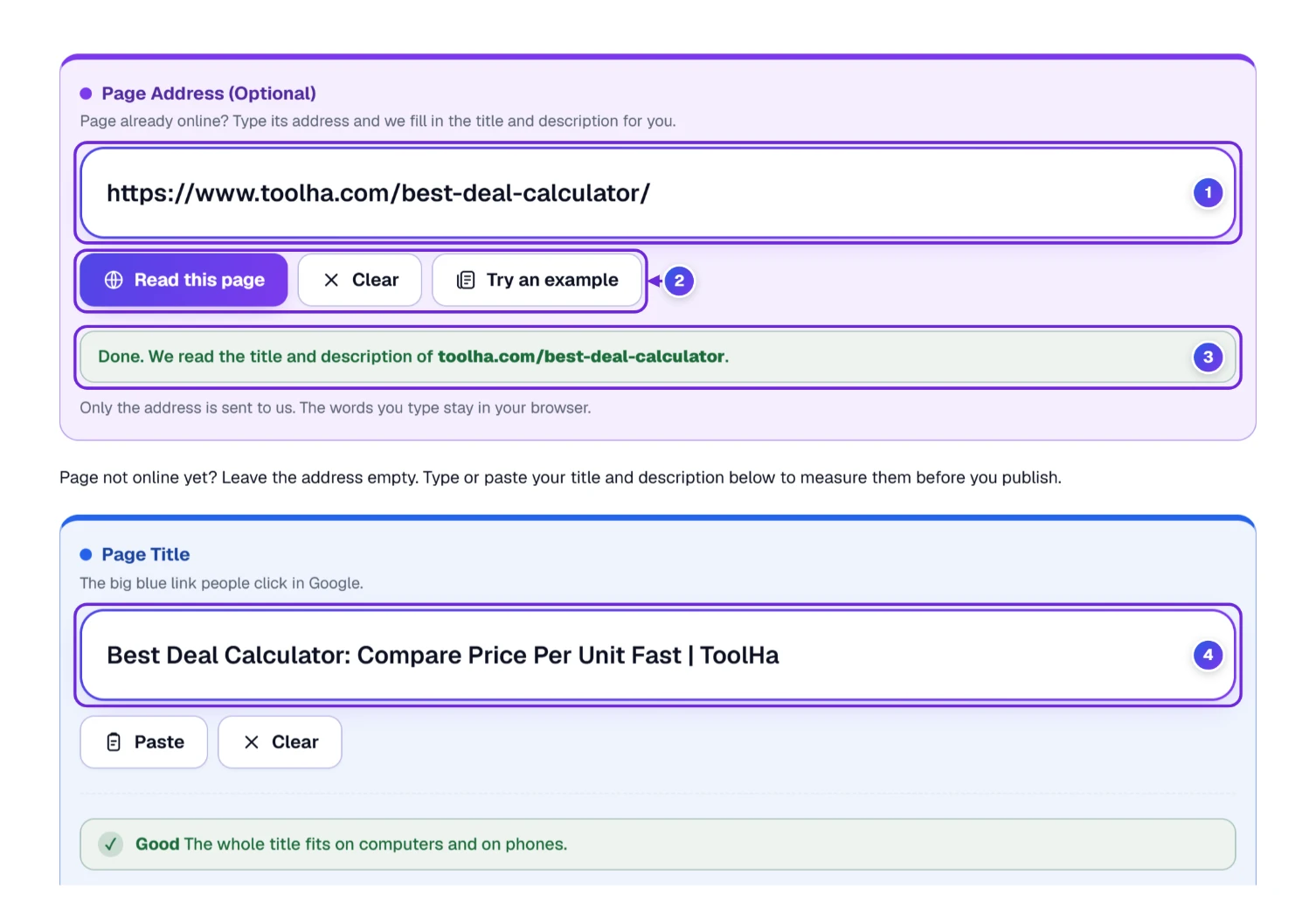
- Type or paste the address in the box 1. You can leave out “https://”, so toolha.com/best-deal-calculator works too.
- Wait a moment, or press Read this page 2. A line 3 then says what happened, for example “Done. We read the title and description of toolha.com/best-deal-calculator.” Clear empties the address and that line, and Try an example fills a sample page if you only want to look around.
- Look at the title box 4. It now holds the page’s own title, with its bar, verdict and tips, and the description box under it holds the description. Change any word you like, and the numbers follow.
If your boxes already held words when the read began, the line also shows an Undo button, and one press puts your own words and address back. The line has more to say when it matters: it tells you if the address you typed led to a different page, and if the words were read a few minutes ago.
Real run. We typed https://www.toolha.com/best-deal-calculator/ and the line said “Done. We read the title and description of toolha.com/best-deal-calculator.” The title that came back, “Best Deal Calculator: Compare Price Per Unit Fast | ToolHa”, measured 58 characters, 9 words and 530 px, and got Good. The description was 143 characters, 25 words and 892 px, so it was marked Cut on phones.
What goes where. Only the address is sent to our server, so that it can open the page. The words you type or paste are never sent. The address is also used for the green line in the Google picture. The tool doesn’t keep the page, and it remembers an answer for 10 minutes, so the same address isn’t opened again and again.
What the reader can’t do. It reads the page code as it arrives, so words that a script adds after the page loads are not seen, and Google may still show a different title than the one in the page. It reads public pages only. When it can’t read a page, a short line says why, for example “We could not find that website”, “That page was not found (it answered 404)” or “That address is private, so our reader cannot open it”, and you can type the words instead. A page with no title tag or no description line is still read, and the line tells you what is missing.
Type Your Title and Watch Three Numbers Move
Click in the Page title box and type. Nothing else to press, because the numbers update with every letter.
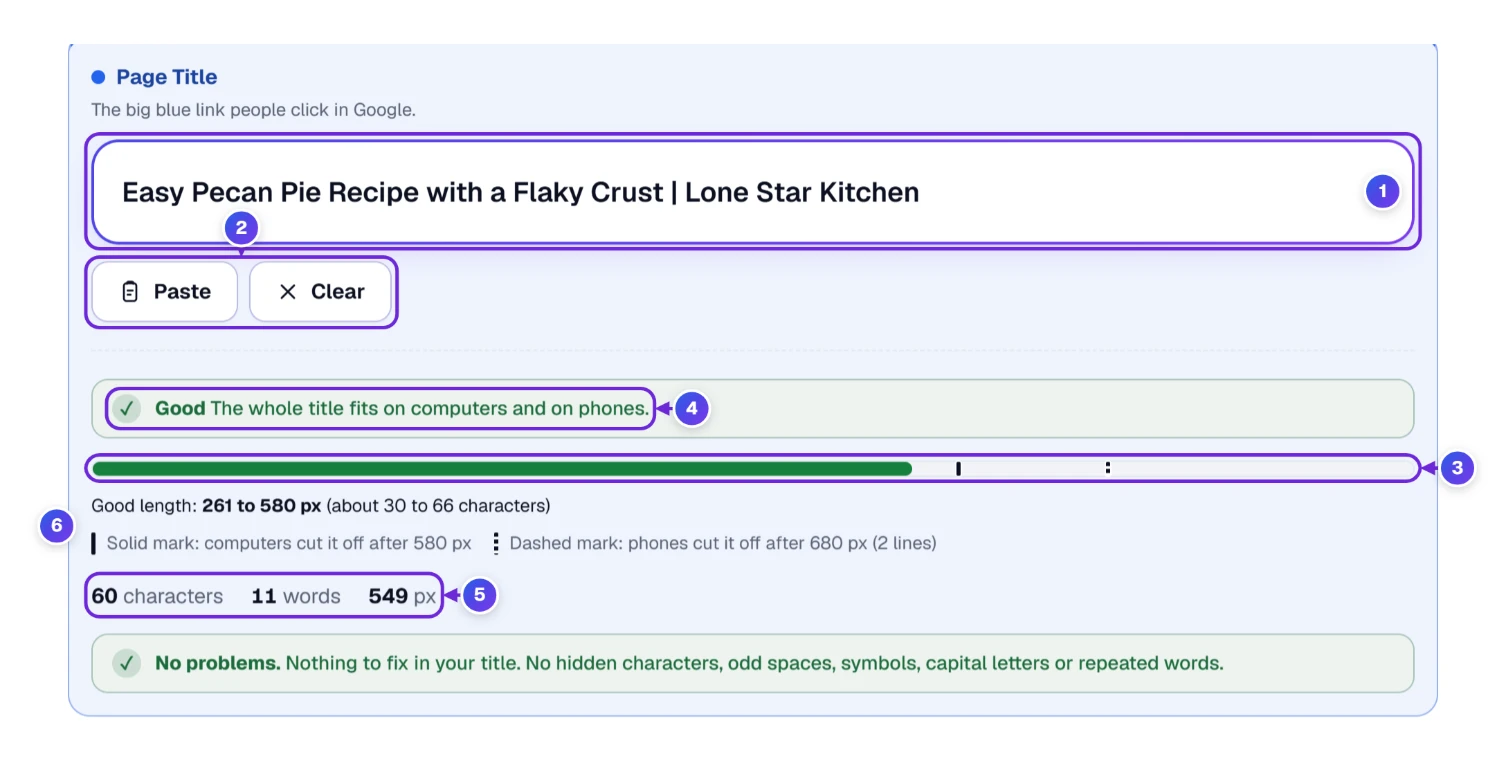
- Type your title in the box 1. Or press Paste 2 to drop in whatever you copied last. If your browser says no, hold the Ctrl key and tap V on Windows. On a Mac, hold Command and tap V. Clear empties the box.
- Watch the bar 3. It fills as you type. The solid mark is where computers cut a title off (580 pixels). The dashed mark is where phones do (680 pixels, because a phone gives the title two lines).
- Read the verdict 4 in words. We never use color alone, so a screen reader or a color-blind eye gets the same answer.
- The counts 5 say how many characters, words and pixels you have. The line under them 6 tells you what a good length looks like.
Not ready to type? Press Try an example, next to Read this page, and both boxes fill with a sample page. Reset at the top wipes the page again when you’re done looking.
The verdict is always one of five words:
| Verdict | What it means | A real one from our tests |
|---|---|---|
| Too short | Under 45% of the title limit (261 px), or 50% of the description limit (460 px). There’s room left to say more. | The title “Tools”: 49 px |
| Good | Everything shows, on a computer and on a phone. | “Easy Pecan Pie Recipe with a Flaky Crust | Lone Star Kitchen”: 549 px |
| Cut on computers | A phone shows it all (two lines), a computer cuts the end. Titles only. | A 69-character title: 626 px |
| Cut on phones | A computer shows it all, a phone cuts the end. Descriptions only. | A 125-character description: 776 px |
| Too long | Cut on both. | A stuffed pecan title: 1,133 px |
Spaces are counted the way Google shows them. Two spaces in a row count as one, and a code like & counts as the single & it stands for.
Why 30 Capital W’s Fit in a Title but 130 Small i’s Do
A quick experiment, and you can repeat it. We typed one character twenty times into the title box of the live tool and wrote down the width.
| 20 of this character | Width in the title box |
|---|---|
| W | 378 px |
| m | 333 px |
| 0 (zero) | 222 px |
| i | 89 px |
| l (small L) | 89 px |
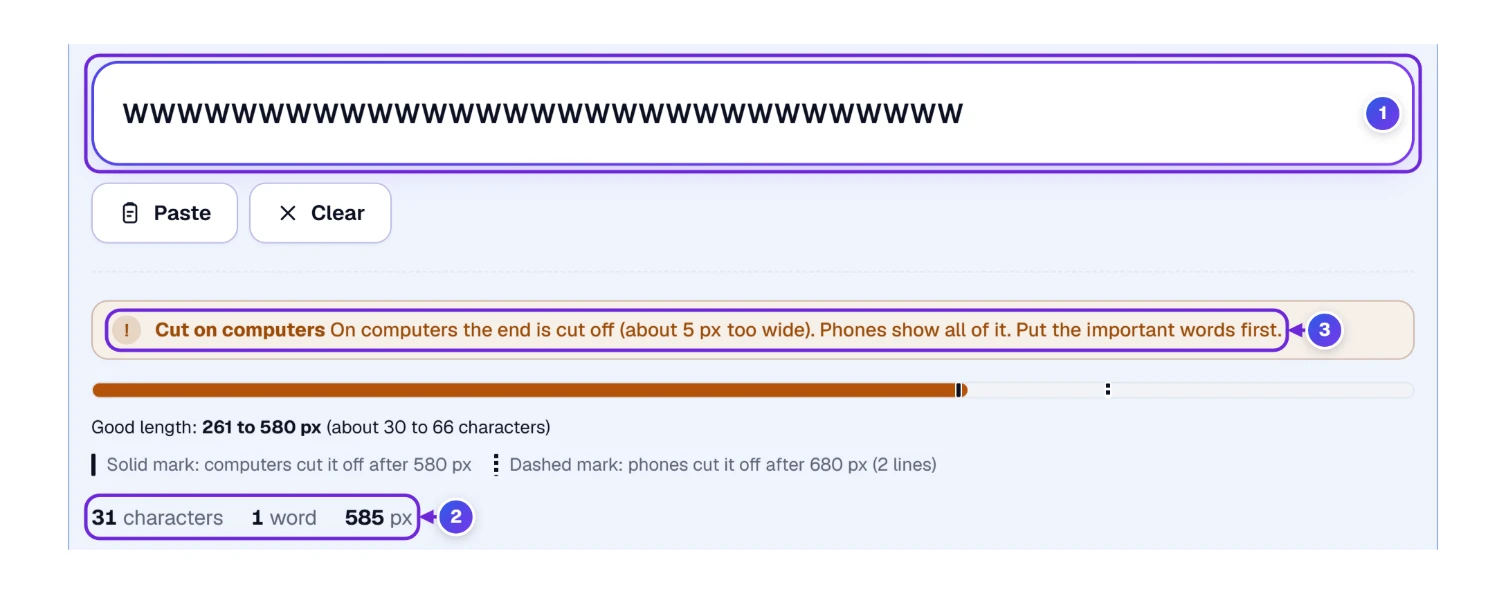
Same count, but one is more than four times as wide as another. Pushed to the edge, 30 W’s came to 566 px and fit, while a 31st 1 made it 585 px 2 and tipped the verdict to Cut on computers 3, past the 580 px mark. In the other direction, 130 i’s came to 577 px and fit, and one more made 582 px and tipped over.
Real titles live between those two extremes, which is why “about 60 characters” gets quoted so often. It’s an average, not a rule. The pixels decide, and the tool counts them for you.
Too Long? The Tips With a Fix Button
Under each box the tool also looks for problems you can’t always see. If it finds any, a bar called “You can improve your title” opens to a short reason for each tip, and most tips come with a button that fixes them. Here’s a title that tries too hard.
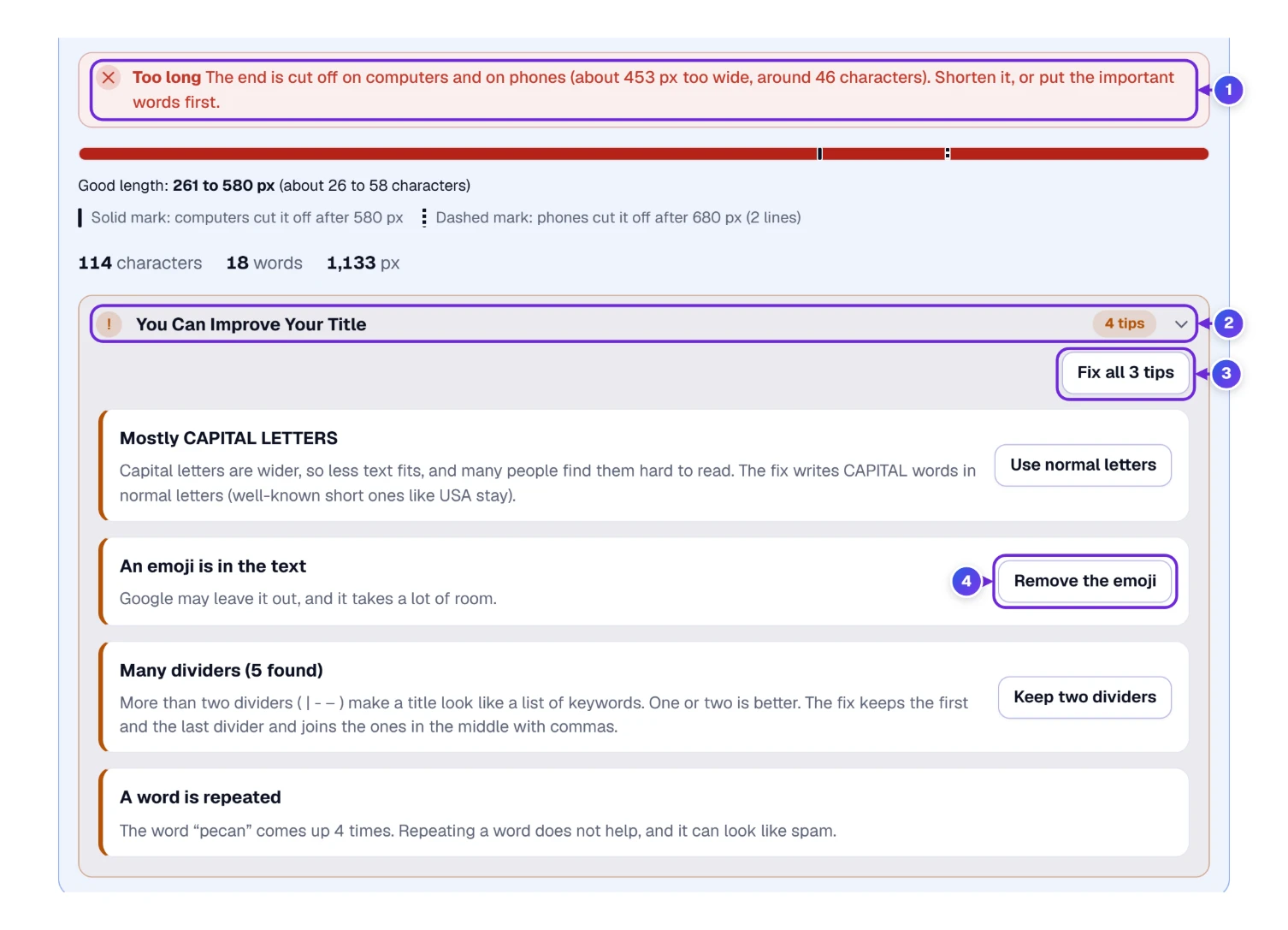
- Read the verdict 1. This title is 1,133 px, which is 453 px too wide, or about 46 characters too many.
- Open the tips 2. Four are listed: capital letters, an emoji, five dividers, and the word “pecan” four times.
- Press Fix all 3 tips 3 to apply every fix at once. Three of the four tips have a button, which is why it says 3. Or press the button on a single tip 4, such as Remove the emoji, to fix just that one.
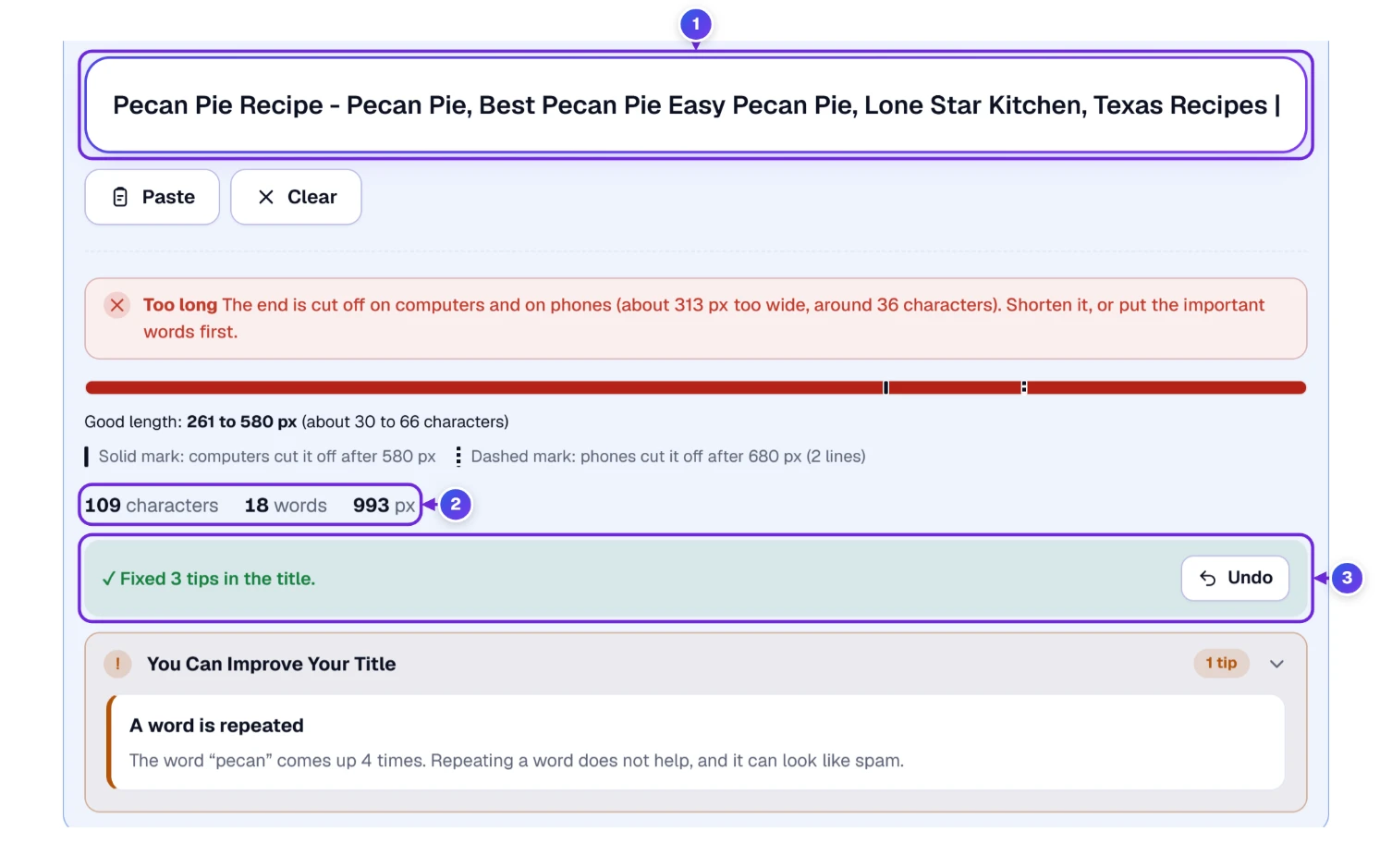
The title changes 1 and the counts 2 already show the new width. A line 3 says what happened. If you don’t like the result, press Undo and your old title is back, exactly as it was.
Our test, with a lesson in it. After Fix all, that stuffed title dropped from 1,133 px to 993 px. It was still marked Too long, and one tip was left: the word “pecan” four times, which has no button. Fix all tidies your text. It doesn’t write the title for you, so the last cut is yours.
The tips the tool knows about:
| The tip | What it means | Has a button? |
|---|---|---|
| Hidden characters | Invisible marks, such as a zero-width space, that often arrive when you copy from Word, a web page or a chat app. They count as characters and can split a word in two for a search. | Yes: Remove them |
| A special space | A non-breaking or fixed-width space that looks like a normal one. Google shows it as a normal space, so we measured it as one. | Yes: Use normal spaces |
| Extra spaces or line breaks | Google shows them as one space. | Yes: Remove them |
| A space at the start or the end | Harmless, but easy to remove. | Yes: Remove it |
| A special code, like & | Google shows the symbol, so we counted the symbol. | Yes: Show the symbol |
| It looks like it has HTML tags | Search results show plain text, so tags would show up as letters. | Yes: Remove the tags |
| Mostly CAPITAL LETTERS | Capitals are wider and harder to read. Short well-known words such as USA stay as they are. | Yes: Use normal letters |
| An emoji | Google may leave it out, and it takes a lot of room. | Yes: Remove the emoji |
| Many dividers | More than two of | – – make a title look like a list of keywords. The fix keeps the first and last and turns the middle ones into commas. | Yes: Keep two dividers |
| A word is repeated | The same word twice in a row, or many times in all. Repeating a word does not help and can look like spam. | Only for twice in a row: Remove the extra word |
| A look-alike letter | A letter from another alphabet, such as a Cyrillic “о” inside an English word. You can’t see it, but a search engine can. | No. Retype the word. |
| A broken symbol | The � sign shows up when a letter got lost while copying. | No. Type the letter again. |
| Same as the title / repeats the title | Description only. It copies the title word for word, or starts with all of it. Use the room to say something new. | Only the repeat: Remove the repeat |
A spot we found on purpose. We typed “Free Online C” followed by a Cyrillic “о” and then “unter Tool for Words”. To the eye it said “Counter”. The tool flagged the word and named the two alphabets, Latin and Cyrillic. A slip like that can make a page harder to find in search, and it is easy for a proofreader to miss.
The Description Box Works the Same Way, With Other Numbers
The Page description box under the title follows the same pattern, so there’s little new to learn. Three things differ.
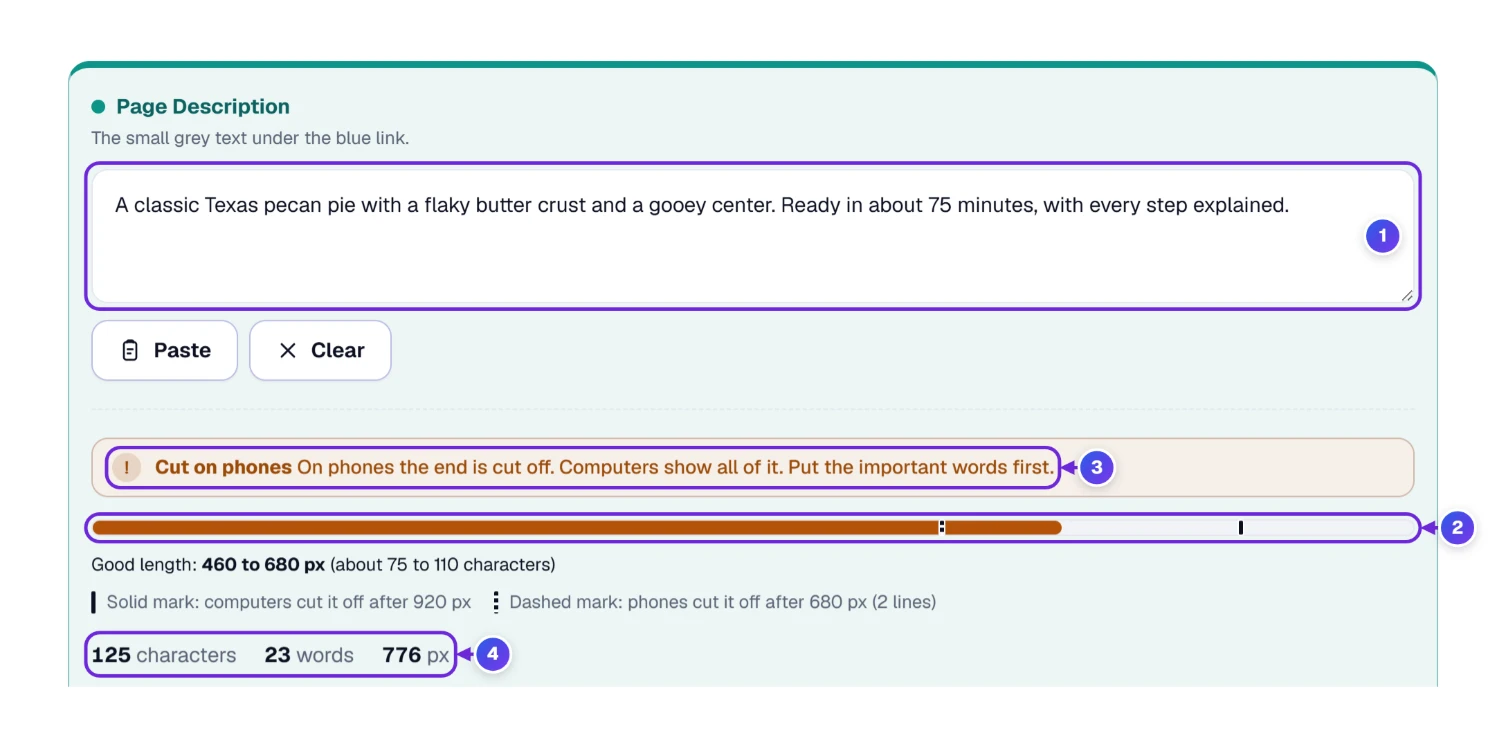
- The box 1 is taller, because a description is longer.
- The bar 2 has two marks again, but they sit far apart. The solid one is at 920 pixels, where computers cut the description. The dashed one is at 680 pixels, where phones do. The words in between get the verdict 3 Cut on phones.
- A good description measures 460 to 680 pixels (about 75 to 110 characters), so it shows fully on both. 4 has the counts.
One case from our test list. This description is 125 characters, which sounds modest: “A classic Texas pecan pie with a flaky butter crust and a gooey center. Ready in about 75 minutes, with every step explained.” It measures 776 px. A computer shows all of it, but a phone cuts it near the end. Cut “with every step explained” and you’re inside the phone limit. If the key words come first, as they do here, losing the tail does little harm.
Typing a very short one has the opposite effect. “Pecan pie.” came out at 66 px and was marked Too short, with the note that the room can say what people will get from the page.
See It the Way Google May Show It: Computer, Phone, Light, Dark
The picture under the boxes is your result as Google may draw it, a result preview some people call a SERP preview or a Google snippet preview. It uses your own words, and it updates as you type.
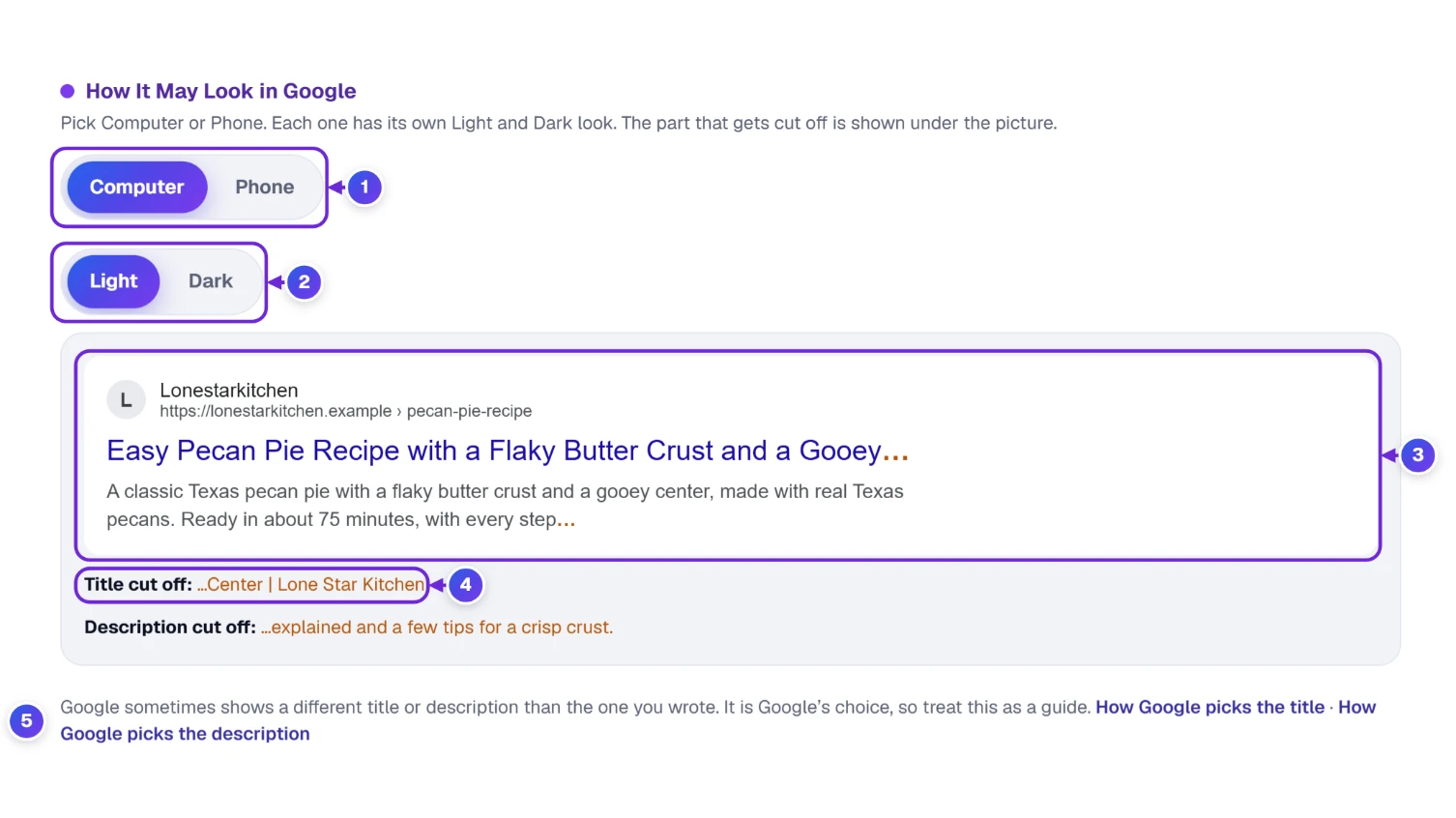
- Pick Computer or Phone 1. Each has its own Light and Dark look 2, so you can see how the result looks on a phone set to dark mode. The tool opens on Computer and Light every time, so nothing you picked last visit is waiting for you.
- Look at the result 3. A title that is too wide ends with “…”, just as it would in Google.
- Under the picture, 4 lists the part that was cut off, for the title and for the description, so you can see exactly which words were lost.
- Read the small note 5. Google sometimes shows a different title or description than the one you wrote. Treat the picture as a guide.
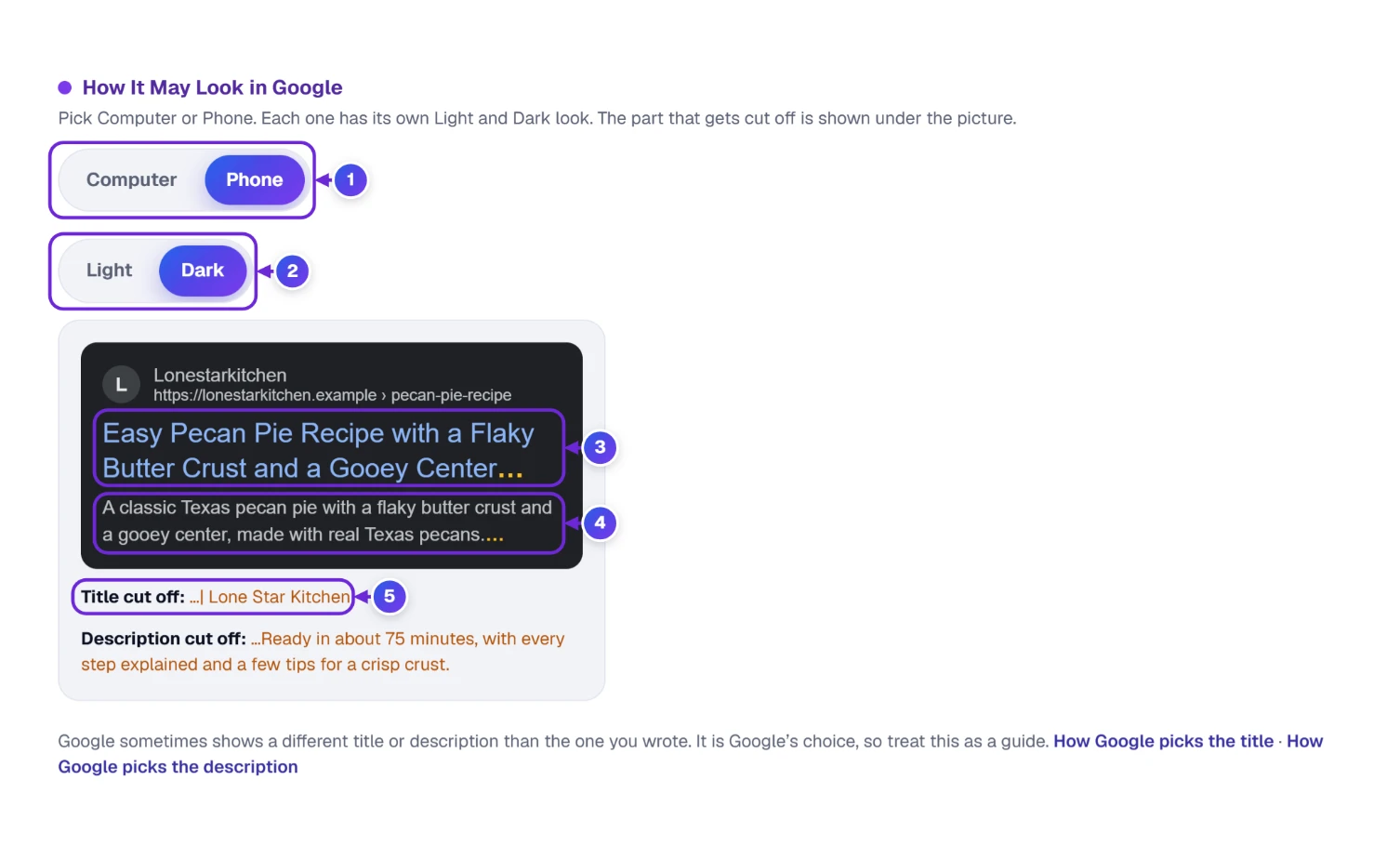
On a phone 1, the title 3 gets two lines, and the description 4 gets about the same room as 680 pixels of one line. That’s why a title that is “Cut on computers” can be safe on a phone: it just moves onto its second line. The Light and Dark switch 2 belongs to the view you are on, so the phone can be dark while the computer stays light. The cut-off words 5 are listed below, just as on a computer.
Is the page live already? Computer is what a laptop searcher sees, and Phone is what someone searching on the go sees. Your visitors may use either, so look at both.
When Google Shows Words You Didn’t Write
Even a well-written title can come out different. Google’s help page on title links says it builds the title link automatically and may change what it shows, for example when a title is missing parts, doesn’t describe the page well, repeats the site name, is the same boilerplate on many pages, or is in a different language from the page. Its snippet page says the snippet is built mainly from the page’s own text, and your meta description is used when it describes the page better than that text does.
Google says there is no limit on how long a title can be, but results are cut to fit the device. It doesn’t give a number. A Zyppy study of about 81,000 titles on 2,370 sites, which compared them with what Google showed, found that Google rewrote about six in ten. Very short titles (a few characters) and very long ones (over 70 characters) were changed the most, and titles of roughly 51 to 60 characters the least. That’s a pattern in data, not a promise from Google, and the tool says so too.
So the practical advice is the same as the tool’s: write a title that matches the page, keep it inside the room, put the important words first, and accept that Google has the last word.
Google isn’t the only place that shows your page’s title. When someone shares the link on Facebook, WhatsApp or LinkedIn, those apps read separate share tags instead, so the card people see there can carry a different title and picture than your Google result. Our Link Preview Checker shows that card before you post.
Got the Page Code Instead? Paste It and We Pick the Words Out
Some people don’t have the finished text. What they have is the opening block of a page’s code, called the head, where the title and the description sit inside tags. You don’t have to dig the words out by hand.
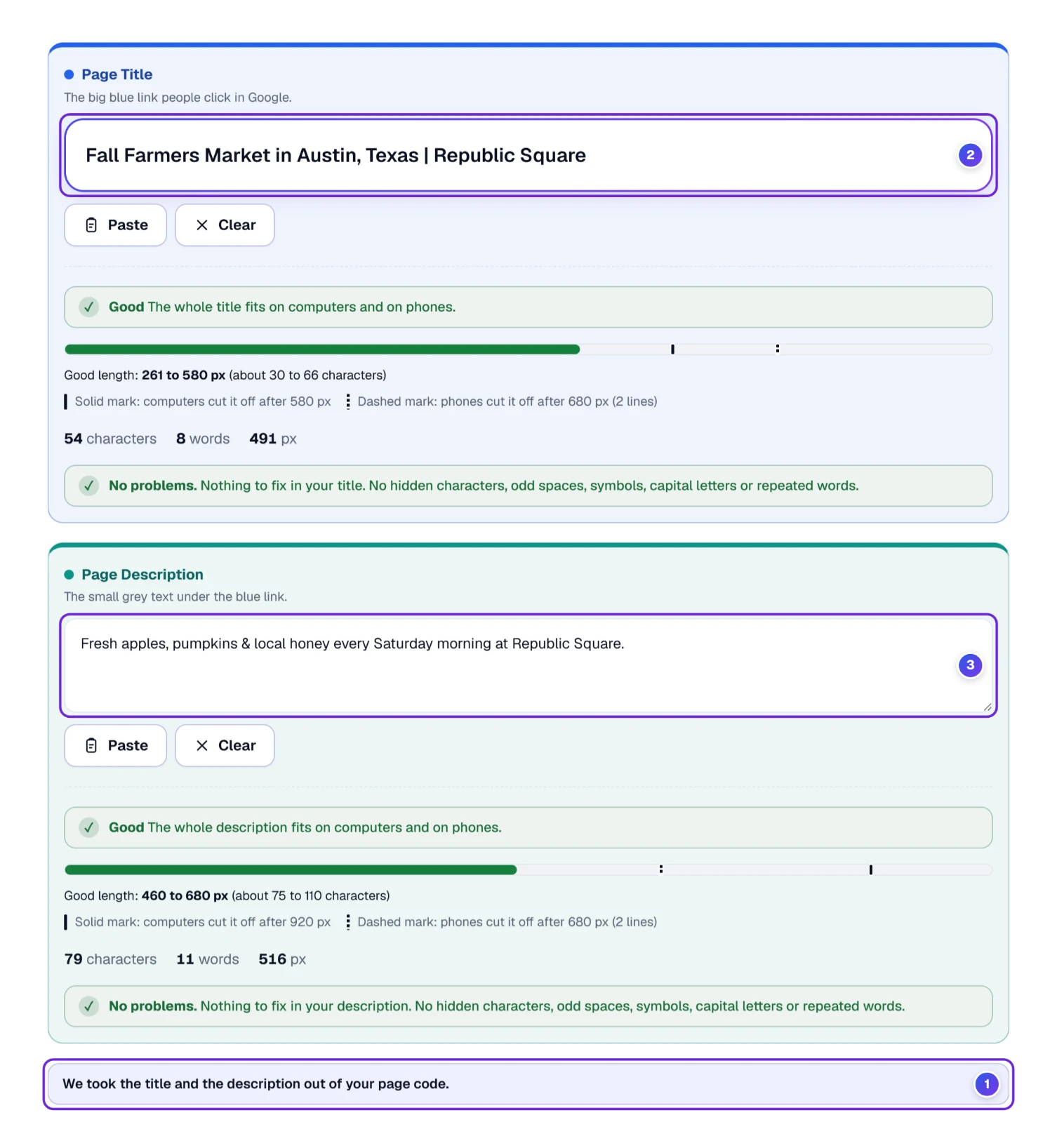
- Copy the code of your page’s head, or the whole page.
- Put the cursor in the title field, then paste with Ctrl and V on Windows or Command and V on a Mac.
- The tool finds the <title> and the description line, and puts the words in their own boxes 2 3. A note 1 says so.
Real run. We pasted the head of an invented market page. The title came out as “Fall Farmers Market” followed by the city, the state and the venue (54 characters, 491 px). The description line contained &, and the box showed a plain &, giving “Fresh apples, pumpkins & local honey every Saturday morning at Republic Square.” (79 characters, 516 px). One catch: it only works when you paste. Type the same code in by hand and it stays as code, counted as 2,464 pixels of text.
Is 580 Pixels the Right Line? Switch the Ruler
The ruler is the first box on the page, folded shut, named How wide is “too wide”? Its summary line says what is set right now, such as “Standard (Best) · title 580 px, description 920 px”. Click the line to open it.
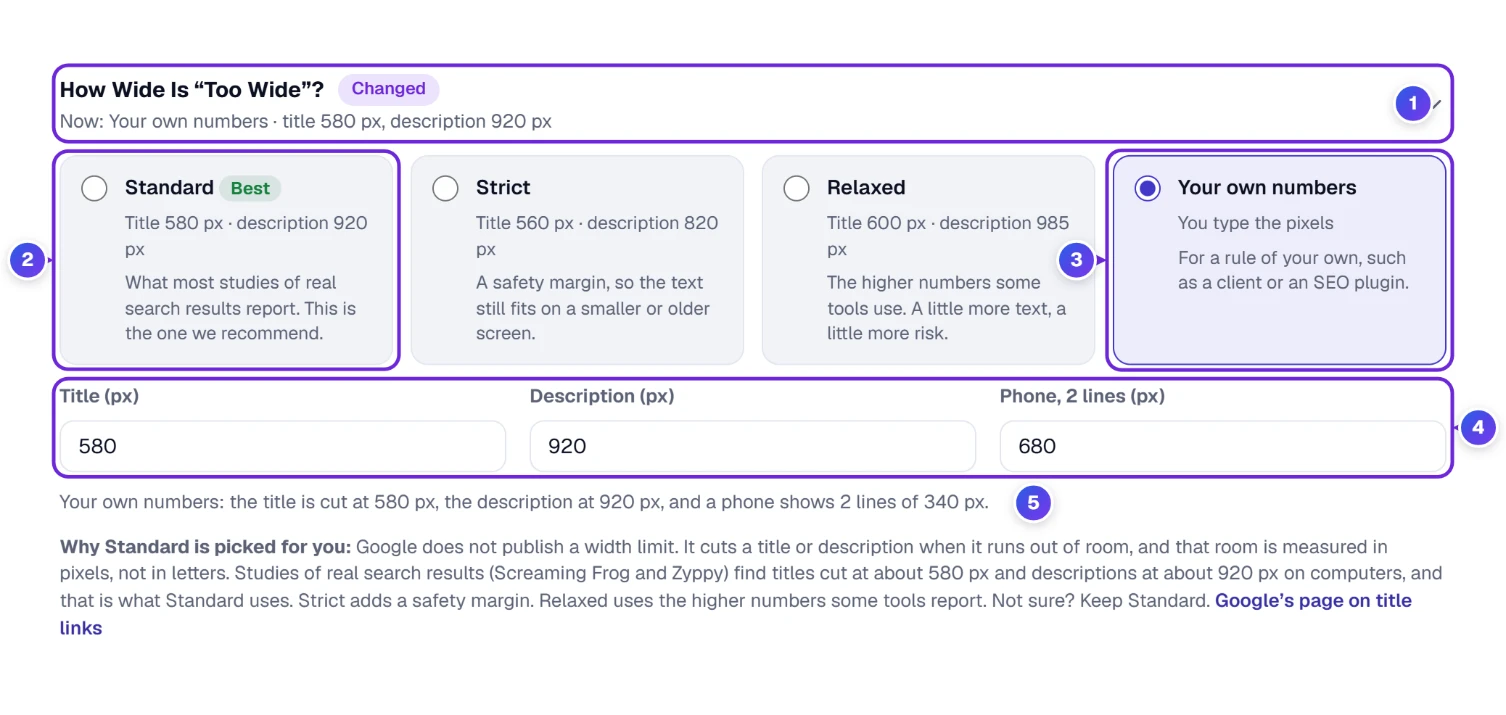
- 2 Standard (Best): title 580 px, description 920 px. Close to what several studies of real search results report. This is the one we recommend.
- Strict: title 560 px, description 820 px. A safety margin for smaller or older screens.
- Relaxed: title 600 px, description 985 px. The higher numbers some tools use. A little more text, a little more risk.
- 3 Your own numbers: you type the pixels yourself 4, one box each for the title, the description and the phone (two lines), when a client or an SEO plugin has its own rule. Think of it as a pixel width checker you can tune.
- 1 Once you move away from Standard, a small “Changed” label shows, and Reset puts it back.
Under the boxes, 5 says your numbers back to you in a sentence. The text below it, Why Standard is picked for you, explains the choice. Short version: Google doesn’t publish a limit, so these are measurements from real results, and the sources don’t agree to the pixel.
Same sentences, three rulers. We kept one title (69 characters, 626 px) and one description (137 characters, 861 px) and changed only the ruler. At Standard, the title was 46 px too wide, and the description was cut on phones. At Strict, the title was 66 px too wide and the description jumped to Too long (41 px over). At Relaxed, the title was 26 px too wide and the description was cut on phones again. The words never changed. Only the line moved, which is why you should pick one ruler and stay with it.
Adding Your Site Name, and Checking Your Main Word
Everything above works without touching Your choices. Open it if you want the checker to behave like your real page. The summary line reads “Now: no site name · no main word” until you change something. The page address is not in here, because it has its own box above these.
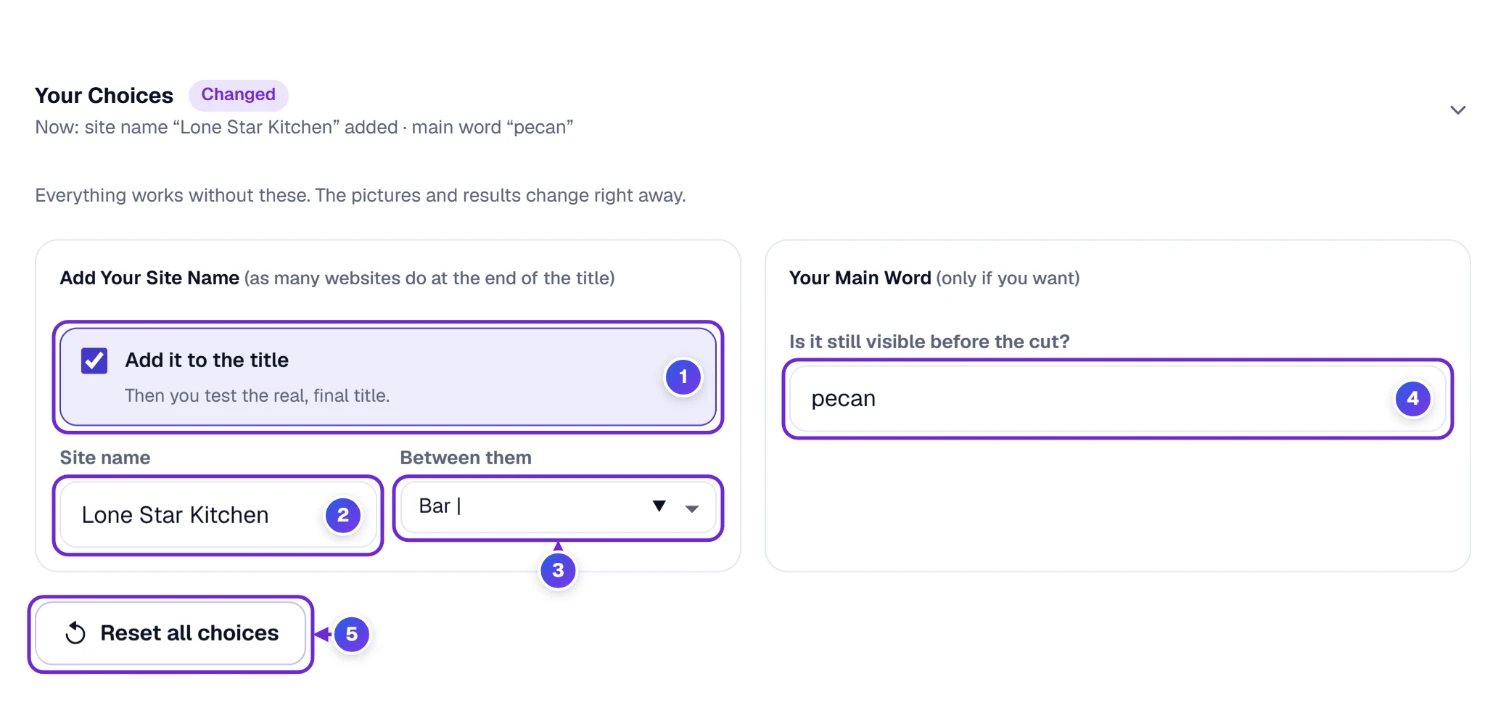
- 1 Add it to the title is for sites whose pages end with the site name. Tick it, type the name 2, and pick what goes between 3: a bar |, a hyphen -, a dash –, a dot · or an arrow ». The tool then tests the real, final title.
- 4 Your main word is optional. Type the word you most want people to see, and the tool tells you if it is in your title, and whether it shows before the cut.
- 5 Reset all choices puts everything back as it was at the start.
How much a site name costs. “Word Counter: Count Words and Characters Online” was 47 characters and 458 px. With the name ToolHa and a bar added, it became 56 characters and 539 px. The name took 81 px, about one seventh of the whole title line.
The main word, three ways. With the main word set to “sentences”, a title without it said: “sentences” is not in your title. Its description said: “sentences” is in your description and shows before the cut. With a word that wasn’t in either, it said so for both. And in a long title where “counter” came last, it said: “counter” is in the part that is cut off, on computers and on phones. Move it to the front.
A slip we caught. The site name is added to every title, including those in Check many. When we left it on and checked a list whose titles already ended in “| ToolHa”, they came out as “| ToolHa | ToolHa”. If your titles already carry the name, leave this box unticked.
Keep the Result: Save a PDF, Save a Picture, or Copy It
When the numbers look right, the bar Keep the result under the Google picture lets you take them with you.

- 1 Save PDF opens a clean report in your print window. There, pick the PDF option in place of a printer, and a file is yours. The report starts with the ToolHa logo, shows the page address as a highlighted link, then the title and the description with their bars, how the result may look in Google, what to fix, and a short list of what to do and what not to do.
- 2 Save picture makes an image of your result that you can send to a client or a designer. If you filled in a page address, the picture starts with a band that shows it. Type your words first, or it asks you to.
- 3 Copy results copies a short report that you can drop into a chat, an email or a file.
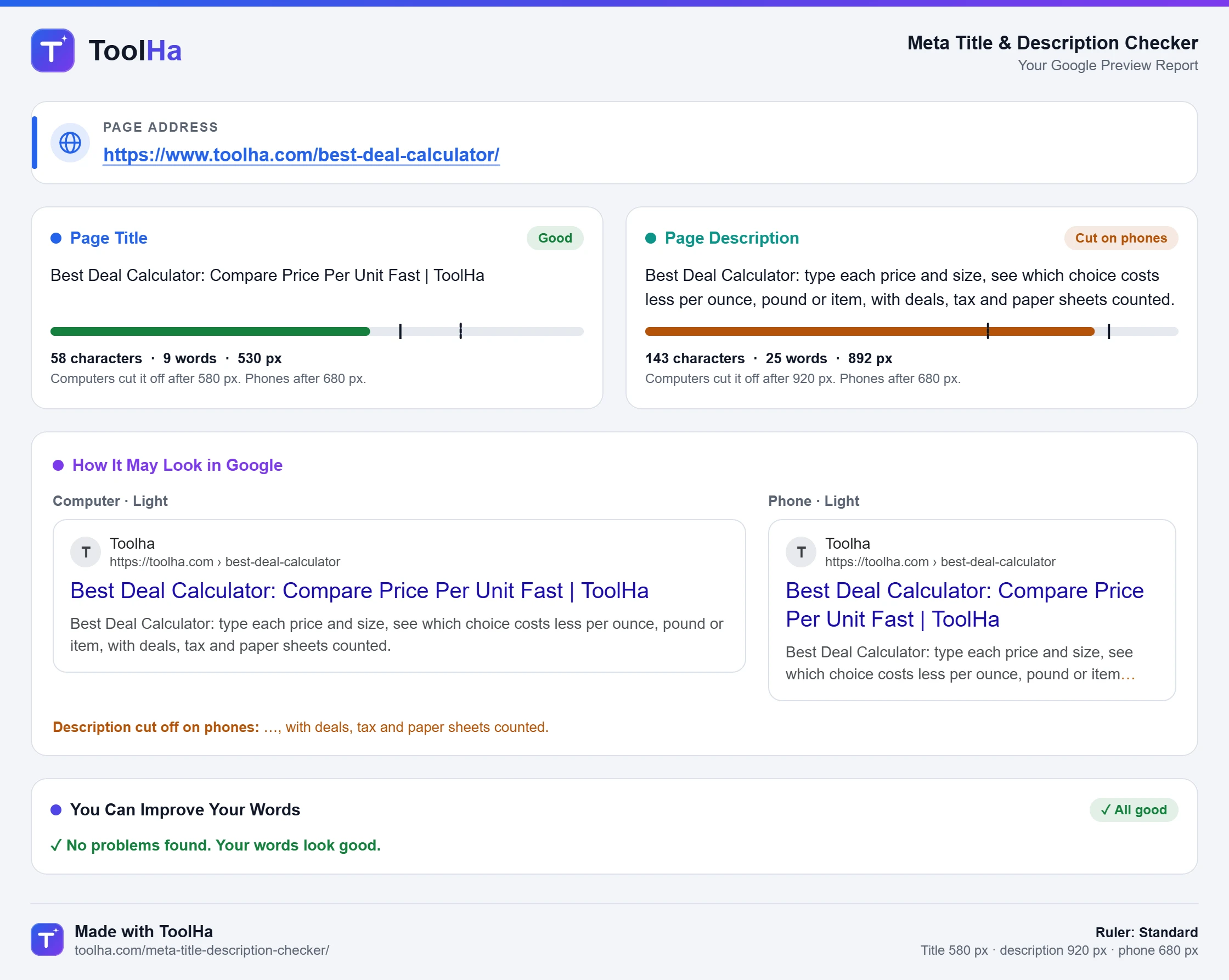
The picture is light, unless both Google previews are set to Dark. The two Google results inside it keep the look you picked for each one. Its file name comes from the page address, for example toolha-com-best-deal-calculator-preview.png.
The report from Copy results looks like this (from the 99-character title in our test list):
Title: How to Count Words, Characters and Sentences in Any Text, Essay or Article Online for Free | ToolHa
99 characters, 17 words, 908 px. Too long.
Description: Paste your text and see the number of words, characters, sentences and paragraphs at once, plus how long it takes to read it out loud.
134 characters, 25 words, 833 px. Cut on phones.
Ruler: Standard (title 580 px, description 920 px, phone 680 px)
Check Many, Step 1: Add Your Pages
A whole site? Press the Check many tab, or press M on your keyboard. Two things wait for you: Add Your Pages, and later Keep Your Results. What is wrong with each page is written under its own card, so there is no step in between to hunt for it.
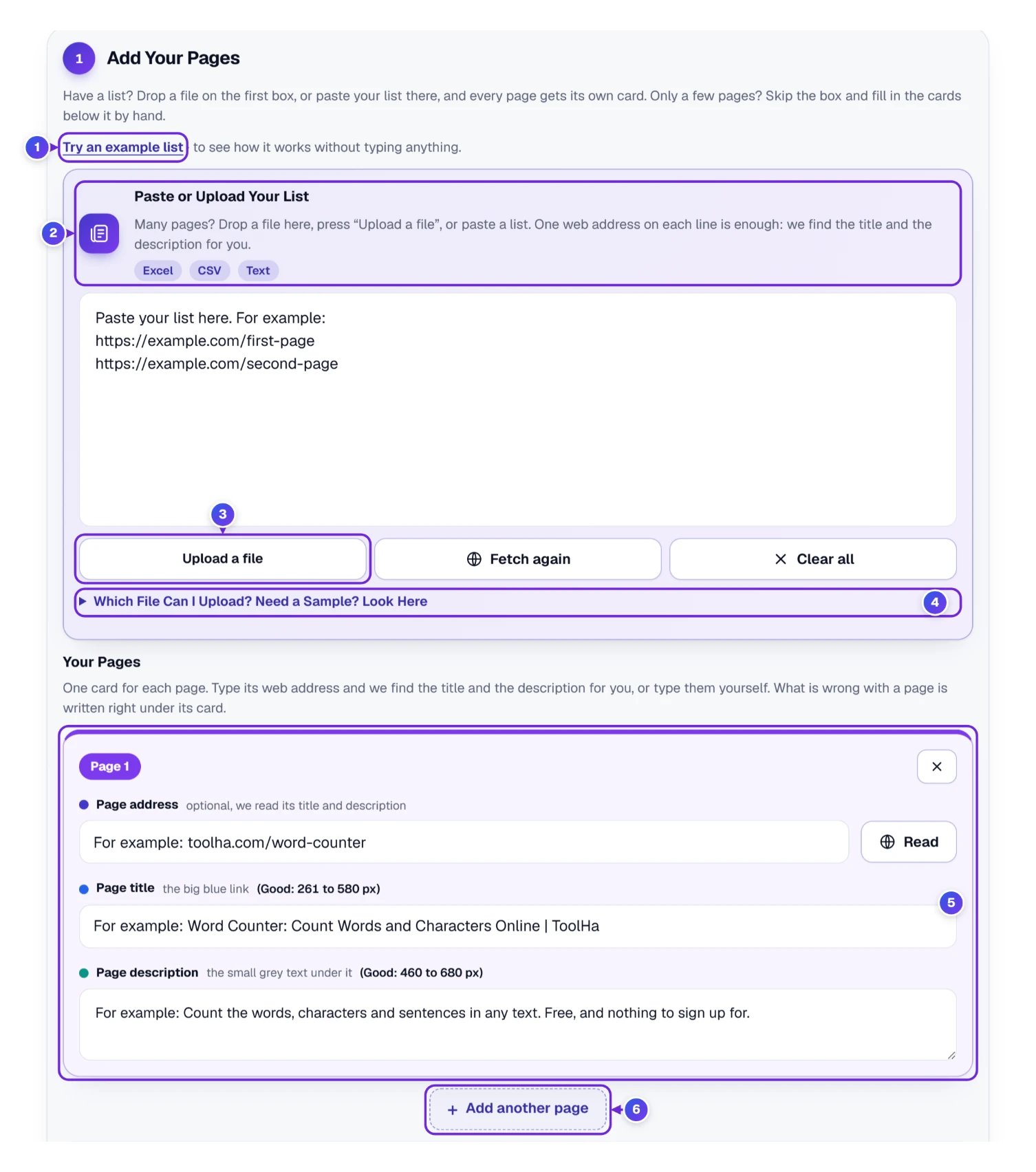
- Press Try an example list 1 to see seven sample pages at once, with most of the problems the tool knows about. Nothing to type, and Clear all removes them again.
- Have a list? Drop a file on the box 2, press Upload a file 3, or paste your list. The box takes Excel, CSV and text. One web address on each line is enough, because we find the title and the description for you. Every row becomes a card.
- Only a few pages? Skip the box and fill in the cards 5 by hand. Type the words yourself, or type an address and press Read on that card. + Add another page 6 adds the next card, and Ctrl with Enter does the same from the keyboard.
- Fetch again reads every address in the list once more, so you get the newest words, and it brings back a card you removed. Undo returns your old cards.
The fold 4, Which File Can I Upload? Need a Sample? Look Here, is next.
Which File Can I Upload? Samples to Start From
Open the fold under the box and the tool tells you what a file should look like. The first thing it says: you do not need all three columns. One is enough.
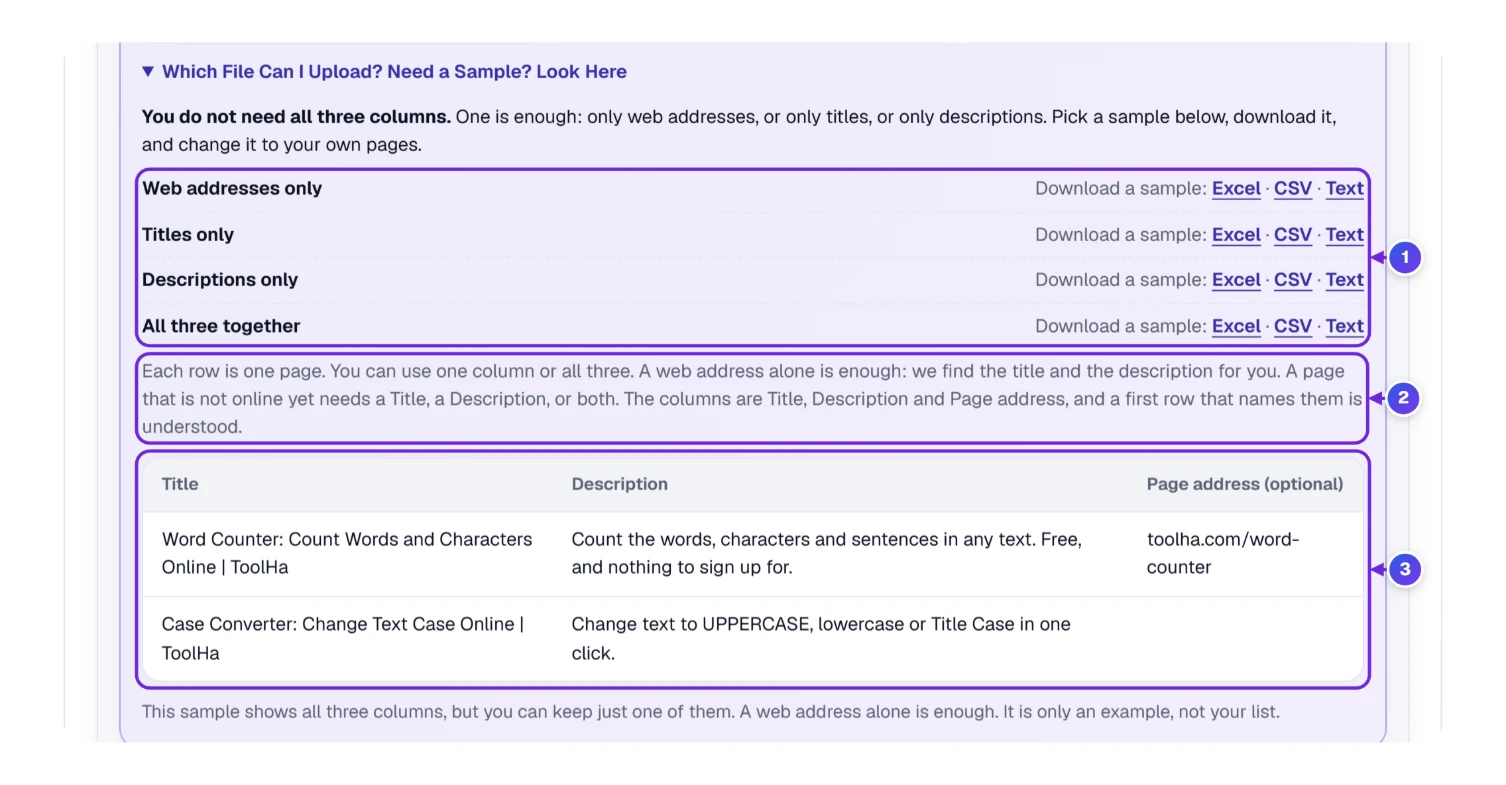
- 1 There are four shapes: Web addresses only, Titles only, Descriptions only and All three together. Each has a sample to download as Excel, CSV or Text. Pick one, download it and change it to your own pages.
- 2 Each row is one page. A web address alone is enough, because we find the title and the description. A page that is not online yet needs a title, a description, or both. The columns are Title, Description and Page address, and a first row that names them is understood.
- 3 The sample table shows all three columns, but you can keep just one of them. It is only an example, not your list.
What a file can be. Upload an Excel (.xlsx), a CSV or a text file, under 5 MB. A text file works as Title: and Description: lines. When a row has a page address and no words, we read that page for you. The list holds up to 2,000 pages. The words in it stay in your browser, and only page addresses are sent, to be read.
Five files, five answers. We uploaded a CSV with two pages (one title had a comma inside quotes), and the tool said “Your file is loaded: 2 pages.” and added them to the cards that were already there. A text file with Title: and Description: lines added two more. An empty file got “That file is empty.” An old .xls file was turned away politely with “Old .xls files cannot be read”, plus a hint to save it again as an .xlsx workbook or paste the columns instead. And a picture file got “Please choose an Excel (.xlsx), CSV or text file.” Nothing broke, and the list stayed as it was.
Only Page Addresses? Add the List and We Read Every Page
If all you have is a list of page addresses, paste it or upload it as it is: one address in each row, and nothing else. Every row becomes a card, and the pages are read one after another.
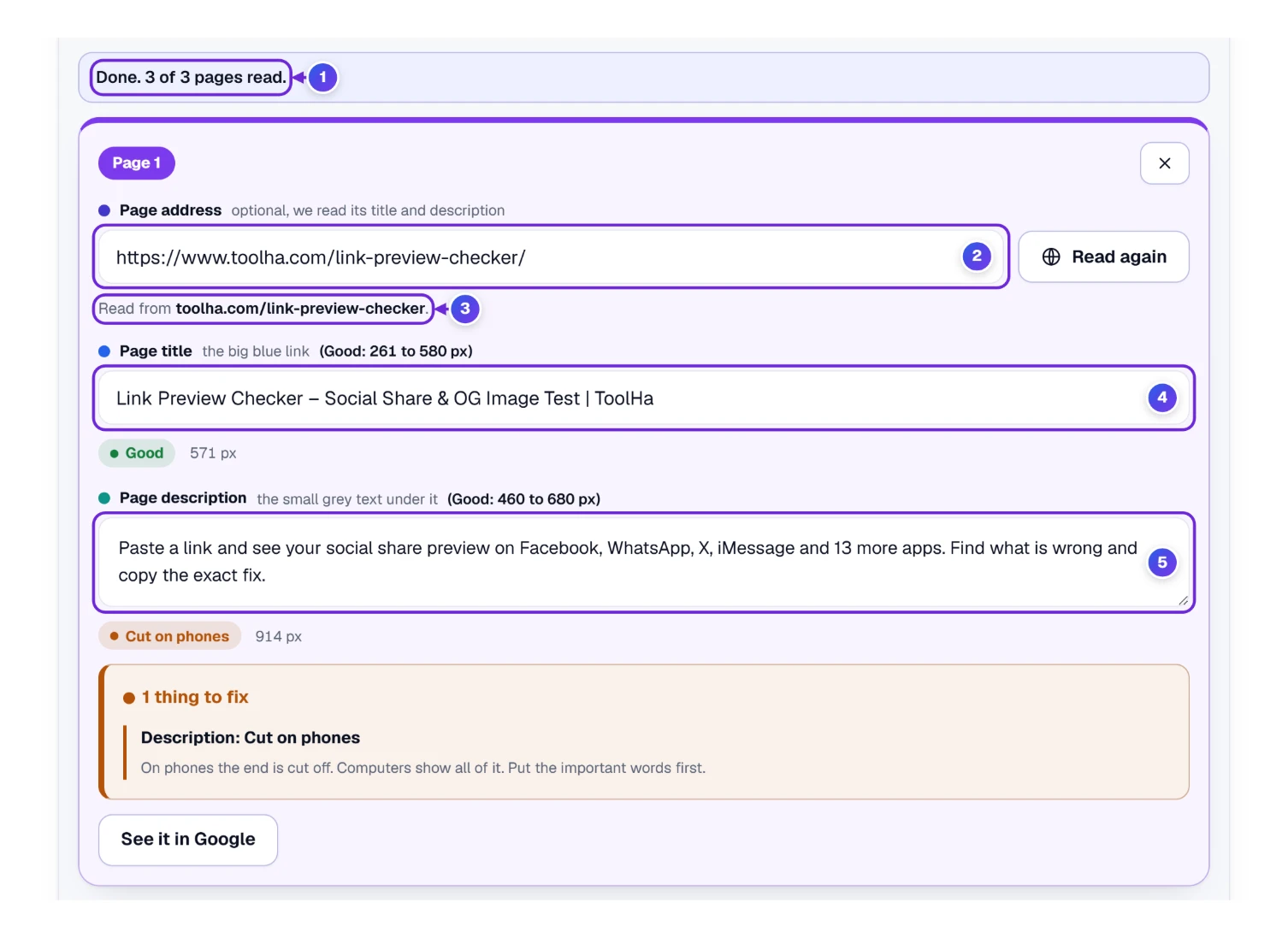
- While it works, a line 1 says “Reading page 2 of 3…” and offers a Stop link. When it ends, it says, for example, “Done. 3 of 3 pages read.”
- Each card keeps its address 2. Its button now says Read again, which opens that page once more.
- The note 3 says which page was read, for example “Read from toolha.com/link-preview-checker.” It also tells you when an address led to another page, or when the words were read a few minutes ago.
- The title 4 and the description 5 sit in the card’s own boxes, with their pixels and verdicts, ready to fix and keep. If you change a word, the card follows at once.
Real run. We uploaded a text file with three ToolHa page addresses: Link Preview Checker, Remove Extra Spaces and HEIC to JPG. All three were read, and the line said “Done. 3 of 3 pages read.” Every title was Good (571, 576 and 563 px), and every description was Cut on phones (914, 911 and 905 px).
Limits. One run reads up to 20 pages. If the list is longer, the rest wait, and a button above the cards, such as Read all 3 pages, reads the next ones. Our reader works at a gentle pace and waits for its turn when it is busy, so a long list takes a little time. A page that cannot be read gets its own note and a link to type the words yourself, and the other pages carry on.
Check Many, Step 2: Read the Cards and Sort Them
Once your pages are in, the chips at the top tell you how the whole list did, and every page has its own card. What is wrong with a page is written right under its card.
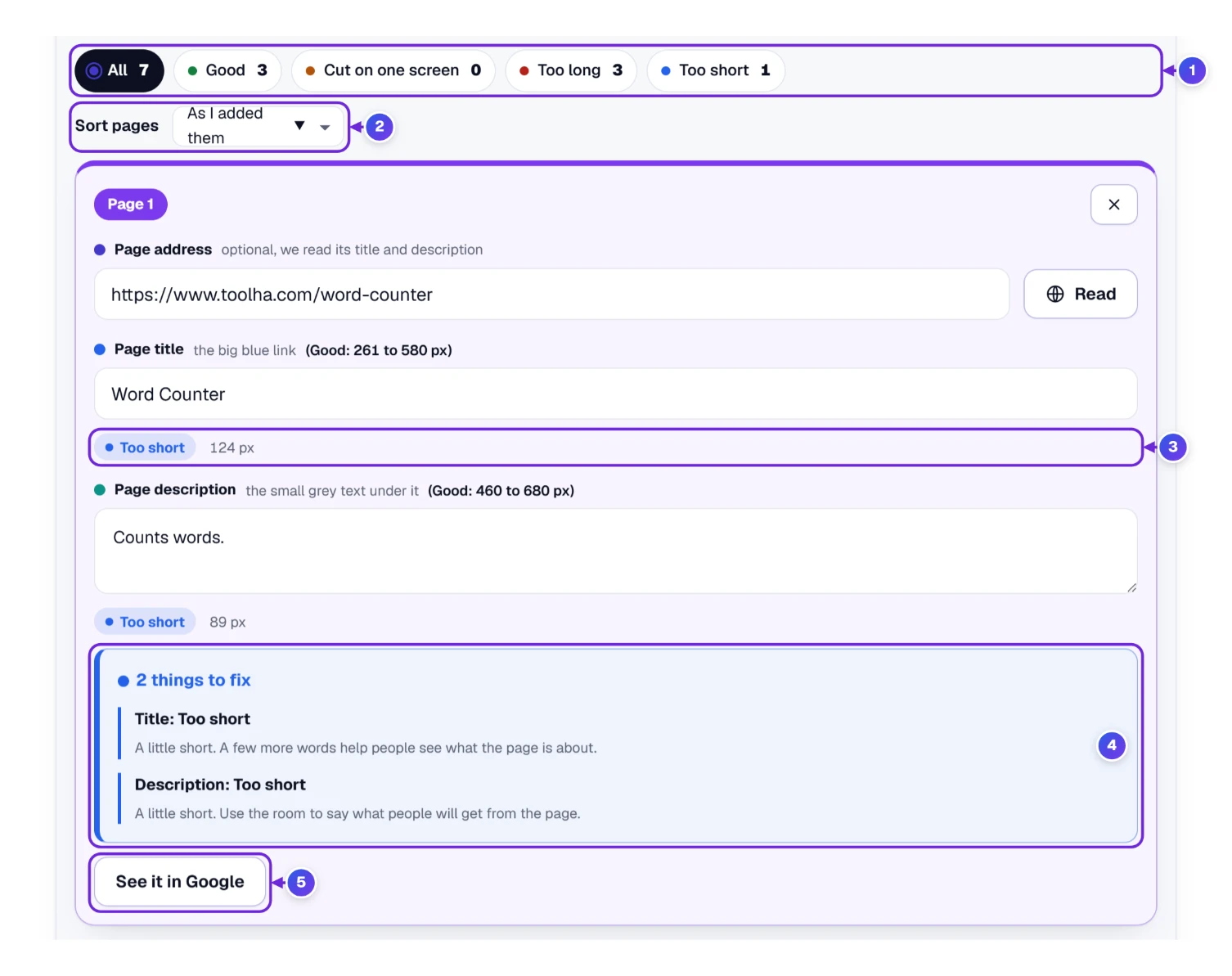
- Read the chips 1. Our example list of seven said: All 7, Good 3, Cut on one screen 0, Too long 3, Too short 1. Tap a chip to see just those cards.
- Pick an order with Sort pages 2. You can list the cards as you added them, with the most or the fewest problems first, by the longest or the shortest title or description, or by web address from A to Z. Undo brings the old order back.
- Each card shows the page address, the title and the description, every one with its verdict and its pixels 3. The first card in our example, a page titled only “Word Counter”, is Too short at 124 px, and its description, “Counts words.”, is Too short at 89 px.
- Under every card, a box 4 counts the things to fix and lists them, each with a short reason. A page with nothing wrong says “No problems found. This page is ready.”
- See it in Google 5 opens the Google result for that page. The next section shows it.
What our example list showed. The Case Converter page was Good on both counts, with nothing to fix. The page with CAPITAL LETTERS, an emoji and five dividers came out at 1,232 px for the title and 1,524 px for the description, and had 7 things to fix. And the Link Preview Checker page was Good at 559 px, yet it still had one tip: its title held HTML tags. A good verdict doesn’t always mean a clean page.
Fix Problems and See Google Inside Any Card
Each card can fix its own page and show its own Google result, so you never have to leave the list.
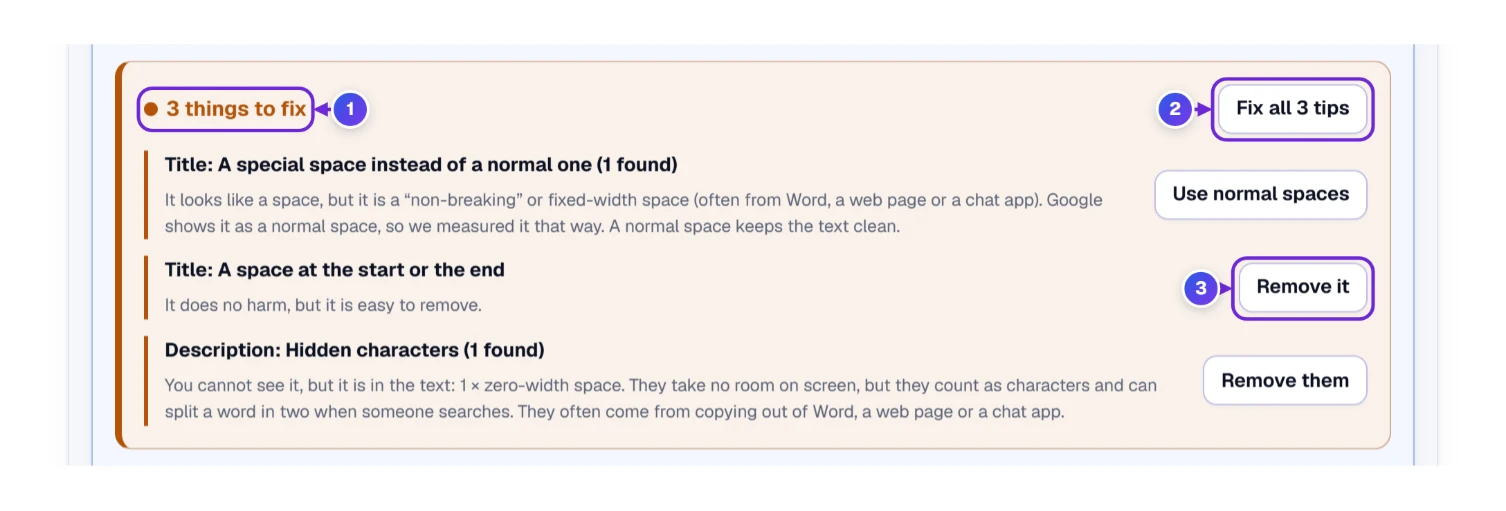
The fix buttons work the way they do in Check one, for this page only. Press the button on a tip 3, such as Remove it for a space at the start or the end, and just that tip is fixed. Fix all 3 tips 2 fixes every tip that has a button, in one go, and an Undo link brings your words back. Tips with no button, such as a word repeated many times, are for you to reword.
Our test. In the example list, the Age Calculator page had three things to fix: a special space in the title, a space at the start or the end of the title, and a hidden character in the description. One press on Fix all 3 tips said “Fixed 3 tips.”, and the card changed to “No problems found. This page is ready.” Press Undo and all three come back.
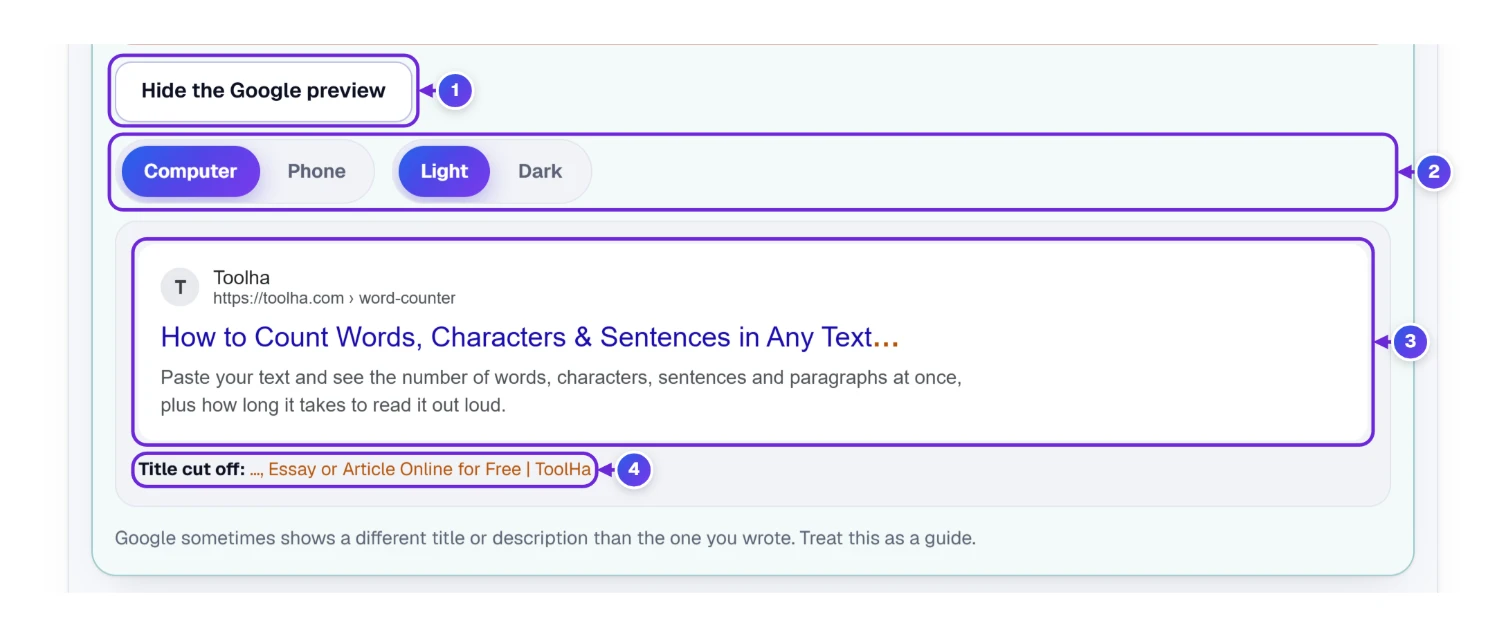
Press See it in Google on a card and the Google result for that page opens inside the card. Each card starts on Computer and Light, and you can switch it to Phone and Dark without touching the other cards. The button then reads Hide the Google preview, and one more press closes it.
Keep Your Results: Excel, CSV, PDF or Copy
When the list looks right, the box Keep Your Results saves it in the shape you need. It has four buttons 1.
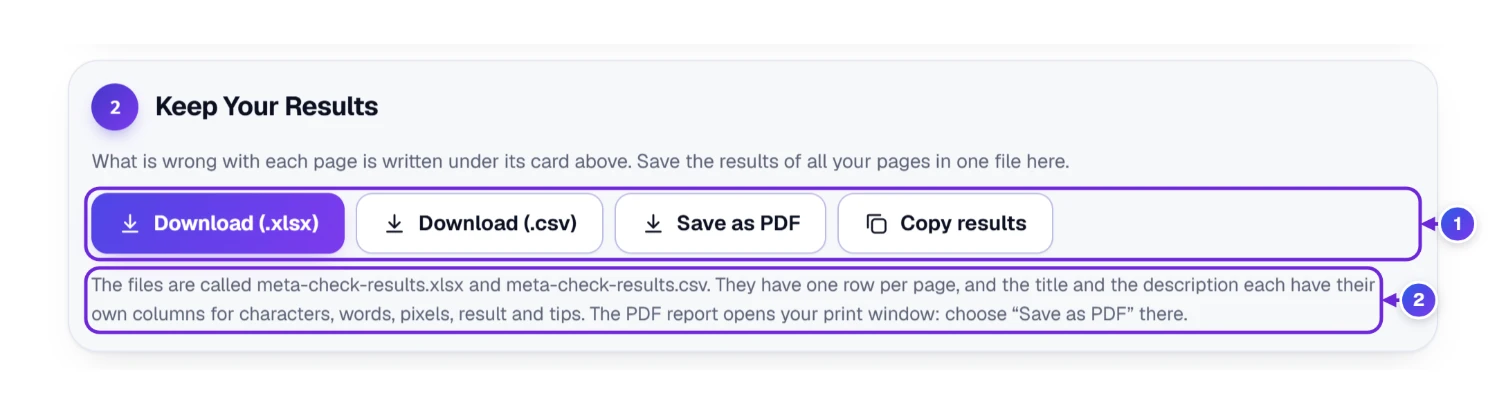
- Download (.xlsx) and Download (.csv) save the results as meta-check-results.xlsx and meta-check-results.csv 2. Each has one row per page and 14 columns: the row number, the page address, and then, for the title and for the description, one column each for the text, the characters, the words, the pixels, the result and the tips.
- The Excel file has two sheets. Results holds the rows, with the pixels as real numbers and the results in color, and About explains how the pixels were measured.
- Save as PDF opens a report in your print window, where the PDF option in place of a printer gives you a file. At the top are three boxes that count the pages checked, the pages with no problems and the pages with something to fix. Then every page gets a card: a colored “Page 1” tag, its address as a highlighted link, the title and the description with their bars, how it may look in Google, and what to fix. A short list of what to do and what not to do closes the report.
- Copy results copies the table as plain text with tabs, so you can paste it into Excel or Google Sheets.
- The ruler and the site name in Your choices are used for every page in the list.
Recent Checks, and Where Your Words Are Kept

Under the tool, Your recent checks 1 keeps small chips of the last five pages you worked on. A page lands there when you read it, press Enter or leave a box after typing, fix a tip, or keep a result with Copy results, Save picture or Save PDF. Press a chip and its title, description and page address come back into the boxes. Clear 2 empties the list, a good idea on a shared or office computer.
The words you type or paste stay in your browser. Only a page address goes to our server, and only when you press a Read button. The address bar changes as you type, so the link carries your title and description. That’s how Copy link and the phone’s QR code can open the tool with your words already in the boxes. It also means that anyone who gets the link can read them, so share it only if you’re fine with that. Your settings and the recent list are kept on this device only.
Buttons Under the Tool, and the Keys That Skip the Mouse

- 1 Save keeps the checker under My Tools, on our home page and in the bar at the bottom on phones. The list is kept in this browser alone.
- 2 Share opens the window pictured next. 3 Embed makes ready-to-paste code (with a Preview link and a Copy code button) so the checker can sit on your own site.
- 4 On your phone brings up a small square code, called a QR code. Hold your phone camera toward it, and you land in the tool on your phone with whatever you’ve typed.
- 5 Print prepares the whole page for paper; pick the PDF option if you’d rather keep a file. For a tidy report of just your result, use Save PDF in Keep the result. 6 Give the checker a rating with the stars.
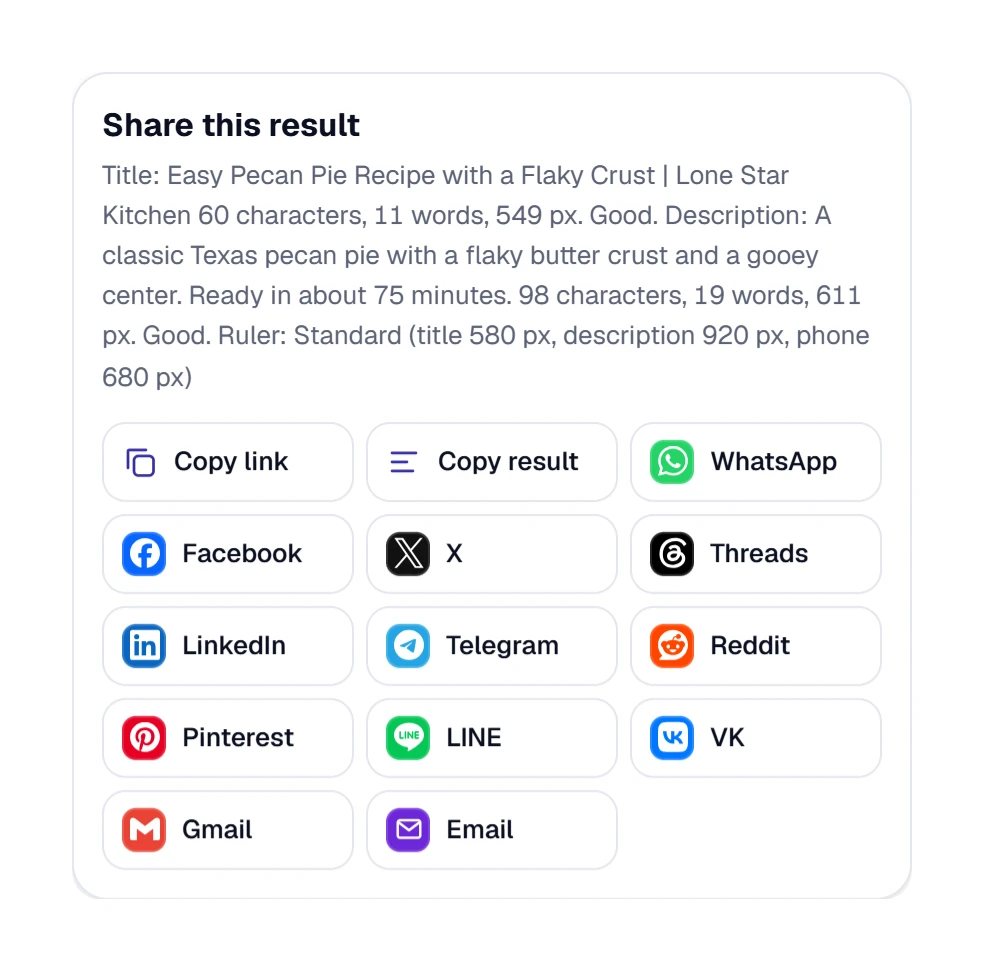
The Share window shows the result text. Copy link copies the address with your words in it. Copy result copies the same short report as the Copy results button. Each app, such as WhatsApp, opens its own share screen.
Outside the two boxes, a single key does a job. Press ? to see them all.
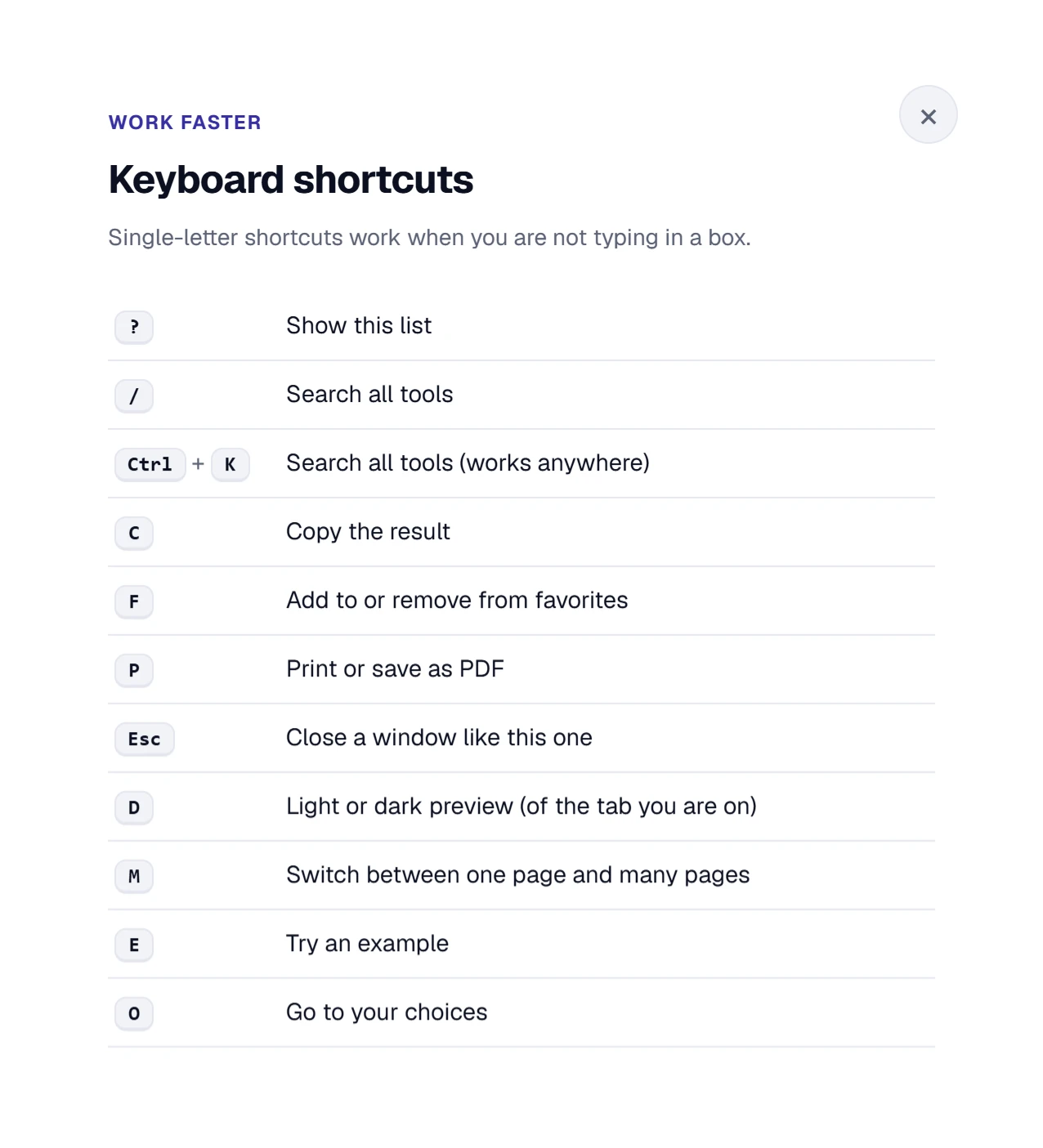
- E fills in an example, and M switches between one page and many.
- D switches the preview between light and dark, for the tab you’re on.
- C copies the result, O jumps to Your choices, F adds to favorites and P prints.
- Ctrl + K searches all our tools from anywhere, and Esc closes a window.
A Small Screen Is Fine: What Changes at 375 Pixels Wide
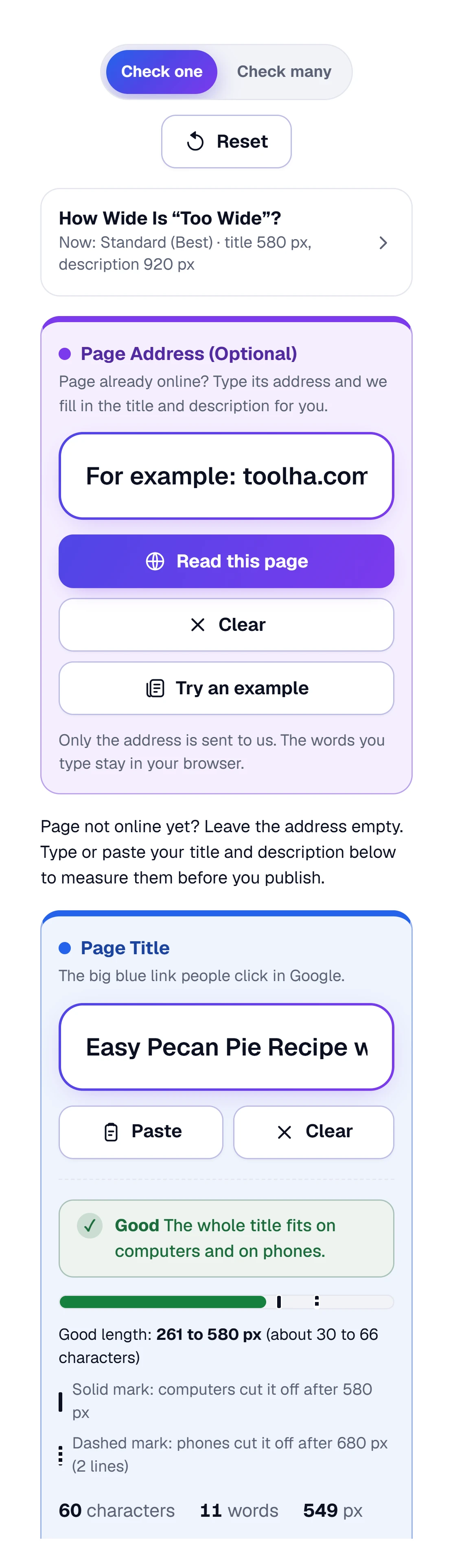
On a phone everything sits in one column, in the same order as on a computer: the two tabs, Reset, the ruler line, the page address box, the page title box, then the verdict. Under the address box, Read this page, Clear and Try an example each take a full row, while Paste and Clear share one row under the title box. The three Keep the result buttons stack one to a row, and the guide for a good length is written out in words under the bar. Text in the box that doesn’t fit scrolls sideways instead of wrapping, so a long title is still all there. You do the same things, with your thumb.
Copying a title from a phone? Press and hold in the box, choose Select all, then Copy. When you return to the tool, press Paste.
Where Our Pixel Numbers Come From, and What Google Says
This section matches the How we measure box under the tool, which you can open to read.
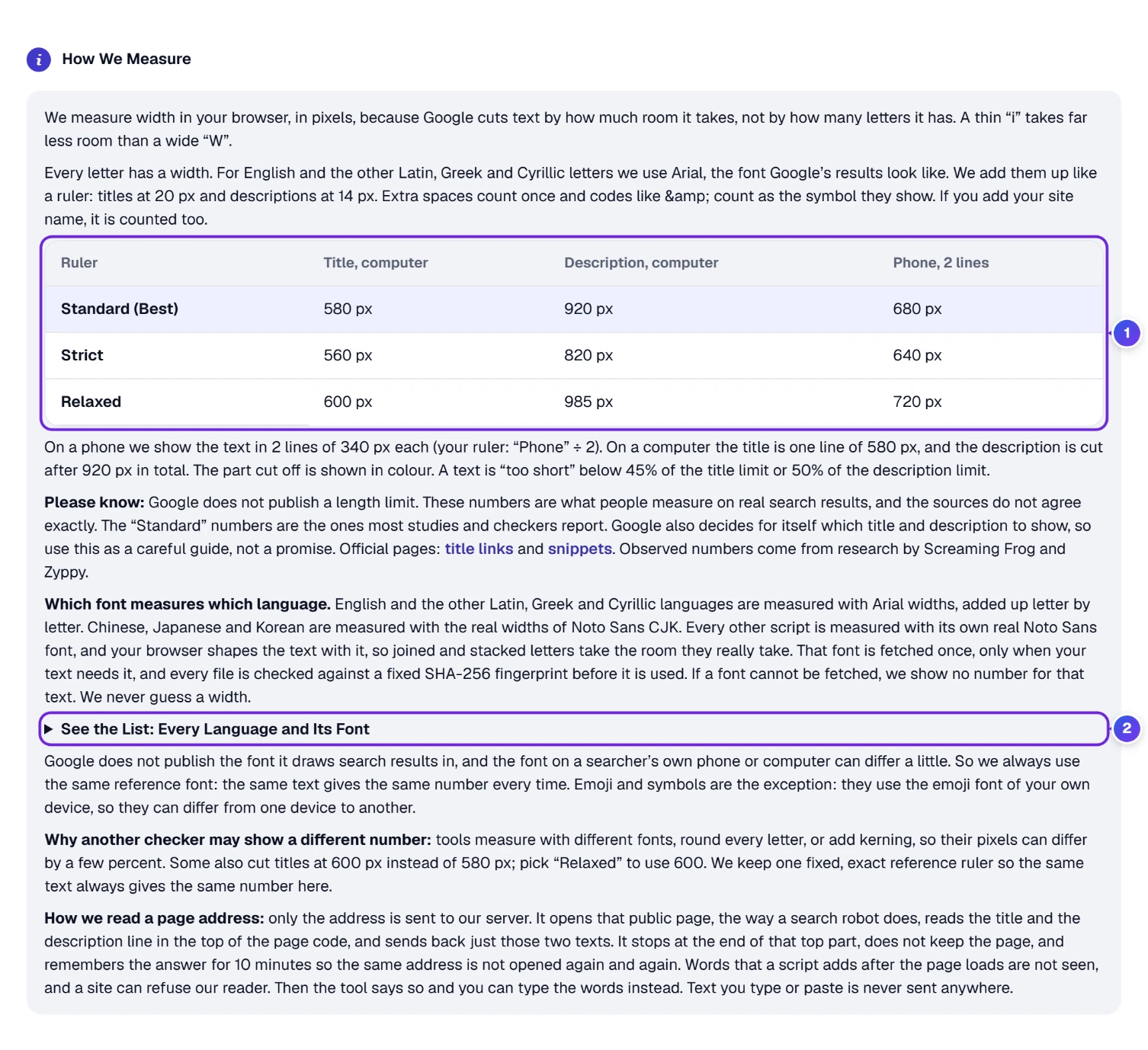
- The ruler. Width is counted in your browser, in pixels. Latin, Greek and Cyrillic letters (English, Spanish, Russian and many more) use Arial widths, added up letter by letter, at 20 px for titles and 14 px for descriptions. Google doesn’t publish the font it draws results in, so we always use the same reference font. The same text gives the same number every time.
- The numbers. 1 Standard is 580 px for a title and 920 px for a description, with a phone showing two lines of 340 px each. These are close to what studies of real results report. Screaming Frog’s SEO Spider, for one, flags titles over 561 px and descriptions over 985 px by default, and our Relaxed ruler borrows that 985. Zyppy’s research puts a computer title at about 600 px. The sources don’t agree to the pixel, so ours is a careful guide, not a promise.
- Other languages. 2 Chinese, Japanese and Korean are measured with Noto Sans CJK widths. Every other script, such as Bengali, Hindi, Arabic and Thai, is measured with its own Noto Sans font, shaped by your browser so that joined and stacked letters take the room they really take. That font is fetched once from the public jsDelivr network, only when your text needs it, and every file is checked against a fixed SHA-256 fingerprint before use. Your words are not sent along with that request. If a font cannot be fetched, we show no number for that text. We never guess a width.
- Emoji and symbols. They use your own device’s emoji font, so they can differ a little from one device to another.
- Too short. A text is called too short below 45% of the title limit, or 50% of the description limit.
- Page addresses. Only the address is sent to our server. It opens that public page, the way a search robot does, reads the title and the description line in the top of the page code, and sends back just those two texts. It doesn’t keep the page, and it remembers the answer for 10 minutes, so the same address isn’t opened again and again. Words that a script adds after the page loads are not seen. The words you type or paste are never sent.
A Bengali title, measured. We typed “বাংলা শব্দ গণনা টুল: অনলাইনে শব্দ ও অক্ষর গুনুন” (47 characters) and the tool reported 405 px, Good, measured with its Noto Sans Bengali font. A guess by letter count would have missed, because joined letters make it hard to tell.
Why might another checker show a different number? Tools measure with different fonts, round every letter, or add kerning, the tiny spacing between certain pairs of letters, so their pixels can differ by a few percent. Some also cut titles at 600 px instead of 580 px. If that’s the number you want, pick Relaxed.
Something Looks Odd? Match It to a Row
| What you notice | The reason | What to try |
|---|---|---|
| A number is different from another checker | Other tools use another font, rounding or limit. | Pick Relaxed for 600 px, or enter your own limits in the ruler. |
| “The ruler font did not arrive…” | A language that needs its own font could not load it. | Check your connection, then press “try again”. No number is shown until it works. |
| Pasted page code stays as code | Code is only read when you paste it, not when you type it. | Copy the code again, put the cursor in the title field, and use the keyboard paste (Ctrl and V, or Command and V). |
| The site name shows twice in Check many | Add it to the title is ticked, and your titles already end with the name. | Untick it in Your choices. |
| Fix all left a tip | A word repeated many times, a look-alike letter or a broken symbol has no button. | Reword the title by hand. The tip tells you which word. |
| “Old .xls files cannot be read” | The file is the old Excel format. | Open it in Excel, save a new copy as an .xlsx workbook, or paste the columns into the list. |
| The read replaced my own words | The address was read while the boxes already held words, so the page’s words took their place. | Press Undo in the Done line, and your words come back. |
| A card in Check many says it could not be read | The page was private, missing or slow, or the run limit was reached. | Read the note on the card, then press Read again, or type the words by hand. For a long list, press the read-all button; each run reads 20 pages. |
| Google shows a different title than mine | Google builds title links automatically and may change them. | Make the title match the page, keep it inside the room, and check again. |
| The Paste button does nothing | The browser did not let the page use your clipboard. | Use the keyboard paste inside the field instead: Ctrl and V, or Command and V. |
| “We could not find that website” | The address has a typo, or the website does not exist. | Check the spelling, or type or paste your words instead. |
| “That page was not found (it answered 404)” | The page is gone, or the address is a little off. | Open the address in your browser to check it, then try again. |
| “That address is private…” | Our reader opens public pages only, so an address on your own network, or a page behind a login, cannot be read. | Copy the title and the description from your editor, or paste the page code. |
| “This page has no title tag” | The page was read, but its code has no title or no description line. | Type the words yourself, and add the missing tag to the page. |
Quick Answers Before You Publish
How Long Should a Meta Title Be?
There’s no official number. Google says titles are cut to fit the device. In real results a computer shows about 580 pixels of title, which is usually around 50 to 60 characters, and a phone shows it on two lines. Type yours into the checker and aim for the Good verdict.
How Long Should a Meta Description Be?
Aim for about 460 to 680 pixels, roughly 75 to 110 characters, so it shows fully on computers and phones. Computers show up to about 920 pixels, but phones cut earlier. Put the important words first.
Is a Title Tag the Same as a Meta Title?
Yes. The title tag is the title element in your page’s code, and the meta title and SEO title are other names for the same thing. It’s the blue link in Google, and the description is the grey text under it.
Why Does Google Show a Different Title or Description Than Mine?
Google creates titles and snippets automatically. It may change a title that is missing parts, doesn’t describe the page, or repeats the site name, and it may show text from the page itself when that describes the page better than your description does. The checker’s picture is a careful guide, not a promise.
Can I Check Many Titles and Descriptions at Once?
Yes. Open Check many, pick what your list has, and add pages by hand, by pasting from Excel or Google Sheets, or by uploading an Excel, CSV or text file. A list of page addresses works too, and we read each page for you. It checks up to 2,000 pages and lets you keep the results as an Excel file, a CSV file, a PDF report, or a copy for pasting.
Can I Save the Result as a PDF or a Picture?
Yes. Under the Google preview, the Keep the result bar has Save PDF, Save picture and Copy results. The PDF is a tidy report with the page address, the counts, the fixes to make and a preview. The picture shows both Google cards, and it starts with the page address when you filled one in. In Check many, every card is in the PDF, one after another.
Can I Fix Problems Without Retyping?
Yes. When a box has a tip with a fix, such as a doubled space or an emoji, the tip has its own button. In Check many, the same buttons sit inside each card, and a Fix all button clears every fixable tip on that page. Press Undo if you change your mind.
Does This Checker Work in Other Languages?
Yes. English and other Latin, Greek and Cyrillic text is measured with Arial widths. Chinese, Japanese and Korean use Noto Sans CJK, and other scripts use their own Noto Sans font, so a Hindi or Arabic title gets a real width too.
Can the Checker Read a Page From Its Address?
Yes. Type the page address into the Page Address (Optional) box and press Read this page, and the title and the description come back in the boxes. In Check many, every card has its own address box, and a list of addresses is read one page after another, up to 20 pages in a run. It reads public pages only, and words that a script adds after the page loads are not seen.
Is My Text Sent Anywhere?
Not the words you type or paste. The measuring happens in your browser. Fonts for some languages are fetched only when needed, and no text goes out with them. The one thing we send is a page address, and only when you press Read, so that our server can open that public page and read its title and description. A link you copy has your words in it, so share it with care.