This free online photo editor crops, resizes, removes backgrounds, blurs faces, adds text, frames and filters, and builds thumbnails and photo collages, then saves your picture as a JPG, PNG, WebP, PDF or one of eight other file types. Everything runs inside your browser, and the photos never leave your device.
Most people who open a photo editor want one thing done: a post that fits Instagram, a product shot on plain white, a face blurred before a photo goes in the church newsletter. Whatever you call it, a photo editor, a picture editor or an image editor, the job is usually small. So this guide is a box of recipe cards. Each card is one everyday job, with what you need, the steps, a tip and a few swaps. Read the first two cards, then jump to whichever recipe you came for. You won’t break anything; every step can be undone.
- Pick a size 1 or open a photo of your own.
- Edit it with the tools on the left and right of the picture.
- Press Save picture and choose the file type. The size of the file shows before you save.
Before the First Recipe: Two Ways to Start
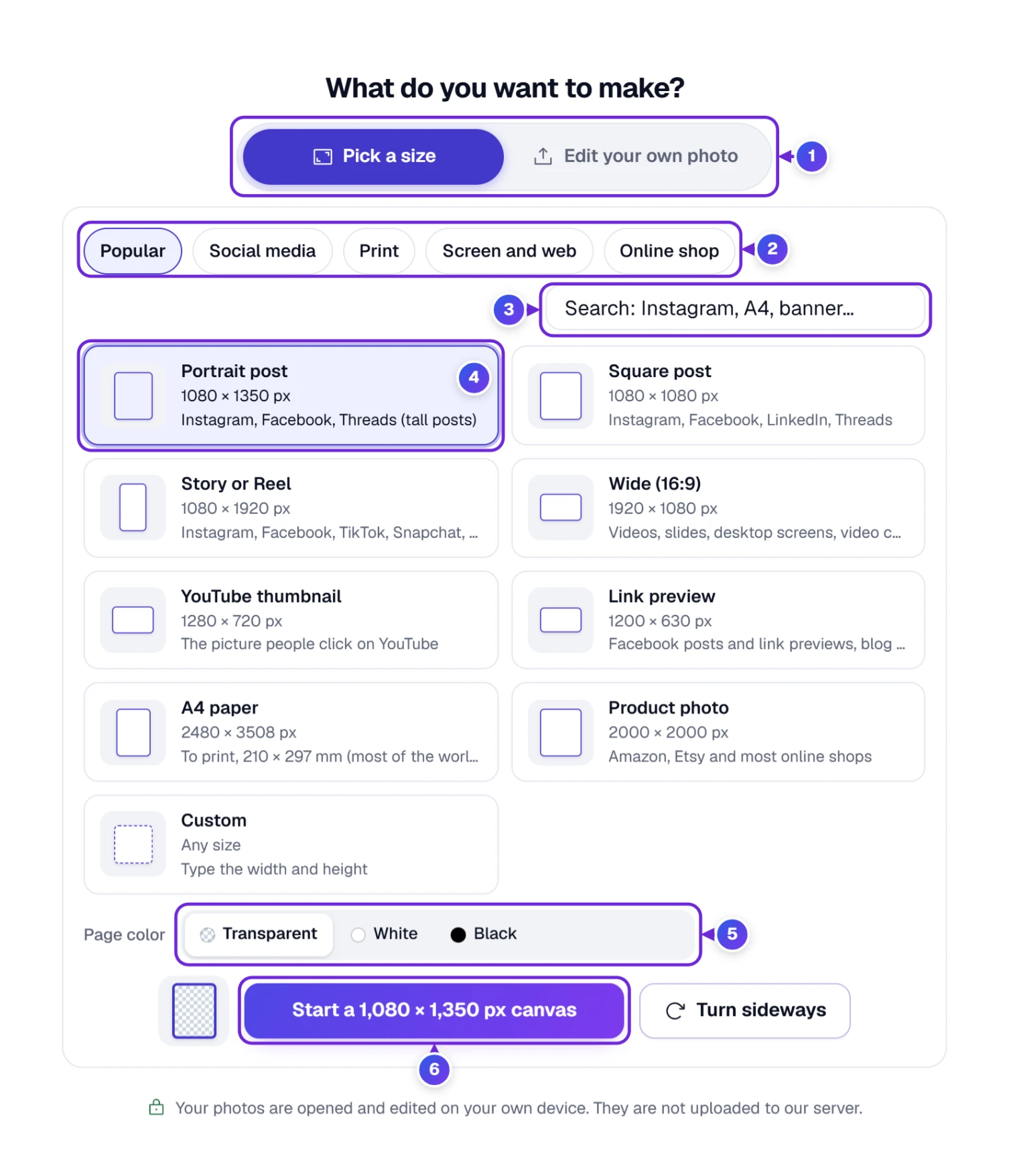
The question at the top, What do you want to make?, has two answers, and they are the two tabs 1.
Pick a size is for when you know where the picture will go. The sizes sit in five groups 2: Popular, Social media, Print, Screen and web and Online shop, 42 in all. Each tile shows the pixel size and where it’s used, so you don’t have to remember that a Facebook cover is 851 × 315. Not sure which group? Type in the search box 3, for example “pinterest” or “letter”. The first tile, Portrait post 4, is the shape most phones show best in a feed: 1080 × 1350 pixels, taller than a square.
Under the sizes, Page color 5 decides what is behind your picture: Transparent, White, Black or a custom color. The blue start button 6 names the size, such as “Start a 1,080 × 1,350 px canvas”. For a size that isn’t square, Turn sideways swaps width and height before you begin. Custom takes any width and height in pixels, inches, centimeters or millimeters.
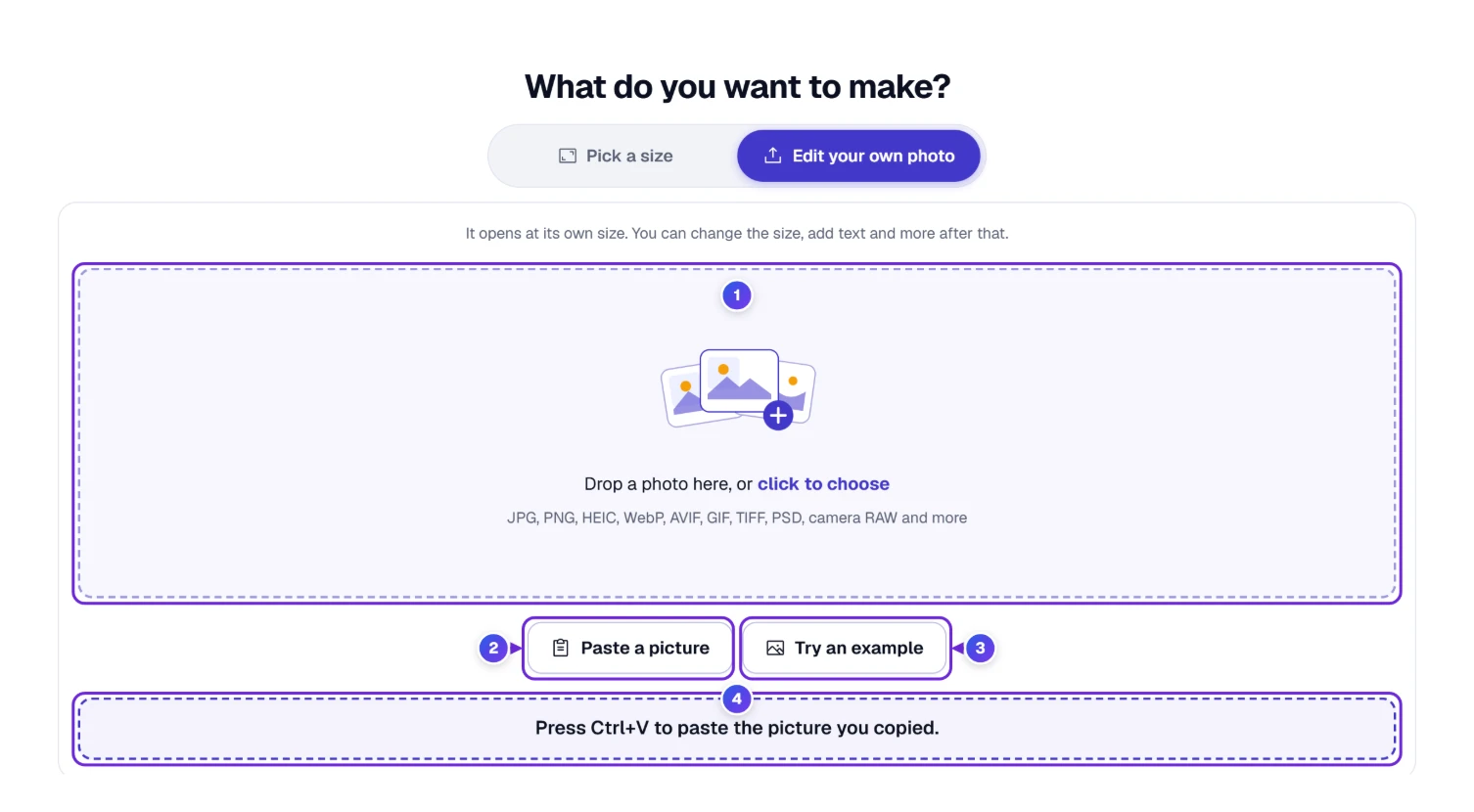
Edit your own photo is for a photo you already have. Drop it on the big box 1 or click it to choose a file. Several photos at once become several pages, one photo each. The editor opens JPG, PNG, HEIC, WebP, AVIF, GIF, TIFF, PSD and camera RAW files, among others, so an iPhone or Samsung photo in HEIC opens without converting it first.
Copied a picture from a website or another app? Press Paste a picture 2. A dashed paste spot 4 opens under the buttons; press Ctrl+V there (⌘+V on a Mac), or touch and hold it on a phone and tap Paste. A button can’t read copied files on its own, which is why the spot is there. Try an example 3 opens a finished three-page design built from three free photos, so you can practice every recipe below without your own pictures.
Closed the tab by accident? Your last picture waits for you. The next time you open the page, a card offers to continue where you left off. It stays in this browser on this computer or phone, nowhere else.
Find Your Way Around the Kitchen
Once a picture is open, the screen has a top bar, two rails of tools and the picture in the middle. Here’s the magazine cover from the example, with nothing chosen yet.
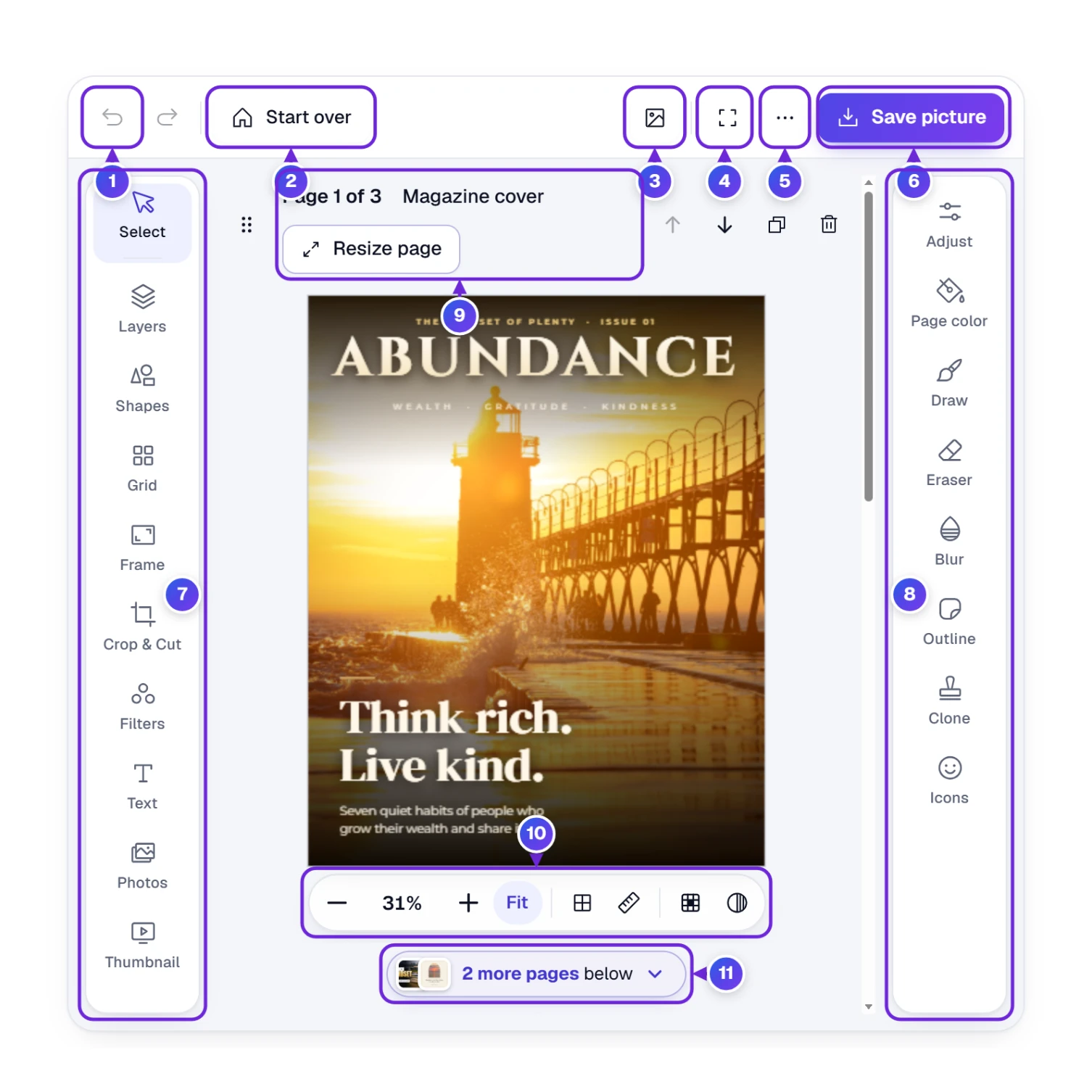
- Undo 1 steps back one change; the arrow next to it, Redo, steps forward again. The undo list covers the whole session, across every page, so you can walk back through changes made anywhere.
- Start over 2 takes you back to the start screen. Nothing is lost: the picture stays saved in this browser.
- The picture icon 3 puts another photo on this picture.
- The square corners 4 fill the whole screen with the editor; Esc leaves it.
- The three dots 5 hold History (every change on this page, so you can jump back several steps), Keyboard shortcuts, Add a page and Save a project file (.toolha), a file that keeps every layer and page so you can keep editing later on another device. With a text, shape or photo chosen, the same menu opens with that layer’s own extras first: Copy, Mirror, Upside down, Blend mode, and Copy style / Paste style to give a second title the same look.
- Save picture 6 is where every finished picture leaves the editor.
The left rail 7 holds the tools you’ll use most: Select, Layers, Shapes, Grid, Frame, Crop & Cut, Filters, Text, Photos and Thumbnail. The right rail 8 opens with Adjust and holds the rest: Page color, Draw, Eraser, Blur, Outline, Clone and Icons. Hover over any tile and a tooltip says what it does and which key opens it. On a narrow screen the options for a tool open under the picture; on a wide one, beside it.
You won’t hunt for tiles often, because the page itself points the way. Click a word on the page, even in Select mode, and the side panel switches to Text; click a shape, such as the dark shade behind a title, and Shapes opens; click a photo and a photo tool such as Adjust comes up, even if something else was open a second ago. A click on the empty gray space beside or below the page lets go of whatever was chosen, so the handles and the turn button get out of your way.
Above the picture, the page head 9 says which page you’re on (“Page 1 of 3”) and its name: a page made from your own photo takes the photo’s file name, with its file type (such as JPG, PNG or HEIC) beside it. Click the name to rename it; the file type stays as it is. When you choose something on the picture, this row turns into a bar for that thing, with buttons like Flip, Align, Arrange and Transparency. Below the picture, the zoom bar 10 has minus and plus, the zoom percent, Fit (the whole page as big as the screen allows), a grid, rulers, sharp pixels for close-up work and a dark work area. When the project has more pages, a slim line under the zoom bar 11, such as “2 more pages below” with small pictures of them, tells you what’s waiting further down; click it and the next page scrolls into view.
Recipe 1: A Photo Sized for Instagram, Facebook or Print
You need: one photo and the place it will go.
Social sites cut photos to their own shapes, and a printer needs enough pixels for the paper. Starting from the right size saves both problems. Say you want a Fourth of July picnic photo on Instagram, tall, filling the whole post.
- On Pick a size, keep Portrait post chosen and press the start button.
- Press the picture icon 3 and choose your photo. A small bar asks how to place it: Fit to the page, Fill the page, Just place it or Page = photo size.
- Pick Fill the page so no white edges show, then drag the photo to move the best part into view.
- Press Save picture and choose JPG.
Already opened a photo at its own size? Then change the page instead. Press Resize page in the page head (or the Z key).
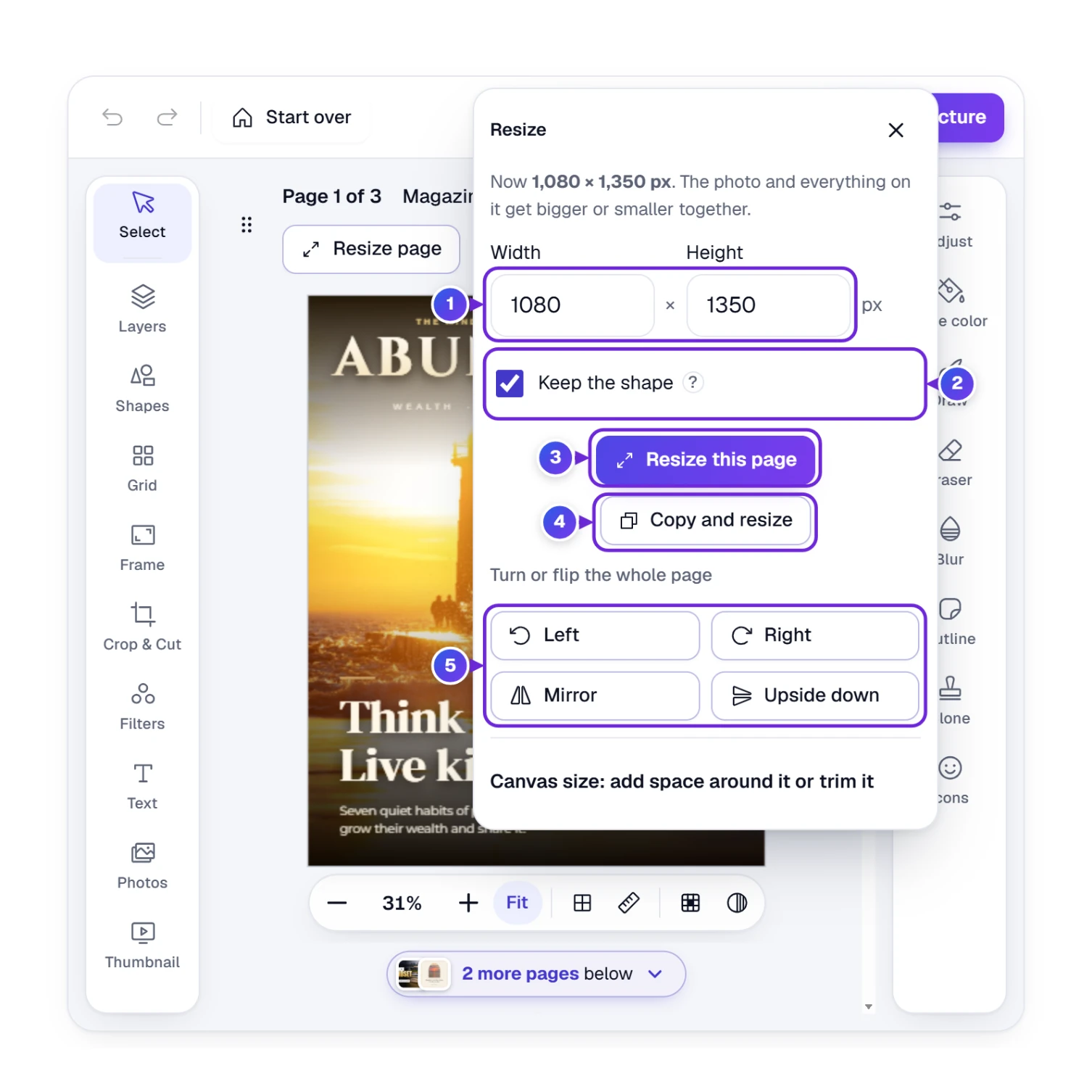
Type the new width or height 1. With Keep the shape 2 ticked, the other number follows so nothing stretches. Resize this page 3 scales the page and everything on it together. Copy and resize 4 makes a resized copy as a new page and leaves the original alone, which is how you make the same flyer as an Instagram post and a Facebook cover without starting over. The row of Left, Right, Mirror and Upside down 5 turns or flips the whole page. A fold at the bottom, Canvas size, adds space around the picture or trims it without scaling anything.
| Print size on the start screen | Pixels | At 300 pixels per inch |
|---|---|---|
| Postcard or 4 × 6 photo | 1,800 × 1,200 | 6 × 4 in |
| Card or 5 × 7 photo | 1,500 × 2,100 | 5 × 7 in |
| 8 × 10 photo | 2,400 × 3,000 | 8 × 10 in |
| Letter paper | 2,550 × 3,300 | 8.5 × 11 in |
| Business card (US) | 1,050 × 600 | 3.5 × 2 in |
| Sticker or label | 900 × 900 | 3 × 3 in |
Tip: the photo is redrawn from its original pixels every time you resize, so shrinking it and growing it again doesn’t blur it. Growing a small photo far past its own size will still look soft; no editor can invent detail that wasn’t there.
Swaps: for a Story or Reel pick Story or Reel (1080 × 1920); for a link preview on Facebook or a blog, Link preview (1200 × 630); for Etsy or Amazon, Product photo (2000 × 2000).
Recipe 2: Crop, Straighten or Cut Out a Shape
You need: a photo with extra space you want gone at the edges, or one part you want on its own.
Cropping (some call it trimming) cuts the edges off. Cutting out takes one part of the photo, a dog, a vase, a face, and puts it on its own layer. Both live in Crop & Cut, key K.
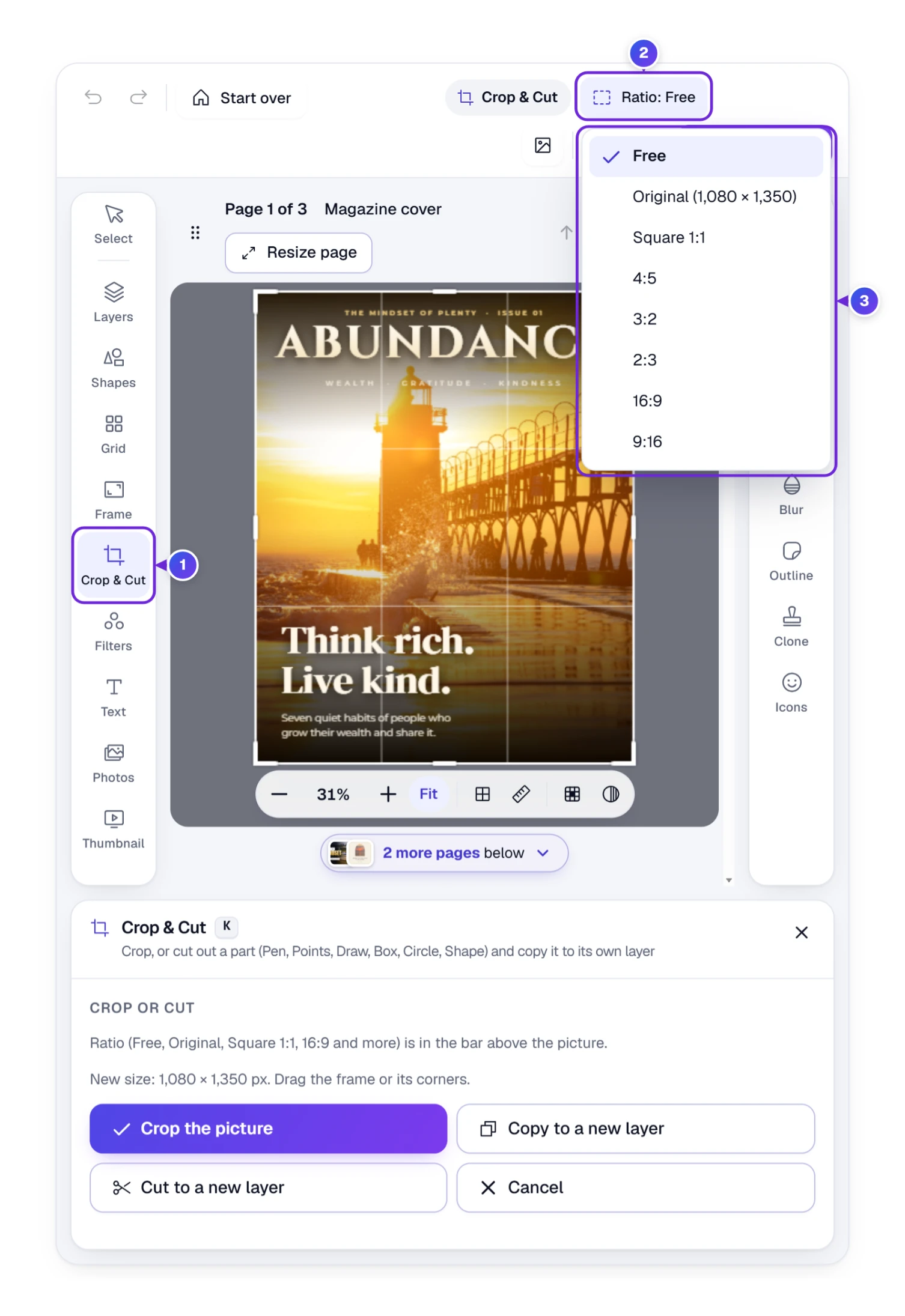
- Point at Crop & Cut 1 on the left rail. A small menu opens beside it with six ways: Pen, Points, Draw, Box, Circle and Shape. On a touch screen, tap the tile and choose in the panel.
- Choose Box for an ordinary crop. A frame with corner handles covers the page.
- Press Ratio 2 at the top and pick a shape from the menu 3: Free, Original, Square 1:1, 4:5, 3:2, 2:3, 16:9 or 9:16.
- Drag the frame and its corners until the part you want is inside, then press Crop the picture.
For a cutout, choose Points and click point after point around the object, or Draw and trace it with the mouse or your finger. Pen is for smooth curves: click for a sharp corner, click and drag for a curve, the way the big design programs work. Once the outline is closed, Copy to a new layer (Ctrl + J) makes a new layer of that part and leaves the photo whole; Cut to a new layer (Shift + Ctrl + J) lifts it out and leaves a see-through hole. Circle and Shape cut round or into one of the shapes.
Want to move the cut part right away? Press Ctrl + Enter: the outline becomes a selection you can drag, turn and resize by its corners. Hold Alt while you drag and you move a copy. Right-click inside the outline for more, including Copy to another page, which drops it on page 2 or 3.
Straighten and turn: a crooked horizon is fixed with the Straighten button in a photo’s bar (a slider from −45° to 45°, and a switch to grow the photo so no corners show). The round arrow at the top of a chosen layer turns (rotates) it by hand; the number box beside it takes an exact angle. Flip, the two triangles, gives you Mirror (a mirror image, the left becomes right) and Upside down.
Swap: the side handles of a chosen photo crop it too, right on the page. Drag a side back out and the cut part comes back, up to the photo’s own edge.
Recipe 3: A Product Photo With No Background
You need: a photo with one clear subject: a person, a pet, a pair of boots, a coffee mug.
Removing the background is the job people search for most (some call it a background remover, a cutout or “remove bg”). Here it is a button in the photo’s bar, Remove BG, key W.
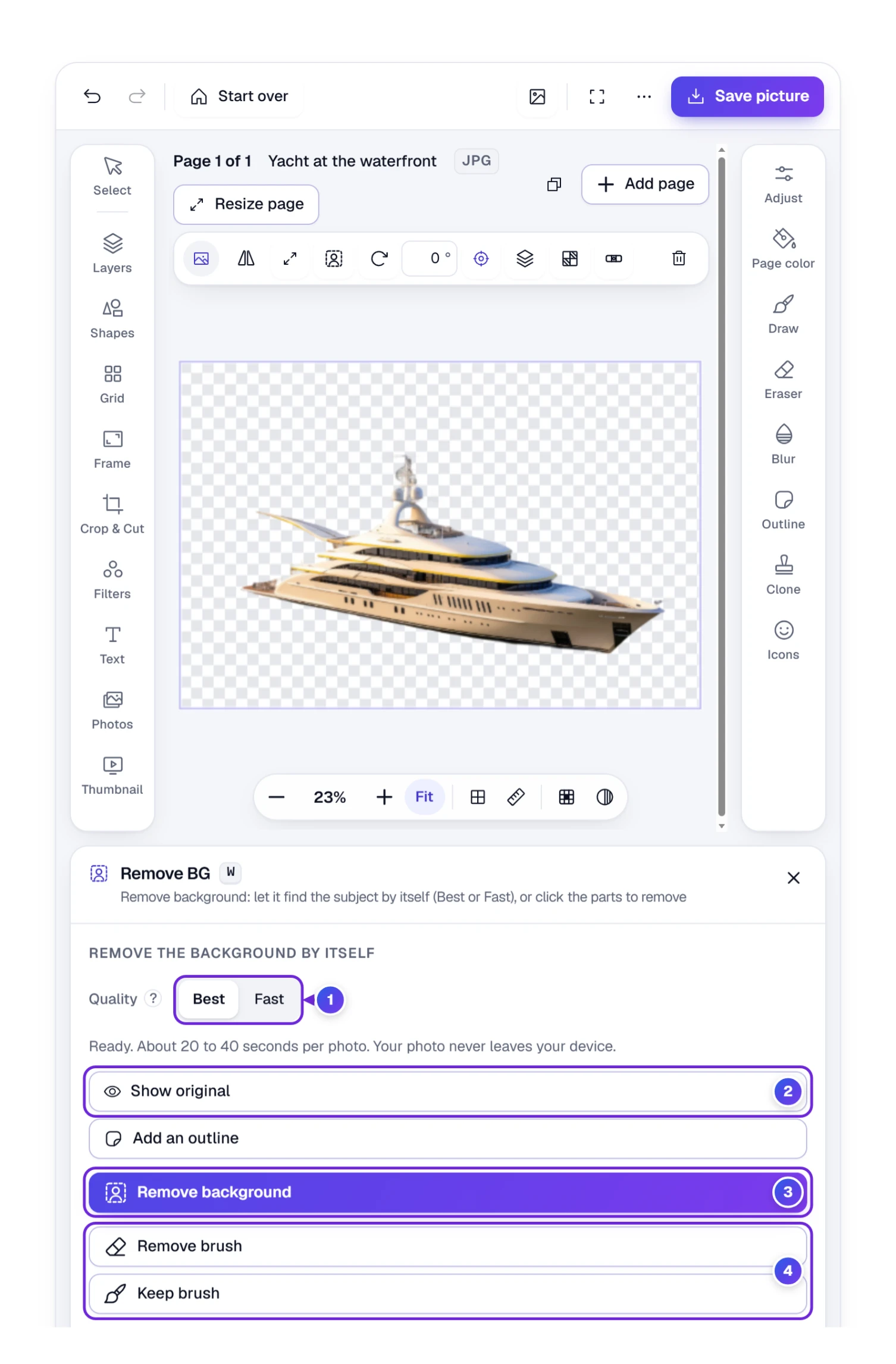
- Click the photo, then the Remove BG button in its bar (the person in a square).
- Choose Best or Fast 1.
- Press Remove background 3 and wait. Plain step texts show what it’s doing, and the photo glows while it works.
- Press Show original 2 to compare before and after in one click.
- Fix any edge with the Remove brush or the Keep brush 4, then save as PNG to keep the see-through part.
Our test photo was the yacht from the example, 2,048 × 1,365 pixels. With Fast it took about 10 seconds and left a smudge of white water under the back of the boat. Best took less than 45 seconds, kept the thin mast and dropped the water. The first time you use Best, the browser fetches a large helper file and gets it ready, which added about 22 seconds in our run; after that it’s kept. Best needs a browser that can use your graphics card (most current Chrome and Edge versions can); if yours can’t, the editor uses Fast and says so.
Where the remover guesses wrong, the second half of the panel does it by clicking. Click the background and it turns pink; click more parts to add them, hold Alt and click to take one away. Tolerance decides how close a color must be to count. Then press Remove the chosen part, or Keep only the chosen part to do the opposite.
A weak spot we found: on a scene without one clear subject, a lighthouse at the end of a long pier, Best kept the lighthouse and the pier but chewed up the spray at its base. It works best when one thing obviously stands in front.
Swaps: want a white background for a marketplace listing instead of a see-through one? Click an empty part of the page, choose White in Page color, and save as JPG. A JPG can’t be transparent, so its see-through parts always become white anyway.
Want the cut-out to look like a sticker on a post, a thumbnail or a product card? Press Add an outline under Show original, or open Outline on the right rail 1 (key Q). The line follows the edge of the subject, not the box around the photo.
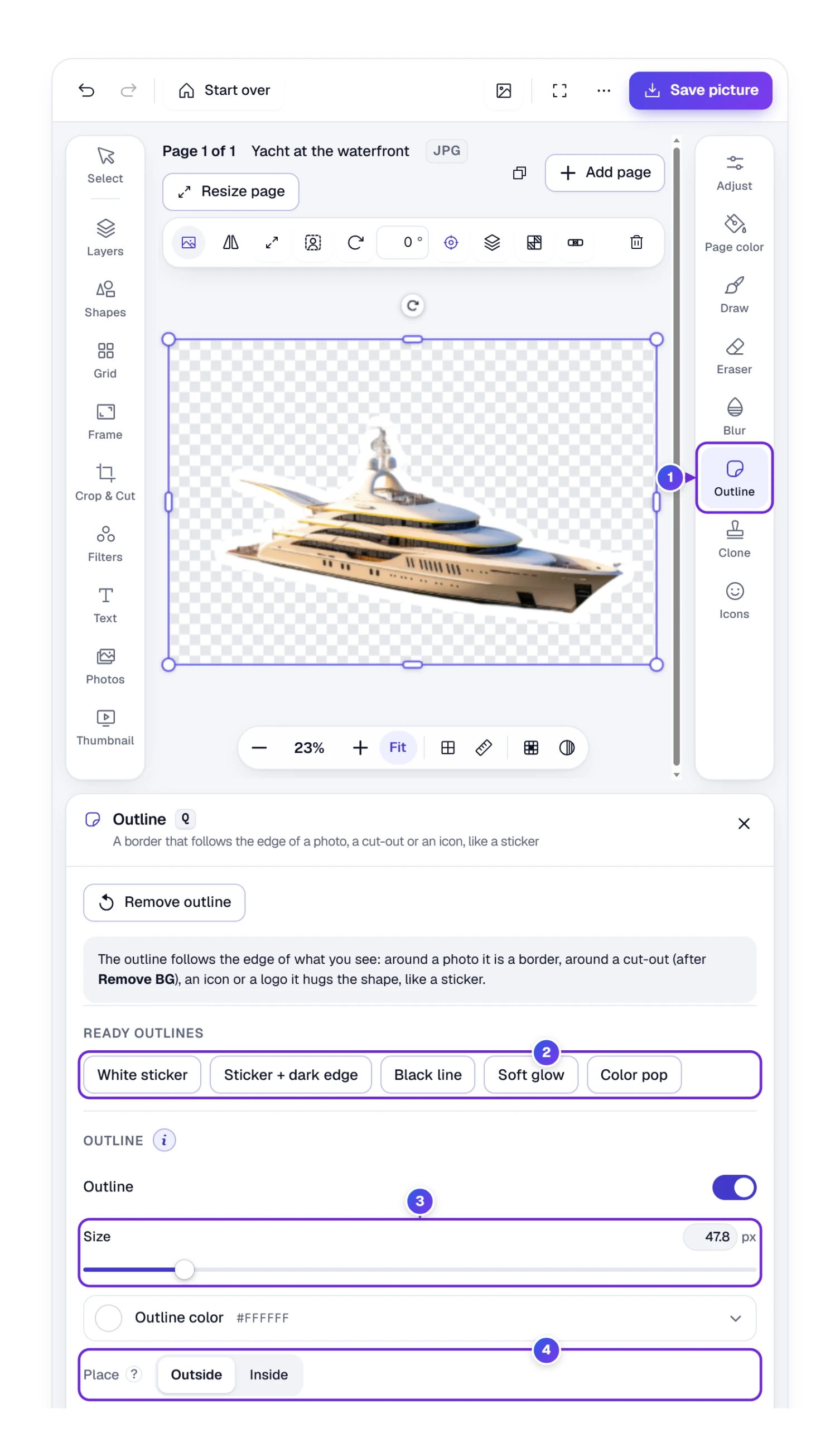
One click on a ready outline 2 such as White sticker or Sticker + dark edge gives a finished look. Then set the Size 3 by dragging, or type any number, decimals too; pick a color; and choose whether the line sits Outside or Inside the edge 4. Soft edge turns it into a glow, and a Second outline adds a thin line around the first. On our yacht, White sticker picked 47.8 pixels, about 3.5% of the photo’s short side. Save as PNG and the outline stays around the see-through cut-out. It works on icons and logos too, and around a plain photo it is simply a border.
Recipe 4: Hide a Face, a License Plate or a Busy Background
You need: a photo showing a detail that shouldn’t be seen: a stranger’s face, a house number, a license plate in a car-for-sale ad.
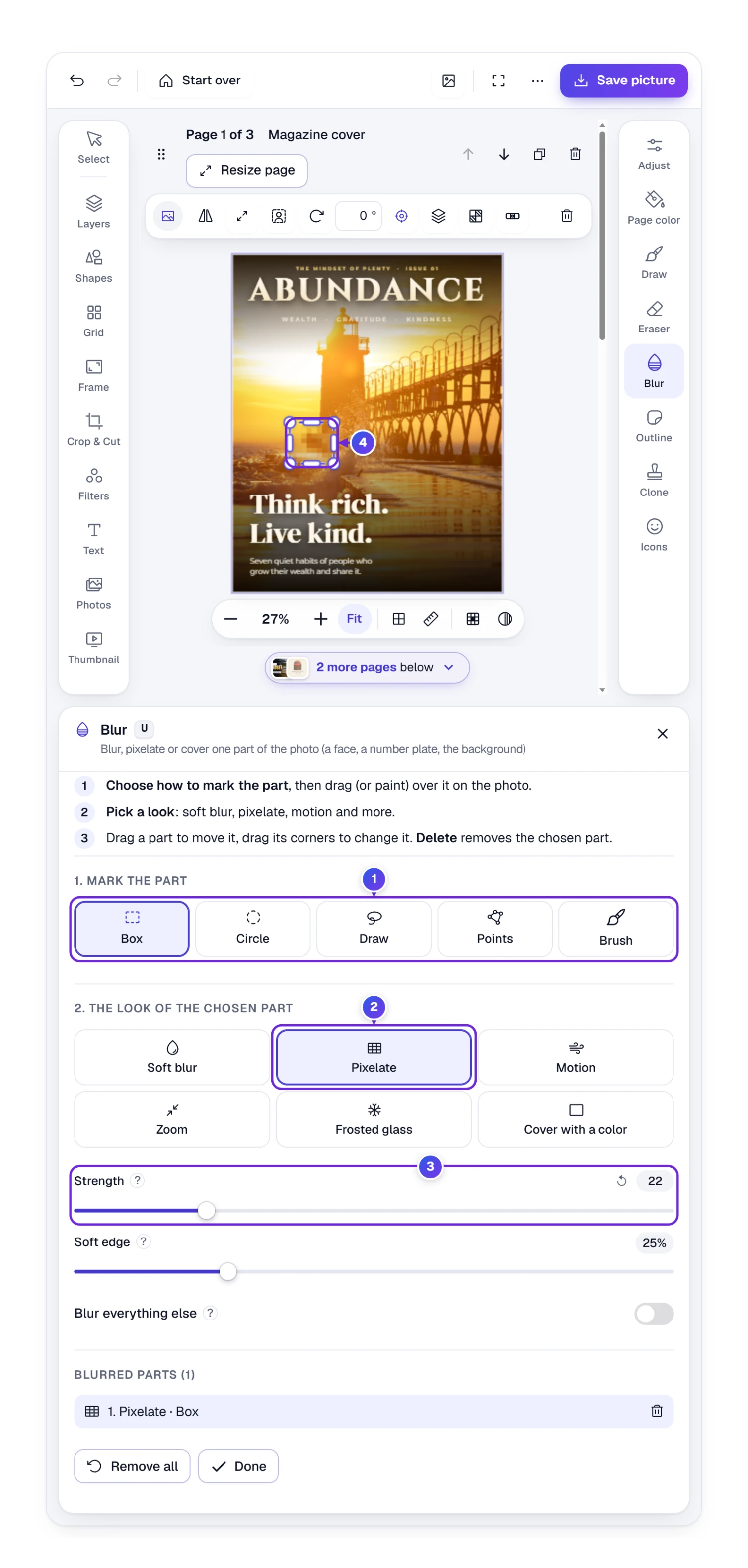
- Choose the photo and press Blur on the right rail (key U).
- Pick how to mark the part 1: Box, Circle (good for faces), Draw, Points or Brush.
- Pick a look: Soft blur, Pixelate 2 (the TV-style squares, also called a mosaic or censor effect), Motion, Zoom, Frosted glass or Cover with a color.
- Drag over the part on the picture 4, then set Strength 3 and Soft edge.
Every blurred part stays editable: drag it to move it, drag its corners to resize, press Delete to remove it. Blur everything else flips the idea around and blurs everything except what you marked, the classic portrait look with a soft background.
Tip: for a license plate or a name you must hide for real, use Pixelate or Cover with a color rather than a light blur. A soft blur on large text can sometimes still be guessed; solid squares or a color can’t.
Recipe 5: Words on a Photo That Stay Easy to Read
You need: a few words, a photo, and a minute to pick a style.
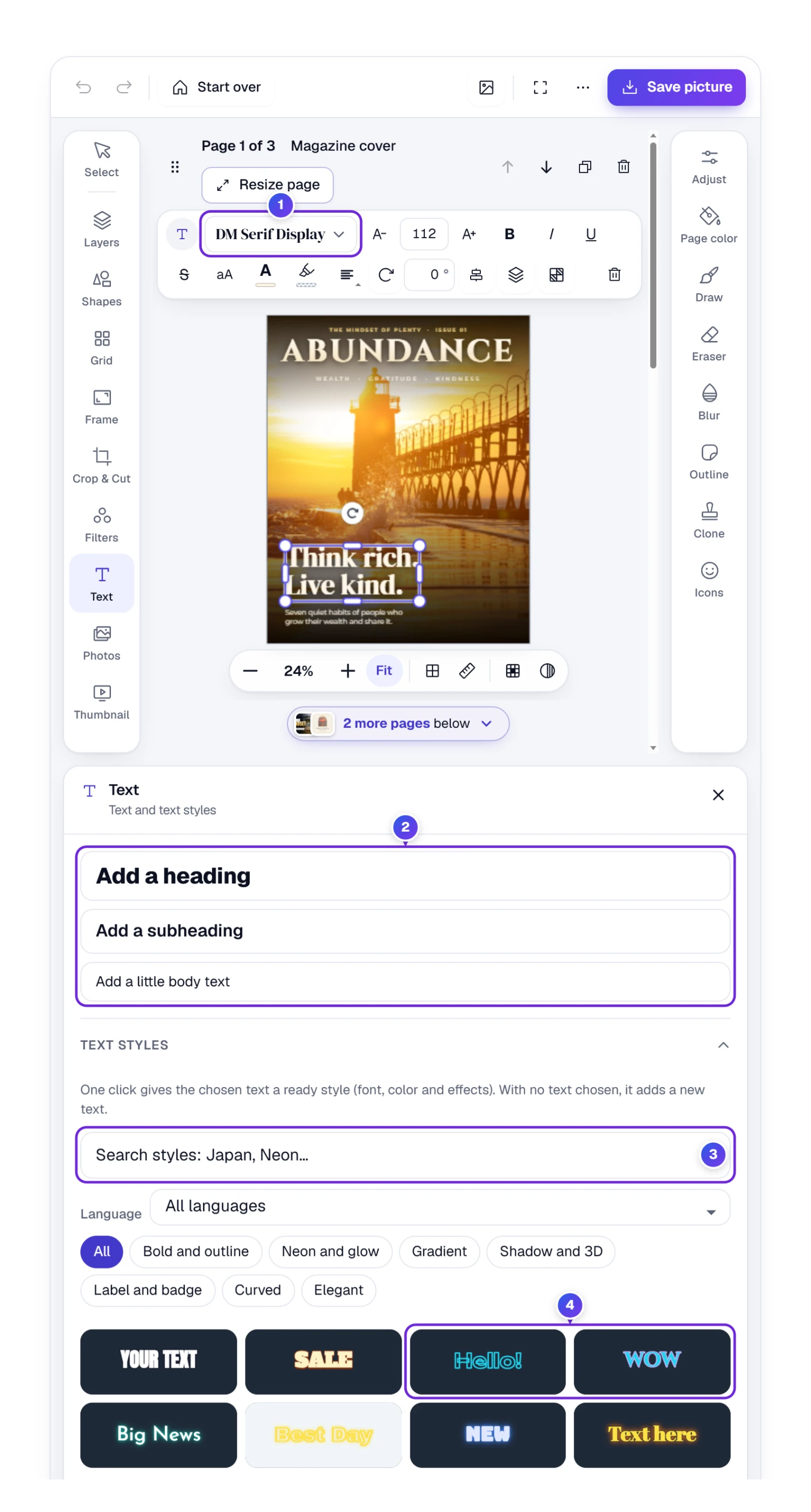
- Press Text on the left rail, or just press T.
- Choose Add a heading, Add a subheading or Add a little body text 2. A text box appears in the middle of the page; type over it.
- Pick a font 1, the size and the color in the bar on top. The font list holds more than 2,000 free fonts, from plain Inter to handwritten Caveat, in dozens of languages.
- Or tap one of the 1,000 Text styles 4, such as Neon, Retro shadow, Sticker or Highlighter, for a finished look in one click.
A thousand styles is a lot to scroll, so the style search 3 above them narrows the list as you type: “neon” leaves every glowing look, “japan” the 40 Japanese ones, and a font name works too. The Language list starts with the ten languages most people speak, English, Chinese, Hindi, Spanish, Arabic, French, Bangla, Portuguese, Russian and Indonesian, then Japanese, with Urdu sharing the Arabic styles. Whichever you tap, your words stay; only the font, colors and effects change.
When a text is chosen, its bar sits above the page and takes two lines when it needs them, so every button stays in sight. The bar also has bold, italic, underline and strikethrough, capital letters, a text background color, line up (left, center, right) and turning. In the panel you’ll find line and letter spacing, Curve the text (up makes an arch, down a smile), an outline around the letters, a neon glow and a shadow. Every color box offers From your picture: up to six colors taken from your own photo, plus gradients and an eyedropper that picks any spot on the page.
Need a long title in a narrow space? Drag a side handle of the text box inward. The words wrap onto more lines while the letters keep their size, and the top of the box stays put. Pull the bottom handle down instead and the box turns taller and narrower at once. Only a corner handle makes the letters themselves bigger or smaller.
Writing in Hindi, Arabic, Bangla or Thai? Press the Font button in the text bar and type the language or the country into Find a language 1. “tamil”, “Thai”, “India” and “বাংলা” all work: the Language list 2 jumps to the first match, the kinds 3 still sort what is left, and the list keeps only the fonts that have those letters, each one previewed in them 4.
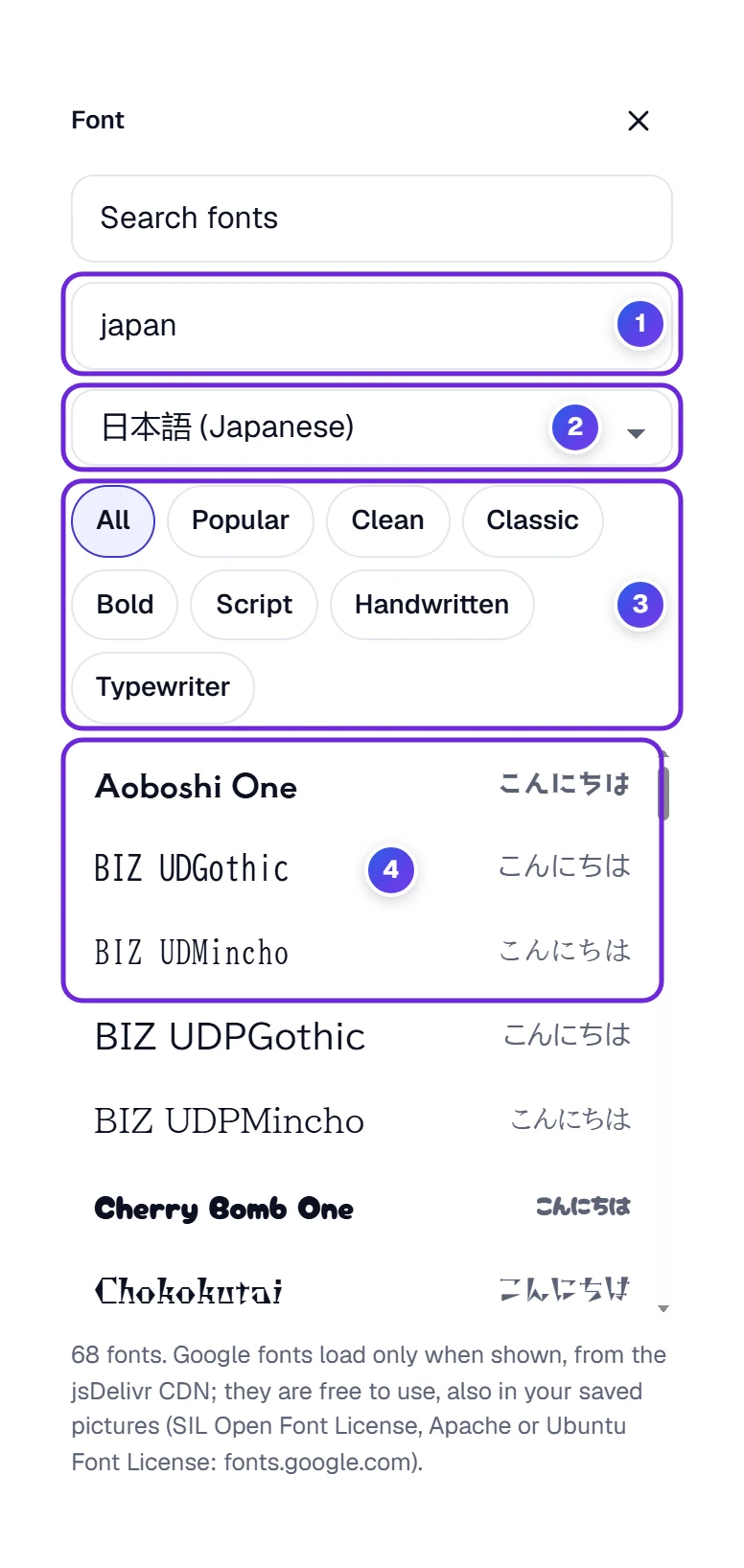
From our own tests: “japan” picked 日本語 at once and left 68 fonts with Japanese letters; “tamil” left 18. These are Google fonts. They load from jsDelivr only when they scroll into view, which keeps the page light, and their licenses (SIL Open Font License, Apache, Ubuntu Font License) allow them in your saved pictures, including ones you sell.
Tip: words read best on the calmest part of the photo. If there isn’t one, give the text an outline or a shadow; on the cover above, a dark gradient box behind “Think rich.” does the same job. To add one yourself, open Shapes and pick a ready shade such as Dark at the bottom: it covers the whole page, slides in under your words, and its panel tells you in plain words which side is dark.
Recipe 6: A Round Profile Picture, a Polaroid or a Phone Mockup
You need: a photo, and a shape or frame in mind.
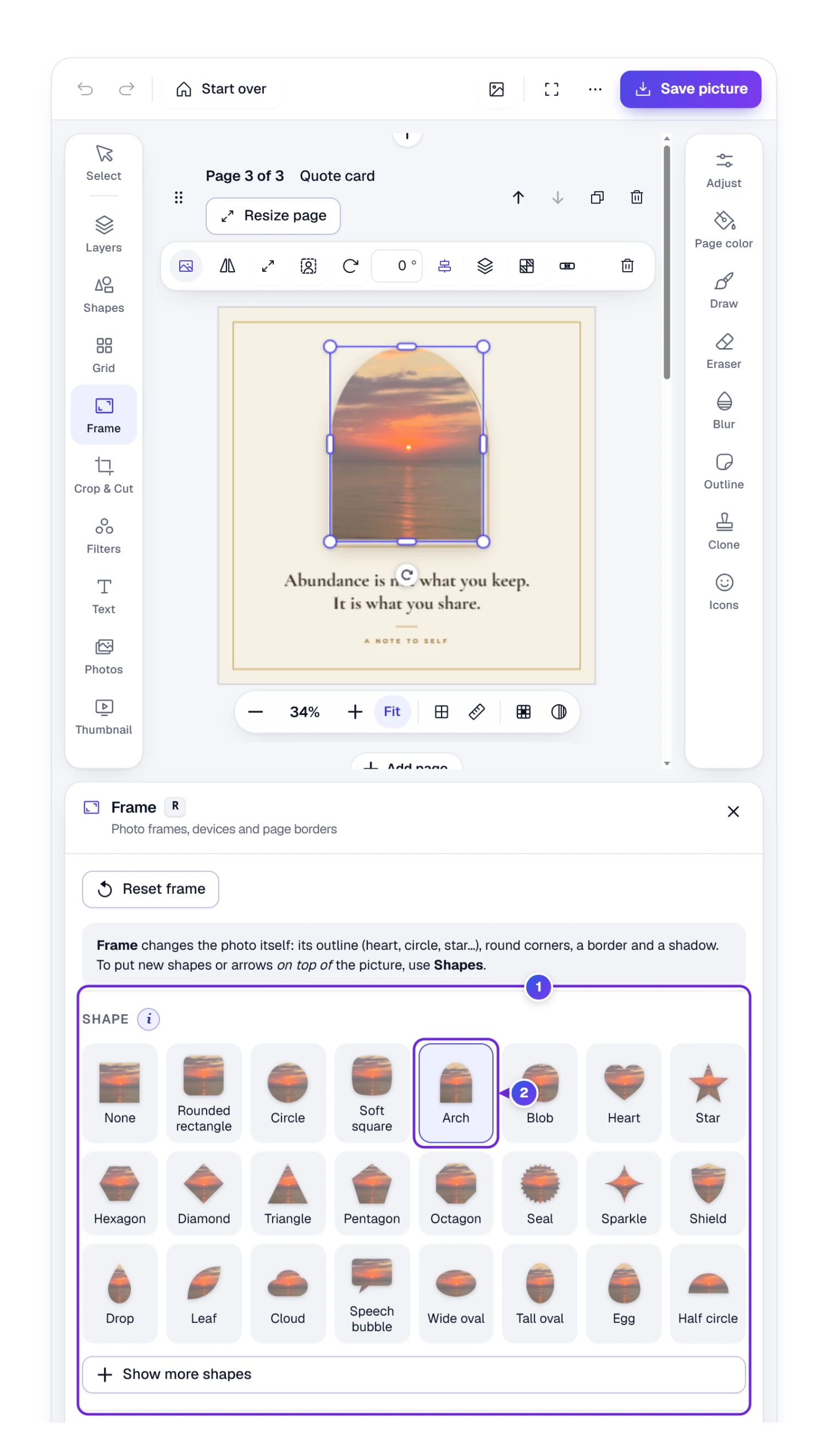
- Choose the photo and press Frame on the left rail (key R).
- In Shape 1, pick Circle for a profile picture, Heart, Star, Arch or any other. The photo itself takes the shape 2.
- Add Round corners, a Border and a Shadow if you like. Reset frame goes back to the plain photo.
Show more shapes gives you one long grid of 139 shapes, and the fold Add a new frame at the bottom opens the frame library: 129 shapes that hold a photo (circles, blobs, flowers, arches, stars, speech bubbles and more), prints and paper (an instant print, a film strip, a postage stamp, a ticket, stacked prints), devices (a phone, a tablet, a laptop, a monitor and a browser window, all plain and unbranded) and borders for the whole page. Click one, or drag it onto the picture, then drop a photo onto it. Every frame is drawn by ToolHa, so you can use it in work you sell.
Three more rails add things on top of the photo. Shapes (key H) has 75 shapes, arrows, badges and speech bubbles that stay sharp at any size. Icons (key I) searches thousands of free icons from openly licensed sets, including social media logos, emoji and flags. Photos (key P) searches free photos from the WordPress Photo Directory and Unsplash in one go; every result names its source, and an Unsplash photo also names its photographer, so a quote card needs nothing but your words. Click a result to add it, or drag it straight onto the page, into a frame or into one part of a grid.
Swap: for a round photo over another picture, the way people show a face over a car or a house, add the second photo as a layer first, then give only that layer the Circle shape.
Recipe 7: A YouTube Thumbnail People Want to Click
You need: a short title, plus your own photos if you want them. No separate thumbnail maker needed; it’s a tool inside the editor.
YouTube asks for a 16:9 picture at least 640 pixels wide, and its help page now suggests going as large as 3840 × 2160. Our ready size is 1280 × 720, the same 16:9 shape and twice the minimum width, which keeps the file small and quick to upload.
The quickest start is a design that is already balanced. Thumbnail on the left rail holds 1,000 of them, built from photos of the WordPress Photo Directory, which are free to use and need no credit (CC0).
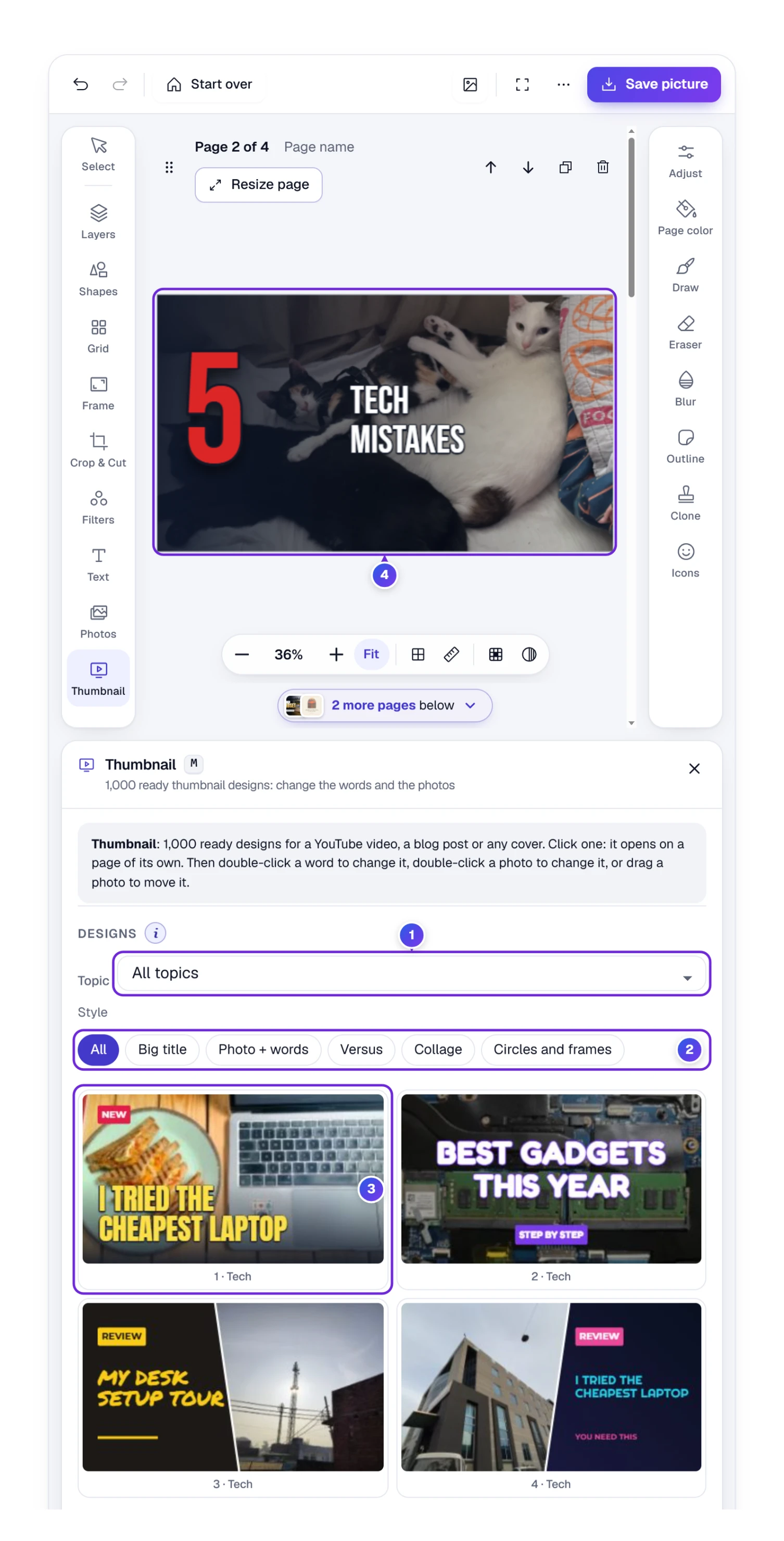
- Press Thumbnail on the left rail (key M).
- Narrow the list with Topic 1, such as Tech, Food & cooking or Travel, and a Style 2: Big title, Photo + words, Versus, Collage or Circles and frames.
- Click a design 3. It opens on a new 1280 × 720 page 4, so whatever you had open stays as it was.
- Double-click a word and type your own title. Double-click a photo, then click a free photo in Photos or drop one of your own on it.
- Click anything else, a badge, a photo or the dark shade behind the words, and its own options open beside the page.
We opened design 6, a big “5” beside a two-line title over a darkened photo. A double-click turned the title into our own words, and one click on the dark shade opened Shapes with its gradient ready to recolor.
Two designs can lend each other parts. Open both (each gets its own page), choose a word, a shape or a photo on one, press Ctrl + C, go to the other page and press Ctrl + V.
Made a blog cover instead? Grid has a New blog cover page button for the 1200 × 630 size. Once the post is live, run its link through the Link Preview Checker to see how the cover shows up when the post is shared on Facebook, WhatsApp or X.
Tip: two to four big words beat a full sentence. On a phone, a thumbnail is often no wider than your thumb, and the time stamp covers the bottom right corner, so keep faces and words away from it. The switch Show the time corner on the page, under How it looks small in Grid, draws that corner on your page while you work.
Recipe 8: Brighten a Dark or Dull Photo
You need: a photo taken indoors, on a cloudy day or against the light.
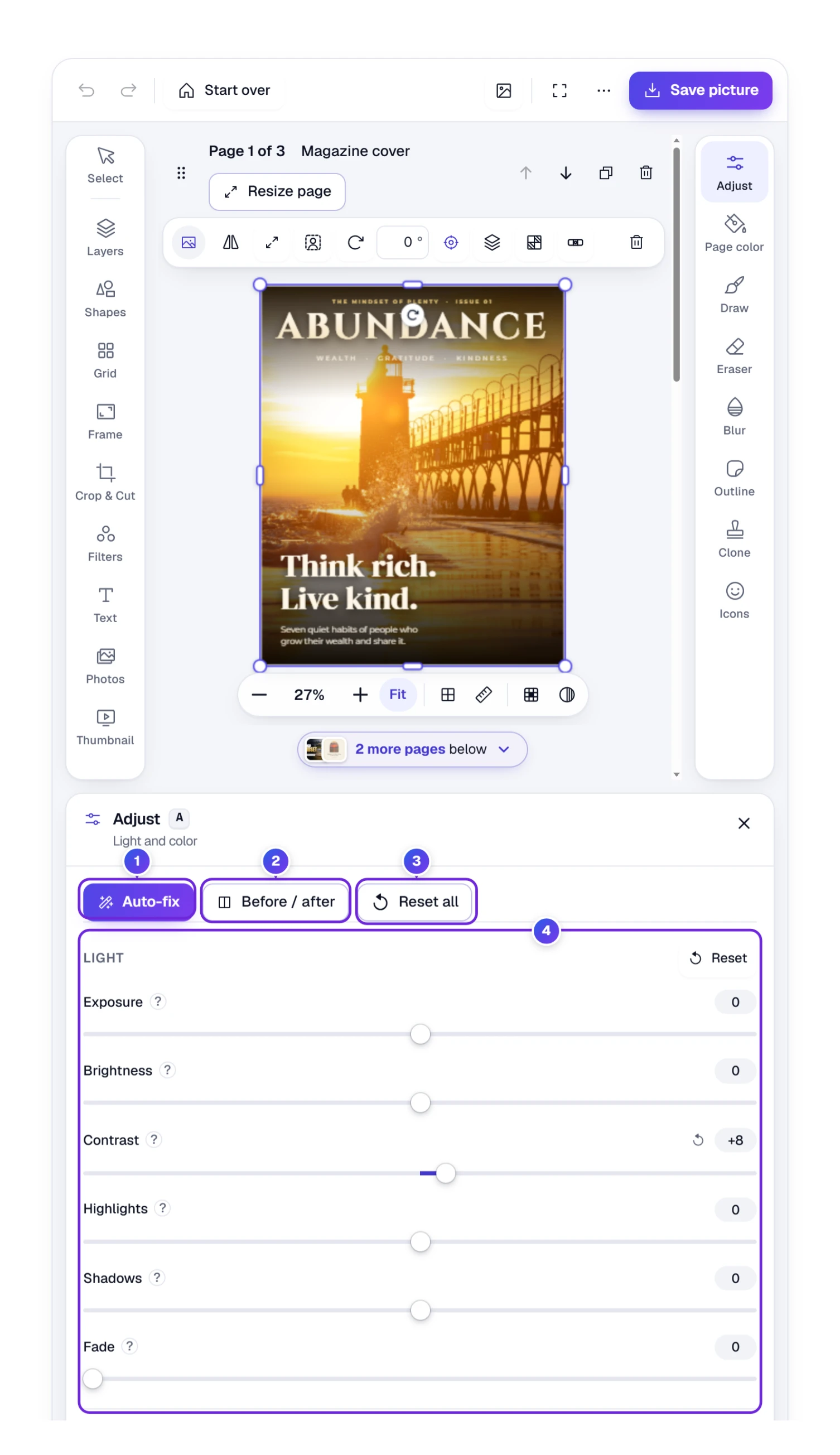
- Choose the photo and press Adjust on the right rail (key A).
- Press Auto-fix 1 first. It looks at the darkest and brightest parts and sets the sliders for you.
- Fine-tune with the sliders 4: Exposure, Brightness, Contrast, Highlights, Shadows and Fade, then Saturation, Vibrance, Warmth and Tint, then Sharpness, Blur, Vignette and Grain.
- Press Before / after 2 to see the photo split in two, the original on one side and your changes on the other. Drag the line to move the split, and press the button again to close it.
Each slider has its own reset arrow, each group has Reset, and Reset all 3 clears everything. Two folds go further: Color mixer changes the hue, strength and lightness of eight color ranges (make a blue sky deeper without touching faces) and Curves gives you a tone curve.
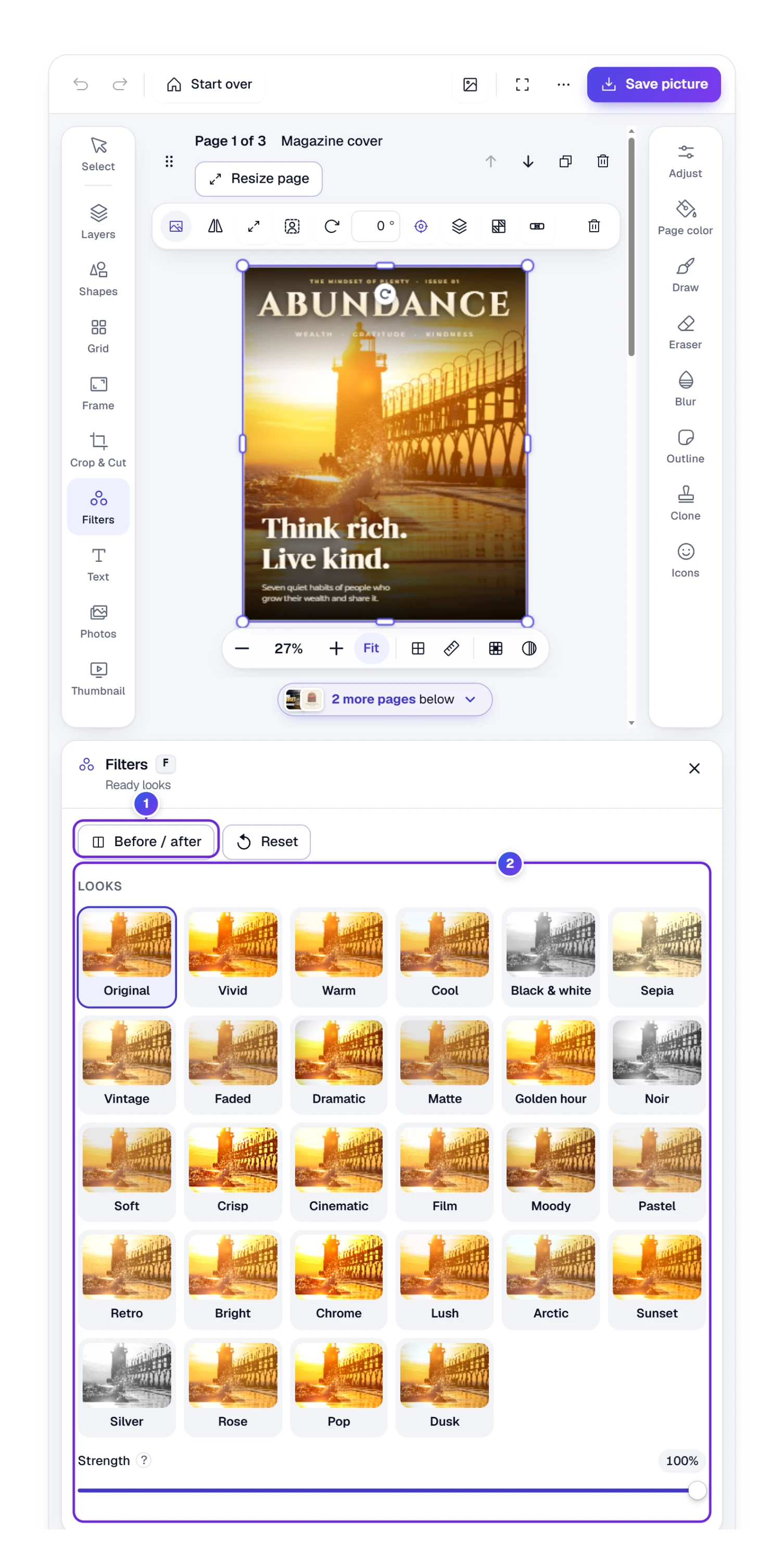
In a hurry? Filters (key F) has 27 ready looks 2, what some apps call photo effects or presets: Vivid, Warm, Cool, Black & white, Sepia, Vintage, Golden hour, Noir, Cinematic, Film and more. Each tile shows your own photo, and Strength sets how strongly the look is used. A filter only moves the same sliders as Adjust, so you can open Adjust afterward and change any part of it. The same Before / after button 1 sits at the top here too.
Three brushes on the right rail finish the job. Draw paints with a pen, a marker or a highlighter. Eraser rubs parts of a photo away and Bring back brings them back. Clone, a clone stamp, copies one spot over another, the quickest way to hide a speck of dust or a wire across the sky.
Recipe 9: A Carousel or Several Photos in One Project
You need: two or more pictures that belong together, like the slides of an Instagram carousel or the pages of a yard sale flyer.
One project can hold many pages, one under the other. The plus sign between two pages, or Add page at the end, adds a blank page the same size as its neighbor, a photo as a page, or a custom size. Drag a page by its grip to change the order. Each page keeps its own layers, one undo list covers them all, and you can drag a layer from one page and drop it onto another. On a computer the open page gets the full height, and the line under it counts the pages still below, so none of them is missed.
A carousel slide that compares prices, plans or results often works best as a table. Build it in Table to Image, save it as a PNG and add it here as a page of its own, between your photos.
Every text, shape and photo on a page is a layer, and Layers (key L) lists them, the top of the list in front.
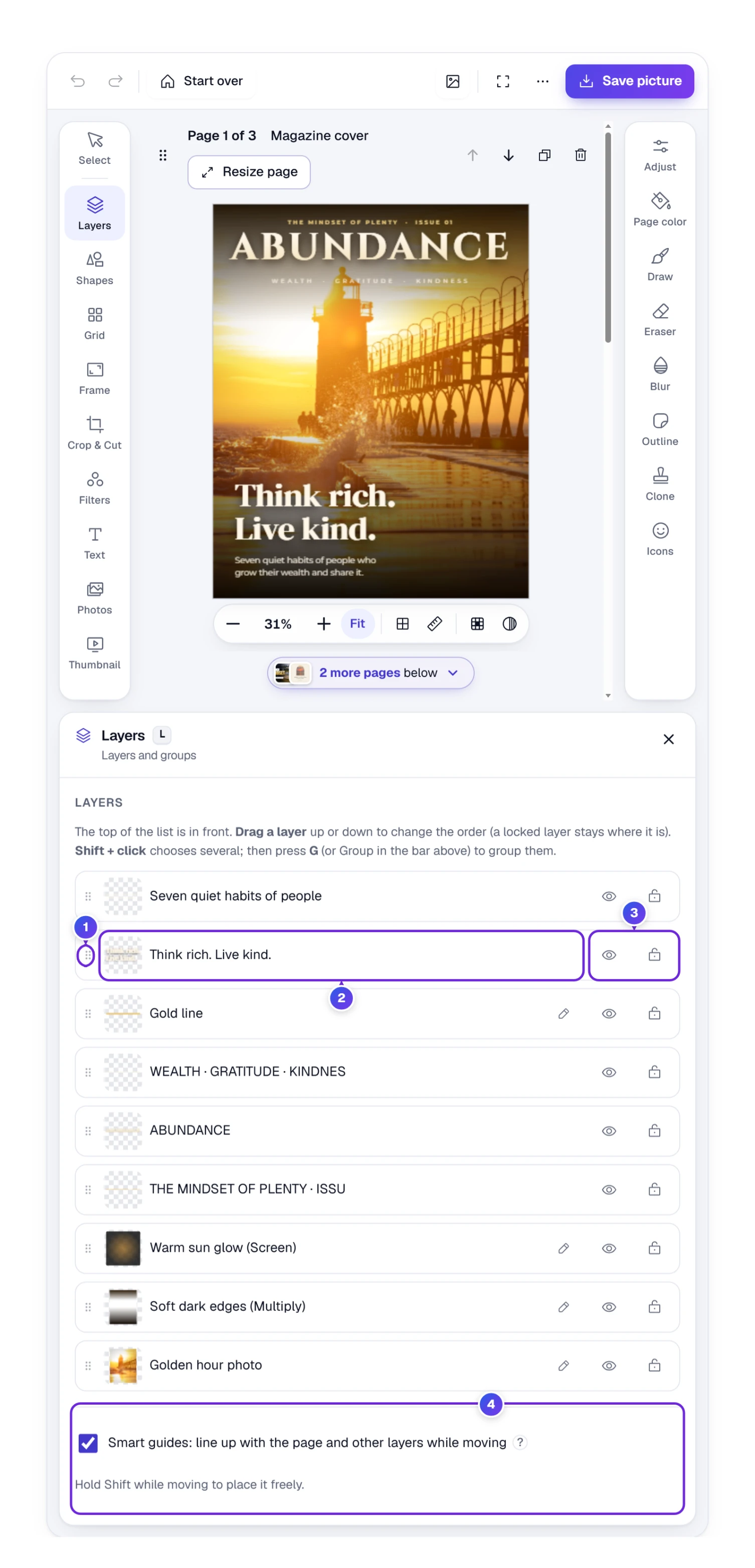
- Drag a layer up or down by its grip 1 to bring it forward or send it back.
- Click a name 2 to choose that layer; Shift + click chooses several, then G or Group groups them.
- The small buttons 3 rename a layer, hide it (the eye) and lock it so it can’t be moved by mistake.
- Smart guides 4 show lines when a layer lines up with the middle or the edges of the page or with another layer, and the gaps between them. Hold Shift to move freely.
When a layer is chosen, its bar holds Align (center on the page, or line it up left, right, top or bottom), Arrange (bring to front, send to back), and Transparency, a slider plus 16 blend modes such as Multiply and Screen. On the cover, the soft dark edges and the warm glow are two plain boxes using those blend modes. Hold Alt while dragging a layer to drag a copy instead.
Recipe 10: A Photo Collage From a Handful of Photos
You need: two photos or twenty; a layout takes whatever number you have.
Recipe 9 spread photos over several pages. This one puts them together on one. Grid (key Y) splits the page into parts and gives each part a photo: the collage maker you would otherwise look for elsewhere. The same layouts give a before-and-after, a VS picture or a thumbnail with two faces.
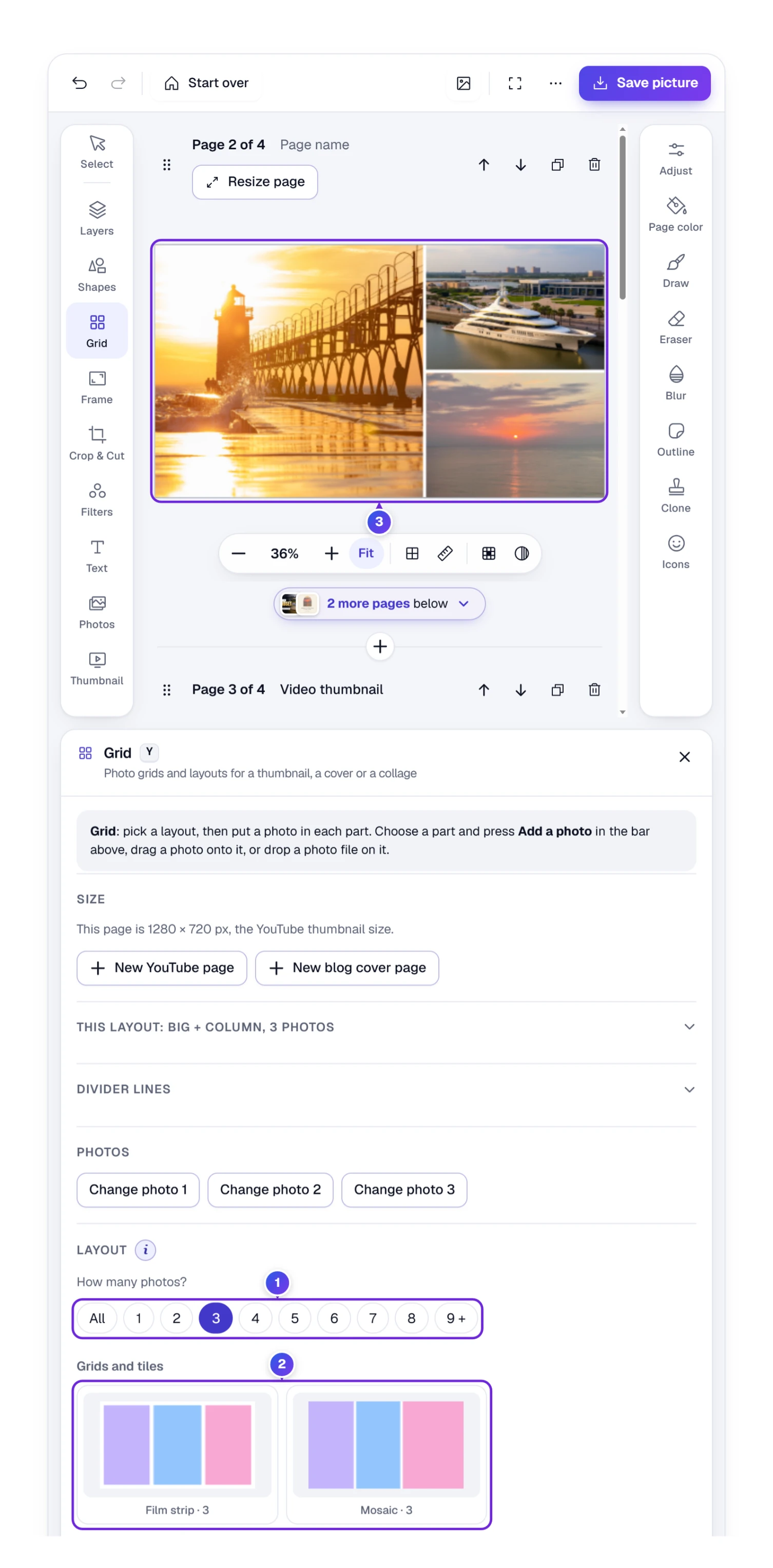
- Press Grid on the left rail. Under Size, New YouTube page or New blog cover page gives you a fresh page in that shape, or keep the page you have.
- Under How many photos? 1, tap the number you have. 9 + holds the bigger grids, up to 30 parts.
- Pick a layout 2. Each group, from Grids and tiles to Words and VS, starts with the fewest photos.
- Drag a photo from Photos onto a part 3, drop a file from your computer on it, or choose the part and press Add a photo in the bar above.
- Drag inside a part to show another piece of its photo. Drag a corner or a side of the part to zoom the photo in or out; it never gets smaller than the part, so the page behind never peeks through.
In our test we dropped the three example photos on Big + column · 3, the lighthouse on the big part and the yacht and the sea on the right; each one filled its part at once, cropped to the part’s shape and centered.
Layouts with lines between the parts, such as Slanted, Wave or Torn edge, let you style those lines under Divider lines: a color, a width, a style from Solid and Dashed to Zigzag and Wave, and a glow. Click one line on the page, or pick its number, and it gets a color, width and style of its own. This layout changes the number of photos, the gap and the corners while your photos stay in their parts, and Photos has a Change photo button for each part.
Tip: Delete takes the photo out of a part and leaves the empty part behind, ready for a better photo.
Swap: for a versus thumbnail, pick VS · 2, drop a photo on each side and add a White title or Yellow title from the Title fold.
Serving It: Pick the File by Where It’s Going
Press Save picture (or Ctrl + S). The box lists 15 file types and the size each one would be.
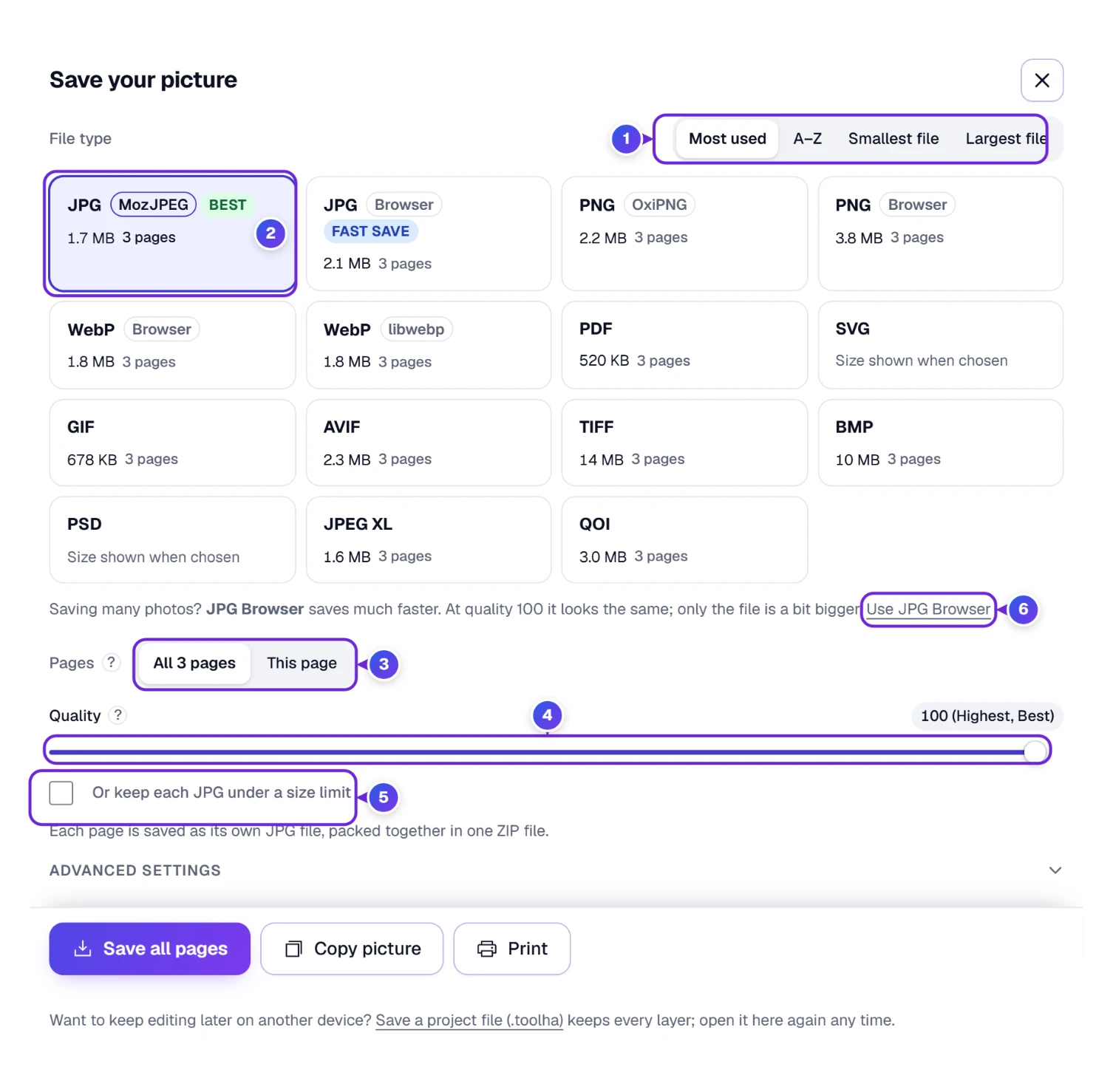
The size under each card is the size of the real file, not a guess. The editor makes each file in the background, and Save picture then hands you that very file. A quick estimate shows first with a ≈ sign and is replaced a moment later. With only the magazine cover (1,080 × 1,350) chosen, the JPG card 2 said 926 KB and the file we saved was 948,279 bytes, which is 926 KB.
Wait for the ≈ to go before you choose by size. On the same cover, the first guess for GIF was about 1,014 KB; the real file was 342 KB. The early PNG guess was off too, 1.6 MB against a real 1.2 MB.
| Where it’s going | Pick | Why |
|---|---|---|
| Social media, email, a website | JPG (MozJPEG, Best) | Small and opens everywhere |
| A logo or cutout that must stay see-through | PNG | Keeps transparency and every pixel |
| A website picture that needs see-through parts | WebP | Holds transparency like PNG; lower Quality for a smaller file |
| Printing or emailing several pages | One file, one page per picture | |
| Opening again in a program that reads PSD, such as Photoshop | PSD | Each layer stays a layer |
| A logo that must scale to any size | SVG | Text and shapes stay sharp |
| Keep editing here later | Project file (.toolha) | Keeps every layer and page |
Use the sort buttons 1 to order the cards by Most used, A–Z, Smallest file or Largest file. All 3 pages or This page 3 decides whether you save every page or only the open one. When a project has more than one page, the box starts on all of them; all pages become one PDF, or a ZIP file with one picture per page for the other types. For the three-page example, all three pages came to 1.7 MB as a JPG ZIP and 520 KB as a PDF. Quality 4 starts at 100, the highest; lower it to make the file smaller. Advanced settings holds the finer settings of each file maker.
Some places take only small files, like a job portal that wants a photo under 200 KB or a form that turns away anything over 1 MB. For those, tick Or keep each JPG under a size limit 5 just under Quality (with one page it reads “the JPG”). Type your own number (KB and MB both work) or pick a ready size between 100 KB and 2 MB, and the editor tries one quality after another until it finds the highest that still fits. Our magazine cover under 200 KB came out at 184 KB, at quality 85%; with All 3 pages chosen, each page got its own quality, from 85 to 98%. Touch the Quality slider again and the limit switches off, because now you’re choosing the quality yourself. PDF, PNG and GIF get the same tick, just under Size. A PDF lowers the quality of the pictures inside it, so our three pages under 300 KB came out at 292 KB, with its pictures at quality 74%. A PNG (the card made with OxiPNG) or a GIF has no quality to lower, so it keeps fewer colors instead, and a short note below says how many it kept. At a few dozen colors a photo starts to look flat, so for photos a JPG or WebP of the same size usually looks nicer.
Saving a whole batch of big photos? With JPG (MozJPEG) chosen and more than one page, a note under the cards 6 points to JPG Browser, the card tagged Fast save. One click on Use JPG Browser switches to it. In our test, 13 photos of 4000 × 3000 pixels took 77 seconds with MozJPEG and 42 with JPG Browser; at quality 100 they looked the same, and the files came out about a quarter bigger.
Once you press Save all pages, the bottom of the box turns into a progress panel, so a long save never looks stuck.
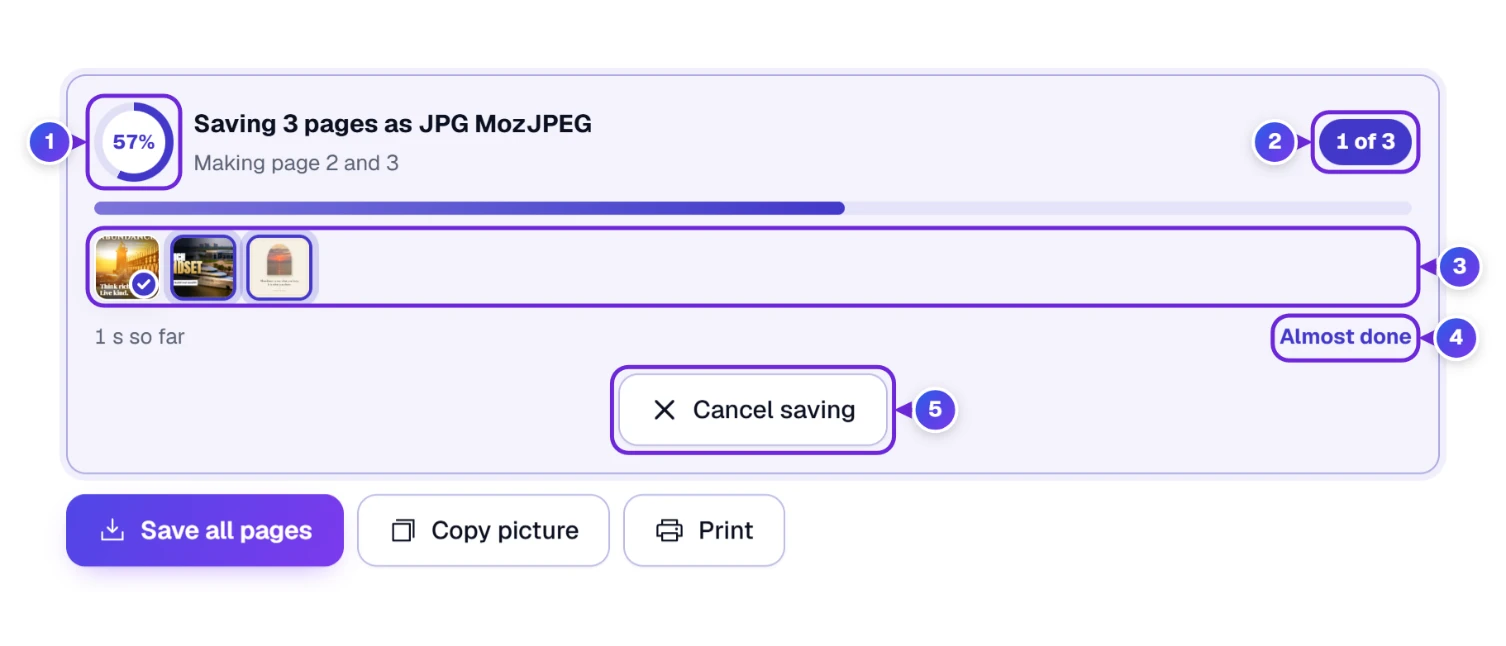
The ring 1 shows how far the whole save has come, and the count 2 how many pages are ready. Each page has a small picture 3 that gets a check mark once its file is made, so you can see which one is in the works. Below them sit the time so far and a rough time left 4. Changed your mind? Cancel saving 5 stops after the page in hand, and nothing is downloaded.
Next to Save picture you’ll find Copy picture, which puts the picture on your clipboard, ready to paste in an email or a chat message, and Print. All three stay pinned to the foot of the box, in reach however far you scroll through the cards. On a phone, saving opens the share sheet, so you can send the picture straight to Photos or Messages.
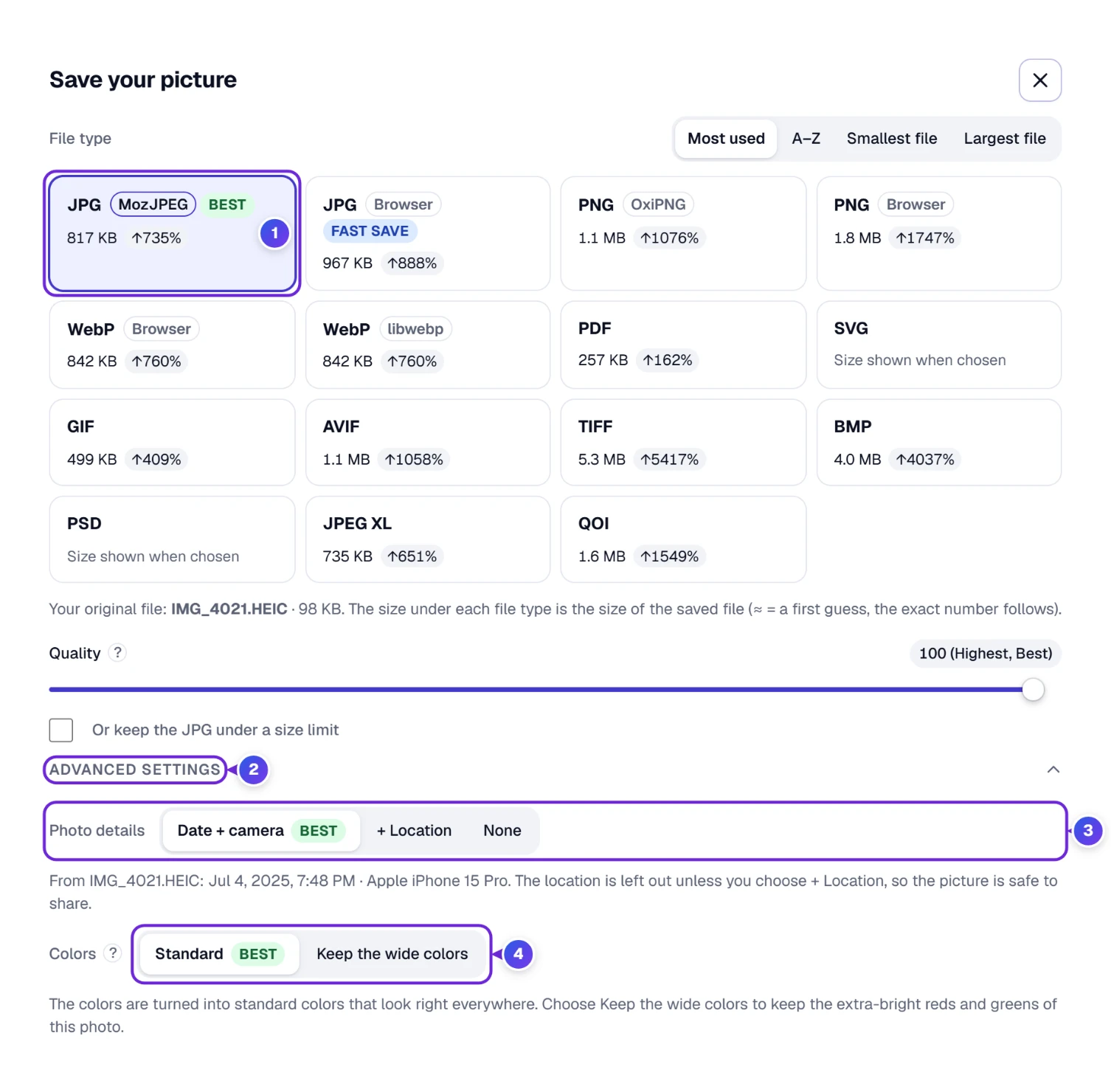
A phone photo carries more than pixels, and a JPG can keep it. When the picture holds such a photo and the JPG card 1 is chosen, Advanced settings 2 gets extra rows for it, each with the best choice already picked, so you only open it to change something. Photo details 3 keeps the date taken and the camera (Date + camera) and leaves the GPS location out unless you choose + Location; None removes everything. The line under it says what was found, for our test photo “Jul 4, 2025, 7:48 PM · Apple iPhone 15 Pro”. Colors 4 can keep the extra-bright colors of a wide-color photo, and HDR light keeps the glow of an iPhone HDR photo on screens that can show it.
Our iPhone test photo was a 98 KB HEIC file of 1,440 × 960 pixels. As a JPG at quality 100 it became 817 KB, more than eight times bigger, because HEIC packs photos much tighter than JPG. At quality 85 the same JPG was 187 KB. So for a JPG you’ll only post or email, lowering Quality is worth it.
Got a whole camera roll of HEIC photos that only need to become JPGs, with no editing? The HEIC to JPG Converter takes hundreds at once and, like the editor, keeps the date and camera while leaving the location out.
The Rules Behind Every Pixel, Compared With Other Editors
If you save the same photo here and in another app, the file sizes and sometimes the colors won’t match. That’s normal, and here’s why.
- Color. Pictures are edited in sRGB, the color space of the web, at 8 bits per color. Photos in Adobe RGB or Display P3 are turned into sRGB when they open; for iPhone photos the editor uses exact color math and keeps each color’s hue when it falls outside sRGB, the gamut mapping described by the W3C. Apps that skip this step show iPhone photos a little dull.
- Quality. Files start at quality 100. JPG is made with MozJPEG, Mozilla’s newer JPG maker, which gives a smaller file for the same look; PNG is packed with OxiPNG, which keeps every pixel. Another tool at quality 80 will give a smaller and softer file than ours at 100. With a size limit, the editor tries qualities until the file fits and keeps the highest one that does; for a PNG or GIF it tries fewer colors instead. A KB here is 1,000 bytes, so the file also passes a form that counts 1,024.
- PDF. A PDF stores each page as a JPG at quality 92 (lower only when you set a size limit), at 96 pixels per inch, or fits it on US Letter or A4 with half-inch margins. That’s why the cover’s PDF (265 KB) was smaller than its JPG at quality 100 (926 KB). The PDF card has no quality setting of its own.
- Photo details. Phone photos are turned the right way up from the direction the camera stored. Other file types than JPG keep only the picture.
- Limits. A browser can only hold so many pixels. In Chrome, Edge and Firefox the largest picture is 16,384 pixels on a side and 50 million pixels in all; on iPhone, iPad and Safari, 8,192 and about 16.7 million. When we typed a 30,000 × 30,000 custom size, the editor said exactly that instead of freezing. Bigger photos are scaled down to fit, and the editor tells you when it does.
- Auto-fix. It stretches the tones so the darkest 0.5% of the photo becomes almost black and the brightest 0.5% almost white, moves the middle tone toward the middle and evens out a color cast. It only moves the normal sliders, so you can undo any part of it.
The box How we open and save pictures under the editor lists the same rules, with links to the standards behind them.
Where Your Photos Go: Nowhere
Your photos are opened, edited and saved by your own browser. They’re never uploaded to ToolHa or anyone else, which also means there’s no upload to wait for and no daily limit. A few things do use the internet, and only these:
- The first time you need them, the browser downloads the free helper files that read and write some file types, the fonts, and the background remover’s model, from our server, jsDelivr, Hugging Face or Cloudflare. Your photo is never part of that download.
- In Icons and Photos, only the words you type in the search box go to the free icon and photo services, and the icon or photo you pick comes back. The ready thumbnail designs load their free pictures from the WordPress Photo Directory the same way.
- Your last picture and your settings are kept in this browser, on this device, so you can continue later. Nobody else can see them, and clearing your browser data removes them.
Keys That Save You Clicks
On a computer, almost every tool has a one-letter key. Press ? whenever you like for the whole list.
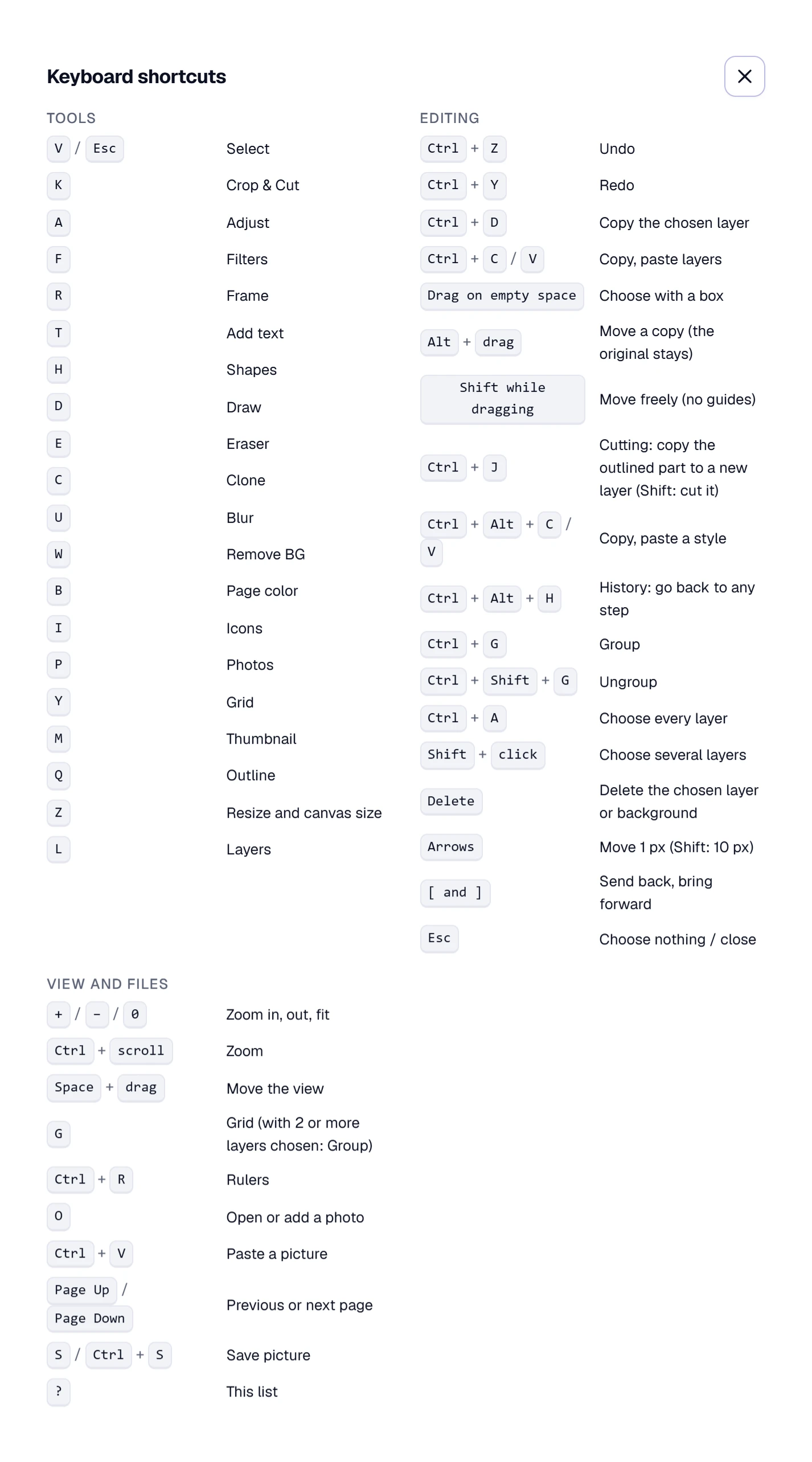
| Key | What it does |
|---|---|
| V or Esc | Select, or choose nothing |
| K · A · F · R | Crop & Cut · Adjust · Filters · Frame |
| T · H · I · P | Add text · Shapes · Icons · Photos |
| U · W · Y · M | Blur · Remove BG · Grid · Thumbnail |
| D · E · C · B | Draw · Eraser · Clone · Page color |
| Q · Z · L | Outline · Resize and canvas size · Layers |
| Ctrl + Z / Ctrl + Y | Undo / Redo |
| Ctrl + D | Copy the chosen layer |
| Ctrl + J | Copy the outlined part to a new layer (Shift: cut it) |
| Ctrl + G | Group (Ctrl + Shift + G ungroups) |
| [ and ] | Send back, bring forward |
| 1 to 9, 0 | Transparency 10% to 90%, solid |
| Arrows | Move 1 px (with Shift, 10 px) |
| Space + drag | Move the view |
| + / − / 0 | Zoom in, out, fit |
| Page Up / Page Down | Previous or next page |
| O / Ctrl + V | Open a photo / paste a picture |
| S or Ctrl + S | Save picture |
Editing With Your Thumb
On a phone the editor stacks itself: the top bar, the picture, then the tools in two rows underneath. Each row slides sideways, so swipe it to reach Text, Frame, Draw and the rest. Tap a tool and its options open under the picture. Pinch to zoom. A quick swipe over the picture scrolls the page as usual, so nothing moves by accident. Tap a layer to choose it; to move it, touch and hold for a moment until its edge glows (with a tiny buzz on phones that can), then drag. Hold and let go without moving, and a menu opens with Arrange, Copy and Delete. The handles of a chosen layer wait a split second too, so a swipe past them never stretches it.
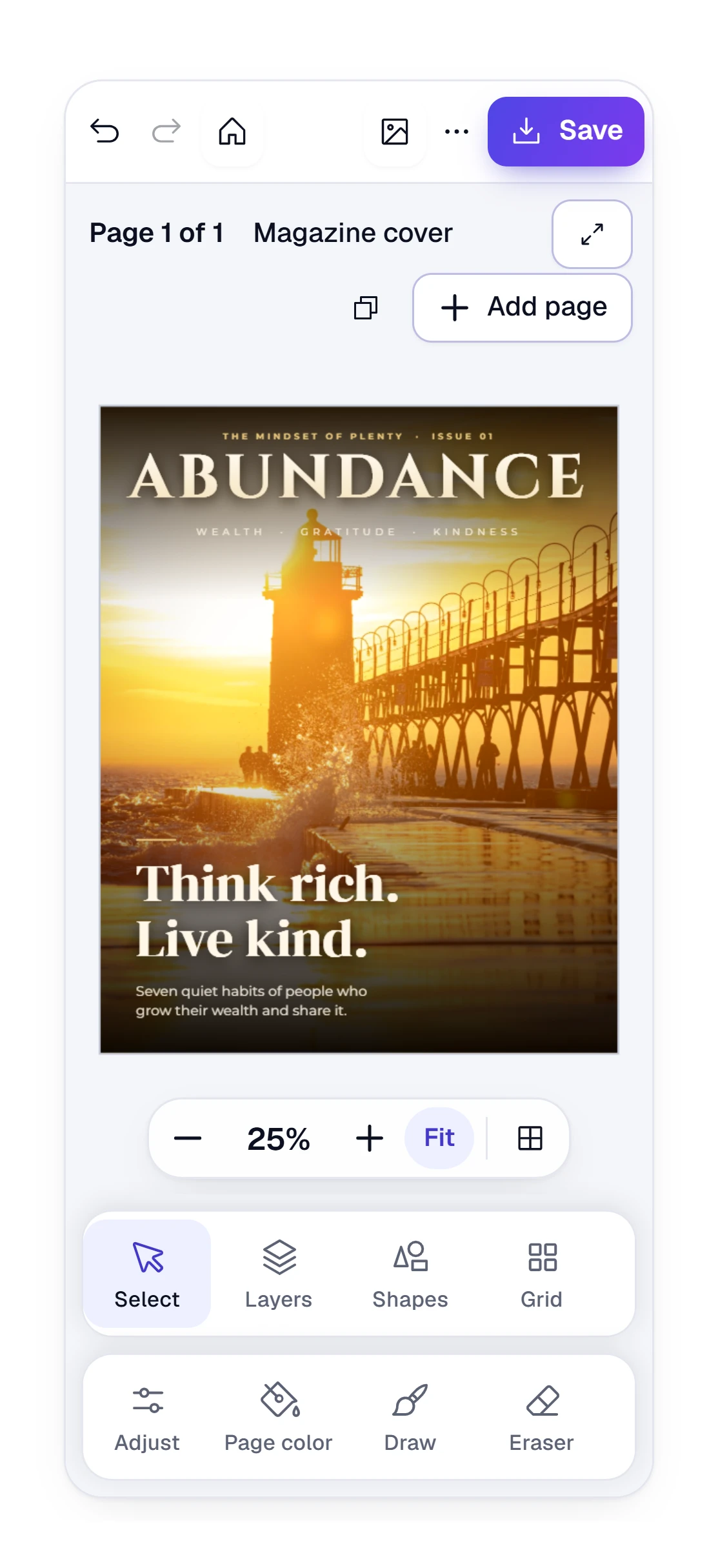
A project with several pages shows them one under another on a phone. While you scroll past them, the two tool rows stay pinned to the foot of the screen, just above the site menu, so a tool is always one tap away.
On a phone the save box fills the whole screen, with its buttons pinned at the bottom, and the phone’s Back button closes it, or any open menu, instead of leaving the editor. Saving opens the share sheet, so Save image puts the picture straight into your photo gallery. Phones hold fewer pixels than computers; on an iPhone a page can be up to 8,192 pixels on a side, which is still more than any social post needs.
Keep the Editor One Tap Away
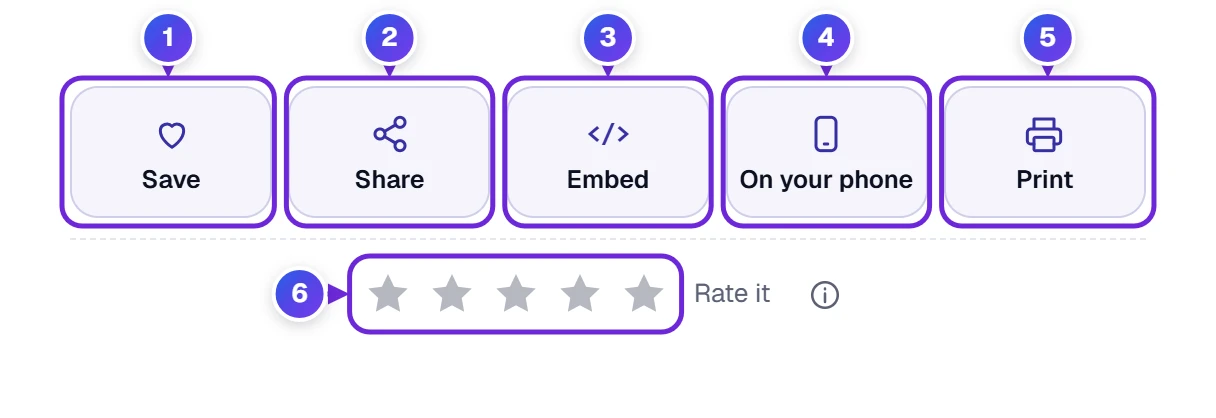
Save 1 adds the editor to My Tools (the heart in the site menu), so it’s one tap away next time. Share 2 sends the page to a friend by text, email or any app. Embed 3 gives you a code to show the editor on your own website. On your phone 4 pops up a QR code. Aim the camera of your phone at that square and the editor opens there. That’s the quick route when the photo is on your phone and the big screen is in front of you. Print 5 prints this page. Tap a star 6 to rate the editor; your rating helps us decide what to improve.
When a Recipe Doesn’t Turn Out
- “This file isn’t a picture we can open.” The file is something else, a text or a Word file for example. Our test with a text file gave exactly this message. Try JPG, PNG, HEIC, WebP, AVIF, GIF, TIFF, PSD or a camera RAW file. If a picture is already open, the message stays above the zoom bar until you close it, and your picture isn’t touched.
- Remove BG says it will use Fast. Your browser can’t use the graphics card for Best. Update Chrome or Edge, or carry on with Fast and touch up the edges with the brushes.
- The first Remove BG takes a while. The helper file is downloaded and prepared once; later photos are quicker.
- Paste a picture does nothing. Copy the picture itself (right-click it and choose Copy image), not its link, then press Ctrl+V inside the dashed paste spot.
- My photo won’t move on my phone. A quick swipe scrolls the page instead, on purpose. Touch the photo and hold it for a moment until its edge glows, then drag.
- The file is still over the size limit. Even quality 1 can’t squeeze some big pages under a tiny limit, and the line under the limit says so. Make the page smaller with Resize page, or pick WebP, which packs photos tighter than JPG.
- The see-through part came out white. You saved a JPG or PDF. Save as PNG or WebP instead.
- The editor feels slow with many big photos. Every photo stays at full size. Save the pages you’ve finished, or split a big project into two.
- My last picture is gone. Browsing in a private window, or wiping your browser data, clears what was kept. Save a project file (.toolha) from the three dots when a picture matters.
Small Questions, Straight Answers
Is the Photo Editor Really Free, With No Watermark?
Yes. Every tool and every file type is free, there’s no sign-up, no limit on how many pictures you save, and nothing is stamped on your picture.
Do My Photos Get Uploaded Anywhere?
No. Every step happens inside your browser, so the pictures never leave your device. Only search words for icons and free photos go out, and only when you use those two panels.
How Do I Make a Picture Background Transparent?
Use Remove BG on the photo, or click the background with Remove BG’s click-to-choose part. Set Page color to Transparent and save as PNG or WebP; a JPG can’t hold transparency.
Can I Make a Photo Smaller in KB?
Yes. In the save box, tick Or keep the JPG under a size limit and type the size you need, say 200 KB; the editor finds the highest quality that fits. You can also lower Quality yourself and watch the exact size under the card change, or resize the page first. In our test an iPhone photo saved as a JPG went from 817 KB at quality 100 to 187 KB at quality 85.
Can I Open iPhone HEIC Photos and Edit Them on Windows?
Yes. Drop the HEIC file on the editor in any modern browser on Windows, Mac, Chromebook, iPhone or Android. It opens with the right colors, and a JPG can keep its date and camera.
Does Editing Lower the Quality of My Photo?
Not while you edit: the original pixels are kept, so you can resize, crop back and undo without loss. Only saving to JPG, WebP or AVIF below quality 100 trades some detail for a smaller file.
Can I Keep Working on a Picture Tomorrow?
Yes. The editor keeps your last picture in this browser. To move it to another device, or to be safe, pick Save a project file (.toolha) in the three dots menu and open that file here again later.
Can I Write in Hindi, Arabic, Bangla or Japanese?
Yes. Choose your text, open the font list and type the language or the country into Find a language; only fonts with those letters stay in the list, more than 2,000 free fonts in all. The ready text styles come in eleven languages too, and the style search finds them the same way.