Type, paste or upload a file, and ToolHa counts your words, characters, letters, sentences and paragraphs as you go. Need to hit a number? Set one target (a word count, a character limit like the 280 on an X post, or a number of sentences) and a bar shows how close you are.
Quick Start: Count Your Words and Characters in 3 Steps
Every numbered spot in the picture below is a part of the counter. The same numbers appear in the steps and sections that follow.
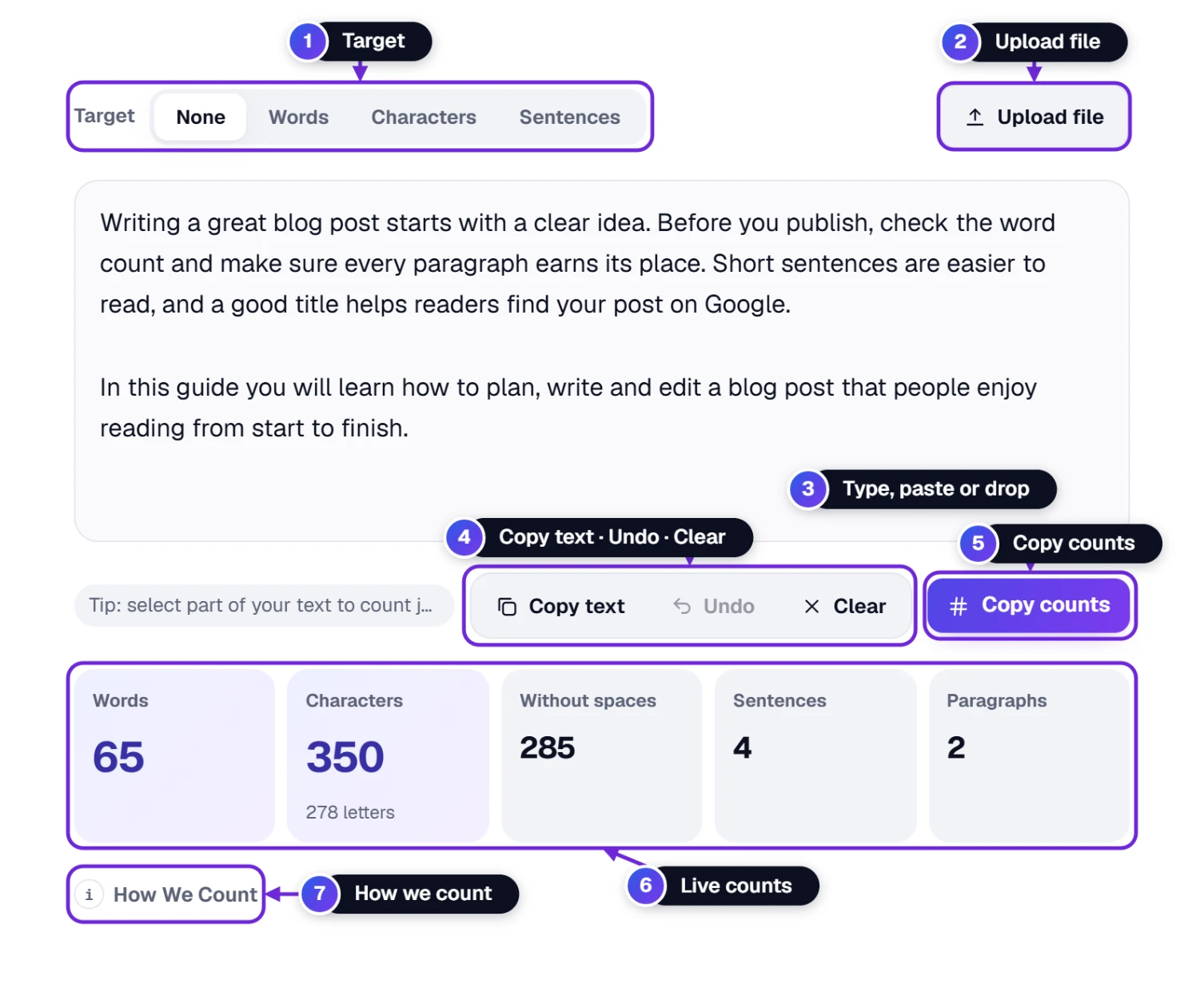
- Add your text to the box 3: write straight into it, paste with Ctrl + V (⌘ + V on a Mac), or load a file with Upload file 2.
- Read your counts 6. They change with every letter you type, so there is no button to press.
- Need a limit? Pick Words, Characters or Sentences in the Target switch 1 and the tool tells you how much is left.
That covers a quick count. The rest of this guide shows the extras: counting only part of your text, platform limits such as X and SMS, files, the copy buttons 4 5 and the exact counting rules 7.
Read Your Counts
As soon as there is text in the box, five boxes of numbers fill in under it. Each one answers a question people often ask about their writing.
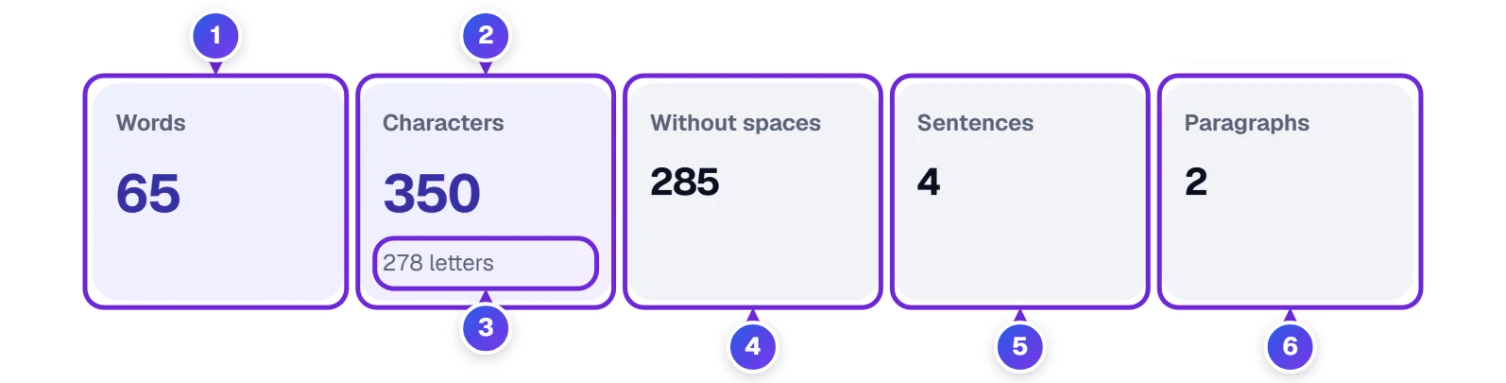
| # | Count | What it tells you |
|---|---|---|
| 1 | Words | Your word count. A hyphenated word (well-known), a contraction (don’t) and a number (2026) each count as one word, much like Microsoft Word and Google Docs. |
| 2 | Characters | Every letter, number, space, punctuation mark and emoji. This is the number most forms and apps mean by “characters”. |
| 3 | letters | The small line under Characters: only the letters, in any alphabet, with no numbers, spaces, punctuation or emoji. |
| 4 | Without spaces | Characters with spaces, tabs and line breaks left out. Some forms and translation jobs ask for this number. (On a phone it is called “No spaces”.) |
| 5 | Sentences | Sentences end with a full stop, question mark or exclamation mark followed by a space, so “3.14” and “example.com” do not split a sentence. |
| 6 | Paragraphs | Blocks of text separated by a line break. Empty lines are skipped. |
An emoji such as 👍🏽 and a letter with an accent count as one character here, because that is what you see on screen. Some other counters count the hidden computer codes instead and show a higher number.
Count Just One Part of Your Text
Want to know how long one paragraph or one sentence is, without deleting the rest? Select it.
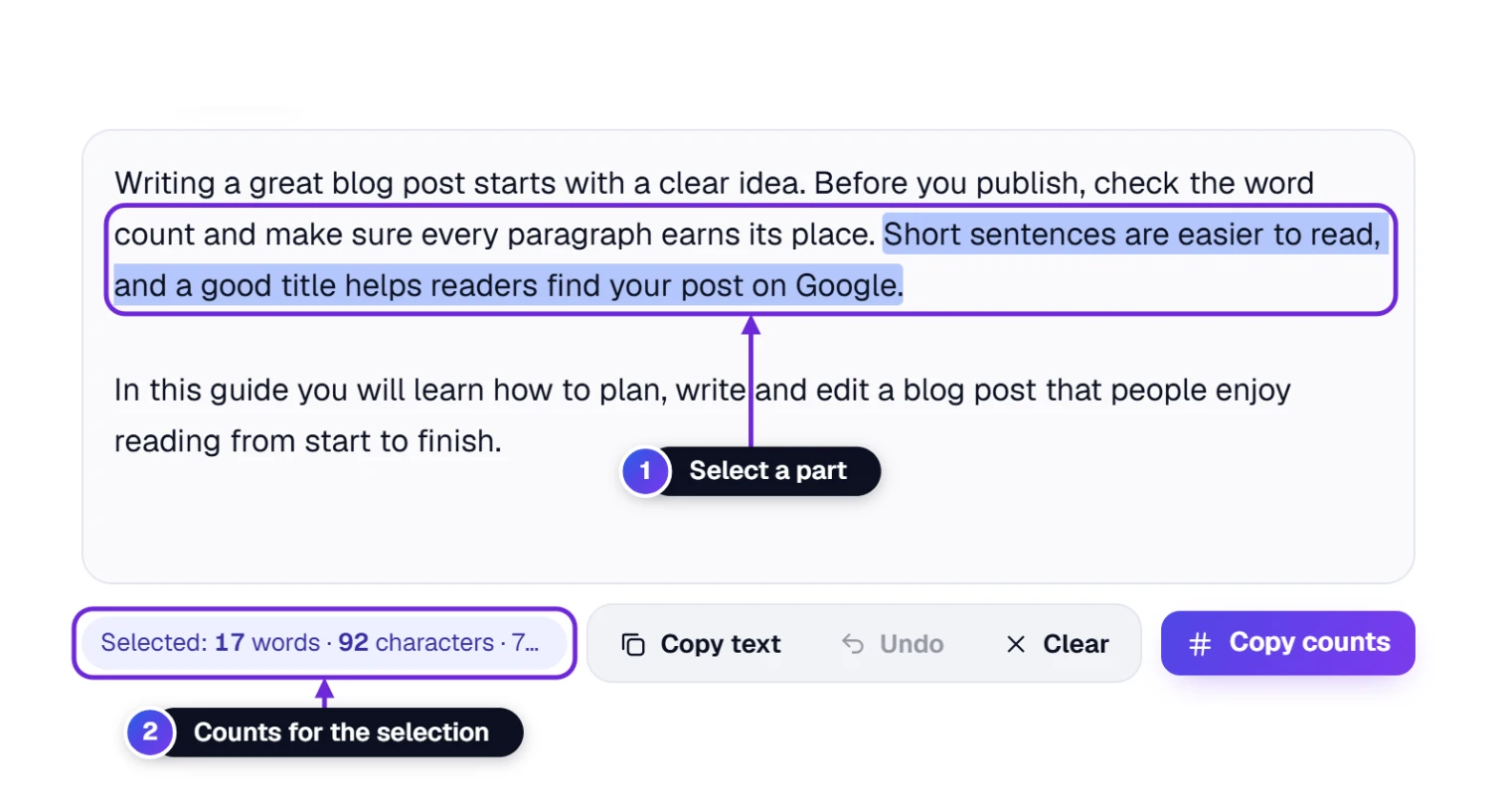
- Select the words you want to check with your mouse, or press and hold on a phone 1.
- Look at the line under the text box 2. It now starts with Selected: and shows the words, characters, characters without spaces, letters, sentences and paragraphs of your selection.
- Click anywhere in the text to clear the selection. The line goes back to the tip, and the big boxes always show the whole text.
Copy text and Copy counts also follow your selection: with a part selected, they copy only that part, or only its counts.
Set a Word Target: A Goal, a Limit or a Range
Writing a 500-word essay or a 1,000-word blog post? Tell the tool your number and it keeps track for you while you write.
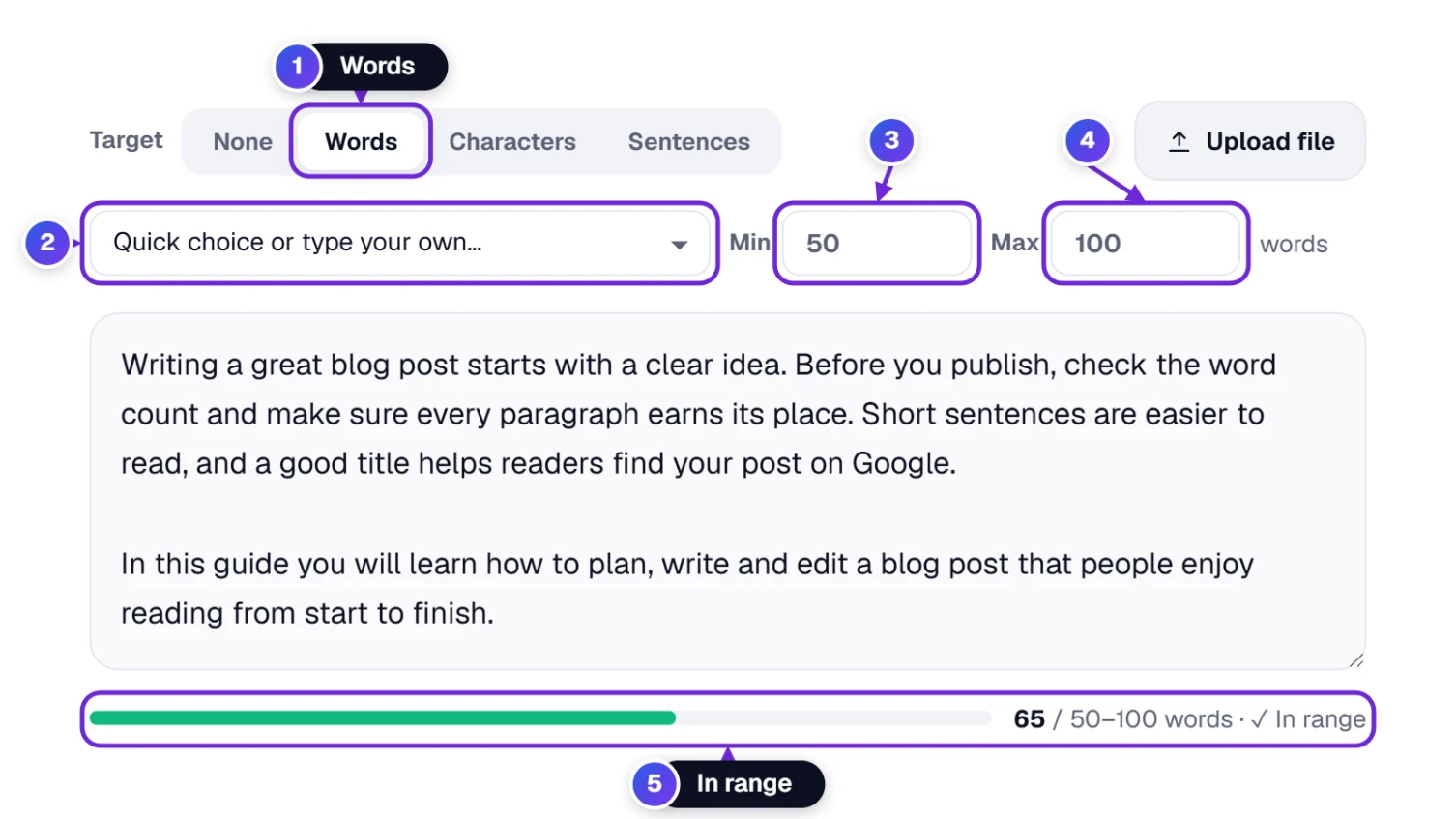
- In the Target switch, click Words 1. A new row appears. (You can also use the arrow keys to move between the choices.)
- Pick a length in the list 2, from 100 words to 3,000 words, or type your own numbers in Min 3 and Max 4.
- Keep writing and watch the bar 5 under the text box.
What the bar says depends on the numbers you fill in:
| You fill in | It works as | What the bar shows |
|---|---|---|
| Max only | A limit | How many words are left, “Exactly on target” when you hit it, or how many you are over. |
| Min and Max | A range | How many more you need to reach the minimum, “In range” when you are between the two, or how many you are over the maximum. |
| Min only | A goal (“at least”) | How many words to go, then “Done”. |
Your target is remembered on this device, so it is still there when you come back. Click None to switch it off.
Fit a Post Into a Character Limit: X, Instagram, SMS and More
Social posts, ads and text messages have a hard limit. Choose Characters and pick the place you are writing for. The tool fills in the limit for you.
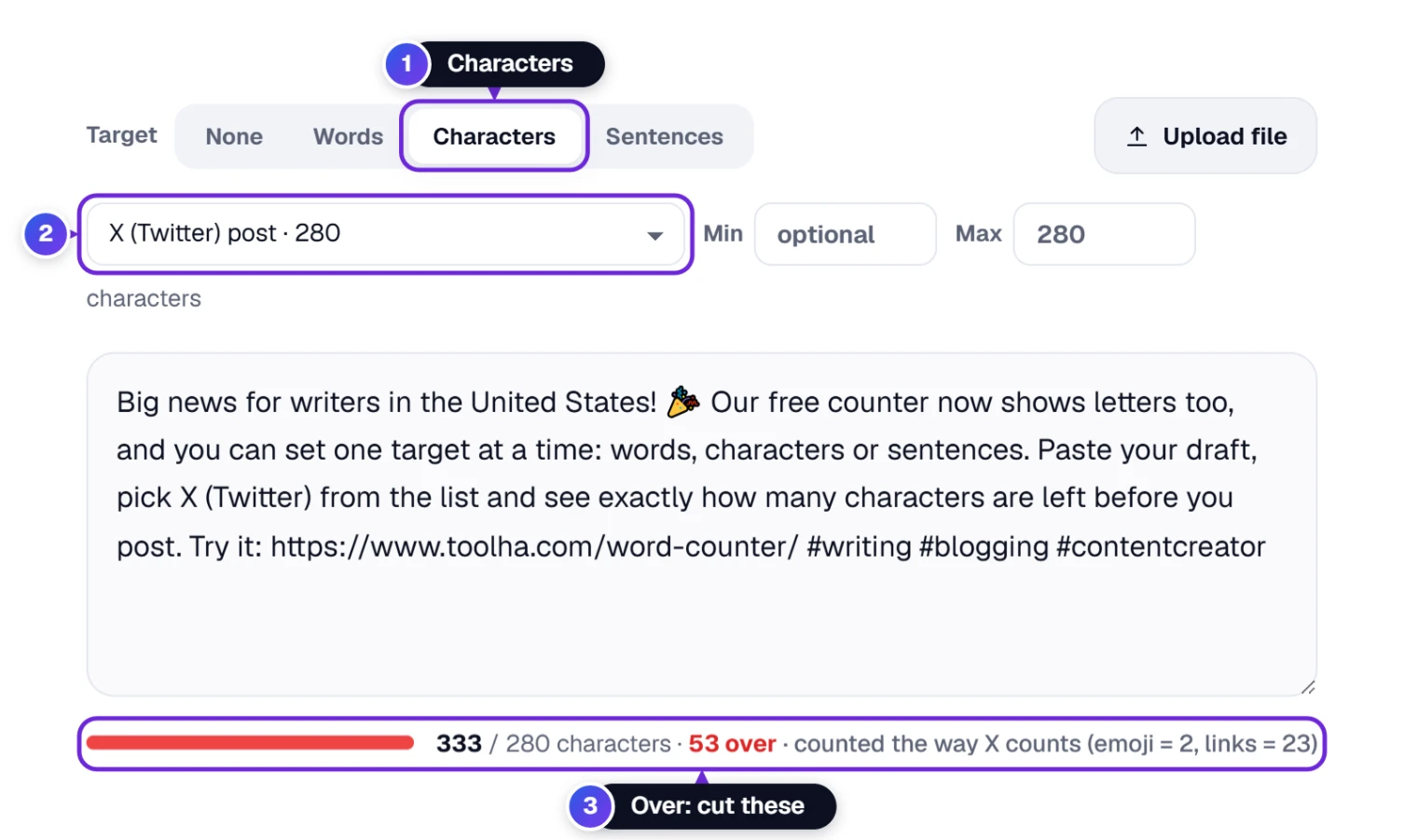
- Click Characters 1 in the Target switch.
- Open the list 2 and choose where you will post, for example X (Twitter) post · 280. Or type your own limit in Max.
- Write or paste your text. If it is too long, the bar turns red and tells you exactly how many characters to cut 3.
X counts in its own way, and so does this preset: every link counts as 23 characters however long it is, every emoji counts as 2, and Chinese, Japanese and Korean characters count as 2 each. So the number on the bar is the number X will show you, even when it is different from the Characters box.
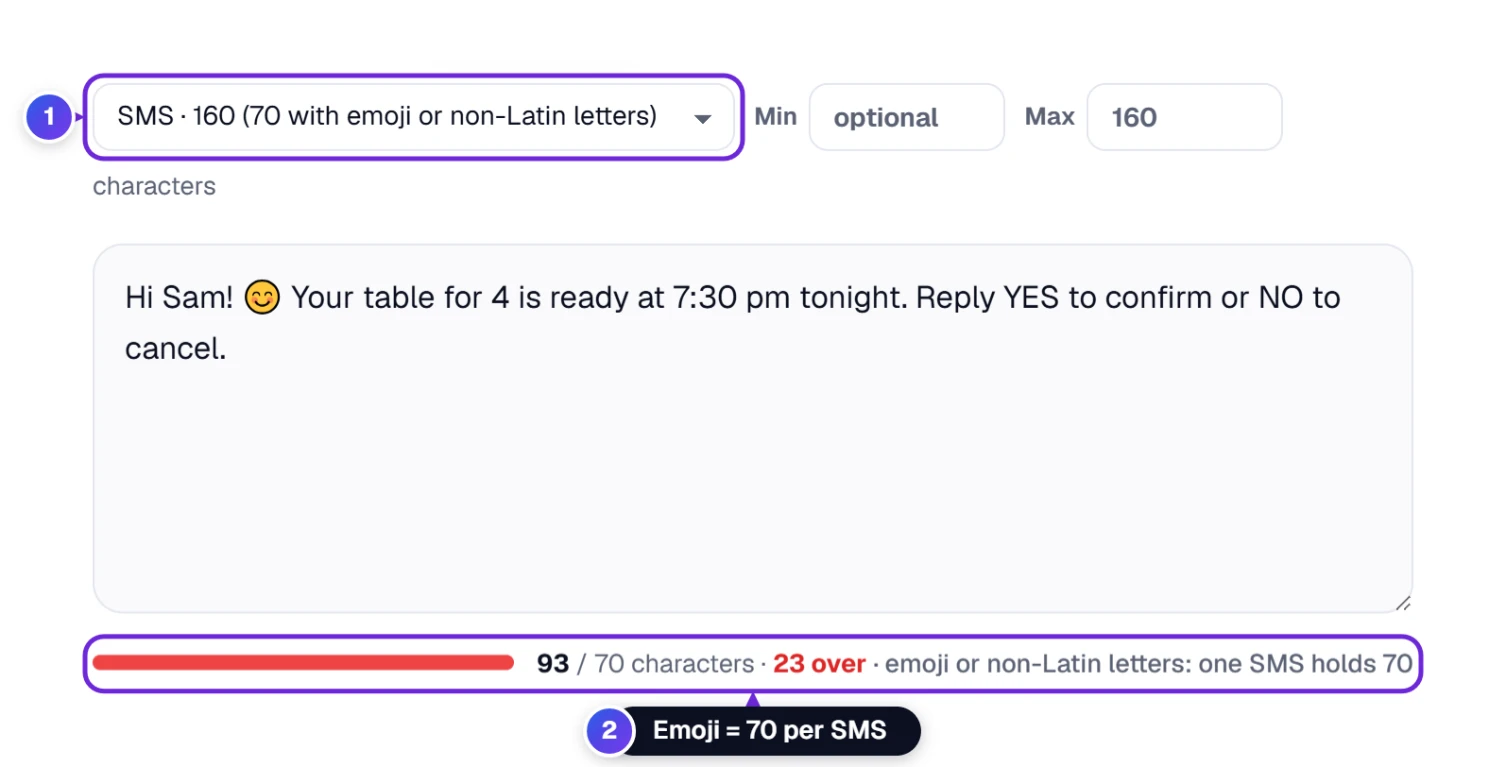
Text messages (SMS) hold 160 characters, but only when you use the basic Latin alphabet. Add one emoji, or letters such as Arabic, Chinese or Hindi, and the phone has to switch to a different code in which one message holds only 70 characters. The SMS preset notices this and changes the limit for you.
Here is every limit in the list, in case you want to compare them without opening it:
| Where | Limit in the list | Good to know |
|---|---|---|
| X (Twitter) post | 280 | Standard accounts. Links count as 23, emoji as 2. |
| Threads post | 500 | |
| Bluesky post | 300 | |
| Instagram caption | 2,200 | Only the first line or two show before “more”, so put the hook first. |
| Instagram bio | 150 | |
| LinkedIn post | 3,000 | The preview shows only the opening lines. |
| TikTok caption | 4,000 | |
| YouTube title | 100 | Put the main words near the start, because long titles are cut in search results. |
| YouTube description | 5,000 | |
| Pinterest pin title | 100 | |
| Pinterest pin description | 500 | |
| SMS text message | 160 (70) | 70 when the message has emoji or letters outside the basic Latin alphabet. |
| Google Ads headline | 30 | Responsive search ads. |
| Google Ads description | 90 | Responsive search ads. |
| Amazon product title | 200 | The usual limit for most categories; some categories allow less. |
| App Store description | 4,000 | Apple App Store. |
Too long? Cut filler words (“really”, “very”, “in order to”), use a shorter link and replace a phrase with an emoji only where it helps. On X an emoji costs 2 characters.
Aim for a Number of Sentences
Some assignments and summaries ask for “3 to 5 sentences”. The third choice in the switch handles that.
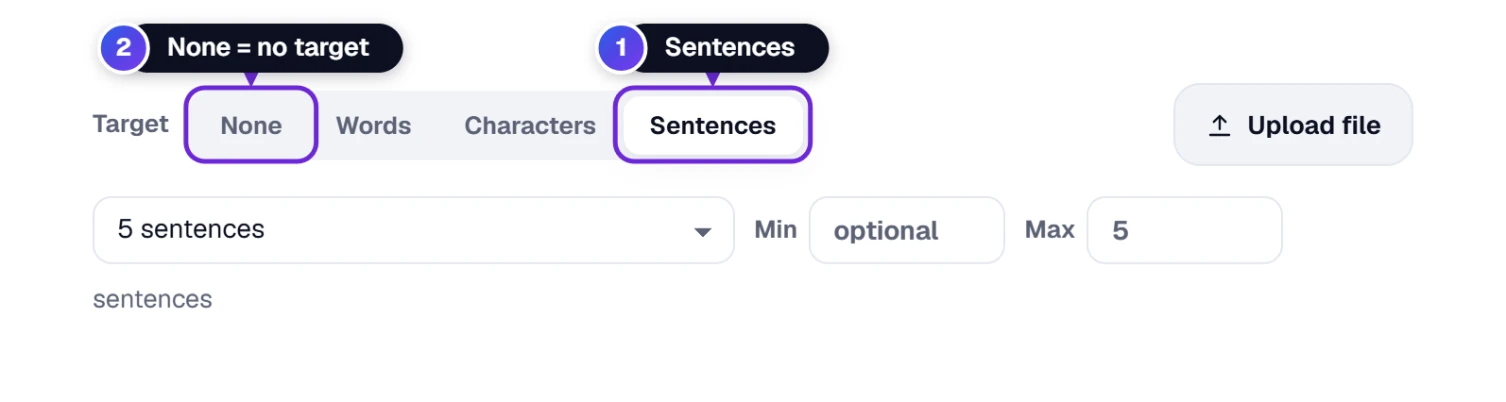
- Click Sentences 1 in the Target switch.
- Pick 3, 5, 10 or 20 sentences in the list, or type your own Min and Max (for example 3 and 5).
- The bar works just like the word target. Click None 2 when you no longer need a target.
Only one target is active at a time (words, characters or sentences), so the bar always answers one clear question.
Count the Words in a Word, PDF or Other File
No need to copy and paste from a document. Open the file in the tool and its text is counted at once.
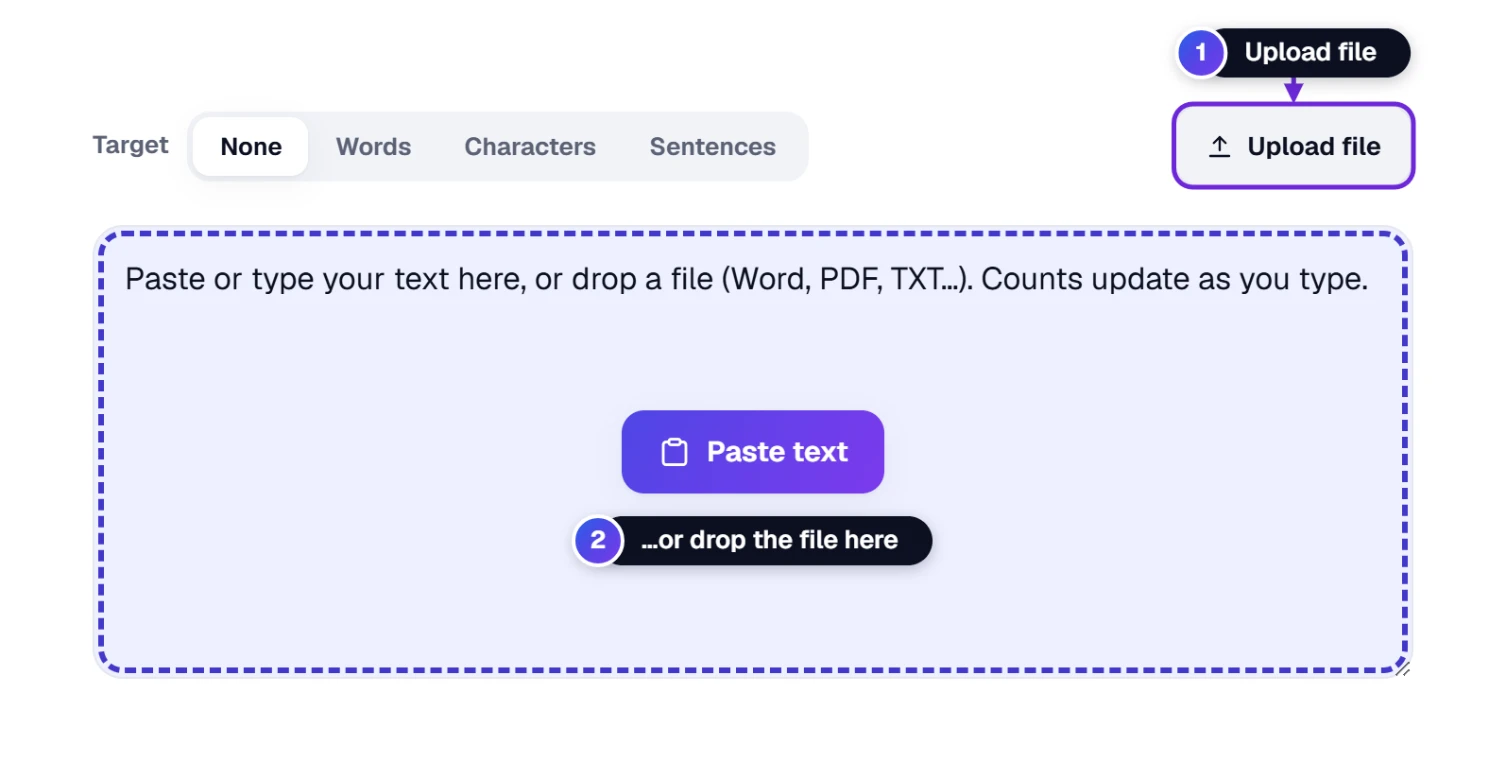
- Use Upload file 1 to pick a file on your computer or phone, or drag one from your desktop and drop it on the text box 2.
- Wait a moment while a message says “Reading…”. The text then appears in the box with all the counts, and a message tells you how many words (and, for a PDF, how many pages) it found.
- Changed your mind? Undo brings back the text you had before.
It opens Word (.docx, .odt), PDF, Excel (.xlsx, .ods), PowerPoint (.pptx, .odp), EPUB and text files such as .txt, .md, .csv, .json, .html, .rtf and .srt subtitles, up to 60 MB.
A PDF that is only a scanned picture has no real text inside, so there is nothing to count. Try a PDF made from a Word file or a web page instead.
Paste, Copy, Undo and Clear
The buttons around the text box save you a few clicks every time.
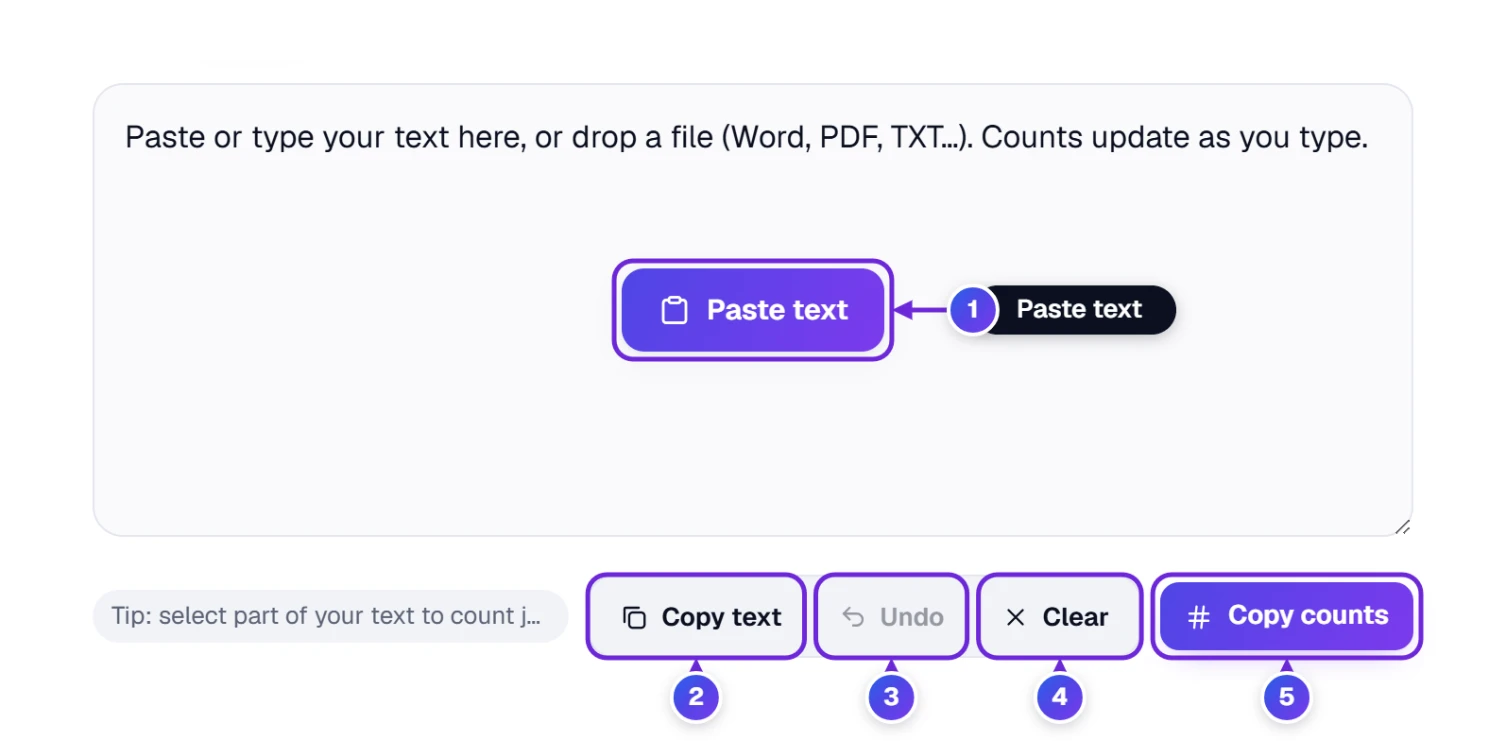
- 1 Paste text: the big button in the empty box puts whatever you copied into the box in one click. The first time, your browser may ask for permission to read the clipboard; if it does not allow it, press Ctrl + V (⌘ + V on a Mac) instead. The button hides as soon as you start typing.
- 2 Copy text: copies your whole text, or only the part you selected, ready to paste wherever you need it.
- 3 Undo: takes back the last change, such as a paste, a cleared text or an opened file. It remembers your last 20 steps. (Ctrl + Z works for your own typing too.)
- 4 Clear: empties the box so you can start a new text. Undo brings it back if you clicked by mistake.
- 5 Copy counts: copies a short summary of the numbers (words, characters, characters without spaces, letters, sentences and paragraphs), ready to paste into an email, a report or a form.
How the Counting Works, and Why Other Counters Disagree
Different apps follow slightly different rules, so two counters can show different numbers for the same text. We show our rules right under the tool: click How we count.
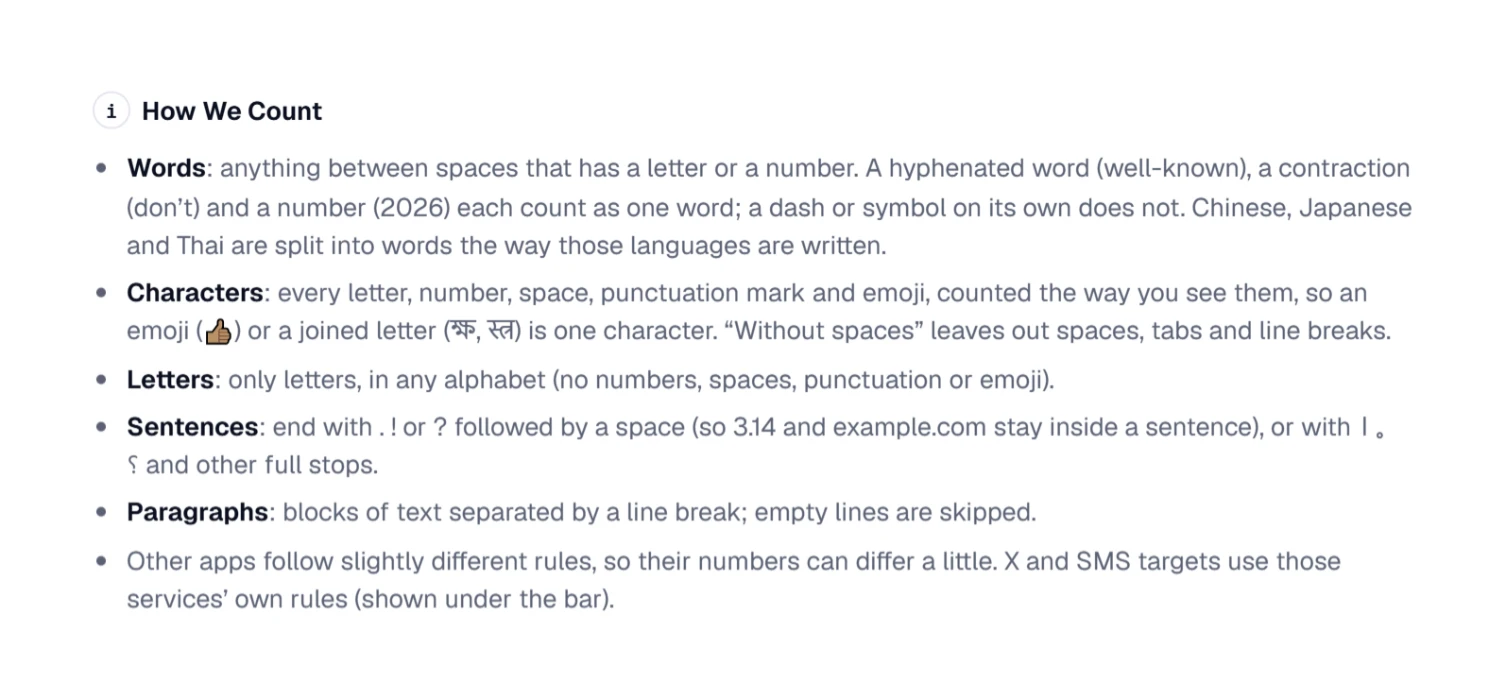
- Words: anything between spaces that has a letter or a number. A dash or a symbol on its own is not a word. Chinese, Japanese and Thai have no spaces between words, so they are split the way those languages are written.
- Characters: counted the way you see them. An emoji with a skin tone (👍🏽) or a joined letter in scripts such as Hindi (स्त्र) is one character, following the Unicode rules for “user-perceived characters”.
- Letters: only letters, in any alphabet. “Hello, 2026!” has 5 letters.
- Sentences: a full stop, question mark or exclamation mark followed by a space ends a sentence; so do full stops from other languages, such as the Hindi । and the Chinese 。.
- Paragraphs: blocks of text separated by a line break; empty lines do not count.
For school or work, the count your teacher, publisher or platform uses is the one that matters. If their number is a little different, it is almost always because of hyphens, numbers, emoji or web addresses.
What we saw in our own tests: “well-known state-of-the-art e-mail” counts as 3 words, a full web address counts as one word, and “I don’t know — maybe.” is 4 words because the dash on its own is skipped. The thumbs-up with a skin tone (👍🏽) is 1 character and 0 words. One weak spot we found: an abbreviation with a full stop can add a sentence. “Dr. Smith arrived at 5 p.m. He left.” shows 3 sentences instead of 2, so check lines like that by hand when the sentence count really matters.
Your Text Is Saved as You Write
The tool keeps a copy of your text on this device while you write. Should the tab shut by mistake or your computer restart, your text is still there when you return to the Word & Character Counter. Your target is remembered the same way. To remove the saved text, press Clear.
Using a shared or public computer? Press Clear when you are done, so the next person does not see your text.
Send Your Text and Its Counts to Someone
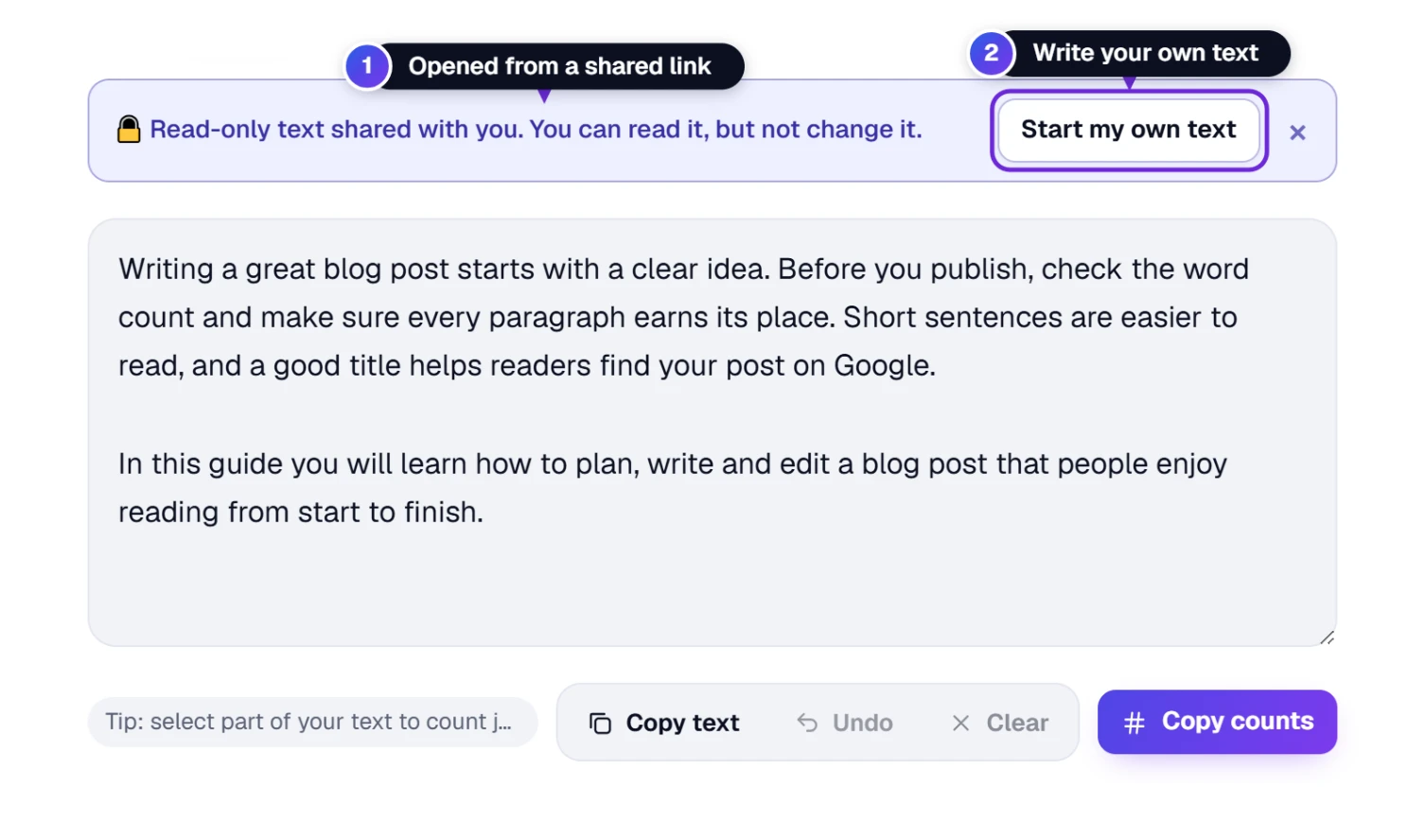
Sending an essay draft to a teacher, or a caption to a client? Share it as a link. The person who opens it does not need an account.
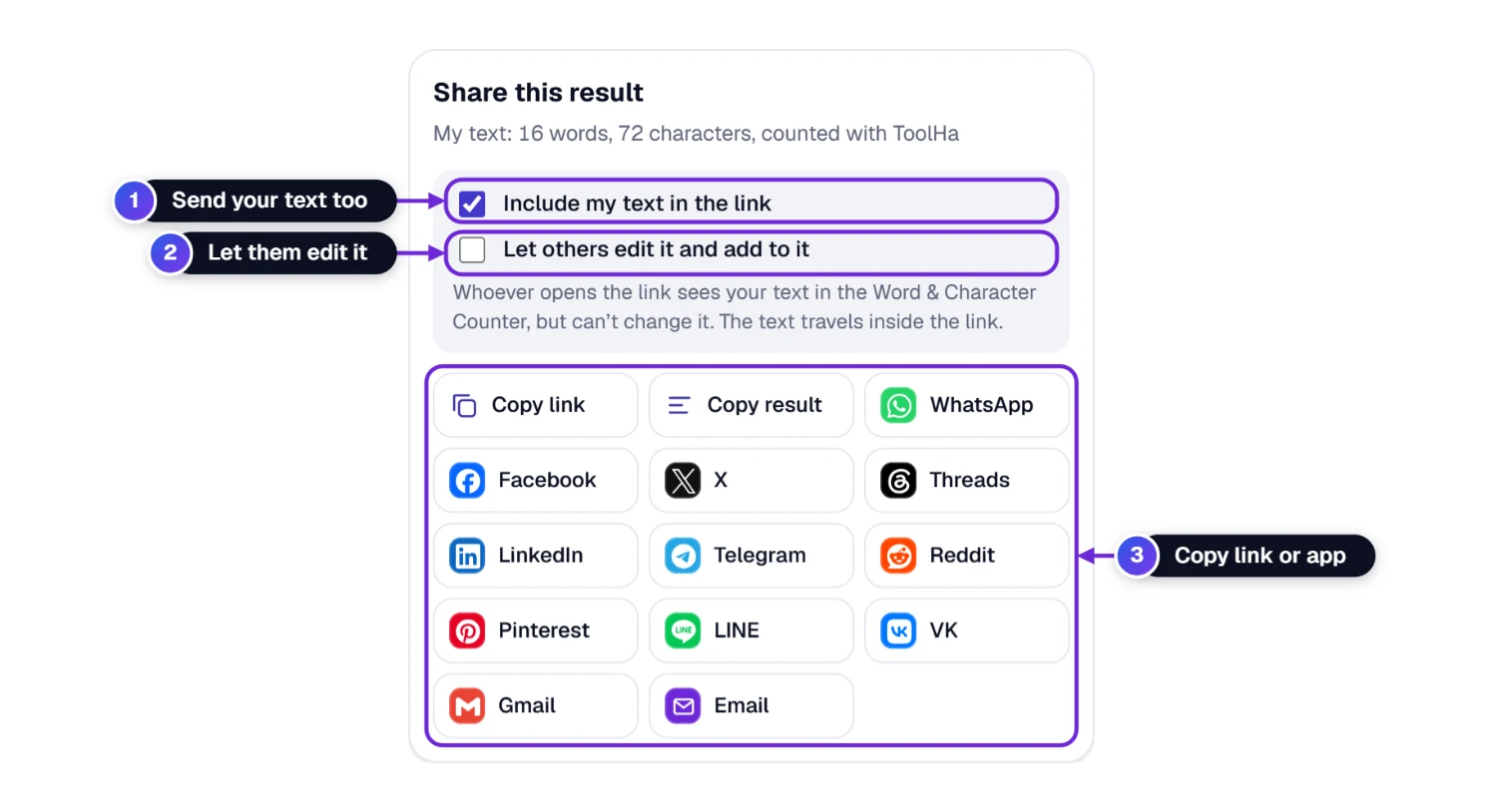
- Press Share in the button row below the tool.
- Keep Include my text 1 ticked to send your text along with the link. Untick it to share just the tool.
- Tick Let others edit it 2 if they should be able to change the text. Leave it unticked for a read-only copy.
- Press Copy link or choose WhatsApp, Facebook, X, Telegram, email and more 3.
Short texts travel inside the link itself. Very long texts get a short link instead: your browser locks the text with a key that only the link has, and only the locked copy is kept for a few days. ToolHa cannot read it either. The Share window tells you exactly how long.
Favorites, Embed, Print and Rating
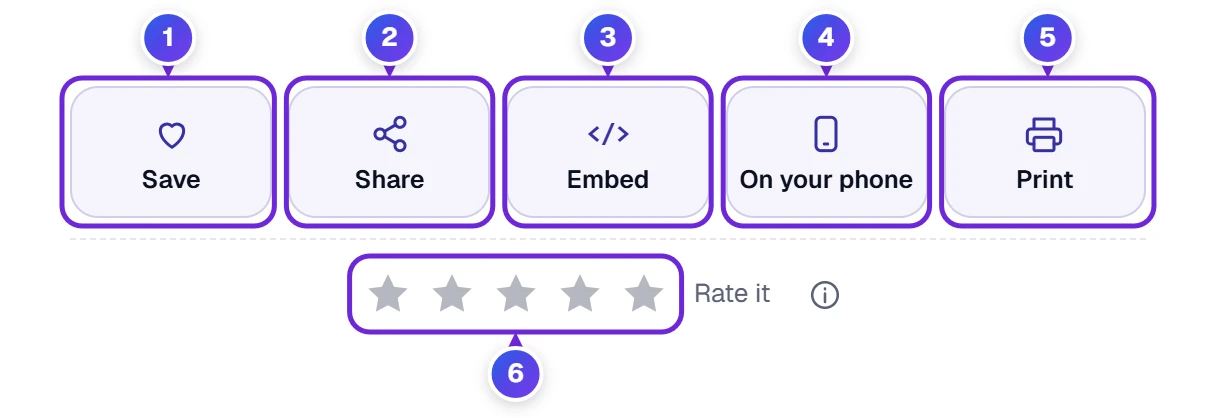
- 1 Save puts the counter in your favorites; open My Tools later to get back to it. The round heart in the title area does the same.
- 2 Share is the link sharing described in the section above.
- 3 Embed gives you a small piece of code for showing the counter on a class site, a writing blog or a client portal.
- 4 On your phone opens a small window holding a QR code. Aim your phone at it with the camera app, and the counter opens there. This button only shows on a computer.
- 5 Print prints your whole text. Choose “Save as PDF” as the printer if you want a file.
- 6 Rate it with the stars. The ⓘ button next to them is the quickest way to tell us about a wrong count or an idea.
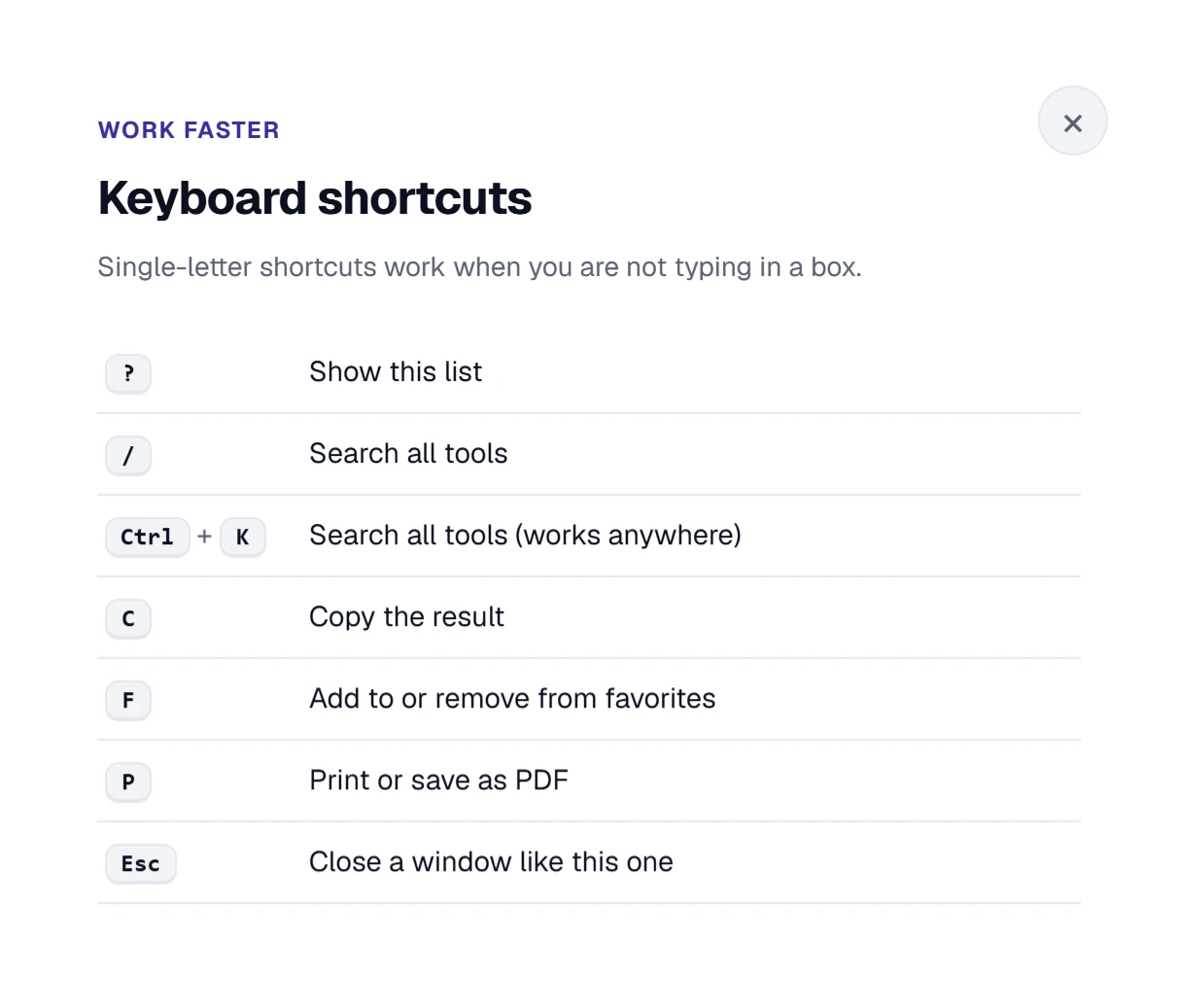
Prefer the keyboard? Click outside the text box and press ? for the list of shortcuts:
Counting on a Phone or Tablet
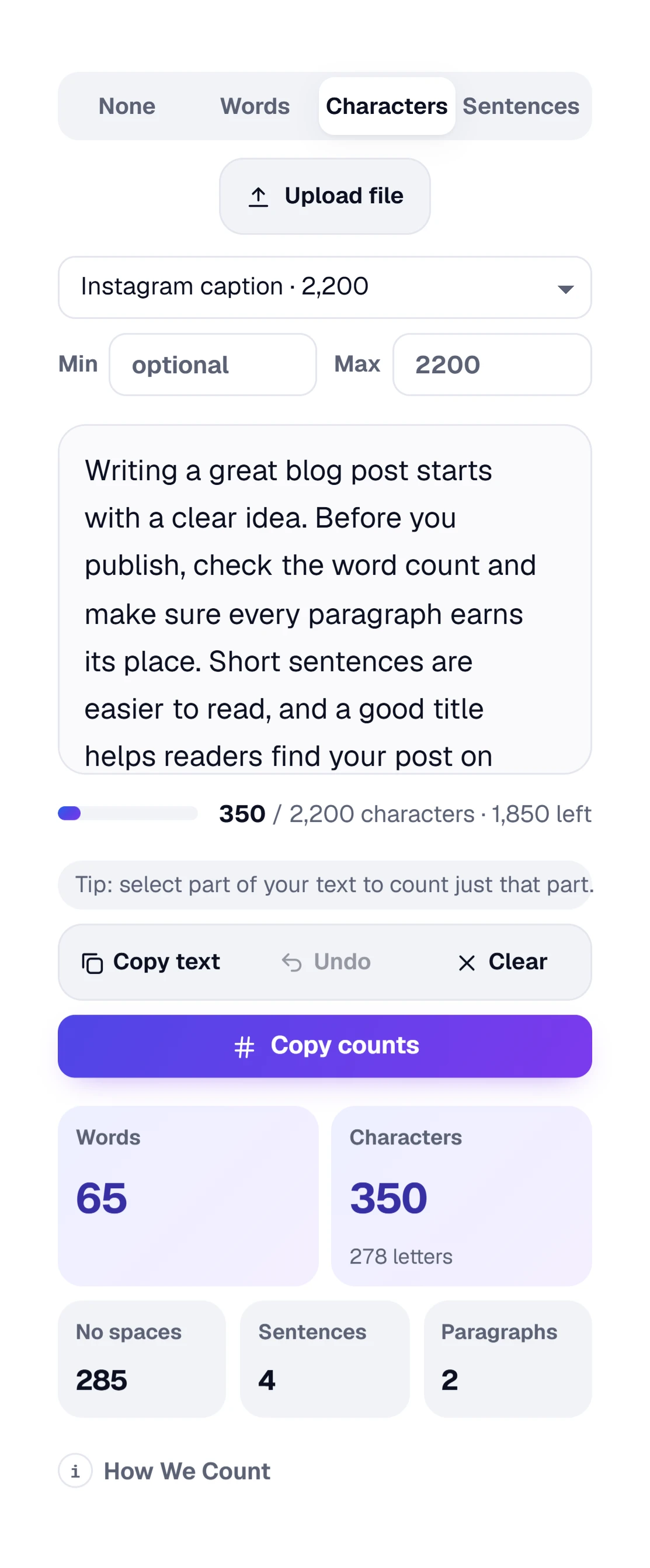
On a phone or tablet the Target switch, the text box, the buttons and the counts stack in one column. Upload file opens the files on your phone, so a Word document from an email can be counted without a computer.
Who Counts Words Here, and What For
- Students check an essay against a word range (for example 450–500 words), count a PDF or Word file their teacher sent and make sure a summary has the right number of sentences.
- Bloggers and writers plan an article’s length, check each paragraph by selecting it and copy the counts into a brief for a client. When the headline is ready, the Case Converter puts it in Title Case in one click.
- Social media managers fit posts into the limits of X, Threads, Instagram, LinkedIn and TikTok, with links and emoji counted the way X counts them.
- Marketers and online sellers write Google Ads headlines and descriptions, Amazon product titles and App Store descriptions that fit the first time.
- Translators and office workers count words, characters and characters without spaces in Word and PDF files for quotes, forms and invoices.
When a Count Looks Off
- The Paste text button does nothing. Your browser did not allow the page to read the clipboard. Click in the box and press Ctrl + V (⌘ + V on a Mac).
- The file opens but the box stays empty. A scanned PDF or a photo holds a picture of the text, not the text itself. Open the original document, or copy the text from it.
- The sentence count is one too high. A full stop in an abbreviation such as “Dr.” or “Mr.” can look like the end of a sentence. Check those lines by hand if the exact number matters.
- The X or SMS number is different from the Characters box. That is on purpose: X counts links and emoji in its own way, and an SMS with emoji holds only 70 characters. The bar uses those rules; the boxes show the plain count.
- Another counter shows a different number. Open How we count to see our rules. Small differences come from hyphens, numbers, emoji and web addresses.
- The Characters number is higher than the text looks. Every space counts, so doubled spaces between words, spaces left behind at the ends of lines and hidden characters all add to the total. In our test, “Hello world again” counted 17 characters, the same words with two spaces between them counted 19, and one zero width space inside a word added one. If you need those gone, our Remove Extra Spaces tool marks each one and hands you the clean text.
- My text disappeared. Press Undo. If you closed the tab, open the Word & Character Counter again in the same browser. Your text is kept there until you press Clear.
Word and Character Count Questions
How Does the Word Counter Count Words?
It counts groups of letters or numbers separated by spaces, much like Microsoft Word and Google Docs. Hyphenated words, contractions and numbers count as one word each, and a dash on its own is not a word. In Chinese, Japanese and Thai it splits the text the way those languages are written.
Are Spaces Counted as Characters?
Yes. The Characters number includes spaces and line breaks, which is how most apps and forms count. “Without spaces” shows the same text with all spaces, tabs and line breaks left out.
What Is the Difference Between Characters and Letters?
Characters include everything you can see or type: letters, numbers, spaces, punctuation and emoji. Letters are only the letters of any alphabet. For example, “Hi, Sam 2!” has 10 characters but only 5 letters.
How Does X (Twitter) Count Characters?
A standard X post can have 280 characters. X counts every link as 23 characters, every emoji as 2 and Chinese, Japanese and Korean characters as 2 each. Choose the X (Twitter) post preset and the bar uses exactly these rules.
How Many Characters Fit in One Text Message (SMS)?
160 characters when you use only the basic Latin alphabet. One emoji, or letters such as Arabic, Chinese or Hindi, switch the message to a different code in which one SMS holds 70 characters. The SMS preset changes the limit for you.
Can I Count the Words in a PDF or Word File?
Yes. Press Upload file or drop the file on the text box. Word, PDF, Excel, PowerPoint, EPUB and text files up to 60 MB work.