Paste your text and this tool will remove extra spaces, tabs and hidden whitespace for you. It marks every one it finds in color, so you can see what changes, then hands you the clean text to copy. Your words stay exactly as you wrote them. Got an Excel, CSV or Word file instead? Use the second tab, and each file comes back with “-clean” added to its name.
Clean a Messy Letter in Three Steps
The picture shows the tool with its parts numbered, and each number in the steps points to one of them. We’ll work with the built-in example, a short customer letter with the kinds of gaps you can’t see by eye, and stay on the first tab, One text 1; the second tab is for files.

- Start with your text 4. Type it in, or paste it with Ctrl + V (Command + V on a Mac), or use the Paste button 3 and allow it if your browser asks. Nothing to paste? Try an example 2 fills the box with the sample letter.
- Watch the marks and the result. Every space the tool will fix gets a colored mark in your box. The result 5 updates as you type, so the example already reads 17 spaces fixed, with a chip for each kind 6.
- Take the clean text 7. Press Copy clean text 8, or Download (.txt) to save it as a file. Clear 2 empties the box for your next piece.
That covers most jobs. Further down you’ll find the colors, the result box, every setting (including the one that decides whether code indents survive) and how to clean whole files at once.
Spot the Spaces You Can’t See
Two spaces look almost the same as one. A tab, a no-break space and a thin space can pass for an ordinary space, and a zero width space has no width at all. That’s why text pasted from a web page, a PDF or an email can still look off, or why a name you can plainly see won’t turn up in a search.
By hand, you scan line by line, then run Find and Replace with two spaces in one box and one space in the other, again and again until nothing is left to replace, then start over for tabs. That works for a paragraph. On a full page you’ll miss gaps, and the lookalike spaces stay behind because you can’t type a character you can’t see.
| Job | By hand | With this tool |
|---|---|---|
| Find double spaces | Replace two spaces with one, repeat until none are left | Orange marks in the box, all fixed at once |
| Spaces at line ends | Invisible, so check every line | A chip counts them: “spaces at line ends” |
| Tabs | A separate search for the tab character | Blue marks, turned into a single space |
| No-break, thin and wide spaces | Can’t be typed into a search box | Teal marks, turned into normal spaces |
| Zero width spaces | No way to see them | A thin purple line, then gone |
| A whole Excel column | TRIM in a spare column, copy, paste back as values | Drop the file in, download it with “-clean” added |
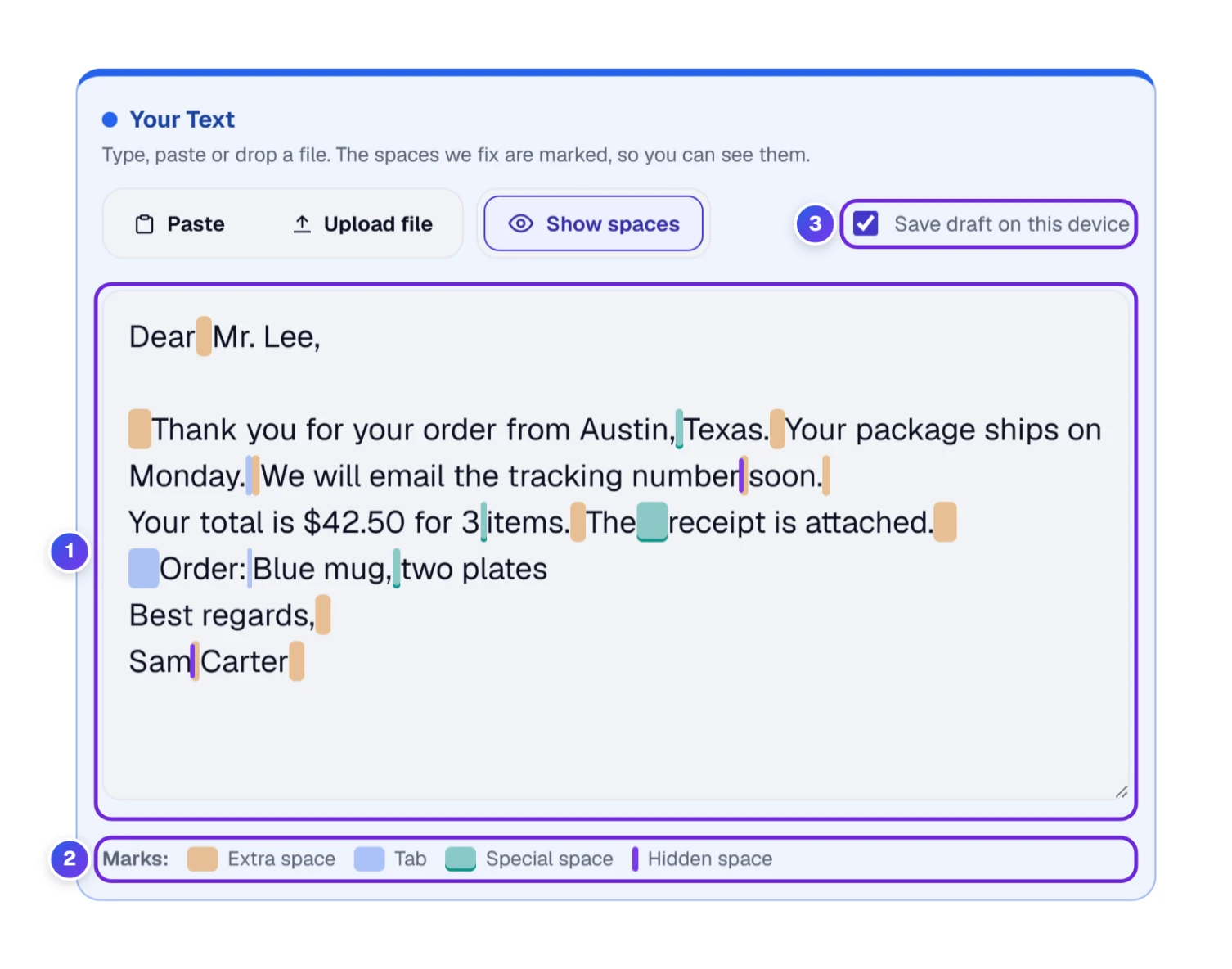
The tool takes the looking off your hands. The box 1 paints a mark on every space it will fix, and the key 2 under the box names the four colors:
- Extra space (orange): more than one space in a row, and spaces before the first word or after the last word of a line.
- Tab (blue): a tab character.
- Special space (teal): a no-break space, a thin space, a wide space and 13 other lookalikes.
- Hidden space (a thin purple line): characters with no width, such as the zero width space.
If the marks get in your way while you read, the Show spaces button above the box switches them off, and a second press switches them on again. With Save draft on this device 3 ticked, a copy of your text stays in this browser, and a closed tab or a restart won’t lose it. On a shared computer, press Clear when you finish.
Get Your Text Into the Box: Paste, Upload or Drop
There are four ways in, and you can mix them. Type or paste straight into the box. Press Paste to bring in whatever you last copied; some browsers ask your permission first, and if yours says no, the keyboard paste shortcut does the same job. Drop a file onto the box, or press Upload file and pick a text file from your device.
Pasting or uploading over text that’s already there? The tool shows a short message, and Undo appears in the row above the box so you can bring your earlier text back.
Caught in our test run: Upload file in this tab drops the spaces at the very start and end of a file as it loads. We tried a text file that began with three spaces, and the box showed the first line with none. The clean result is still right, but those edge spaces never get a mark and don’t add to the count. The Excel, CSV or many files tab counts them, so use that tab when the edges of a file matter.
Read the Result: Counts, Chips and the Proof Line
Under your text, the Your Clean Text box shows what you’ll get. Read it from the top down.
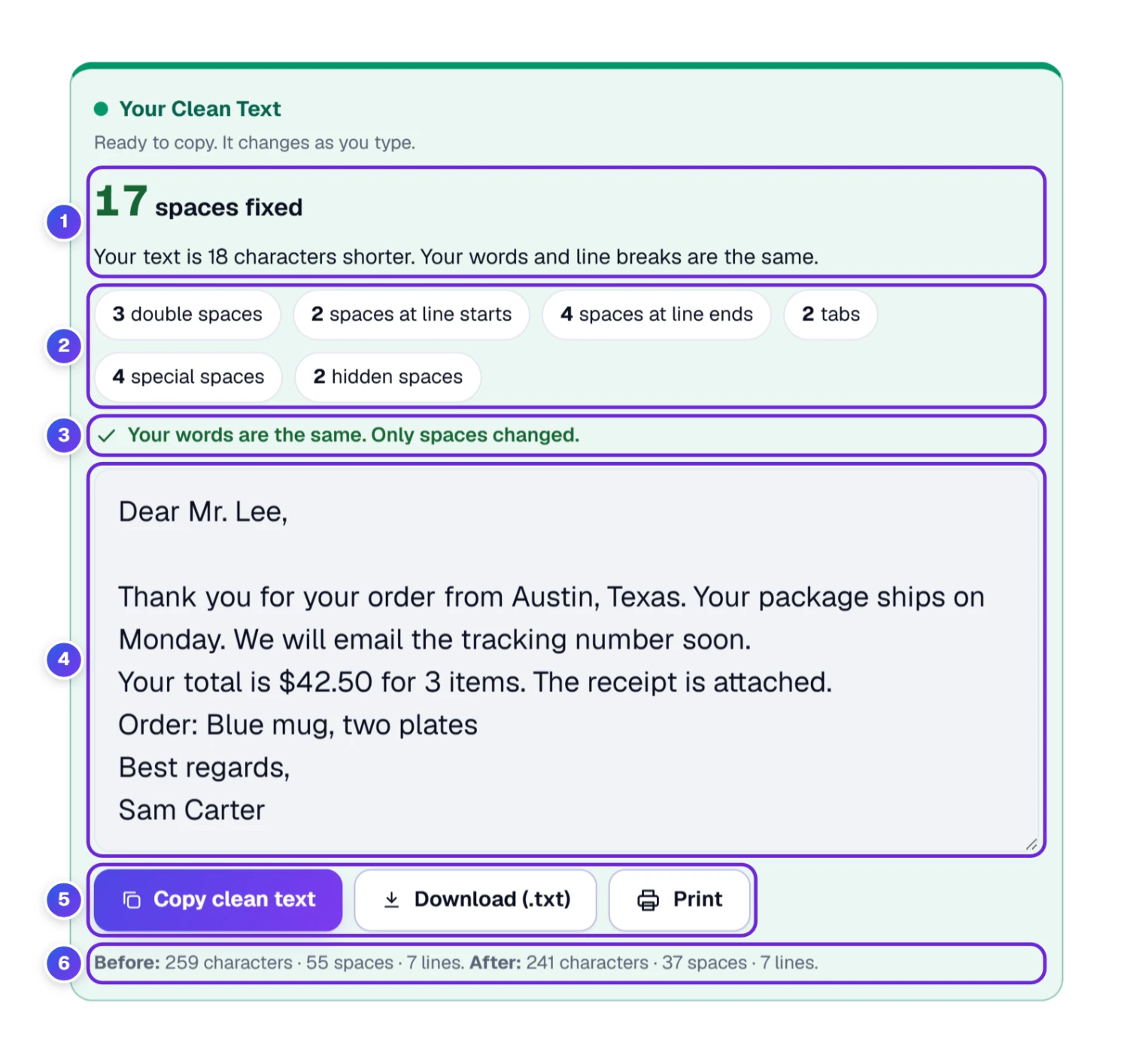
- The headline 1 says how many places were fixed, here 17 spaces fixed. A group of extra spaces between two words counts once, and so do the spaces at the end of one line. Each tab, special space and hidden space counts on its own. The sentence under it says how much shorter your text got, 18 characters for the example.
- The chips 2 sort the fixes by kind (table below).
- The proof line 3 reads “Your words are the same. Only spaces changed.” Behind it is a check that every character other than a space or a line break is the same before and after.
- The clean text 4 is the finished version, ready to copy.
- The buttons 5 are Copy clean text, Download (.txt) and Print.
- The counts line 6 compares before and after. For the example, 259 characters, 55 spaces and 7 lines become 241 characters, 37 spaces and 7 lines. Your line count stays put.
| Chip | What it catches | In the example letter |
|---|---|---|
| double spaces | Two or more spaces in a row between words | 3 |
| spaces at line starts | Spaces before the first word of a line | 2 |
| spaces at line ends | Spaces after the last word, and lines holding only spaces | 4 |
| tabs | Tab characters | 2 |
| special spaces | No-break, thin, wide and 13 other lookalike spaces | 4 |
| hidden spaces | Zero width characters that take no room | 2 |
Check One Kind of Space With the Chips

Each chip doubles as a filter. Press one, say 4 special spaces 1, and only those marks stay lit in your box 2 while the others fade. Press it again to bring them all back.
A chip changes only what you see. The clean text and the counts stay the same. It answers one question at a time, such as where the no-break spaces came from. Those are the ones a plain Find and Replace can’t see, and a line like “Austin, TX” can hold one.
Remove Every Space for Phone Numbers and Codes
Sometimes you don’t want one space between words, you want none: a phone number copied as “555 123 4567”, a code with gaps in it, a long ID written in groups. By hand, that’s a Find and Replace with a single space in the first box and nothing in the second. Here it’s one choice.
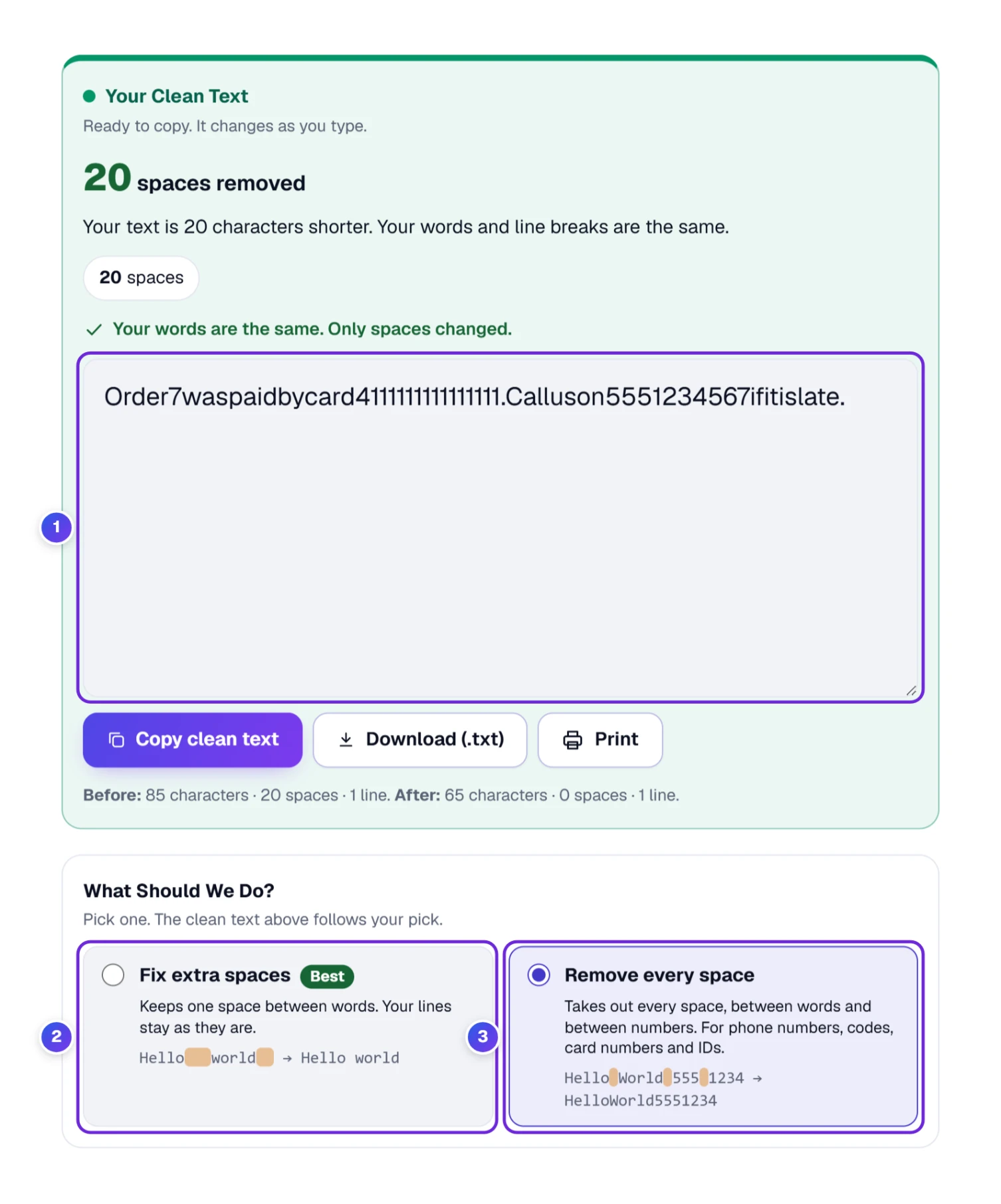
Under the result, two choice cards switch the mode. Fix extra spaces (Best) 2 keeps one space between words. Remove every space 3 is the card for phone numbers, codes, card numbers and IDs.
With the second card picked, “(555) 123 4567” becomes “(555)1234567”, and a 16-digit number written in four groups, like the test number 4111 1111 1111 1111, comes out as one unbroken run of digits. A tick box named Keep line breaks (Best) appears with this mode. Leave it ticked and only spaces go. Untick it and every line break goes too, so everything lands on one line.
Our test with the example letter: Remove every space turned “Dear Mr. Lee,” into “DearMr.Lee,” and squeezed the whole letter into one long run of words. It reported 55 spaces removed with the line breaks kept, and 61 spaces and line breaks removed with them unticked. It’s the right choice for a number or a code and the wrong one for a sentence.
Your original is never touched. The Your Text box always keeps what you typed, and only the clean text underneath changes. Press Fix extra spaces (Best) again to go back to normal.
Your Choices, Setting by Setting
The defaults, marked (Best) on screen, suit most text. When they don’t, open Your Choices, the purple box under the cards. Every setting is a short menu in plain words, so you never have to guess what a code or a symbol means.
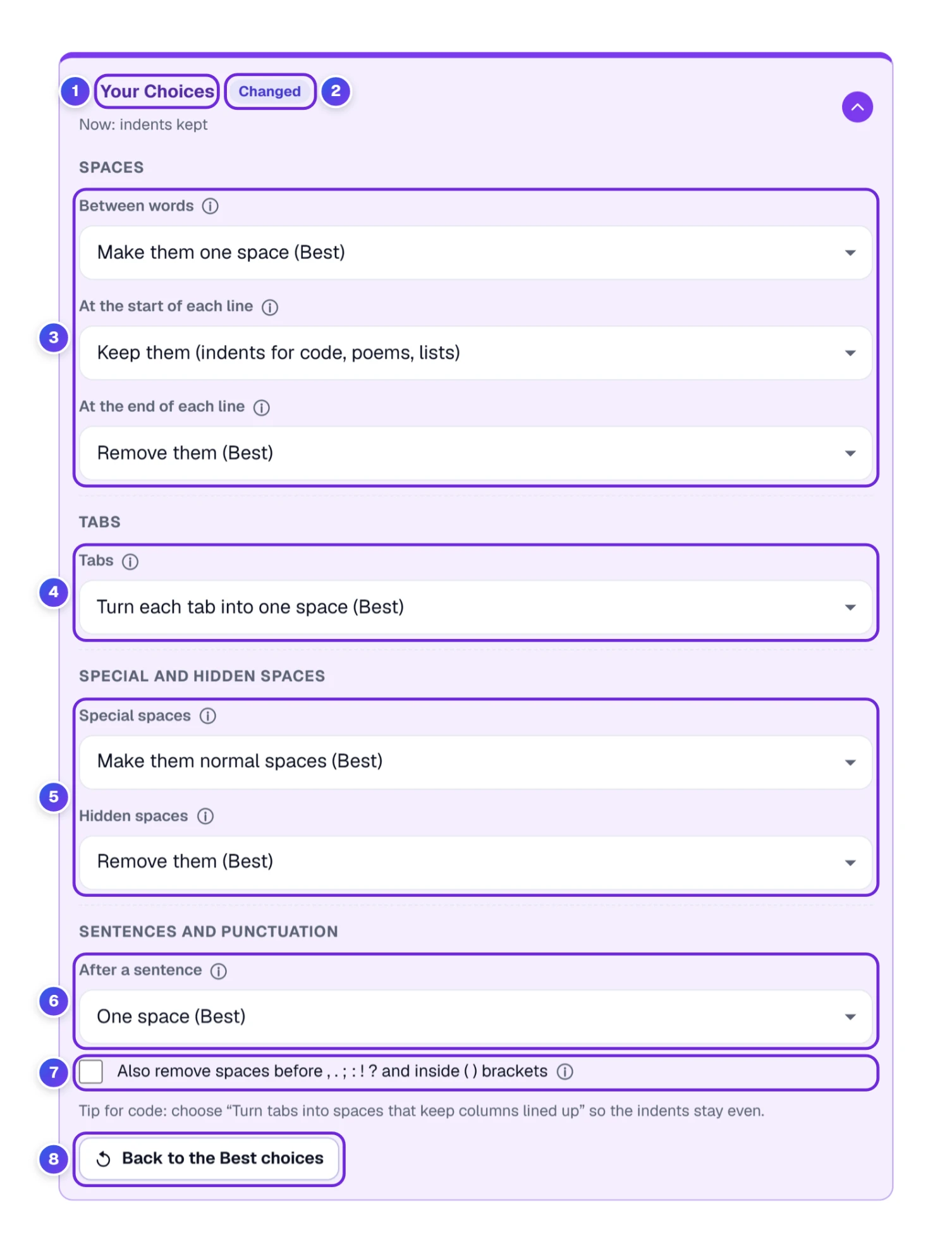
The line at the top starts with “Now:” and tells you in a sentence what your settings do. As soon as a setting differs from the Best choices, a small Changed label 2 shows next to it, and the line describes what you changed, for example “Now: indents kept”. Back to the Best choices 8 puts everything back. The tool remembers your choices on this device, so they’re waiting next time.
| Setting | What you can pick | Best |
|---|---|---|
| Between words 3 | Make them one space, or leave them as they are | One space |
| At the start of each line | Remove them, or keep them (indents for code, poems, lists) | Remove |
| At the end of each line | Remove them, or keep them | Remove |
| Tabs 4 | Turn each tab into one space; turn tabs into spaces that keep columns lined up; turn spaces at the start of lines into tabs; leave tabs as they are | One space |
| Tab width | 2, 4 or 8 spaces (shown for the two column options) | 4 |
| Special spaces 5 | Make them normal spaces, or keep no-break spaces and make the others normal | Normal spaces |
| Hidden spaces | Remove them, or leave them | Remove |
| After a sentence 6 | One space or two spaces | One space |
| Punctuation 7 | Tick to also remove spaces before , . ; : ! ? and inside ( ) brackets | Off |
Line breaks always stay where they are in this mode, and the box says so under the last setting.
Which Setting for Which Job
You’ll usually need only one or two of these. Here’s where to start for the common jobs:
| Your text | What goes wrong | Start here |
|---|---|---|
| Text copied from a web page or a PDF | No-break spaces and spaces at the end of lines | The Best choices, as they are |
| A letter, an essay or an email | Two spaces after every period | The Best choices |
| A customer list in Excel | Spaces at the end of a name, so a search finds nothing | The Excel, CSV or many files tab |
| Code, a poem or an indented list | Indents disappear | Keep the indents |
| A phone number, a code or an ID | Gaps in the middle | Remove every space |
| A Markdown note | Two spaces at a line end make a line break | Keep the spaces at line ends |
| Subtitles in an .srt file | Doubled spaces inside lines | The Excel, CSV or many files tab |
| English text with loose punctuation | Spaces before commas and inside brackets | Tick the punctuation box |
Tabs Into Spaces That Keep Their Columns
By default, each tab becomes one space. That’s right for running text, where a tab is almost always a typing slip. It’s wrong when tabs line things up in columns, and for that the Tabs menu has a second choice: Turn tabs into spaces that keep columns lined up.
A tab jumps to the next stop, every 2, 4 or 8 places depending on the Tab width menu. So with a width of 4, “ab” followed by a tab and “c” becomes “ab” and two spaces and “c”, while “a” followed by a tab and “c” gets three. The third choice works the other way round: it turns spaces at the start of each line into tabs. Eight spaces at a width of 4 become two tabs. The fourth choice leaves tabs alone.
In the example letter, a tab sits in the middle of a sentence. Choose the column option and that tab turns into three spaces, so the sentence has a visible gap again. For prose, stay with the Best choice. Keep the column option for lists and tables you typed with tabs.
Keep the Indents in Code, Poems and Lists
A space before the first word of a line is usually an accident, so the default removes it. In code, a poem or a nested list, they’re the whole point. If your text has indents like that, the tool notices and says so under the result.
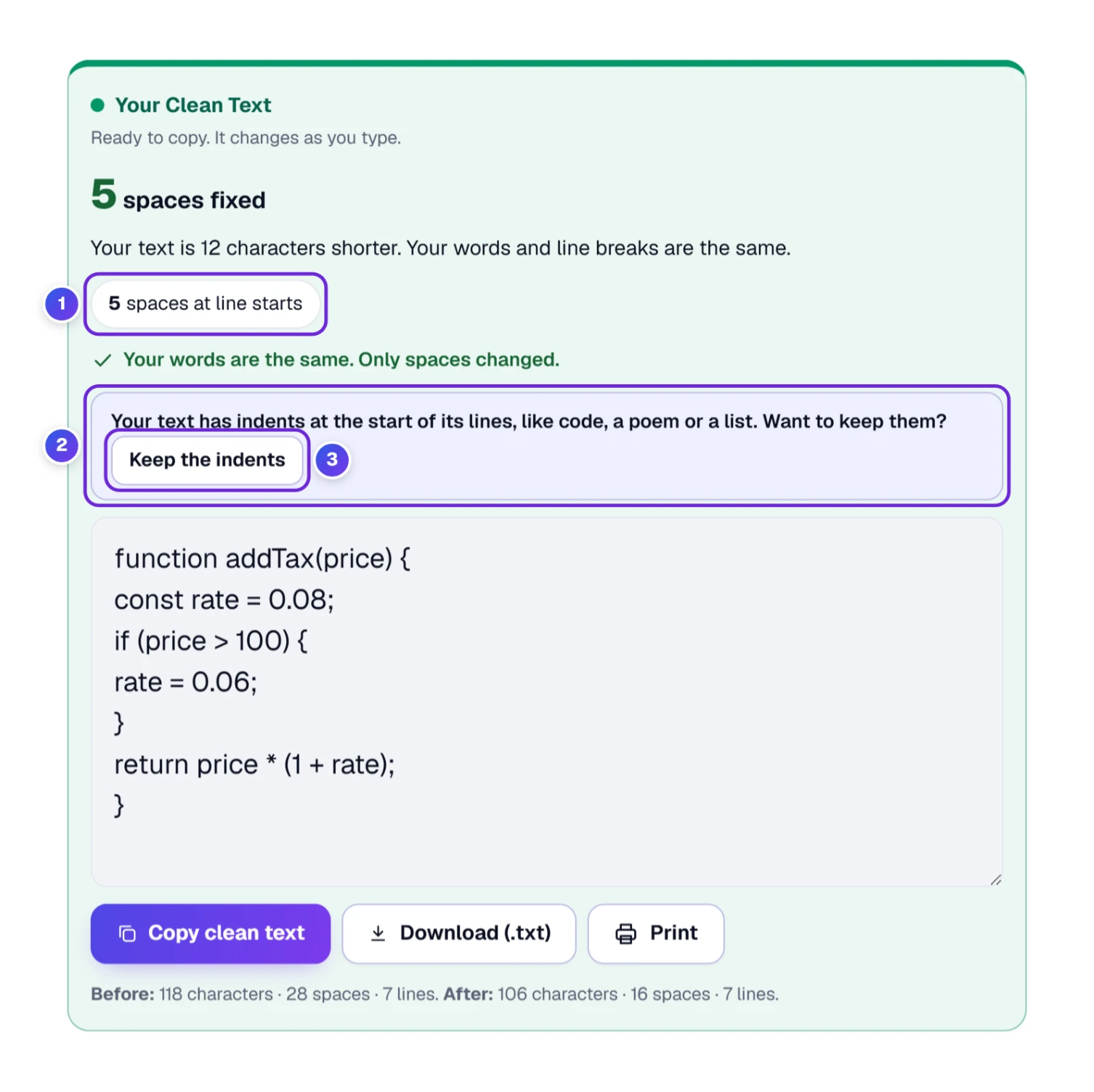
The chip 1 counts the spaces at line starts, and the note 2 reads “Your text has indents at the start of its lines, like code, a poem or a list. Want to keep them?” Press Keep the indents 3 and the lines keep their indents while every other kind of extra space is still fixed. Behind the scenes it sets At the start of each line to Keep them, and the Now line says “indents kept”.
A check we ran on another code sample: a function with three indented lines came back with all three indents gone, and the chip said “3 spaces at line starts”. After we pressed Keep the indents, the text came back exactly as it went in. If you paste code and the shape of it matters, press the button before you copy.
Special Spaces, Hidden Spaces and Spaces Around Punctuation
Four of the settings deal with spaces you rarely type yourself. They’re worth a minute, because they’re the reason cleaned text sometimes still looks wrong in other tools.
- Special spaces. Web pages, word processors and address books use a no-break space to keep “Austin, TX” or “10 km” on one line. There are 16 of these lookalikes, from the no-break space to the thin and wide spaces. The default turns all of them into normal spaces. If you need a no-break space to stay, choose Keep no-break spaces, make the others normal. In our check, “10 km” stayed joined, and a doubled space after it was still fixed.
- Hidden spaces. A zero width space is a character with no width, so your eyes miss it, though a search will trip over it. The default removes it: “password” with one inside becomes “password”. Two related characters, the zero width joiner and non-joiner, always stay, because emoji such as 👨👩👧 and writing in Hindi, Persian and Malayalam need them.
- After a sentence. The default is one space after a period, question mark or exclamation mark. Pick Two spaces and the tool puts two after each sentence end that’s followed by a capital letter or a number. Short forms such as Mr., Dr., e.g. and U.S. aren’t treated as sentence ends, so “It rained. We stayed in. Mr. Lee called.” gets two spaces after “rained.” and “in.” and one after “Mr.”.
- Punctuation. Tick the box and “Hello , world ( yes ) !” becomes “Hello, world (yes)!”. It’s off by default because some languages put a space before a colon or a question mark on purpose: a line like “Bonjour : ça va ?” comes through the default untouched.
- Chinese, Japanese and Korean. The wide space is part of how those languages are written, so in that text the tool leaves it where it is.
Clean Excel, CSV and Word Files: Add Your Files
Ctrl + V is fine for a letter. A spreadsheet with hundreds of customer names is a different job. The second tab, Excel, CSV or many files, cleans whole files and returns each one with the same name plus “-clean”.
By hand, the usual way to remove spaces in Excel is the TRIM function. You type =TRIM(A2) in a spare column, fill it down, copy the results and paste them back over the originals as values. It handles the ordinary space well. Microsoft’s own page for TRIM says it deals with the standard space character only, so a no-break space that came from a web page stays in your cells. And it’s a handful of steps for every column, on every sheet, in every file. Here you add the file and get a clean copy back.
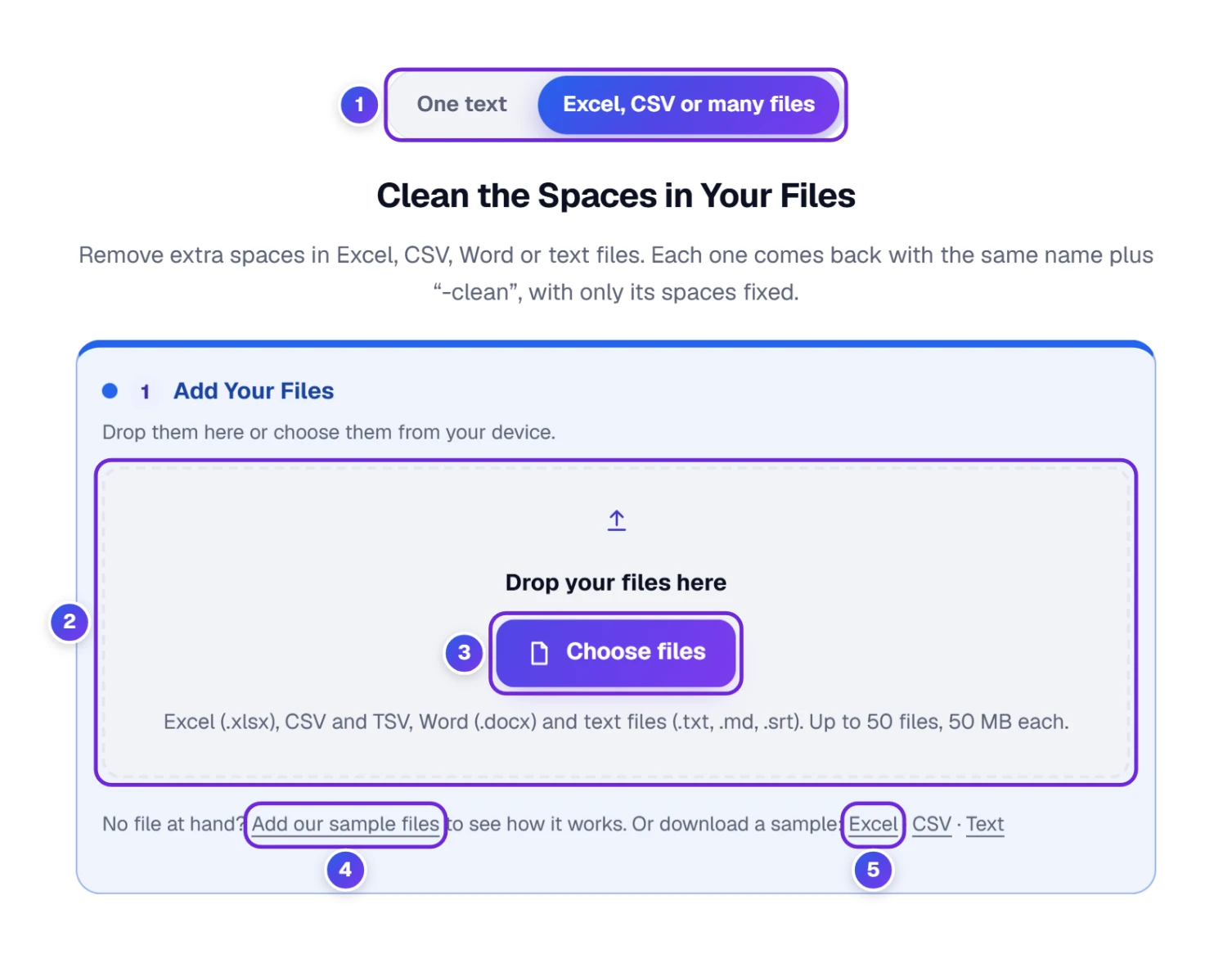
- Press the second tab 1.
- Drag your files onto the drop box 2, or press Choose files 3 and pick them from your device. You can add up to 50 files at a time, 50 MB each.
- The box accepts Excel (.xlsx), CSV and TSV, Word (.docx) and text files (.txt, .md, .srt). No file at hand? Press Add our sample files 4, or download a sample Excel, CSV or text file 5 to try it first.
An old .xls file isn’t opened here, and the tool says what to do: open it in Excel, use Save As, pick the Excel Workbook (.xlsx) type, then add the new file. A photo or any other type of file gets a plain message that it isn’t something the tool can clean. A damaged or password-locked file shows “This file could not be read”, and the rest of your list carries on. Working in Google Sheets? Download the sheet as .xlsx or CSV first, then add that file here.
See Where Every Space Is Before You Clean a File
You don’t have to download anything to learn whether a file needs cleaning. The moment a file is added, the tool checks it with your current choices from the One text tab, and nothing is changed yet.
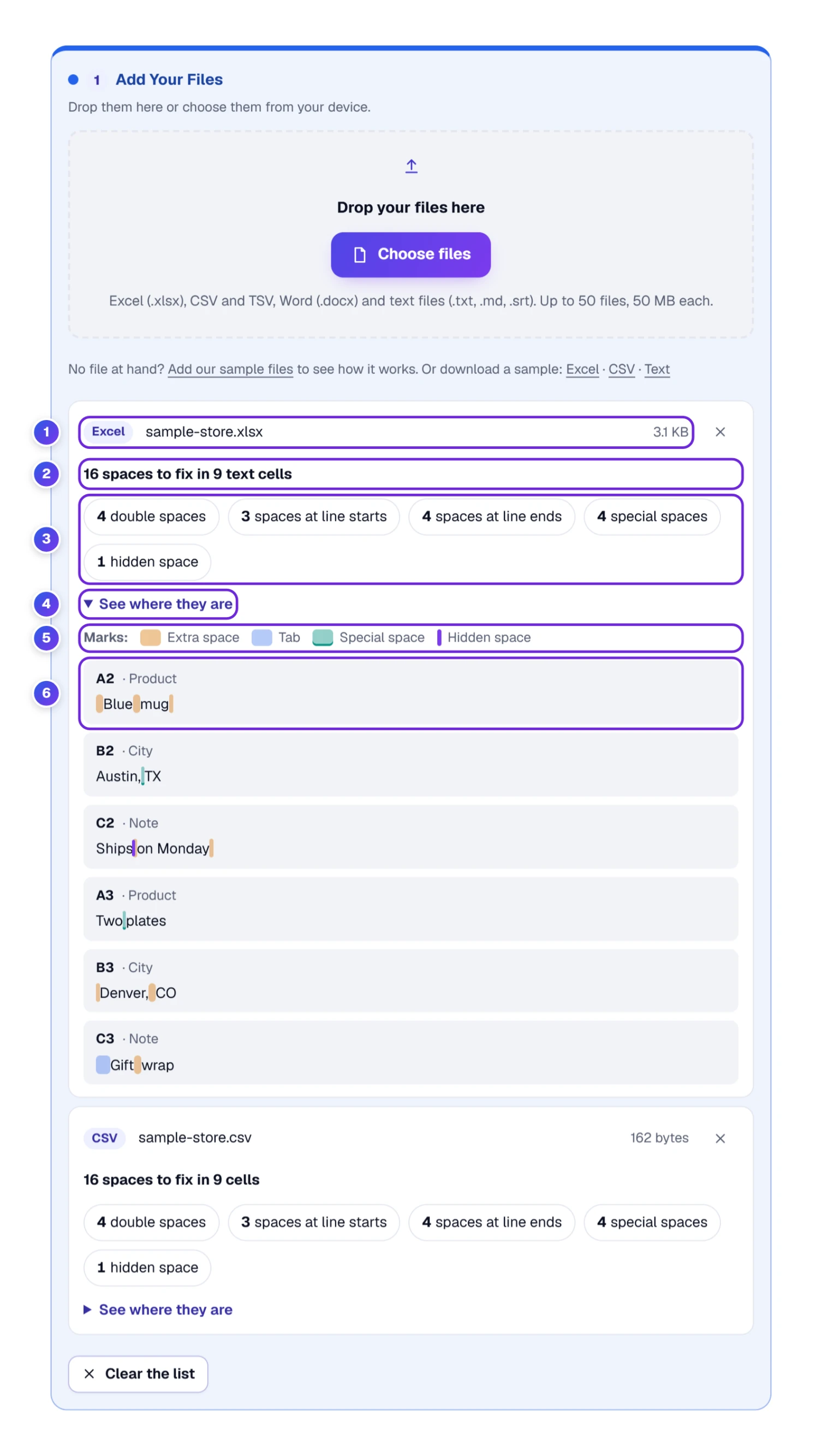
- The file card 1 shows the name and size, such as sample-store.xlsx at 3.1 KB.
- The summary 2 counts what it found in the file’s own terms: “16 spaces to fix in 9 text cells” for Excel, paragraphs for Word, lines for a text file.
- The chips 3 sort the findings by kind, and pressing one lights only that kind in the rows below.
- The fold 4 named See where they are is open for the first file that has something to fix. The colored key 5 is right there, so you don’t have to hunt for the legend.
- The rows 6 say where each problem sits: a cell and its column heading, such as A2 under Product, a paragraph number, or a line number. The text appears with the same colored marks as in the One text tab. You’ll see up to 50 rows, then a note saying how many more there are and that all of them will be fixed.
A file with nothing to fix says “No extra spaces found. This file is already clean.” If you change a setting in Your Choices, every file is checked again straight away.
Clean the Files and Download Them
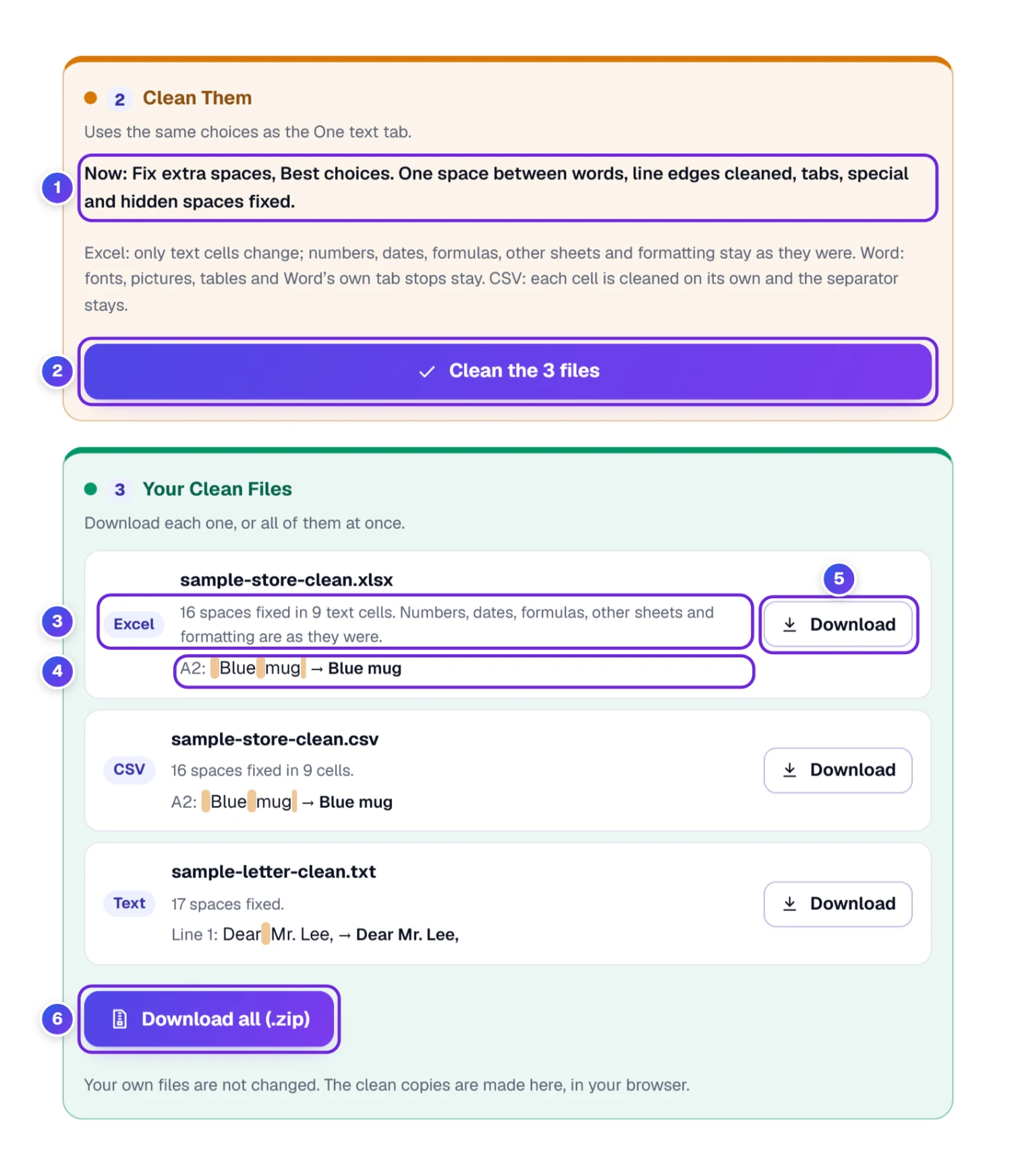
- Read the Now line 1. It repeats which choices will be used, the same ones as in the One text tab.
- Press the button 2. It names the number of files you added, so with three files it says Clean the 3 files.
- Under Your Clean Files, each finished file 3 shows how many spaces were fixed, plus one before and after line 4 that shows a cell with its marked spaces, then an arrow and the clean text, such as A2 ending as “Blue mug”. Press Download 5 beside a file, or Download all (.zip) 6 for everything in one zip.
The tool changes only the spaces. In Excel, only the text cells are touched, each on its own, and numbers, dates, formulas, other sheets, colors, column widths and merged cells stay as they were. In Word, every paragraph is cleaned, including the ones in tables, headers, footers and footnotes, while fonts, colors, pictures, tables and Word’s own tab stops stay. CSV and TSV files are cleaned cell by cell and keep their separator. Plain text files (.txt, .md, .srt) are cleaned as text.
Your own files are never changed. The clean copies are made in your browser, and the screen says so under the download buttons.
Cleaning a Markdown (.md) file? Two spaces at the end of a line mean a line break in Markdown. Open Your Choices first and set At the end of each line to Keep them.
How We Count Spaces, and Why Other Tools Differ
Any whitespace remover has to decide what a space is, and tools don’t agree. This one follows published sources, and the How We Count box 1 under the tool lists them, including which characters count as spaces 2.
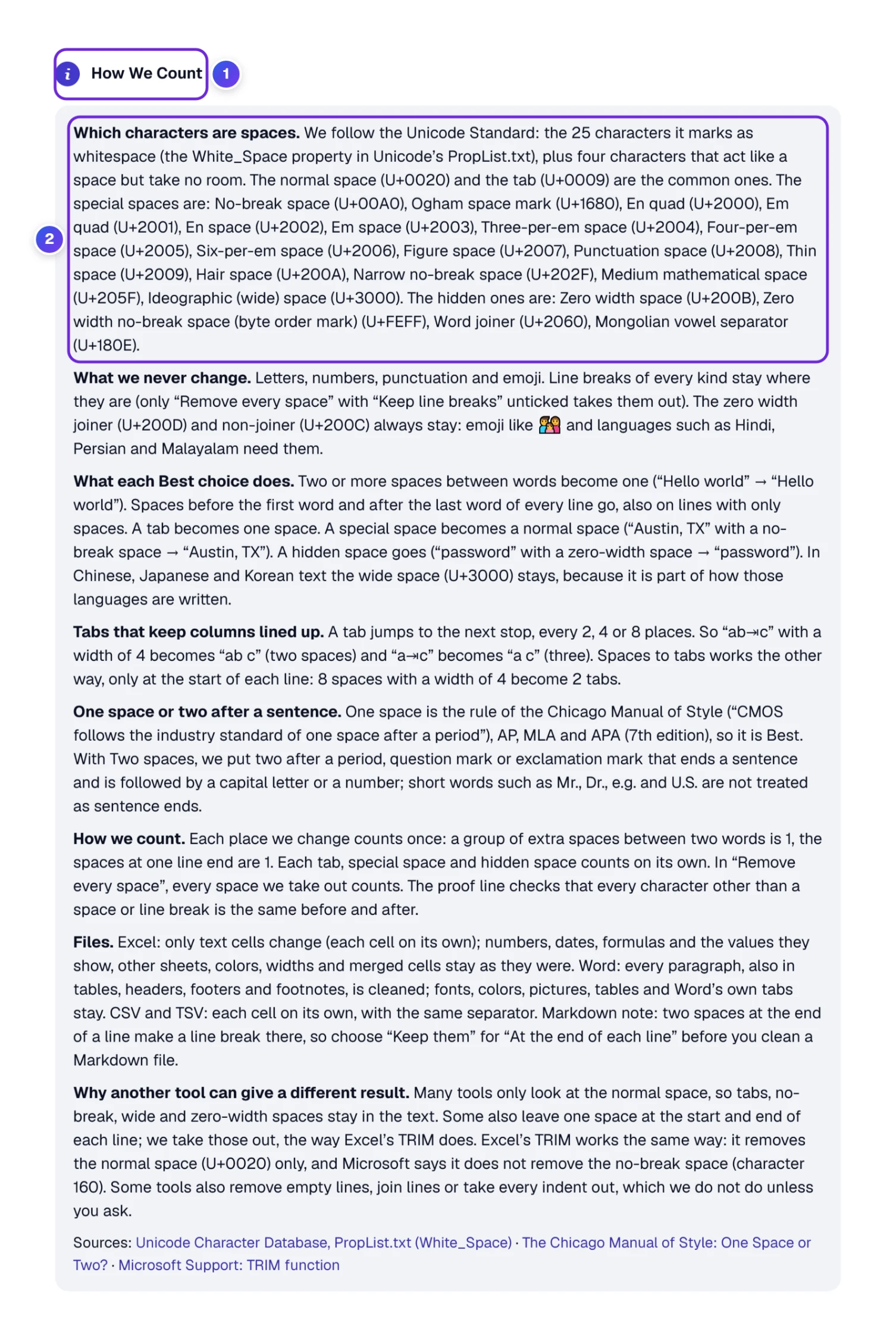
Which characters are spaces. The Unicode Standard lists 25 characters as whitespace in a file called PropList.txt. We use all of them, plus four characters that act like a space but take up no room, such as the zero width space. The ordinary space and the tab are the common ones. The special spaces, 16 in all, run from the no-break space to the wide space used in Chinese, Japanese and Korean.
What we never change. Letters, numbers, punctuation and emoji stay as they are, and so do line breaks. Only Remove every space with Keep line breaks unticked takes them out. The zero width joiner and non-joiner stay too, because emoji and several writing systems depend on them.
How each place is counted. One run of extra spaces between two words is a single place, and so are the spaces at the end of a line. A tab, a special space or a hidden space is one place each. In Remove every space, every space taken out counts. The proof line then checks that every other character is the same before and after.
One space or two after a period. The Chicago Manual of Style recommends one space, in line with current industry practice, and its answer gives three reasons: two spaces are rarely used in published work, they’re hard to keep consistent when they follow only sentence-ending periods, and there’s no firm evidence that the extra space helps reading. That’s why one space is the Best choice and two is yours to pick.
Why another tool can give a different result. Many tools look at the ordinary space only, so tabs and no-break, wide and zero width spaces stay in your text. Some leave one space at the start and end of each line, where we take those out, the way Excel’s TRIM does. TRIM itself removes the standard space only, and Microsoft says it leaves the no-break space alone. Other tools delete empty lines, join lines or strip every indent. This one does none of that unless you ask.
Save, Share, Embed or Print the Result
Every ToolHa tool has the same row of buttons below it. A few of them suit this one especially well.

- Save 1 keeps the tool in your favorites. They appear under My Tools on the homepage, and in the bottom bar on a phone. The list lives only in this browser.
- Share 2 opens a window with ways to send your text (more below).
- Embed 3 is for putting the tool on a page of your own site.
- On your phone 4 makes a QR code for your phone’s camera, and the tool opens there with your result.
- Print 5 prints the result. For a PDF, choose Save as PDF when the print dialog opens.
- The stars 6 let you rate the tool, with Report a problem next to them.
The Share window has two tick boxes, and they decide what a link carries:

- The tick box Include my text in the link 1 decides whether your text rides along. Turn it off to share the tool alone.
- Let others edit it and add to it 2 gives the person who opens your link the right to change your text. Without it, they can read the text and nothing more.
- Copy link 3 copies the link. You can also send it straight from an app such as WhatsApp 4.
Because the text travels inside the link, think before you share anything private this way.
One-Key Shortcuts for the Space Remover
Prefer the keyboard? Press ? on the page for the full list, and Esc closes it again.
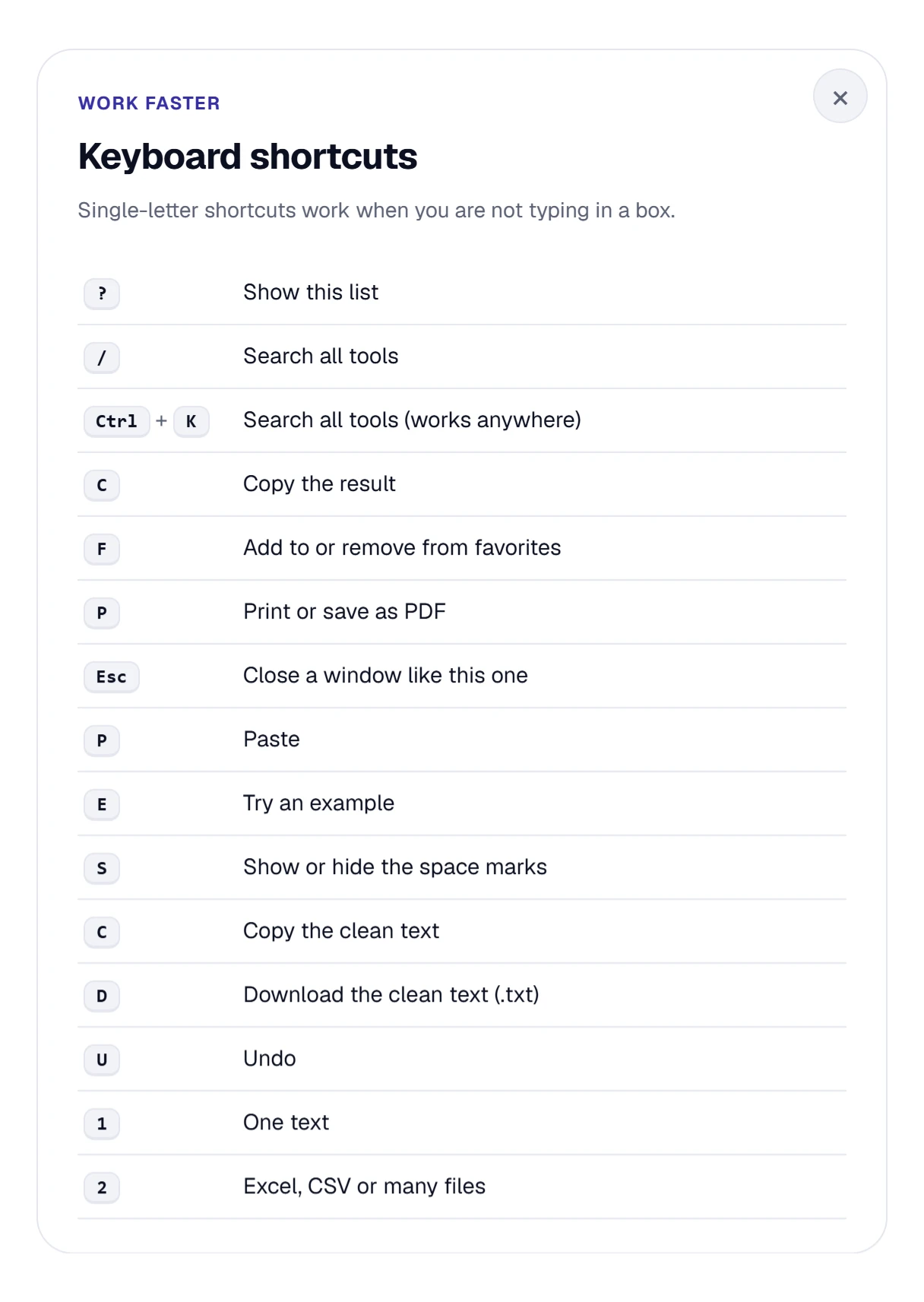
| Key | What it does |
|---|---|
| P | Pastes what you last copied |
| E | Fills the box with the example letter |
| S | Shows or hides the colored marks |
| C | Copies the clean text |
| D | Downloads the clean text as a .txt file |
| U | Undoes your last change to the text |
| 1 | Opens the One text tab |
| 2 | Opens the Excel, CSV or many files tab |
The list on the page shows P and C twice, once for the page and once for the tool. Inside this tool, P pastes and C copies your clean text. Two keys work across the whole site: F to add or remove a favorite, and / or Ctrl + K to start a search. Typing in the box works as always, so writing a “p” doesn’t trigger anything.
Cleaning Spaces on a Phone
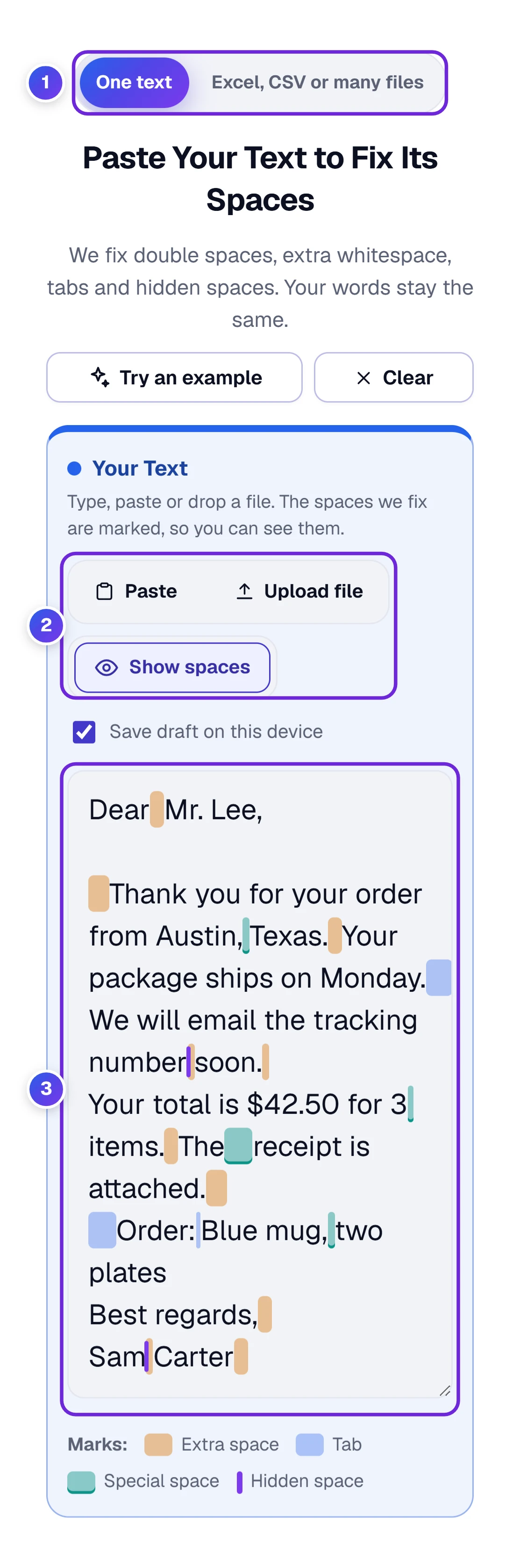
On a narrow screen the tool stacks into one column: the two tabs 1 first, then the buttons 2, then your text box 3.
Tap Paste, or press and hold inside the box and choose Paste. Upload file opens a text file from your phone, and Copy clean text is waiting under the result. The colored marks and the key work the same as on a computer. Started on a computer? The On your phone button under the tool shows a QR code, and scanning it carries your result across. Tools you saved sit in the bottom bar of a phone screen.
Where Your Text and Files Go
The cleaning itself happens in your browser, so the text you type or paste and the files you add aren’t sent to ToolHa to be cleaned. A few things are kept on your device, and one thing can travel:
- Your draft. With Save draft on this device ticked, the text in the box is kept in this browser so you can pick up where you stopped. Clear removes it.
- Your choices. The settings you picked are remembered on this device too.
- A shared link. Your text goes inside the link only when Include my text in the link is ticked.
- Your files. They’re cleaned in your browser too, and your own files aren’t changed.
When the Result Looks Wrong
| What looks wrong | The reason | The fix |
|---|---|---|
| Code or a list lost its indents | The default removes spaces at the start of every line | Press Keep the indents under the result |
| Words run together, like “DearMr.Lee” | Remove every space is picked | Pick Fix extra spaces (Best) again |
| Markdown lines run together | Two spaces at a line end make a Markdown line break, and the default removes them | Set At the end of each line to Keep them. In our check, “line one” followed by two spaces came back as plain “line one” |
| A space before a colon or question mark is still there | Spaces before punctuation are left alone on purpose, since French and some other languages use them | Leave it, or tick the punctuation box for English text |
| Spaces at the start of an uploaded file have no mark | Upload file trims the edges of the file as it loads | Use the Excel, CSV or many files tab, which counts them |
| An old .xls file is refused | The tool reads .xlsx, not the old Excel format | Save it as .xlsx in Excel, then add it again |
| Two spaces still follow each period | After a sentence is set to Two spaces | Pick One space in Your Choices |
| The headline says 17 but your text is 18 characters shorter | The headline counts places, and one place can hold several spaces | Nothing is wrong; the counts line shows the exact before and after |
Questions About Removing Extra Spaces
How Do I Remove Extra Spaces From Text?
Paste your text into the box. The tool marks every double space, tab, space at a line edge and hidden space, and the clean text appears under it. Press Copy clean text, then paste it wherever it’s headed. Your words don’t change.
How Do I Remove Double Spaces Between Sentences?
By default the clean text has one space after each period, which is what the Chicago Manual of Style recommends. If you’d like two, choose Two spaces under After a sentence in Your Choices.
How Do I Remove Spaces in Excel Without a Formula?
Open the second tab, add your .xlsx file and press the Clean button. You get a copy with “-clean” added to its name. Only text cells change, and numbers, dates and formulas stay as they were. The TRIM formula is the other route, but Microsoft says it leaves the no-break space alone.
Does It Remove Spaces at the Start and End of Lines?
Yes, by default. That covers the leading spaces before a line’s first word and the trailing spaces after its last, and also lines that hold nothing but spaces. To keep indents, press Keep the indents under the result, or set the two line settings in Your Choices to Keep them.
What Is a Non-Breaking Space, and Does the Tool Remove It?
It’s a space that keeps two words together on one line, such as “10 km”. It looks like a normal space but is a different character, which is why a search for a space won’t find it. The tool turns it into a normal space by default, or keeps it if you choose Keep no-break spaces, make the others normal.
Will It Change My Words, Numbers or Formatting?
No. Only spaces are touched, and the proof line under the result confirms that every other character is the same. In Excel and Word files, fonts, colors, formulas and pictures stay as they were.
Does My Text or File Leave My Device?
The cleaning happens in your browser, so your text and files aren’t sent to ToolHa to be cleaned. The one way your text leaves your device is a shared link, and only when Include my text in the link is ticked.