A slug is the last part of a web address: the words after the final slash, like how-to-grow-tomatoes. This free Slug Generator turns any title into a clean slug the moment you type it: small letters, words joined with hyphens, no odd symbols. It works for one title or for a whole list.
If you have never heard the word “slug” before, you are in exactly the right place. Grab a cup of tea. We will go through the tool together, one button at a time, with a picture for every step. By the end you will know how to make a slug, how to check that it is a good one, and where to put it on your own website.
What Is a Slug? A 30-Second Explanation
Think of a web address like a postal address. The first part says which town and street you are on; that is the website. The last part says which door to knock on, and that is the slug. It names one page on the website.
| Part of the address | In our example | What it tells people |
|---|---|---|
| Website (domain) | www.sunnysidebakery.com | Which website you are on |
| Section (folder) | /blog/ | Which part of the website |
| Slug | our-5-favorite-fall-bread-recipes | Which page, in plain words |
A good slug is short, easy to read and says what the page is about. When somebody sees it in a message or in Google, they can guess the page before they even click. WordPress and some other website builders call it the permalink; Shopify calls it the URL handle. It is all the same thing.
Let’s Make Your First Slug Together
Here is the whole tool in one picture. The numbers match the steps below, so you can look back at the picture whenever you like.
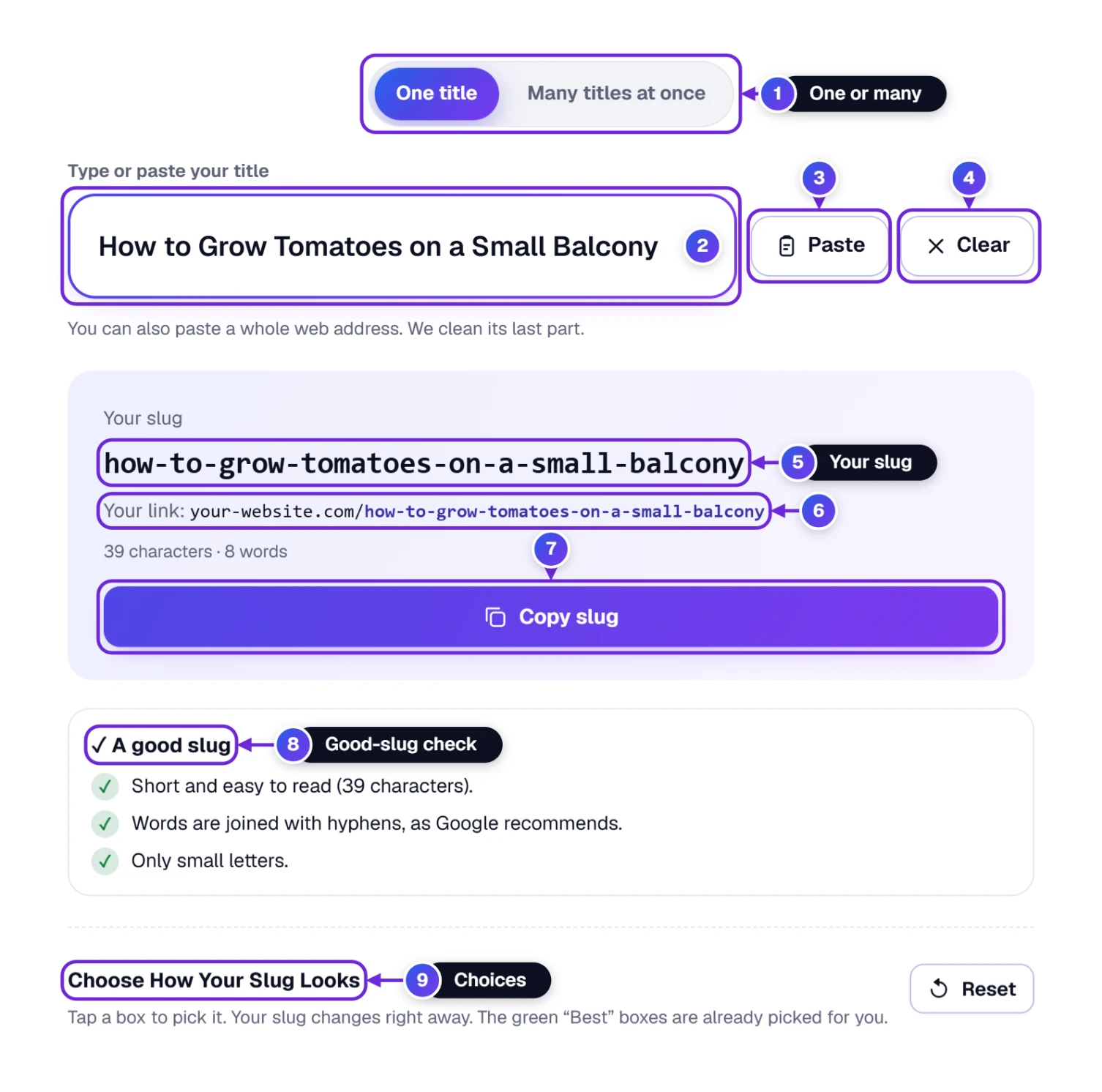
- Make sure One title is picked at the top 1. It is picked for you when the page opens.
- Click in the box under Type or paste your title 2 and type the title of your page, for example How to Grow Tomatoes on a Small Balcony. Copied it from somewhere else? Just press Paste 3 and it goes straight in. Clear 4 empties the box again.
- Look at the lilac box below. Your slug is already there 5:
how-to-grow-tomatoes-on-a-small-balcony, with your link 6 just under it. You do not have to press anything: the slug changes as you type. - Press Copy slug 7. The button turns green and says ✓ Copied. Now paste the slug wherever you need it (we show you where below).
That is really all there is to it. Everything else on the page is there to help you check the slug 8, change how it looks 9, or do many titles at once 1.
Still polishing the headline itself? Our Case Converter puts a title into neat Title Case in one click. Bring the finished headline back here and the slug comes out the same, because slugs use small letters anyway.
Reading the Answer Box, One Line at a Time
The lilac answer box tells you more than just the slug. In this picture we also filled in a website address (you will see how later), so the box shows the whole link too.
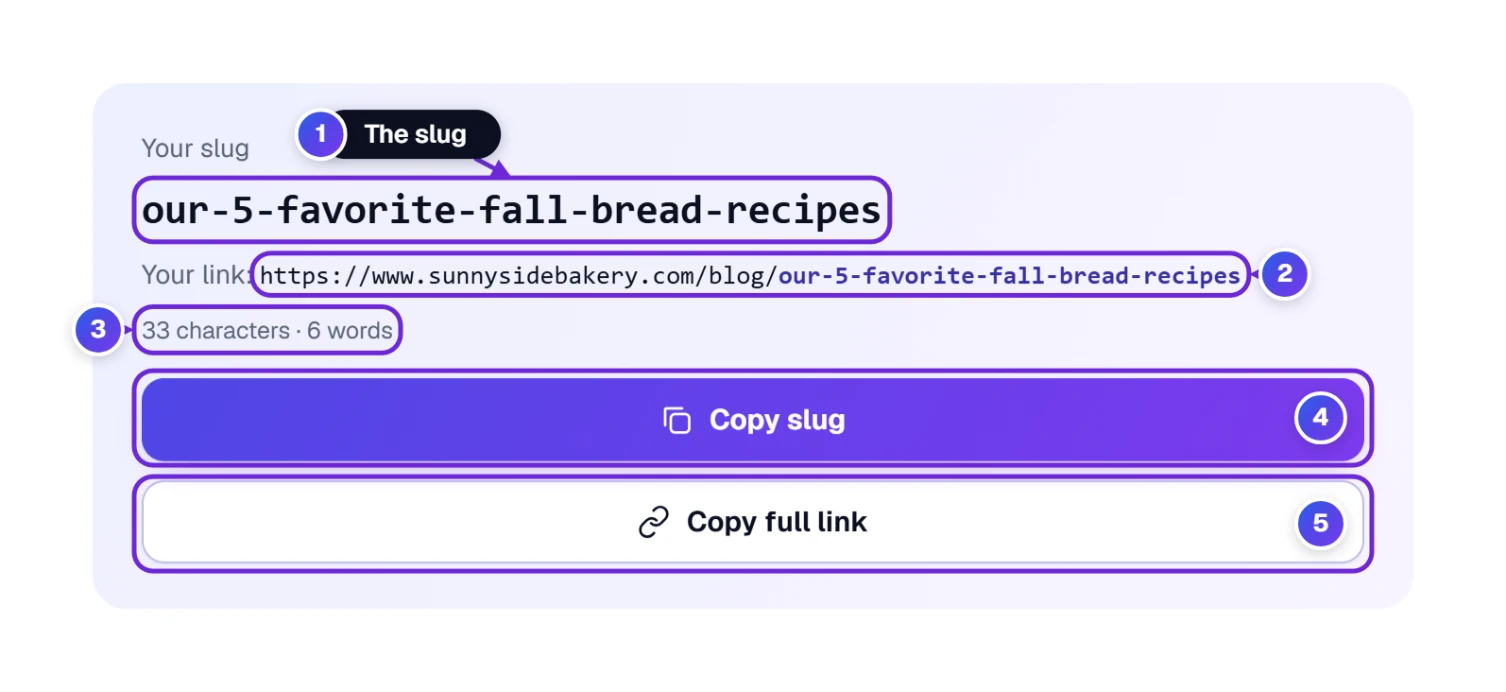
- 1 The slug in big letters. This is the part you copy into your website.
- 2 Your link: the slug shown at the end of a full web address, so you can see how it will look. Until you add your own website it says your-website.com.
- 3 The length: how many characters and how many words the slug has. Shorter is easier to read and to share.
- 4 Copy slug copies just the slug.
- 5 Copy full link copies the whole address. This button only shows up when you have filled in your website address.
Pressing Enter on your keyboard (or Done on a phone) after typing a title closes the phone keyboard and keeps the slug in Your recent slugs, which helps when you are working through several pages.
The Good-Slug Check: Green Ticks and Friendly Tips
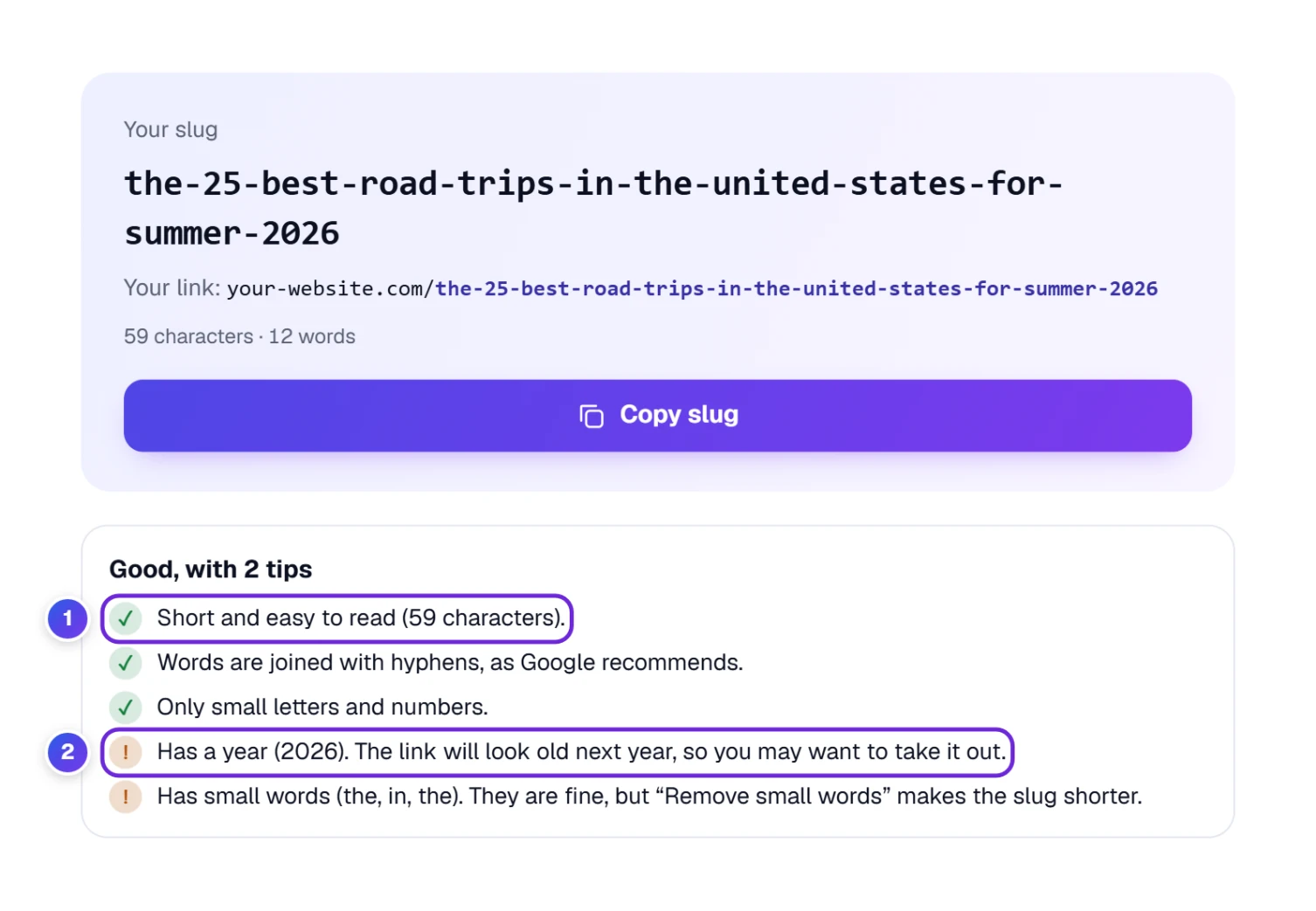
Right under the answer box, the tool looks at your slug the way a careful friend would. A green tick 1 means “this part is fine”. An orange exclamation mark 2 is a tip, never an error. Your slug still works; the tip just tells you how it could be even better.
| What the check may say | What it means | What you can do |
|---|---|---|
| Short and easy to read | The slug is 60 characters or less. | Nothing. Well done. |
| A bit long | More than 60 characters. | Tick Remove small words or Limit the length (see below). |
| Words are joined with hyphens | You are using the hyphen (-), which Google recommends. | Nothing. |
| Google recommends hyphens | You picked underscores (_). | Switch back to Hyphen unless your website needs underscores. |
| Only small letters | No capital letters. | Nothing. |
| Has capital letters | Some websites treat “Page” and “page” as two different addresses. | Pick Small letters. |
| Has a year | The link will look old next year. | Take the year out if the page stays useful for years. |
| Has small words | Words like “the”, “in” and “for” make a long slug longer. | They are fine; tick Remove small words if you want it shorter. |
| Keeps letters from another alphabet | You chose to keep letters like я or ü. | Fine for a website in that language. |
| We used the last part of your web address | You pasted a whole link, so the tool used its last part. | Check the slug is the one you wanted. |
When everything is fine, the heading simply says ✓ A good slug. When there are tips, it says Good, with a tip or Good, with 2 tips. You decide whether to follow them.
Already Have a Web Address? Paste the Whole Link
Sometimes you are not starting from a title but from an old, messy address full of capital letters, underscores and “.html” on the end. You do not have to pick it apart yourself. Paste the whole link into the title box, and the tool keeps only the last part and cleans it.
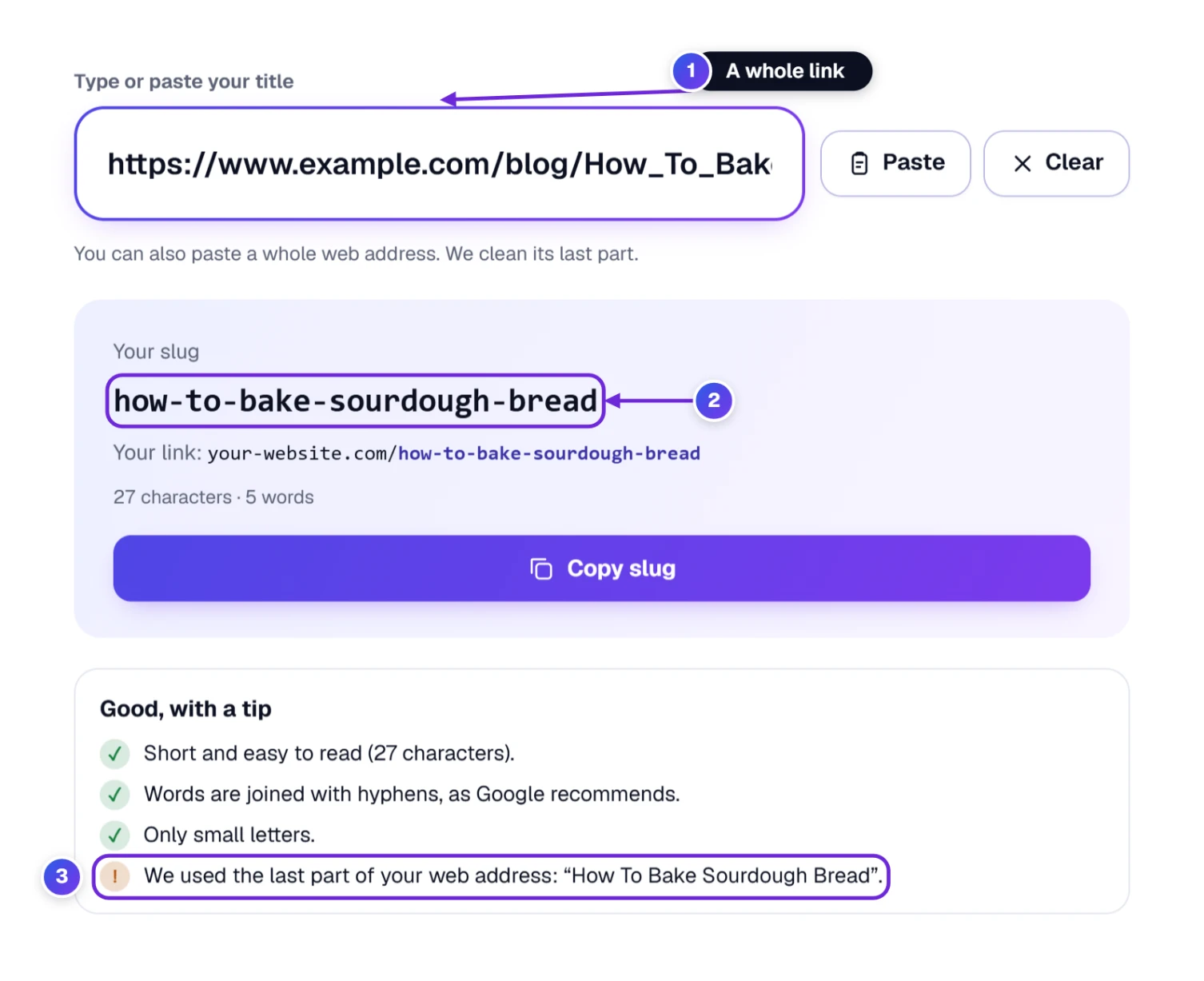
- Copy the old address from your browser’s address bar.
- Press Paste, or click in the title box and paste from the keyboard (Ctrl + V on a PC, ⌘ + V on a Mac). The whole link goes into the box 1.
- The slug appears 2, and the check tells you which part of the address it used 3. Here,
How_To_Bake_Sourdough_Bread.htmlbecamehow-to-bake-sourdough-bread.
Paste, Clear, and the Undo That Saves You
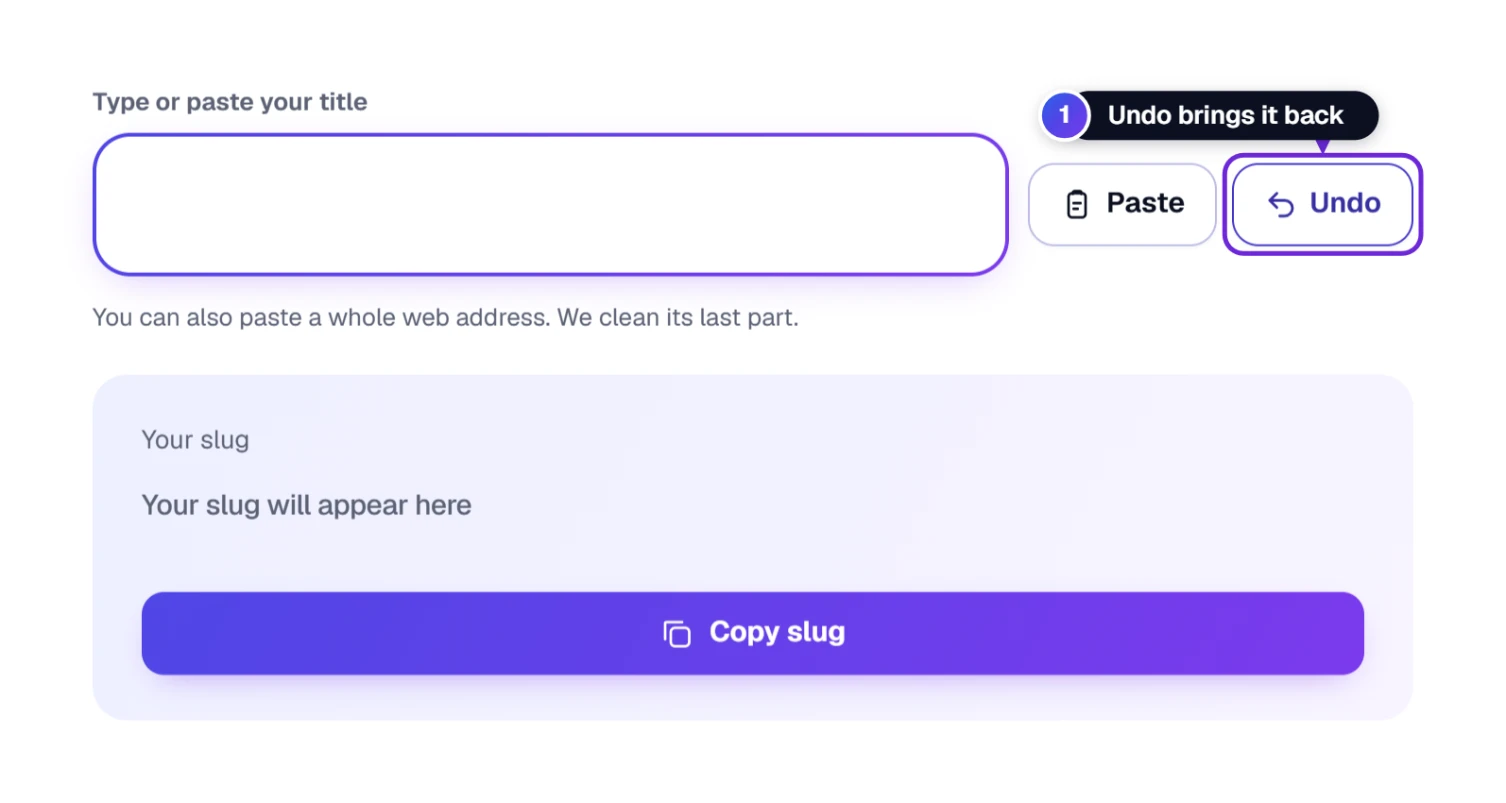
Next to the title box are two big buttons. Paste puts in whatever you copied last. Clear wipes the box, ready for your next title.
Pressed Clear by mistake? Don’t worry. For about four seconds the Clear button turns into Undo 1. Press it and your title comes straight back.
The first time you press Paste, your browser may ask “Allow this site to see text you copied?” Press Allow. If you would rather not, click inside the box, then paste with your keyboard (Ctrl + V on a PC, ⌘ + V on a Mac), or hold your finger in the box on a phone and choose Paste.
Here is a little time-saver: if you paste several lines (say, a list of titles copied from a spreadsheet), the tool notices and moves them to Many titles at once for you, with a slug for each line.
Make the Slug Look the Way You Want
Scroll down a little and you will find Choose how your slug looks. Every choice is a big box you simply tap. The boxes with a green Best label are already picked for you, and for most websites you never need to change them. Your slug changes the moment you tap, so you can try things and see.
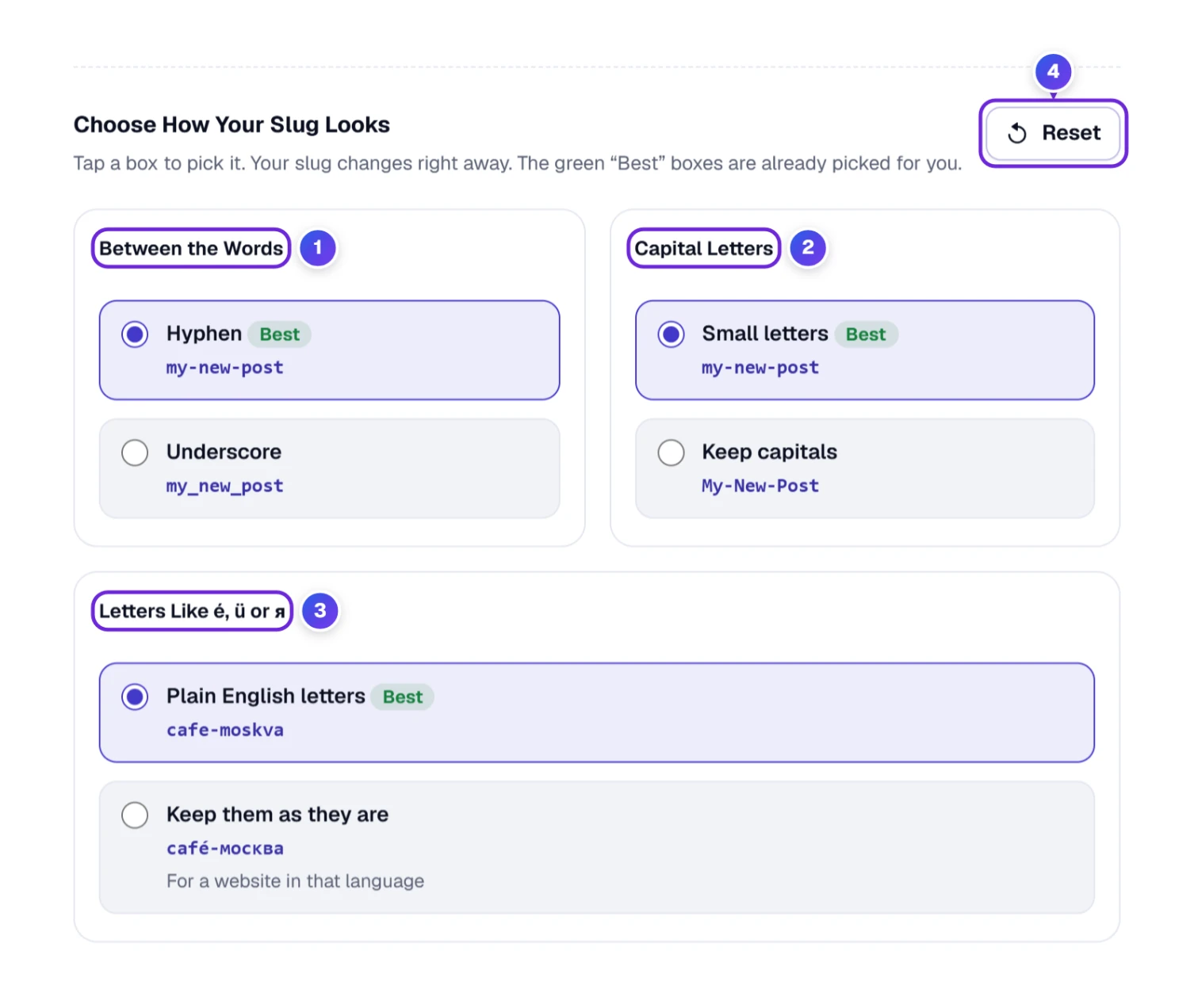
1 Between the Words
Hyphen (my-new-post) is best, and it is what Google recommends. Pick Underscore (my_new_post) only if your website or your team already uses underscores everywhere.
2 Capital Letters
Small letters is best. Web addresses can treat capitals as different letters, so /Garden-Tips and /garden-tips might be two different pages, and small letters avoid that mix-up. Pick Keep capitals only if you really need them.
3 Letters Like é, ü or я
Plain English letters changes special letters into the nearest plain ones, which work everywhere. Keep them as they are is for websites written in another language, where readers expect their own alphabet.
| Your title has… | Plain English letters gives… |
|---|---|
| Café and Crème Brûlée (two titles) | cafe and creme-brulee |
| Straße (German) | strasse |
| Москва (Russian) | moskva |
| Tom & Jerry | tom-and-jerry |
| 50% off | 50-percent-off |
| Learn C# fast | learn-c-sharp-fast |
| Don’t miss it! | dont-miss-it (the apostrophe is simply dropped) |
Spaces become hyphens, while emoji and special characters like ! ? : are left out, because they do not belong in a web address. If a title has only emoji or symbols, the tool kindly asks you to add a few letters or numbers.
4 Reset
This page keeps your choices in your browser, so they are still there tomorrow. Press Reset at any time to go back to the “Best” settings.
Make a Long Slug Shorter
Long titles make long slugs. The box Make it shorter has three helpers. None of them is ticked at the start, so tick only the ones you want.
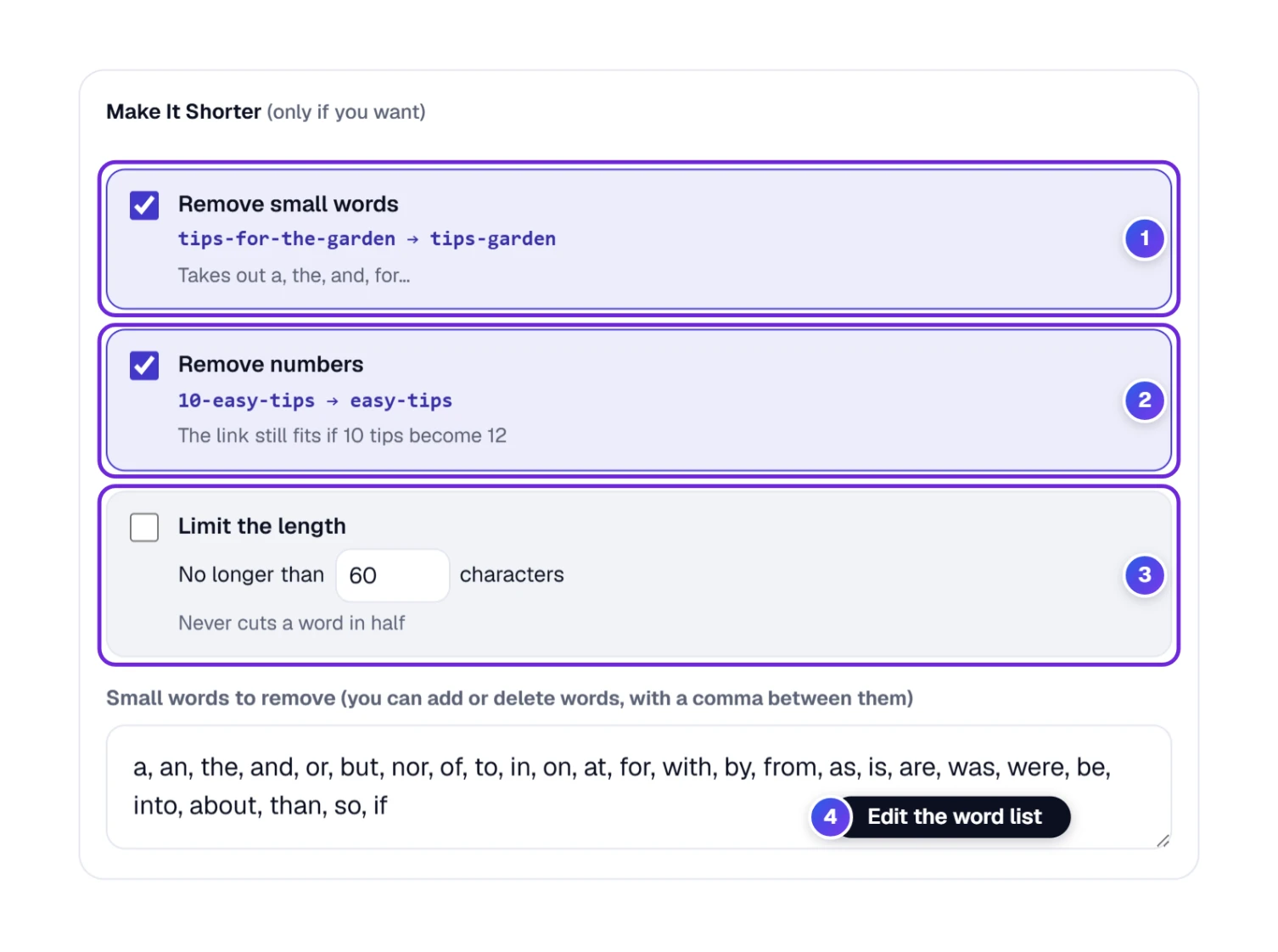
- 1 Remove small words takes out small “stop words” like a, the, and, for, in. Hover your mouse over this box and a bubble shows the whole list. When you tick it, the list opens underneath 4 so you can add or delete words; just keep a comma between them. The tool never removes every word, so you always get a slug.
- 2 Remove numbers takes out words that are only numbers. Why? A post called “10 easy tips” may grow to 12 tips one day, and without the number the link still fits.
- 3 Limit the length keeps the slug under the number of characters you choose (60 at the start; anything from 10 to 200). It always stops at the end of a whole word, never in the middle.
With the first two ticked, our long road-trip title The 25 Best Road Trips in the United States for Summer 2026 becomes simply best-road-trips-united-states-summer.
See the Whole Web Address Before You Publish
Want to see exactly how the finished link will look? At the very bottom of the choices is Your website address. Type your website there, including the section if you have one, like www.sunnysidebakery.com/blog/ 1.
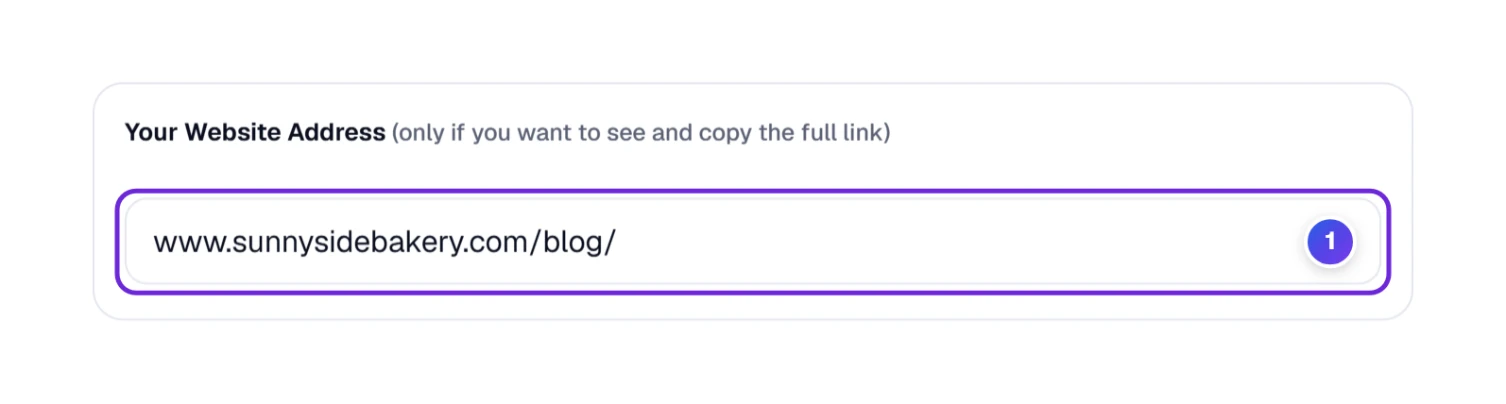
Now look back at the answer box 2: instead of your-website.com it shows your real address, and a new button, Copy full link, copies the whole thing, so you can drop it into an email or a message.
Got a Whole List? Make Many Slugs in One Go
Planning a month of blog posts, or adding fifty products to a shop? Doing them one by one would take ages. Switch to Many titles at once 1 and do them all together.
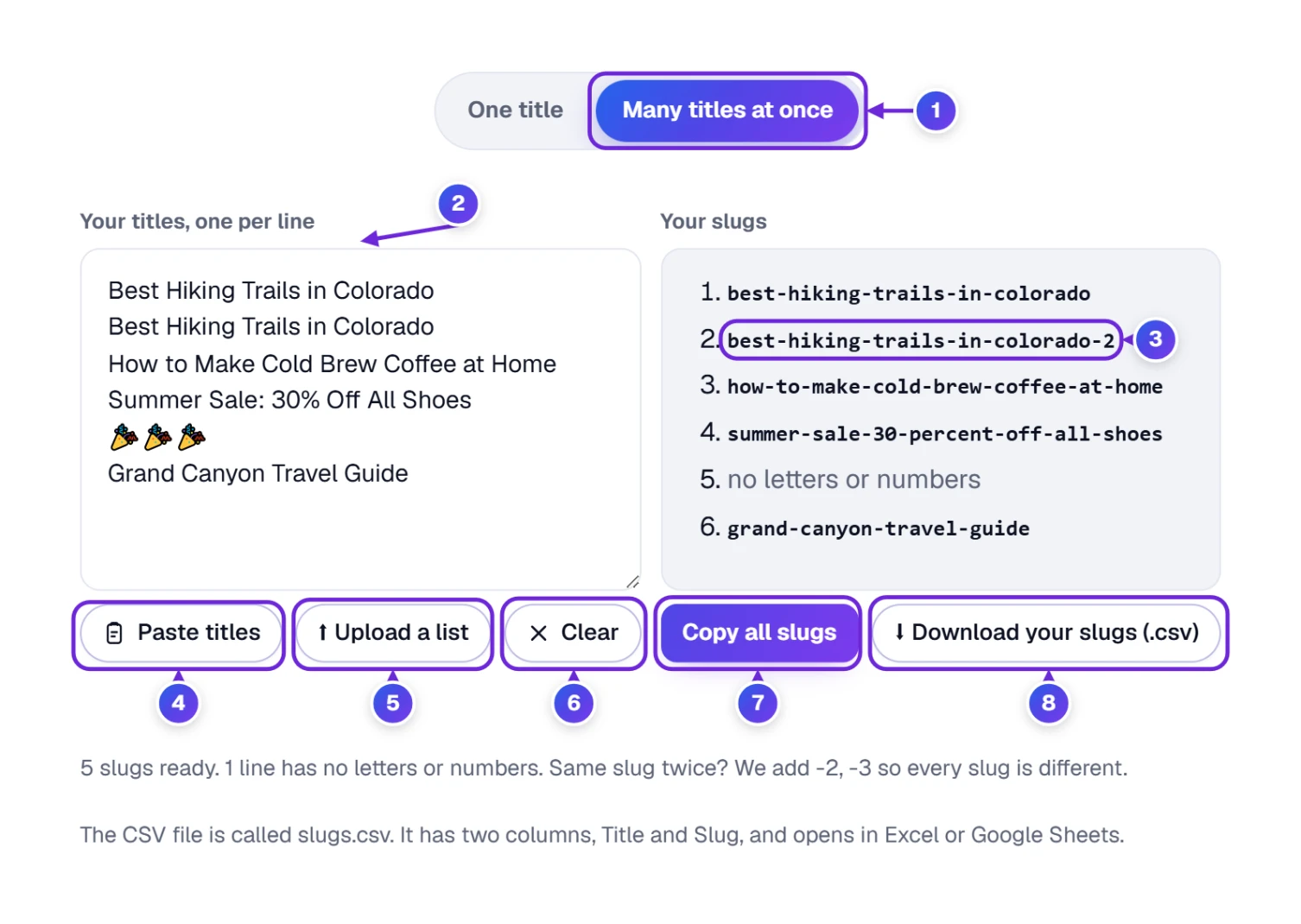
- Press Many titles at once 1 at the top of the tool.
- Put your titles in the big box 2, one title on each line. You can type them, press Paste titles 4, or press Upload a list 5 to open a .txt or .csv file from your computer.
- The slugs appear on the right straight away, in the same order.
- Press Copy all slugs 7 to copy them all (one per line), or Download your slugs (.csv) 8 to save a file with the titles and slugs side by side. A small panel along the bottom edge of your screen shows the file being made and says Done! when it is saved.
A few thoughtful details happen by themselves:
- If two titles would give the same slug, the second gets
-2, the third-3and so on 3, so two pages can never share one address. - A line with no letters or numbers (like 🎉🎉🎉) is marked no letters or numbers instead of making a broken slug.
- Empty lines you paste are skipped, so each title stays next to its slug.
- The list can hold up to 2,000 titles. An uploaded file can be up to 5 MB; for a CSV file the first column is used, and a heading like “Title” at the top is skipped.
- The downloaded file is called slugs.csv and opens in Excel, Google Sheets or Numbers.
Clear 6 empties the list, and just like before, it turns into Undo for a few seconds in case you did not mean it. All the choices you set above work for the list too.
Find a Slug You Made Earlier
Every time you copy a slug or press Enter, the tool keeps it under Your recent slugs, at the bottom of the tool. It shows the last five (and remembers up to twenty) on this device.
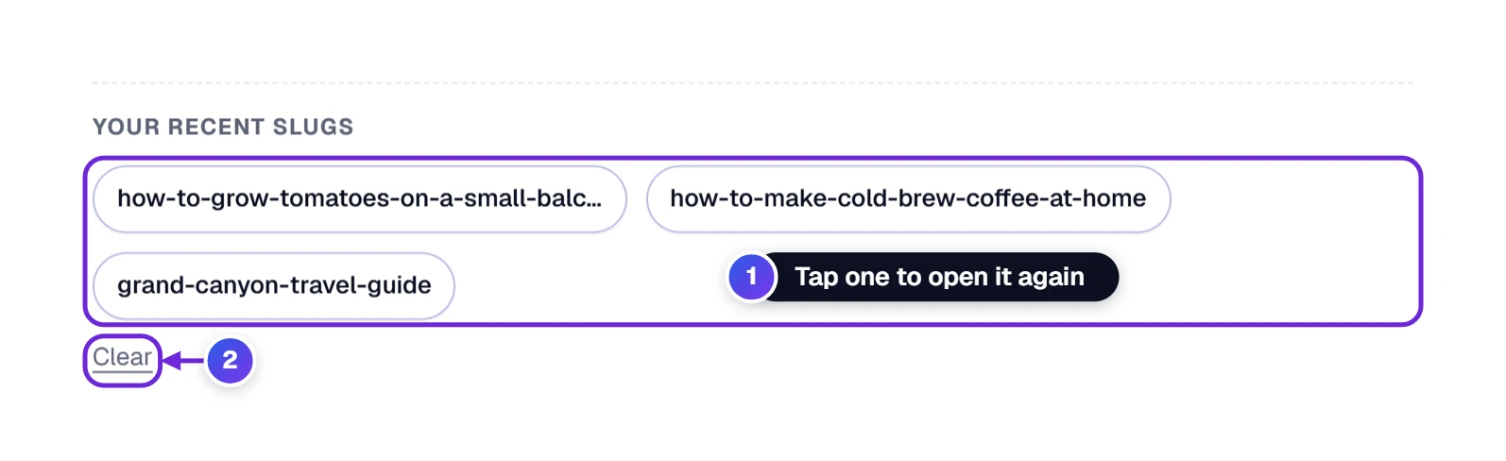
Tap any of them 1 and its title comes back into the box, slug and all. Press Clear 2 when you want the list gone, for example on a shared computer.
Passing a Slug to a Colleague, and the Other Buttons
The buttons under the Slug Generator are mostly about passing your slug on. Here they are, left to right.
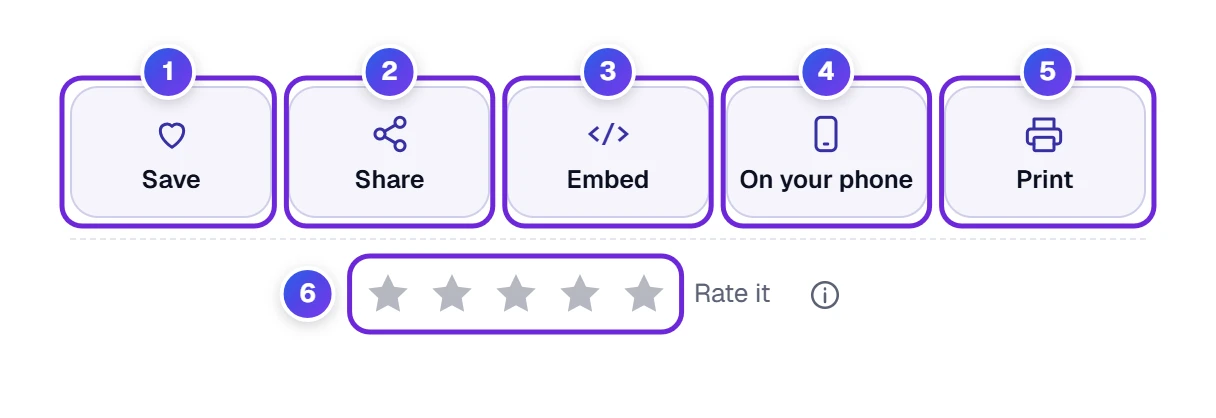
- 1 Save puts the Slug Generator on your ToolHa favorites list.
- 2 Share opens the window below. The link it shares opens the tool with your title already typed in, so a colleague sees exactly the slug you see.
- 3 Embed gives you a short piece of code to show this tool on your own website.
- 4 On your phone gives you a QR code. Scan it with a camera and the tool opens on that device.
- 5 Print prints the tool with your slug (or lets you save it as a PDF). The choices are left off the paper to save ink.
- 6 Use the stars to give the tool a rating. We read every rating and every message in Help us improve further down the page.
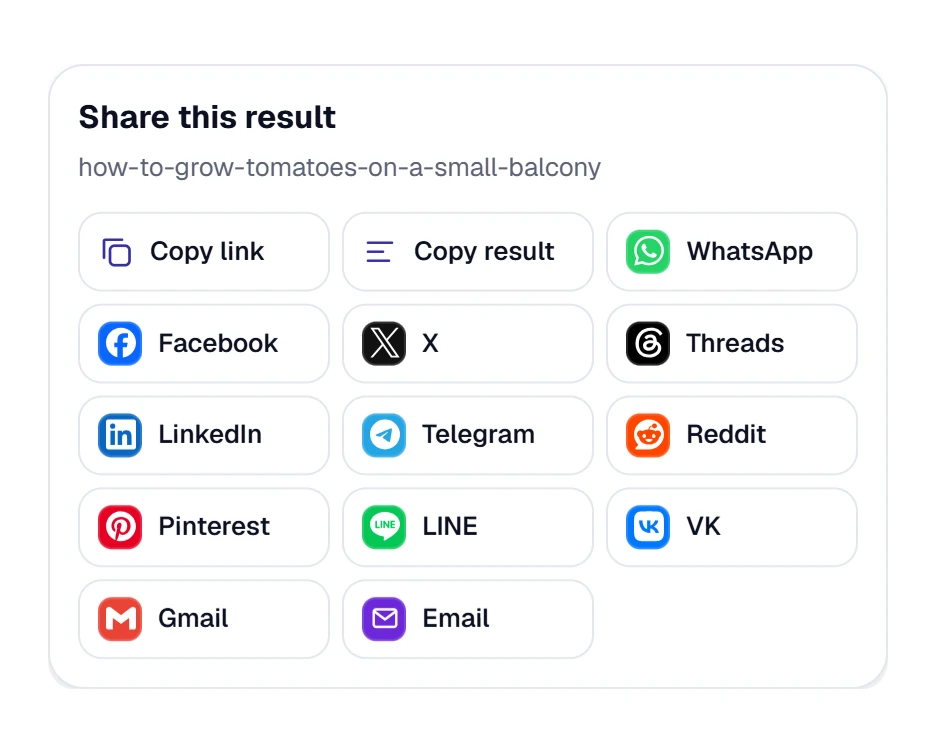
In the Share window, Copy link copies the link to the tool with your title, Copy result copies just the slug, and the app buttons open WhatsApp, Facebook, X, email and more with the link ready to send.
Single-Key Shortcuts for the Slug Generator
If you use a keyboard, a few single keys make things faster. They work when you are not typing inside a box. Press ? at any time to see the list.
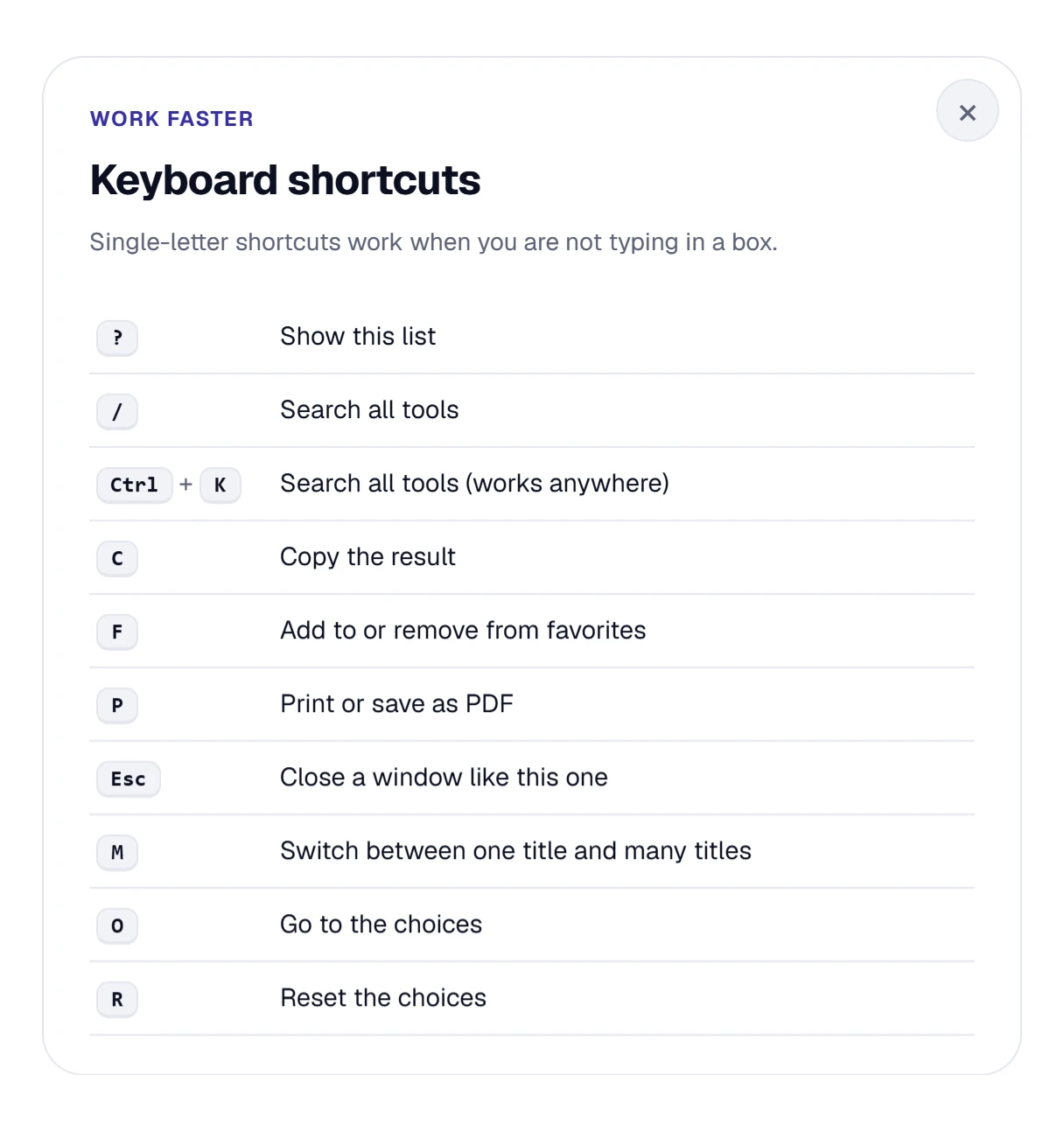
- C copies the slug.
- M switches between one title and many titles.
- O jumps down to the choices.
- R resets the choices.
- F puts the tool on your favorites list, and P prints. Esc closes any open window.
Making Slugs on a Phone
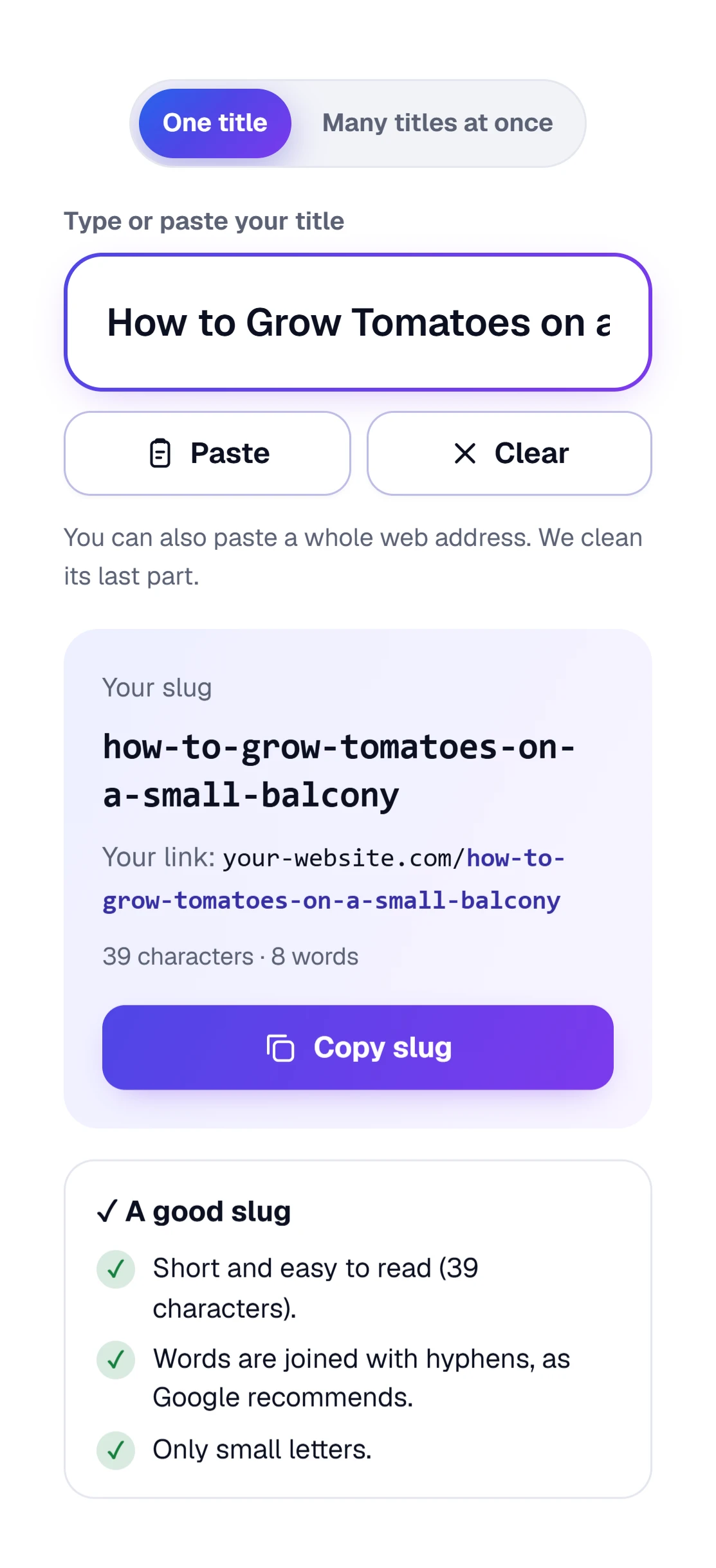
On a small screen everything stacks into one column so each part is easy to tap: the title box on top, Paste and Clear side by side under it, then the slug with a wide Copy slug button. The choice boxes sit one under the other.
Where Do I Put My New Slug?
You have copied your slug. Now it goes into your website. Every website builder has a box for it; it just has a different name. Here is where to look:
| Website builder | What the box is called | Where to find it |
|---|---|---|
| WordPress | Link, URL or Permalink | Open the post or page. In the settings panel on the right, click the link or URL setting and paste the slug. |
| Shopify | URL handle | Open the product or page, scroll to Search engine listing and choose Edit. |
| Blogger | Permalink | In the post settings on the right, open Permalink, choose Custom permalink and paste the slug. |
| Wix | URL slug | In the page or blog post SEO settings. |
| Squarespace | URL slug | In the page settings. |
Paste only the slug, not the whole address. Most builders add the website part for you.
In that same settings area you will usually also see boxes for the page’s SEO title and description. If you want to know how many characters you have written there, our Word & Character Counter counts them for you as you type.
Changing the Slug of a Page That Is Already Online
This is the one thing to be careful about. When a page is already live, people may have saved its address, shared it or linked to it, and Google already knows it. If you simply change the slug, all of those old links lead to an empty page.
So before you change a live slug, ask yourself whether it is worth it. A slightly long slug that works is better than a perfect one that breaks old links. If you do change it:
- Make the new slug with the tool, as usual.
- Change it in your website builder.
- Make sure the old address sends visitors to the new one. This is called a permanent redirect (or 301 redirect). Google recommends a permanent redirect whenever a page moves for good. WordPress usually does this for you when you change the slug of a published post; Shopify offers a tick box to create the redirect when you change a URL handle; for other builders, look for a Redirects setting.
- Open the old address once in your browser to check that it lands on the new page.
What Makes a Slug “Good”? Five Simple Habits
- Use real words.
easy-banana-breadtells people what they will find;p=4821tells them nothing. Google’s own advice is to use readable words rather than long ID numbers. Put the main topic words in it, the ones a visitor would type to find the page. - Join words with hyphens. Google recommends hyphens instead of underscores.
- Keep it short. Say what the page is about and stop. Around 60 characters or less is a comfortable target.
- Use small letters. It avoids two addresses for one page.
- Leave out dates for pages that last. A guide called
best-gardening-toolscan be updated for years;best-gardening-tools-2026looks old next year.
And one honest word: a good slug will not push a page to the top of Google on its own. What it does is help people understand the link before they click, whether in search results, in messages or on social media. That trust is worth having.
Real Examples You Can Borrow Ideas From
| Who | Title | Slug the tool makes |
|---|---|---|
| Food blogger | Easy One-Bowl Banana Bread (No Mixer Needed!) | easy-one-bowl-banana-bread-no-mixer-needed |
| Online shop | Men’s Waterproof Hiking Boots – Brown | mens-waterproof-hiking-boots-brown |
| Travel writer | A Weekend in Chicago: Where to Eat, Sleep & Explore | a-weekend-in-chicago-where-to-eat-sleep-and-explore |
| Teacher | Week 3 Homework: Fractions & Decimals | week-3-homework-fractions-and-decimals |
| Local business | Spring Cleaning Special — 20% Off in April | spring-cleaning-special-20-percent-off-in-april |
Notice how the travel writer’s slug is quite long. With Remove small words ticked it becomes weekend-chicago-where-eat-sleep-explore: shorter, and still clear.
We tried a few awkward titles while testing. “Rock & Roll Hall of Fame” became rock-and-roll-hall-of-fame, and “100% Natural Lemonade @ Home” became 100-percent-natural-lemonade-at-home, so the symbols turn into words instead of vanishing. “What’s the Best Way to Learn Guitar?” gave whats-the-best-way-to-learn-guitar, with no stray “s” left on its own. And “Café Crème: 10 Best Recipes (2026)!” came out as cafe-creme-10-best-recipes-2026 with a friendly tip about the year in it.
Your Choices and Shared Links
Your choices and your recent slugs are remembered on this device; press Reset or Clear to remove them. When you share a link with Share, the link carries the title so the other person sees the same slug.
Small Hiccups and Quick Fixes
| What happens | Why | What to do |
|---|---|---|
| Paste does nothing or shows a message | Your browser wants your permission, or does not allow pasting from a button. | Press Allow, or click inside the box, then paste with your keyboard. On a phone, hold your finger in the box and choose Paste. |
| The box says “Add a few letters or numbers” | The title has only symbols or emoji. | Type at least one word. |
| The slug looks different from yesterday | The page kept the choices you made last time. | Press Reset to go back to the Best settings. |
| There is no Copy full link button | It only appears when a website address is filled in. | Type your website in Your website address. |
| “Some letters could not be changed to English letters” | Some alphabets have no simple English version. | Keep them (it works in WordPress and most builders) or type the title in English. |
| An uploaded list looks wrong | The file has several columns or no line breaks. | Use one title per line; in a CSV file, put the titles in the first column. |
Questions People Often Ask
What Is a URL Slug?
It is the last part of a web address, after the final slash, that names one page, for example easy-banana-bread in example.com/recipes/easy-banana-bread. A good slug uses a few plain words joined with hyphens.
Should I Use Hyphens or Underscores in a URL?
Use hyphens. Google recommends hyphens instead of underscores to separate words in a web address, and hyphens are what the Slug Generator uses unless you pick Underscore.
How Long Should a URL Slug Be?
As short as it can be while still saying what the page is about. Around 60 characters or less is comfortable to read; the tool tells you when a slug is longer and offers ways to shorten it.
Do Slugs Help SEO?
A little, mostly by making the link clear to people. A readable slug helps searchers understand the page before they click, but it will not make a page rank by itself. Helpful content does that.
Should I Remove Words Like “the”, “and” or “of”?
Only if the slug gets long. Small words are harmless, but removing them makes long slugs shorter. Tick Remove small words to do it; you can edit the list of words it removes.
Can a Slug Have Capital Letters or Letters Like é or ü?
It can, but small plain letters are the safest choice because they work everywhere and avoid two addresses for one page. If your website is written in another language, pick Keep them as they are.
Is the Slug Generator Free?
Yes, it is completely free with no sign-up. Your choices and recent slugs are remembered on your own device, and you can clear them at any time.