Paste your text and press one button to change it to Sentence case, lower case, UPPER CASE, Capitalize Each Word or Title Case, or flip it with tOGGLE cASE (also called inverse case or swap case). There are fun styles too, like aLtErNaTiNg cAsE and rAnDoM cAsE. Only the letters change: your spaces, line breaks, punctuation and emoji stay exactly as they were, and names such as NASA and iPhone are kept right.
Quick Start: Change the Case of Your Text in 3 Steps
The picture shows the Case Converter with its parts numbered. When a step mentions a number, that is the part to look for.
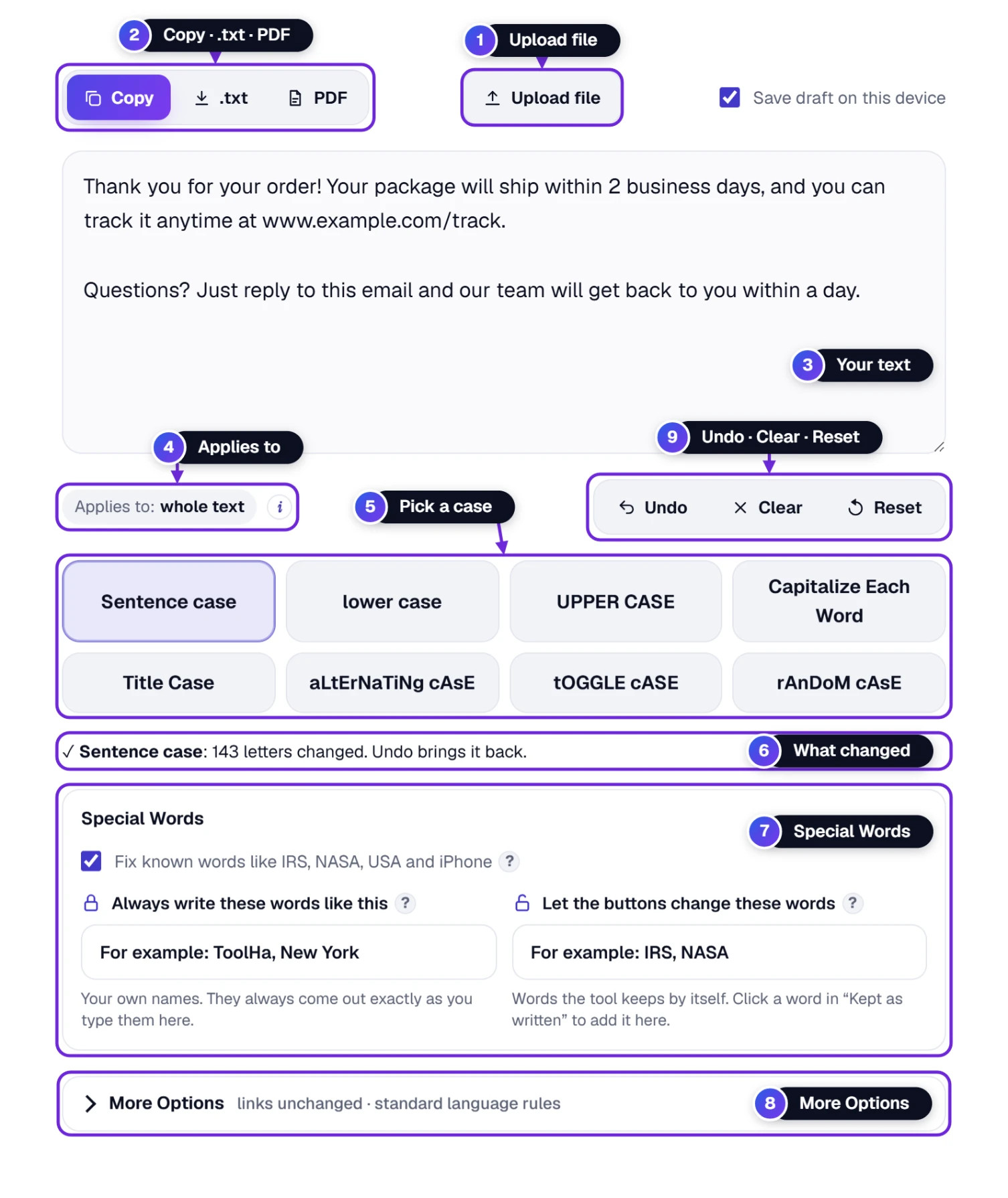
- Put your text in the box 3: type it, paste it (Ctrl + V, or ⌘ + V on a Mac, or the big Paste text button in the middle of the empty box), or open a file with Upload file 1.
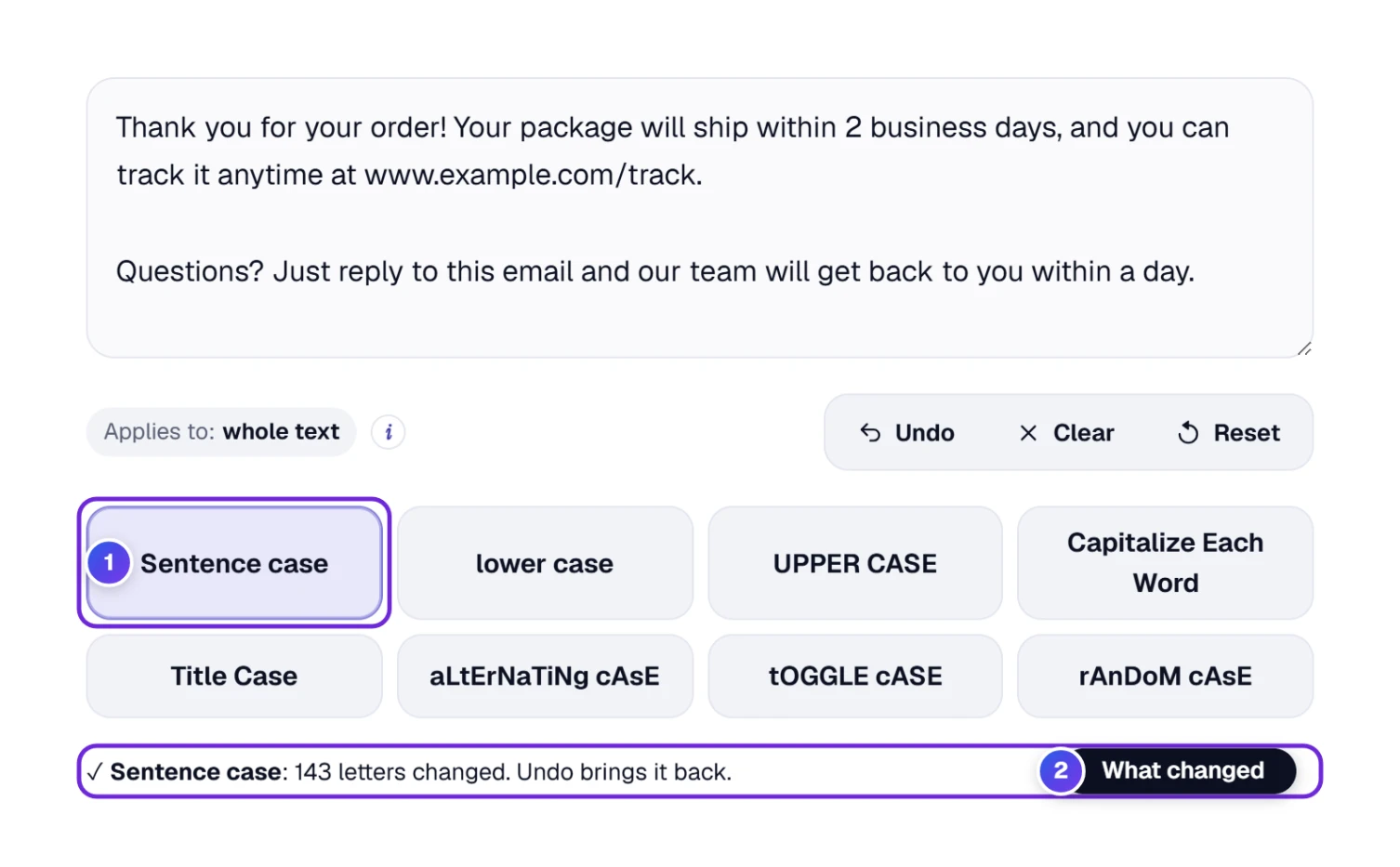
- Press a case button 5, for example Sentence case. The text changes at once, and the line under the buttons 6 tells you how many letters changed. Not what you wanted? Undo 9 sits right above the buttons.
- Copy your text with Copy 2, or save it as a .txt file or a PDF.
Most fixes take just those three steps. The rest of this guide explains each case, how to change only part of your text 4, and the two boxes under the buttons: Special words 7 keeps names like iPhone and NASA the way you want them, and More options 8 holds the link and language settings.
Pick the Right Case for Your Text
There are eight buttons, and each one is written in its own style, so you can see the result before you press it. Press another button at any time; you can switch between cases as often as you like.
| Button | What it does | Example | Good for |
|---|---|---|---|
| Sentence case | A capital letter only at the start of each sentence (and for “I”) | The best coffee shops in new york city: a local guide | Emails, essays, text typed in capitals |
| lower case | Every letter small | the best coffee shops in new york city: a local guide | Tags, file names, a fresh start before another case |
| UPPER CASE | Every letter a capital | THE BEST COFFEE SHOPS IN NEW YORK CITY: A LOCAL GUIDE | Headings on posters, labels, short warnings |
| Capitalize Each Word | Every word starts with a capital (like Excel’s PROPER) | The Best Coffee Shops In New York City: A Local Guide | Names in a list, product names, addresses |
| Title Case | Every word starts with a capital, except short words such as a, the, and, of, in | The Best Coffee Shops in New York City: A Local Guide | Headlines, blog titles, book and video titles |
| aLtErNaTiNg cAsE | Small and capital letters take turns | tHe BeSt CoFfEe ShOpS iN nEw YoRk CiTy: A lOcAl GuIdE | Jokes and memes |
| tOGGLE cASE | Every small letter becomes a capital and every capital a small letter | wHY DOES MY TEXT LOOK LIKE THIS? → Why does my text look like this? | Fixing text typed with Caps Lock on |
| rAnDoM cAsE | Random small and capital letters; press again for a new mix | tHe bEsT cOFfee ShoPS… | Playful captions and usernames |
Sentence case cannot know that “new york city” is a name. Type New York into Always write these words like this in the Special words box (see below) and it is written correctly every time.
Other Names for the Same Buttons
The same idea goes by many names online. Find the name you know in the first column and press the button next to it.
| You may know it as | Press | What you get |
|---|---|---|
| capital letters, all caps, uppercase | UPPER CASE | hello world → HELLO WORLD |
| lowercase, small letters | lower case | Hello World → hello world |
| sentence case, capitalize the first letter of a sentence | Sentence case | HELLO WORLD. THIS IS A TEST → Hello world. This is a test |
| proper case, start case, capitalize the first letter of each word | Capitalize Each Word | hello world → Hello World |
| title case, headline case, title capitalization | Title Case | the lord of the rings → The Lord of the Rings |
| toggle case, inverse case, swap case, flip case, reverse case | tOGGLE cASE | Hello World → hELLO wORLD |
| alternating case, mocking case, SpongeBob case, wavy text | aLtErNaTiNg cAsE | hello world → hElLo WoRlD |
| random case, mixed case | rAnDoM cAsE | hello world → a new random mix every press |
| Caps Lock fix, wrong capitals | tOGGLE cASE for swapped text, Sentence case for text that is all capitals | hELLO wORLD → Hello World |
Microsoft Word has the swap button too, under the same name, in its Change Case menu.
Write Headlines and Titles With Title Case
A title with the right capitals looks professional in a blog post, a YouTube video, an email subject or a school report. Title Case does the capitals for you.
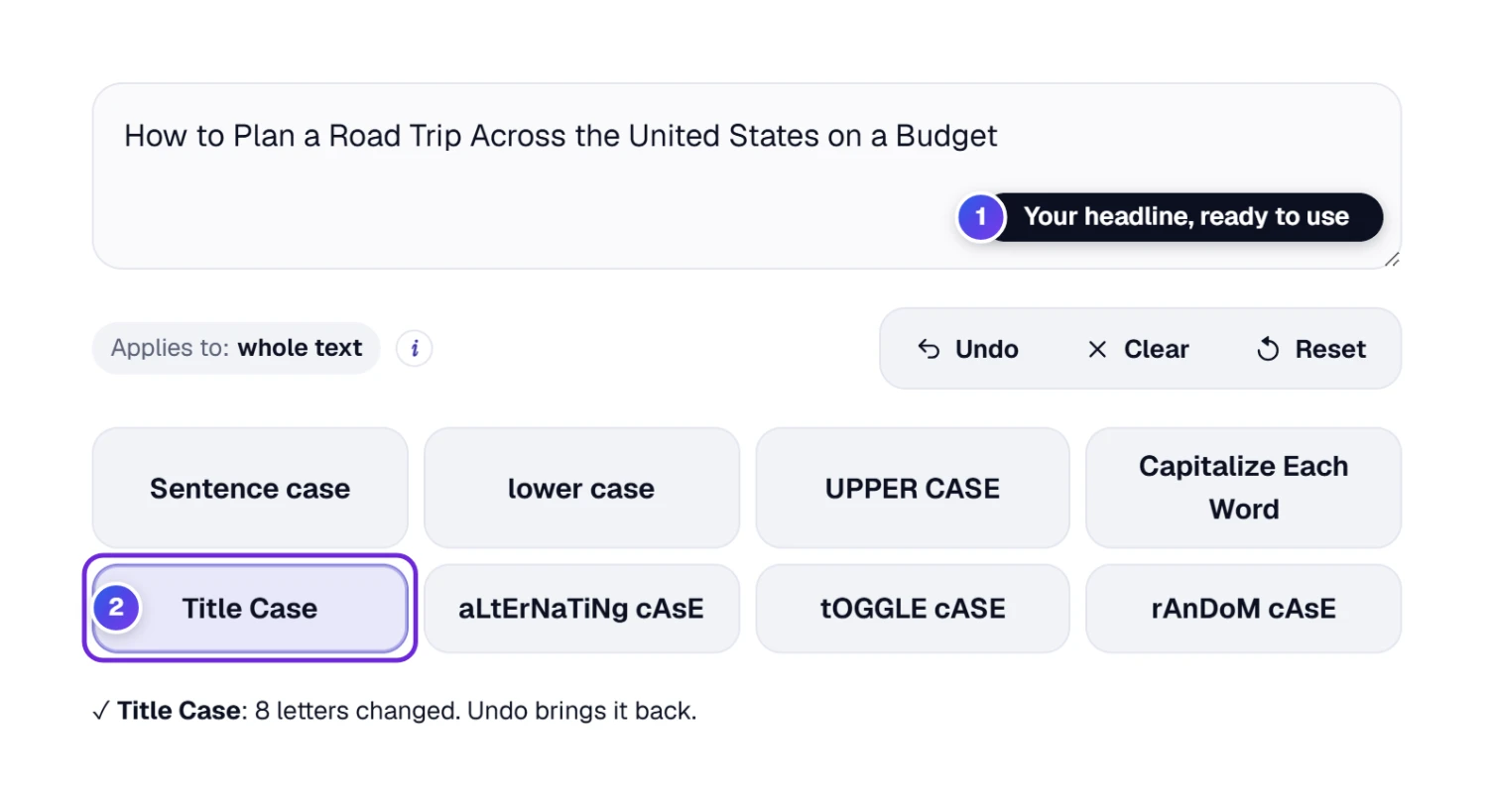
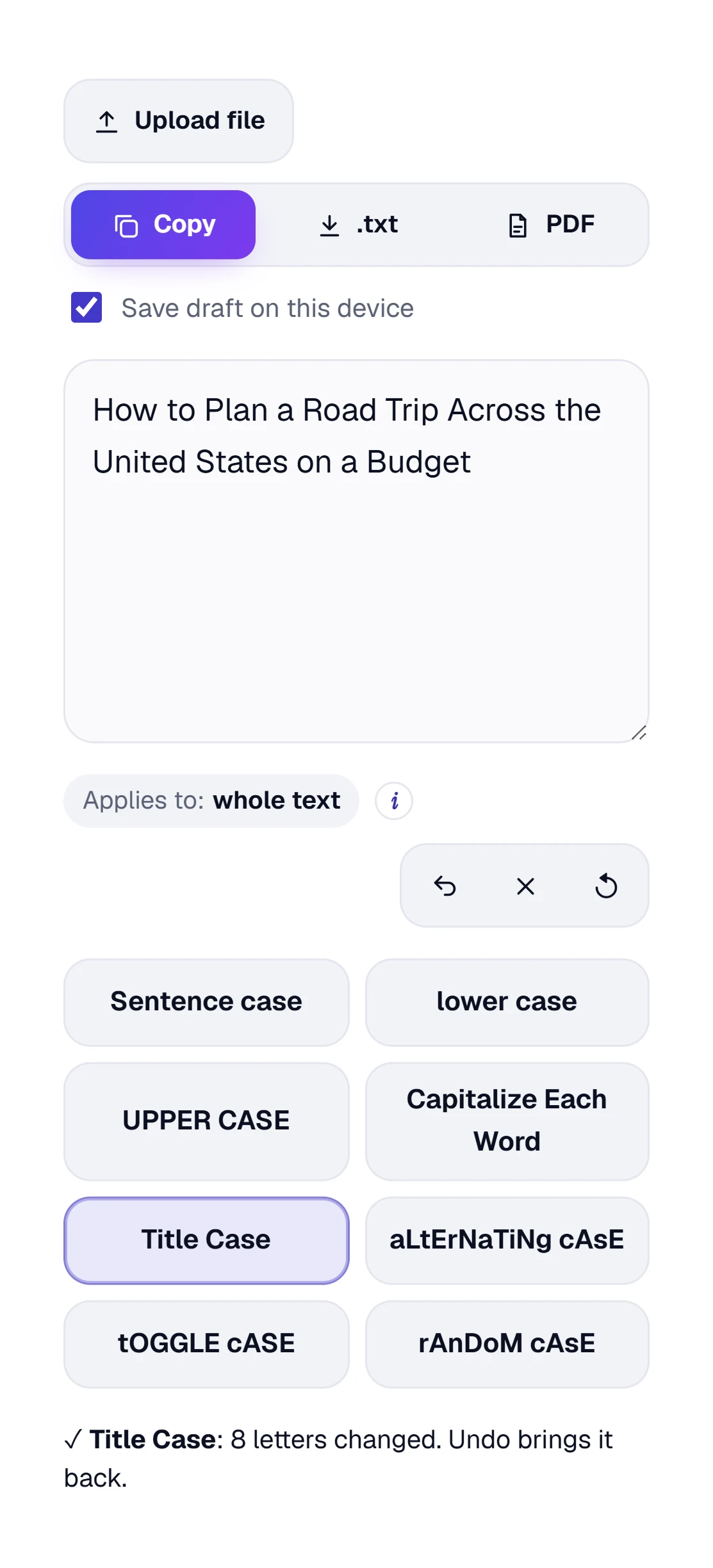
- Type or paste your headline, for example how to plan a road trip across the united states on a budget.
- Press Title Case 2.
- Your headline 1 now reads How to Plan a Road Trip Across the United States on a Budget. Press Copy and paste it where you need it.
Our Title Case follows a simple rule that most American style guides agree on:
- Every word starts with a capital letter, and the rest of the word is made small.
- Short words stay small in the middle of a title: a, an, the, the joining words and, but, or, nor, for, so, yet, and short words such as as, at, by, in, of, on, per, to, via, vs.
- The first and the last word always get a capital, and so does the first word after a colon (:), a dash, a full stop, a question mark or an exclamation mark.
- Each line is its own title, so a list of headlines works in one go.
- Acronyms and brand names such as NASA or iPhone stay as they are.
Style guides such as AP, APA, Chicago and MLA disagree on a few small words (for example whether to capitalize “with” or “from”). If your school or editor follows one guide, check those words by hand.
Capitalize Each Word or Title Case: Which One?
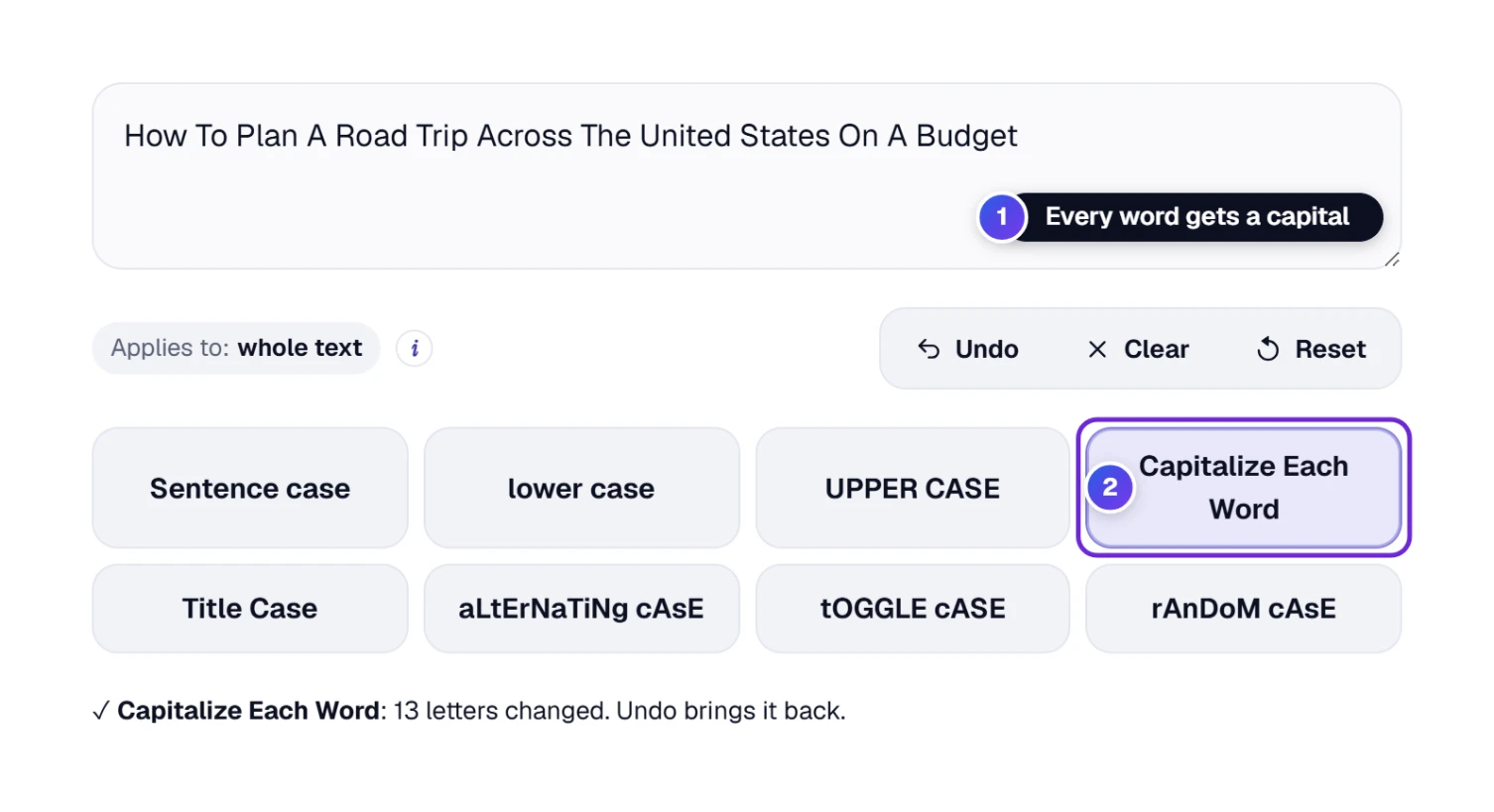
Both buttons give you capitals at the start of words, and on a short name they give the same result. They differ when your text has little words such as of, the, to or on.
| Your text | Capitalize Each Word | Title Case |
|---|---|---|
| the lord of the rings | The Lord Of The Rings | The Lord of the Rings |
| how to plan a road trip across the united states on a budget | How To Plan A Road Trip Across The United States On A Budget | How to Plan a Road Trip Across the United States on a Budget |
| john smith, 123 main street | John Smith, 123 Main Street | John Smith, 123 Main Street |
- Use Capitalize Each Word for names, addresses, product lists and anything where every word is a name. People also look for this as proper case or start case, and it matches Excel’s PROPER formula.
- Use Title Case for headlines, blog titles, email subjects and the titles of books, films and videos.
From our own tests: both buttons also fix text that is typed with the wrong capitals inside the words. We pasted “hELLO wORLD” and pressed either one, and it came out as “Hello World”.
Fix Text Typed With Caps Lock On
It happens to everyone: you type a whole sentence and then notice that Caps Lock was on. Do not type it again. With Caps Lock on, every letter you type with Shift comes out small and every other letter comes out as a capital, so the text is swapped. The swap button turns it back.
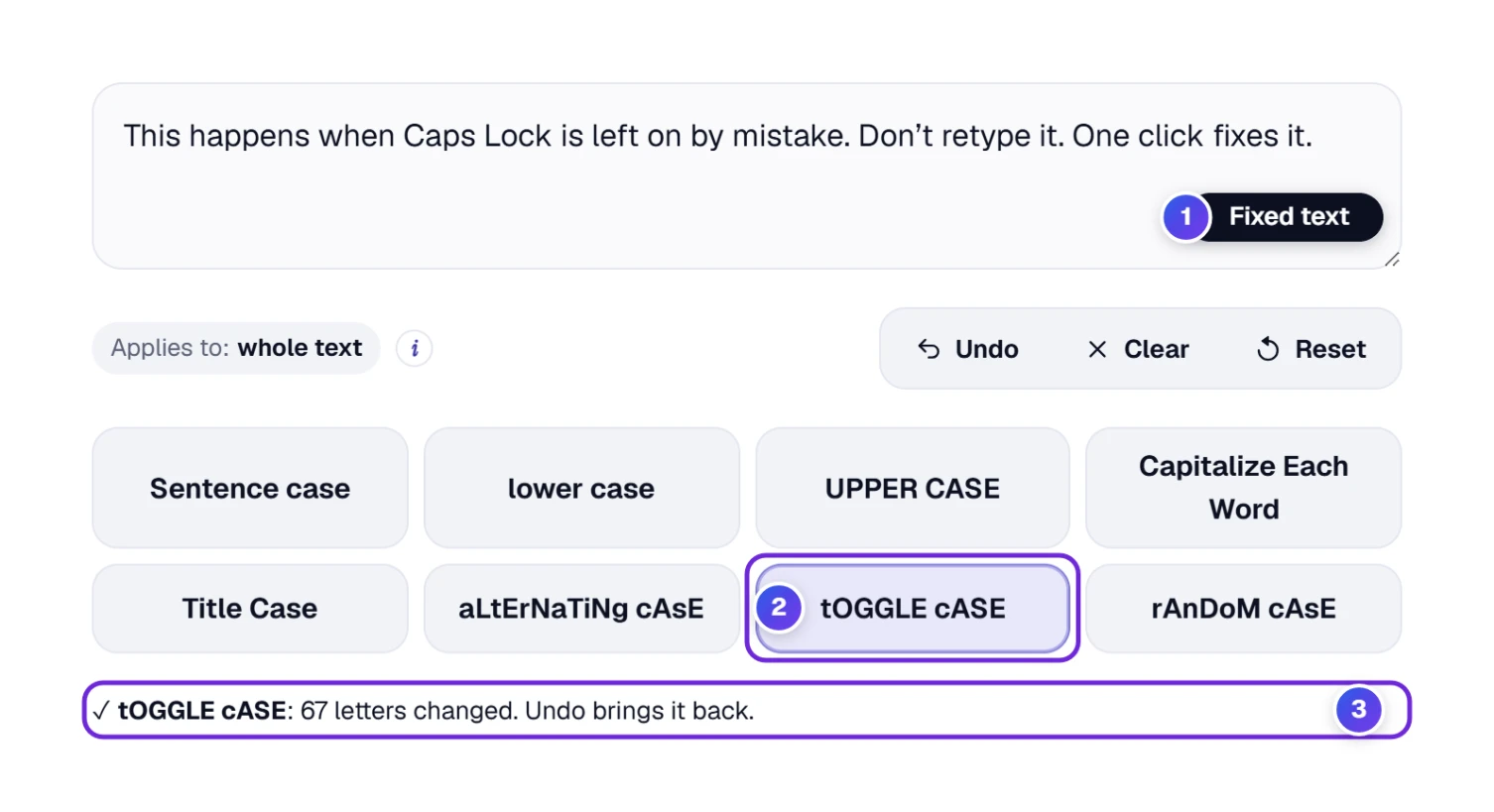
- Paste the text, for example tHIS HAPPENS WHEN cAPS lOCK IS LEFT ON.
- Press tOGGLE cASE 2. Every small letter becomes a capital and every capital becomes small.
- The text 1 now reads This happens when Caps Lock is left on.
From our own tests: we pasted “Hello World, I am OK” and pressed tOGGLE cASE. It became “hELLO wORLD, i AM ok”, and a second press brought the original text back. Only the letters swap, so a swap button is the safest way to undo a Caps Lock mistake.
If your text is all in capitals (not swapped), press Sentence case instead. If it is swapped and you also want proper sentences, press tOGGLE cASE first and look at the result.
Change Only Part of Your Text
Sometimes only one line or one word needs a new case, such as a heading in the middle of a document, or a name. Select that part first, and the buttons change only what you selected.
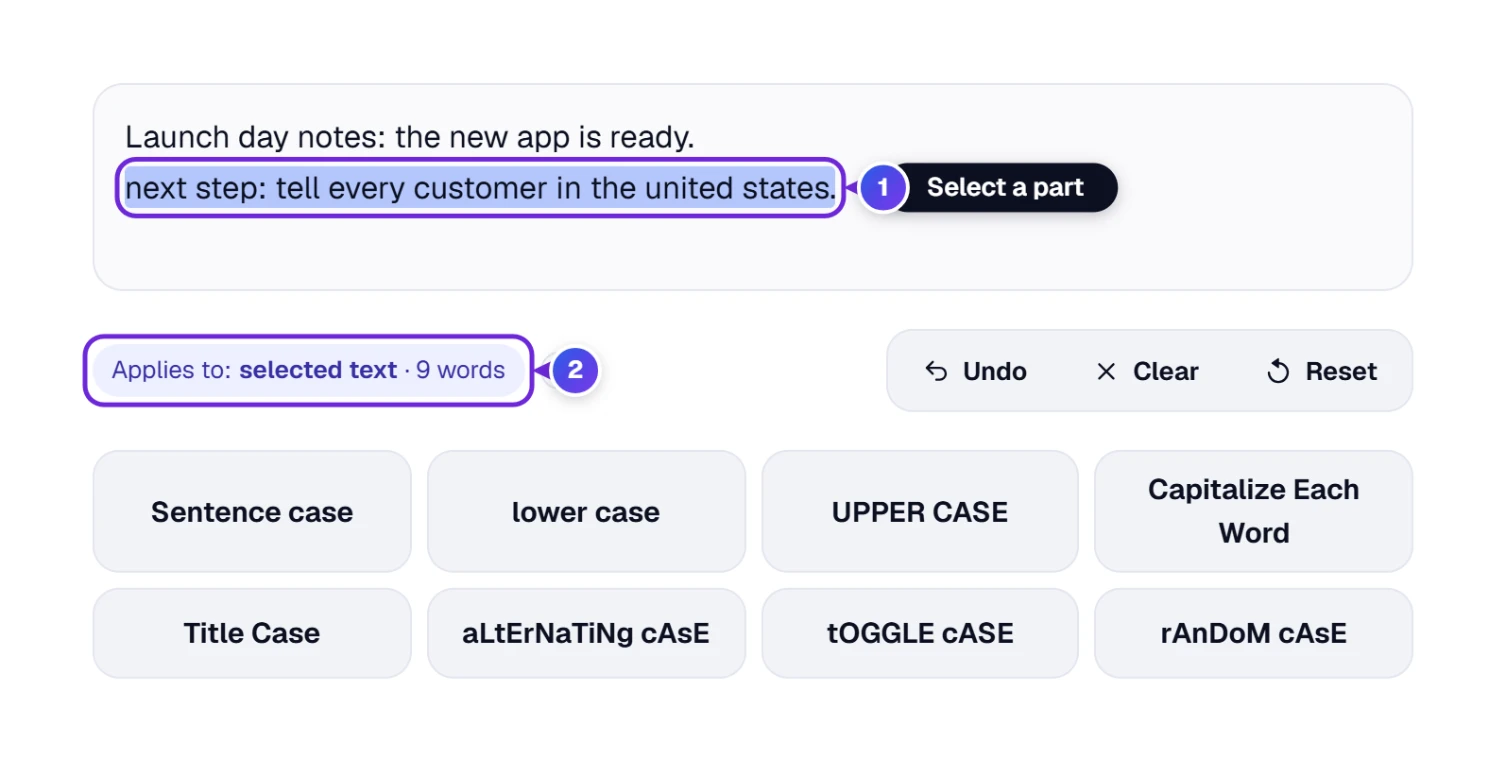
- Select the words with your mouse (or hold Shift and use the arrow keys). On a phone, press and hold a word, then drag the handles.
- Look at Applies to 2: it now says selected text and how many words you selected.
- Press a case button. Only your selection changes, and it stays selected so you can try another case. The result line says so, for example “Title Case (selected text): 7 letters changed”.
With nothing selected, Applies to says whole text, and the buttons change everything in the box. Click anywhere outside the text box (a button keeps your selection, so it still works on it) and the selection is dropped, so Applies to says whole text again.
Keep IRS, NASA, iPhone and Your Own Names Right
Plain case converters turn NASA into “Nasa” and iPhone into “Iphone”. Ours knows many of these words and keeps them right when you use Sentence case, lower case, Capitalize Each Word or Title Case.
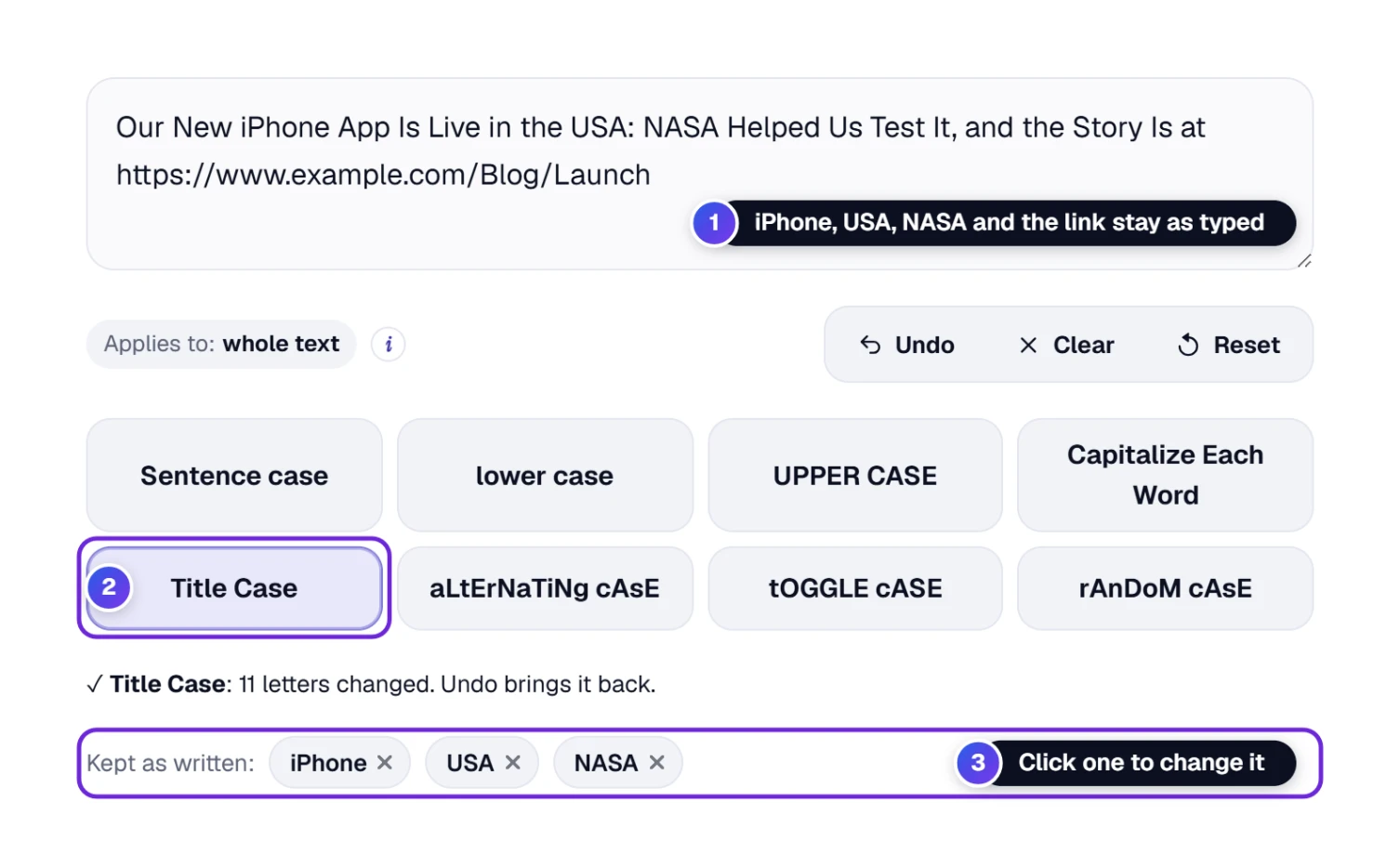
- Well-known acronyms: more than 800 of them, such as IRS, FBI, NASA, ATM and HTML, always come out in capitals, even when you typed them in small letters.
- Brand names with a capital inside: iPhone, eBay, YouTube and PayPal keep their special spelling, and about ninety well-known names come out right even from small letters. Names that are also everyday words (apple, amazon, windows) are left alone, so “apple pie” stays “apple pie”.
- Short words with two meanings, such as us, it or who, are kept in capitals only when you typed them in capitals inside a normal text. Otherwise they are treated as ordinary words.
- Web addresses and email addresses never change unless you switch that off (see More options below).
Under the buttons, a row called Kept as written 3 lists the words the tool protected in your last change. If you do want one of them changed, click it and it moves to your own list (the last box below).
The tool is careful about this. If your whole text is in capitals (Caps Lock), or two words in capitals follow each other (like HELLO WORLD), it knows they are not acronyms and changes them normally. Known words such as NASA stay right even then.
Open the Special words card 7 to change how this works:
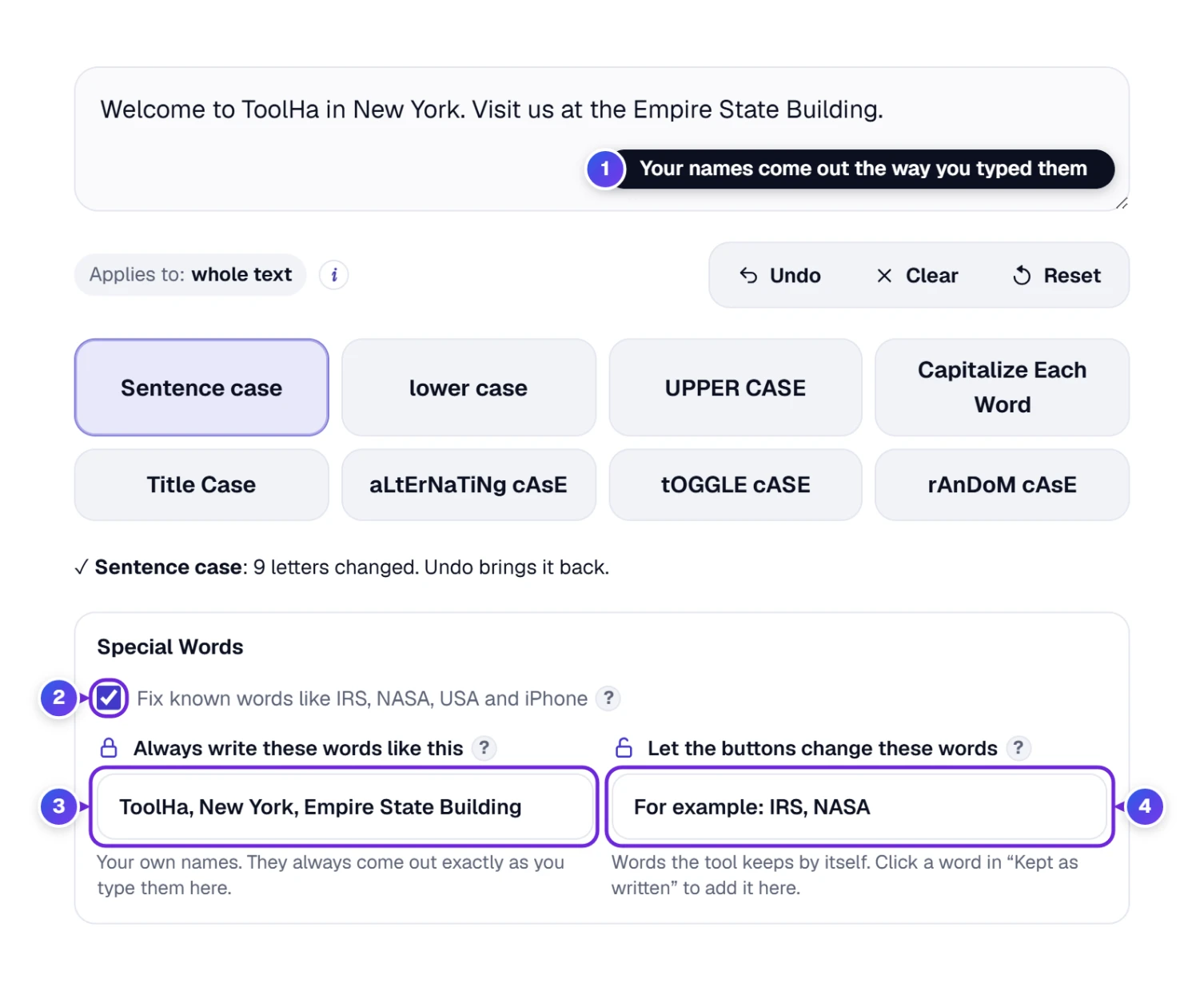
- 1 Your text: the names in it come out the way you wrote them in the box below, here ToolHa, New York and Empire State Building.
- 2 Fix known words like IRS, NASA, USA and iPhone: on by default. Switch it off if you want every word changed, no exceptions.
- 3 Always write these words like this: your own names, written the way they must look, with a comma or a new line between them: iPhone, New York, McDonald’s. They are used by Sentence case, lower case, Capitalize Each Word and Title Case, and names of two or more words work too.
- 4 Let the buttons change these words: words the tool keeps by itself that you would rather have changed. Click a word under “Kept as written” to add it here.
From our own tests: we pasted “I BOUGHT A NEW IPHONE FROM APPLE IN NEW YORK” and pressed Sentence case. iPhone came out right, but “apple” and “new york” went small, because the tool cannot tell a company or a city from an ordinary word. Add them to Always write these words like this. In the same way, “my nasa trip to the irs office” in Title Case became “My NASA Trip to the IRS Office”. It knew McDonald’s, but wrote O’Neill as “O’neill”, another one for your own list.
More Options: Links and Language Rules
Open More options under the Special words card to make the tool work your way. Your choices are remembered on this device, and the short line next to More options (for example “links unchanged · standard language rules”) tells you what is switched on, even when the box is closed.
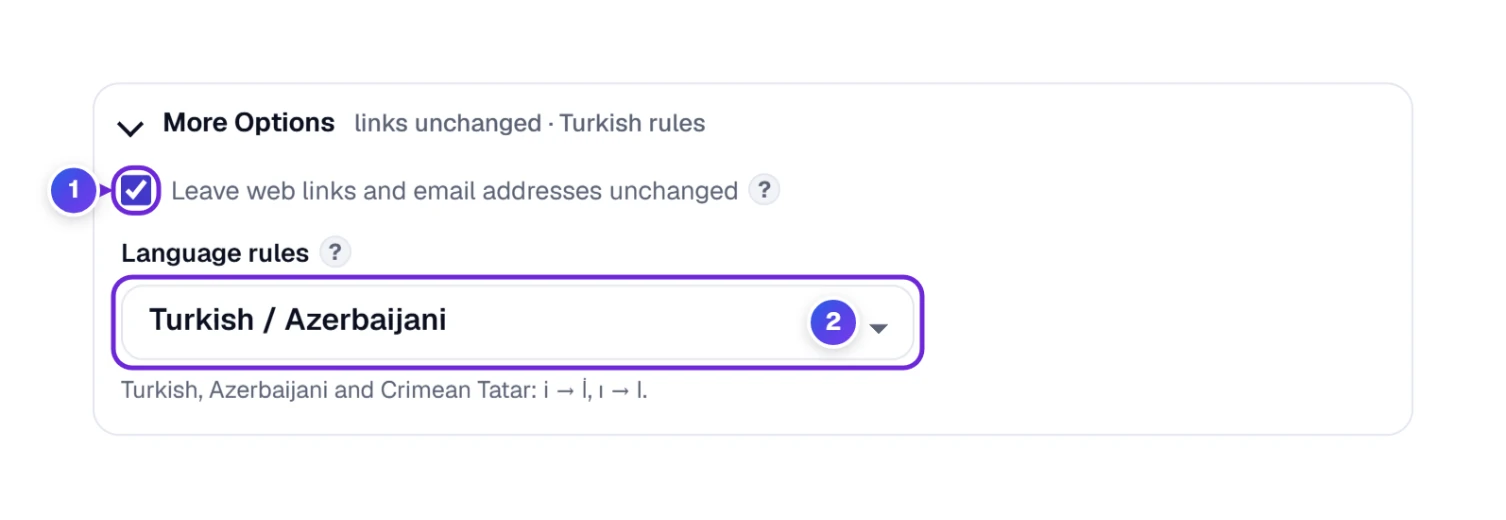
- 1 Leave web links and email addresses unchanged: on by default, because a link can stop working when its letters change, even in UPPER CASE. Switch it off to change them like any other text.
- 2 Language rules: Standard works for English and most languages. A few languages have their own rules, so pick yours from the list:
| Choose | What changes | Example |
|---|---|---|
| Turkish, Azerbaijani, Crimean Tatar | Small i becomes İ (with a dot) and dotless ı becomes I | istanbul → İSTANBUL, ılık → ILIK |
| Greek | No accents on words written in capitals, as Greek spelling requires; a capital at the start of a word keeps its accent | Καλημέρα → ΚΑΛΗΜΕΡΑ, άλφα → Άλφα |
| Lithuanian | Keeps the dot on i when it also has an accent mark | Ì → i̇̀ in lower case |
| Dutch | A word that starts with ij gets both letters capitalized | ijsland → IJsland |
Some rules need no choice at all: the German ß becomes SS in UPPER CASE, the Greek σ turns into ς at the end of a word in lower case, and the Croatian and Serbian letters dž, lj and nj become Dž, Lj and Nj at the start of a word, all automatically.
Press Reset 9 (next to Undo, above the case buttons) to put all settings back to how they were on your first visit.
Text in Other Languages
The Case Converter works with every alphabet that has capital and small letters: English, Spanish, French, German, Portuguese, Polish, Greek, Russian and many more. Accents stay in place (é becomes É), and the German ß becomes SS in UPPER CASE, as the official Unicode rules say.
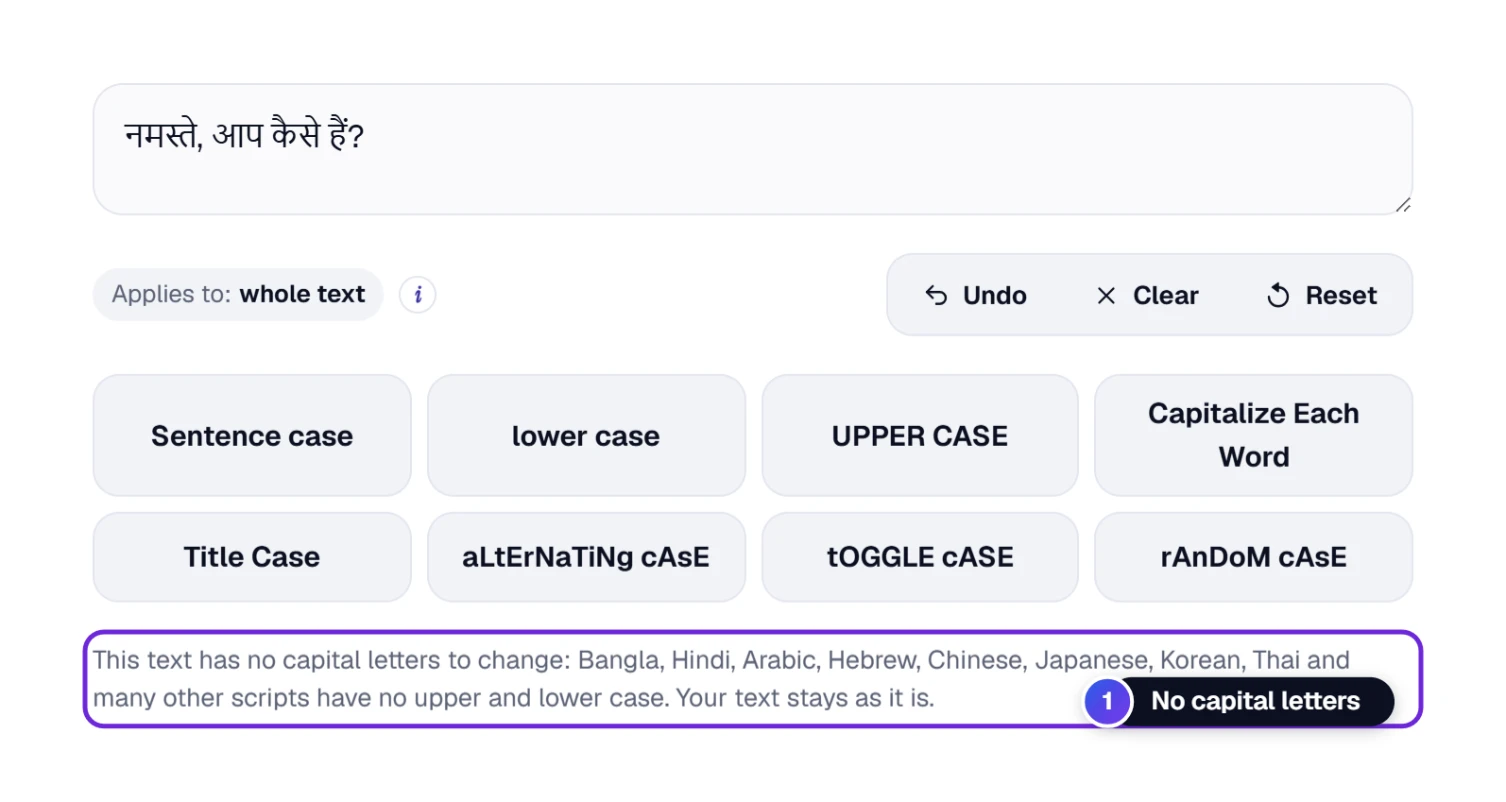
Many writing systems have no capital letters at all, for example Hindi, Arabic, Hebrew, Chinese, Japanese, Korean and Thai. If your text is in one of them, the tool tells you so and leaves your text exactly as it is.
Add Text From a File
Got a document written in capitals, or a list you exported from another program? Open the file directly instead of copying and pasting.
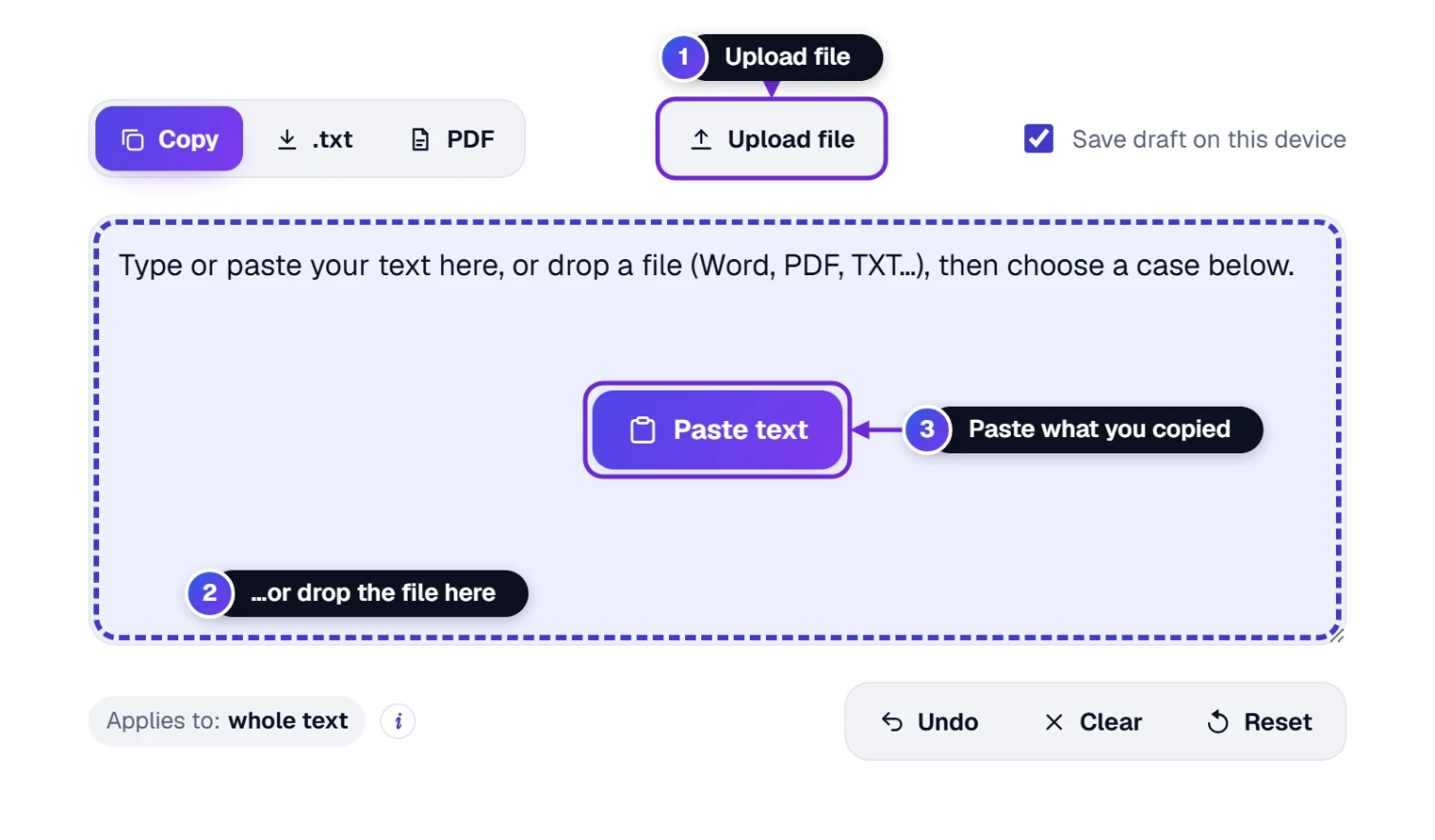
- Press Upload file 1 and choose a Word, PDF, Excel, PowerPoint, EPUB or text file, or drag the file onto the text box 2, which lights up.
- The text appears in the box. Change its case with any button.
- Save the result as a .txt file or a PDF (see the next section).
A scanned PDF (a picture of a page) has no text to read, so it will not work.
Copy, Save and Undo
When your text looks right, take it with you. And if a button did something you did not want, go back.
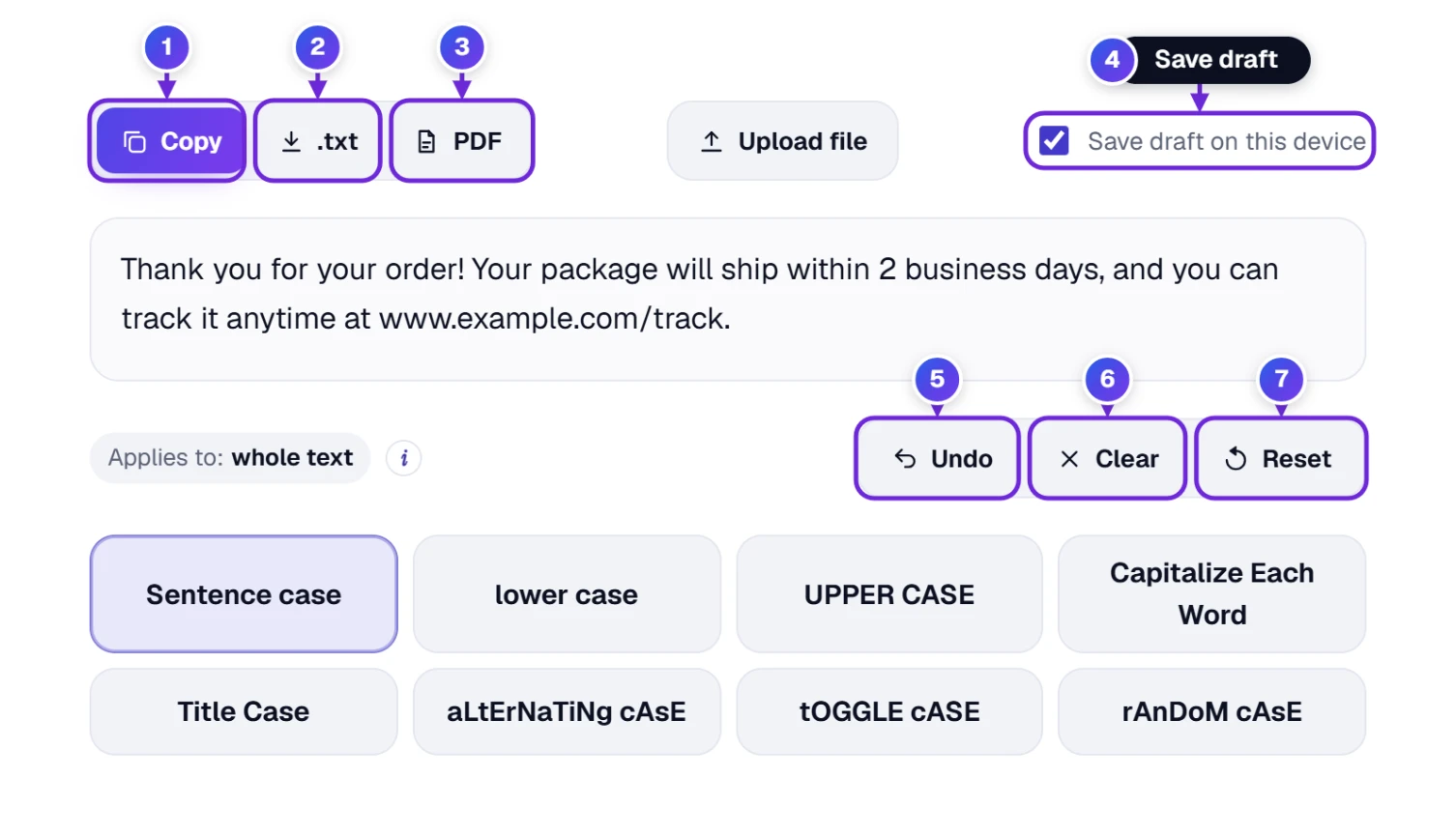
| # | Button | What it does |
|---|---|---|
| 1 | Copy | Copies the whole text, or only the selected part, so you can paste it anywhere. Press C while you are not typing in the box and it copies too. |
| 2 | .txt | Downloads the text as a plain text file (case-converter.txt). A small progress card at the bottom of the page says Done! when the file is ready. |
| 3 | Opens the print window: choose “Save as PDF” to get a PDF file, or print it on paper. The same card shows while the print window opens. | |
| 4 | Save draft on this device | Keeps your text in this browser, so it is still there if you close the tab by mistake. |
| 5 | Undo | Takes back the last change. Press it again to go further back (up to 20 steps). |
| 6 | Clear | Empties the text box. Undo brings the text back. |
| 7 | Reset | Starts fresh: clears the text and puts every setting back to how it was on your first visit. |
Send the Fixed Text as a Link
Want a colleague to see your new headline, or a friend to use your list? Share it as a link, with no file or attachment to send.
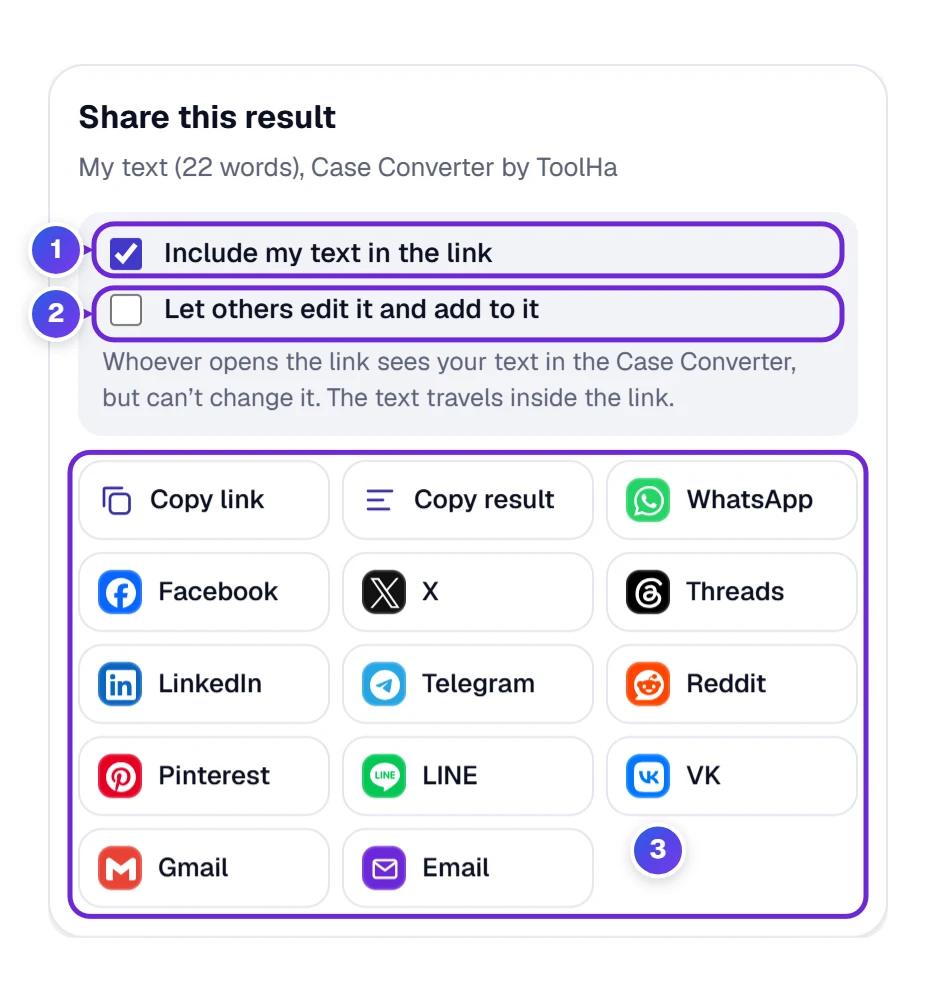
- Press Share under the tool.
- Tick Include my text in the link 1. Tick Let others edit it and add to it 2 if they may change it; otherwise they can only read it.
- Press Copy link, or pick an app such as WhatsApp, Facebook, X or Email 3.
A short text travels inside the link itself. A long text is stored in a locked form for a few days, and not even ToolHa can read it. Whoever opens a read-only link sees your text and can press Start my own text to write their own.
Save, Embed, Print or Rate the Case Converter
Six buttons sit in a row under the text box. This is what each one does here.
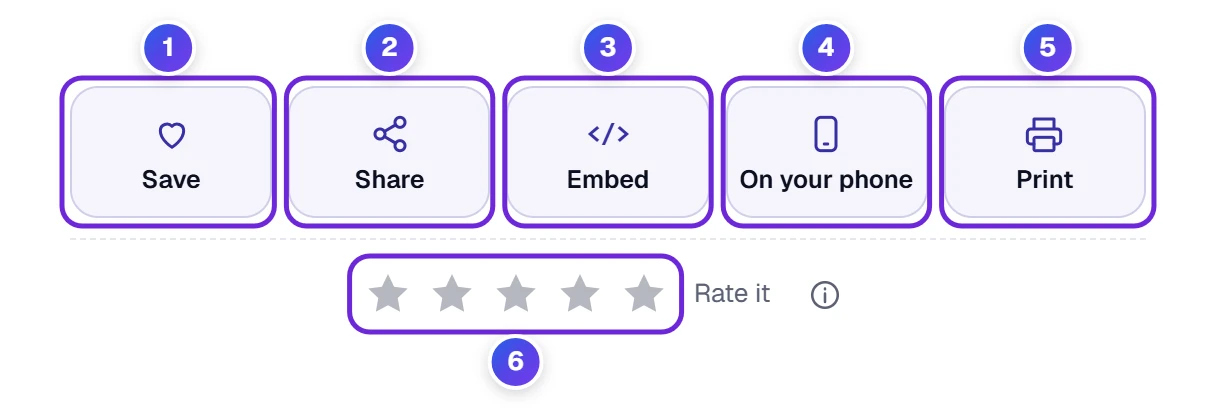
- 1 Save puts the Case Converter in My Tools on our homepage, a list that lives in this browser only.
- 2 Share sends the tool, or your text, as a link (see above).
- 3 Embed gives you the code to show the Case Converter on your own site, for example a writing guide or a team wiki.
- 4 On your phone shows a QR code, so the tool opens on your phone without typing the address.
- 5 Print prints the page or turns it into a PDF.
- 6 Stars let you rate the tool. Found a word it gets wrong, or have an idea? Use the ⓘ button or the “Help us make this tool better” box further down the page.
Change Case Without Touching the Mouse
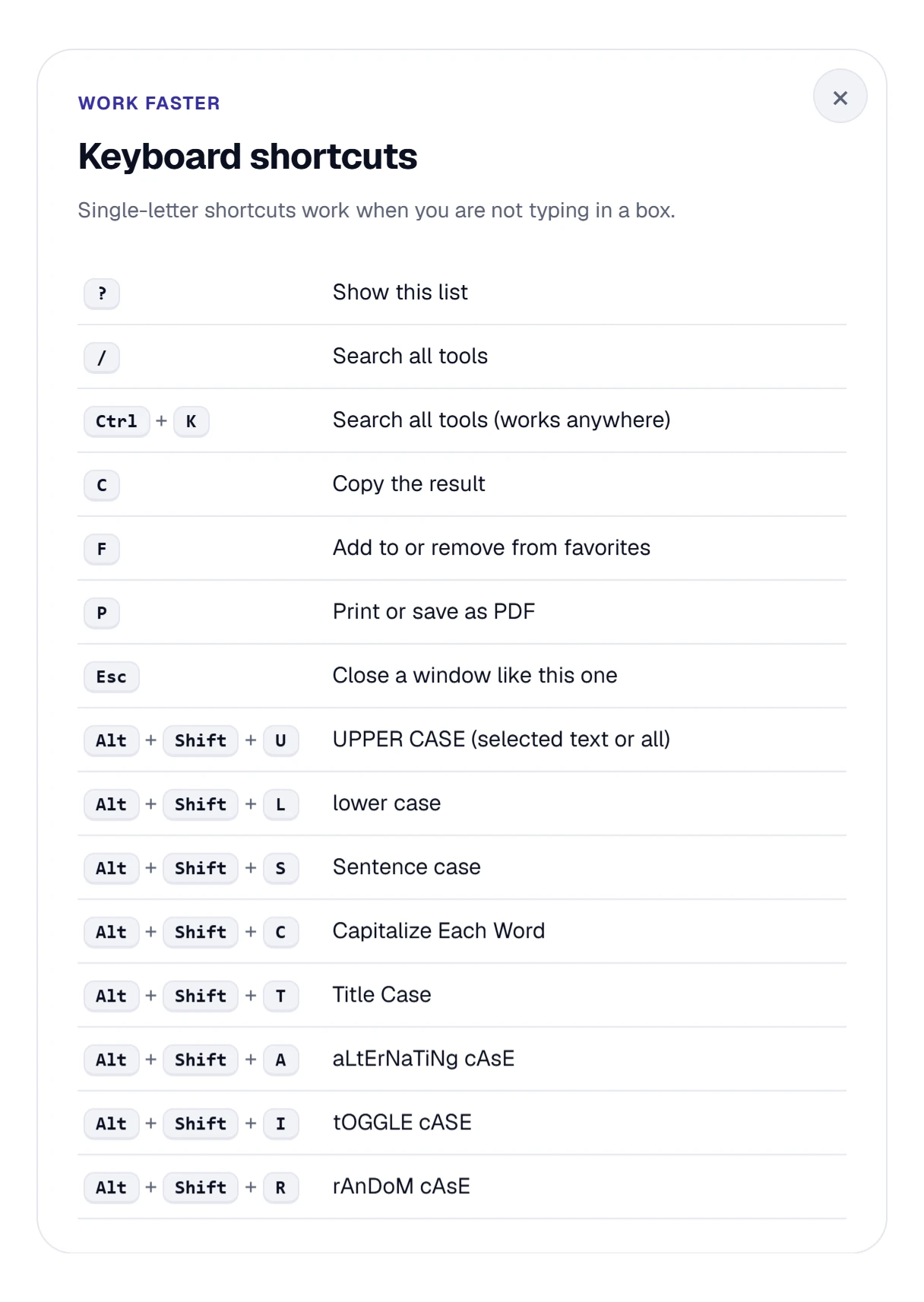
If you change case often, keep your hands on the keyboard. Press ? while you are not typing in the box to see every shortcut.
| Press | To get |
|---|---|
| Alt + Shift + S | Sentence case |
| Alt + Shift + L | lower case |
| Alt + Shift + U | UPPER CASE |
| Alt + Shift + C | Capitalize Each Word |
| Alt + Shift + T | Title Case |
| Alt + Shift + A | aLtErNaTiNg cAsE |
| Alt + Shift + I | tOGGLE cASE |
| Alt + Shift + R | rAnDoM cAsE |
| Press | What happens |
|---|---|
| ? | Shows the list of shortcuts |
| C | Copies the result |
| F | Pins the tool to your favorites, or unpins it |
| P | Starts printing, or lets you keep the page as a PDF |
| / or Ctrl + K | Searches all tools (Ctrl + K works anywhere) |
| Esc | Closes a window like the shortcut list |
On a Mac, use the Option key instead of Alt.
Fixing a Caption on Your Phone
On a phone the case buttons sit two in a row under the text box, and Special words and More options come right after them. To change just one word, press and hold it until it is selected, then tap a case button.
How to Change Case in Word, Google Docs and Excel
Already working in another program? These are the built-in ways to change case there, and when the Case Converter is quicker.
| Program | How to change the case | Good to know |
|---|---|---|
| Microsoft Word | Select the text, then Home → Change Case (Aa) and choose Sentence case, lowercase, UPPERCASE, Capitalize Each Word or tOGGLE cASE. Shift + F3 cycles through three of them. | Word has no Title Case that keeps short words small. |
| Google Docs | Select the text, then Format → Text → Capitalization → lowercase, UPPERCASE or Title Case. | There is no Sentence case, so text typed in capitals is hard to fix there. |
| Microsoft Excel | Use a formula in a new column: =UPPER(A2), =LOWER(A2) or =PROPER(A2) (Capitalize Each Word). | Excel has no Sentence case and no swap-case formula. You can paste a whole column into the Case Converter and paste it back. |
Who Reaches for a Case Converter
- Writers and bloggers turn draft headlines into clean Title Case in one click, the same way every time. When the post is ready to go online, our Slug Generator turns that same headline into a short, clean web address for it.
- Students fix essays and notes typed with Caps Lock on, instead of typing them again.
- Office workers clean up names, addresses and product lists exported in capitals before they go into a letter or a spreadsheet.
- Social media managers make captions and titles that look right on YouTube, Instagram and LinkedIn, or add a playful aLtErNaTiNg line.
- Online shop owners give hundreds of product names the same, tidy capitals.
Need to know how long your text is after you change it? Paste it into our Word & Character Counter. It counts words and characters and checks limits such as the 280 of an X post.
Drafts, Settings and Shared Text
- Your settings and (if you tick Save draft on this device) your text are remembered on this device. Reset removes them.
- Only if you share a long text is a locked copy stored for a few days, which not even ToolHa can read.
When the Result Is Not What You Expected
- A name was changed, for example “New York” became “new york”. The tool cannot know every name. Add it to Always write these words like this in the Special words card.
- A word in capitals stayed in capitals. It looked like an acronym (such as PARIS). Click the word in the Kept as written row to let the buttons change it, or switch off Fix known words in the Special words card.
- A short word such as US or IT turned small. Words with two meanings stay in capitals only when you typed them in capitals inside a normal text. In a text that is all in capitals the tool cannot tell, so add the word to Always write these words like this.
- An acronym came out as “Xyz”. The tool knows more than 800 acronyms, not every one. Type it in capitals, or add it to Always write these words like this.
- A web address changed. Check Leave web links and email addresses unchanged in More options. It should be ticked.
- The Alt + Shift shortcut changes my keyboard language. On some Windows computers Alt + Shift switches the keyboard layout. Use the buttons instead, or turn that Windows shortcut off in the keyboard settings.
- Nothing changes and a note says there are no capital letters. Your text is in a writing system without capital letters (such as Hindi, Arabic or Chinese), so there is nothing to change.
- An uploaded file came in empty. Scanned pages and photos contain an image of the words, not the words themselves. Use the original document instead.
- I pressed the wrong button. Press Undo. It goes back up to 20 steps.
Questions About Changing Case
What Is Toggle Case, Inverse Case or Swap Case?
Toggle case (also called inverse case, swap case, flip case or reverse case) turns every capital letter into a small one and every small letter into a capital, so “Hello World” becomes “hELLO wORLD”. Press tOGGLE cASE. Press it again and your original text comes back.
What Is the Difference Between Title Case and Capitalize Each Word?
Capitalize Each Word (also known as proper case or start case) gives every word a capital letter: “The Lord Of The Rings”. Title Case keeps short words such as a, the, and, of and in small in the middle of a title: “The Lord of the Rings”. Use Title Case for headlines and Capitalize Each Word for names and lists.
What Is Sentence Case?
Sentence case means a capital letter only at the start of each sentence (and for the word “I”), with all other letters small, the way normal text is written. It is the quickest way to fix text that was typed in capitals.
How Do I Change Uppercase to Lowercase?
Paste your text and press lower case. To get normal sentences instead of all small letters, press Sentence case. Both work on the whole text or only on the part you selected.
How Do I Fix Text Typed With Caps Lock On?
Press tOGGLE cASE. It swaps every small letter for a capital and every capital for a small letter, so “hELLO wORLD” becomes “Hello World” in one click. If the whole text is in capitals instead, press Sentence case.
What Is Alternating Case, Mocking Case or SpongeBob Case?
aLtErNaTiNg cAsE makes small and capital letters take turns, so “hello world” becomes “hElLo WoRlD”. People use it for jokes and memes. For random capitals, press rAnDoM cAsE.
Will It Change Names Like iPhone, NASA or My Website Address?
Not by default. Known acronyms such as NASA and IRS, well-known brand names such as iPhone and eBay, and web and email addresses stay as they should. For your own names, such as New York, type them into Always write these words like this in the Special words card.
Does It Work in Other Languages?
Yes, in every language that has capital and small letters, including Spanish, French, German, Greek and Russian, with special rules for Turkish, Azerbaijani, Greek, Lithuanian and Dutch under More options. Languages without capital letters, such as Hindi, Arabic and Chinese, are left unchanged.