The LinkedIn Article Formatter gets an article ready for the LinkedIn article and newsletter editor. Paste it from Google Docs, Word, a web page or Markdown, and the page shows the cleaned version next to your own, with headings, bold, italic, links, quotes and lists kept. A short report names anything LinkedIn will not hold. Then two buttons carry the title and the text across, one each.
Think of it as packing a suitcase before a trip. Some things go in as they are, some have to be folded or taken apart, and a few have to stay at home. This guide goes through the suitcase one item at a time and gives every item a verdict: travels, changes on the way or stays behind. Each verdict comes from pasting sample text into the live tool and reading what came out.
Here is the whole packing list in one table. The sections after it explain each row, so read on only where your own article needs it.
| In your article | Verdict | What you will see |
|---|---|---|
| Title (the first big heading) | Changes | It moves to a Title box of its own, so it is not written twice |
| Headings and subheadings | Travels | They stay headings, one size each |
| Bold and italic | Travels | Both stay as they were |
| Links in sentences | Travels | Google’s detour address is swapped for the real one |
| Links inside a heading | Changes | The link is moved to a line under the heading, or left out if you choose |
| Bullet and numbered lists | Travels, one level | A list inside a list becomes one flat list; numbering starts at 1 |
| Quotes | Travels | A quote inside a quote becomes a second, plain quote |
| Code blocks and dividing lines | Travels | A block stays a block; short code inside a sentence turns plain |
| Tables | Changes | One bullet per row, or a picture you save and add yourself |
| Pictures | Changes | A note is left where each one was, and they are listed under the report |
| Underline, strikethrough, raised and lowered text | Stays behind | Listed in the report so nothing disappears quietly |
| Text colours, highlights, fonts, sizes and centred lines | Stays behind | LinkedIn’s editor picks its own look |
| Videos and embeds | Stays behind | They do not come along with a paste |
What You Need and Which LinkedIn Box This Is For
LinkedIn has two places to write. A post is the short box at the top of your feed, and in the guides we read it has no bold or italic buttons of its own. An article is written in a separate editor with real headings and links, and the newsletter guides we read say a newsletter issue is written in that same editor. This formatter is for the second place. If you’re looking for bold words inside a post, it can’t help, and it’s better to say so now than after you’ve tried.
You need three things: your article in Google Docs, Word, a web page or Markdown, a browser tab with the LinkedIn article editor open, and about two minutes. Nothing to install and no account to make.
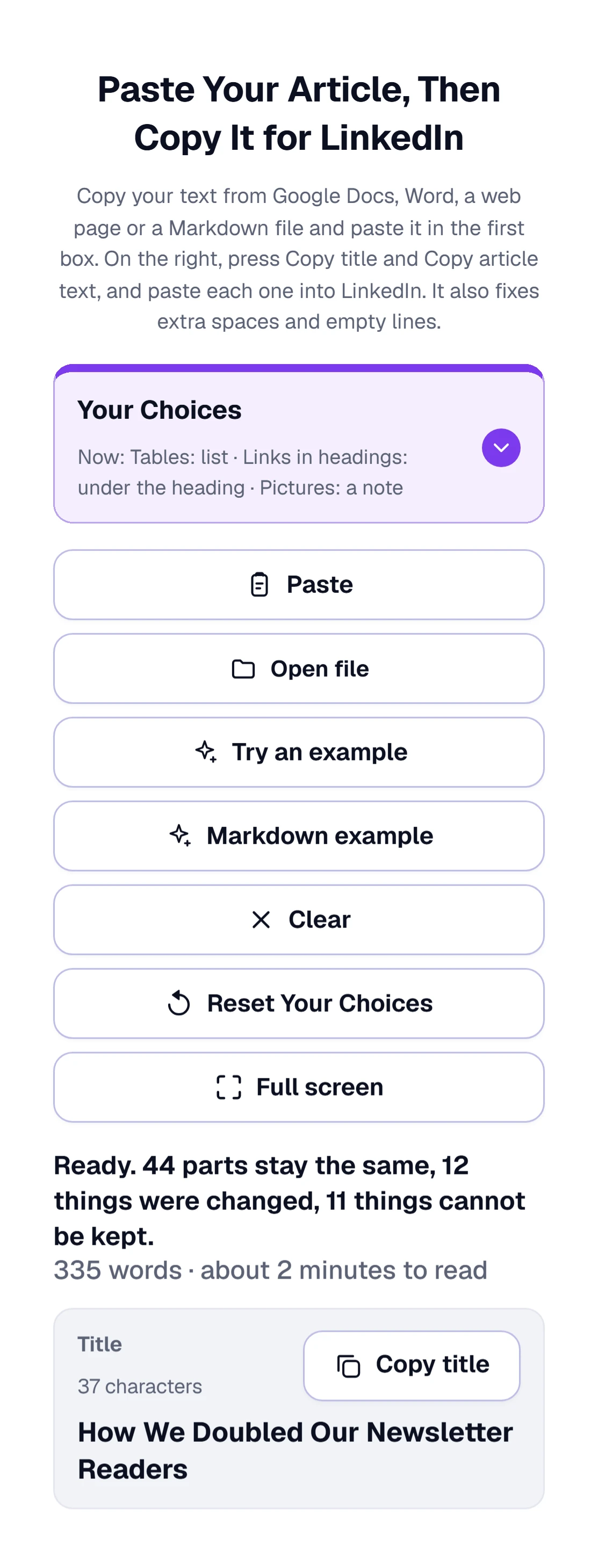
Below is the tool with its built-in example loaded. The big white boxes are the two sides of the trip: Your Text on the left is where the article goes in, and Ready for LinkedIn on the right is where the packed version comes out.
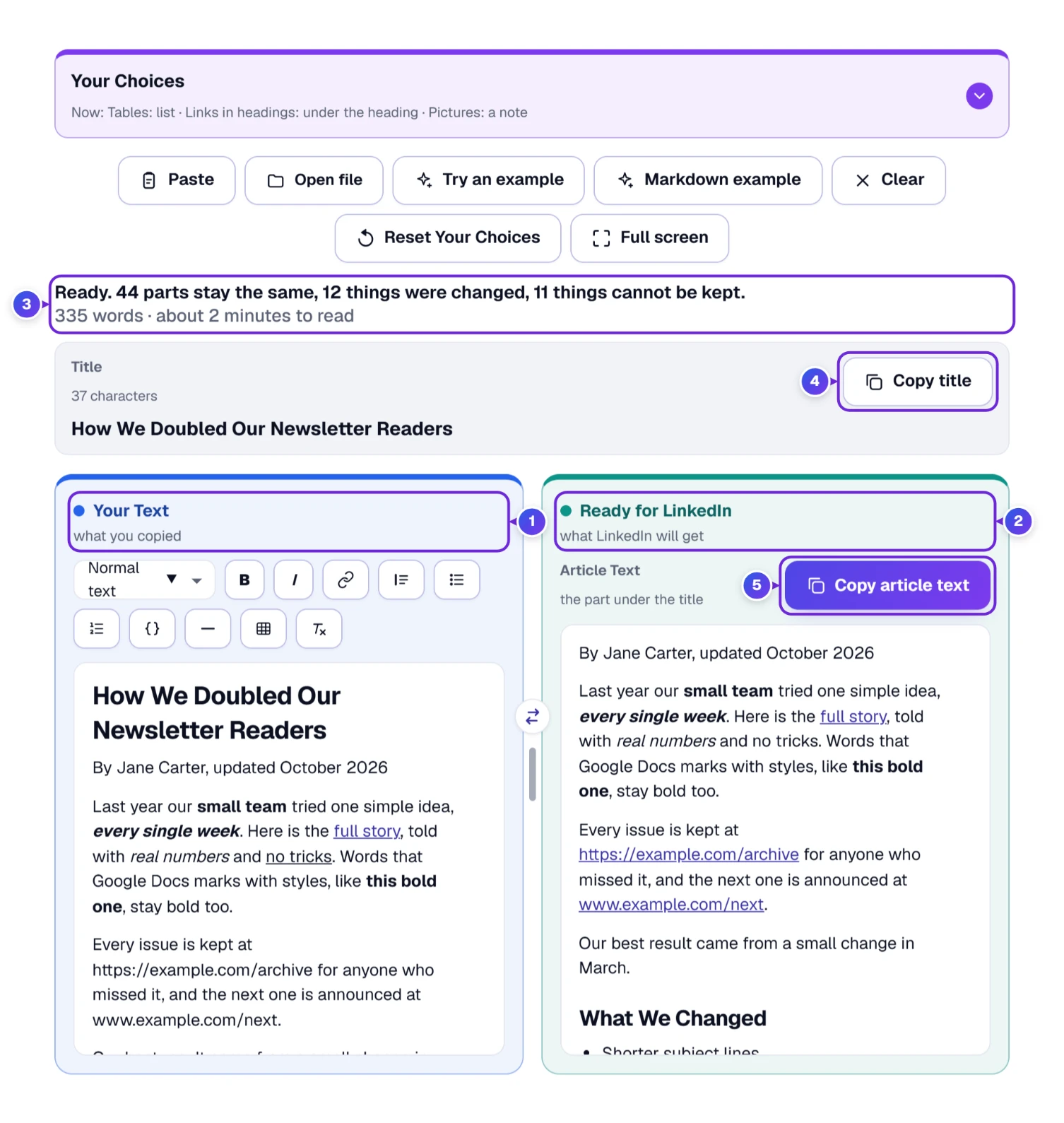
- 1 Your Text is the box you paste into. Keep your original here. Nothing in it is changed unless you change it.
- 2 Ready for LinkedIn shows the packed version. It fills in by itself the moment you paste.
- 3 The summary line counts parts that stay the same, things that were changed and things that cannot be kept. It also gives the word count and a reading time.
- 4 Copy title sits in the Title card. It is the first of the two buttons you press at the end.
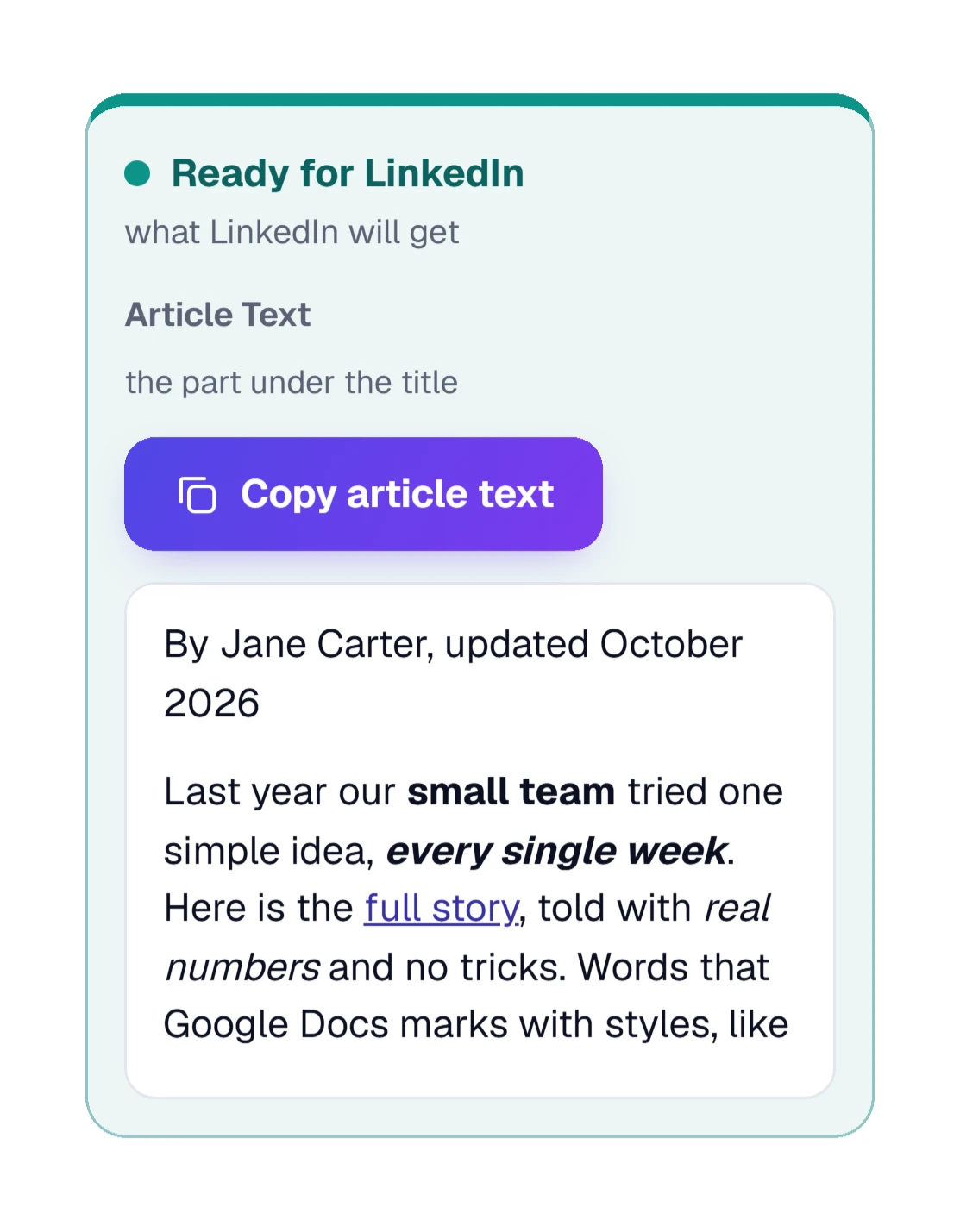
- 5 Copy article text sits at the top of the right box. It is the second.
- Paste your article into Your Text, or press Try an example first to see how it behaves.
- Read the summary line 3 and the report under the boxes.
- Press Copy title 4, paste into LinkedIn’s title box, then press Copy article text 5 and paste into the body.
That is the whole routine. The purple bar you saw above the buttons is Your Choices. It starts closed, you can leave it that way, and a later section explains what its three switches do.
Packing Step One: Getting the Article Into the Box
Most people copy from the original program. In Google Docs or Word, press Ctrl and A to choose everything, then Ctrl and C to copy. On a Mac, press Command in place of Ctrl. Click in Your Text and press Ctrl and V (Mac users press Command and V). The right box fills in at once.
There is also a Paste button, which pastes whatever you copied last. Some browsers refuse to let a page read your clipboard. If yours does, the button says so, and the keyboard way above always works.
A web page works the same way: choose the article text on the page, copy it and paste it in. We tried a saved .html file too. The title came from its main heading, and the menu and footer links at the top and bottom were left out.
If the article is a file on your computer, press Open file and pick it. The picker lists Word (.docx and .doc), .odt, .rtf, web pages (.html), plain text (.txt) and Markdown (.md). A file may be up to 20 MB.
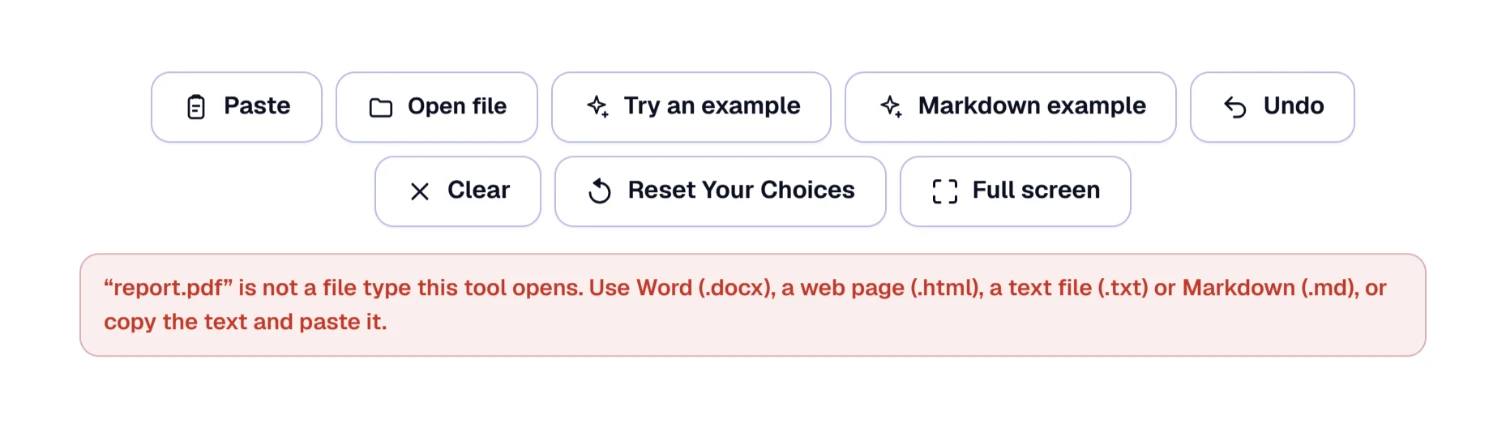
A PDF is the one file people often try, and it is not opened. The tool says which types it does open and suggests copying the text and pasting it. An empty file gets a plain message too: “has no text in it, so nothing changed.”
Two more starting points. Try an example loads a sample article so you can see every kind of change, and Markdown example does the same for text with stars and hash signs. The first gave “44 parts stay the same, 12 things were changed, 11 things cannot be kept” for 335 words. The Markdown sample gave 22, 28 and 2 for 158 words.
Reading the Result: One Summary Line and a Three-Part Report
We made up a short article called “Five Questions to Ask Before You Hire a Roofer” in Google Docs, with a big heading, two paragraphs, a small heading, one bold word, a link and two bullets. We copied it from Docs and pasted it into the tool. Here is what came back.
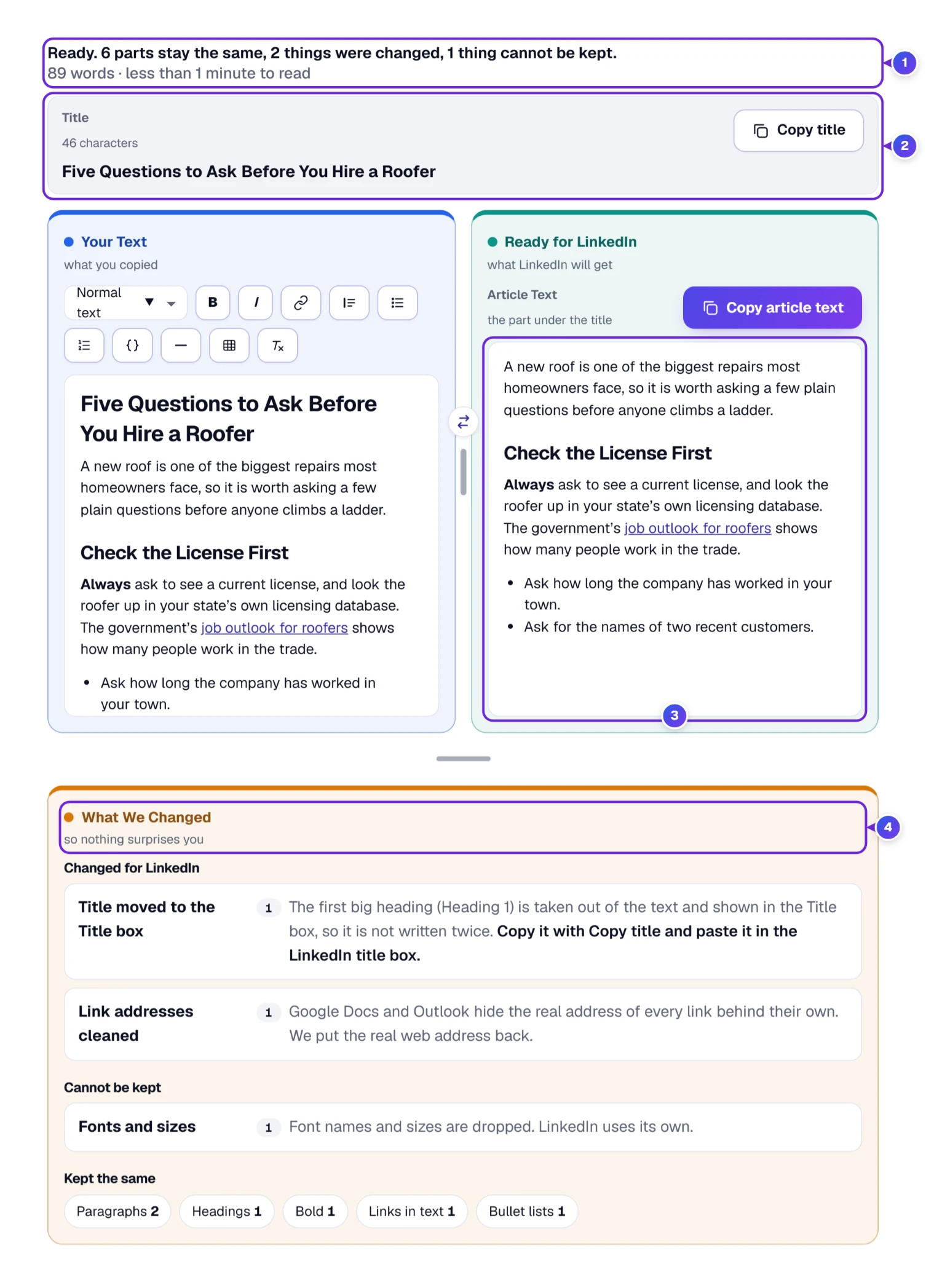
- 1 The summary line says “Ready. 6 parts stay the same, 2 things were changed, 1 thing cannot be kept.” The text is 89 words, under a minute to read.
- 2 The big heading left the text and landed in the Title card, ready for Copy title.
- 3 The right box has the paragraphs, the small heading “Check the License First”, the bold word “Always” and the two bullets.
- 4 The report, named “What We Changed”, gives each count. Changed lists the title that moved and one link address that was cleaned. Cannot be kept lists fonts and sizes. Kept the same counts paragraphs, headings, bold, links and the bullet list.
Reading time uses 200 words a minute. We pasted 1,200 plain words to check, and it said “about 6 minutes to read”.
One thing worth doing every time: read the Changed and Cannot be kept lists before you copy. They are the only place the tool tells you what it did to your words.
Verdict for the Title: It Gets a Box of Its Own
LinkedIn asks for the title in a separate field above the body. If your document’s big heading stayed inside the text, the article would show it twice. So the tool takes the first Heading 1 out of the right box and shows it in the Title card. A line that starts with a single # in Markdown is treated the same way.
Press Copy title to put just that line on the clipboard, then paste it into LinkedIn’s title box. The card also shows how many characters the title has. We pasted a title of 167 characters and it showed “167 characters”, with no warning. It counts and doesn’t judge, because we could not confirm LinkedIn’s own limit and would rather not guess one.
Plain text has no way to mark a title, so the Title card stays empty when you paste unmarked text. Type the title into the card yourself, or leave it and write the title in LinkedIn.
Verdict for Headings, Bold and Italic: They Travel Well
These are the easy passengers. A Heading 2 in your document becomes a Heading in LinkedIn’s editor, and a Heading 3 becomes a Subheading. In Markdown, ## and ### do the same. Bold stays bold and italic stays italic, and the report counts each one so you can match the numbers with what you remember writing.
LinkedIn has one title and two heading sizes, so the tool tidies the rest. A second Heading 1 becomes a Heading, because there can be only one title. Headings 4, 5 and 6 all become Subheadings. We pasted a stack of all six levels to check, and the report listed “More big headings 1” and “Small headings 2” as changes.
The tool also fixes the small mess that comes with a paste: empty paragraphs disappear, and a line break inside a paragraph becomes two paragraphs.
Verdict for Links: They Come Along, With Two Fixes
A link inside a sentence travels as it is. Two things can go wrong around it, and the tool deals with both.
The detour address. A link copied out of Google Docs can arrive wrapped in a Google address that bounces you through google.com before it lands. In our roofer sample the link to the Bureau of Labor Statistics page on roofers came in wrapped, and the right box showed the plain address. The report said “Link addresses cleaned 1”.
The bare address. If you type www.hud.gov/topics with no https in front, the tool adds it and makes it a link. A full address typed with https is made into a link as well. In Markdown, [words](address) becomes a link on those words.
A link inside a heading is the one that needs a decision. We expect LinkedIn to drop it, so by default the heading stays a plain heading and the link is moved to its own line right under it. Our test heading, “Read the NAHB guide”, came out as a heading with a line “NAHB guide” linked beneath it, and the report counted “Links inside headings 1”. If you would rather have no link at all, Your Choices has a switch for that, and a later section covers it.
Verdict for Lists and Quotes: One Level Is the Limit
Bullet lists stay bullets and numbered lists stay numbered. A quote stays a quote. The catch is the word level.
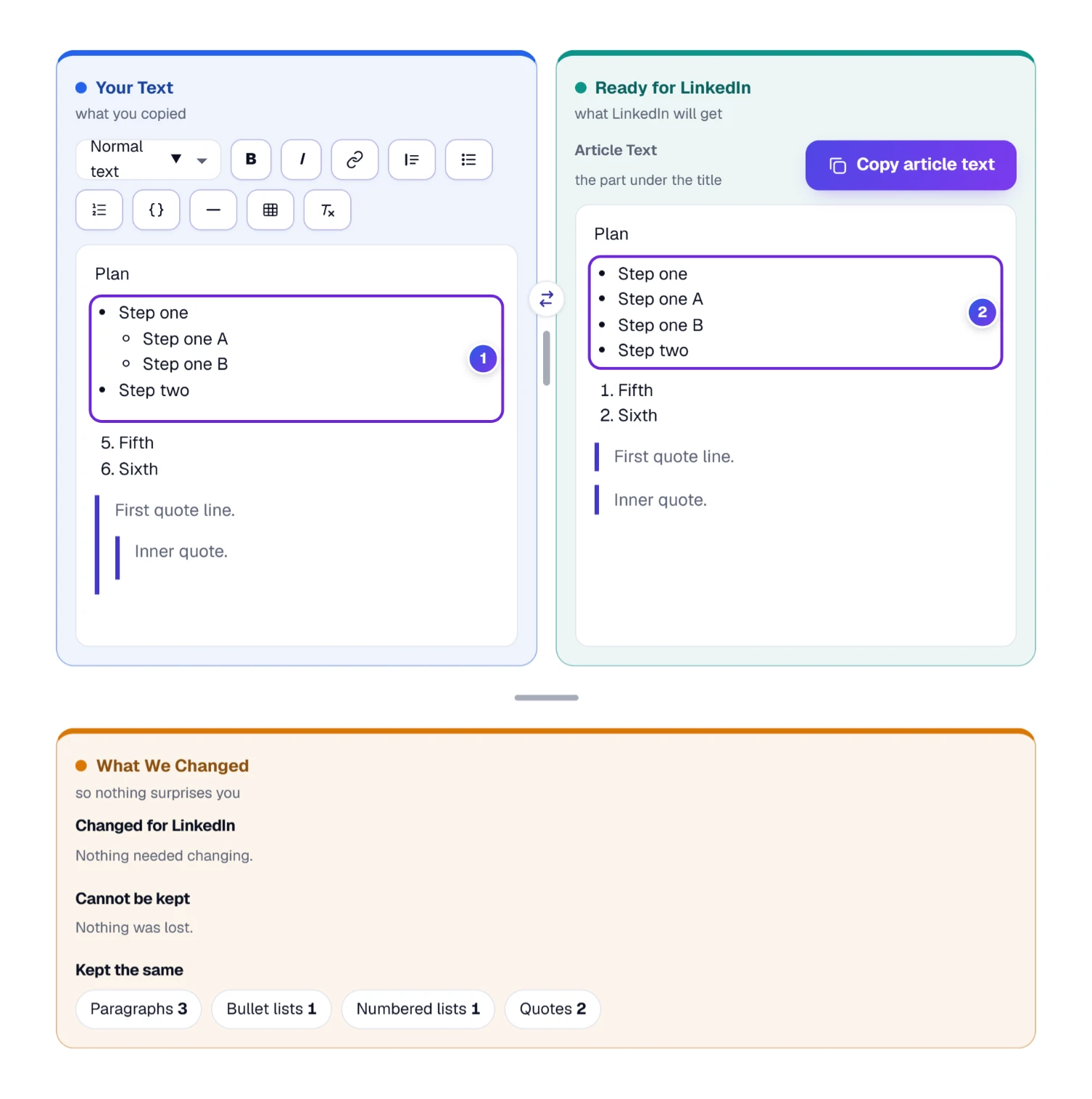
- 1 On the left, “Step one” has two sub-items, a numbered list starts at 5, and a quote has a second quote inside it.
- 2 On the right, “Step one”, its two sub-items and “Step two” sit in one flat list. The numbered list starts at 1, and the inner quote is its own quote.
The rule book on the tool page says this is what the LinkedIn editor itself does, so the tool shows you the result before you paste. That is better than finding out in LinkedIn. If your sub-items matter, write them as full sentences in one list, or give each group its own small heading.
A gap we found in the report: it said nothing about any of this. After we pasted the nested list, the numbered list from 5 and the quote inside a quote, the report said “Nothing needed changing” and the summary said “Everything we found can be kept.” Four list items had been flattened all the same. The right box is the truth here, so look at your lists in it with your own eyes.
Verdict for Tables: Bullets, or a Picture You Save
LinkedIn’s article editor may not take a table from a paste, so the tool changes it. The default is a bullet list with one bullet per row. We pasted a small table with the columns Month and Orders. Each row came out as a bullet with the month in bold, a dash, and “Orders: 412”. The report note reads: “LinkedIn articles may not take a table. Each row becomes one bullet in a list. Check the list reads well.”
If a list loses too much, Your Choices can turn each table into a picture instead. The right box then shows the picture in place of the table, and you save it with a right-click and choose Save image as. The picture is not part of what Copy article text copies, so you add it in LinkedIn yourself with the picture button. That picture has no design choices of its own. To pick colors, fonts and a width first, make it in our Table to Image Converter and add it the same way.
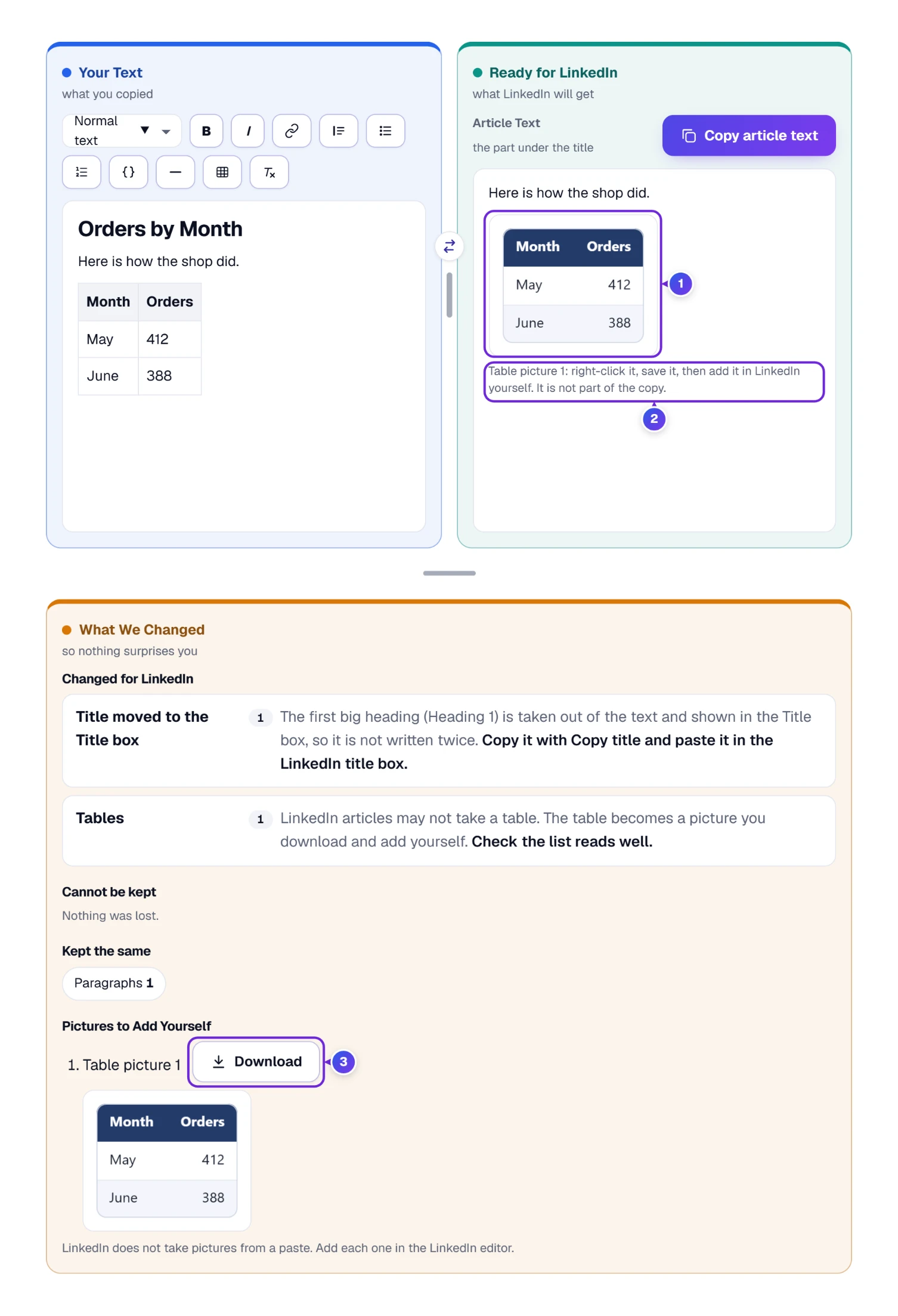
- 1 The table, drawn as a picture. Ours was small, 180 by 151 pixels, because the table was small.
- 2 The caption names it “Table picture 1” and says to right-click, save it and add it in LinkedIn yourself.
- 3 Under the report, “Pictures to Add Yourself” lists it with a Download button.
A leftover sentence we spotted: in picture mode the Tables note in the report still ends with “Check the list reads well.” There is no list any more, so that sentence is left over from the other choice. Ignore it. The picture and the Download button are the real result.
Verdicts for Code, Dividing Lines and Pictures
A block of code, such as a Markdown code fence, stays a code block, and a dividing line stays a dividing line. LinkedIn’s editor has a button for each. A bit of code inside a sentence has no equivalent, so it turns into ordinary text.
Pictures never come through a paste. For each one, the tool puts a note in the text and lists it under the report. We pasted two pictures, one with a description and one without. The text got “[Picture here: A tomato plant]” and “[Picture here]”, and the report listed “Picture: A tomato plant” and “A picture without a description”. Use that list as a checklist when you add the pictures in LinkedIn. If you don’t want the notes, Your Choices can leave them out while the report still lists every picture.
What Stays Behind, and What to Use Instead
Some things are left at home because LinkedIn’s editor has no place for them. The report puts them under Cannot be kept so you know. We pasted a line full of Word-style decoration to see the whole list at once.
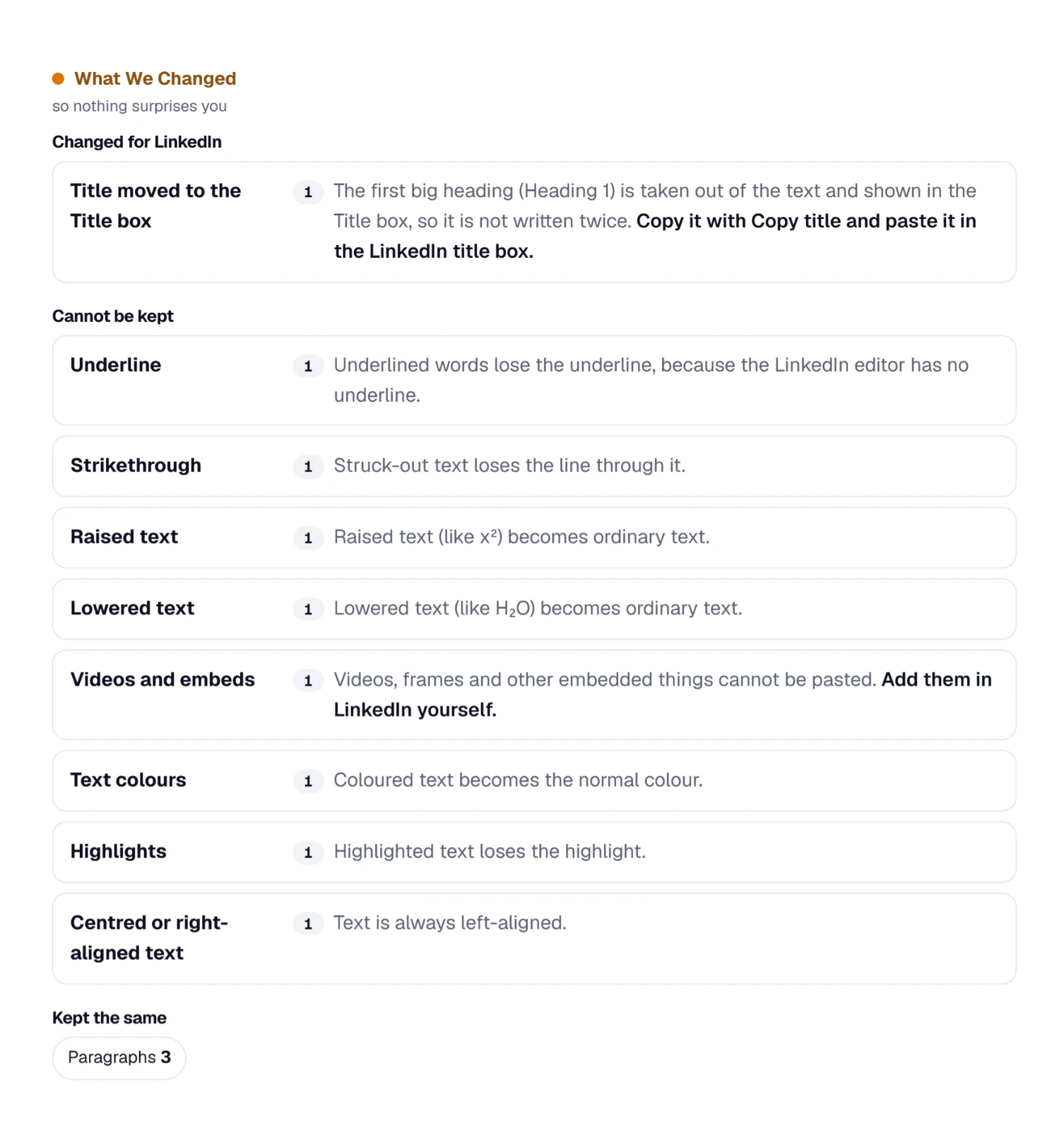
- Underline and strikethrough. Use bold or italic for emphasis instead.
- Raised and lowered text, like the 2 in x² or H₂O. Write the number on the line, or spell it out.
- Text colours and highlights. Bold does the job of a red word.
- Centred or right-aligned text. Everything lines up on the left.
- Videos and embeds. Add them in LinkedIn with its own buttons.
- Fonts and sizes. Headings give you the bigger type.
That sample was counted as “3 parts stay the same, 1 thing was changed, 8 things cannot be kept”. The eight were underline, strikethrough, raised text, lowered text, videos and embeds, text colours, highlights, and centred or right-aligned text. Fonts and sizes were the one loss in the Google Docs sample earlier.
One more odd case. A phrase set in the Consolas font, the one many people use for code, was not listed as lost and was not turned into code either. It arrived as ordinary text. If a font change matters to your meaning, say it in words.
Your Choices: Three Switches and Why Each Exists
Above the row of buttons sits a purple bar called Your Choices. It starts closed on every screen. Click it and three small groups open. Each group has two options, and the first one in every group is marked Best, so you can ignore the whole bar and still get a good result.
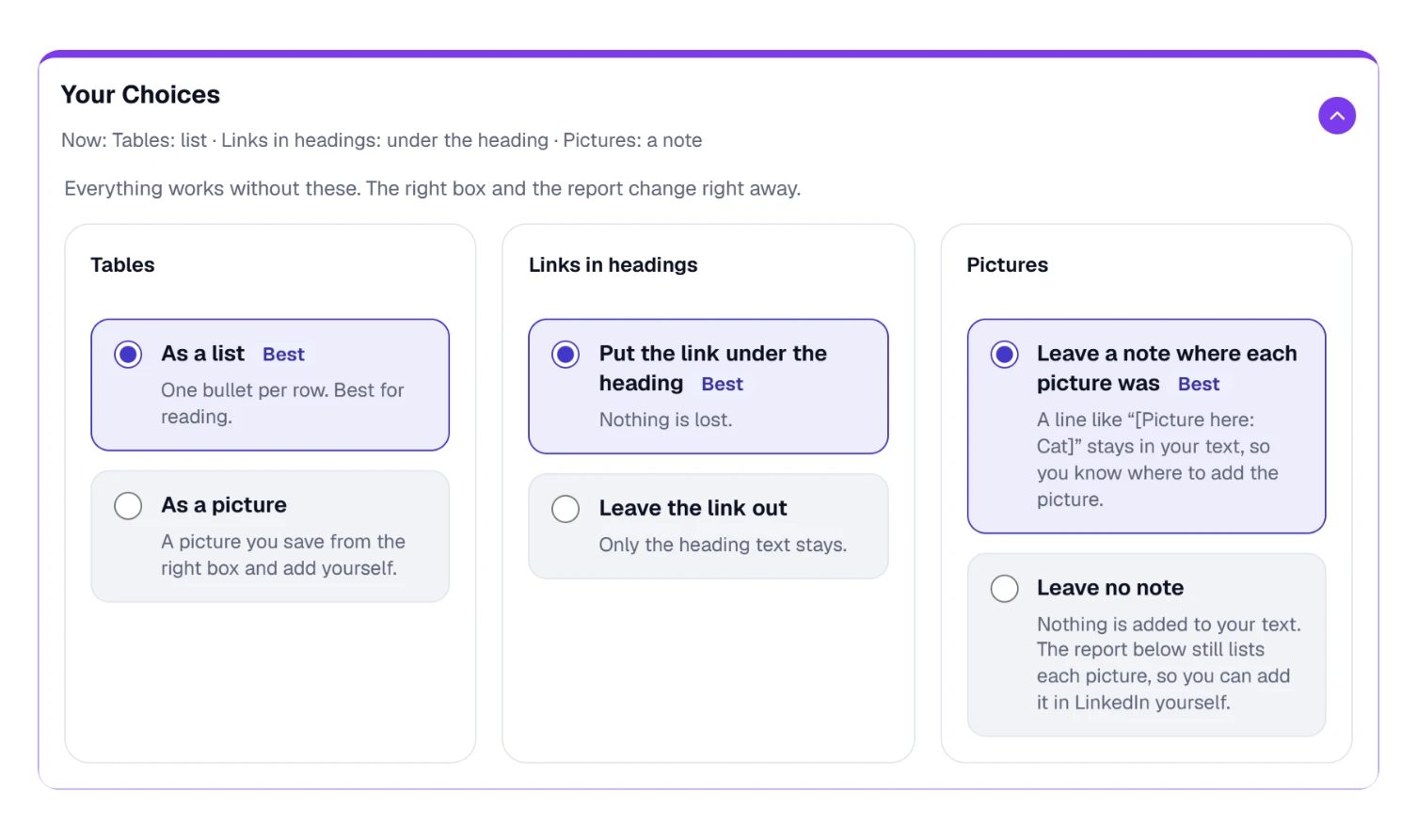
- Tables. “As a list” (Best) gives one bullet per row. “As a picture” draws the table as a picture you save and add yourself.
- Links in headings. “Put the link under the heading” (Best) keeps the link on its own line. “Leave the link out” drops it.
- Pictures. “Leave a note where each picture was” (Best) marks the spot. “Leave no note” adds nothing to the text, though the report still lists every picture.
When the bar is closed, one short line shows what is on, such as “Tables: list · Links in headings: under the heading · Pictures: a note”. The Reset Your Choices button in the row of buttons puts all three, and the box sizes, back to Best. Your text is not touched.
Touching Up by Hand: The Row of Small Buttons
If the right box needs one more fix, you don’t have to go back to your document. The small buttons above Your Text let you change the article right there.

- The line kind list 1 switches the line you are on between Normal text, Title, Heading and Subheading.
- B and I 2 make chosen words bold or italic. The keys Ctrl and B, or Ctrl and I, do the same in the first box.
- The link button 3 opens a small row with a Web address box and Add link, Remove link and Cancel buttons.
- Then come a quote, a bullet list, a numbered list, a code block and a dividing line.
- Add a table 4 opens a row with Add row, Add column, Remove row, Remove column and Delete table.
- The last button removes the formatting from the chosen words.
Every change is added to an Undo list that goes back 30 steps. The Undo button appears after your first change, and the U key does the same.
Room to Work: Wider and Taller Boxes, a Swap and Full Screen
On a wide screen the boxes stand next to each other. Drag the line between them to make one box wider, and double-click the line to make them equal again. The swap button trades their places, so Ready for LinkedIn can sit on the left. Under the boxes there is a thin height bar: drag it down to make both boxes taller when your article is long, and double-click it to go back to the normal height. The tool remembers the height in this browser. Full screen (or pressing W) gives the boxes the whole window, where the height bar hides, and Esc brings you back.
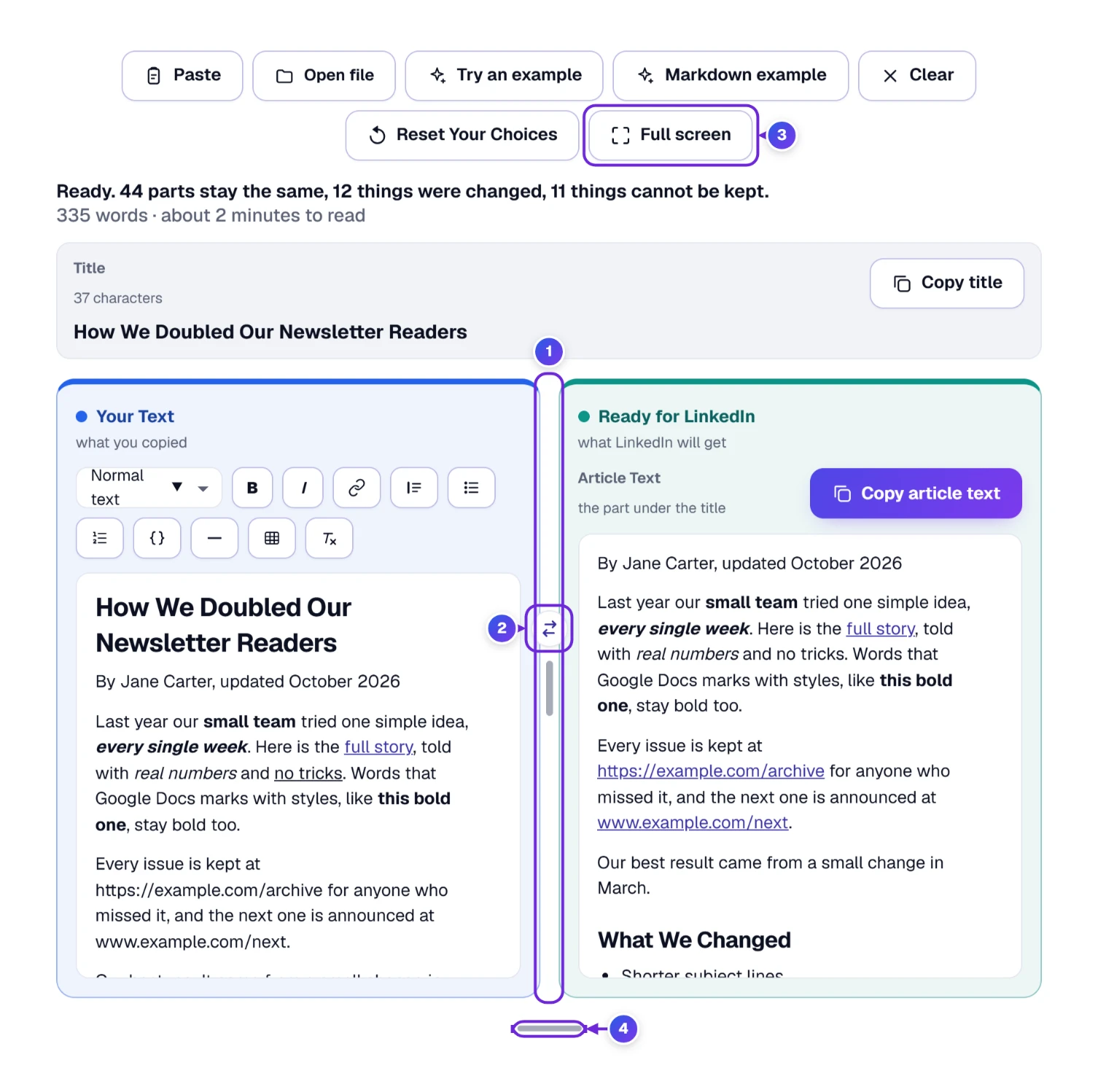
- 1 The drag line between the boxes.
- 2 The swap button.
- 3 The Full screen button.
- 4 The height bar under the boxes.
Choose some words in one box and the same words light up in the other. That helps when you want to see what happened to one sentence in a long article.
Zipping Up: Two Copies, Two Pastes, One Quick Look
- Press Copy title. In LinkedIn’s article editor, click the title line and paste.
- Press Copy article text. Click in the body of the LinkedIn editor and paste.
- Scroll down and read the headings. Check each link by hovering over it.
- Add the pictures from the “Pictures to Add Yourself” list, if there are any, using LinkedIn’s picture button.
Copy article text puts two versions on the clipboard together, clean HTML and a plain-text copy, and the LinkedIn editor takes the one it prefers. If the button says your browser refused, click inside the Ready for LinkedIn box, press Ctrl and A, then Ctrl and C, and paste as usual.
Coming Back Tomorrow: The Saved Draft and Recent Articles
Your latest article waits in this browser. Close the tab, come back tomorrow, and it is still there. After a successful copy, the article is also added to Recent articles under the boxes.
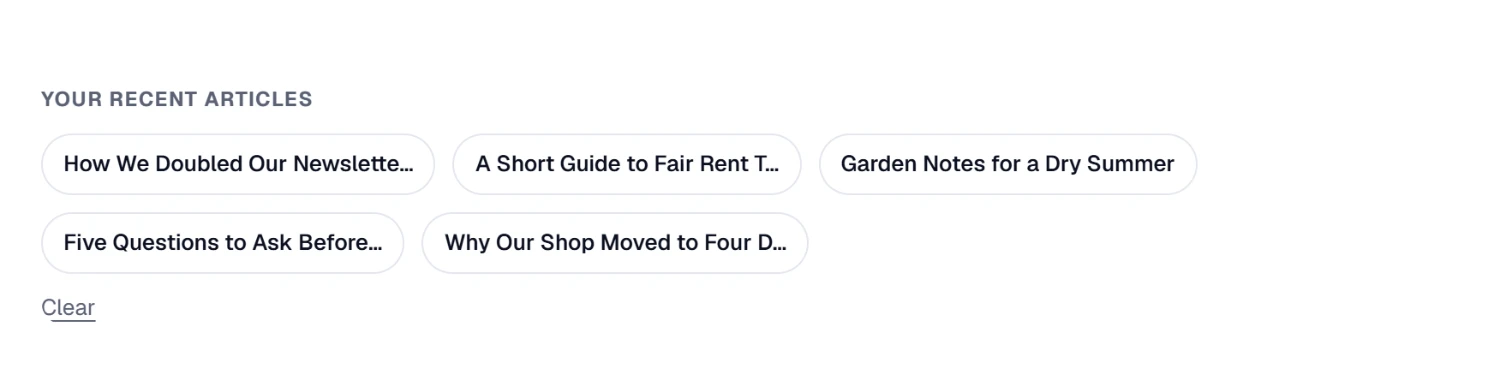
The tool keeps your last 10 articles and shows the newest 5 as buttons, each up to 200,000 characters long. Press a button to bring that article back. Clear next to the list empties it. Everything is stored in your own browser, so another computer will not show the same list.
Sending a Draft to a Colleague
Under the tool is a row of buttons: Save, Share, Embed, On your phone and Print. Save adds this tool to your favorites on the My Tools page, kept only in this browser. Print opens the print window, where you can pick “Save as PDF”. Embed gives code for putting the tool on your own site.
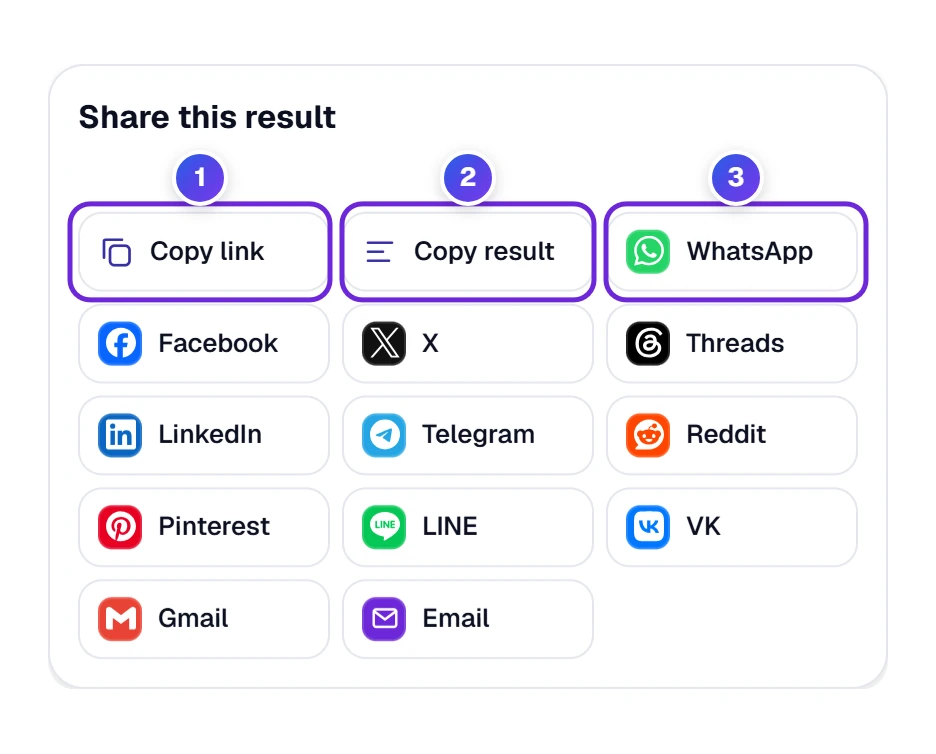
Share is the one to know for drafts. Copy link 1 makes an address that carries your article inside it, but only while the article is short, about 2,000 characters at most. A longer article gets a plain link to the tool with nothing inside. Copy result 2 copies the packed text, which you can drop into an email. Below them sits a grid of apps 3 with WhatsApp, Facebook, X, LinkedIn, Gmail and Email, and each one opens with your link already in the message.
A link that carries an article carries it in plain view, so be careful about who gets it.
On a Phone: One Column, Same Two Copies
Phones are good for checking a draft and poor for writing one, but the tool works. On a narrow screen the buttons stack in one column, and Your Choices stays closed, as it does on every screen. The Ready for LinkedIn box moves under your text, with Copy article text at the top of it.
The On your phone button draws a QR code. Hold the camera over it and the page opens on your phone with your result already in place. Pasting into the LinkedIn app’s editor is up to the app, and we haven’t tested that.
One-Letter Keys, Without the Mouse
Single letters work as shortcuts while your cursor is outside a typing box. Press the question mark key and the full list of keys appears.
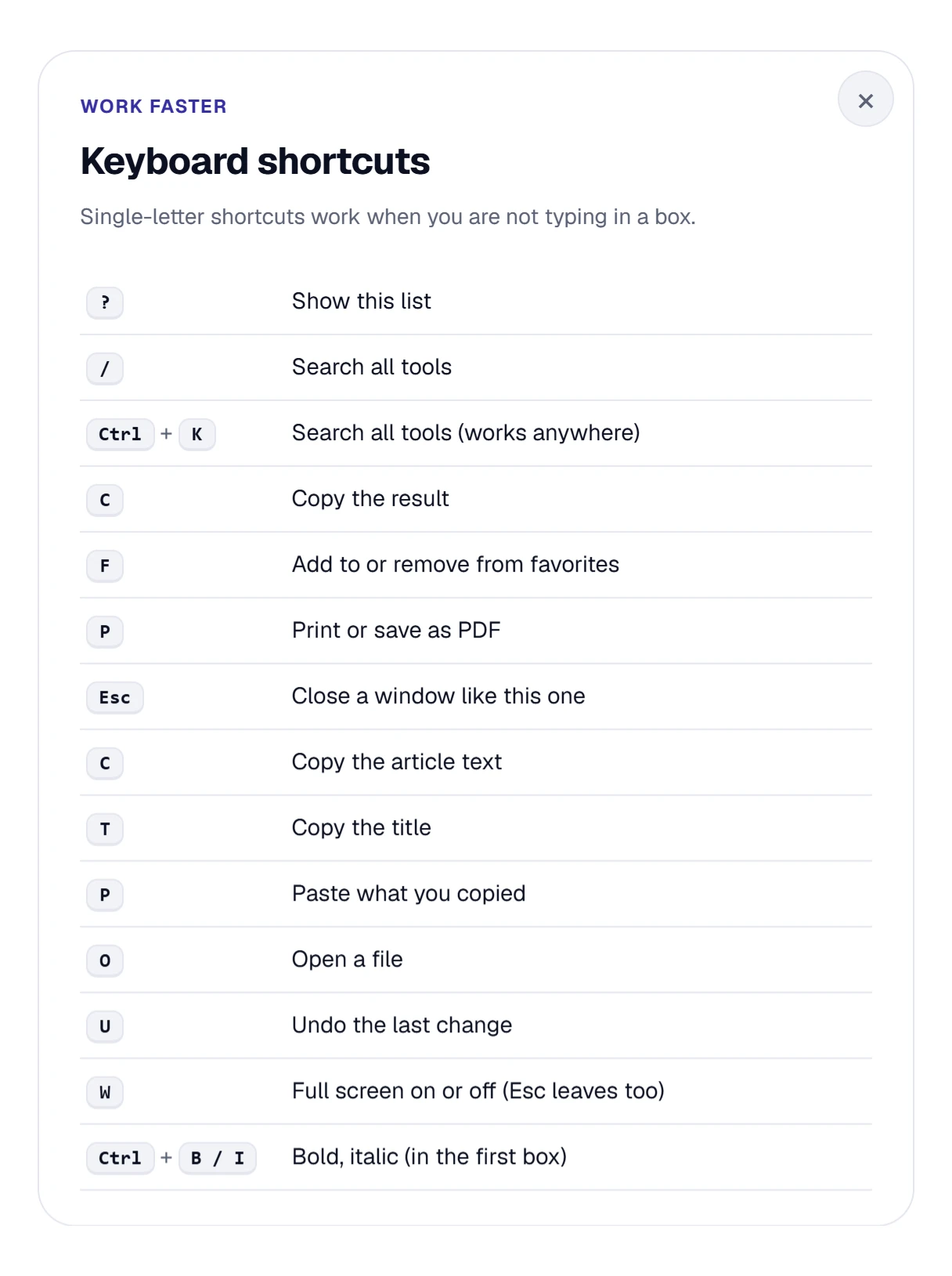
- C copies the article text, and T copies the title.
- P pastes whatever is on your clipboard, and O opens a file.
- U takes back the last change, and W switches full screen on or off.
- Ctrl and K searches all ToolHa tools from anywhere.
How We Checked It, and Where It Is Still Guessing
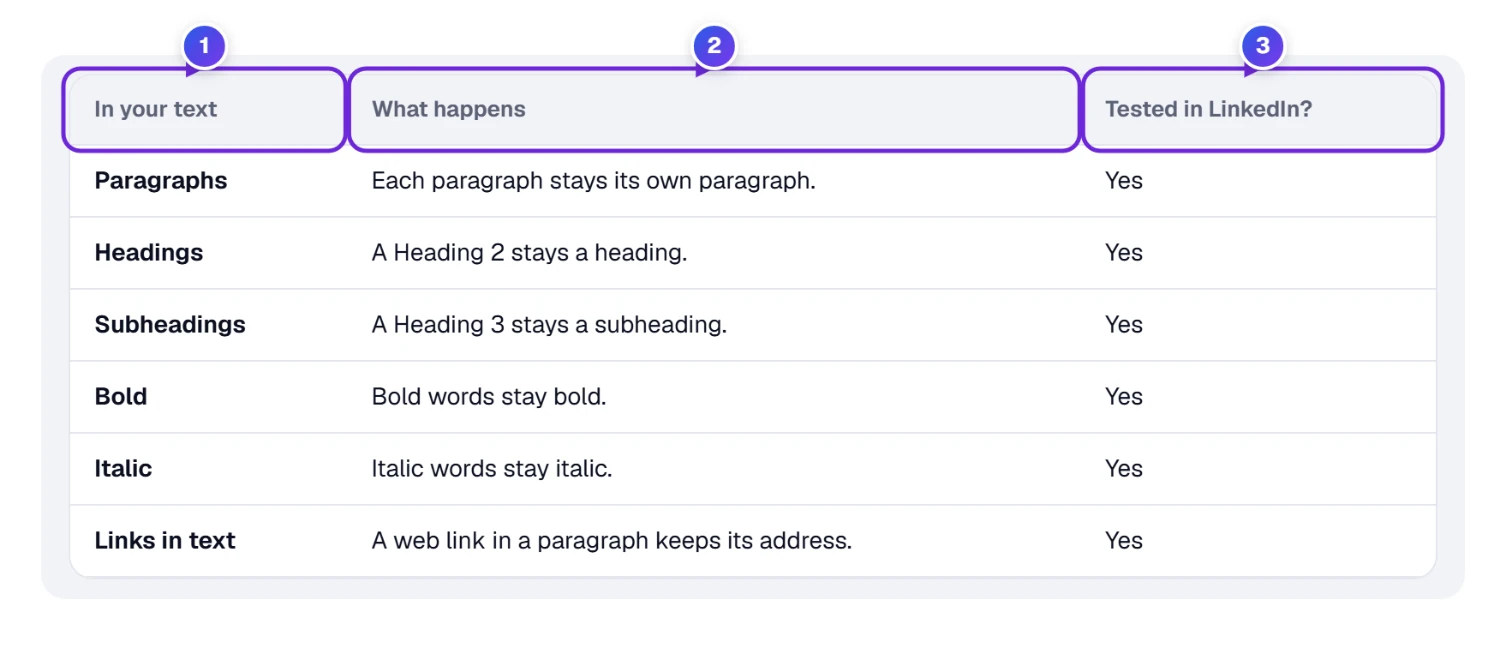
The How We Format box on the page holds three rule tables with 32 rows in all: what stays the same (11 rows), what we change (10) and what cannot be kept (11). Each row says what is in your text 1, what the tool does with it 2, and whether the result was tested in LinkedIn itself 3. Twenty-eight rows say Yes: we pasted that content into the real LinkedIn article editor and looked at what came out. Four rows say “Not yet (expected)”: the title that moves, tables, cleaned link addresses and Markdown turned into formatting. Those are the tool’s best expectation, and we mark them that way on purpose.
Each time the page loads, it runs one small sample for each testable row through the same code you use, and the page says “All 28 row checks above passed” when they do. That tells you the tool still behaves as described. It doesn’t tell you what LinkedIn will do next month, because LinkedIn can change its editor at any time. If a paste ever looks different from this guide, trust what you see in LinkedIn and tell us.
Why bother with all this when many “LinkedIn formatters” exist? Most are built for posts. They swap your letters for look-alike characters from other alphabets, which are not real bold and are hard for screen readers to read. A plain “clean paste” tool goes the other way and strips everything. This one keeps what the article editor supports and reports the rest.
What Happens to Your Text While You Work
- Nothing leaves your browser while the tool reads and tidies your article. No server sees the text.
- Your latest article and Recent articles stay on this device, in this browser only. Clear empties them.
- A share link can hold an article when it is short, as the Share section explained.
- The clipboard keeps what you copied until you copy something else. On a shared computer, copy any harmless word afterwards.
When LinkedIn Shows Something You Did Not Expect
| What you see | Likely reason | What to do |
|---|---|---|
| Stars or hash signs inside the LinkedIn text | The original Markdown was pasted, not the packed copy | Paste into Your Text first, then press Copy article text |
| The copy button says the browser refused | The browser kept the clipboard private | Click in the right box, press Ctrl and A, then Ctrl and C |
| A link in a heading is gone | LinkedIn drops links inside headings | Use the link line the tool puts under the heading |
| A table turned into bullets | The list choice is on | Open Your Choices and pick As a picture |
| Sub-items of a list are on one level | LinkedIn’s editor has one list level | Write each item in full, or use small headings |
| A numbered list starts at 1 | LinkedIn always counts from 1 | Put the real numbers in the text of each item |
| A file does not open | Only Word, web page, text and Markdown files open | Save as one of those, or copy the text and paste it |
| Pictures are missing | Pictures never come along in a paste | Add each one in LinkedIn from the Pictures to Add Yourself list |
Questions People Ask Before They Paste
How Do I Format a LinkedIn Article From Google Docs or Word?
Copy the document, paste it into the left box of the formatter, and read the report. Press Copy title and paste it into LinkedIn’s title box, then press Copy article text and paste it into the body. Headings, bold, italic, links, quotes and lists carry over.
Will My Headings and Links Survive the Paste?
Headings and links in sentences do. A link inside a heading is moved to a line under the heading, because LinkedIn drops it otherwise. A Heading 1 goes to the Title box, and Headings 4 to 6 become Subheadings.
Why Do Stars and Hash Signs Show Up in My LinkedIn Text?
They are Markdown marks, a way of typing formatting as symbols. Paste the text into the left box first. The tool turns the marks into real headings, bold words and lists, and the right box shows the true result.
Can I Use Bold and Italic in a LinkedIn Post?
In the guides we read, a post has no bold or italic buttons of its own. Tools that show bold letters in posts swap in look-alike characters, which are not real bold. This formatter is for articles and newsletters, where real formatting works.
Does the Formatter Work for LinkedIn Newsletters?
The newsletter guides we read say an issue is written in the same editor as an article, so the same packing should apply. We tested the article editor, not a newsletter issue itself. The summary line shows your word count and reading time along the way.
Can I Put a Table in a LinkedIn Article?
A pasted table is not reliable, so the tool offers two ways round it: one bullet per row, or a picture of the table that you save and add yourself. Your Choices holds the switch.
Is My Article Sent Anywhere?
No. The formatting happens in your browser. Your latest text and recent articles stay on your device. A share link from a short article carries the text in its address, so share it with care.