This free HEIC to JPG converter turns HEIC and HEIF photos into ordinary JPG files, the kind every phone, computer, printer and website opens. Add one photo or a whole folder, press Convert, then save the JPGs. Your photos are changed on your own phone or computer and never leave it.
Think of this guide as a short class with six lessons. Each one takes a few minutes, and you can stop after any of them. Lesson 1 needs no photos of your own at all, because the tool comes with two example pictures to practice on. By Lesson 6 you’ll know every button and every choice on the page.
A word on the two names first. HEIC is the photo file most iPhones save, and many Samsung and other Android phones do the same when their “high efficiency” setting is on. HEIF is the name of the format behind it, and some cameras use the ending .hif. This page takes all of them.
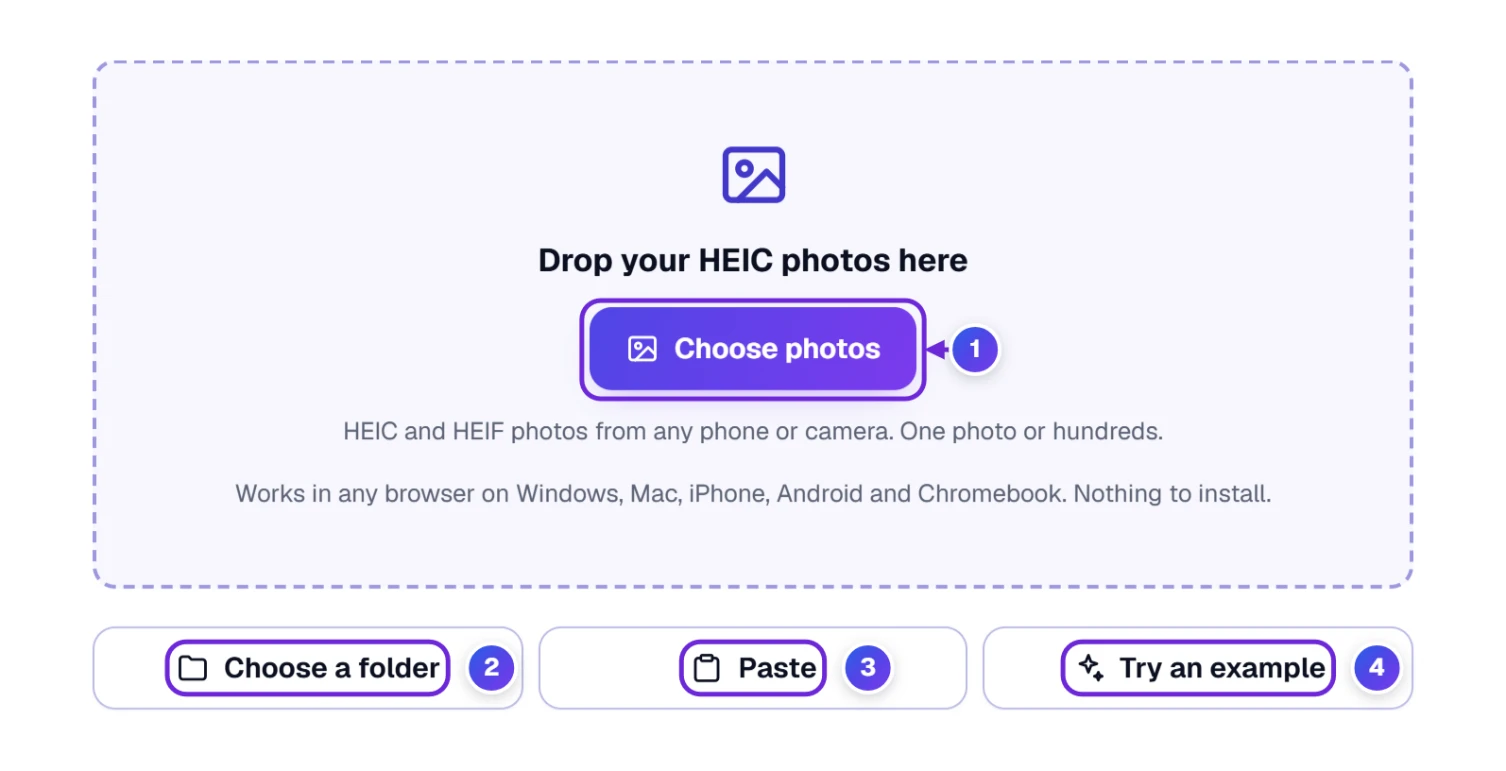
- Add your photos. Press Choose photos 1, or drag the photos into the dashed box.
- Convert them. Press the purple Convert button that appears under your list.
- Save them. Press Download all converted photos (.zip), or the Download button next to one photo.
Lesson 1: Your First JPG, Made From Our Example Photos
Practice costs nothing here. The two example photos are our own: a lighthouse pier at sunset and a boat at sea, saved as HEIC files exactly like a phone would save them.
- Press Try an example 4. Two photos appear on a list called Your Photos.
- Look at the list for a moment. Each photo shows its size, the day it was taken and a few small labels (Lesson 3 explains them).
- Press Convert 2 photos to JPG 5. Each photo gets a small spinning circle while it works, then a green Done line.
That’s it: you’ve made two JPG files. On our test computer the two examples took about five seconds. The first time you use the page it takes a little longer, because your browser fetches the photo reader once (more on that near the end).
Here’s what our two example photos actually turned into. We converted them at each quality setting, and once more with a size limit, and wrote down the sizes the tool reported:
| Setting | IMG_4021 (98 KB HEIC) | IMG_4022 (145 KB HEIC) | Both together |
|---|---|---|---|
| Maximum quality (the default) | 817 KB | 672 KB | 1.5 MB |
| Balanced quality | 305 KB | 270 KB | 575 KB |
| Smaller files | 162 KB | 147 KB | 309 KB |
| Balanced quality, your browser’s JPG maker | 256 KB | 258 KB | 514 KB |
| Under a 100 KB size limit | 96 KB (quality 60) | 97 KB (quality 67) | 193 KB |
Notice that every JPG is bigger than the HEIC it came from. That isn’t a mistake. HEIC packs a picture about twice as tightly as JPG, so a JPG of the same look needs more room. If size matters more than anything, the Smaller files card or a size limit, both just above the Convert button, bring the JPG much closer to the original.
Picture Quality sits right above the Convert button. It’s the one choice that changes the file size most, and you can leave it alone: Maximum quality is already picked.
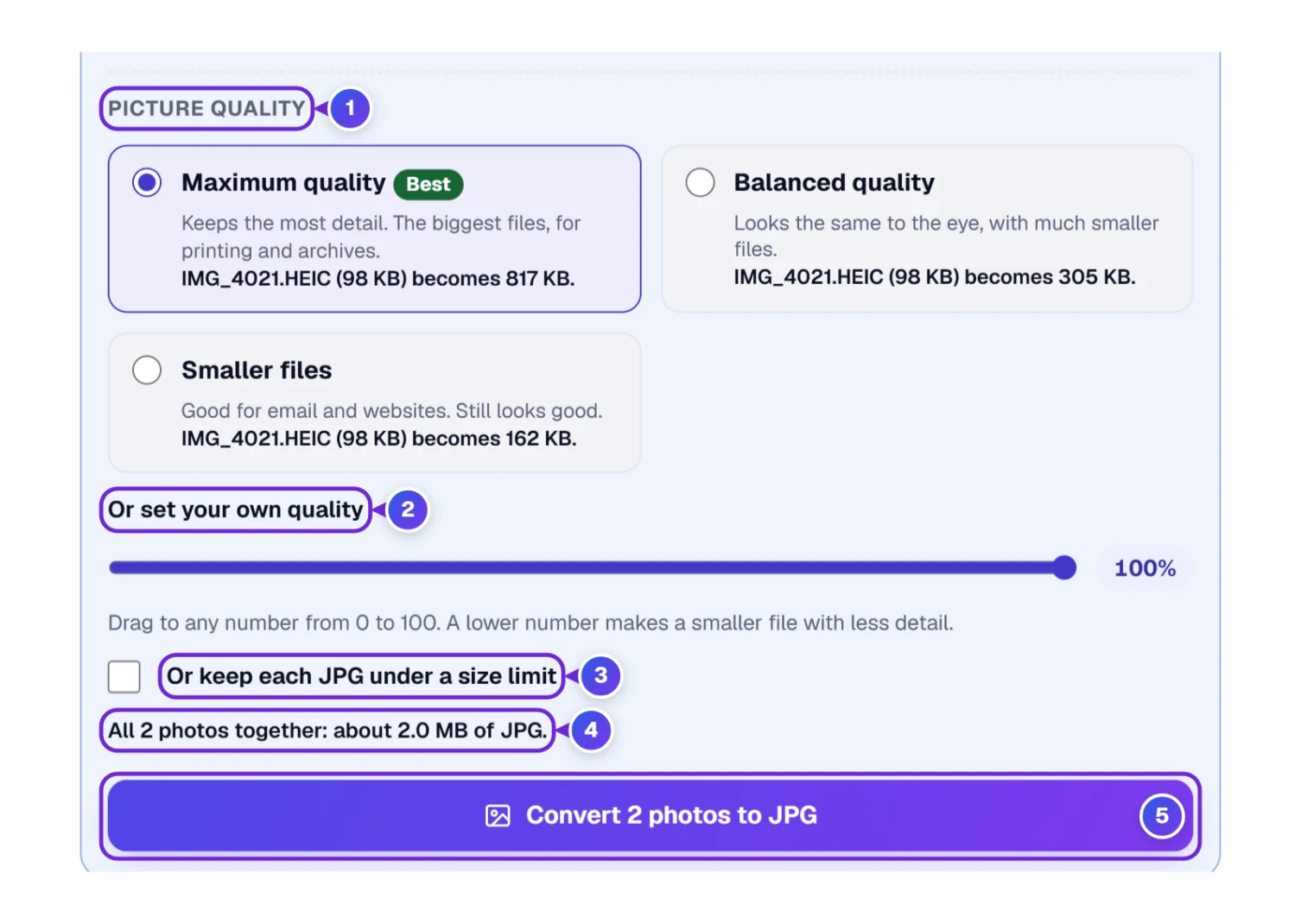
- Under Picture Quality 1 are three cards. Maximum quality (100 out of 100, the default) keeps the most detail; Balanced quality (92) looks the same to the eye with much smaller files; Smaller files (80) suits email and websites. Each card names your first photo and the exact size it will become. The tool works that out by quietly converting the photo in the background, so the number matches the file you download.
- Or set your own quality 2 is a slider for any number from 0 to 100. Lower numbers make smaller files with less detail, and the line under the slider gives the size for the number you stop at.
- Or keep each JPG under a size limit 3 suits upload forms with a size cap. Tick it, then type a number in KB or MB, or tap 100 KB, 200 KB, 500 KB, 1 MB or 2 MB. For each photo the tool picks the highest quality that still fits; with a 100 KB limit our lighthouse photo came out at 96 KB and the boat at 97 KB. A photo that can’t get under the limit even at the lowest quality is saved at its smallest, and its Done line says so.
- With two or more photos on the list, the total line 4 gives a rough size for all of them together, worked out from the first photo. Treat it as a guide, since every photo packs differently.
- The Convert button 5 comes right after and names how many photos it will convert.
Lesson 2: Bring in Your Own HEIC Photos
You can bring photos in four different ways, and any single one is enough. Pick whichever feels easiest.
- Choose photos 1 opens the usual window for picking files. Click one photo, or hold Ctrl (Command on a Mac) and click several, then press Open. On a phone it opens your photo library or files.
- Drag and drop. If you can see your photos in a folder on a computer, press and hold on them with the mouse, move them over the dashed box, and let go. Its border turns solid blue the moment the photos are over it, so you know the drop will land. A click anywhere inside the box opens the picking window too. Once photos are on the list, the same box reads Drop more photos here, so you can keep adding.
- Choose a folder 2 takes every HEIC photo in a folder at once, including the folders inside it. It’s the quickest way to handle a big pile copied from a phone. Phones don’t show this button, because their browsers can’t open whole folders.
- Paste 3 is for photos you’ve copied in File Explorer, Finder or your phone’s Files app. Pressing it opens a small paste spot, shown below.
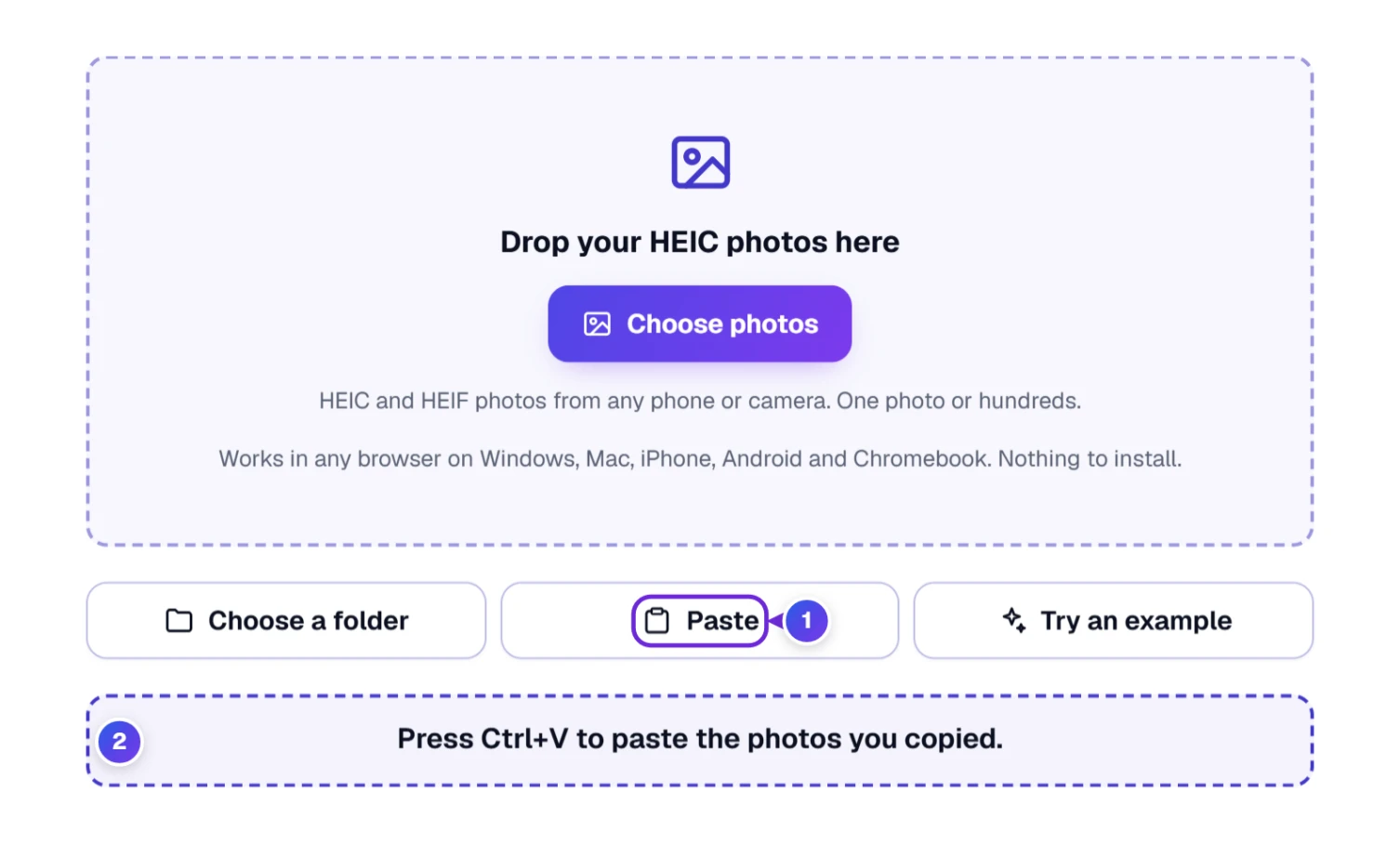
Why does Paste 1 open a paste spot instead of pasting straight away? Browsers don’t let a button read files you’ve copied. Only a keyboard shortcut (Ctrl+V on Windows, ⌘+V on Mac) or a phone’s own Paste menu can hand them over. So the tool opens the spot 2 and tells you what to do: press Ctrl+V on a computer, or touch and hold the spot and tap Paste on a phone. Pressing Ctrl+V anywhere on the page works too.
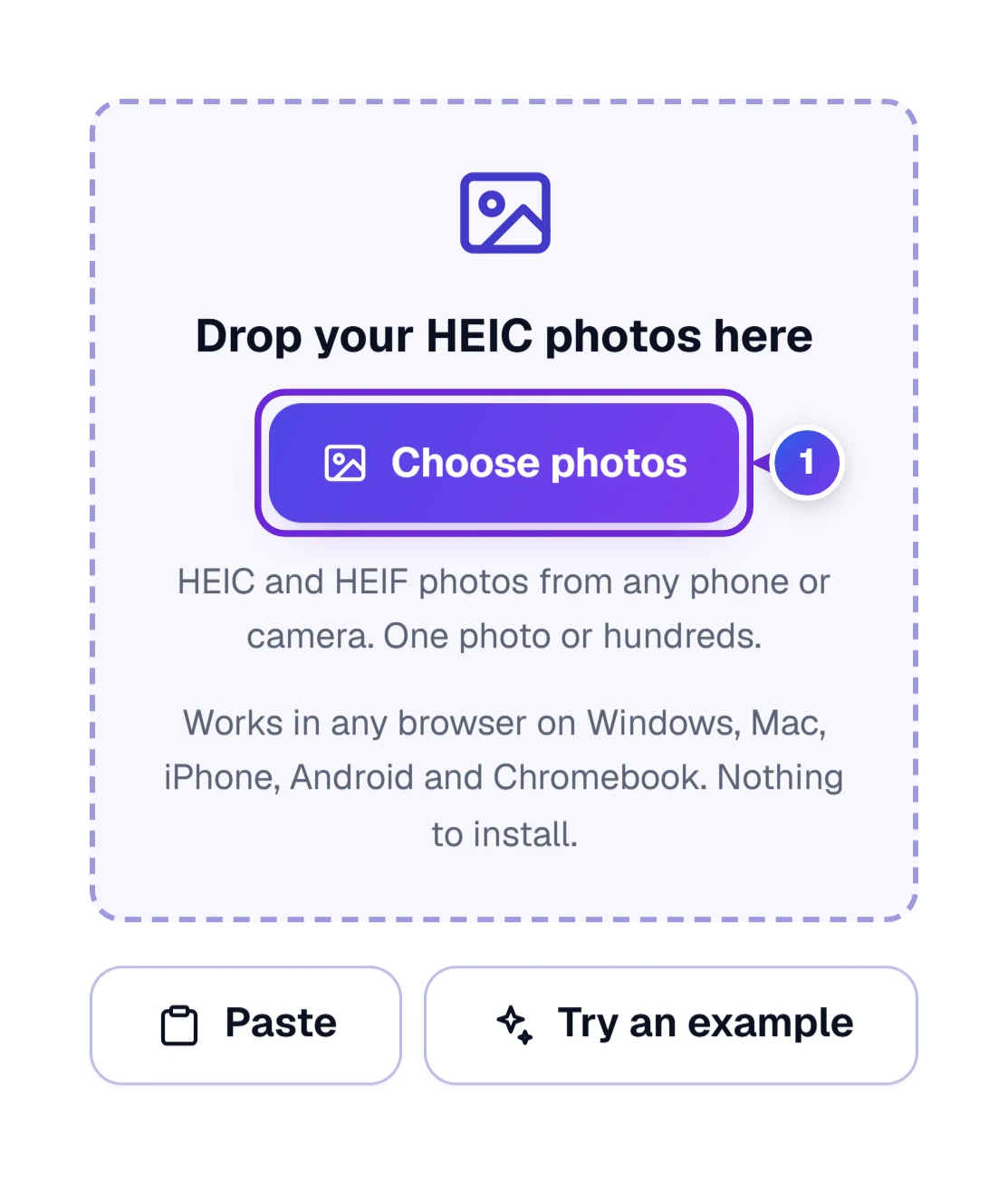
Where your HEIC photos usually are. On an iPhone they’re in the Photos app. Press Choose photos 1 and pick them from your library. On a Samsung Galaxy or another Android phone, look in Gallery or in the Files app under DCIM › Camera. On a Windows computer, photos copied from a phone often sit in Pictures or Downloads with names like IMG_4021.HEIC. On a Mac, look in Downloads or wherever you copied them from your phone.
Photos stored only in iCloud or another cloud drive have to be downloaded to your device first. If one isn’t, the list says the file “could not be opened” and asks you to download it.
Lesson 3: Read Your Photo List Before You Press Convert
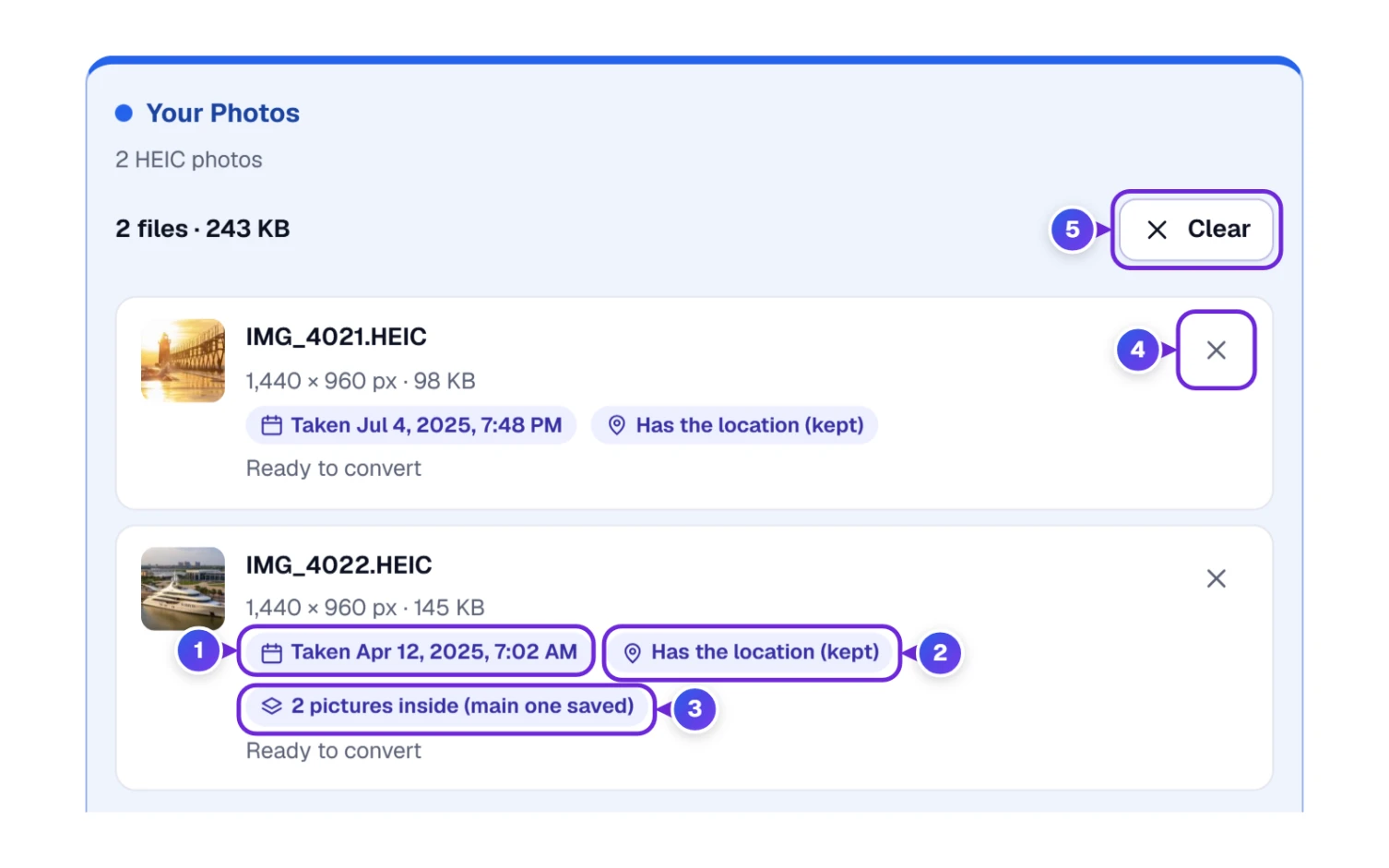
The list is worth a two-second look, because it tells you what the JPGs will carry. Go back to the second picture in this guide and follow the numbers.
- The calendar label 1 is the date and time the photo was taken. Your JPG keeps it, so it still sorts by date in your photo apps.
- The pin label 2 means the photo knows where it was taken. “(kept)” means the JPG keeps that place too. Lesson 6 shows how to remove it before you share photos with strangers.
- “2 pictures inside” 3 appears when one HEIC file holds more than one picture. By default only the main one, the picture your phone shows, becomes a JPG.
- The little ✕ 4 takes one photo off the list. Clear 5 empties the whole list. Changed your mind? An Undo button appears for about eight seconds and brings everything back.
- The big button 5 always says how many photos it’s about to convert.
The tool also tidies up when you add the wrong kind of file. We tested that on purpose. We dropped in four files at once: a real JPG called beach-day.jpg, a PDF called boarding-pass.pdf, a JPG that someone had renamed IMG_5120.HEIC, and an empty file called IMG_5121.HEIC. Here’s what came back.
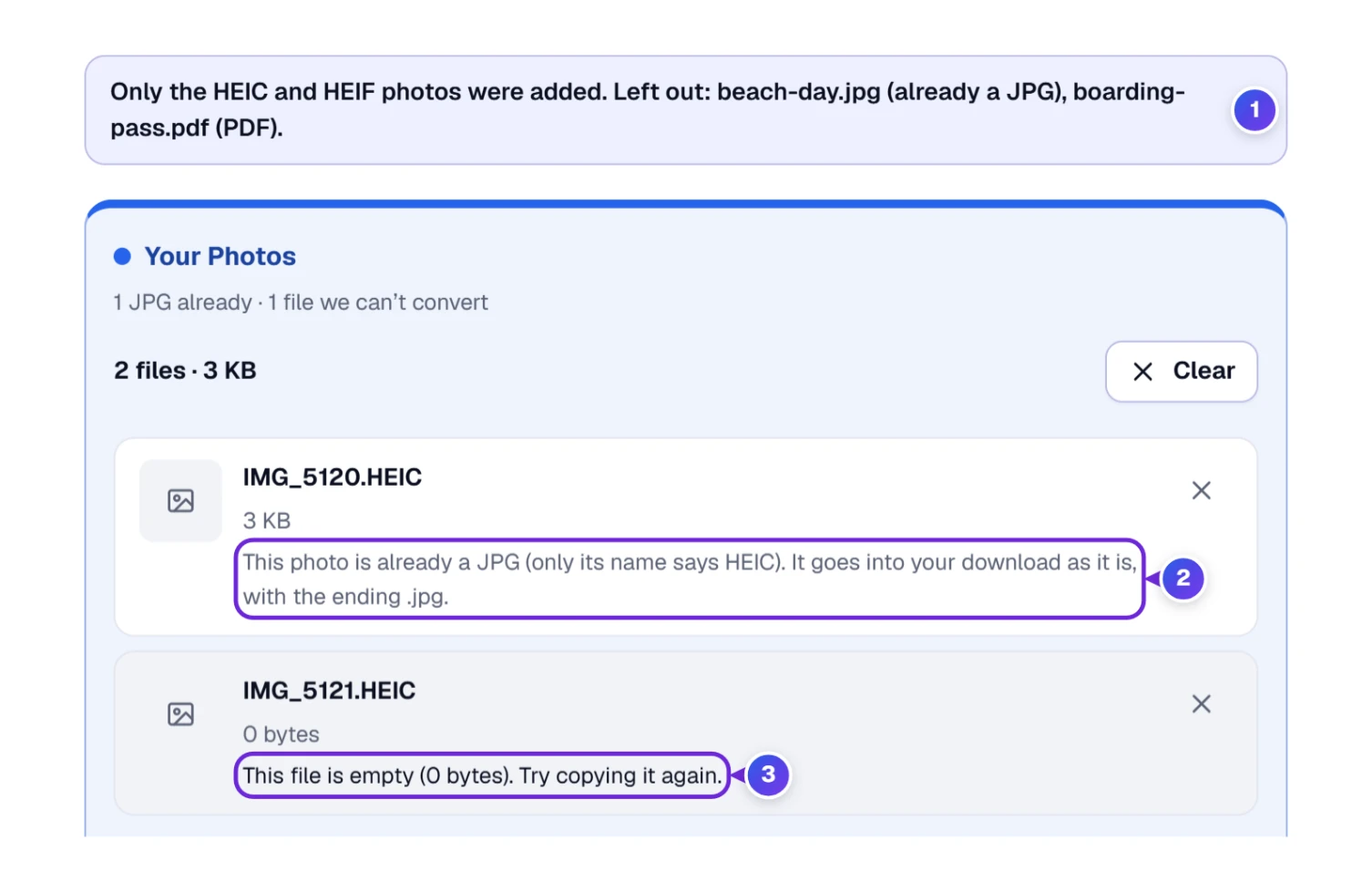
- The real JPG and the PDF weren’t added at all. The message 1 lists both by name and says what each one really is, judged by the file’s contents rather than its ending.
- The renamed file 2 was spotted as a JPG in disguise. It goes into your download untouched, just with the right .jpg ending.
- The empty file 3 was flagged with “Try copying it again”, which is usually what went wrong: the copy stopped halfway.
With only the renamed JPG left on the list, the big button changes to Get the JPG. There’s nothing to convert in that case, so it just hands the file back with the right ending.
Lesson 4: Save the Finished JPGs Where You Need Them
When the green Done lines appear, your JPGs exist, but only inside the page for now. This lesson gets them onto your device.
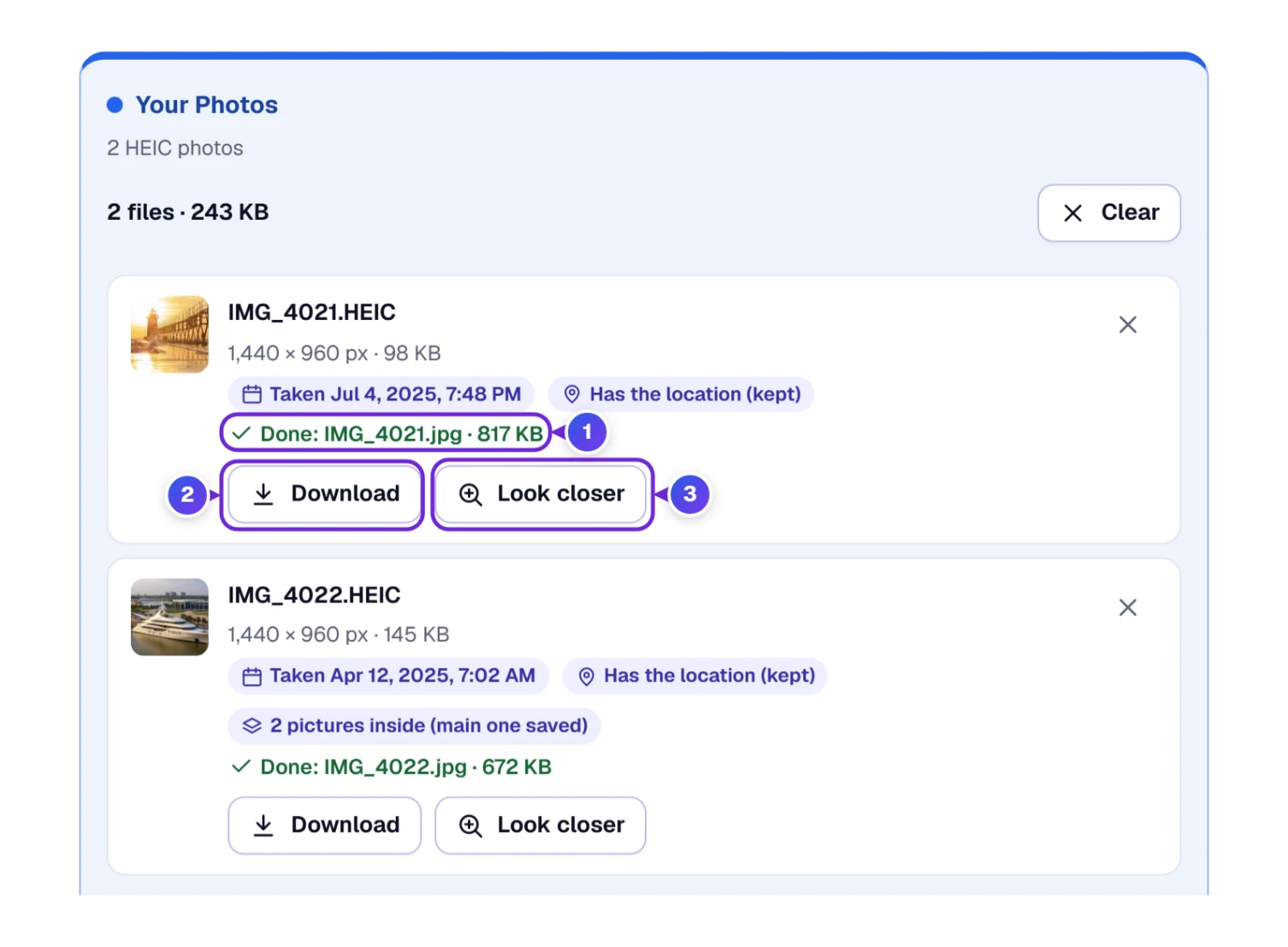
- Each photo’s Done line 1 gives the new file name and size, for example IMG_4021.jpg · 817 KB.
- Download 2, next to a photo, saves just that one JPG to your Downloads folder.
- Look closer 3 opens the before-and-after view from Lesson 5.
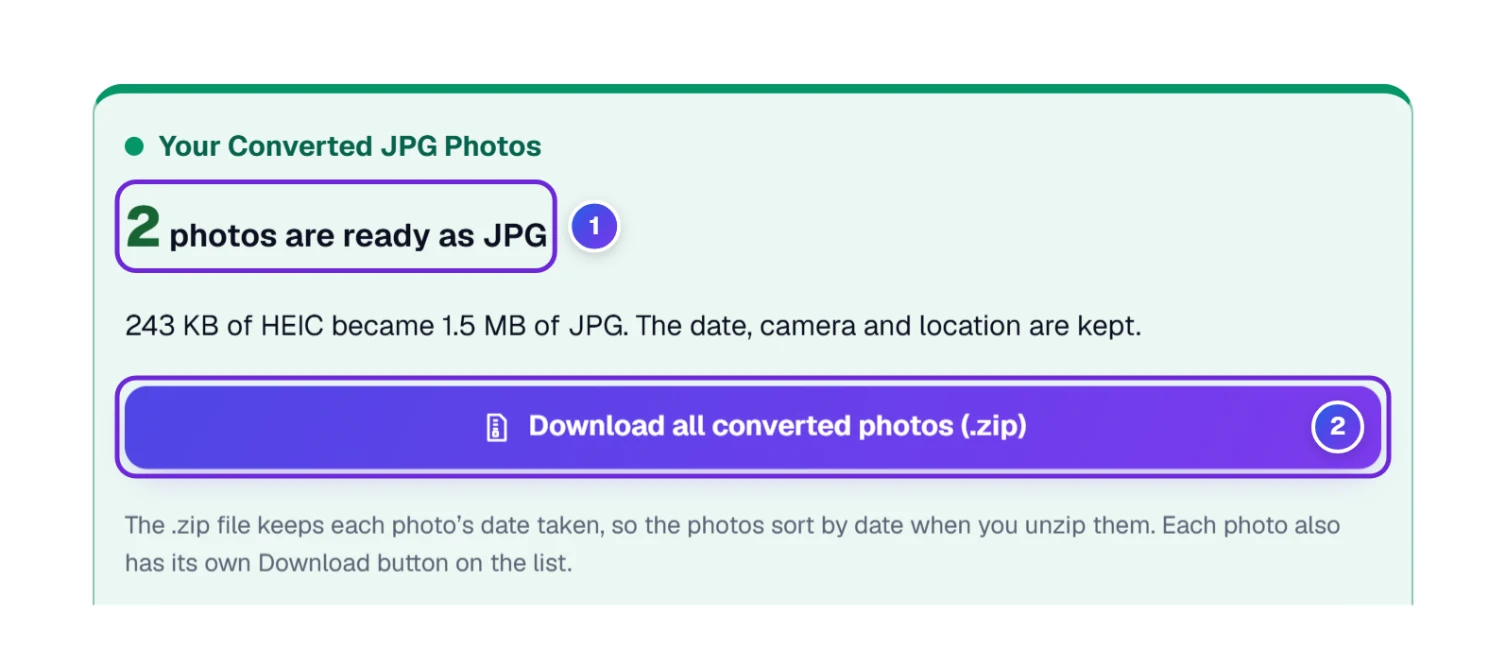
- The green box counts what’s ready 1 and adds one line about size and details, such as “243 KB of HEIC became 1.5 MB of JPG. The date, camera and location are kept.”
- Download all converted photos (.zip) 2 saves every JPG in one .zip file, a single parcel that holds them all. Its name starts with ToolHa-HEIC-to-JPG and ends with the day you saved it in brackets, so each batch unpacks into a folder you can find again. Double-click it on a computer to open it. Inside, each JPG carries the date the photo was taken as its file date, so the photos line up by date when you unpack them. With just one photo, this button reads Download the converted JPG instead.
Two more buttons show up only where they work. On phones that allow sharing files, Save to phone (or Save all to phone) opens the phone’s share menu, where you can save the pictures to your photos or your files. And when you’ve converted a single photo, Copy picture puts it on your clipboard so you can paste it straight into an email or a document.
If you try to close or reload the page before saving your converted photos, your browser asks whether you really want to leave. That’s on purpose: nothing is stored anywhere, so leaving would lose the JPGs you haven’t saved yet.
Extra Credit: Touch Up the Photos Before You Send Them
Sometimes a JPG is only half the job. A listing photo may need cropping, a party picture a caption, a product shot a plain background. For that, a card shows up under the download button as soon as your photos are ready, with the photos you just converted right on it.
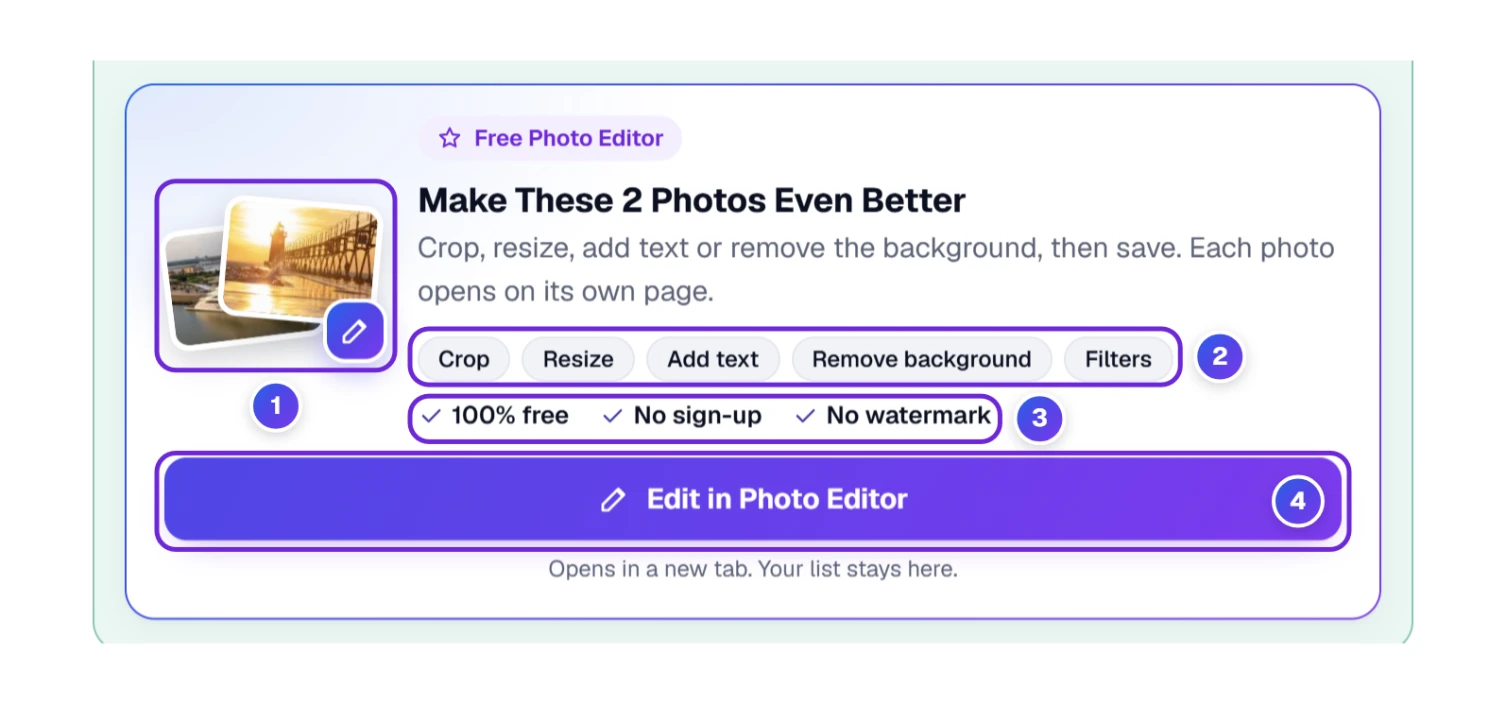
- The small pictures 1 are your own photos, not a sample, so you see exactly what you’d be editing.
- The labels 2 name the jobs people reach for most: crop, resize, add text, remove the background and filters.
- The ticks 3 answer the usual worries about photo editors: it costs nothing, there’s no account to make, and nothing gets stamped on your saved picture.
- Edit in Photo Editor 4 opens our free Photo Editor in a new tab with your photos already loaded, each on its own page. They travel inside your browser, so they still aren’t sent to us, and your list here stays exactly as it was. With a very large batch, the editor takes as many photos as your device can comfortably hold and tells you so.
Lesson 5: Compare Before and After With Look Closer
Worried that the JPG looks worse than the original? This box lets you check with your own eyes instead of trusting a number.
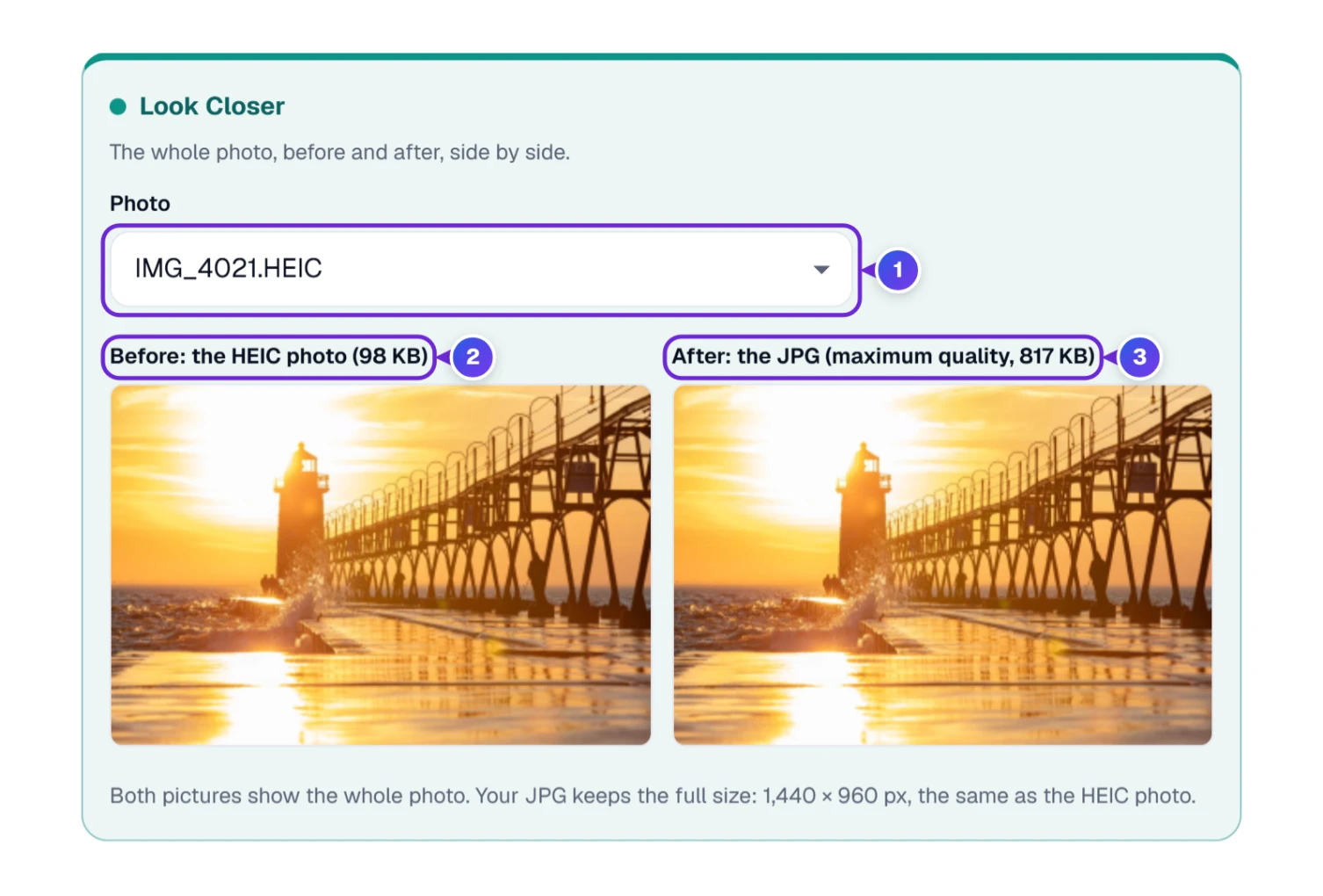
- Press Look closer next to any converted photo, or pick a name from the Photo list 1.
- The left picture 2 is your HEIC photo and the right one 3 is the JPG. Both show the whole photo.
- Read the line under them: it confirms the JPG keeps the full size in pixels, for example 1,440 × 960 px, the same as the original.
Both pictures are shrunk the same way to fit side by side, so any difference you see comes from the files themselves, not from the screen. At the Balanced setting (92) we couldn’t tell the two apart on our example photos. Try it with one of your own photos: if the two look the same to you, that’s the answer that counts.
Lesson 6: Change Only the Choices You Need
Under the tool sits a box called Your Choices. Click it to open it. Every group already has its best option picked and marked with a green Best tag, so most people never change anything. (Picture Quality isn’t in here: it sits just above the Convert button, as Lesson 1 showed.) Whatever you pick is remembered on this phone or computer for your next visit.
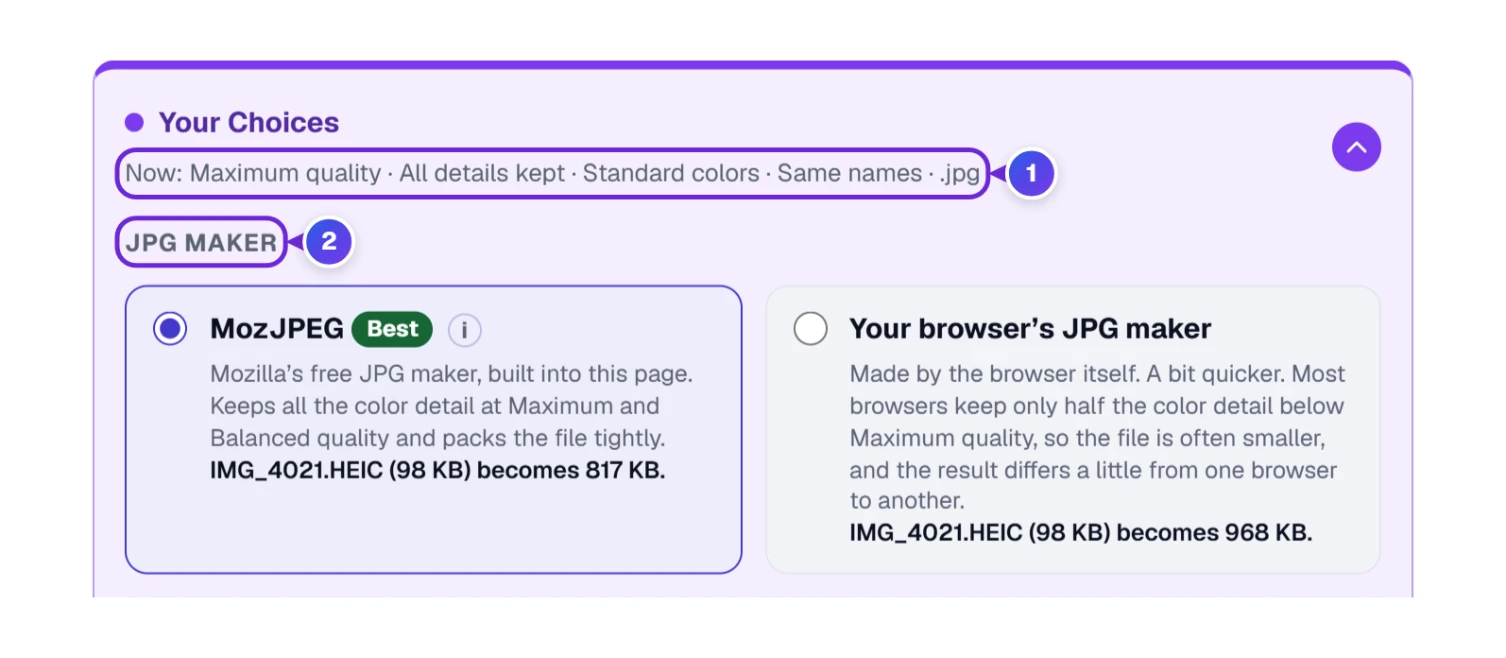
- The Now: line 1 sums up your current choices in one row, even while the box is closed.
- JPG Maker 2: MozJPEG, Mozilla’s free JPG maker built into the page, keeps all the color detail and packs the file tightly. Your browser’s JPG maker is a bit quicker. In Chrome and Edge it keeps only half the color detail below Maximum (we checked the files it writes), so its files are often smaller. Each card shows the exact size it makes for your first photo.
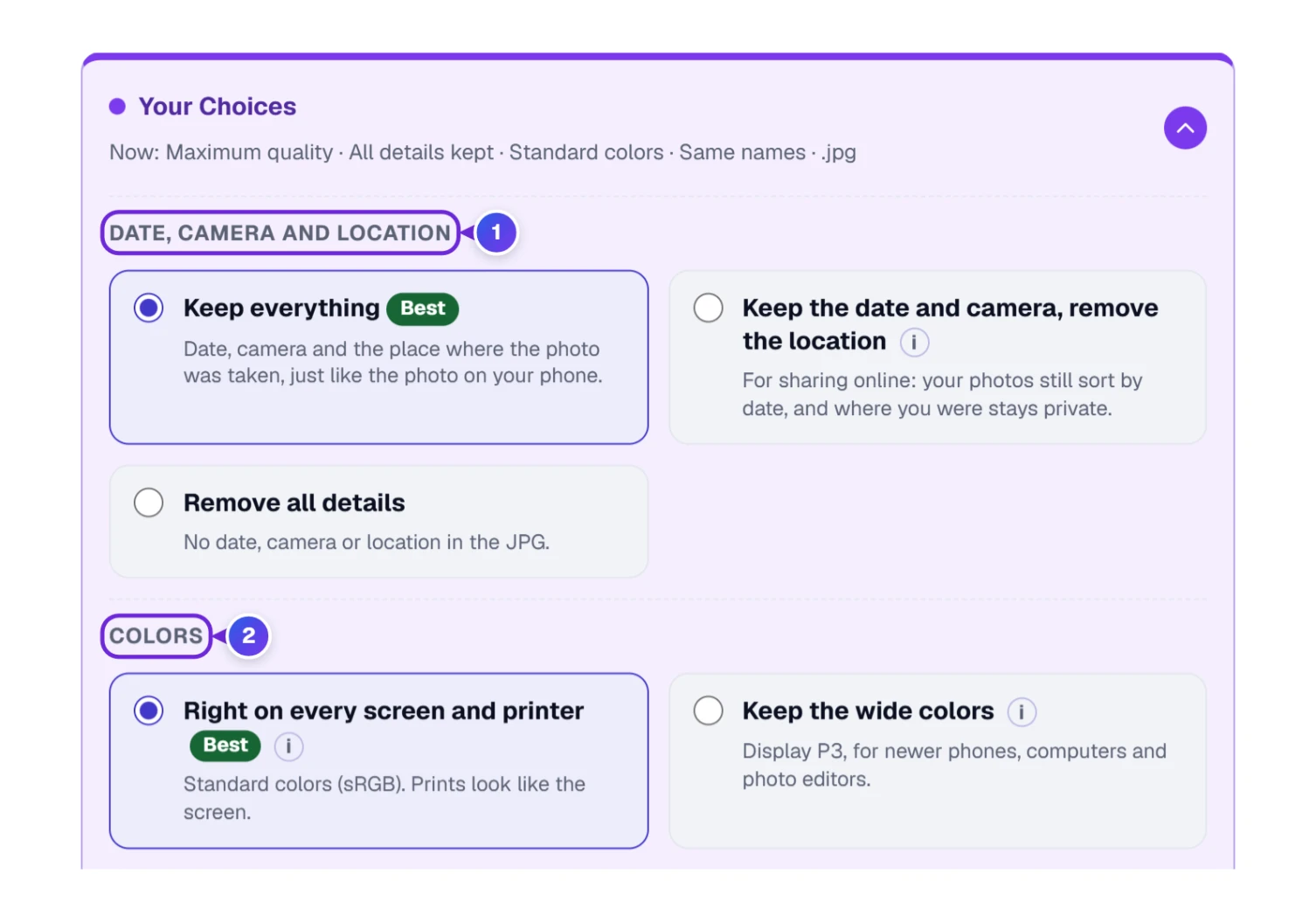
- Date, Camera and Location 1: Keep everything copies the date, camera details and place, just like the photo on your phone. Keep the date and camera, remove the location is the one to use before posting photos online, because anyone with the file can see the place on a map. Remove all details keeps nothing at all. These hidden details are often called EXIF or metadata; it’s the same thing.
- Colors 2: many phones save extra-wide colors (called Display P3). Right on every screen and printer changes them into the standard colors (sRGB) that every app and print shop expects. Keep the wide colors is for photo editors and newer screens.
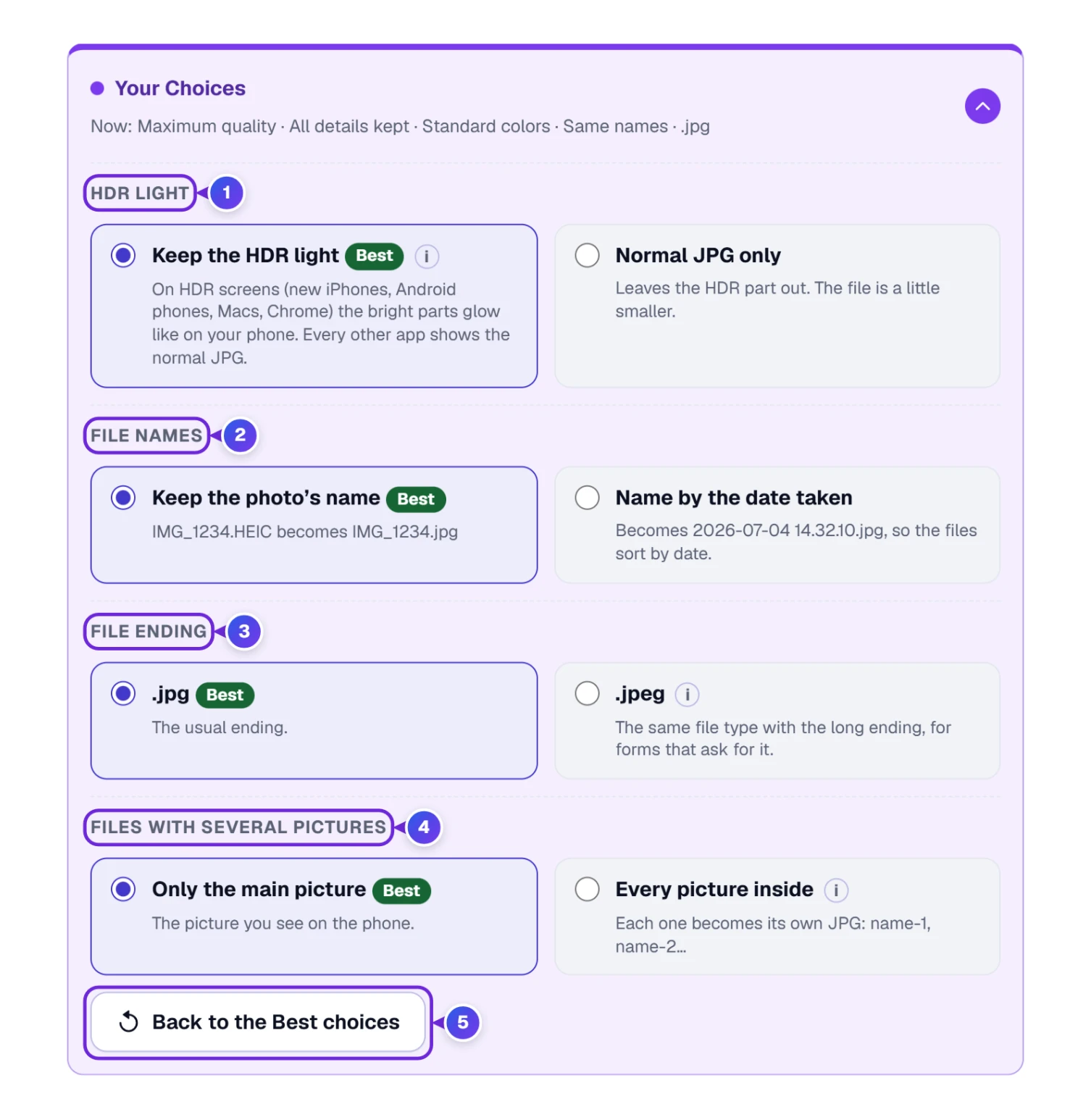
- HDR Light 1 matters only for HDR photos, the ones where bright parts glow on newer phone screens. Keep the HDR light saves an Ultra HDR JPG, so the glow survives on HDR screens while every other app shows a normal JPG. Normal JPG only leaves that part out. Our two examples aren’t HDR photos, so this choice made no difference for them.
- File Names 2: keep the name (IMG_1234.HEIC becomes IMG_1234.jpg) or Name by the date taken. In our test, the lighthouse photo became 2025-07-04 19.48.22.jpeg (we had picked the .jpeg ending at the same time).
- File Ending 3: .jpg or .jpeg. They’re the same kind of file; pick .jpeg only when a form insists on it.
- Files With Several Pictures 4: Every picture inside saves each picture as its own JPG. Our boat example turned into two files ending in -1 and -2.
- Back to the Best choices 5 undoes all your changes in one go, while your photos stay put on the list.
Changed a choice after converting? A small “Changed” tag appears on the box, and the big button turns into Convert again, so the new choice is used. Files you already downloaded stay as they were.
After Class: Make Your Phone Save JPG From Now On
If you’d rather never see a HEIC file again, you can tell your phone to save JPG photos instead. A grey line under the tool repeats these steps. The trade-off: JPG photos take more room on your phone.
On an iPhone or iPad
- Open Settings, then tap Camera.
- Tap Formats.
- Tap Most Compatible. (The other option, High Efficiency, is the one that makes HEIC.)
On a Samsung Galaxy
- Open the Camera app and tap the gear icon for its settings.
- Tap Advanced picture options.
- Turn off High efficiency pictures.
Only new photos change. Everything already on the phone stays HEIC, which is what this page is for.
Keep This Converter Close at Hand
A row of buttons sits under every ToolHa tool. Here’s what they do on this page.
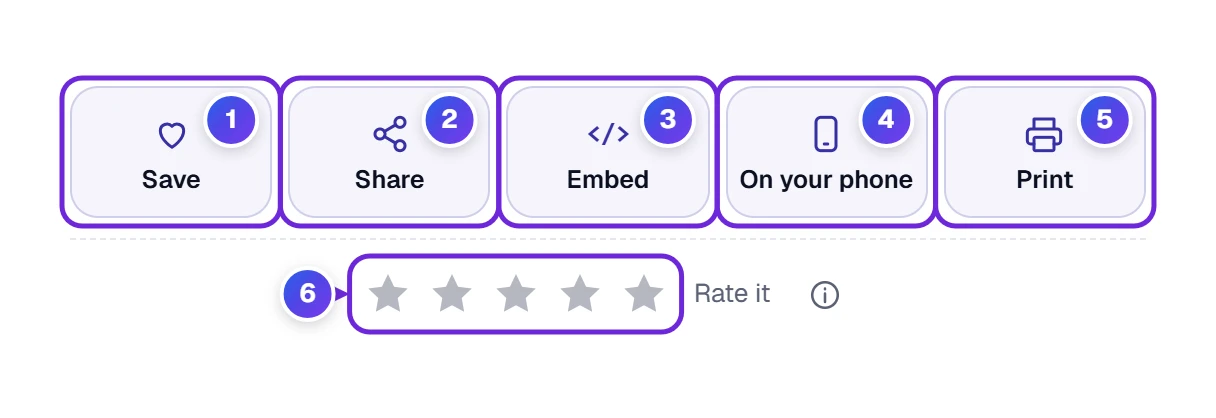
- Save 1 keeps this converter in My Tools, your own list of favorites (the heart beside the page title does the same job).
- Share 2 sends a link to this page by email, text message or another app. It shares the page, never your photos.
- Embed 3 gives website owners a short code to show the converter on their own site.
- A square QR code appears when you press On your phone 4. Aim the phone’s camera at that square and the page opens there, handy when the photos are on the phone and you’re sitting at a computer.
- Print 5 prints the tool and its result list, which some people like as a record of what they converted.
- Tap a star 6 to tell us how the converter did; five means great.
Keyboard fans can skip the mouse. These keys work whenever you’re not typing in a box, and pressing ? shows the list on the page:
| Key | What it does |
|---|---|
| O | Choose photos |
| E | Try an example |
| Enter | Convert the photos |
| D | Download all converted photos (or the one JPG) |
| X | Clear the list |
| U | Undo |
What Happens Inside the HEIC to JPG Converter
You don’t need this section to use the tool. It’s here for anyone who wants to know exactly what happens to their photos, and why another converter might give a slightly different file. The same facts sit in the How We Convert box at the foot of the converter 1.
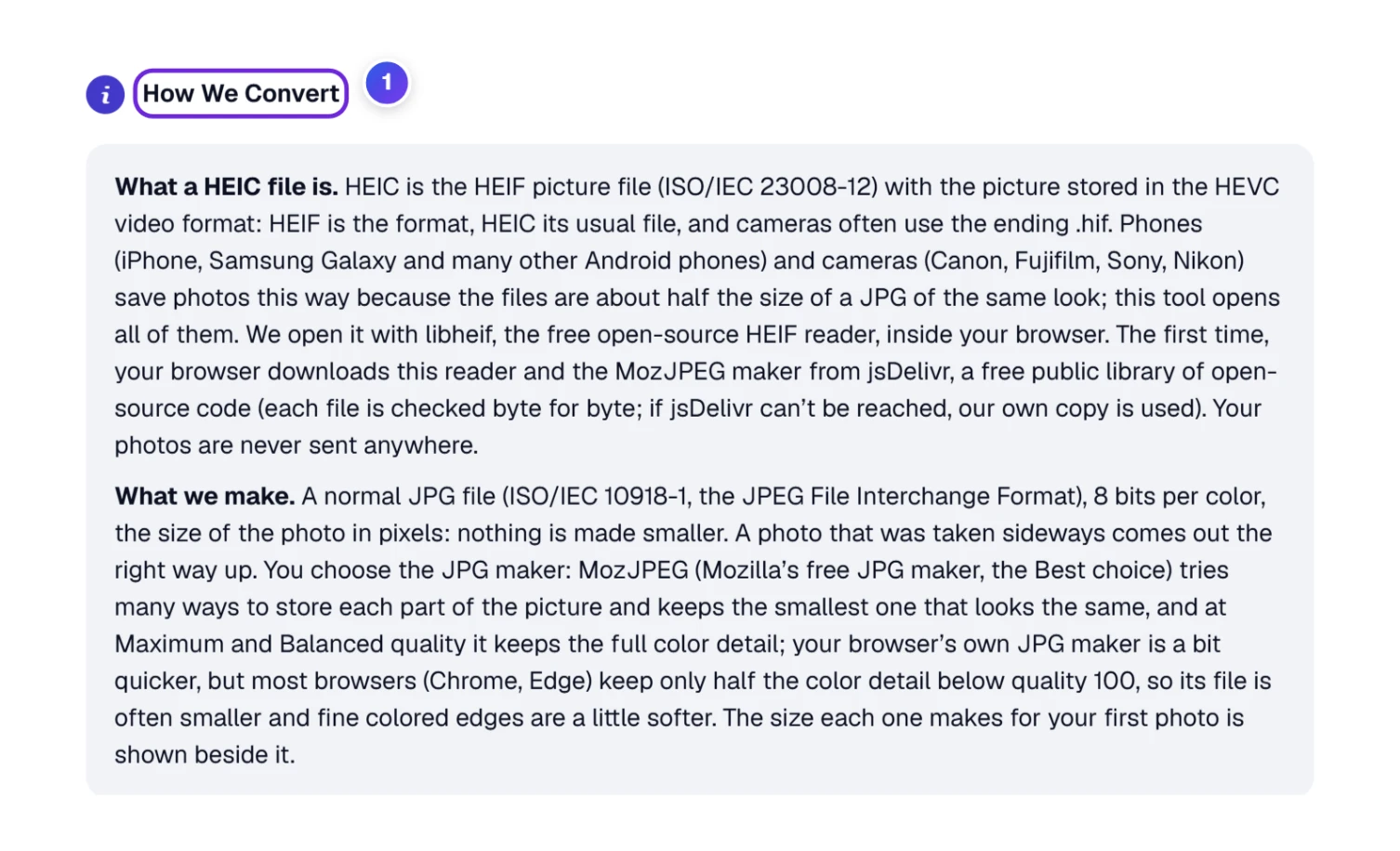
- Reading the photo. HEIC follows the HEIF standard, ISO/IEC 23008-12, with the picture stored using the HEVC video format. Your browser reads it with libheif, a free open-source HEIF reader. The first time, the browser downloads that reader and the MozJPEG maker from jsDelivr, a free public library of open-source code, and checks each file byte for byte. Your photos are never part of that download.
- Writing the JPG. The result is a standard JPG, 8 bits per color, at the full size in pixels. Nothing is made smaller. A photo taken sideways comes out the right way up.
- The quality numbers. Maximum quality is 100 (the default), Balanced 92 and Smaller files 80, out of 100, and the slider takes any number from 0 to 100. A size limit searches for the highest number that still fits. With MozJPEG at 90 and above, color detail is kept at full resolution; below that it’s halved, which eyes rarely notice in photos.
- Colors. Wide P3 colors are converted to standard sRGB the way color-management software does it, and a color that sRGB can’t show is moved gently toward gray instead of being cut off, so a deep orange stays orange. A worked example from the tool’s own tests: the P3 color 200, 120, 80 becomes 213, 115, 70 in sRGB. Grays stay exactly the same.
- Photo details. Date, camera, lens and settings are copied using the Exif standard (CIPA DC-008). The location is the GPS part, which you can keep or remove.
- Why other converters can differ. Some copy wide colors without converting them, so photos look duller. Some strip every detail, so the dates vanish. Some use a fixed quality you never get to see. And many online converters upload your photos to their own servers to do the work.
The biggest batch we pushed through was 500 photos of 12 megapixels each, 790 MB in all. On a four-core computer the whole lot took about 48 minutes, and the .zip came to about 1.1 GB. It worked, but it’s a long wait, so on a phone it’s kinder to convert in smaller groups. The tool suggests a group size itself when a phone gets more photos than its memory handles comfortably.
When a Photo Won’t Convert
Most problems show up as a short note right on the photo’s line in the list. Here’s what each one means and what to do.
- “This file could not be opened.” Most likely the photo is still stored online (iCloud, for example) and isn’t fully on your device yet. Download it first, then add it again.
- “This file is empty (0 bytes).” The copy stopped halfway. Copy the photo from your phone or camera again.
- “This is a video.” A Live Photo is a photo plus a tiny video. Only the photo part can become a JPG; the video file is left as it is.
- “This file is larger than 400 MB.” That’s more than a browser can hold for one photo. Very few photos are this big; it’s usually a video with a photo-like name.
- “This photo is too big for this browser’s memory.” Close other tabs and try again, or use a computer instead of a phone.
- The example photos won’t load. They come from our website, so check your internet connection. Your own photos need the internet only the very first time, while the browser fetches the photo reader.
- The browser is too old. The page says so. Update your browser, or try a current version of Chrome, Edge, Firefox or Safari.
Questions About HEIC, HEIF and JPG
Is HEIF the Same as HEIC?
Almost. HEIF is the family, and HEIC is its best-known member: the file phones save. Cameras from Canon, Fujifilm, Sony and others often use the ending .hif for the same thing. This converter opens all three.
Why Won’t My HEIC Photos Open on Windows?
Many Windows computers need two add-ons from the Microsoft Store before their Photos app can open HEIC: HEIF Image Extensions, which is free, and HEVC Video Extensions, which costs a small fee, according to Microsoft’s own help page. Even with both installed, plenty of programs and upload forms still refuse HEIC, so converting to JPG is often simpler.
Does Converting HEIC to JPG Lower the Quality?
Slightly, because JPG always drops some fine detail to keep files small. At the Maximum and Balanced settings the difference is too small to see in normal photos, and Look Closer lets you check your own. The size in pixels stays exactly the same.
Is HEIC Better Than JPG?
For storing photos on your phone, HEIC is better: it takes about half the space for the same look. For sharing, printing and uploading, JPG is better, because practically everything opens it. Many people keep HEIC on the phone and convert copies to JPG when they need them.
Are My Photos Uploaded Anywhere?
No. The converting happens inside your browser, on your own device. The only things that come from the internet are the photo reader and the JPG maker, fetched on your first visit, and nothing goes back the other way: your photos are never sent.
Can I Convert a Live Photo to JPG?
Yes, the still picture of a Live Photo converts like any other HEIC photo. The moving part is a separate video file, which this tool leaves alone.
Is HEIC Only for iPhones?
No. iPhones made it common, but Samsung Galaxy and many other Android phones can save HEIC too, and so can several cameras. That’s why this page talks about HEIC and HEIF photos from any phone or camera.