The Table to Image Converter turns a table from Excel, Google Sheets, Word or a web page into a sharp PNG, JPG or WebP picture. Paste the table, pick a design, and save the picture. It’s all drawn inside your browser, so your numbers stay on your device.
Some people look for this as a table to picture tool. Same job. A picture is what you want when a real table would fall apart on its way to a slide, an email, a social post or a printed handout. This guide follows one price list from a made-up shop, Maple Street Bakery, to each of those places, and says what to change at every stop.
A Quick Tour of the Table to Image Converter
Here’s the tool with the bakery price list loaded. The table sits on the left, and the picture it makes sits on the right. Change a word and the picture follows.
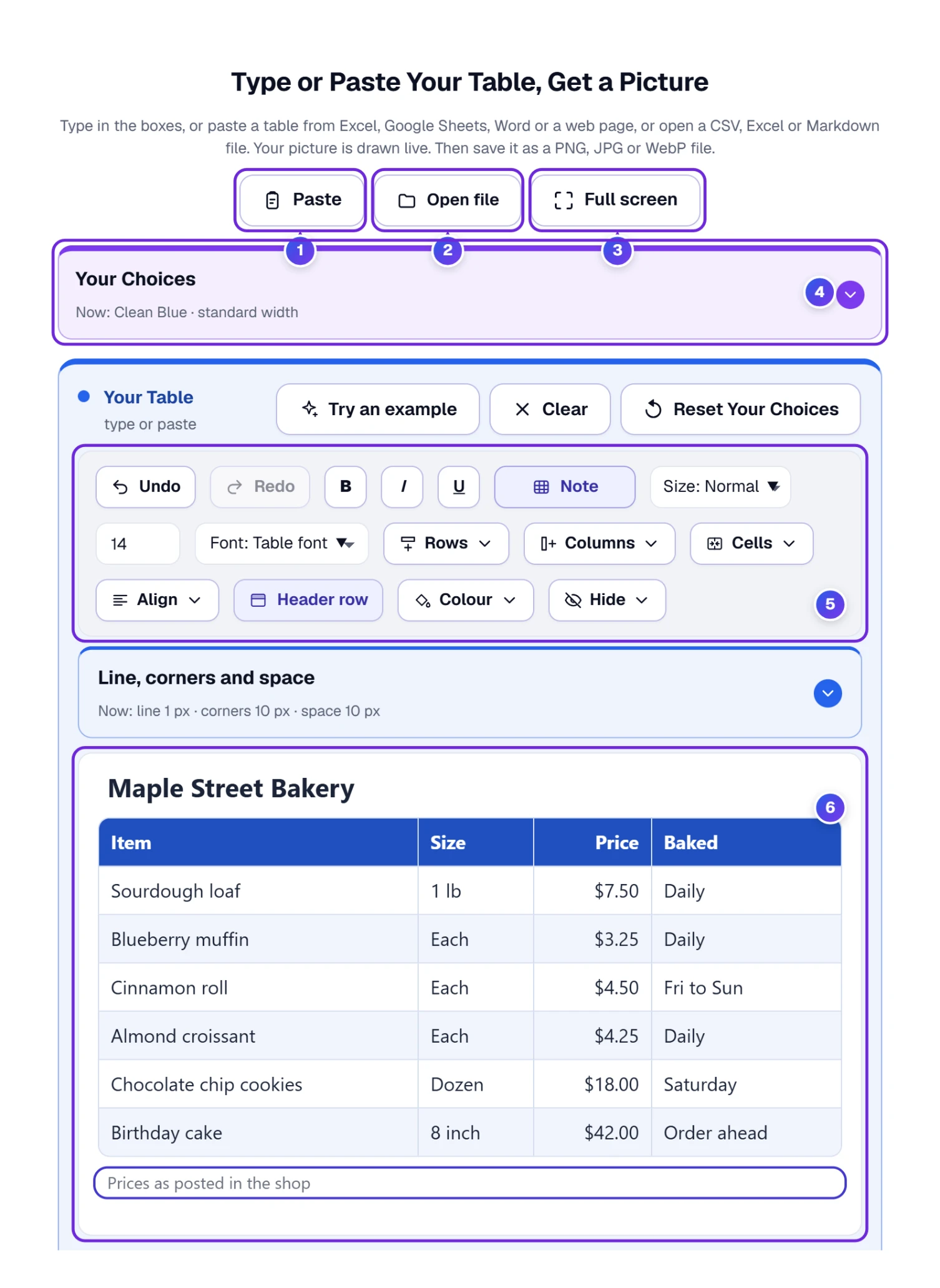
- 1 Paste puts in a table you’ve copied. Ctrl and V also work, and Mac users can press Command and V.
- 2 Open file reads a CSV, TSV, Excel (.xlsx), Markdown or web page file.
- 3 Full screen gives the table and the picture the whole window. Press Esc to come back.
- 4 Your Choices is a closed bar that holds 206 designs, the Customize Your Design fold and the Table Size fold. The tool works fine without ever opening it.
- 5 The toolbar holds Undo, Redo, bold, italic, underline, text size, font and six menus: Rows, Columns, Cells, Align, Colour and Hide, with a Header row button between Align and Colour.
- 6 The table box is a real table. Click any cell and type.
- Bring your table into the box 6. The next section shows four ways to do it.
- Look at the picture on the right. Fix words, rows and colors until it looks right.
- Pick PNG, JPG or WebP, then press the Download button or Copy Image.
Nothing needs downloading, and there’s no sign-in step.
Pick Your Starting Point: Paste, File, Draw or Example
Where does your table live right now? The answer decides which button to use.
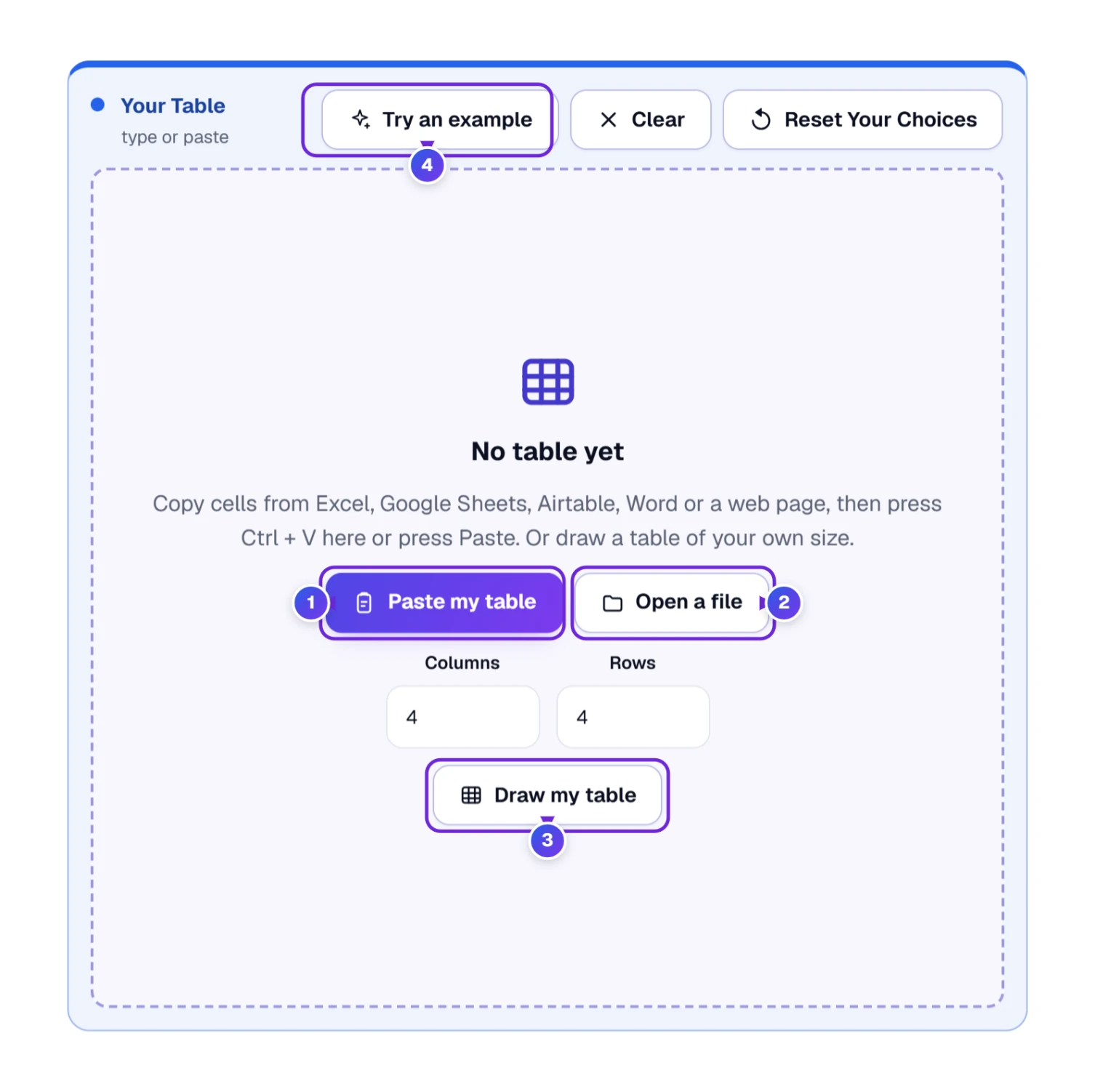
- 1 Paste my table. In Excel or Google Sheets, drag across the cells and press Ctrl and C (Command and C on a Mac). Click into the box and press Ctrl and V. A table on a web page can be copied too. Drag the mouse across it, press copy, and paste.
- 2 Open a file. It takes .csv, .tsv, .txt, .xlsx, .md, .markdown, .html and .htm files, up to 20 MB. Older .xls workbooks aren’t accepted, so save a copy as .xlsx in Excel first.
- 3 Draw my table. Enter a number of columns and rows, press the button, then type into the empty grid.
- 4 Try an example. It loads a sales table with six columns so you can see every part of the tool before you use your own numbers.
Going from spreadsheet to image is short: copy the cells, paste them in, save the picture. The tool lists Word and Airtable as sources too. We pasted Excel-style table data, plain text with tabs, and Markdown. All three became tables, and a Markdown column marked as right-aligned stayed right-aligned.
Open or paste? We tried both on the same table. Our test workbook had four columns and five rows, a title merged across the top row, and prices formatted as dollars. Opening the .xlsx file gave “4 by 5”. The title landed in one cell with three empty cells beside it, and the prices read 24.5, 4.99 and 59 with no dollar sign. Pasting the same table the way Excel hands it over, as an HTML table, kept the merged title and showed $24.50, $4.99 and $59.00. So for a table that leans on merged cells or number formats, copy and paste it. Keep Open a file for plain data.
Do colors come across? We pasted a styled table to find out. Our test table had a merged, bold, centered title with an orange fill, a dark blue header with white words, and red prices aligned to the right. After the paste, the title was still merged, bold and centered, and the prices still sat on the right. The orange, the blue and the red were gone. The design you pick paints every color, so a pasted color never fights it. To color a cell yourself, use the Colour menu, which a later section covers.
Plain text pasted from a document works too. Put a tab between columns, one row per line, and the tool builds the grid for you.
Fixing a Messy Table Without Going Back to Excel
Pasted tables often arrive with a stray column, a row in the wrong place or a typo. Fix all of it in the box. Click a cell, then open a menu above the table.
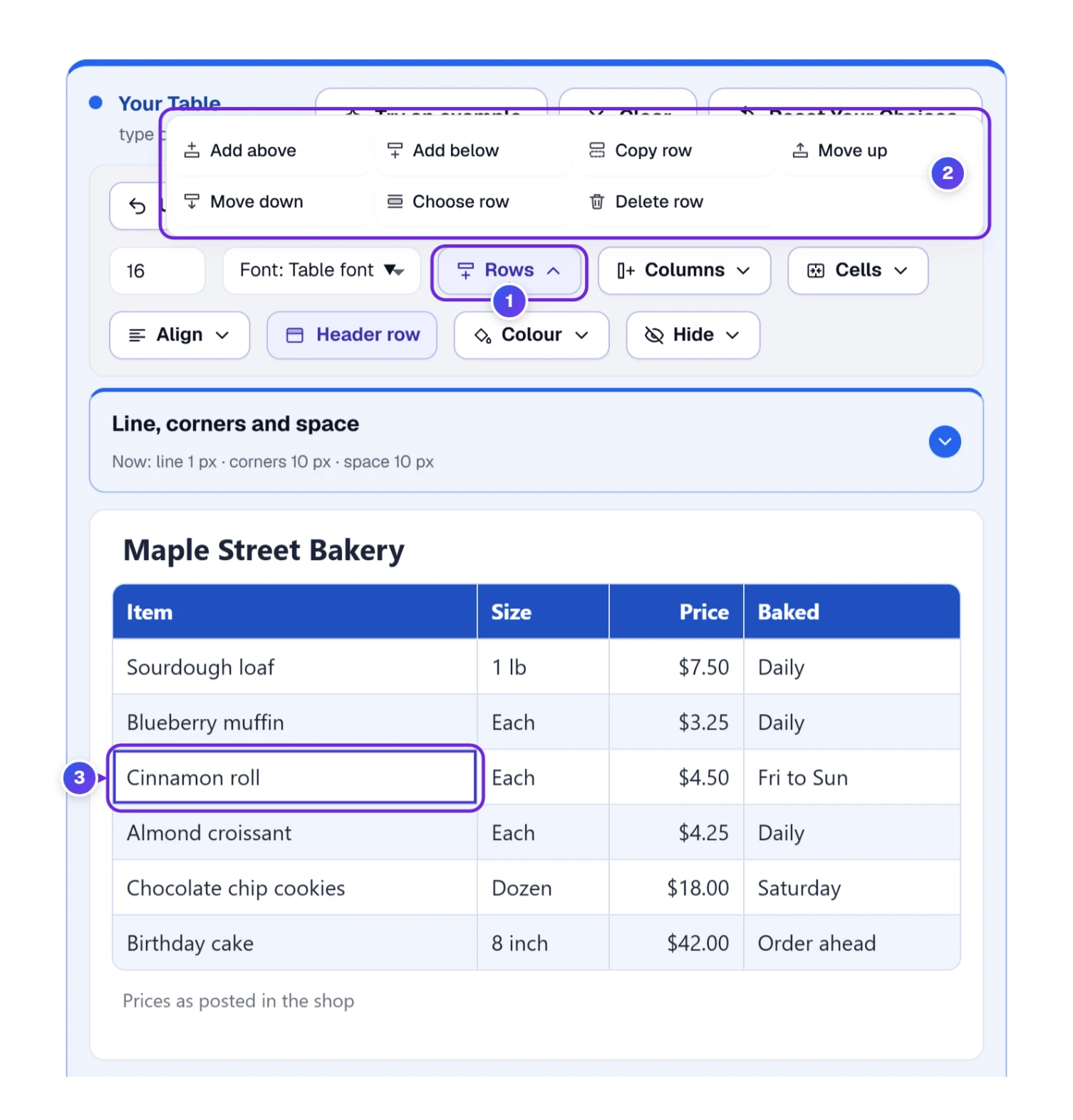
- 1 The Rows button. Columns, Cells, Align, Colour and Hide sit beside it, and each menu opens upward.
- 2 The Rows menu: Add above, Add below, Copy row, Move up, Move down, Choose row and Delete row.
- 3 The cell you clicked. A row menu always works on that cell’s row.
The Columns menu mirrors it: Add left, Add right, Move left, Move right, Choose column and Delete column.
The Align menu sets left, centre or right, and top, middle or bottom. You may not need it for numbers. When every cell under the header holds a number, with an optional minus sign, one currency sign, commas or a percent sign, the column lines up on the right by itself. The picture shows exactly what you typed. Nothing is rounded and no commas are added.
The Header row button sits between Align and Colour. It makes the top row the header, with the header color, or turns it back into a normal row, and you don’t have to choose a cell first. It does the same job as First row is header in the Cells menu, and Undo takes it back. A pasted table whose top row is mostly numbers doesn’t get a header row, because that row is probably data. If it holds the column names, press Header row.
The text buttons come before the menus. B, I and U make words bold, italic or underlined (Ctrl and B, I or U do the same). Size offers Small, Normal, Large, Huge or a number of pixels you type. Font has 57 choices in seven groups. The five Standard fonts, which come from your device, are at the top (Clean, Any Language is marked Best), and Typewriter is last. With nothing chosen, Size and Font change the whole table. Click a cell and they change only that cell. A small button beside them names what they will change, such as Whole table, Cell, Title or Note, and one press returns you to the whole table.
Above the table is a line that says “Add a title here”, and below it a line for a note, such as where the numbers came from. Both are optional and both end up in the picture.
Made a mistake? Undo and Redo go back and forward through your last 40 changes. Clear empties the table, and an Undo the Clear button appears if you press it by accident.
Merge Cells for a Section Row That Spans the Table
Price lists often have section rows, like Breads and Sweets, that run across every column. In Excel you’d merge the cells. Here it takes three steps.
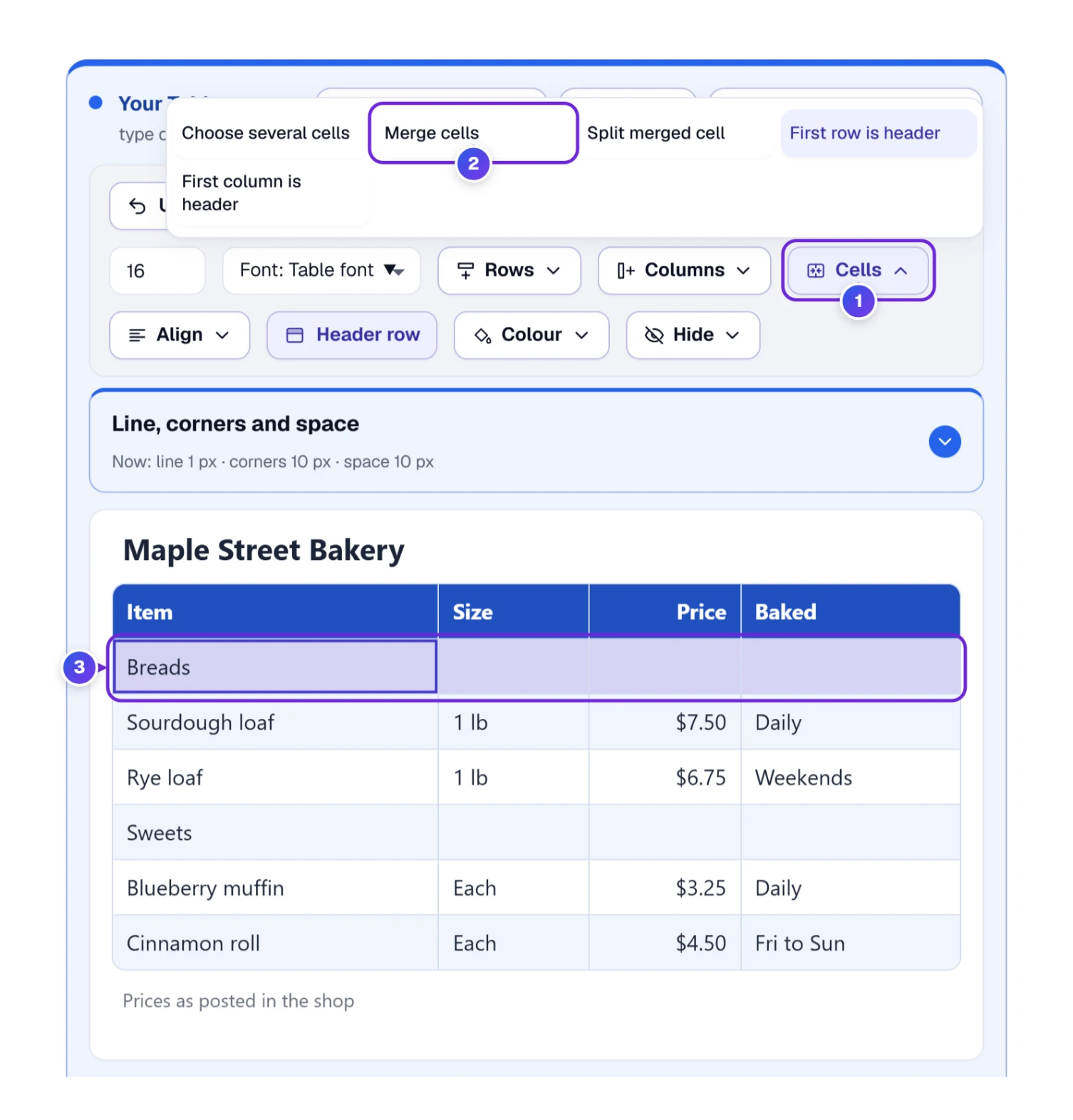
- Open Cells 1 and choose Choose several cells.
- Click the first cell of the Breads row, then the last. The whole row 3 is chosen.
- Open Cells again and press Merge cells 2.
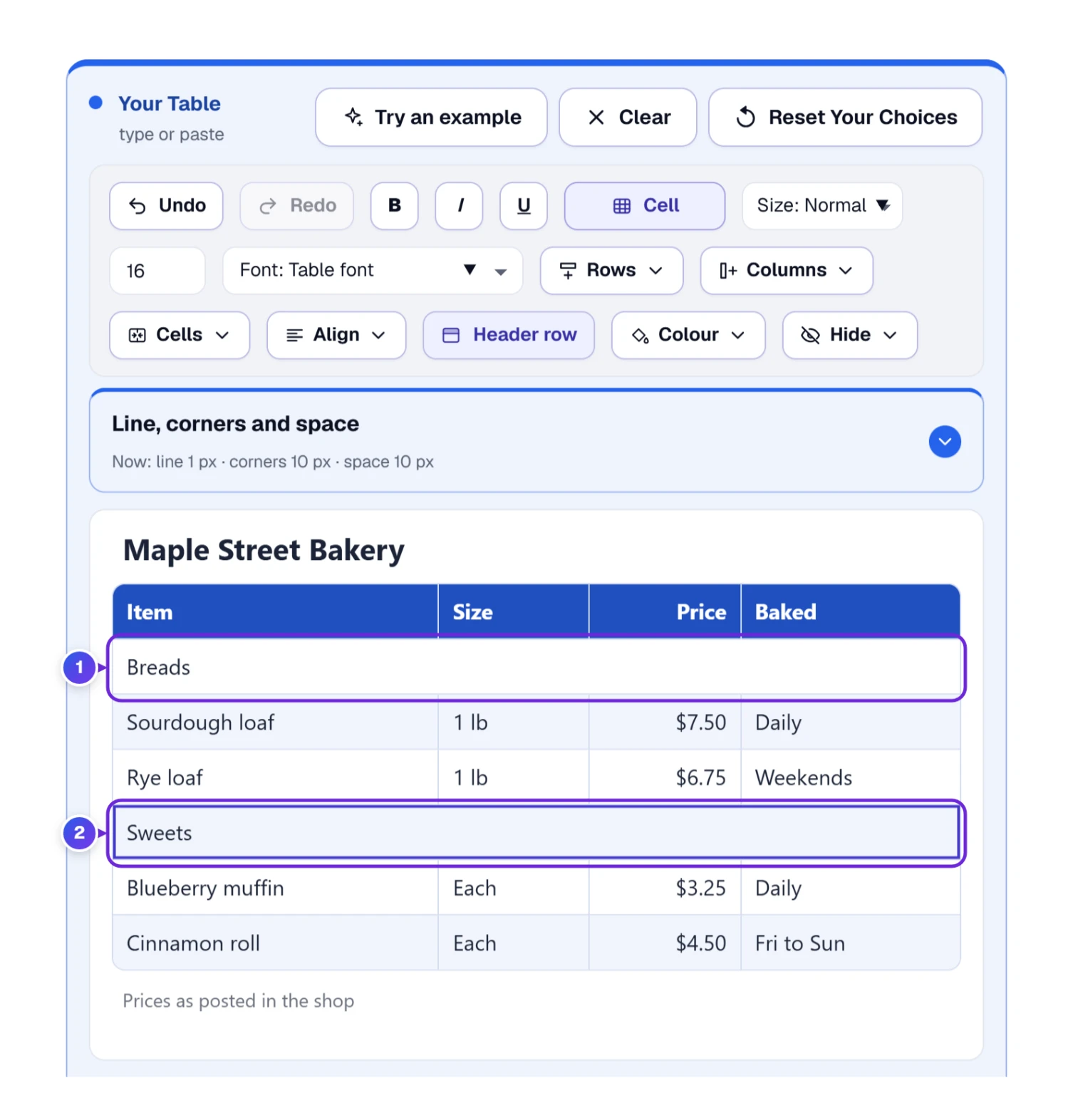
Split merged cell undoes a merge. The same menu holds First row is header and First column is header, which decide whether the top row and the left column count as headers. A merged cell pasted from Excel stays merged. We checked with a four-column title cell, and it arrived as one cell.
Choosing a Look: 206 Ready-Made Designs in Nine Groups
Open Your Choices, then Design. Clean Blue carries the Best label, so it’s a fine choice as it is. If you want a different mood, there are 206 designs sorted into nine groups, and the picture on the right changes the moment you click one.
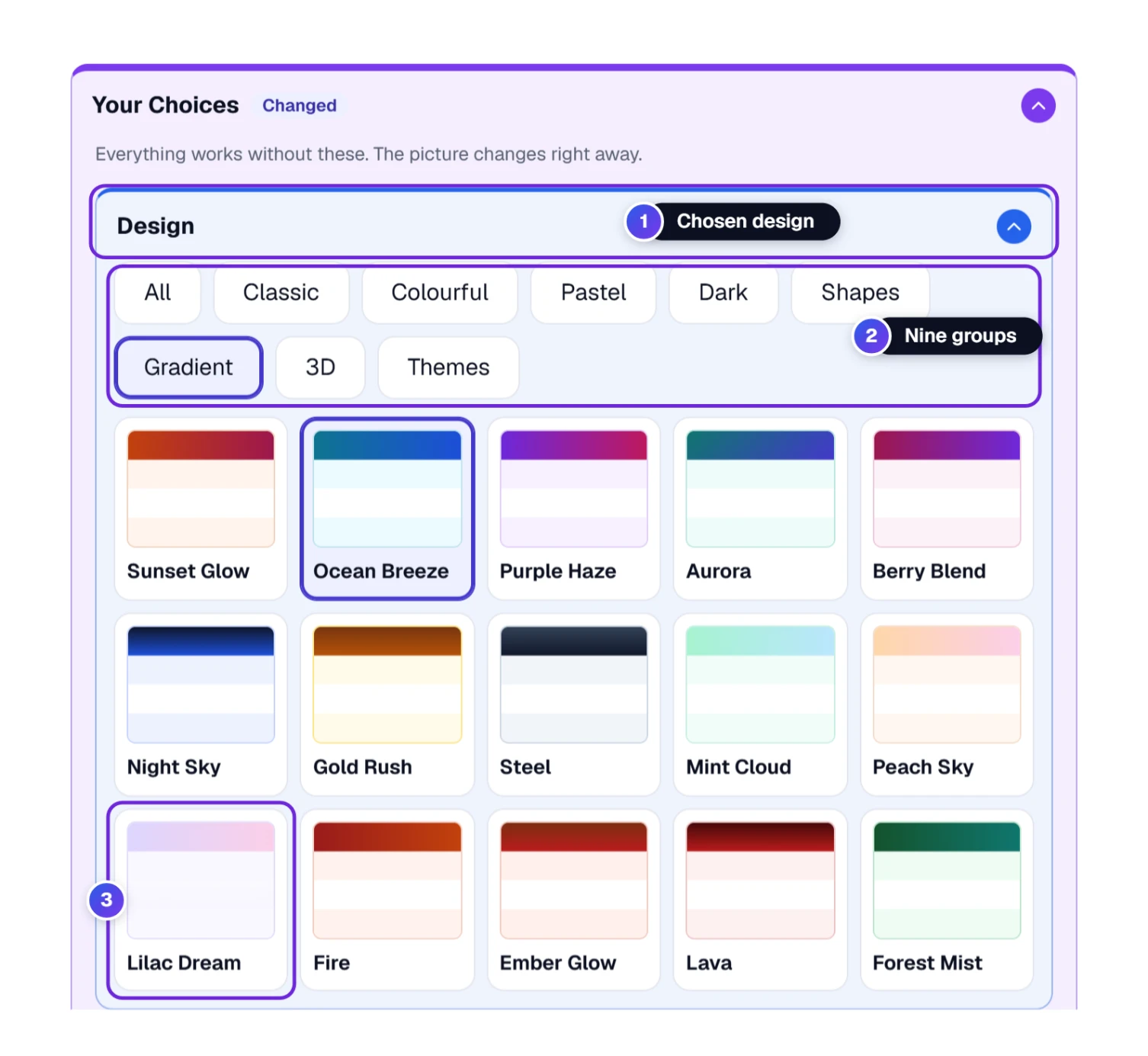
- 1 The chosen design. The Design bar names the look you’re using now, here Ocean Breeze, so you always know where you stand.
- 2 Nine group buttons: All, Classic, Colourful, Pastel, Dark, Shapes, Gradient, 3D and Themes. Press one and the grid shows only that group. Classic has 28 designs, Colourful 29, Pastel 14, Dark 14, Shapes 31, Gradient 51, 3D 26 and Themes 13.
- 3 The grid. Each tile is a small preview of a whole design. Click one and your table is drawn in it. Black and White or Paper suit a handout. Midnight or Neon Night suit a dark slide. The Themes group adds looks with a personality, such as Newspaper, Blackboard, Receipt and Green Ledger.
The table on the left follows the design closely, though a few shapes, such as notched outlines, look a little different there. The picture on the right is the exact result.
Making a Design Your Own: Colors, Edges, Gradients and 3D Looks
Every design is a starting point. Open the Customize Your Design fold, just below Design, and change any part of the design. Nothing here touches the words in your table.
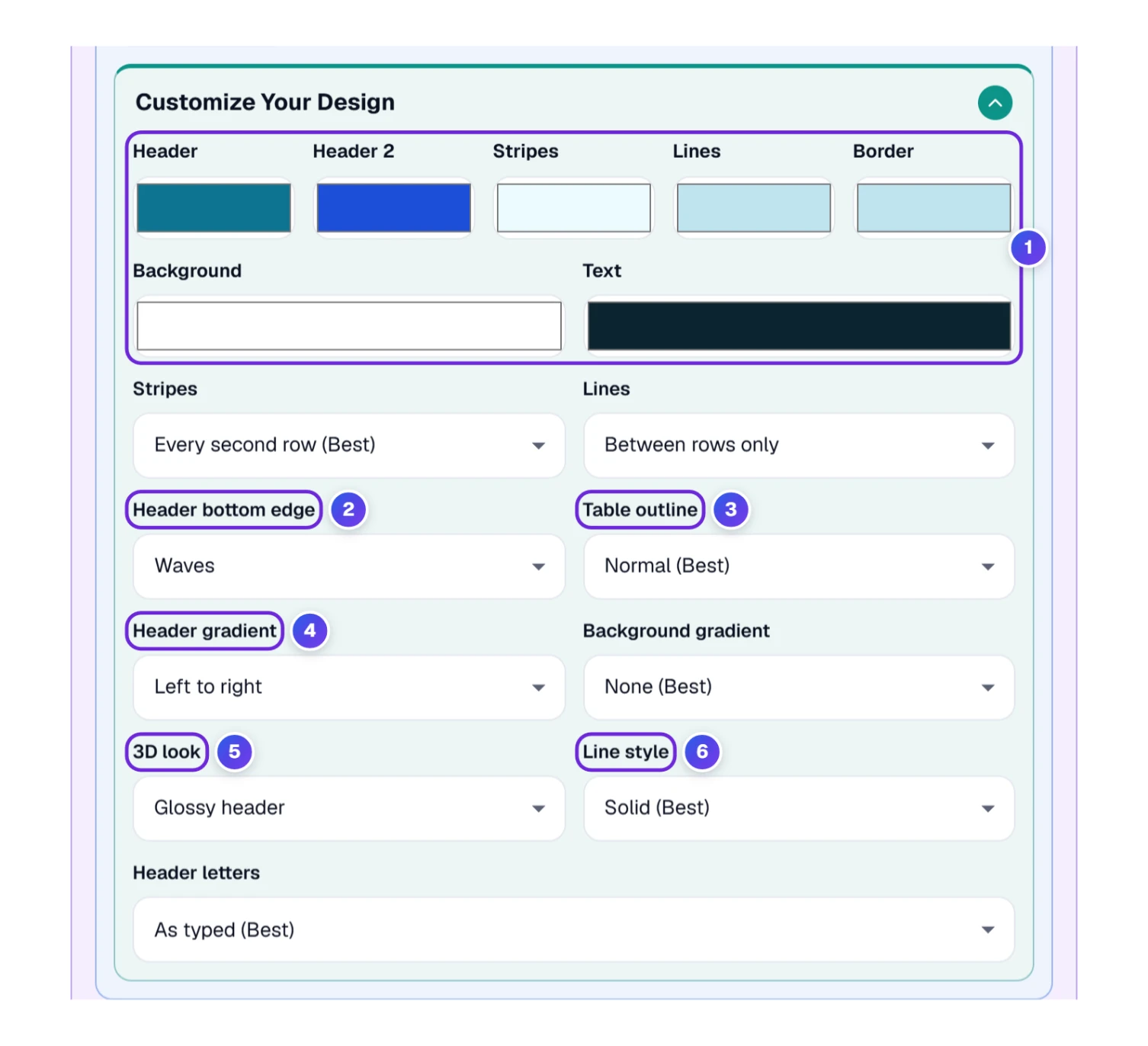
- 1 Color boxes: Header, Header 2, Stripes, Lines, Border, Background, Background 2 and Text. Click a box to change that part, whatever design you started from. Header 2 and Background 2 give a gradient its second color.
- 2 Header bottom edge shapes the line under the header: Straight (Best), Waves, Angled, Arch, Zigzag, Scallops, Saw teeth, Small ripples, Round bites, Steps, Pointer or Castle top.
- 3 Table outline shapes the whole table: Normal (Best), Ticket notches, Cut corners, Scooped corners, Cut top corners or Folded corner.
- 4 Header gradient blends two colors across the header: None (Best), Top to bottom, Left to right, Diagonal, Diagonal up or From the centre. Background gradient does the same behind the table, from top to bottom.
- 5 3D look offers Flat (Best), Soft shadow, Raised cells, Glossy header, Puffy, Deep shadow, Glass or Soft clay.
- 6 Line style offers Solid (Best), Dashed or Dotted. Header letters stay as typed (Best) or turn into CAPITALS.
Two more lists sit in the same fold. Stripes offers Every second row (Best), Every second column or None. Lines offers Every line (Best), Between rows only, Between columns only or No lines inside. Stripes are what Excel calls banded rows, and Google Sheets calls them alternating colors. Same idea.
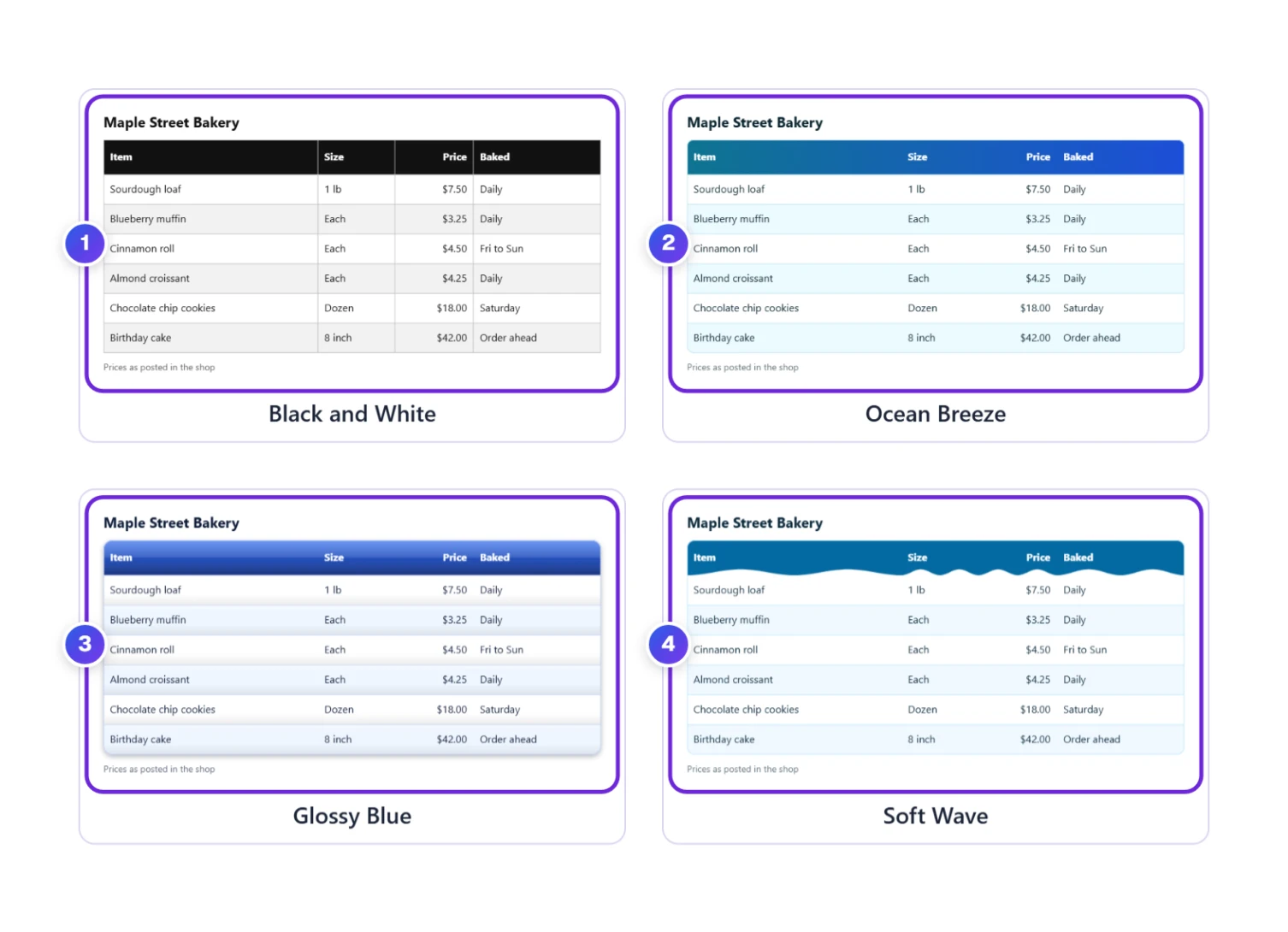
To see how far one table can travel, here is the bakery price list in four designs from four different groups.
A closed box named Line, corners and space, just above the table, sets the line thickness (1 pixel is Best), how round the corners are (10 pixels is Best) and the space inside cells (10 pixels is Best). A JPG always keeps square corners, so round corners need PNG or WebP.
To color one cell and leave the rest, click it and open the Colour menu. It has Header BG, Header text, First column BG, Last row BG (a good spot for a total), Text colour and Cell background. Reset cells and Reset all colours put things back. Leave a text color on Auto and the tool picks black or white, whichever is easier to read on that background.
Tried too many things? Press Reset Your Choices, at the top of the Your Table box next to Clear. Every choice goes back to Best, and your table stays as it was.
Setting the Picture Size: Width, Columns and Row Height
Colors and edges are settled, so next comes how big the picture is. Open Your Choices, then the Table Size fold. It holds four lists, and each one ends with a choice that lets you type your own number.
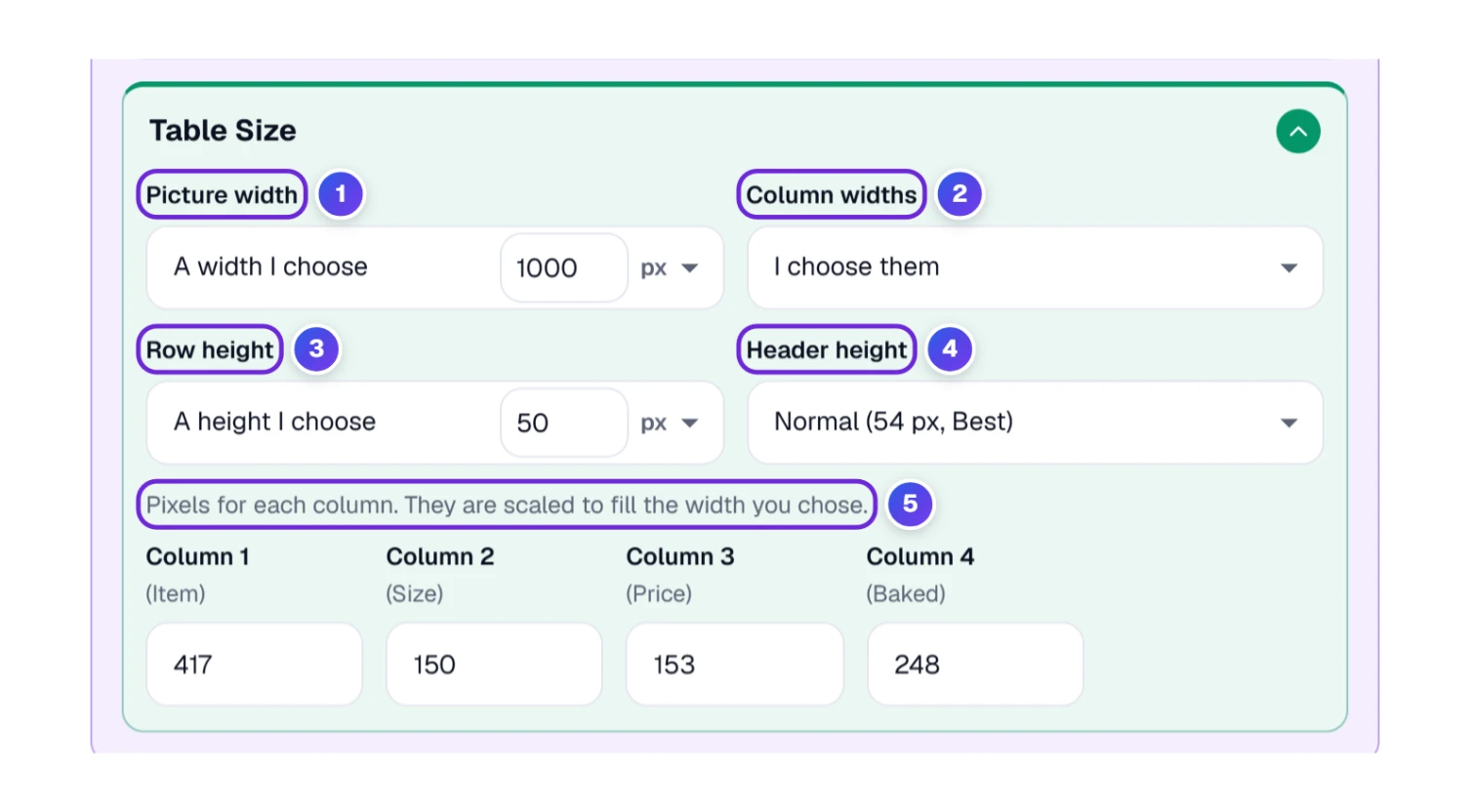
- 1 Picture width lists Phone 480 px, Standard 800 px (Best), Slide 1280 px, Wide 1920 px and A width I choose. The last one opens a number box inside the same list, with px beside it, and it takes 200 to 4,000.
- 2 Column widths offers Fit the words (Best), All the same or I choose them.
- 3 Row height lists Tight (32 px), Compact (38 px), Normal (46 px, Best), Roomy (56 px), Extra roomy (68 px) and A height I choose, which takes 24 to 160 px.
- 4 Header height lists Compact (38 px), Normal (54 px, Best), Roomy (64 px), Extra roomy (76 px) and A height I choose, with the same 24 to 160 px.
- 5 With I choose them, a box appears for every column, named after the column. Each takes 40 to 800 px, and the boxes are scaled to fill the width you chose.
| Width choice | Pixels at 1x | Pixels at 2x (Best) | Pixels at 4x |
|---|---|---|---|
| Phone | 480 | 960 | 1,920 |
| Standard | 800 | 1,600 | 3,200 |
| Slide | 1,280 | 2,560 | 5,120 |
| Wide | 1,920 | 3,840 | 7,680 |
Standard is the automatic choice, so the picture is at least 800 pixels wide and a small table isn’t tiny. A table that needs more room is as wide as its columns plus 16 pixels on each side. A table wider than 2,400 pixels is made narrower, and its words wrap.
Row height, tested. On the bakery table at 2x, Tight and Compact made the same picture, 774 pixels tall, because the words and the space inside cells already need that much room. Normal made 870, Roomy 990 and Extra roomy 1,134. The PNG grew from 118 KB to 132 KB along the way. Header height works the same way: Compact gave 838 pixels and Extra roomy gave 914.
Will Everyone Be Able to Read It? Checking Contrast
Pale words on a pale color are easy to miss when you design a table and hard to read when you share it. The tool watches for this. Its rule comes from the W3C accessibility guidelines: ordinary text needs a contrast ratio of at least 4.5 to 1. The guidelines allow 3 to 1 for large text. The tool uses 4.5 to 1 for every size, which is the safe choice.
To see the warning, we painted the header yellow (#F5D90A) and then chose white for the header words ourselves. A note appeared: “Some words may be hard to read.” It said four cells had too little contrast. Pressing Make them readable changed the header words to a dark navy (#111827), and the note went away. Had we left the header words on Auto, the tool would have picked the dark navy on its own.
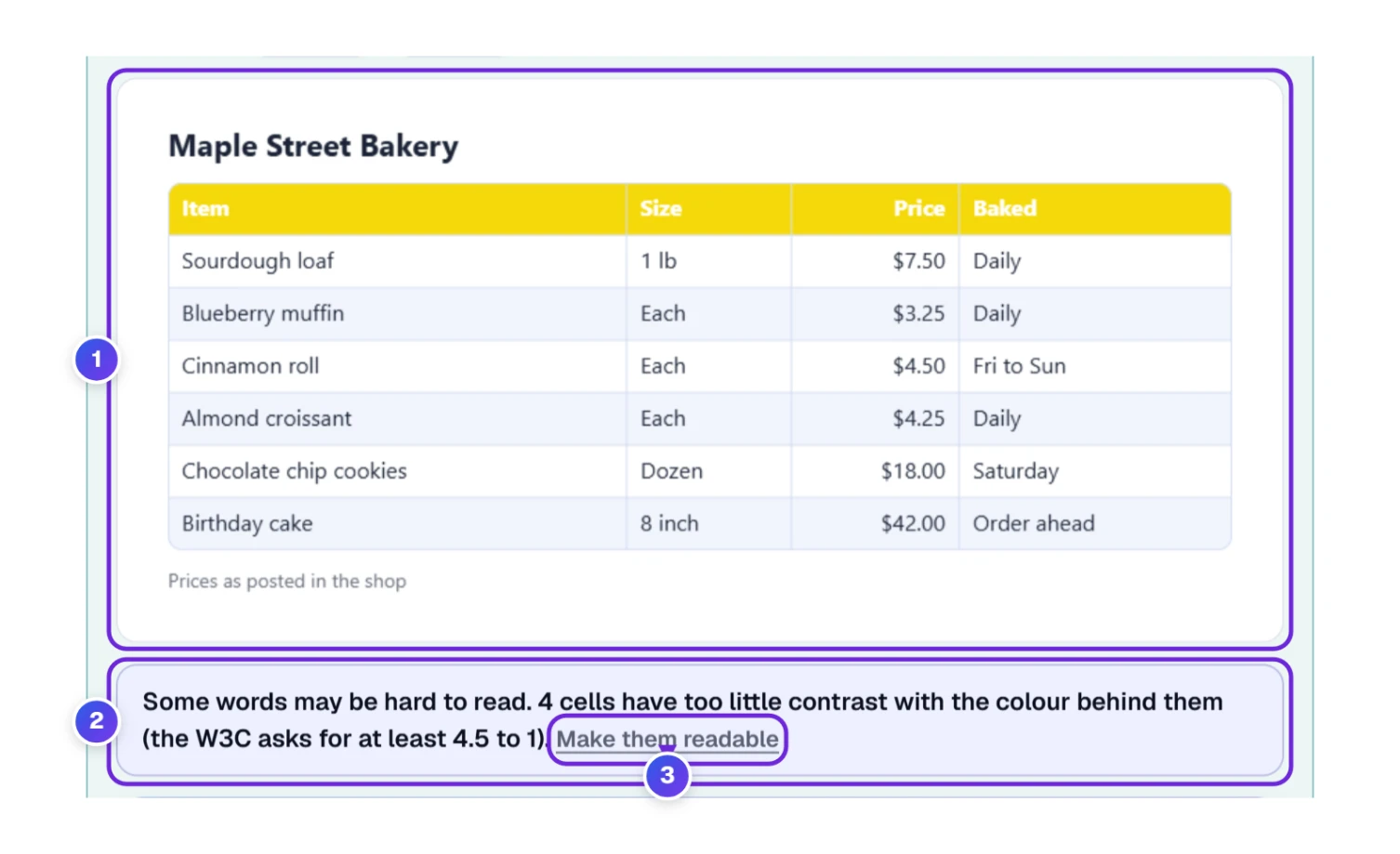
- 1 The preview still shows the unreadable header, so you can see the problem.
- 2 The warning bar counts the cells that fail the 4.5 to 1 test.
- 3 Make them readable changes only the words that fail.
| Pair | Colors | Contrast | Passes 4.5 to 1? |
|---|---|---|---|
| White words on the Clean Blue header | #FFFFFF on #1F4FBF | 7.2 to 1 | Yes |
| White words on the yellow header | #FFFFFF on #F5D90A | 1.4 to 1 | No |
| Dark navy words on the yellow header | #111827 on #F5D90A | 12.5 to 1 | Yes |
| Dark text on a white page | #1B2437 on #FFFFFF | 15.5 to 1 | Yes |
| White words on light gray | #FFFFFF on #E5E7EB | 1.2 to 1 | No |
The ratio comes from how bright each color is. The “How We Draw Your Image” box under the tool spells out every step, and a later section gives the short version.
How Sharp, How Big: PNG, JPG and WebP Compared
Everything about the saved file lives in the Your Picture box. The first line of it tells you what you’ll get before you save anything.
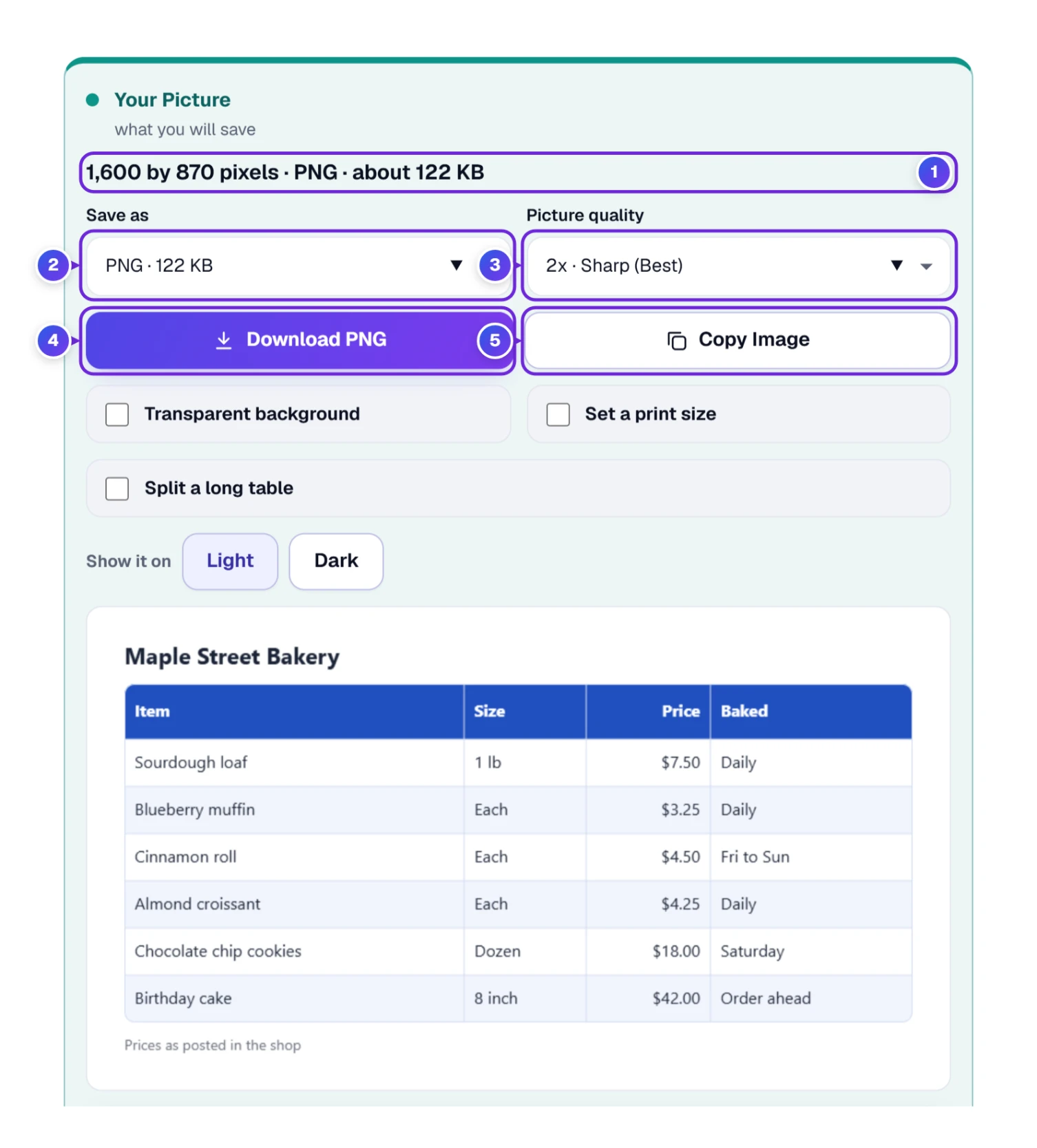
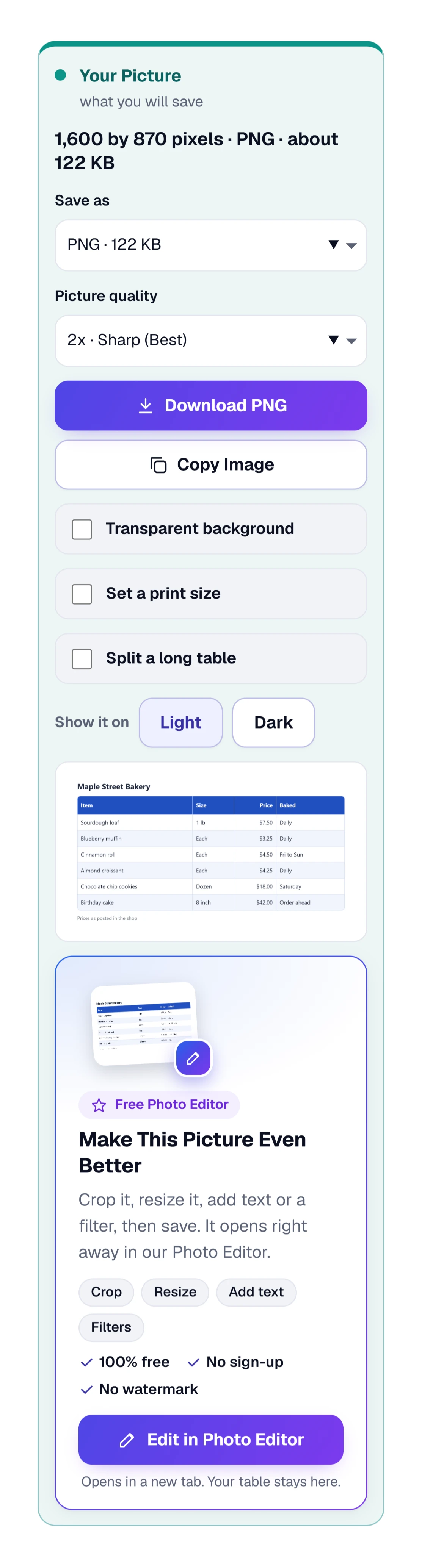
- 1 The summary line gives the size in pixels, the format and about how big the file will be, such as “1,600 by 870 pixels · PNG · about 122 KB”.
- 2 Save as offers PNG, JPG and WebP. Each choice shows its own file size. Pick JPG or WebP and a quality slider appears. It starts at 100%, and a lower number makes the file smaller (fewer KB or MB) without changing the width or height of the picture.
- 3 Picture quality runs from 1x Normal and 2x Sharp (Best) through 3x, 4x and 6x to 8x Huge, plus Biggest this device can make. Web designers call 2x retina size.
- 4 The Download button changes its name with your choice: Download PNG, Download JPG or Download WebP. The D key presses it.
- 5 Copy Image holds the picture ready, so one paste drops it into a message, a slide or a report. The C key presses it.
More quality means more pixels, which is what people mean by a high resolution table image. At 2x, every point of the table gets four pixels. At 8x it gets 64. The tool draws the table again at the bigger size. It never stretches a small picture, so the edges of the letters stay clean.
| Picture quality | Pixels | PNG | JPG (100%) | WebP (100%) |
|---|---|---|---|---|
| 1x Normal | 800 by 435 | 36 KB | 108 KB | 31 KB |
| 2x Sharp (Best) | 1,600 by 870 | 122 KB | 257 KB | 257 KB |
| 4x Very sharp | 3,200 by 1,740 | 305 KB | 608 KB | 1.1 MB |
| 8x Huge | 6,400 by 3,480 | 817 KB | 1.4 MB | 4.5 MB |
A size surprise. At full quality, the PNG was the smaller file at every size but 1x. At 1x, the JPG (108 KB) was three times the PNG (36 KB), and only the WebP (31 KB) came in under it. At 2x, the PNG (122 KB) was less than half of the JPG and the WebP (257 KB each). A table is mostly flat color and sharp edges, which PNG handles well, while a JPG or WebP at 100% spends bytes on tiny details you can’t see. The quality slider is where they save space. Dragging the JPG slider at 2x gave 108 KB at 92%, 79 KB at 80%, 61 KB at 60% and 56 KB at 50%, the lowest the slider goes. The WebP gave 51, 36, 30 and 28 KB at the same four settings. The method box under the tool says a lower setting can make thin letters look a little softer, and below 60% the saving is small for a table like this one.
A gradient design changes the sums. Ocean Breeze made the 2x PNG 269 KB, more than double the 122 KB of Clean Blue, because a smooth blend gives PNG less flat color to squeeze. At 92%, the JPG (110 KB) and the WebP (53 KB) hardly moved. When a file has to stay small, lower the slider on a JPG or WebP, or pick a flat design.
So which one? PNG keeps every pixel exactly, and it’s the safe pick for slides and documents. At full quality it is usually the smaller file too. WebP with its slider lowered gives the smallest file for a web page, but check that the program you’ll paste it into accepts WebP. For table to PNG there’s nothing to change, because PNG is already the selected Best choice. A JPG is for the moments a program insists on one.
Tick Transparent background for a picture with no white behind it. A JPG stays white, so pick PNG or WebP for this. The Show it on buttons, Light and Dark, only change the color behind the preview so you can check how a see-through picture will look. They don’t change the file, and the size in the summary line stays the same.
Printing a Table at the Right Size, and Splitting a Long One
Paper doesn’t think in pixels. It thinks in inches and dots per inch (DPI), and the tool does the sum for you: pixels equal inches times dots per inch. A 6 inch picture at 300 dots per inch is 1,800 pixels wide.
| Width on paper | Dots per inch | Pixels wide |
|---|---|---|
| 6 inches | 72 | 432 |
| 6 inches | 150 | 900 |
| 6 inches | 300 | 1,800 |
| 6 inches | 600 | 3,600 |
| 6.5 inches | 300 | 1,950 |
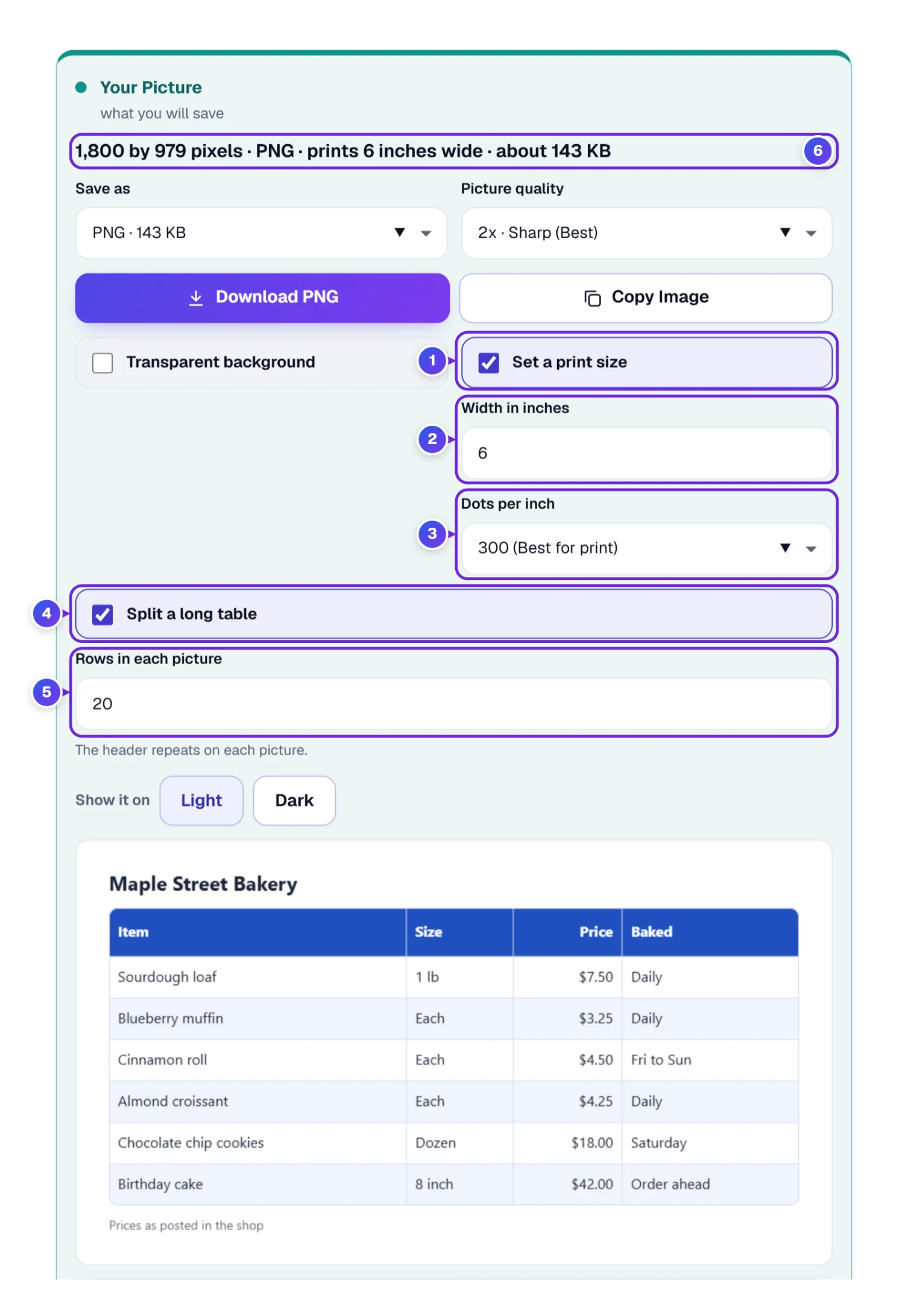
- 1 Set a print size switches the feature on.
- 2 Width in inches is the width you want on paper. We used 6.
- 3 Dots per inch offers 72, 150, 300 (Best for print) and 600.
- 4 Split a long table cuts a tall table into several pictures.
- 5 Rows in each picture starts at 20. The header row repeats on every picture.
- 6 The summary line now reads “1,800 by 979 pixels · PNG · prints 6 inches wide · about 143 KB”.
The print size is also written inside the file. A PNG stores it as pixels per meter, which is the dots per inch divided by 0.0254, so 300 dots per inch becomes about 11,811. A JPG keeps it in its header. WebP has no place for it in this tool, so a WebP picture doesn’t carry a print size.
Split works like this. We pasted a table with a header and 45 rows. At 20 rows per picture, the tool made 3 pictures, and the header repeated on each. At 15 rows it made 3 as well, and at 10 rows it made 5. The Download button changed to Download PNG ZIP, one file holding all the pictures.
Long tables have limits. The tool takes up to 300 rows and 30 columns. We pasted 320 rows and got a message that only the first 300 were kept. We pasted 35 columns and kept 30. Even 300 rows can be too tall for your device. Ours can draw 16,384 pixels on one side, so a 3-column, 300-row table at 2x was lowered to about 1.1x by itself, and the tool said so. When that happens, splitting is the better fix.
Hiding Private Numbers Before You Share
Say the bakery’s price list has a column of wholesale prices that customers shouldn’t see. Choose those cells (Cells menu, then Choose several cells, then the first and last cell) and open Hide.
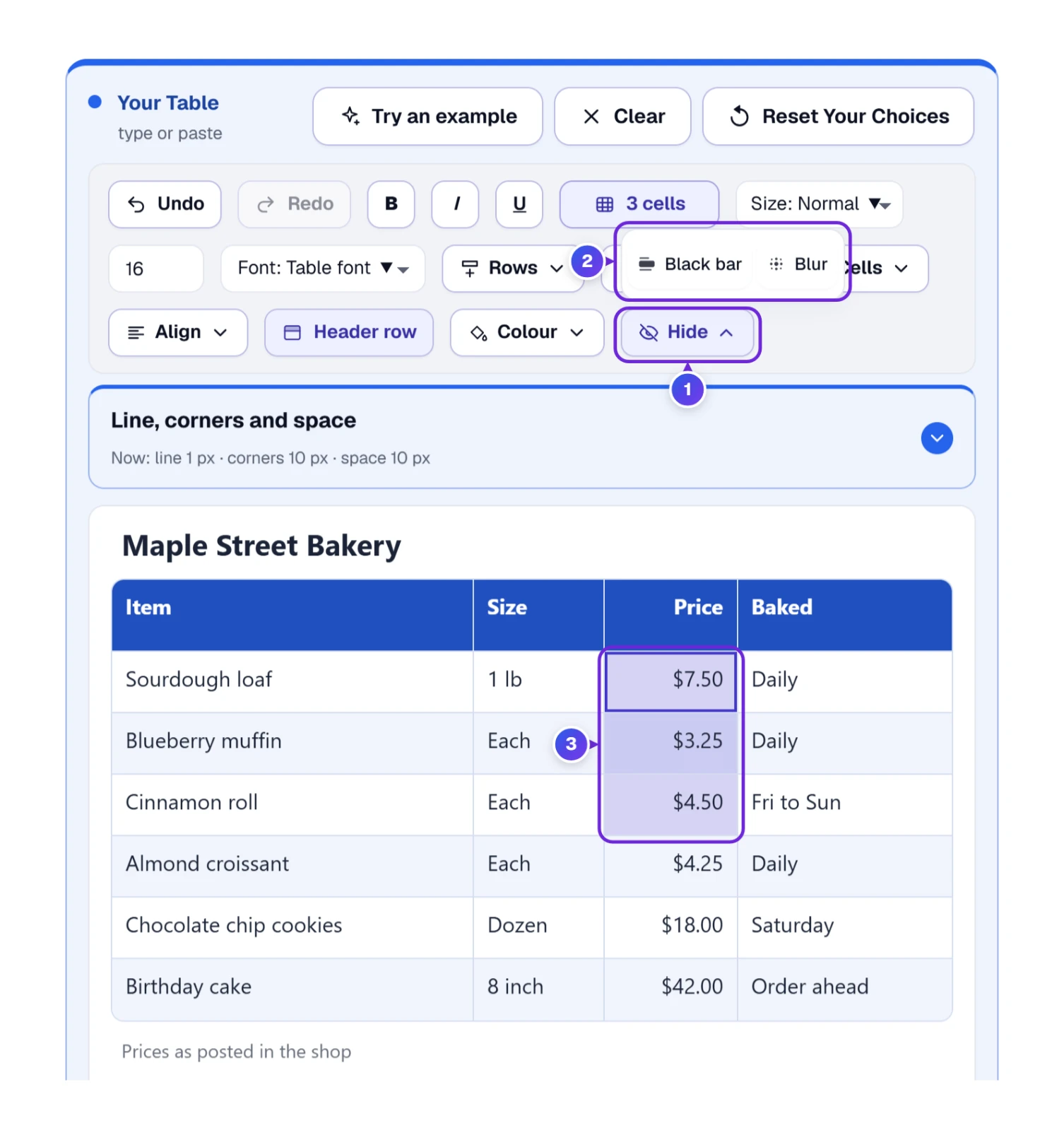
- 1 The Hide button, the last one in the row of menus.
- 2 The menu offers Black bar and Blur.
- 3 The three price cells that the choice will cover.
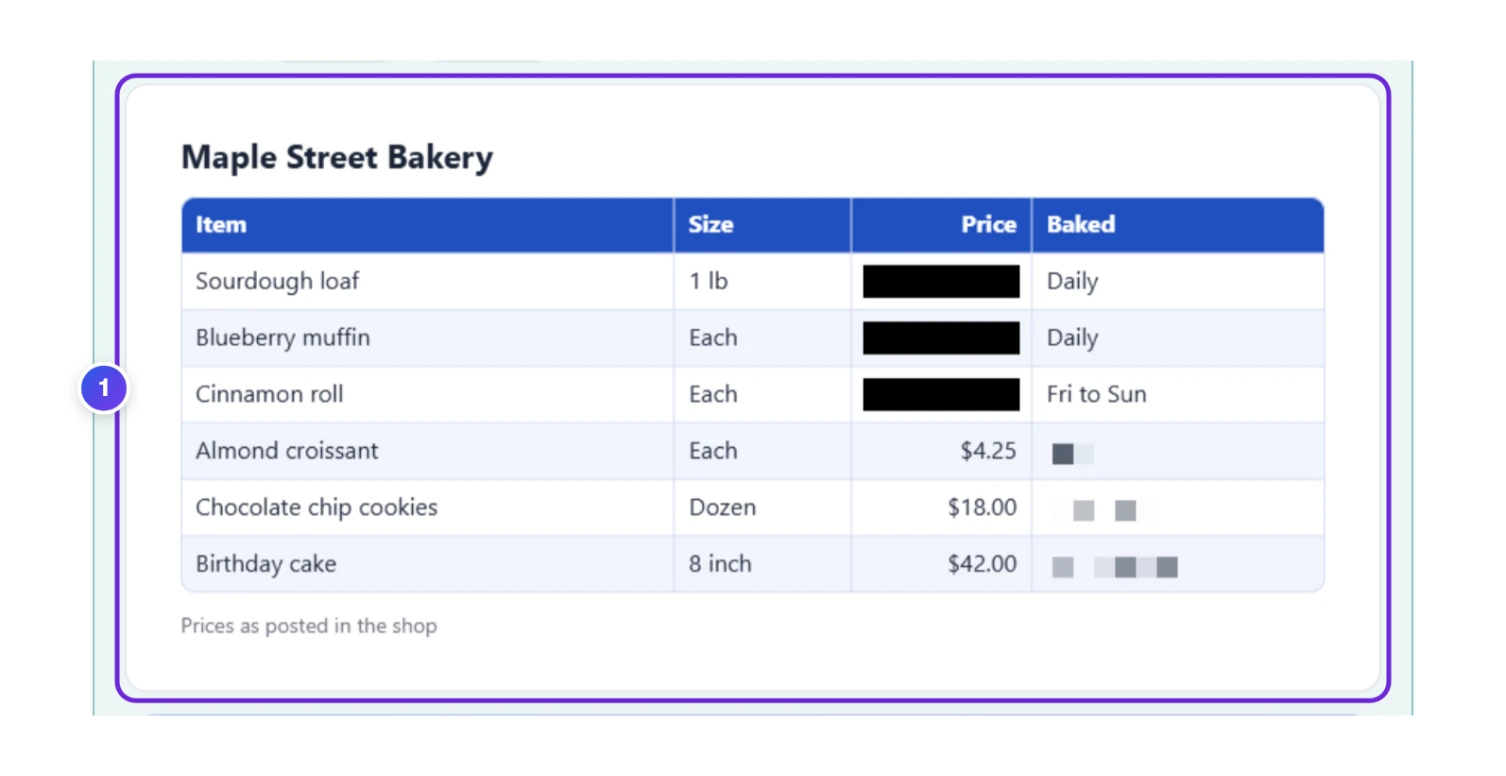
A black bar covers the cell, and its words aren’t drawn at all. Blur draws the words and then turns them into big blocks, each about the size of a letter, so they can’t be read. You may hear that effect called pixelate. If the words are private, the black bar is the safer pick. A PNG, JPG or WebP file holds only pixels, so the hidden words aren’t stored in it as text. People sometimes call this redacting.
One thing hiding doesn’t do. It changes the picture, not the table. We hid a price with Black bar, copied the share link, and decoded the link. The price was still in it, in plain view, next to a mark for the hidden cell. The words also stay in the table box and in your recent tables on this device. Save the picture, and keep the link to yourself.
Where the Picture Goes Next: Slides, Email, Reports and Posts
Different places want different pictures. This table gives our starting point for each. It’s a suggestion, not a rule, and the numbers come from the bakery table above.
| Where it’s going | Format | Settings to try | Why |
|---|---|---|---|
| A slide (PowerPoint or Google Slides) | PNG | Slide 1280 px width, 2x | The picture is 2,560 pixels wide, so it stays sharp on a big screen. |
| An email | PNG | Standard 800 px width, 2x, then Copy Image | Our table came to 122 KB, small enough to paste into the message. |
| A Word or Google Docs report | PNG | Set a print size, 300 dots per inch | The print size travels inside the file, so a program that reads it can place the picture at that width. Check the size after you insert it. |
| A social post (X, Facebook, LinkedIn) | PNG | Standard width, text Size: Large | Feeds show pictures small, so bigger words help. |
| A web page | WebP | 2x, plus alt text | Smallest file with the slider at 92%: 51 KB against 122 KB for PNG in our test. |
| A printed handout | PNG | Set a print size, 300 dots per inch | The pixels match the paper, so the words print crisp. |
For a web page, give the file a plain name before you upload it, such as maple-street-bakery-prices.webp. Lowercase words joined by hyphens are easy to read in a link and easy to find later, and the Slug Generator makes a name like that from any title. Then add alt text that names the table.
For a whole LinkedIn article, there’s a second route. The LinkedIn article editor may not keep a pasted table, so a picture is one way round. The LinkedIn Article & Newsletter Formatter can also draw a table as a picture for you. It’s built for whole articles, so come here when the table is the only thing you need.
Below the picture is a card called Free Photo Editor. Its Edit in Photo Editor button opens the picture in a new tab of our Photo Editor, where you can crop it, resize it, add text or try a filter, while your table stays here. We haven’t run that hand-over on every device. If the picture doesn’t arrive, download it and open it in the Photo Editor yourself.
When a Real Table Beats a Picture
A picture is the wrong tool in a few places. You can’t select, sort or search the numbers inside it, it doesn’t resize itself for a phone, and a screen reader can’t read it unless someone supplies the words. On a web page, a real table is almost always better.
When you do need a picture, give it two kinds of text. The W3C’s guidance on complex images, which talks about charts and diagrams but fits a table full of numbers, asks for a short description and a longer text version of what the image shows. In practice: write one line of alt text that names the table, and put the numbers in the paragraph or table right under the picture. Anyone who can’t see it still gets every figure.
Saving Your Place: Recent Tables, Share Links and More
Your latest table waits in this browser. Come back tomorrow and it’s still in the box. Under the tool, Your recent tables shows small buttons for your last five tables, each named after its title or first word, and Clear empties that list. All of it stays on this device. Another computer won’t show it.
- 1 Save keeps the tool in your My Tools list, in this browser only.
- 2 Share opens a window for sending the table to someone. The next picture shows it.
- 3 Embed copies code that places this converter inside a blog, a help page or a club newsletter site.
- 4 On your phone makes a QR code for scanning. Point your camera at it and this page opens there.
- 5 Print opens your browser’s print window.

Copy link builds an address that holds your table inside it. The table has to be small enough to fit inside an address, roughly 2,000 characters. Our bakery table came to about 600. Anything longer falls back to a bare link with no table in it. Copy result copies a one-line label, such as “Table picture: Maple Street Bakery (4 by 7)”, with that link after it. Under the buttons is a grid of apps (WhatsApp, Facebook, X, LinkedIn). Choose one and a message opens with the link in it.
On a Phone: Same Table, Narrower Screen
The tool fits a narrow screen by stacking its parts in one column. Your Choices stays closed, the table box comes first, and the Your Picture box sits below it.
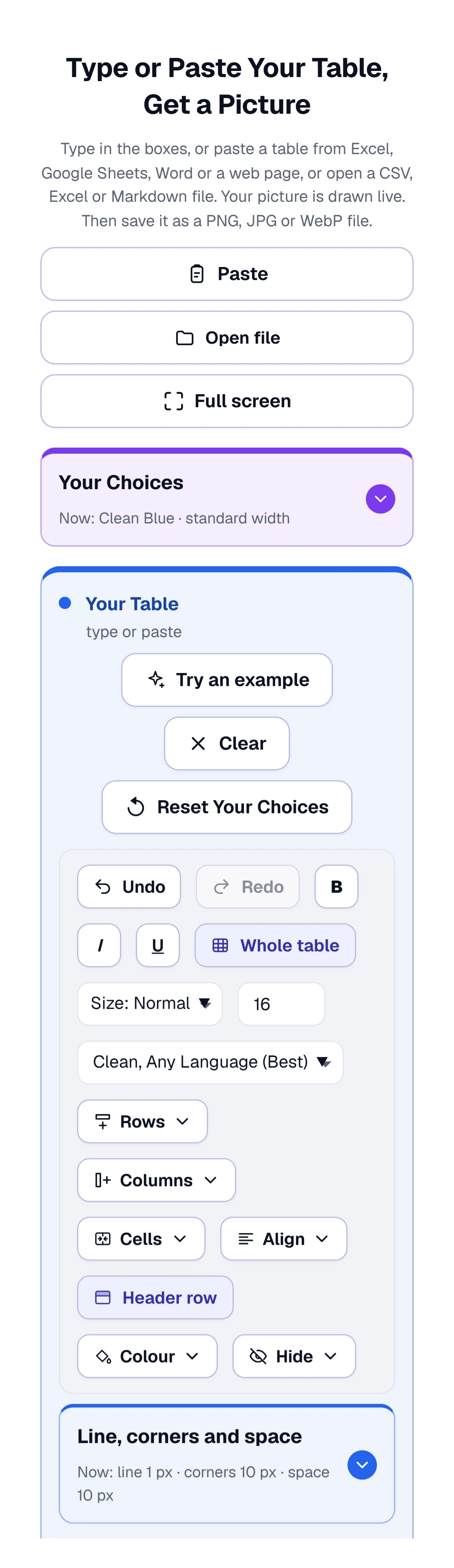
- Copy the cells in your spreadsheet app, then switch to your browser.
- Tap Paste my table. If your browser won’t let a page read the clipboard, touch and hold inside the table box and choose Paste.
- To merge cells, tap Cells, tap Choose several cells, then tap one cell and the last cell.
- Scroll to Your Picture and tap the Download button or Copy Image.
Phones limit the size of a drawing more than computers do. If you pick a quality the phone can’t draw, the tool lowers it and says so. Biggest this device can make picks the highest number your phone can manage.
Keys That Save a Trip to the Mouse
A few keys do the common jobs. Press a letter while your cursor is outside the boxes. Tab and Enter help you move around inside the table.
| Key | What it does |
|---|---|
| C | Copy the picture |
| D | Download the picture |
| P | Paste a table you copied |
| O | Open a file |
| E | Try an example |
| U | Undo the last change |
| Y | Do the change again |
| W | Full screen on or off (Esc leaves too) |
| Tab, Enter | Move to the next cell, or to the cell below (in the table) |
| Ctrl + B, I or U | Bold, italic or underline (in the table) |
How We Draw the Picture and Why Other Tools Differ
The picture is drawn in your browser from the table you see on the left. The same table, the same choices and the same device give the same picture. The “How We Draw Your Image” box under the tool lists every rule, and its “Checks That Ran Just Now” line says all 24 checks passed. Here are the parts that matter most.
- Size. At 1x one point of the table is one pixel. At 2x it’s four, and at 8x it’s 64. A picture with no width chosen is at least 800 pixels wide. Browsers cap the size of a drawing: the one we used allowed about 67 million pixels in all and 16,384 on one side. If your picture is bigger, the quality drops by itself and you’re told.
- Columns and rows. With Fit the words, a column is as wide as its longest line, never under 40 pixels and never over 480. Longer text wraps. A row is as tall as its tallest cell, and a line of text takes 1.4 times the text size. The Row height list sets a minimum, and the words or the space inside cells can make a row taller.
- Readable colors. The tool follows success criterion 1.4.3 of the W3C accessibility guidelines. Each color gets a brightness from its red, green and blue values, and the contrast is the brighter color plus 0.05, divided by the darker color plus 0.05. White on Clean Blue scores 7.2 to 1.
- Numbers. What you type is what you get. Nothing is rounded, and no commas are added.
- Print size. It’s written inside PNG and JPG files, as the section on printing explained.
Why can a picture of the same table look different somewhere else? Pixels, fonts and stored values. A screenshot has only the pixels your screen had, so enlarging it makes it soft and blurry. This tool draws again at the size you choose. On fonts, the five Standard fonts use fonts already on your device, so another computer may show slightly different letters and line breaks. The other 52 load from ToolHa when you choose one, so they look the same everywhere. On values, a spreadsheet can show a rounded number while holding more digits. As the Open file test showed, an .xlsx file brings in the stored value, while a paste brings in what the cell showed.
What Stays on Your Device
- The drawing happens in your browser. Typing, pasting and saving don’t send your table anywhere. Choosing a font from the loaded groups fetches that font file from ToolHa, not your table.
- Your latest table and your last five tables stay in this browser. Using a shared computer? When you finish, press Clear above the table and again beside Your recent tables.
- A share link holds your table’s words, hidden ones included, as the hiding section explained.
- Whatever you copied last stays on the clipboard until you copy something new.
When the Picture Is Not What You Expected
| The problem | The cause | The fix |
|---|---|---|
| Colors from my spreadsheet are missing after a paste | The design paints the colors, and a paste keeps only merges, bold, centering and alignment | Pick a design, change its color boxes, or use the Colour menu on a cell |
| Merged cells or dollar signs are missing after Open a file | An .xlsx file brings in the stored values only | Copy the cells in your spreadsheet program and paste them instead |
| “Some words may be hard to read” | Words and background are closer than 4.5 to 1 | Press Make them readable, or pick different colors |
| A message about 16,384 pixels, and a lower quality | The picture is bigger than your device can draw | Pick a lower quality, or use Split a long table |
| “Only the first 300 rows and 30 columns fit” | That’s the most one picture holds | Split the table in your spreadsheet and make two pictures |
| White corners or a white background on a JPG | A JPG can’t be see-through or have round corners | Save as PNG or WebP and tick Transparent background |
| Letters look different on another computer | Standard fonts come from the device | Pick one of the fonts that load from ToolHa |
| A letter shows as a box | Your device has no font for that letter | Pick another font in the Font list |
| The Paste button does nothing | Your browser keeps the clipboard private | Click in the table box and press Ctrl and V |
| An old .xls file won’t open | The list holds .xlsx, not .xls | Save the file as .xlsx in Excel and open it again |
Quick Answers About Table Pictures
How Do I Turn an Excel Table Into an Image?
Select the cells in Excel and copy them, click into the table box on this page, and paste. Pick a design if you like, leave Save as on PNG, and press Download PNG. Excel has a Copy as Picture command too. This tool adds your choice of design, size and format.
Can I Convert a Google Sheets Table to a PNG?
Yes. Drag across the cells in Sheets, copy them, and paste them into the box. We tested table data pasted the way Excel hands it over, so look at merged cells and number formats in the preview before you save.
Which Is Better for a Table Picture: PNG, JPG or WebP?
PNG is the safe pick, because it keeps every pixel, and at full quality it is usually the smaller file too. A WebP with the quality slider at 92% gave the smallest file in our test, 51 KB at 2x against 122 KB for PNG. A JPG can’t be see-through, and at 100% it was bigger than the PNG at every size.
How Many Pixels Do I Need for a Slide or a Printout?
For a slide, the Slide width of 1,280 pixels at 2x makes a picture 2,560 pixels wide. For paper, multiply inches by dots per inch: 6 inches at 300 dots per inch is 1,800 pixels. Set a print size does that sum for you.
Can the Tool Turn a Picture of a Table Back Into Numbers?
No. That job needs text recognition, which this tool doesn’t do. It goes one way, from a table to a picture.
Does a Table Picture Need Alt Text?
Yes. Write one line that names the table, and put the numbers in text near the picture. The W3C asks for a short description plus a longer text version for complex images.
Is My Table Sent to a Server?
No. The picture is drawn in your browser, and your latest tables stay on your device. The one thing to watch is a share link, which carries the table’s words in its address.
Can I Change the Row Height and Column Widths?
Yes. Open Your Choices, then Table Size. Row height and Header height are lists that end with a choice to type your own number of pixels. Column widths has an I choose them setting with a box for every column, and the Picture width list ends with A width I choose in the same way.
Do Colors From Excel or Google Sheets Come Across When I Paste?
Not the colors. In our test, a pasted table kept its merged cells, bold text, centering and right-aligned numbers, but the fills and text colors were left behind, because the design you pick paints the table. Choose a design, change its color boxes, or use the Colour menu to color a single cell.